Free Lessons
Courses
Seminars
TechHelp
Fast Tips
Templates
Topic Index
Forum
ABCD
 
Home   Courses   TechHelp   Forums   Help   Contact   Merch   Join   Order   Logon  
 
Back to Fitness 4    Comments List
Upload Images   @Reply   Bookmark    Link   Email   Next Unseen 
Filter Combo Problem with Subform
Stephen Gledhill 
     
8 months ago
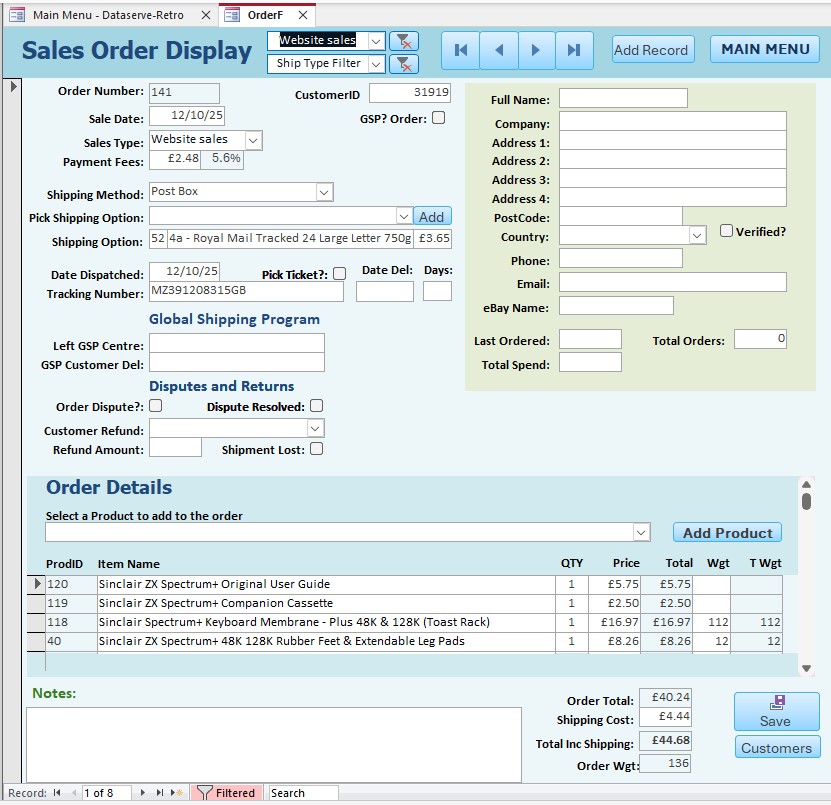
Really like the use of the Filter Combo and I put a couple on my Sales Order Display Form. It works well, but this form has a Customer Detail subform.
When I apply the filter, it works well for the main form, but not the subform where all the fields become blank (see attached snip.
How can I keep the subform values?
Stephen Gledhill OP  @Reply  
     
8 months ago

Richard Rost  @Reply  
          
8 months ago
Well, the subform should automatically be linked to the parent form with the linked fields. So you shouldn't have anything extra that you need to do once the parent form changes, the subform should automatically change. If you get the linked fields set up right.
Stephen Gledhill OP  @Reply  
     
8 months ago
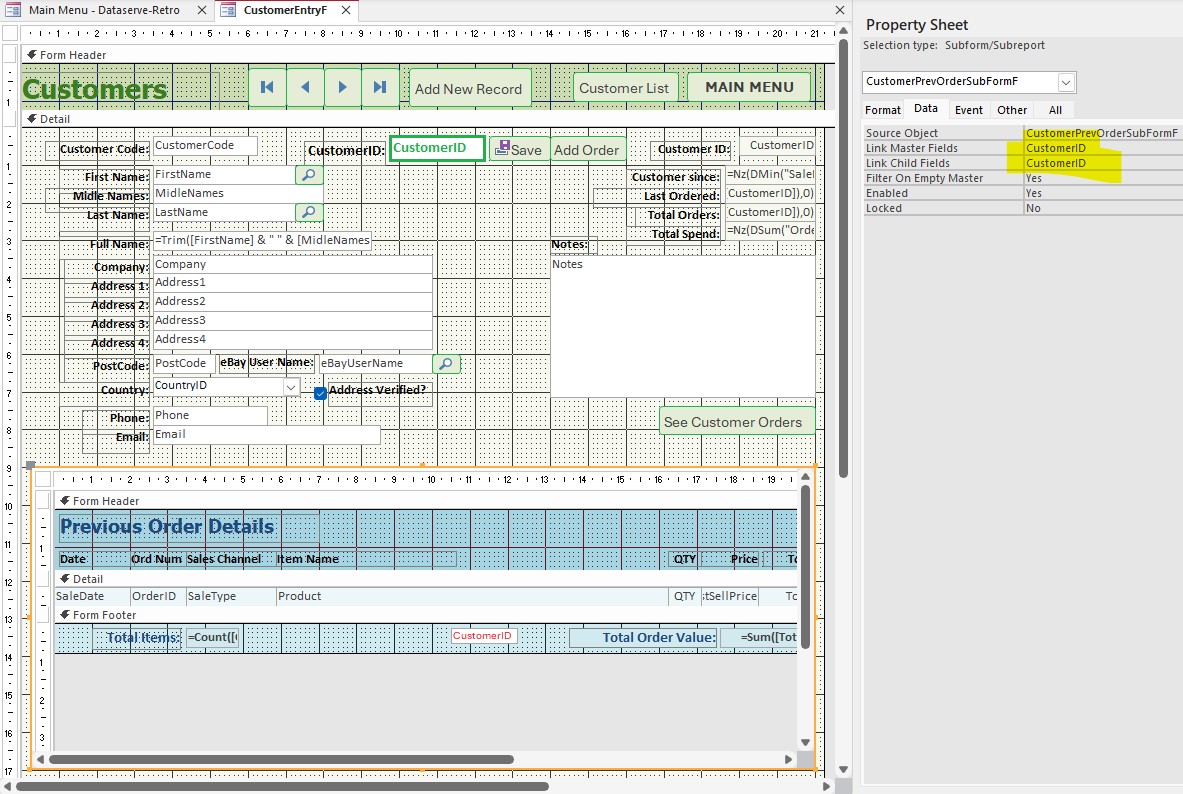
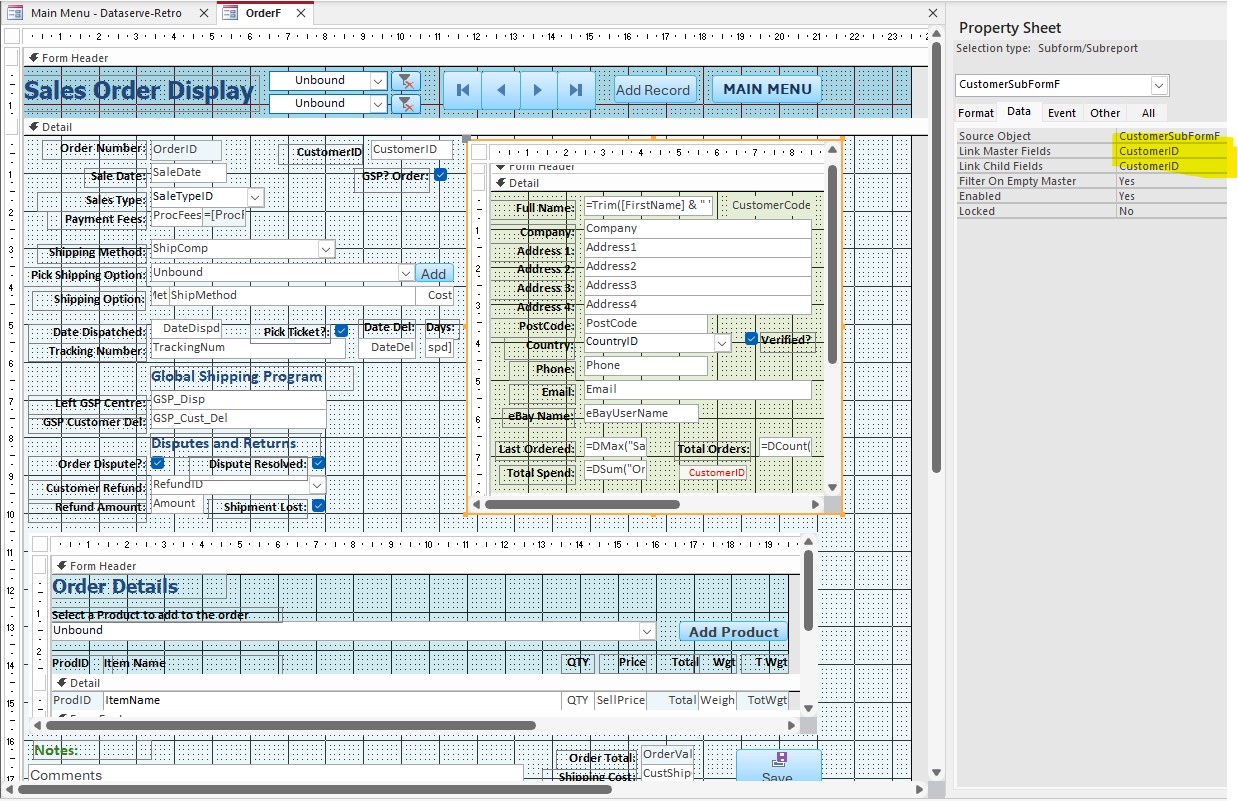
Hi Richard - the forms play nicely together in every other way, just not when I apply this very useful filter. I agree I must have something wrong, just struggling to find what. I have attached a snip showing the linked fields.
Stephen Gledhill OP  @Reply  
     
8 months ago

Kevin Robertson  @Reply  
          
8 months ago
Why are you showing a different form than the first image?
Which one is giving you the problem?
Stephen Gledhill OP  @Reply  
     
8 months ago
Sorry Kevin - my bad.
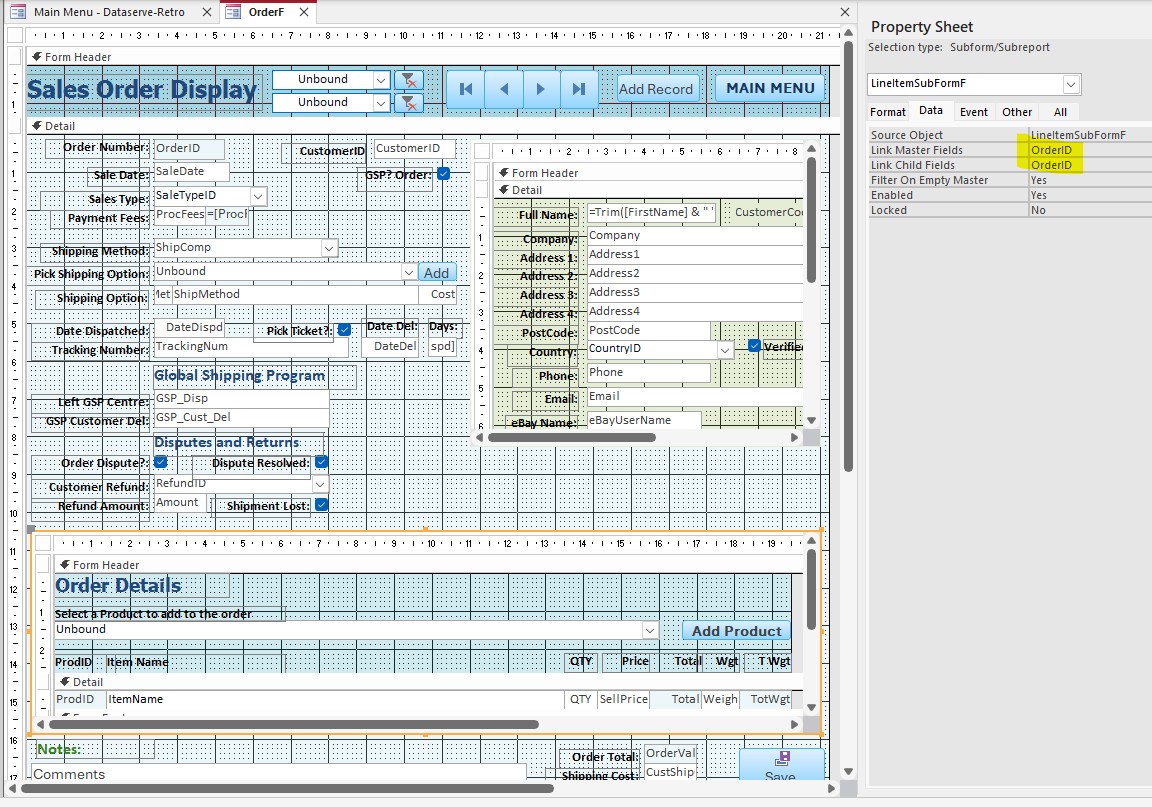
Attached below is the form & subform giving me problems.
Stephen Gledhill OP  @Reply  
     
8 months ago

Stephen Gledhill OP  @Reply  
     
8 months ago
Could anyone help me with this problem?
Kevin Yip  @Reply  
     
8 months ago
You have two subforms in your last screenshot.  Which one has the problem?  On your first screenshot, the green subform is the one that is blank.  Is that the problem?  We need to see its link master/child fields, which you haven't shown.
Stephen Gledhill OP  @Reply  
     
8 months ago
Kevin, the second screenshot I uploaded was an error as I explained to Kevin Robertson. The very last screenshot is the correct one showing the master and child fields highlighted in yellow in the properties list.
Thanks
Donald Blackwell  @Reply  
       
8 months ago
Hi Stepehn, can you show us the code behind your filter combo(s) so we can try to see where the disconnect is? Also, try to make sure we can tell which fields, and forms/subforms apply to which control name. As Kevin Yip said, your initial image showed the customer contact information as blank in form view but your shot of the form in design view that has the fields Master/Child relationship highlighted has the order details subform selected. So just want to make sure we're looking at the actual problem.

Don
Stephen Gledhill OP  @Reply  
     
8 months ago
Wow - I've really messed this one up haven't I - apologies to everyone trying to help.
Stephen Gledhill OP  @Reply  
     
8 months ago
Private Sub SalesChannelFilterCbo_AfterUpdate()

If IsNull(SalesChannelFilterCbo) Then
        Me.FilterOn = False
    Else
        Me.Filter = "SaleTypeID=" & SalesChannelFilterCbo
        Me.FilterOn = True
    End If
    
End Sub
Stephen Gledhill OP  @Reply  
     
8 months ago
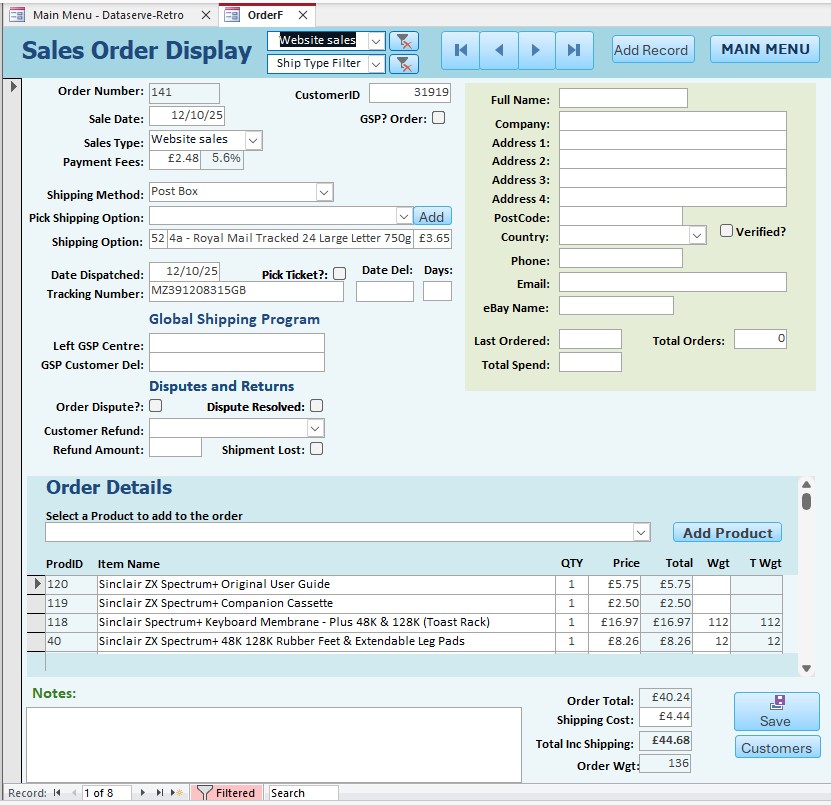
Next is the result of filtering using the SalesChannelFilterCbo, with the Sales Channel set to "Website Sales". The resultant filtering is correct for the OrderF parent form, but the Customer/Address subform just shows a blank record instead of the linked customer/address details.
Stephen Gledhill OP  @Reply  
     
8 months ago

Stephen Gledhill OP  @Reply  
     
8 months ago
Next is the same parent and subform but in design view with the link master field and link child field highlighted.
Stephen Gledhill OP  @Reply  
     
8 months ago

Stephen Gledhill OP  @Reply  
     
8 months ago
The CustomerID field in the parent form is visible at the top centre of the form. The CustomerID field in the CustomersubformF is at the bottom of the subform with the red font colour. This field is hidden in view mode.
Kevin Robertson  @Reply  
          
8 months ago
Requery your Subform

Private Sub SalesChannelFilterCbo_AfterUpdate()

    If IsNull(SalesChannelFilterCbo) Then
        Me.FilterOn = False
    Else
        Me.Filter = "SaleTypeID=" & SalesChannelFilterCbo
        Me.FilterOn = True
    End If
    
    CustomerSubFormF.Form.Requery

End Sub
Stephen Gledhill OP  @Reply  
     
8 months ago
I have added that line of code Kevin (thanks), but it hasn't made any difference. As soon as I apply the filter with the combo box, the CustomerSudFormF subform goes blank. It remains blank as I move through the filtered records....
Donald Blackwell  @Reply  
       
8 months ago
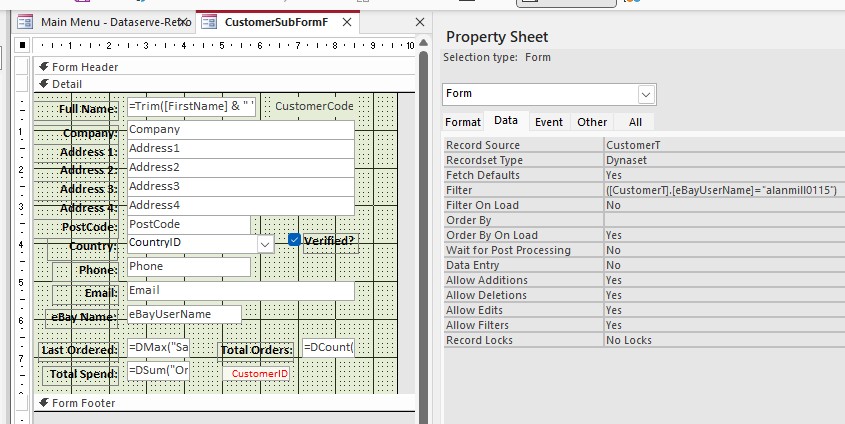
Hmm, can you give us a screen shot of the CustomerSubFormF in design view on the data tab. The actual form properties, not the subform (i.e. click the subform control then click the box in the upper left corner so we are seeing form properties, then click data tab)

Maybe something in the subform's form itself is causing a conflict.
Stephen Gledhill OP  @Reply  
     
8 months ago
here it is Donald
Stephen Gledhill OP  @Reply  
     
8 months ago

Donald Blackwell  @Reply  
       
8 months ago
So the filter in that form is looking for something ebay username.

Is that getting set by your combo or is it stuck from something else

Ideally, it the filter for that would be OrderF!CustomerId so that it would match your order form unless that subform is being used in other forms as well that might cause problems
Stephen Gledhill OP  @Reply  
     
7 months ago
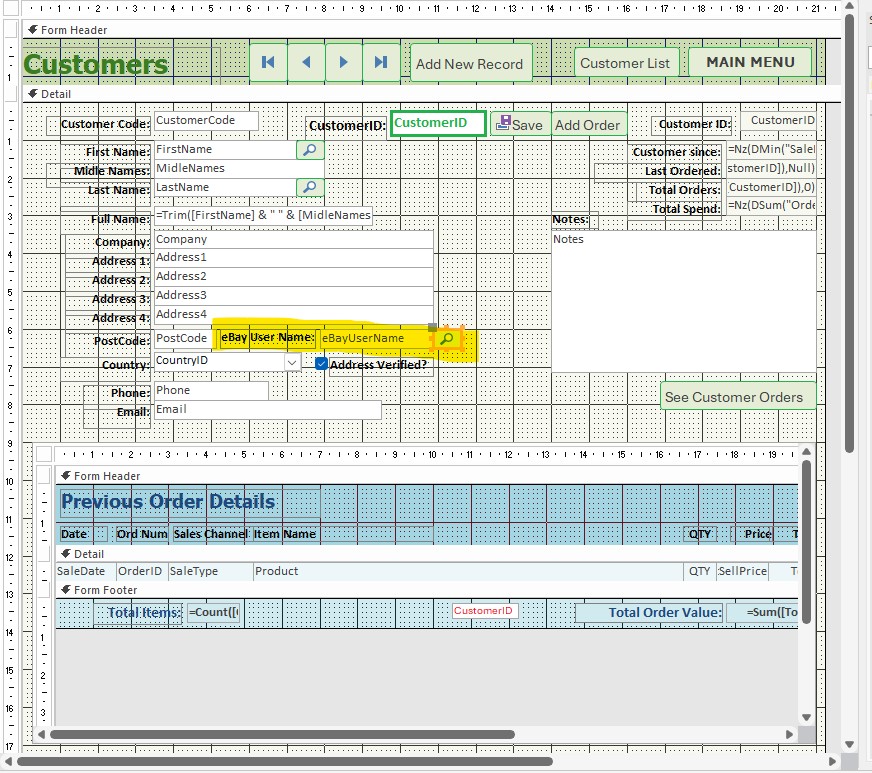
I've done some more digging Donald - I think that filter has got there from a search I did for an eBay customer on a different form (CustomerEntryF), based on the same table (CustomerT).
The search is through a Search Button.
This is the code from the search button:

Private Sub SearcheBayNameBtn_Click()

S = InputBox("Please enter a phrase to search for an eBay Username..", "Enter a Search Phrase", "Search phrase")
    If S = "" Then Exit Sub
    
    Me.Filter = "eBayUserName LIKE ""*" & S & "*"""
    Me.FilterOn = True

End Sub

Should there be a line in the code which clears that search rather than leave it in the form?
Stephen Gledhill OP  @Reply  
     
7 months ago

Stephen Gledhill OP  @Reply  
     
7 months ago
If I remove that filter from CustomerSubformF then everything works as it should.
I think I just need to know what code to put where to stop the search filter being left behind in the form and all will be well?
I have a lot of those filter buttons in the database, so will need to correct them all.
Donald Blackwell  @Reply  
       
7 months ago
Since you're trying to get it to work when the combo box changes, I would just add it there:

Private Sub SalesChannelFilterCbo_AfterUpdate()

If IsNull(SalesChannelFilterCbo) Then
        Me.FilterOn = False
    Else
        Me.Filter = "SaleTypeID=" & SalesChannelFilterCbo
        Me.FilterOn = True
    End If
    
    CustomerSubFormF.Form.Filter = ""

End Sub
Stephen Gledhill OP  @Reply  
     
7 months ago
Brilliant - seems to work Donald - thanks again.
That's another beer I owe you!

This thread is now CLOSED. If you wish to comment, start a NEW discussion in Fitness 4.
 

Next Unseen

 
New Feature: Comment Live View


The following is a paid advertisement
Computer Learning Zone is not responsible for any content shown or offers made by these ads.
 

Learn
 
Access - index
Excel - index
Word - index
Windows - index
PowerPoint - index
Photoshop - index
Visual Basic - index
ASP - index
Seminars
More...
Customers
 
Login
My Account
My Courses
Lost Password
Memberships
Student Databases
Change Email
Info
 
Latest News
New Releases
User Forums
Topic Glossary
Tips & Tricks
Search The Site
Code Vault
Collapse Menus
Help
 
Customer Support
Web Site Tour
FAQs
TechHelp
Consulting Services
About
 
Background
Testimonials
Jobs
Affiliate Program
Richard Rost
Free Lessons
Mailing List
PCResale.NET
Order
 
Video Tutorials
Handbooks
Memberships
Learning Connection
Idiot's Guide to Excel
Volume Discounts
Payment Info
Shipping
Terms of Sale
Contact
 
Contact Info
Support Policy
Mailing Address
Phone Number
Fax Number
Course Survey
Email Richard
[email protected]
Blog RSS Feed    YouTube Channel

LinkedIn
Copyright 2026 by Computer Learning Zone, Amicron, and Richard Rost. All Rights Reserved. Current Time: 6/16/2026 4:44:04 PM. PLT: 1s