Free Lessons
Courses
Seminars
TechHelp
Fast Tips
Templates
Topic Index
Forum
ABCD
 
Home   Courses   TechHelp   Forums   Help   Contact   Merch   Join   Order   Logon  
 
Back to Access Developer Forum    Comments List
Upload Images   @Reply   Bookmark    Link   Email   Next Unseen 
Open a Search Form.
Werner Mildt 
      
2 months ago
Is there a way to open my search form with a short key
at any place in my application?
I don't want to put buttons all over the APPLICATION!
This form is a collection of my important information I need daily.
Thanks for any help.
Donald Blackwell  @Reply  
       
2 months ago
You can use the KeyDown event for each open form to detect what keys are pressed and then react appropriately. However, you have to make sure you don't use a key you might commonly use for typing or you might be typing in a text box on a form and open a search form inadvertently..

Here are some videos using KeyDown and KeyPress:
KeyDown
Arrow Key Nav
Arrow Keys & Text Box
Button Shortcut Keys
SendKeys
KeyPress
Sandra Truax  @Reply  
         
2 months ago
You could also create a macro to open the search form, and then add the macro to the toolbar. In Quick Access Toolbar select Choose commands from: Macros, then select the macro you just created and add it to the toolbar.
Raymond Spornhauer  @Reply  
          
2 months ago
Werner

Here's a couple other ideas:
1. You can create a Quick Access button at the top

2. Create a Form with buttons you want immediate access to at the top of either side of your Window.  Then make it a Popup Form and move it onto a second screen.

3. Create a Form with buttons you want immediate access to at the top of either side of your Window.  Then use Move to position any other Form so it's not blocking access to the other Form you just created.

-Raymond
Donald Blackwell  @Reply  
       
2 months ago
I always forget about AutoKeys, lol. The Quick Access Toolbar Raymond shared shows how to set them up in the Extended Cut. I just avoid Macros like the plague, lol.
Werner Mildt OP  @Reply  
      
2 months ago
Thanks to all of you for your responses.
It was very easy to create the macros. Thay worked ok when I click on the run command.
However, when I use short key, the short does not work.
I have downloaded Richards Demo and have the same problem. Did a search and found that
Why don't my macro short keys in access not working seems to be a problem also with other people.
Is there a fix for this and what do need to do make it work.
Appreciate your input.
thank you all


Darrin Harris  @Reply  
     
2 months ago
Hello Werner

Sandra suggested putting the macro in the Quick Access Toolbar, if you do that then you can press ALT and the Shortcut key will be highlighted, the macro will be a number say 5, so ALT 5 would run you macro?

Hope this helps
Werner Mildt OP  @Reply  
      
2 months ago
Sandra and Darrin, this is not working. It only works with none pop up forms in that case I can just click on the icon.
My app is set on pop up.
My main menu screen is a full maximize pop up screen including other screens.
Thanks
Donald Blackwell  @Reply  
       
2 months ago
Yeah, that's one of the problems with using all popup forms is that they tend to hide behind one another when they open. Have you tried adding a "SEARCHFORMNAME.SetFocus" to your macro after the form is loaded? Alternativerly, you could try making the search form a dialog box but then you wouldn't be able to interact with any other forms.
Werner Mildt OP  @Reply  
      
2 months ago
Hi Donald,
I tried adding a "SEARCHFORMNAME.SetFocus" to the macro, however my knowledge is limited.
So, what I did instead was, put a time counter on the main menu form with different time adjustments.
This will have to do for now until I find a solution.
Still looking for a solution!
Thanks
Werner


Thomas Gonder  @Reply  
      
2 months ago
I'm a bit confused. When you say "Search Form" do you mean searching for data from a specific table set? Or are you thinking more like a "Switchboard" (not the Access menuing thingy).

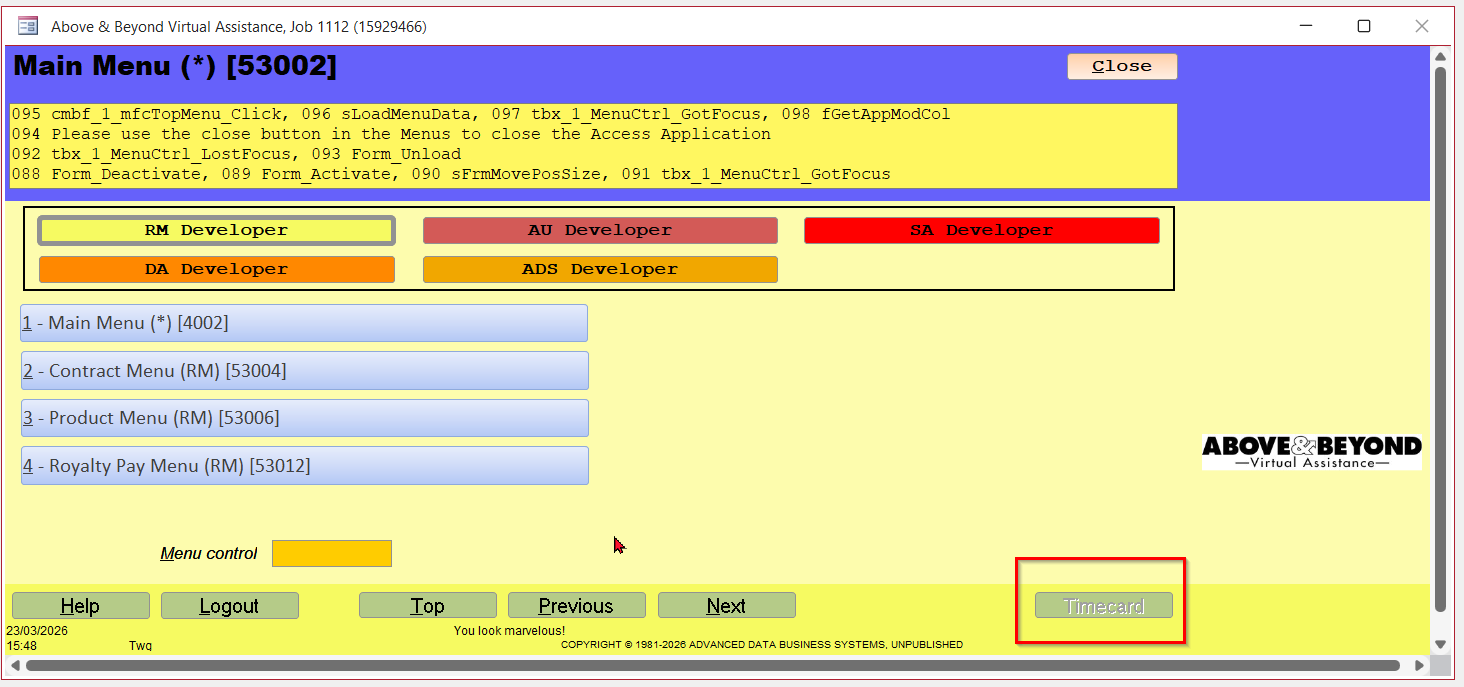
I plan on people getting to the Timecard Form from anywhere in all my application modules, so I just added it as one button on the Menu Form. Simple and easy without all the Hot Key fuss, always just two clicks away. You do have a menuing program, right?
Thomas Gonder  @Reply  
      
2 months ago

Werner Mildt OP  @Reply  
      
2 months ago
Yes, Thomas I do use full screen menus.
I have changed what I wanted to do.
I am now using a timer setup o all my full screen Menus.
So, if I turn my timer on, the countdown will continue on any full screen menu.
Thanks to TempVars, it couldn't work better.
Thanks
Werner

This thread is now CLOSED. If you wish to comment, start a NEW discussion in Access Developer Forum.
 

Next Unseen

 
New Feature: Comment Live View


The following is a paid advertisement
Computer Learning Zone is not responsible for any content shown or offers made by these ads.
 

Learn
 
Access - index
Excel - index
Word - index
Windows - index
PowerPoint - index
Photoshop - index
Visual Basic - index
ASP - index
Seminars
More...
Customers
 
Login
My Account
My Courses
Lost Password
Memberships
Student Databases
Change Email
Info
 
Latest News
New Releases
User Forums
Topic Glossary
Tips & Tricks
Search The Site
Code Vault
Collapse Menus
Help
 
Customer Support
Web Site Tour
FAQs
TechHelp
Consulting Services
About
 
Background
Testimonials
Jobs
Affiliate Program
Richard Rost
Free Lessons
Mailing List
PCResale.NET
Order
 
Video Tutorials
Handbooks
Memberships
Learning Connection
Idiot's Guide to Excel
Volume Discounts
Payment Info
Shipping
Terms of Sale
Contact
 
Contact Info
Support Policy
Mailing Address
Phone Number
Fax Number
Course Survey
Email Richard
[email protected]
Blog RSS Feed    YouTube Channel

LinkedIn
Copyright 2026 by Computer Learning Zone, Amicron, and Richard Rost. All Rights Reserved. Current Time: 5/7/2026 1:10:33 AM. PLT: 0s