KeyPress
By Richard Rost

 21 months ago
KeyPress Event: Disallow Characters in MS Access
In this Microsoft Access tutorial, I will show you how to enforce data entry rules for names, ensuring only capital letters A-Z are allowed in fields, without special characters or spaces. We'll utilize the key press event and VBA code to restrict unwanted characters, providing you with a robust solution for maintaining data integrity.
Sadie from Alpharetta, Georgia (a Platinum Member) asks: My client is very strict about how names are entered in our database. For the First Name and Last Name fields, they only want capital letters. No spaces, no apostrophes, no special characters, or numbers. Just A-Z and nothing else. Is there a way to enforce this in Microsoft Access? Can this be done with just an input mask, or do I need to use VBA?
Members
There is no extended cut, but here is the file download:
Silver Members and up get access to view Extended Cut videos, when available. Gold Members can download the files from class plus get access to the Code Vault. If you're not a member, Join Today!
Prerequisites
Links
Recommended Courses
Keywords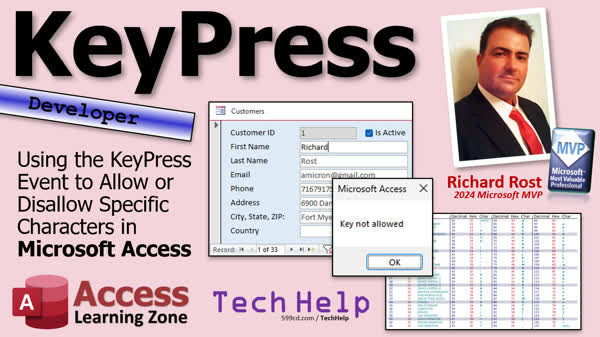
TechHelp Access, input mask, capital letters only, key press event, VBA key ASCII, character validation, enforce data entry rules, ASCII uppercase range, Access form design, preventing invalid input, event handling, character filter, uppercase conversion, Access field validation
 Subscribe to KeyPress
Get notifications when this page is updated
More InformationTranscript Welcome to another TechHelp video brought to you by AccessLearningZone.com. I'm your instructor, Richard Rost. Today, we're going to learn how to use the key press event to allow or disallow specific characters while the user is typing in Microsoft Access.
Today's question comes from Sadie in Alpharetta, Georgia, one of my platinum members. Sadie says, "My client is very strict about how names are entered into our database. For the first name and last name fields, they only want capital letters, no spaces, no apostrophes, no special characters or numbers, just A through Z and nothing else. Is there a way to enforce this in Microsoft Access? Can this be done with just an input mask, or do I need to use VBA?"
Well, an input mask will get you part of the way there. If you watch my input mask video, which I'll put a link to down below, here's all the different codes you can use. You get L to mean must enter a letter, but you have to know exactly how many letters you're going to enter, like five letters, 10 letters, which is good for a code, like a product code where it's exactly six letters. The question mark may enter a letter, but you can also enter spaces with those. None of these really exactly match what you're trying to do.
I would use an input mask for this. What I would use for this would be a little bit of VBA and the key press event. The key press event fires whenever the user presses a key on the keyboard, and it can be used for all of the printable characters, all the letters, all the numbers, and all the weird stuff like exclamation points. It doesn't work with function keys and things like the control key, like control F, that kind of stuff, but for everything the user is going to type into a field, key press is your guy.
Now, this will be a developer-level video. What does that mean? That means if you've never taken any VBA before, go watch this video first to get you started. It's about 20 minutes long, and it'll teach you everything you need to know. You should know how an if-then statement works, so go watch both of these first. These are both free. They're on my website. They're on my YouTube channel. Go watch them, then come on back.
Alright, this is my TechHelp free template. It's a free database. You can grab a copy on my website if you want to. In here, I have a customer form, and here's my first and last name fields. Sadie says she wants to prevent anything but capital letters from going into either one of these fields. So, we're going to use the key press events. We're going to right-click, go to design view. We're going to bring up the properties. You have to do it one field at a time. Once you get the first one done, the other one's easy.
We're going to double-click to bring up the properties. We're going to go to events and find on key press right there, not to be confused with key down and key up. Those are different events. I have different videos for those. We're going to focus today on key press. Hit the dot dot dot builder button that will bring up your code builder, and you can see I'm sitting right here inside the first name key press event.
Now, this subroutine is going to get a value sent into it called key ASCII. What does key ASCII mean? Well, this is a number representing the key on the keyboard that the user pressed, and these numbers come from the ASCII chart. Alright, this is the American Standard Code for Information Interchange. You don't have to remember that, but every key on the keyboard, like 0, 1, 2, 3, and so on, capital A through Z, all the brackets and the parentheses, the lowercase letters, they all have a decimal code. Don't worry about the hex code. That's not what we're doing today. Just all you care about is this decimal code.
Okay, so capital A is decimal 65. See that capital Z is decimal 90. So, all of the capital letters fall between and including 65 and 90. Okay, that's important because when you press the letter N on the keyboard, 78 goes into that subroutine. Let me show you. Watch this message box key ASCII. I'm just going to message box whatever key is pressed whenever we're in the first name field. Right, save it, back out here. We're going to close it, open it back up again. I'm going to click in here and press shift N for capital N. Boom. And there's that 78. Alright, see 78 wasn't lying.
And if you don't feel like looking up the ASCII codes, I never, I always remember 65 is A. I don't know why, I just do. But I can never remember the rest of them. So if you want to say, "okay, it's got to be like C, D, or E," just go in here and just message box and hit it on the keyboard. It'll tell you what it is.
Alright, so we want to make sure that the only allowed characters are from A, which is 65, to Z, which is 90. No spaces, no apostrophes. I'm looking at you, Delta Airlines. Every time I book a flight using Delta Airlines or even on American Express's travel, my fiance has an apostrophe in her name. It's De Angelo, and every time I have to remember to take that apostrophe out because they don't. They just say it's invalid. They don't like taking it out for you.
Alright, anyways, so here we're going to say only allow A to Z. Okay, capital A to Z. So if key ASCII is greater than or equal to 65 and key ASCII is less than or equal to 90, then we have a valid key. Let it go. Don't do anything. Otherwise, it's a bad key.
Alright, now how do you get rid of the bad keys? Well, all you do is you set the key ASCII value equals zero. That says erase the keystrokes. Scrub it. Don't do anything. If you want to, you can even message box "invalid character," "invalid key," or whatever you want to say.
Alright, and if.
Alright, and I wrote it this way for a minute. I know this isn't exactly intuitive. We'll talk about that in a second. This is just easier to wrap your head around the first time through. Sometimes I do this because this is easier to write and understand even though nothing is going to happen here. We'll talk about this in a second. Alright, debug compile once in a while. Come back out here. Close it, save changes, reopen it. And now I'm going to come in here. I'm going to hit the D character on the keyboard. And, invalid character. Why? Because I'm only allowing capitals at this point.
Okay, how about capital D? Okay, that's allowed. A and G. Good. How about a P? Oh, that was a lowercase P. Sorry. See, it's not preventing anything or not allowing anything other than capital letters. Space bar. Nope. Can't do it.
Alright, so we're off to a good start. Let's, I'm going to hit escape. Oh, invalid character, escape's not allowed either. Take that into consideration later. Yes, all those other keys like backspace, delete, escape, you might want to take those into consideration. We'll talk about those in a few minutes. Let's go back to our code though.
Alright, this was easier to write because I was thinking this way, but I don't like structuring it this way for my finished code. So what we're going to say is now that I know what I'm doing here, we're going to say if not this whole thing. Right, then we have a bad key. That's the better way to write that.
Okay, it's not as intuitive, but it's easier to write the first way, but this way makes more sense code-wise. Alright, so key ASCII is between the 65 and 90. If not, it's a bad character and it'll run the same way.
Now, as far as the lowercase characters go, I know you only want capitals in the field. I'm going to suggest letting the user type in lowercase letters, and then in the after update event for the field, you can easily capitalize them all. So, we're going to allow them to type in lowercase letters here. So let's go find the codes for lowercase letters. Alright, so a is 97 and z is 122. Alright, those are the ASCII character codes for a through z lowercase. So we're going to add those to our code.
Alright, so I'm going to say not let's copy this whole thing here. Okay, it's going to be not that that is true or this will be true and put the whole thing inside a parentheses. And then we'll just change our character codes. This is going to be 97 to 122. Okay, so this can be true or this can be true. And if neither of those are true, not then this runs. Okay, see how I said this is not quite as intuitive as writing it the other way, but it's cleaner code. Only allow A through Z cap or lowercase.
Okay, save it, debug compile, good. And now I can come over here and I can type in any letter, capital or lowercase. And what we're going to do now is in the after update event when the user hits tab or clicks off of that field, then we'll just convert everything to uppercase. Alright, that'll be one more event, design view, find the after update event. And in here, all you got to say is first name equals ucase(first name). That'll uppercase the first name. If you want to learn more about after update, here's a video for you. And this video covers upper, lower, and proper case. Proper case is like what you see here with the title with the first letter capitalized and the rest of them are not.
Alright, so now we can come back here, save changes, and I can type in Richard or lowercase, and then it converts to capital. Okay, you might also want to handle backspace. Alright, that's invalid or delete or escape. Like we talked about a second ago, let's go find the codes for those. Alright, escape is 27, eight is backspace and 127 is delete. So we're just going to add those to our list of allowed characters.
Alright, we'll come in here and we'll say or and then another block down here. We'll say key, I'm sending copy key, because I'm sick of typing it or key, ASCII equals 127. Or key, ASCII equals 8. Or key, ASCII equals, what was the last one? 27 was the other one. Alright, also backspace, delete this key. So those should all be allowed now too.
Okay, so I got Rich, oh wait, backspace, K. Da da da da da, let's go backspace, backspace. See here, you can use the arrow keys by the way, because the arrow keys are not, they're special keys, like the function keys F1, F2, those don't generate a key press event. But I can, now I can delete that, those generate a key press event. And I can hit escape and then we'll cancel on that. So that's good.
Alright, now here's where we get tricky. Let's say you want to apply the same thing to another field, the last name. Okay, you don't want to copy all of this in multiple places. So what we're going to do is we're going to make this into its own subroutine and just pass this key, ASCII variable to it. Alright, so I'll come up here and we'll call this, you can make public if you want to, you can put it in a global module if you know how to do that. I got separate videos on how to do that. But for now, we'll just keep it in this form, private subroutine. We'll call it check key and we're going to send into it key, ASCII, as an integer, just like the other guy gets. Alright, and now we're going to take all of this and put it up here.
Okay, normally what you can do is you can have functions that return values. But in this particular case, we're not going to do that. All we have to do down here is say check key and then send it key ASCII. What will happen is this is a little more advanced. Okay, what will happen is check key is called and key ASCII from here is sent up here. Alright, it'll run through this stuff, it'll check the C of its valid. And if it's not valid, it'll turn it into a zero. And this zero will actually get returned down here, which will cancel the keystroke. It's really weird. I have another video that talks about by ref versus by val. There's two ways you can pass values. Alright, by ref is essentially sending a pointer to that value so that the original value can be changed, whereas by val does not. This is a little more advanced of a concept. I cover it in detail in this video and also in my developer lessons. But essentially the default method is by ref. So by doing this, we're sending the pointer to this up here, which means that if key ASCII is changed in this subroutine, that changed value does get returned down here. Okay, it's a little quirk of how VBA works. You can specify by ref here if you want to. It's the default you don't have to. It's nice to do it if you're expecting it. If you're expecting that behavior, I always put by ref there. Okay, but now the benefit is we can just simply say this for the last name's key press event. The last name is key press event. Right? Come over here. Go last name. And in your key press event down here, all you got to say is that.
And no, for those of you who know you can't make it a property function. I tried it doesn't work because you can't send the key ASCII parameter in from there. So you have to do it this way. Once per field, it's not that big of a deal. And also don't forget to ucase your last name as well, like we did up here in the after update. So we're going to come down here, we're going to find last name and then find the after update event and then put the ucase in here copy paste paste. Save it, debug compile. And now that should work for both first name and last name. Joe. Oh, we have an invalid character. Oh, you know why? What character do we forget? The enter key. Right? Enter. Well, you weren't actually making any changes. Enter is not allowed. Oh, no, it was allowed there. What happened? Oh, there we go. Oh, I think it's a tab key. Let's see. I hit tab. Yep, it's the tab key. Enter is allowed. It's tab.
Okay, let's go find tab. I couldn't find it at first. Right? I'm looking for just tab. It's right there horizontal tab. It's nine. Alright. And since I couldn't find it, what I did was I just said, hey, I don't know what character it is. Message box it for me. Right? And then when I came in here and I did this and hit tab. Oh, it's nine. Oh, okay. Alright. So now I know what it is.
Alright. So come in here. That's like you just have access tell you what the code is that you're looking for. Right? Right here. And I'm going to say the tab is allowed. You got to let people tab around. Okay. Let's try it again. Come here. Okay. Joe tab Smith tab. Perfect. Alright. Let's try Joe here. And let's say I try to do a one, three, three. Nope. Can't do it. Space. Nope. Can't do it. Apostrophe. Can't do it.If you want to learn more about this key press event and my Access Developer Level Eight class, I do this thing called search as you type. What that is, is we make a search box right here. It's got a list box underneath it, but you can use it with a combo box if you want to or even a continuous form. As you type characters into this box, each keystroke, each key press event, will filter the values in this box. You have to use a key press event for that. Unlike a combo box, it's not just the beginning - it's anywhere in any of these three fields. I have first name, last name, and company name there. I also cover how to do that in my search seminar. We do searches you type in there too with a natural language search.
Now, I have to warn you that this event only fires when you type in valid keys on the keyboard. It doesn't prevent the user from doing something like copy-paste. See that? It doesn't shut down special keys like Control-V, F1, those kinds of things. You could copy and paste invalid characters in there and get away with it. That's why I would probably also put a before update event in here to check those characters. You can check for those special keys using the key down event. In a future video, I'm going to show you how to disable copy and paste. A lot of people want to be able to disable that, like bank websites do when they want you to type in your account number.
Oh, someone's beaming in. Oh, that's just more troubles. So we're going to talk about that in the next couple of videos. We're going to cover key down and some other stuff, and I'll show you how to disable that. That is going to be your TechHelp video for today. Hope you learned something. Live long and prosper, my friends. I'll see you next time.
Special thank you and shout out to our sponsors: Juan Soto with Access Experts Software Solutions, Manufacturing Experts Specializing in Access and SQL Server. Sammy Shama with Shama Consultancy, a certified Microsoft Access Expert who offers personalized one-on-one tutoring. Amanda Nicole Consulting Specializing in Helping Businesses Move from Complex Excel Sheets to an Access Database. You'll find links to the sponsors in the description below the video.
TOPICS:
- Using the Key Press Event in Microsoft Access
- Enforcing Capital Letters Only in Name Fields
- Restricting Characters to A-Z in Access Fields
- Writing a VBA Subroutine to Validate Input
- Using ASCII Values to Monitor Keyboard Input
- Allowing Backspace, Delete, and Escape Keys
- Structuring VBA with by Ref for Key Handling
- Uppercasing Input Using After Update Event
- Checking for Tab Key Compatibility
- Disabling Invalid Characters via Key ASCII
- Preventing Spaces and Special Characters
- Differences Between Key Press, Key Down, Key Up
COMMERCIAL:
In today's video, we're diving right into Microsoft Access, learning about the key press event to control what characters can be typed into fields. You'll discover how to enforce rules for entering names using VBA, allowing only uppercase letters. First, we'll set up the key press event to check characters based on their ASCII values. We'll then refine your code to handle lowercase letters by converting them post-entry. We'll also tackle how to manage special keys like backspace and delete for seamless input control. By the end, you'll know how to set up fields that only accept specific input formats, ensuring user compliance. You'll find the complete video on my YouTube channel and on my website at the link shown. Live long and prosper, my friends. Intro In this video, I will show you how to use the key press event in Microsoft Access to control which characters users can type into text fields, such as ensuring only capital letters are entered for first and last names. We'll cover how to use VBA and ASCII codes to restrict input, allow key actions like backspace and delete, handle both uppercase and lowercase letters (with automatic conversion to uppercase), and apply the same validation to multiple fields with a reusable subroutine. I'll also discuss the differences between key press and other keyboard events, and how to manage user input for cleaner data entry. Quiz Q1. What type of event should be used in Microsoft Access to control what characters a user can enter in a field?
A. Key Down event
B. Key Up event
C. Mouse Click event
D. Key Press event
Q2. For the requirement to only allow capital letters in a field, which ASCII code range should be checked in the key press event?
A. 32 to 126
B. 65 to 90
C. 97 to 122
D. 48 to 57
Q3. What happens when the key ASCII value is set to zero in a key press event?
A. It converts the character to a capital letter
B. It duplicates the character
C. It deletes the keystroke
D. It changes the character to a number
Q4. Which event is recommended to automatically convert typed text to uppercase after the user has finished entering data in a field?
A. On Load event
B. Before Update event
C. After Update event
D. On Close event
Q5. How can you allow the use of lowercase letters while ensuring they are stored as uppercase in the database?
A. Block them using key press and ask the user to re-enter
B. Use an input mask to automatically convert them
C. Allow lowercase in key press, but convert to uppercase in the after update event
D. Use a separate field to store lowercase values
Q6. Why should certain keys like backspace, delete, and tab be allowed in a name entry field despite character restrictions?
A. They improve data security
B. They are required for user navigation and corrections
C. They help to calculate ASCII values
D. They insert emojis as placeholders
Q7. What is an advanced method to avoid duplicating specific key press checks for multiple fields?
A. Copy and paste the same code multiple times
B. Create a separate module for every field
C. Define a subroutine and call it for each field
D. Use an input mask instead
Q8. What will be the effect if a copy-paste action inserts characters not allowed by the key press event?
A. The field will reset automatically
B. The characters will be accepted as valid input
C. An error message will pop up
D. The paste action will be automatically reversed
Q9. Which additional event could be used to verify that pasted or other indirectly entered characters conform to allowed inputs?
A. On Timer event
B. Before Update event
C. On Error event
D. On Change event
Q10. What is one of the example applications of the key press event described in the video?
A. Automatically filling out date fields
B. Generating unique user IDs
C. Search as you type functionality
D. Creating financial reports
Answers: 1-D; 2-B; 3-C; 4-C; 5-C; 6-B; 7-C; 8-B; 9-B; 10-C.
DISCLAIMER: Quiz questions are AI generated. If you find any that are wrong, don't make sense, or aren't related to the video topic at hand, then please post a comment and let me know. Thanks. Summary Today's TechHelp tutorial from Access Learning Zone illustrates using the key press event in Microsoft Access to specify which characters are permissible while inputting data. I'm your instructor, Richard Rost.
Today's challenge comes from Sadie in Alpharetta, Georgia, who emphasizes that her client demands strict input rules for database entries. Specifically, for names, they only allow capital letters from A to Z, excluding spaces, apostrophes, special characters, and numbers. Sadie wonders if an input mask can achieve this, or if VBA is necessary.
While input masks offer partial solutions, they fall short for this requirement because they assume a fixed number of characters and do not restrict spaces. An input mask might specify conditions like "L" for letters, but it wouldn't match Sadie's needs completely. Therefore, I recommend utilizing a mix of VBA and the key press event.
The key press event gets triggered when a user hits a keyboard key, applicable for all printable characters including letters and numbers. However, it does not cover function keys or controls like control keys. It's suitable for regulating input in form fields.
This tutorial will be at a developer level, meaning if you're new to VBA, some preparatory watching is recommended. My introductory VBA video would be a beneficial start. Once comfortable with conditions, come back to this tutorial.
In our demonstration database, there is a customer form with first and last name fields. For Sadie's requirement of allowing only uppercase letters, the key press event will be configured for each relevant field, starting with the first name.
By accessing the field's event properties, choose the key press event. This event should not be mixed with key down or key up, as they serve different purposes. In the event's subroutine, a variable called key ASCII, representing the ASCII value of the key pressed, becomes crucial. ASCII codes, like 65 for capital 'A' and 90 for capital 'Z', enable filtering which keys are allowed. Only keys between 65 and 90 should be accepted. If an invalid key is detected, setting key ASCII to zero will prevent the keystroke.
For a smoother experience, implementing checks for characters such as backspace, delete, and escape ensures these keys remain functional. The tutorial demonstrates configuring both uppercase and lowercase character acceptance, as lowercase entries can be automatically converted to uppercase upon exiting the field.
After defining the rules for the first name field, replicating the logic for the last name can be streamlined by converting the key validation code into a shared subroutine.
This setup simplifies applying similar logic to multiple fields while maintaining cohesive behavior across the form.
Notes on limitations: the key press event does not hinder pasting invalid characters with shortcuts like Control-V. Additional validation may be required in the before update event to handle such cases.
For more dynamic uses of the key press event, explore my Access Developer series, which includes creating responsive search features. Anticipate future videos covering the key down event and mitigating copy-paste functions.
Thank you for joining today's session. For detailed, step-by-step demonstrations, visit my website linked below. Live long and prosper, my friends. Topic List - Using the Key Press Event in Microsoft Access
- Enforcing Capital Letters Only in Name Fields
- Restricting Characters to A-Z in Access Fields
- Writing a VBA Subroutine to Validate Input
- Using ASCII Values to Monitor Keyboard Input
- Allowing Backspace, Delete, and Escape Keys
- Structuring VBA with by Ref for Key Handling
- Uppercasing Input Using After Update Event
- Checking for Tab Key Compatibility
- Disabling Invalid Characters via Key ASCII
- Preventing Spaces and Special Characters
- Differences Between Key Press, Key Down, Key Up Primary Topics Microsoft Access, key press event, VBA, ASCII character validation, input restrictions, uppercase enforcement, by ref programming, field event handling Secondary Topics input masks, after update event, handling special keys, modular VBA subroutines |




