Free Lessons
Courses
Seminars
TechHelp
Fast Tips
Templates
Topic Index
Forum
ABCD
 
Home   Courses   TechHelp   Help   Contact   Merch   Join   Order   Logon   Forums   
 
Home > Forums > Access Forum > Adding Images by David Clement
Back to Access Forum    Comments List
Upload Images | @Reply | Bookmark | Link | Email | Next Unseen |
Adding Images
David Clement 
      
7 hours ago
Hello Richard,
I created a new Image Database. In this one, it is set up to search by Image Name which works as it should. I am using the Hyperlink Control which works fine. I have thousands of images that started out with random file names. I have fixed that. They are named correctly now. This is a generic file name, but I think you'll see what I am doing. file:///I:\Model\AllModelRename\Model1089.jpg
When I add files to that folder, the new file hyperlinks don't work. They are there,they turn blue, and then red after being clicked, but no picture is displayed.
What am I doing wrong?
Thank you!
P.S. I know you said to not use Hyperlinks to the images, but I could not get it to work the other way.
Alex Hedley  @Reply  
           
6 hours ago
How are you reading in the file names from the folder into the db?
David Clement OP  @Reply  
      
6 hours ago
file:///I:\Model\AllModelRename\Model1089.jpg
I have looked at all those threads. I used them in a different database. With this new one, I wanted to be able to search the Model Name now that I have the actual names, where I didn't with the other database. The other database just has generic file names, i.e. MMWP0001 and similar names, so thats why I used the add multiple images method, as I didn't have the actual names. This new one is working, but if I add to the table I am using, the new ones won't work. I am still storing the files as paths in the new one.
David Clement OP  @Reply  
      
5 hours ago
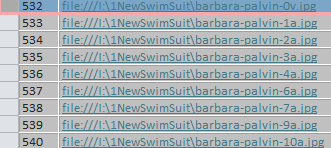
All these files are Swimsuit Models that I have had for years. they were not in any particular order, and I told myself when I retire I would organize them. Thats what I am trying to do now. This is a sample file that I am working with:  I:\SwimSuit\barbara-palvin-106a.jpg
I am getting forgetful these days, so I don't remember all the steps and all the ways to do this type of databse. I just want a Master Database to hold all these files, and if I need to add more barbara-palvin files later, I would just like too add them with not much difficulty.
Thank you!
David Clement OP  @Reply  
      
5 hours ago

David Clement OP  @Reply  
      
5 hours ago
In my ModelName field for searching, it would be: everything after 1NewSwimSuit\
David Clement OP  @Reply  
      
5 hours ago
I am quite sure that there is a better way to do this, I just don't know what it would be.
Thank you!
Thomas Gonder  @Reply  
       
5 hours ago
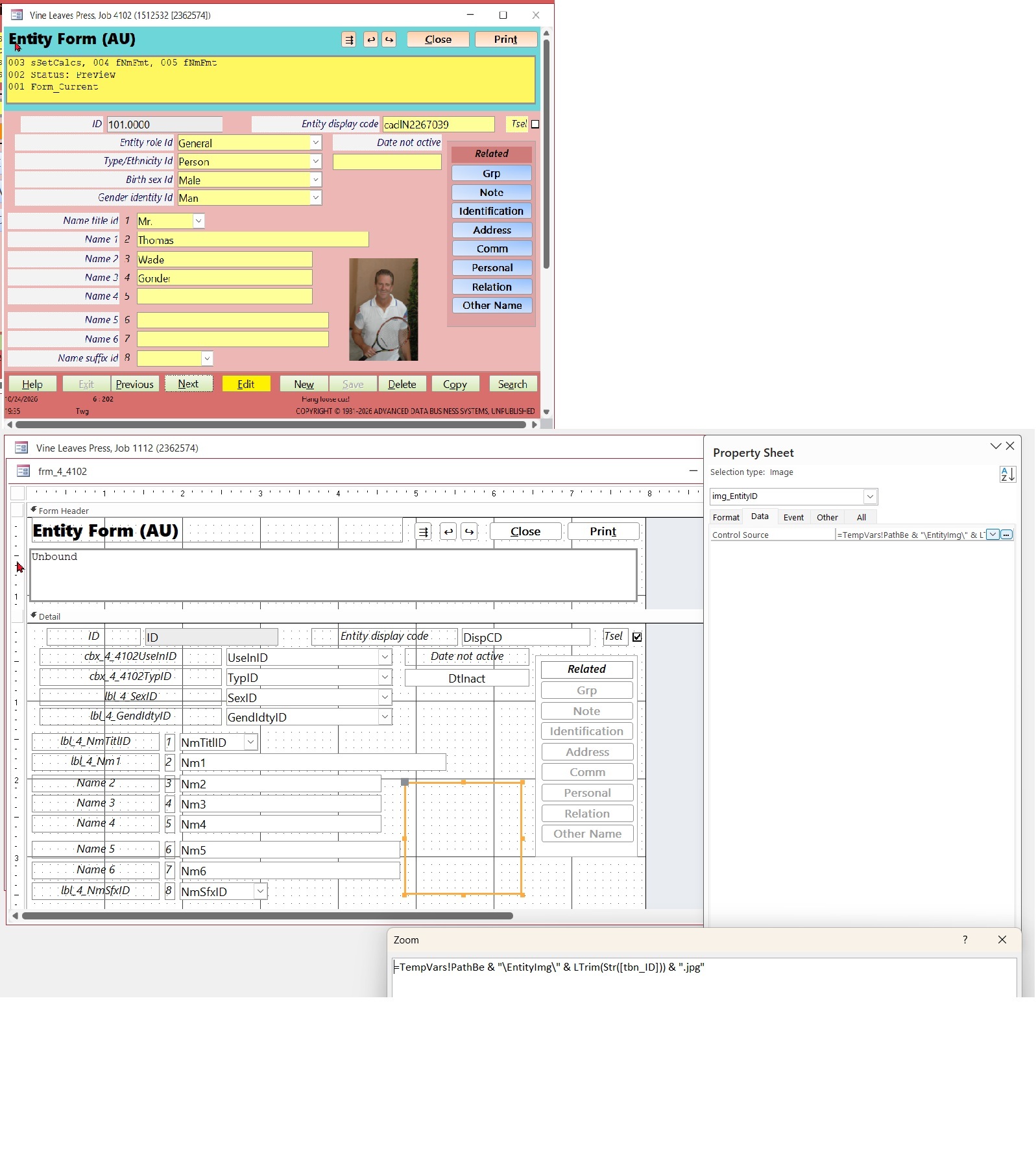
I use a filename in a Window's folder that contains the ID for the record. My Entity Form only allows one image. If I had to do multiple images I would create a continuous form or a related sub form. Instead of long path names being stored in access, you could just select all the files in the folder that match the id. Something like 15_001.jpg. 15 is the record ID, 001 is a sequential number.  Do the organizing in the folder, not Access.

https://chatgpt.com/share/6add4b15-ec3c-83e9-bd84-9f54dcb91e7a
Thomas Gonder  @Reply  
       
5 hours ago

Thomas Gonder  @Reply  
       
5 hours ago
Getting even fancier, a shift+click on the image brings up the photo in an image display app.
Pressing ctrl+click on the image brings up the folder in Windows File Explorer.
Now just do all that in a continuous form.

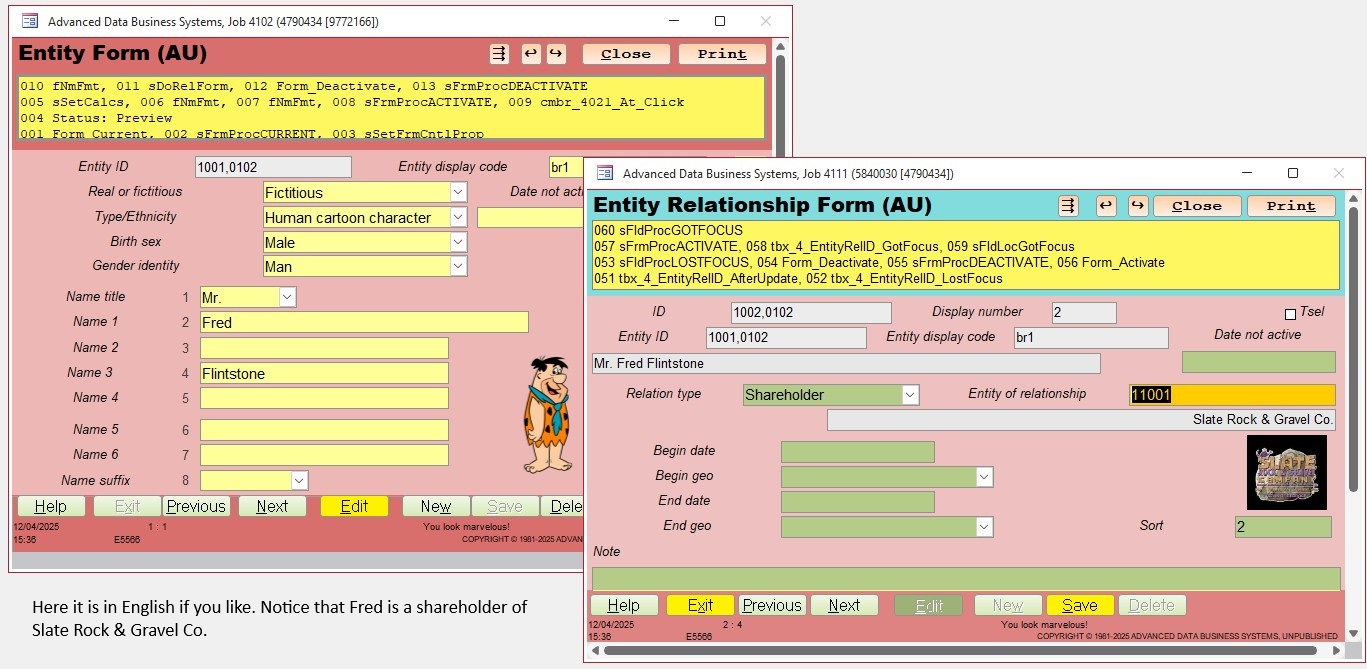
I'll next show how I do it in related forms, that may have their own data beyond the primary record of the Entity (model). For example, you might have photographer (another Entity), date, location, time, etc.
Thomas Gonder  @Reply  
       
5 hours ago

Richard Rost  @Reply  
          
5 hours ago
David, start with one of the new pictures that will not open. If the table field uses the Hyperlink data type, right-click that link and choose Hyperlink > Edit Hyperlink. Check the Address, not just Text to display: the visible filename and the actual destination can be different. Browse to the existing picture file to set its destination, then test that link again. If it opens, compare its saved address with another failing entry before changing the rest.
Add a Reply Upload an Image
Next Unseen


What's This?


The following is a paid advertisement
Computer Learning Zone is not responsible for any content shown or offers made by these ads.
 

Learn
 
Access - index
Excel - index
Word - index
Windows - index
PowerPoint - index
Photoshop - index
Visual Basic - index
ASP - index
Seminars
More...
Customers
 
Login
My Account
My Courses
Lost Password
Memberships
Student Databases
Change Email
Info
 
Latest News
New Releases
User Forums
Topic Glossary
Tips & Tricks
Search The Site
Code Vault
Collapse Menus
Help
 
Customer Support
Web Site Tour
FAQs
TechHelp
Consulting Services
About
 
Background
Testimonials
Jobs
Affiliate Program
Richard Rost
Free Lessons
Mailing List
PCResale.NET
Order
 
Video Tutorials
Handbooks
Memberships
Learning Connection
Idiot's Guide to Excel
Volume Discounts
Payment Info
Shipping
Terms of Sale
Contact
 
Contact Info
Support Policy
Mailing Address
Phone Number
Fax Number
Course Survey
Email Richard
[email protected]
Blog RSS Feed    YouTube Channel

LinkedIn
Copyright 2026 by Computer Learning Zone, Amicron, and Richard Rost. All Rights Reserved. Current Time: 10/25/2026 1:07:12 AM. PLT: 1s