Free Lessons
Courses
Seminars
TechHelp
Fast Tips
Templates
Topic Index
Forum
ABCD
 
Home   Courses   TechHelp   Help   Contact   Merch   Join   Order   Logon   Forums   
 
Back to Access Forum    Comments List
Upload Images   @Reply   Bookmark    Link   Email   Next Unseen 
Separate Email Table Form
Peter van Soest 
    
4 years ago
When you use a subform to store (customer) email adresses (or any other information), the CustomerID is automatically filled in on every new entry in the subform, because it is linked to the main form with the master/child property of the form.

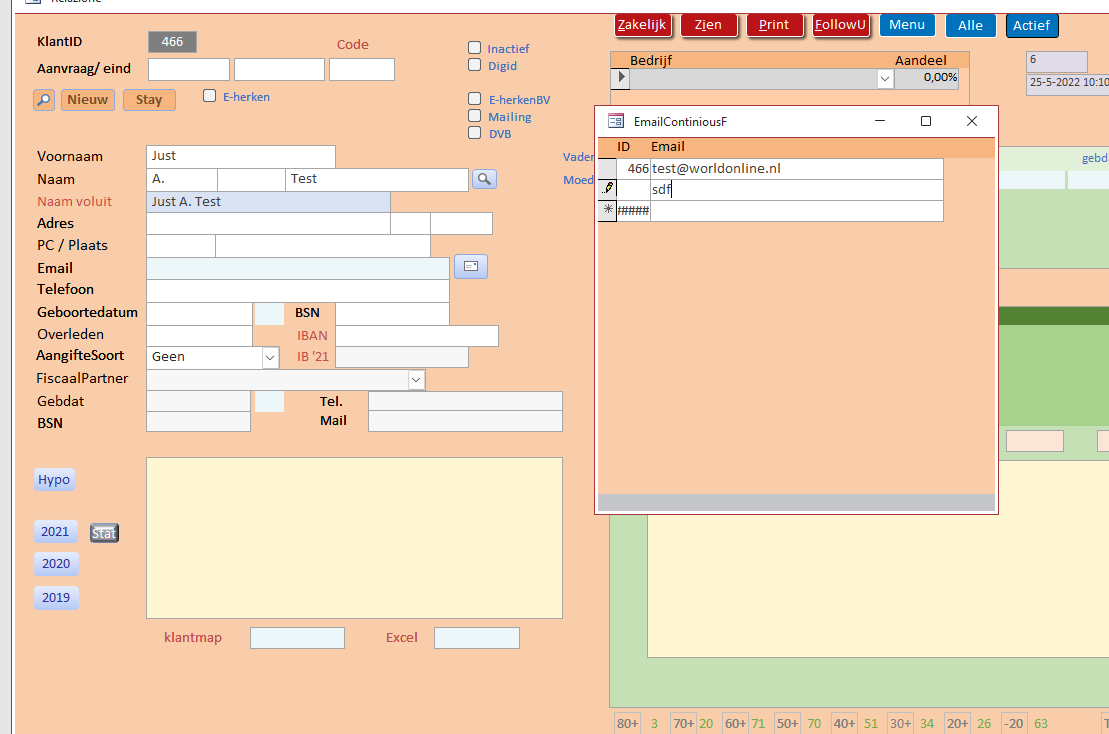
How does that work when you don't use a subform? But just open the contact  form with a button on the client form?

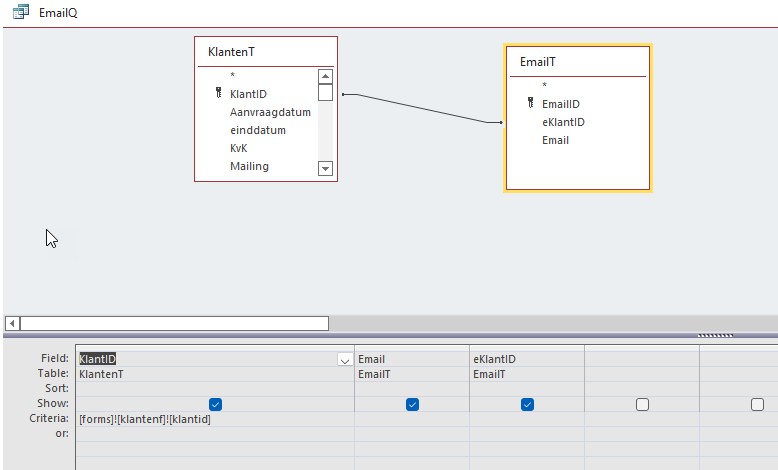
I can't get it to work. I made a query in which I link the Customer table with the email table, but I have to fill in the Customer ID manually, every time I want to add a new email adress
Kevin Robertson  @Reply  
          
4 years ago
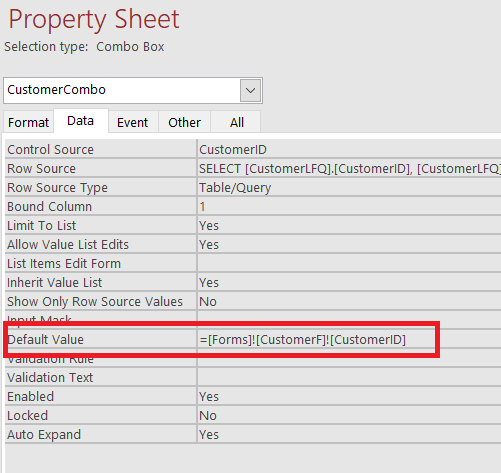
Default Value

=Forms!CustomerF!CustomerID
Dan Jackson  @Reply  
        
4 years ago
I'd also recommend Search 2.0

https://599cd.com/blog/display-article.asp?ID=2079
Scott Axton  @Reply  
      
4 years ago
Peter
Your last post has been removed.  Please see Rule #3 in Forum Posting Rules.  
If you would like to post an image (and we encourage it) you may do so by clicking the Upload Images link at the top of your original post.    This is done to prevent virus and other unsavory picture introduction to the website.
---------------

What you are wanting to accomplish is very much like entering in a new order for a customer that Richard shows in the Invoicing TechHelp.  Especially  the extended cut.
Keep in mind that the default value is only good for the customer you are on.  You need to open the form, make the change or addition, and close the form for that customer. This is to prevent un-linked records being created.
If you want to be able to open the secondary form and be able to freely enter data for any customer a different approach would have to be utilized.  See the  Search Form 2.0    Dan mentioned above.

Peter van Soest OP  @Reply  
    
4 years ago
Hi Scott, tnx I will take a look at the invoicing Video. My goal is to be able to enter additional information on a secondary form for a specific customer, so my main form doesn't get too full with subforms.  And apologies for the rule violation, I will upload the image separately.
Peter van Soest OP  @Reply  
    
4 years ago

Scott Axton  @Reply  
      
4 years ago
Peter - no  problem on the image link.  Just safety and it also prevents a bunch of broken posts because people remove their images.

Anyway - long story short if in your EmailContinuousF you set the default value if the CustomerID to be that of the opening form that should do the trick.  You will need to use the Forms!FormName notation to "carry over" the ID

Like this:  =[Forms]![CustomerF]![CustomerID]

If you are not familiar with that a good video to watch is the Value From a Form
Peter van Soest OP  @Reply  
    
4 years ago

Peter van Soest OP  @Reply  
    
4 years ago
Hi Scott, I did use =[Forms]![CustomerF]![CustomerID] (see extra screenshot) but that still doesn't fill in the customer ID when I add an email adres as you can see on the first screenshot.
Scott Axton  @Reply  
      
4 years ago
Peter - You need to use it in the properties on the EmailContinuousF form for CustomerID.
Scott Axton  @Reply  
      
4 years ago

Peter van Soest OP  @Reply  
    
4 years ago
Hi Scott, this makes no difference.  The first record that shows when I open the form always has the CustomerID, whether I use [forms]![klantenf]![klantid] or not. But when  I want to add a record for that customer, the  ID remains blank.
Kevin Robertson  @Reply  
          
4 years ago
Peter,

What concerns me is the #### for new records in your Email form. Make sure you are using the correct ID (from the Email table).
To be honest, I don't understand why you need the query. Can't you just make the Control Source of the form EmailT?
Peter van Soest OP  @Reply  
    
4 years ago
Solved! I switched from query back to the email table AND changed the field name for the client ID in the EmailT  from eKlantID to (just) KlantID, like in my KlantenT. That somehow caused the problem.  With subforms It can be useful to not use identical ID field names, but in this case it was the other way round. Tnx for your help!
Kevin Yip  @Reply  
     
4 years ago
Peter, you can still use a subform, but make it visible or invisible when needed, so it doesn't always take up screen space.  That button you made to open another form, use it to set the subform's visibility instead.  That way the CustomerID is always linked, and you avoid all this hassle.
Peter van Soest OP  @Reply  
    
4 years ago
hi Rabid, that's a creative workaround! But you would need two buttons then, one to make it visible and one to make it invisible.
Kevin Robertson  @Reply  
          
4 years ago
You could do something like this and only have one button.

Private Sub btnHideEmails_Click()

    If btnHideEmails.Caption = "Hide" Then
        EmailSubF.Visible = False
        btnHideEmails.Caption = "Show"
    Else
        EmailSubF.Visible = True
        btnHideEmails.Caption = "Hide"
    End If
    
End Sub
Kevin Yip  @Reply  
     
4 years ago
Hi Peter, you only need one button to "toggle" the visibility, and only one line of VBA:

Private Sub MyButton_Click()
   Me!MySubform.Visible = Not Me!MySubform.Visible
End Sub
Peter van Soest OP  @Reply  
    
4 years ago
Ok, I understand Kevin's code, but Rabid's line is a bit of a mystery to me...., but I tried it and it does work! :)
Adam Schwanz  @Reply  
           
4 years ago
Rabids line basically says make the visible property whatever is NOT the current visible property. So if the current visible property is set to false, then your setting the visibility to NOT false (true), works because it's a boolean property (true/false)

This thread is now CLOSED. If you wish to comment, start a NEW discussion in Access Forum.
 

Next Unseen

 
New Feature: Comment Live View


The following is a paid advertisement
Computer Learning Zone is not responsible for any content shown or offers made by these ads.
 

Learn
 
Access - index
Excel - index
Word - index
Windows - index
PowerPoint - index
Photoshop - index
Visual Basic - index
ASP - index
Seminars
More...
Customers
 
Login
My Account
My Courses
Lost Password
Memberships
Student Databases
Change Email
Info
 
Latest News
New Releases
User Forums
Topic Glossary
Tips & Tricks
Search The Site
Code Vault
Collapse Menus
Help
 
Customer Support
Web Site Tour
FAQs
TechHelp
Consulting Services
About
 
Background
Testimonials
Jobs
Affiliate Program
Richard Rost
Free Lessons
Mailing List
PCResale.NET
Order
 
Video Tutorials
Handbooks
Memberships
Learning Connection
Idiot's Guide to Excel
Volume Discounts
Payment Info
Shipping
Terms of Sale
Contact
 
Contact Info
Support Policy
Mailing Address
Phone Number
Fax Number
Course Survey
Email Richard
[email protected]
Blog RSS Feed    YouTube Channel

LinkedIn
Copyright 2026 by Computer Learning Zone, Amicron, and Richard Rost. All Rights Reserved. Current Time: 8/7/2026 6:14:29 PM. PLT: 1s