|
||||||
Search Form 2.0By Richard Rost
 5 years ago
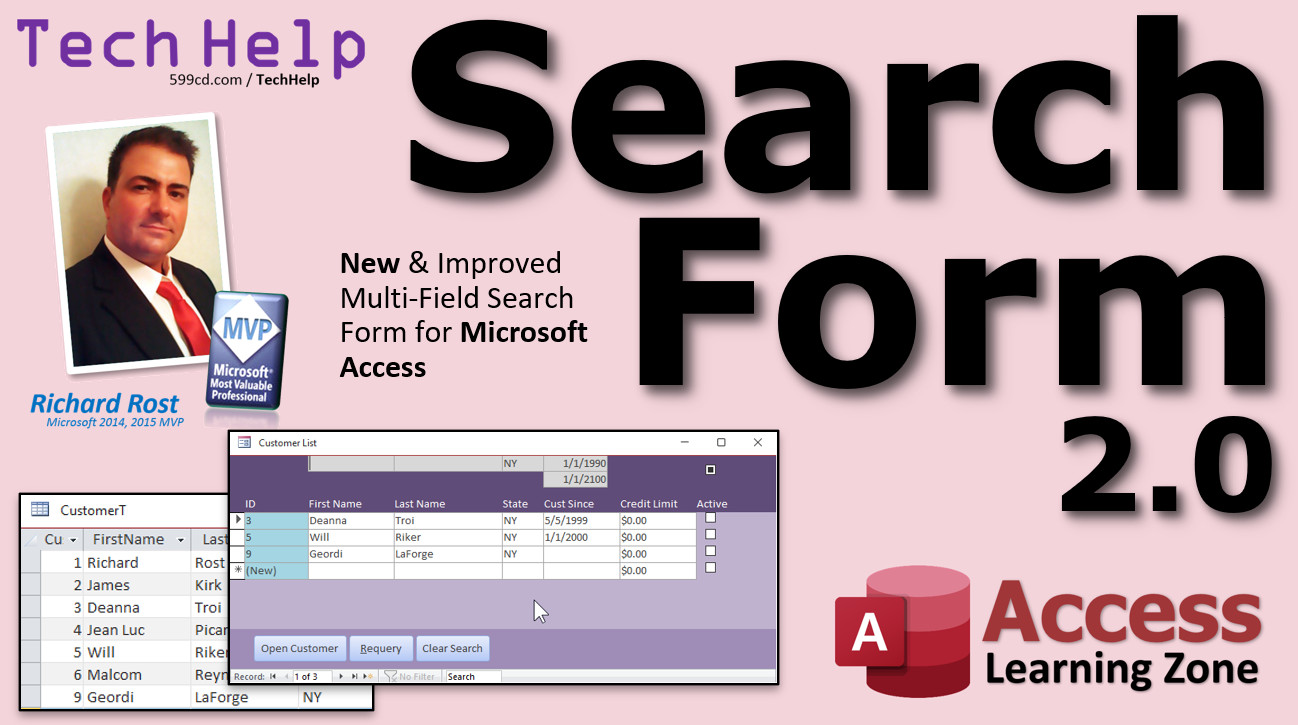
Multi-Field Search Form 2.0 New & Improved! In this video, I'm going to teach you how to make a multi-field search form so that you can find records based on multiple criteria such as a partial first name, last name, state, and so on. We'll also see how to search for numeric values, including dates, and yes/no fields. We'll learn how to use a triple-state checkbox. This video is a followup to one of my most popular YouTube videos on making a multi-field search form. The original was released in 2011 and received over 580,000 views and more than 500 comments and questions over the past 10 years. So in this video, we're going to build the Search Form bigger and better, add some new features, and answer some of the questions people posted about the original. MembersMembers will learn how to create a much more powerful version of this search form without using a query. We will use VBA to dynamically write the SQL statement that feeds data to the form on the fly. We will also resolve the problem of the blank values, and see how to incorporate a sort order into our form.
Silver Members and up get access to view Extended Cut videos, when available. Gold Members can download the files from class plus get access to the Code Vault. If you're not a member, Join Today!
Error
Links
Keywordsmicrosoft access, ms access, ms access tutorial, #msaccess, #microsoftaccess, #help, #howto, #tutorial, #learn, #lesson, #training, #database, search form, requery, dynamic sql, find records, locate specific records, query criteria, search box, search criteria, go to specific record, search form multiple fields, multi field search, filter multiple fields, multiple criteria, multi field search form, advanced search form, multiple keyword search, wildcard, vba, sql, me.requery, triple-state checkbox
More InformationTranscriptWelcome to another TechHelp video brought to you by AccessLearningZone.com. I am your instructor, Richard Rost. In today's video, I'm going to show you how to make a multi-field search form so you can find records based on multiple criteria such as a partial first name, last name, state, and so on. We'll also see how to search for numeric values, including dates and yes-no fields. This video is actually a follow-up to one of my most popular YouTube videos on making a multi-field search form. The original was released in 2011, so about 10 years ago, and received over 580,000 views and more than 500 comments and questions over the past 10 years. So, in this video, instead of answering a question from one person, I'm going to be answering a bunch of questions from all of you. We're going to build a bigger and better search form, add some new features, and, of course, go over a few of the things that you guys asked me about in the last video. If you want to go watch the original, go ahead, there's the link. I'll put it down below in the description in the link section. You don't really have to. I'm going to go over everything I did in that video too and show you a bunch of new stuff. In the original video, we built a little search form like this, with first name, last name, city, and state, and then a button to run the query, which would then pop a query up and show you the results. And it worked great for most circumstances. However, the biggest complaint that I got was it doesn't show records with missing data. So if you're searching for someone by their last name, but they're missing data in their state field, they still won't show up. I'll show you how to fix that. I'm also going to show you how to search for numbers and dates. Numbers, dates, currency, they all pretty much work the same. And we'll see how to use checkboxes too. These are the three most popular questions that everyone asked over the past 10 years. Now, before we get started, there are some prerequisites for this video. I'm going to first suggest you watch my blank database template video. I show you how to build a database from the ground up, including all the options and features that I like in a simple database. You'll need to know how to use query criteria - that's telling a query what records to show, how to get a value from an open form, how to use wildcards in a search, string concatenation (that's putting multiple strings together), the BETWEEN keyword (searching between two dates, for example). And I strongly recommend you watch my intro to VBA class. Now, don't be scared. In this video, we're literally going to use one line of VBA code. That's it. So, I'll show you a lot of programming. The original video, I used no programming. It just opens up a query, and we use a button from the command button with it to open a query up. In this one, I'm going to use one line of VBA code to refresh the form. That's it. So go watch this. I'm going to show you everything you need to know, but it'll be better if you watch my intro to VBA video first before watching this one. You don't have to. I just recommend it. Now, in this video, we're going to do something different. We're not going to make a little search form. We're going to integrate the search form into a customer list. And I cover how to build this customer list, a simpler version of it, in that blank database template video. So that's why I want you to go watch that first. In this video, what we'll do is we'll put little search boxes above each field here. So if you want to search for the state, you type in NY, press enter, boom, and it filters the form like that. See that? And if you want to limit the dates over here, you just change the date. What date range do you want? Let's go 1/1/2000. There you go. So, that's what we're going to build in today's video. Here I am in my TechHelp free template. This is a free download up on my website. Go grab yourself a copy if you want. You'll find a link down below in the link section. In this database, we've got a customer list form, which is a continuous form based on the customer table. So, the first thing we're going to do is put a little text box above first name. It's going to act as our search box. Let's go into design view. And I'm going to slide these guys down. These are the labels up here. Just click over here in the ruler. Drag them down just a bit. So we've got room up here for a search box. Now, I'm going to take this first sandbox, copy it, paste it up here. Slide it right there. Let's open up its properties, and we're going to get rid of the control source. Control source says that this text box is bound to the first name field in the table, but I don't want that. I want to type in my own value here and not have it go and get saved in any record. So get rid of that control source. And let's give it a good name. I'll call it first name search. Just like that - first name search. And I'm going to make it gray or whatever color you want. Doesn't really matter. It kind of differentiates it from the rest of the text boxes. And these can probably be a little bit high. I don't know if they were about there. Let's save this, close it, open it back up again. Looks good. So what's the point of that guy? Well, now I've got somewhere where I can put my criteria like JA if I want to look for James. And then when I perform the search, we'll filter out the records in here. Now, how am I going to do that? There are a lot of different ways you can do it. My preferred way is to use a query. That's what I teach in my beginner classes, and it's fairly easy to do. So, let's set up a query. Create query design. I'm going to bring in my customer table into the query. And let's just bring in only the fields that we need for that form. I need the customer ID, first name, last name, state, customer since, and credit limit. Bring over whatever field you want. Just the ones that go on that form. I'm going to save this. This will be my customer list Q, my customer list query. And if I run this right now, I get all my records, but I just get the fields that I'm interested in for my form. Now, when this guy runs, I want to take a look at that box right there and use that for the criteria for this query. That's why I want you to watch my query criteria video so you know what this means. So, I'm going to put something in this box right here. Now, what's the name of this box? Remember you watch the form name video. It's going to be Forms!CustomerListF!FirstNameSearch. So, right here under first name in the criteria blank, I'll zoom in so you can see it - Shift F2. This is going to be equal to Forms!CustomerListF!FirstNameSearch. That's the name of that box. Now, this form has to be open for that query to run. So I'm going to close this and open it back up again. Let me slide this over here. And now let's run this query now. Run the query. I got nothing in here. Why is that? Because this field is blank right now. There's nothing in there. So I'm not getting any records. Nothing is equal to blank under first name. Let's put something in here. Let's put in here "Will." And now run the query. And look at that. I get Will. See that? Now, I want this to be able to find partial results. So if I put in here something like RIC, it'll find Richard too. So we have to use our wildcard search instead of just an equals. So, we're going to come in here, Shift F2. And this is going to be: Like "*" & [Forms]![CustomerListF]![FirstNameSearch] & "*" like that. But I wanted you to watch the wildcard search video and the string concatenation video. You should know all this stuff. So now if I hit OK, save the query and run it, I didn't leave this text box. One thing that we're going to deal with in a minute is when you type in and change your criteria here, you have to leave that box. Now if I come in here and run it, now it'll work. There you go. It doesn't actually update the value in the box until you leave it. I just typed in the RIC and so Will was technically still in the box. Be aware of that when you're working with Access. Values don't usually update unless you leave the box that you're on if they're unbound. If they're bound to the table, you have to leave the record. If I type in some stuff here, this record is dirty. The little pencil means right there. I covered this in my Access Beginner 1 class. This value hasn't actually been saved to the table yet until you leave the record. Now it's been saved. That's called a dirty record. So if I delete that criteria and come back down here and I have to run the query, now look, I get all the records because it's like "*", nothing, "*". And "Like *" basically shows everything. Now I don't want to have to open up this query. I want this query to feed the results into this form. So what I'm going to do, let's go into the form's properties, design. Open up the form's properties. We're going to change the record source from CustomerT to CustomerListQ, that query we just built. I don't want to get the values from the table, I want to get the values from that query. Save it, close it, and now when we open it, now the records blank to begin with so you get all the records. I need a way now to trigger this form to requery itself whenever I type a value in here and press a button. We'll put a Requery button over here or something. Now, there is this Refresh button right up here you can click on, and that will do it. That forces the form to requery itself. But we don't want to have to rely on our users doing that. I want to make a button form. Unfortunately, there is no built-in button in the command button wizard that will do this automatically. So we're going to make our own button. This is why I want you to watch the intro to VBA class. VBA isn't scary. Learn a little teeny tiny bit of VBA and it'll make your databases so much more powerful. Ready? Right-click, Design View. We're going to find a button up here, the command button. Let's put it up here in the corner. Click. Now the wizard starts up. But like I said, there's a form operations refresh form data, but that doesn't requery the form. It just updates any calculations and stuff. So we can't use that one. Click on Cancel. We're going to put a caption in here. We'll call this, I don't know, Go or we'll just put Requery. Slide that over like that. Actually, let's put it down here in the bottom. Put it down here in the bottom. Now let's give the button a good name. Open it up. Don't just call it Command18. Let's call this my Requery button. If we don't rename our buttons to give them good names, Alex will yell at us. If you don't know who Alex is, you need to go watch more of my videos. While I'm in here, I'm going to do a couple little quick tricks. Watch this. Put an ampersand in front of Requery, and then when I press enter, that puts a little underline underneath the R there. See that? Use Alt-R on my keyboard to press that button. Type something in and go Alt-R. Boom. And it presses the button. Also, another way you can do it is to go on the other tab here and set Default to Yes. That means this is now the default button on that form. And that button will be pressed whenever you press Enter anywhere in the form. It will be the same as pushing that button. So I can be up here and type in RIC, Enter, and Requery is the form. Now, it's time for our one line of code. Are you ready for it? Did you go watch the intro to VBA lesson? Here we go. Ready? Right-click. Build event. My Visual Basic code window opens up. It's over here. I'm going to slide it on the screen here. And I'm in Requery button click. Now, if you didn't watch my intro to VBA class, you might get a little window up that says what kind of builder do you want? The code builder, the macro builder, the expression builder, pick the code builder. We don't use the other two. There's an option to turn that off. And again, I cover that in another video. But in here, we need one line of code. Are you ready for it? This is it. Ready? Me.Requery. That's it. You're done. That just says "me," which is the current form, "requery," which means load all the records back in, which will force the underlying query to run. That customer list Q will reevaluate itself. And since the form is already open, optionally with some criteria in it, the query will pull in the criteria off the form, then the form reloads its records off the query. See how this works? It's like a snake eating its own tail. Save it. We can close this. Now we're done with it. For now, I'm going to show you. I'm going to trick it in a minute. But save the form. Close it. Open it back up again. You ready? Here I go. I'm going to type in RIC and press Enter. Boom. How's that? Let's clear it. Let's put in here just a letter A. Boom. Everybody with an A in their name shows up. Let's make two more boxes here for last name and state. Design View. I'm just going to copy this guy. Copy, paste. Slide you over here. That'll be last name. We'll line it up over the other one. Open it up. This guy will be last name search. And this guy over here we'll copy you. Copy, paste. Slide it over here. And we'll make this state search. Save it. Close the form. Let's go back to our query. Right-click, Design View. And I am going to close this. I'm going to just copy this text. Watch this. Copy. We're going to go Paste, Paste, Paste. Remember that with queries, the criteria works across AND and down OR. So it's going to be like this one, this one, and this one. They all have to match. You can do an OR if you want to. If you want to go down, you could do this. That would be an inclusive search, meaning any of those criteria could be a hit. So it could be this in the first name or this in the last name or this in the state. But I want to do them as AND conditions. So I'm going to move them up like this. That means the first name's got to match AND last name's got to match AND state's got to match. We're going to just make a little modification to this. I'm going to shift F2 to zoom in. This is going to be last name search, right? Put them in the appropriate fields. Last name search, and this one's going to be the state search, right? And notice that, yeah, Access puts these little brackets in here. It'll do that automatically for you to indicate that's a field by the form. You don't need those if you follow my instructions from Access Beginner 1 and you don't put spaces in your field names or your form names. Yes, Access will sometimes still put them on there for you, but you don't have to type them. If you have spaces in your field names, everything gets messy. So if you don't know about that, go watch my Access Beginner 1 class. Access Beginner Level 1. Absolutely free. And even if you've been working with Access for a while, I cover a lot of fundamentals, a lot of tips and tricks in here that some people who've been working with Access for five, ten years have told me, "Yeah, I watched your intro class and I learned a bunch of stuff." It's all foundational stuff. So when you take my later classes, I don't have to repeat myself. So go watch this. It's free, four hours long. It's on my website. It's on YouTube too. So we're done with that one. Now I can save the query, open up my customer list, put you back over here. I'll put an R over here and press Enter. I only get one record. Let's do an A. Is everybody with an A? And now let's put an R in last name. OK, they all got Rs, don't they? Let's do an O. Kirk doesn't have an O. There we go. See that? And now maybe over here we'll do Florida. There you go. Everybody with A and an O and Florida. Want to make a button to clear these guys over here? I'm going to show you a little bit more VBA. Don't be scared. A little tiny bit more VBA. Watch this. Copy this button. Copy, paste. Put it right here. Change the caption to Clear Search. We're going to right-click, Build Event. Now we're in that - oh, I didn't name it! Alex is going to yell at me. Hold on, take a step back. I don't like Command21. I always forget this step, so I leave it in my videos because you're going to forget this step too. Open this up. Change the name. ClearSearchButton. For years and years and years I didn't care about this. Then, after a while you start looking through your VBA, you're trying to figure out what button is this - you can't tell. Now I can very easily see it's ClearSearchButton. This is going to be three lines of code, but it's basically the same thing. I want to clear those search boxes. So FirstNameSearch = "" (empty string). And then you just copy this. Watch this. Copy, paste, paste. And this is going to be LastNameSearch. And then StateSearch. Notice while I was typing, I didn't type capital letters because if I type in something wrong, let's say I come down here and say FirstNameSearch = "" and I press Enter, notice that didn't capitalize automatically with the F, the N, and the S getting capitalized. Access will do that automatically if it recognizes a variable or a field name, which is good because now I can quickly and very easily see that if I got a typo, I didn't type that in right. That's a little trick there, and it's very handy for programmers. Now I've got a button that I can use. If I have stuff in here, I can just click the button and it clears them. That's kind of neat. Now, the number one biggest complaint about the old video, the old search form video, was that if someone is missing some data, even if they should pop up in the search results, you don't see them. For example, let's say Deanna Troi here, if she doesn't have a state. I'll get rid of that. So she's got no state. Even if I come up here and type in T, she should show up in the search results. She doesn't. That's because State is null and it's not showing up in the results in the query. I run the query, you can see she's not there. It's a very easy fix. Right click, Design View. What you have to do in the criteria - I'm going to zoom in, Shift F2 - is you're going to say it's got to be equal to this OR Is Null. That's it. In other words, it's got to match this criteria or it's got to be blank, because you want to see the blank records. Copy that, hit OK. I put that same thing in these boxes: OR Is Null. Save it. And now if I query this form, we've got to close it, sorry, open it back up again. I'll do the same thing. T, enter. There she is. The T shows up here and she's missing a state, but she still shows up in the results. Sometimes you have to close everything and reopen it. That's why I say this in a lot of my classes. Close, save it, close it, shut it down, reopen it. Everything refreshes. That works. Now, the downside to this is that empty values will also show up if you do a valid search. So, for example, if I come up here and search for New York, you're going to see New York and blanks. There's no easy way around that. I am going to show a way to prevent that in the extended cut for the members. It involves a lot more programming, but it can certainly be done. So, members will get to see how to fix that in the extended cut. One more thing. Let's make it so when we clear our search, it also refreshes this box too. I forgot that. Let's go back to our code. Let me show you. I have shortcuts up here that I put on my quick launch toolbar to get back to the code window. You can just right-click and build event. I cover how to do these in my other videos too. So, when we're done doing this, we're also going to say Me.Requery here too. That way, I come in here and I got some stuff, let's do a valid search, I'll do a T enter, I'm the only one, and if I clear the search now, I'll get everybody back. Pretty cool. A quick word from our sponsor, and the sponsor, of course, is me. If you want to learn more about searching in your database, I have a whole Microsoft Access Search Seminar. It's got everything you want to know about searching and sorting in Access. You think I'm showing you a lot in this video? There's a ton more I show you in the search seminar. It's over nine hours long. It's got all kinds of stuff. It's really cool. What else we got here? It's a sample database. You can download online. You can test it and try it out. There's a whole bunch of different kinds of search forms we build. What else we got in here? All kinds of neat stuff. You'll see the technique I'm going to show in a minute. I'm going to show the members how to build a dynamic SQL statement. Sort A to Z buttons. Which fields do you want to sort on? All kinds of stuff. I'll show you how to search inside of multiple tables. You can take your search results and say, OK, I want to find customers and vendors that match that. We'll do a Google-level search. We can type in multiple words and find them inside of different titles. All kinds of cool stuff. Again, that's the Access Search Seminar. I'll put a link to it down below in the links section. Back to our class. By far the number two question was, how do I search for numbers, dates, or currency values? What I've shown you so far really only works with text fields. When you're working with dates or number values, currency, actual numbers, I'd generally like to give people a search range. People almost always don't want to search for a specific date or a specific number. They want to look for a range of values - before this, after this, whatever. So let's make two search boxes for credit limit and for customer since, and we'll put a range of dates and a range of values in here. Let's start with credit limit. Design View. Let me move you over here and there. Copy this. Copy, paste. Slide you up here. OK, this is going to be credit limit min search. Let's set the format to currency and let's give it a default value of zero. You're not going to have a negative credit limit. Let's copy this one, copy, paste. This one is going to be credit limit max search. Also currency, default value. What's the highest credit limit you could possibly give out? Let's say our business never gives out more than a $20,000 credit limit. Save it. Close it and open it up again. There we go. Usually in my database, I almost never deal with cents unless it's like orders or something like that. But for big numbers like this, like credit limits and such, I always turn the cents off, and that's just formatting to a decimal place. We'll just click on all three of these, and we will go to format and decimal places, zero. It just looks cleaner. Yeah, it looks better. Maybe left justify these two so everyone is lined up the same way. I like left align, not left justify. OK, that looks a lot cleaner. Now we have to add these fields to the customer list Q. Right-click, Design View, credit limit. Between, but I want you to watch the between video. Forms!CustomerListF!CreditLimitMinSearch is my field. And, let me just copy this, I won't type all that again. Copy this guy, copy, paste, max search. Hit OK, save it, close it, open the form up, and oh wait a minute, I'm not getting any records. A new little wrinkle here. Now, if you have default criteria in here, you have to tell this form when it opens to requery itself. There's one more little event you have to learn. Go to Design View. If you want to make your forms a little more powerful, you have to learn a little more VBA. Sorry, there's no way around it. You can do some really cool stuff. Don't be afraid. Right here, that's where the form properties are, open that up. Go to events. There's an event called On Load. Click on On Load. When the form loads up, I want to issue that requery command. So again, dot dot dot, and right in here, Me.Requery. It's going to load the form. The default values will appear in the fields, right, the search fields, and then after the form is all done loading, it's going to requery itself again. And now it can access those values. Save it, close it, and now when I open it, boom, the form opens. The default values go into place, the form requeries. Now if I change this, I say I want to find everybody with at least a $5,000 credit limit. There you go. Or I want to find everybody who's got a credit limit, so greater than zero and less than our max value. It would be 1, sorry, 1, there you go, everyone who's got some credit limit. $500 credit limit, $5.01. Now we have to add that to our Clear button. Let's go back to our Clear button, Design View, Clear Search. We're going to come in here. Set your defaults in here. So it's going to be CreditLimitMinSearch = 0, CreditLimitMaxSearch = 20000. And what you could do, so you don't have to do this in multiple places, here's another trick you could do. You could make a private subroutine that does all this too. That way you don't have to have the values in the form and in your VB code. This is advanced. You can skip this if you don't want to. This is the kind of thing I show in my developer classes. So, we're going to make a private subroutine called SetDefaults. OK, it's my own subroutine. Now I'm going to move this up into here, cut and paste. So now in these other places, right here in the Clear Search Results button, I can say SetDefaults. That will clear everything back to normal. And then Me.Requery. And I'll also put it in the Form Load. When the form loads up, it loads those defaults. Now I don't need these default values in the form fields. I can take them out of here. That way I've only got to update them in one spot. See, I don't have to worry about putting them in here. Save it, close it, and then open it up. Now I have one place to maintain these values, and that's in that code. Design View. Come into any one of these button events. Find them right there. See? SetDefaults runs those and then does the query when you click on the button or when the form loads. Customer Since. Let's copy one of these. I'll copy this one here. Copy, paste. This will be our CustomerSince filter. Go to All. We'll make this one CustomerSinceMinSearch. The format is going to be short date. We're not putting in default values because we're going to put those in our code. Copy, paste. Slide you up here. This will be CustomerSinceMaxSearch for date. Set those default values for those in here in our code, right here. CustomerSinceMinSearch equals minimum date, maybe 1/1/1990, for example, if that's the earliest date. If your company was founded in 1993, you're not going to have any customers who've been customer since before that. Or if you're doing people's birth dates, put in something that's earlier than anyone could possibly be, 1/1/1850, whatever. CustomerSinceMaxSearch, and this would be like 1/1/2100. And if you're still around then, you can pay someone to upgrade your database with all the money that you've made between now and then. Some date in the future that you're not going to hit. Same thing. Open it up. Looks good. We need to put these in the query. Let's go over to the query. Now, it is possible for CustomerSince to be null. That's a possibility. So you've got two things. You can make nulls not a possibility and put a default value in the table when the record is created, or you could take nulls into consideration the same way we did before with an Is Null. I'll just put the Is Null in. Right-click, Design View. CustomerSince, I'm going to zoom in. So this would be Is Null OR (Between Forms!CustomerListF!CustomerSinceMinSearch AND Forms!CustomerListF!CustomerSinceMaxSearch). So, same thing. Between this start date and end date, or it's null, either one of those. Hit OK. It's interesting if you look at the bracketing that it puts on there. That's one of the reasons why I tell you not to put spaces in here. It's a pain to have to type all that in. Another thing is, if you type out here, right, Forms, you get the little IntelliSense. It pops up the thing for you. You can just scroll down and pick it. But I use the Zoom window for you guys so you can see better in class, and it keeps me from having to zoom in and out with the video. That's a pain. Save it, close it, close it, and click. Let's put a date on here. Let's put in here, let's see what we got in 94. Let's say everybody after 1/1/2000. Boom. With less than a $5,000 credit limit. Actually, let's do under a $3,000 credit limit. There you go. And they're from New York. Oh, nobody. Clear. Next up. Are you ready for it? Next up: Checkboxes. Yes, no values. We've got CustomerIsActive. IsActive. For example, my mailing list, or if the guy's dead, check them off here. He's not going to be buying anything. Don't waste money on sending him Christmas cards. IsActive. Let's go see if we can put IsActive on our form. So, first thing, we have to add to the query. Customer list, Design View. We have to add, not add tables, add fields, where's the fields up top here? Come here. How did you get all messed up? Come here. Get it down there. OK, there you are. IsActive. There it is. Save that so it'll be in the form. Let's go back to the form. Right-click, Design View. Let's widen this out a little bit. Let's add existing fields. There's IsActive now. Click, drag, drop it right there. Get rid of that label. Delete. Slide you up maybe there. Copy one of these labels, copy, paste. Put you right there. Active. Save it, close it, open it up. Looks like the field is working just fine. I was just looking at this real quick. I noticed someone's missing. One, two, three. All my autonumbers are sequential because this is a test database, which brings up another point. Everyone always asks me, how do I change my autonumber? I have a whole video on changing autonumbers if you need to, but you shouldn't need to. These numbers are not for you. They're for Access. Don't worry about what autonumbers are. Number four is missing, and if I go to my customer table, that's Jean-Luc. It took me a second, I'm looking at it going, what did I mess up? Well, I didn't mess anything up really except that his CustomerSince is 1987, and I set the default minimum to 1990. That's why he's missing, and I picked that date because that's when The Next Generation started. But I'll just change this to 1992 for the purpose of the class. There's Jean-Luc, he's back. Back to the IsActive box. Now, in order for this to work, you have to learn about something called a triple state checkbox. A checkbox by default normally is two-state: Yes or No, On or Off. But you can have a thing called a triple state checkbox, and you usually use them for unbound checkboxes, but you can also use them for data too. It's a whole different class. For this particular instance, we want to be able to say Yes, No, or Null. Null means show me both, show me everybody whether they're active or not. But if I check it to Yes, I only want to see the Yes. If I check it to No, I only want to see the No. And if it's Null, the third check shows everybody. So how do we do that? Let's go into Design View. We need to get a checkbox. We can just copy this one. Copy, paste. Put it right up here somewhere. Open up the properties for it. Its name will be IsActiveSearch. Make sure to take the control source off. Get rid of it, so it's not bound to a record in the table or query. Now, Triple State, we're going to set it to Yes. Go to Data and set its default value to No. So when you open this up, it starts off with the Null value. You'll see all the records. While we're at it, let's put it in our code. We'll come in here and we'll say IsActiveSearch = No. Put the checkbox to No. So if that's the case, we really don't need to put No, because it will get set with the code. Ready? Close it up. Open it up. That's a Null checkbox. See Null, see the way that? There's No, there's Null, and there's Yes. Now, we're going to add this. Good, just notice, thank you. I should have put this on the prerequisites. There's a function called IIf. It stands for Immediate If. It's basically an If-Then function in one function. If you've never used it before, go watch it, go. But you're still here. Come on back when you're done. For this, we have to look at three states using the IIf function. Zoom in. For this one, we're going to say: IIf(IsNull([Forms]![CustomerListF]![IsActiveSearch]), [IsActive], [Forms]![CustomerListF]![IsActiveSearch]) In other words, if they didn't put anything in that box, if it's Null, then whatever the value is, that's the criteria. Show me all the records. Otherwise, the value of that box is the criteria, Yes or No, True or False. Save it. Close it. Open it up. Right now, it's Null. Show me everybody. If I check it on and requery the form, there's the Yeses. If I turn it off and requery the form, there's the Nos. See that? That was the third most asked thing. Can you do it with a checkbox? It's a little tricky, but as you can see, we got by it. So, you guys ready for some bonus material? Some extra stuff? Something cool? Wait a minute. I got a slide for it. It's free bonus time. If you don't want to have to click the Requery button, if you want these to update every time you change one of them, all you have to do is assign an After Update event. Watch this. Open up the properties for one of these textboxes, go to Events. Find After Update. That means after I change what's in that and press Tab or Enter or do something, what do you want to do? Well, dot dot dot. You got to requery. That's it. All you have to do. But you have to do it for each field. A bit of a pain, but once you do it, you're done with it. So, click on that one, After Update, I'm just going to copy Me.Requery. Actually, I'm going to copy it from here, copy and paste. Go to the next one, After Update, paste. Get the full things. You're ready? Click on that one, dot dot dot, paste. This one, you have to do them all. I know, but you only have to do it once. This one here, dot dot dot, boom. This one here, dot dot dot, boom. And yes, even the checkbox, After Update, dot dot dot, boom. Save it, close it up, open it back up again. Now watch this. Click, and it runs. Look at that, same. Click. Put something in here, 3000, Tab, same. Put something over here, R, O, Tab. Isn't that pretty cool? That's an After Update event. I teach that in my developer classes too. There's also a video that covers just After Update event in my TechHelp series on my website. Free video. I'll put it in the links down below. For those of you who are a little more advanced, I have a whole developer series of classes. Right now, I think I'm up to like 35 or 36 of them. I cover all kinds of cool stuff, VBA programming-wise. Check it out. So, for the rest of you, I hope you enjoyed. I hope you learned something. I hope this video lasts another 10 years and gets another half million views, because it's pretty cool to have that many views and that many subscribers on my YouTube channel. Thank you very much. I appreciate it, and you are why I do what I do. I love my job, and I love bringing videos like this to you guys. If you want to learn more, I'm going to cover some more cool techniques in the extended cut for members. The extended cuts are a way for me to teach you a little bit more and go into some more in-depth lessons. Membership is real inexpensive. You can find out more information by clicking on that Join button, or you can find more information on my website. You'll find the links down below in the description below the video. I almost forgot before we finish today, there were a couple more questions that I saw multiple times. A few people asked about these. The first one was: a couple of people asked about this - that this search technique doesn't work with multi-valued fields. No, it doesn't, and I'll tell you why. Multi-value fields are evil. Don't use them. Multi-valued fields are horrible. They should never have been added to Access. They were added as a band-aid so that people who don't want to take the time to learn proper relational database techniques can make a pick from a list of options and have multiple options in a table, and they shouldn't be there. In fact, I have a page on my website of all the things that shouldn't be in Access, that I hate, like spaces in your object names. Right here, multi-valued fields. Don't use them. I have a video coming up on this one soon. They're super evil. They're very hard to work with, and this is one of the reasons why. Check this page out. I'll put a link down below in the link section. A couple of other people asked how do you search for multiple first names. In this particular case, I would just make multiple fields, multiple search fields: field name one, field name two, field name three. If you use the same technique, you can add first name, last name, whatever, to the query multiple times. It'll just be first name one, first name two, first name three, and so on. But you should still be able to use multiple criteria with one field at a time. The technique that I'm going to show in the extended cut for the members works better if you're looking for multiple copies of the same field, like you want to look for Joe and Sue. I actually had a couple of people tell me that if they put too many search boxes on the form, it wouldn't work. One guy said he had about ten of them, and as soon as he added them, Access was giving errors. I don't know what you mean. I've never encountered that problem. In my search seminar, I build a big form with like 20 different fields on it without a problem. So I'm thinking possibly if your field names and your table names are really big, like you've got 20 character field names, you might be running out of room in the query length. There's a maximum length of the query string. I'm not exactly sure what it is, but I think it's like 65,000 characters. So, it's pretty long. Older versions of Access, it was 255 characters. So if you've got a really old version of Access like 2003, you might be running into that problem, but I've never seen it. So, I'd be more interested to see. Send me an email, give me some screenshots, some more information about what you got going on there. Those are all the six major issues that people have had, and I addressed the first five of them pretty much. Lots more coming up in the extended cut for the members. Don't go anywhere. If you want to learn more in the extended cut for members, I cover a whole lot of cool stuff that we didn't do in this video. It's half an hour long. We're going to get rid of that query. We're not going to use a query at all. We're going to build dynamic SQL statements like this one right here. You won't see this in the final product - you can hide this box - but this is just while we're doing it so you can see what it looks like. That's an SQL statement - select query language. There's Structured Query Language: SELECT * FROM CustomerT. We'll build this thing dynamically, based on what search criteria the user puts in. We'll add whatever conditions we want. We'll have sort by combo boxes right here; you pick the field you want to sort by and then whether you want A to Z or Z to A, ascending, descending. A whole bunch of code. I know you guys want to see a lot of VBA code. People have said in the comments: more VBA in the TechHelps. Well, the VBA is mostly in the extended cuts, folks. So come and check it out. Silver members will get access to all of my extended cut videos. Well worth the membership price, folks. There are 200 and some plus now. I've been doing this for a long time. So, you get one month. You can watch loads of stuff. Gold members can download these databases, so you can take this database, download off my website, and go to town. That's all in the extended cut. So hope to see you there. How do you become a member? Click on the Join button below the video. After you click the Join button, you'll see a list of all the different membership levels that are available, each with its own special perks. Silver members and up will get access to all of my extended cut TechHelp videos, one free beginner class each month, and more. Gold members get access to download all of the sample databases that I build in my TechHelp videos, plus my code vault where I keep tons of different functions that I use. You'll also get a higher priority if you decide to submit any TechHelp questions to me, and you'll get one free expert class each month after you finish the beginner series. Platinum members get all the previous perks, plus even higher priority for TechHelp questions, access to all of my full beginner courses for every subject, and one free developer class each month after you finish the expert classes. These are the full-length courses found on my website - not just for Access too. I also teach Word, Excel, Visual Basic, and lots more. You can now become a Diamond sponsor and have your name or company name listed on a sponsors page. They'll be shown in each video as long as you're a sponsor. You'll get a shout-out in the video and a link to your website or product in the text below the video and on my website. But don't worry, these free TechHelp videos are going to keep coming. As long as you keep watching them, I'll keep making more and they'll always be free. IntroIn this video, I will show you how to build a powerful multi-field search form in Microsoft Access that lets you filter records by partial text matches, numeric ranges, dates, and yes-no fields. We will create search boxes for fields like first name, last name, state, credit limit, and customer since dates, and add a checkbox for active status. I'll walk you through connecting these boxes to your query, using simple VBA to requery the form, and adding features like clearing search results and handling missing data, all in a practical, step-by-step manner. QuizQ1. What is the main goal of the multi-field search form discussed in the video? A. To sort records in Access by multiple criteria B. To find records based on multiple fields, such as partial first name, last name, or state C. To export records from Access to Excel D. To link multiple tables together Q2. What was the most common complaint about the original multi-field search form? A. It did not support exporting data B. It did not display records with missing data in searched fields C. It only allowed searching with exact matches D. It was too slow to run Q3. Why should you remove the control source from the search text box on the form? A. To connect it to a different table B. To allow users to enter values for searching without storing them in the table C. To make it a required field D. To convert it into a drop-down list Q4. Which method is recommended for connecting form fields to query criteria in Access? A. Using SQL pass-through queries B. Referencing the form control in the query criteria, such as [Forms]![CustomerListF]![FirstNameSearch] C. Using table lookups D. Using parameter macros Q5. Why is the 'Like' wildcard operator used in the query criteria? A. To require exact matches only B. To allow for partial matches, such as finding 'Ric' in 'Richard' C. To remove blank values from results D. To sort the results alphabetically Q6. What does the Me.Requery command do in the form's VBA code? A. Saves the form data to the table B. Filters the form's records by re-running the underlying query with current criteria C. Closes the form D. Exports the results to Excel Q7. What is the purpose of creating a 'Clear Search' button? A. To save all form changes permanently B. To erase the search boxes and reset their values to defaults C. To delete records from the table D. To export the search results Q8. What is the suggested way to display records that have missing values (NULL) in a search field? A. Leave the query criteria blank B. Use the criteria: [Forms]![FormName]![SearchBox] OR Is Null C. Only use the 'Like' operator D. Set the field default value to zero Q9. How are search boxes for numeric or date ranges (like Credit Limit or Customer Since) handled? A. With a single text box and an equals operator B. By using two search boxes (min and max) and the BETWEEN operator in the query C. By entering formulas directly into the search box D. By using only the max value Q10. What is the advantage of making a SetDefaults subroutine for initializing search box values? A. It allows setting all default values in one place for easier maintenance B. It increases the speed of the form C. It makes the form compatible with Excel D. It locks the search boxes from editing Q11. How should the query criteria for a Yes/No (checkbox) field like IsActive be structured to allow for showing All, Yes only, or No only records? A. Use a simple equality comparison B. Use the IIf function to check if the search checkbox is null, and otherwise use its value as the filter C. Always set the box to Yes D. Use 'Is Null' only Q12. What does setting a checkbox's 'Triple State' property to Yes allow? A. The checkbox can only be checked or unchecked B. The checkbox can represent Yes, No, or Null states C. The checkbox is hidden automatically D. The checkbox acts as a radio button Q13. What is the benefit of using the After Update event on search controls? A. It locks the search field after entry B. It automatically refreshes the form results every time a search field is changed C. It updates the table structure automatically D. It requires a page refresh to apply the search Q14. What advice does the instructor give regarding multi-valued fields in Access? A. They are recommended for all relational databases B. They are difficult to work with and should be avoided C. They are necessary for searching with multiple criteria D. They simplify the structure of your queries Q15. If you experience errors when adding too many search boxes to your form and query, what could be the cause in older versions of Access? A. Outdated VBA libraries only B. The maximum length for the query string is too short in older versions C. Large image files in your database D. Using only numbers in your field names Answers: 1-B; 2-B; 3-B; 4-B; 5-B; 6-B; 7-B; 8-B; 9-B; 10-A; 11-B; 12-B; 13-B; 14-B; 15-B DISCLAIMER: Quiz questions are AI generated. If you find any that are wrong, don't make sense, or aren't related to the video topic at hand, then please post a comment and let me know. Thanks. SummaryToday's video from Access Learning Zone covers how to create a multi-field search form in Microsoft Access, so you can locate records using multiple criteria such as partial first name, last name, state, numbers, dates, and yes-no fields. This lesson updates my original multi-field search form video from 2011, which has reached a wide audience and led to hundreds of questions. Rather than focusing on a single student's inquiry, this time I'm responding to many of the most common issues and expanding the basic form to include newer features you have requested. In the previous video, we designed a simple search form with text boxes for first name, last name, city, and state, along with a button to run the search and return results. It worked well for basic use cases, but a frequent complaint was that records missing data in some fields, like state, wouldn't appear in the results, even if other criteria matched. This time, I'll show you how to address that limitation effectively. I'll also demonstrate how to search for numbers, dates, and yes-no fields, since those are the top requests over the years. Searching numeric and date fields often means letting users specify a range, not just a single value. We'll also examine the quirks of checkboxes and how to handle them for tri-state logic. If you're new to these concepts, I highly recommend you first watch my blank database template video, which walks you through building a database from scratch with features that support this kind of search form. It's also helpful to be comfortable with query criteria, referencing values on open forms, wildcard searches, string concatenation, and working with the BETWEEN keyword for dates or numbers. While basic functionality can be achieved without programming, this tutorial does introduce a very small amount of VBA to make the form even more robust. If you're hesitant about VBA, don't worry – we only need a single line of code to get the basic search working, and I'll walk you through it step by step. Unlike the old version, today we're embedding the search inputs directly above the customer list, which is set up as a continuous form. This means you'll get a row of search boxes at the top of your customer list. Typing into these boxes — say, entering "NY" for state — and pressing enter will automatically filter the list below. For date or numeric range searches, you just enter in the start and end values. We begin with the customer list form, which is tied to the customer table. The first enhancement is to add an unbound text box above the first name field. After making room on the form, I add the text box, remove its control source so it doesn't save anything to the table, give it a descriptive name like FirstNameSearch, and adjust its appearance. This box will serve as the input for first name search criteria. To link this search box to your search logic, we need to create a query that acts as the form's record source. The query pulls fields from your customer table and under the FirstName field's criteria, we reference the search box on the open form. Here, we use the Like operator with wildcards to enable partial searches, allowing you to find "James" by typing "JA," for example. One challenge with unbound controls is that their values only update after you move out of the field, so be aware that your query or filters won't see changes until you leave the box or press Enter. Once the query returns the expected results, we change the form's record source from the original table to this new filtered query. Now, every time you want to update the search results, you simply requery the form, which reruns the query using your current search criteria. Built-in Access tools don't provide a simple requery button, so we add our own button labeled something like "Requery," and assign it a straightforward VBA event: Me.Requery. This command tells Access to reload the data based on whatever is currently in your search boxes. Optionally, you can set this button as the default on the form, allowing users to just press Enter for convenience. With this in place, we can quickly add more search boxes for last name and state by copying the first one and updating their names and references accordingly. The important concept here is that criteria lined up across the same row in a query act as an AND filter (all must match), while multiple rows create OR conditions. To clear the search inputs, we also add a button coded to set each search box back to its default or blank value, then call Me.Requery to reset the results. Naming your controls meaningfully (like ClearSearchButton) makes managing and troubleshooting VBA much simpler later on. One of the most important improvements is handling missing data. If a record is missing a state but matches other fields, we want it included in results. The solution is to modify the query criteria to accept either a match or a Null value — effectively an "or is null" addition to each relevant field's criteria. This ensures that missing data in one field won't automatically exclude a matching record. However, be aware that this fix can also bring up records with missing values even when you're searching for a specific entry, like state="NY". In the extended cut for members, I explain how to further refine this logic and avoid unwanted results. For searching numeric fields or dates, such as a credit limit or customer start date, most users want to specify a range. We add min and max search boxes to the form, use BETWEEN in the query criteria, and provide sensible defaults for these values in the code using a private subroutine like SetDefaults. By managing all your defaults in one VBA procedure, it's much easier to maintain and update the system later. When searching by date, such as "Customer Since," the process is similar. You add search boxes for minimum and maximum dates and reflect those in the query criteria, ensuring null values are handled as above. For Boolean or yes-no fields, such as "Is Active," we set up a tri-state checkbox on the form. This allows users to search for yes, no, or leave it blank to see all. The query uses an IIf function to determine whether to filter based on the state of the checkbox — match the value if it's specifically yes or no, and show all if the box is Null. For an even smoother user experience, you can wire each search box (or checkbox) to automatically requery the form upon any update using the After Update event. This approach saves users from needing to click the requery button every time. Throughout the lesson, I share various best practices and Access tips, such as not using spaces in object names, why multi-value fields are to be avoided, and maintaining sensible defaults and structure in your database for optimal performance. Before wrapping up, I address a few other common questions. Multi-value fields, for example, do not work well with this technique and are generally best avoided in Access. If you need to search across multiple instances of a single field or add more search boxes, make sure you stay within query size limits, but this is rarely an issue in modern Access versions. If you're interested in building more advanced searches, sorting, combining results from multiple tables, or dynamic SQL, I cover these in much greater detail in the extended cut of this lesson, available to members. The extended cut walks through building the search logic directly in SQL without using stored queries, as well as powerful sorting options. Membership options are available on my website if you'd like access to these extended lessons and downloads. Free videos like this one will continue, but members get deeper content, additional code samples, and priority support. You can find a complete video tutorial with step-by-step instructions on everything discussed here on my website at the link below. Live long and prosper, my friends. Topic ListBuilding a multi-field search form in Access Adding unbound text boxes for search criteria Setting up queries to use form criteria Configuring wildcard searches with Like and wildcards Connecting search query to a form's record source Adding a button to requery the form using VBA Assigning keyboard shortcuts and default actions to command buttons Creating search boxes for multiple fields (first name, last name, state) Clearing search criteria with a VBA button Handling null (missing) data in search queries Incorporating OR Is Null into query criteria Setting default values for numeric search fields Searching for numbers and value ranges with Between Setting up search for currency fields with formatted text boxes Using a private VBA subroutine to reset default search values Creating date range searches for date fields Handling date fields with Between and Is Null logic Adding Yes/No (boolean) criteria with triple-state checkboxes Implementing search functionality for checkboxes with IIf and IsNull Assigning after update events to text boxes and checkboxes for live search Managing defaults and clear actions for all search controls Combining multiple search fields with AND logic in queries Primary Topicsmulti-field search forms, Microsoft Access queries, dynamic filtering, search criteria for text fields, numeric range searches, date range searches, handling null values, VBA for forms, checkboxes/triple state, user interface UX Secondary Topicsform design best practices, clearing form fields, default values, limitations with multi-valued fields, troubleshooting, extended member content, VBA event handling |
||||||||||||||||||||||||||||||||||||||||||||||||||||||||||||||||||||||||||||||||||||||||||||
|
| |||
| Keywords: TechHelp Access search form, requery, triple-state checkbox dynamic sql, find records, locate specific records, query criteria, search box, search criteria, go to specific record, search form multiple fields, multi field search, filter multiple fields PermaLink Search Form 2.0 in Microsoft Access |