Free Lessons
Courses
Seminars
TechHelp
Fast Tips
Templates
Topic Index
Forum
ABCD
 
Home   Courses   TechHelp   Forums   Help   Contact   Merch   Join   Order   Logon  
 
Back to Helper Data    Comments List
Upload Images   @Reply   Bookmark    Link   Email   Next Unseen 
Combobox Auto Expand issue
Daniel de Koning 
      
3 years ago
I've created several forms using the HelperData and recently found out that my combobox doesn't Auto Expand when I type a few letters. I have set the ORDER BY in the SQL statement to HelperID (I wanted to use this sort), but entering the data based on known fields was also important and changed the ORDER BY into HelperData. This fixes it, but only temporaraly: When I close my database, it doesn't seem to work anymore!

When I create new relational comboboxes on that same form, the previous combobox also works again, but after closing the database, it stops working again... I've checked the settings in the Data based on various videos.
I've created some of the Relation Comboboxes again, just to check if I made an error in setting it up (some are copied from another form, so possibly bringing along the 'error'). It works fine, until I close my database.

>> Does somebody else have an idea what's going on here?
(Not sure if screenshots are helpfull, so let me know and I will add some.)
Daniel de Koning OP  @Reply  
      
3 years ago
Additional remarks:
- when I enter the complete word that I need, access will claim I didn't select an item from the list and opens up the drop-down of that field.
- the relational combobox also doesn't work as explained, when I choose a simple relational box from a flat table like the EntityT.
Scott Axton  @Reply  
        
3 years ago
Combo Boxes are closed by default.  If you want to have it automatically expand you would need to put it in and event.

I use the On Change event frequently.  That way the first character you type causes the box to drop down.
So if your Combo Box is named ProductCombo it would look like this:

    Private Sub ProductCombo_Change()

     ProductCombo.Dropdown

    End Sub


Just substitute the name of your combo instead of ProductCombo

As far as it not doing anything - what did you tell it to do?  Probably need more info as to what your doing and what you would like to do once the value is selected in the combo.

Daniel de Koning OP  @Reply  
      
3 years ago
My apologies, I was actually referring to the auto fill functionality. When I'm searching for, let's say, my name (Combobox setup as 'FirstName')  it should find my name by only entering the first 2 letters, when there aren't any other names stored in the database that start with "Da". But this is not what is happening, it doesn't recognize and/or auto populate the combobox with the first record that matches with the data being entered. Even when I enter my entire name "Daniel", access still doesn't recognize it and says 'I have to select an item from the list' and opens up the dropdown, clearly visibly that my name is in the list to choose from.
I hope the Subject can be changed to better represent the issue.
Kevin Robertson  @Reply  
          
3 years ago
Make sure Auto Expand is set to Yes.
You will find it on the Data tab of the Property Sheet.
Daniel de Koning OP  @Reply  
      
3 years ago
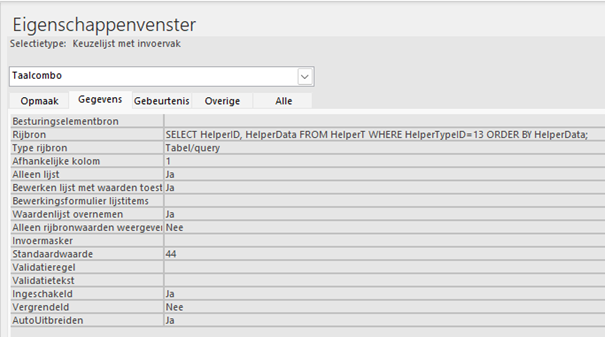
Hi Kevin, Auto Expand is set to yes.
I will provide some screenshots in a few minutes, although in Dutch (tried to switching to English, not working), but the field you are referring to is also located at the bottom of the Data tab.
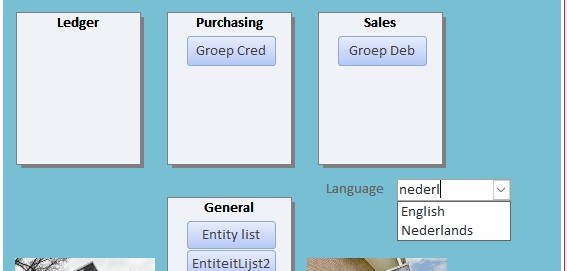
The other attached screenshots shows an example where I implemented the 'Multi Language', but when I type in "Nederlands", it's not recognizing the entered data.
Daniel de Koning OP  @Reply  
      
3 years ago

Daniel de Koning OP  @Reply  
      
3 years ago

Daniel de Koning OP  @Reply  
      
3 years ago
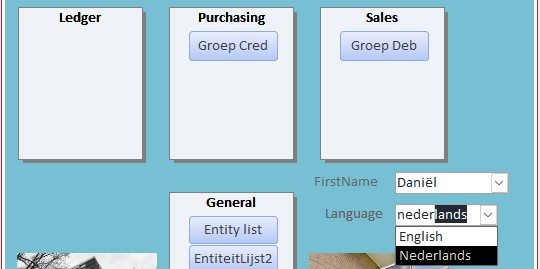
The next screenshot is after I added another combobox of the FirstName, which works as it should. The language combobox now also works when I enter "Nederlands'.
And then closed my database and those fields (auto fill) are now not working anymore.
Daniel de Koning OP  @Reply  
      
3 years ago

Daniel de Koning OP  @Reply  
      
3 years ago
I just opened an older database and everything works fine. When I go back to my new database, auto-fill still doesn't.

By the way, I've created the first table in this new database (w/new laptop) based on the SQL3 seminar and I noticed that some of the table settings were different when using the Table Design Wizard. All others tables based on Table Design Wizard.
I had to update several laptop/access settings to get it working in order to work with VBA (i.e. MS Office 16.0 Access database engine Object Library) and SQL (i.e.ANSI92), maybe i have missed a few other Access settings?
Daniel de Koning OP  @Reply  
      
3 years ago
In my previous post, I said "I just opened an older database... ", but I meant that it was another different database.
I'm now trying to create a new database with less queries, because I will be working with inventory transactions and Recordset seems to be better/easier solution. And also because I noticed that when opening the database from my work laptop which is set to English, my reference to a form in queries is not properly translated. It still shows the Dutch word 'Formulieren' instead of the English version 'Forms' and therefore giving errors when trying to run those queries.
Daniel de Koning OP  @Reply  
      
3 years ago
I just checked my BlankTemplate databases and it appears 1 of them is 'corrupt'.
Based on tip 'New Database File' on the Troubleshooter page (https://599cd.com/blog/display-article.asp?ID=1193), I'll see if I can spend 1 hour or so tomorrow to find the misbehaving object(s).
Additional tips are always welcome, but this thread can certainly be closed.
Daniel de Koning OP  @Reply  
      
3 years ago
While creating a new BlankTemplate, I was searching for the video regarding the Options settings and saw that William Farrar encountered a similar issue, maybe the same problem (https://599cd.com/blog/display-article.asp?ID=352&CommentID=48461#StartOfComments).
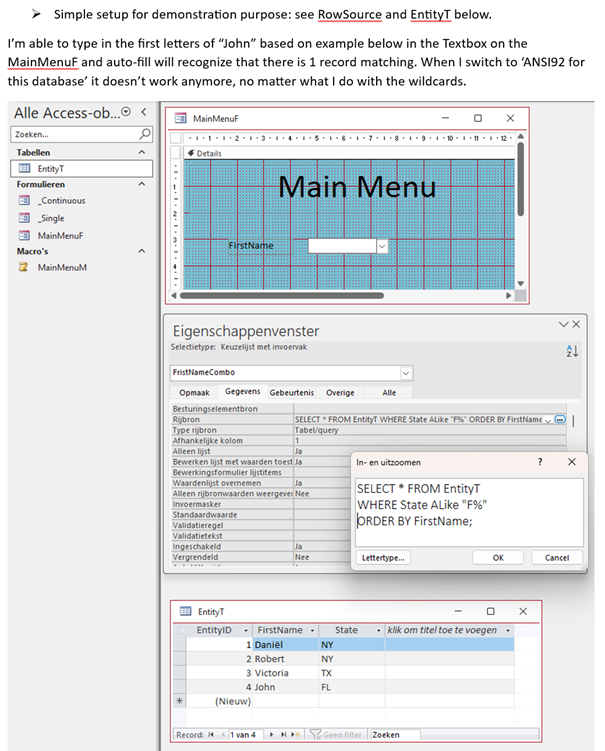
I hope the following can be addressed, because it seems that it's related to the ANSI92 settings somehow. I will provide screenshots in a few minutes.
I was actually giving up and wanted to create new Template files to work from, but I'm getting the same issue. When I uncheck the box for 'SQL Server Compatibility Syntax (ANSI92) - This database', the auto fill functionality is working (with mixed wildcards in the RowSource property though: * in SELECT and % in WHERE), but when I turn it on again, the auto fill is not working. Based on SQL3 video I assume all * should be replaced with %, but it doesn't... Any ideas anybody?
Daniel de Koning OP  @Reply  
      
3 years ago

This thread is now CLOSED. If you wish to comment, start a NEW discussion in Helper Data.
 

Next Unseen

 
New Feature: Comment Live View


The following is a paid advertisement
Computer Learning Zone is not responsible for any content shown or offers made by these ads.
 

Learn
 
Access - index
Excel - index
Word - index
Windows - index
PowerPoint - index
Photoshop - index
Visual Basic - index
ASP - index
Seminars
More...
Customers
 
Login
My Account
My Courses
Lost Password
Memberships
Student Databases
Change Email
Info
 
Latest News
New Releases
User Forums
Topic Glossary
Tips & Tricks
Search The Site
Code Vault
Collapse Menus
Help
 
Customer Support
Web Site Tour
FAQs
TechHelp
Consulting Services
About
 
Background
Testimonials
Jobs
Affiliate Program
Richard Rost
Free Lessons
Mailing List
PCResale.NET
Order
 
Video Tutorials
Handbooks
Memberships
Learning Connection
Idiot's Guide to Excel
Volume Discounts
Payment Info
Shipping
Terms of Sale
Contact
 
Contact Info
Support Policy
Mailing Address
Phone Number
Fax Number
Course Survey
Email Richard
[email protected]
Blog RSS Feed    YouTube Channel

LinkedIn
Copyright 2026 by Computer Learning Zone, Amicron, and Richard Rost. All Rights Reserved. Current Time: 5/1/2026 7:25:11 PM. PLT: 0s