Free Lessons
Courses
Seminars
TechHelp
Fast Tips
Templates
Topic Index
Forum
ABCD
 
Home   Courses   TechHelp   Forums   Help   Contact   Merch   Join   Order   Logon  
 
Back to Access Forum    Comments List
Upload Images   @Reply   Bookmark    Link   Email   Next Unseen 
Import CSV file
Brent Davis 
     
2 years ago
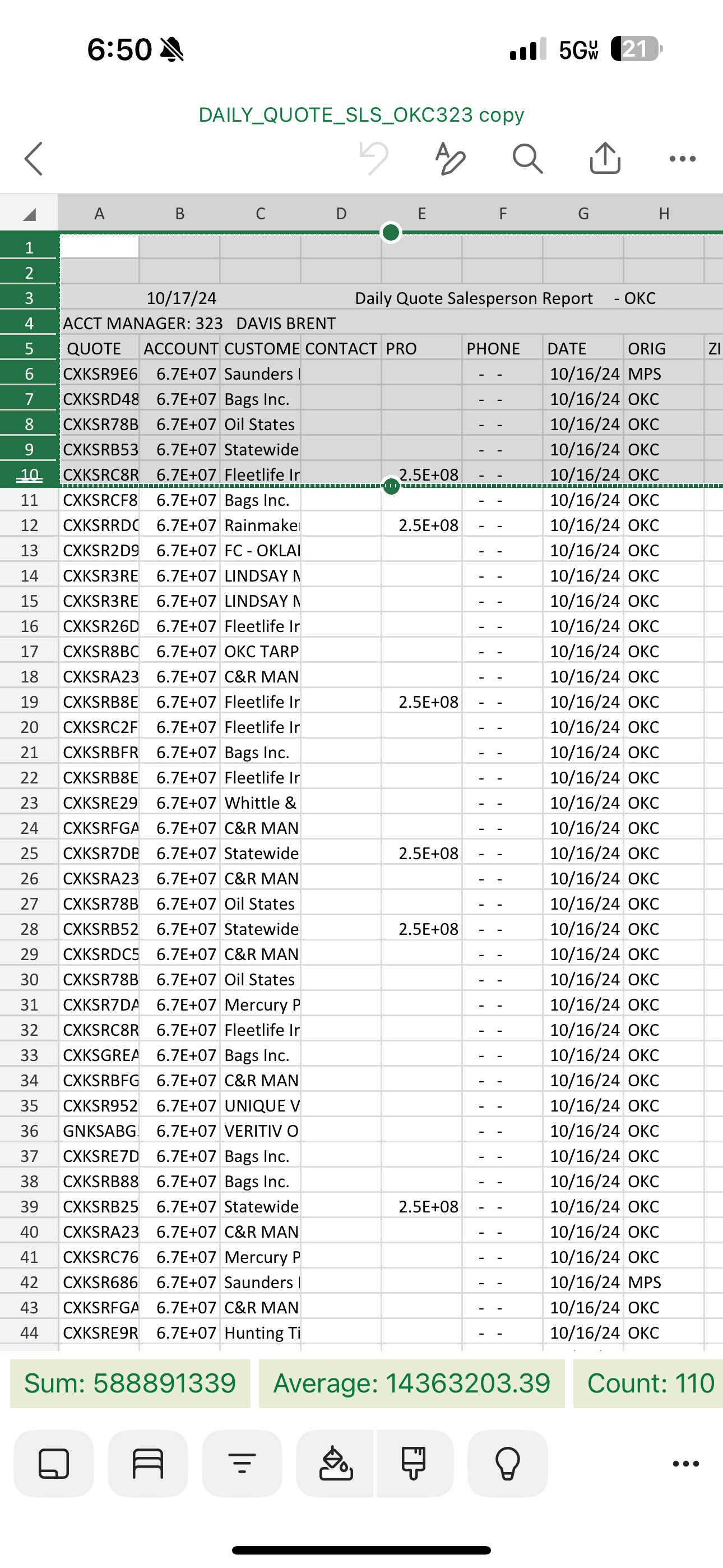
I have a quote report I receive daily. I will send a screenshot. I want this to be automated but it has multiple rows above the header that I do not need and a row at the bottom of totals that I do not need. I currently just manually clean up the sheet and import it in and it works fine but I don't want to do this every day. I want to click a button and it imports the data to access. I have watched the import text tech help and the automated import tech help but I don't know how to handle the rows of information I don't need in an automated set up.  Any assistance is appreciated.
Brent Davis OP  @Reply  
     
2 years ago

Kevin Robertson  @Reply  
          
2 years ago
This video will be released tomorrow (2024-10-18) but since you are a Tech Help member you can watch it now.

Import Specific Sheet
Brent Davis OP  @Reply  
     
2 years ago
Thanks Kevin for your quick reply. I have watched that as well. I just need the data from row 5 down not the information above that.  I know from the video you can set a range but that range changes daily. How do I only import the rows I need without having to manually adjust every day? Thanks for your assistance.
Sami Shamma  @Reply  
             
2 years ago
Brent,

Does your CSV file have any fixed features, for example, is the Column heading always on row 5 etc.
Brent Davis OP  @Reply  
     
2 years ago
Sami, yes. It always starts on row 5 and the last row is always the totals which I do not need the last row of totals. The range between row 5 and the last row of totals changes daily, it could be 400 rows, 250 rows, 5 rows just however many quotes happen that day.  I just need the data from below row 5 to the row above the row of totals at the end.  Any help is appreciated.  Thanks Sami!
Kevin Yip  @Reply  
     
2 years ago
You most likely need VBA for this.  The Access import wizard and Richard's methods are good for data without too many variations in structure and layout.  But your data don't seem to be that, as your row count, column count, etc. can vary day to day, as you said.

Write VBA code that will import everything to a temporary table in Access, then check row by row, field by field -- with recordset looping for the rows, and For-Next looping for the fields.  Set up conditions in the code (If-Then-Else, Select Case, etc.) to determine which rows and fields to keep and which to discard.  The more unstructured and unpredictable the data, the more code you have to write to handle the variations, naturally.

Obviously, the best thing is to have a fixed structure for your data, which would make importing much easier.  The foundation of good computing is having good inputs.
Juan Rivera  @Reply  
            
2 years ago
Is it always 5 roes?  May be able to inport by range. LOL had to come back and edit....Hang on Richard has a video comming out to show you how to do inport by range.  
Sami Shamma  @Reply  
             
2 years ago
Starting with Kevin's idea, read the CSV to a Temp table and add AutoNumber ID field. Then get the total row count. Then move the records from the temp table to the real table with a WHERE condition ID > 5 AND ID < [TotalLines] -1
Brent Davis OP  @Reply  
     
2 years ago
Thanks everyone for your input. This is going to challenge my abilities as I am not a programmer (I am in sales) but it will be fun trying to figure this out. The way I have it now works fine for what I need I just know there is a better way  and I really enjoy this stuff.  Thanks again everyone! Enjoy your day or night depending on where you are! I will post back if I manage a solution.
Sami Shamma  @Reply  
             
2 years ago
Hi Brent

If you want someone to create this for you, please visit Developer Network
Brent Davis OP  @Reply  
     
2 years ago
Thanks Sami!  The database I have created, with the help of all of you, is only for me!  This all started out  because I needed a better system to manage my sales call notes. As most things do, as I learned, it morphed into much more and has become a valuable tool for me to analyze customer data and uncover tendencies better preparing me for my daily customer interactions. Plus, I love this stuff and I love learning!  Thanks again for all your assistance and support! This forum, and individuals like all of you, is fantastic!
Sami Shamma  @Reply  
             
2 years ago
Thank you, Brent.
We are just paying it forward. The other moderators where instrumental in helping me get to this point, not to mention the incredible teaching of out Guru Richard.

consider posting this in Testimonial section.
Richard Rost  @Reply  
          
2 years ago
I'd pull everything into a temp table and then use a recordset to delete what you don't need.
Brent Davis OP  @Reply  
     
2 years ago
Should I use transfertext with a csv file or transfer spreadsheet or something else. Again, I don't do this for a living.
Sami Shamma  @Reply  
             
2 years ago
You should get more control with the spreadsheet method.
Richard Rost  @Reply  
          
2 years ago
This would make a good video. I'm working on it now. If you don't want to manually manipulate the spreadsheet before importing it, this is going to require a little VBA. I'll walk you thru it.
Richard Rost  @Reply  
          
2 years ago
Brent Davis OP  @Reply  
     
2 years ago
Thanks all!  I was able to get it to work but I had to use TransferText instead of TransferSpreadsheet because it is a Microsoft Excel CSV file. Can you use TransferSpreadsheet on Microsoft Excel CSV files? If so, I could not figure it out. I remed(sp) out the TransferSpreadsheet code but wanted you to see it. See code below. It works great but only after the second or third try.  The first try always imports only a partial listing. Usually on the second try it will populate correctly. I also have file conversion errors on the header row that starts with Quote per the first attachment above in this thread and sometimes on other columns and rows but it does not affect the final import of data it is just annoying to have to delete the import error table each time.

This is the code:
DetailsPrivate Sub QuoteImportBTN_Click()
    
    On Error Resume Next
    DoCmd.DeleteObject acTable, "QuoteImportT"
    On Error GoTo 0


     DoCmd.TransferText acImportDelim, , "QuoteImportT", _
        "C:\Users\Bdpok\OneDrive\Documents\dailyquotes.csv", False
    
    This is remd out.  'DoCmd.TransferSpreadsheet acImport, , "QuoteImportT", _
        "C:\Users\Bdpok\OneDrive\Documents\dailyquotes.xlsx", False
        
              
    Dim rs As Recordset, Done As Boolean, s As String
    
    Set rs = CurrentDb.OpenRecordset("QuoteImportT")
    Done = False
    While Not rs.EOF And Not Done
        s = Nz(rs!f1, "")
        If s = "Quote" Then Done = True
        rs.Delete
        rs.MoveNext
    Wend
    rs.Close
    
    
    Dim FoundEnd As Boolean, D As String
    Set rs = CurrentDb.OpenRecordset("QuoteImportT")
    FoundEnd = False
    While Not rs.EOF
        D = Nz(rs!f7, "")
        If Not IsDate(D) Then FoundEnd = True
        If FoundEnd Then rs.Delete
        rs.MoveNext
    Wend
    rs.Close
    Set rs = Nothing
    
    DoCmd.OpenTable "quoteimportt"
    
End Sub


Any thoughts to why I am having the initial import and the file conversion issues? Even with these issues it is much faster and easier than what I was doing! Thanks again and sorry for the long post.
Brent Davis OP  @Reply  
     
2 years ago
Any advise on above question?
Kevin Yip  @Reply  
     
2 years ago
TransferSpreadsheet only works with Excel files, and TransferText only works with text files.  A CSV file is text, even when you open it in Excel.  It is the file's native format, not how you open it, that determines what it is.
Brent Davis OP  @Reply  
     
2 years ago
Thanks Kevin for your response. I appreciate it.
Brent Davis OP  @Reply  
     
2 years ago
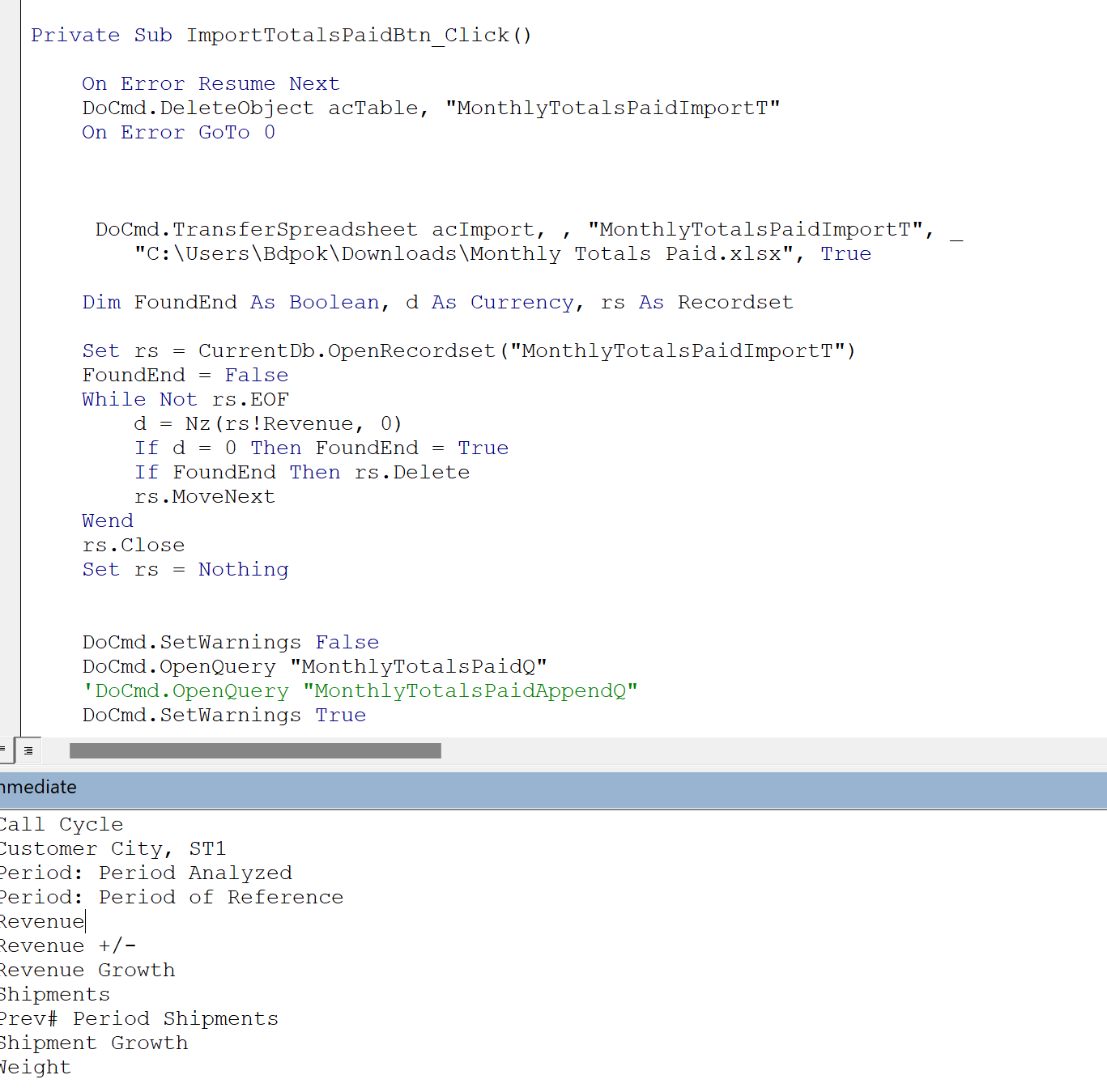
All, I am trying to transfer in another spreadsheet and I am getting an error 3265, item not found in this collection. I have used the immediate window to check if the field is in the collection and it is. Please see screenshot. What am I missing?
Brent Davis OP  @Reply  
     
2 years ago

Brent Davis OP  @Reply  
     
2 years ago
The error occurs in the record set loop at d=NZ(rs!Revenue,0).
Richard Rost  @Reply  
          
2 years ago
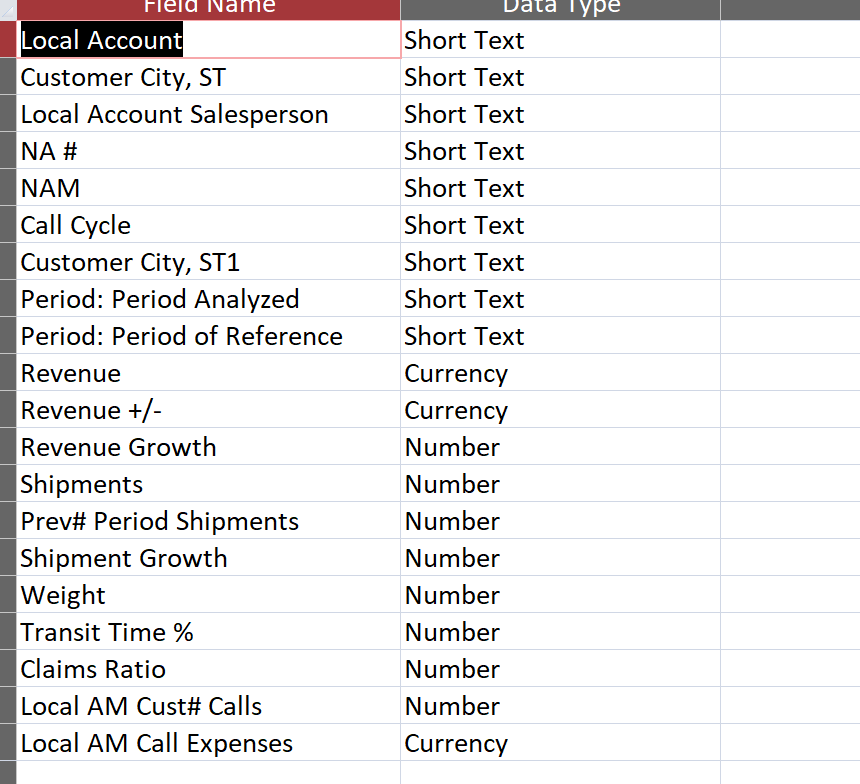
Yeah, that's usually a spelling error or the field doesn't exist in the table. I don't see anything wrong with your code. Let's see the table design.
Brent Davis OP  @Reply  
     
2 years ago

Kevin Yip  @Reply  
     
2 years ago
See if there is a trailing space after "Revenue", or any other field names.  DoCmd.TransferSpreadsheet does not trim the spaces for you if the Excel data have them.  This is one reason I don't often use DoCmd.TransferSpreadsheet.  There may be user typos on the Excel worksheet, and there is no easy way to fix the field names in the table afterwards -- unless you fix it manually in table design, which defeats the purpose of automating the import.
Richard Rost  @Reply  
          
2 years ago
That is an excellent catch, Kevin. Normally when you create a table in Access and design view, you can't leave a trailing space because Access will automatically trim the field name. However, if you're importing from a spreadsheet and the person that created this spreadsheet put a space after the column header field name, when Access imports it, it doesn't trim that space off. I just tested it, so I will bet dollars to doughnuts that that's the problem, and this would make an excellent video.
Richard Rost  @Reply  
          
2 years ago
Also, I don't see where you declared your variable "d". Make sure to Dim all your variables and that you have Option Explicit on. It will save you headaches.
Brent Davis OP  @Reply  
     
2 years ago
Thanks guys!  That is exactly the case!  I even tried other fields and it was the same issue.  Thanks again.
Richard Rost  @Reply  
          
2 years ago
See if this helps you, Brent: Imported Field Names

Nice quick video for tomorrow since the queue is empty! LOL
Brent Davis OP  @Reply  
     
2 years ago
Perfect Richard!  I appreciate the quick response! You and all the guys are excellent at what you all do!  Also, your teaching style is far and away the best in your industry and it is not even close! Thank you for sharing your gift sir!
Richard Rost  @Reply  
          
2 years ago
Thanks, I appreciate that.

This thread is now CLOSED. If you wish to comment, start a NEW discussion in Access Forum.
 

Next Unseen

 
New Feature: Comment Live View


The following is a paid advertisement
Computer Learning Zone is not responsible for any content shown or offers made by these ads.
 

Learn
 
Access - index
Excel - index
Word - index
Windows - index
PowerPoint - index
Photoshop - index
Visual Basic - index
ASP - index
Seminars
More...
Customers
 
Login
My Account
My Courses
Lost Password
Memberships
Student Databases
Change Email
Info
 
Latest News
New Releases
User Forums
Topic Glossary
Tips & Tricks
Search The Site
Code Vault
Collapse Menus
Help
 
Customer Support
Web Site Tour
FAQs
TechHelp
Consulting Services
About
 
Background
Testimonials
Jobs
Affiliate Program
Richard Rost
Free Lessons
Mailing List
PCResale.NET
Order
 
Video Tutorials
Handbooks
Memberships
Learning Connection
Idiot's Guide to Excel
Volume Discounts
Payment Info
Shipping
Terms of Sale
Contact
 
Contact Info
Support Policy
Mailing Address
Phone Number
Fax Number
Course Survey
Email Richard
[email protected]
Blog RSS Feed    YouTube Channel

LinkedIn
Copyright 2026 by Computer Learning Zone, Amicron, and Richard Rost. All Rights Reserved. Current Time: 6/22/2026 9:26:48 PM. PLT: 1s