|
||||||

|
|
||||||
|
MsgBoxBy Richard Rost
 5 years ago
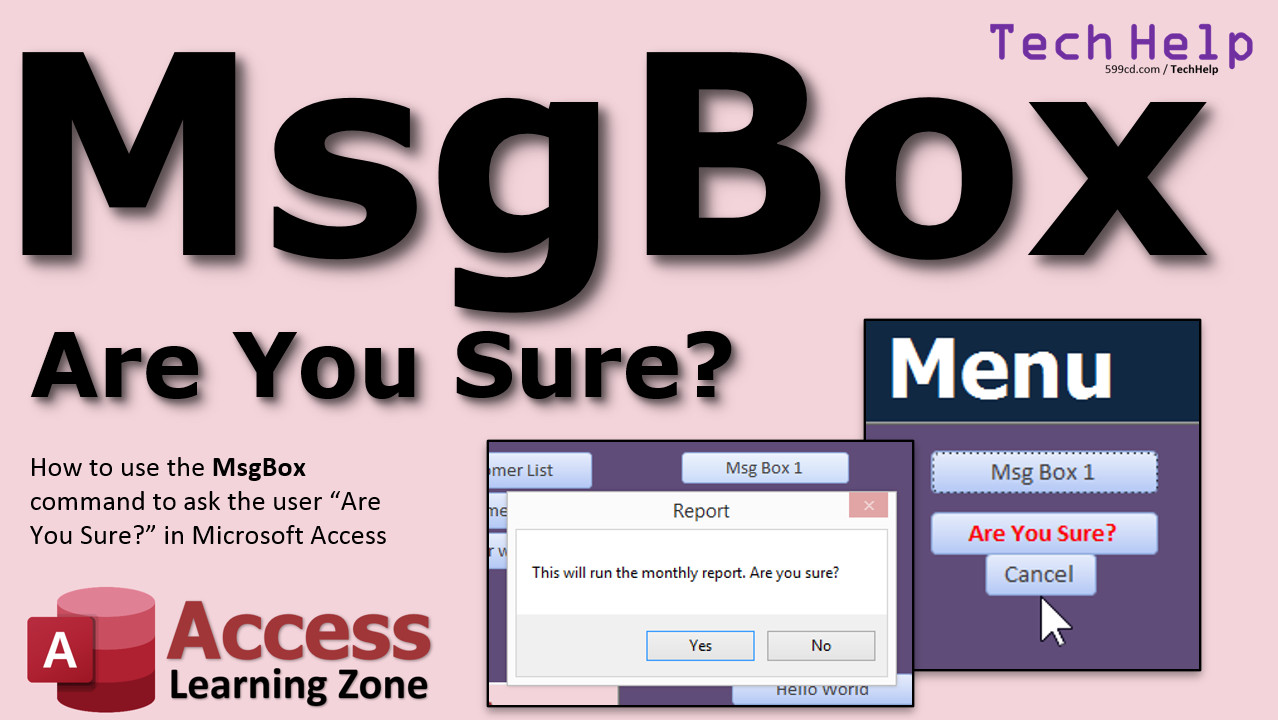
Use MsgBox to Create an "Are You Sure?" Prompt In this video, I will teach you how to use the MsgBox command in Microsoft Access VBA. You will see how to create a simple popup. Then you will learn how to use MsgBox to return a YES or NO response from the user. This is helpful before running long or delicate procedures. Anabel from Tuscaloosa, Alabama (a Gold Member) asks: I have a series of queries that I run once a month to generate reports. There's a bunch of append and delete queries in there, and they take a LONG time to run. I've accidentally clicked on the button to start this procedure a few times. Short of killing Access, is there any way to have it prompt me "Are You Sure?" before beginning this process? MembersMembers will learn how to avoid using the MsgBox command altogether by modifying the button's caption to ask the user if they're sure.
Silver Members and up get access to view Extended Cut videos, when available. Gold Members can download the files from class plus get access to the Code Vault. If you're not a member, Join Today!
Links
Next Up...
Keywordsmicrosoft access, ms access, #msaccess, #microsoftaccess, #help, #howto, #tutorial, #instruction, #learn, #lesson, #training, #database, MsgBox, Msg Box, Message Box, MessageBox, Are You Sure, vbYesNo, vbYes, vbNo, vbYesNoCancel, Prompt User, Message Boxes, MsgBox Return Values, Yes/No, OK, Cancel
More InformationTranscriptWelcome to another TechHelp video brought to you by AccessLearningZone.com. I am your instructor, Richard Rost. In today's video, I'm going to teach you how to use the message box function. We're going to learn how to prompt the user, "Are you sure?" in your Microsoft Access databases. Today's question comes from Annabelle from Tuscaloosa, Alabama, one of my Gold members. Annabelle says, "I have a series of queries... series of queries, say that 10 times fast. I have a series of queries that I run once a month to generate reports. There are a bunch of append and delete queries in there, and they take a long time to run." I know exactly what you mean. I've accidentally clicked on the button to start this procedure a few times. Short of killing Access, and I hope you mean killing the process, not actually stabbing Access, but anyways, is there any way to have it prompt me, 'Are you sure?' before beginning this process? Yes, of course, you can use the message box prompt to ask the user, "Are you sure?" and have them click Yes or No. There are other things you could do too. You can make the button small and move it out of the way, make a separate form for it, or not put it on the same menu where your other buttons are. Let me show you how to make an "Are you sure?" prompt with a message box. If you've never done any Access VBA programming, don't panic. This is pretty easy to do. Go watch my Intro to Access VBA. It's a free video, it's on my website, and it's on my YouTube channel. It gives you all the basics of how to get in there and start programming in VBA. It's not too long, and it's not hard to do. Go watch that first if you've never done any programming. Annabelle, I know that you have done some programming because you've got a bunch of my developer classes. So, we're going to teach all the kind people how to use the message box. You can use message box just to pop a message up on the screen. I'm going to go into design mode here, and I'm going to grab a command button and drop it here. I'm going to cancel the wizard. Now, I'm just going to put in here, "This is my message box." Now, right-click, build event. That's going to open up the code builder. If you get a window asking you if you want the code builder or a couple of different kinds of builders, pick the code builder. If you watch my intro to VB class, you would know that. So, right in here, I'm in command14_Click. Normally, you'd give the button a nice name, like "CustomerContactButton," but this is just for a sample. I'm going to put in here, "msgbox" (MSGBOX), space, and then a prompt, like "Hello world." That's it. Something inside quotes: "Hello world." Save that. Come back out here. Let's close the main menu and reopen it. I'm going to click on the message box. Ready? Here we go. Ping. There it is. "Hello world." That's a message box. The default message box only gives you an OK button. I'm going to click OK and that's it. That's like giving someone a message. You can pop up the current time or whatever you want to do. If you want to get a response, then message box can also be a function. In other words, it can return a value. Let's do this. I'm going to say "If msgbox" and then open parentheses this time, because it's a function, so you've got to have inside parentheses: "Would you like to continue?" Now, comma. It says buttons. There are a whole bunch of different buttons you can put in here. I cover most of these in my full classes, but the one we're looking for is vbYesNo, right there. There's vbYesNo and vbYesNoCancel. We're going to go with vbYesNo. That's going to give me Yes and No buttons. Comma. "Title" means you could change the title across the top of the message box, so it doesn't say Microsoft Access. You could put something in here like "Warning" or something like that. Then there's Help file and Context. Don't worry about any of that stuff; those are optional. Close it up. Now, that message box is going to return a value, either vbYes or vbNo. Those are the only two options. So, I'm going to say, "If that message box equals vbYes, then in here, we're going to just continue. Let's do DoCmd.OpenForm the customer form." Otherwise, we'll do DoCmd.OpenForm the order form, just to have it do something. So the message box will pop up with the Yes/No buttons and a warning on top. It will ask the user to click one or the other. If they click Yes, it's going to open up the customer form. If they click No, it's going to open up the order form. Save it. Come back over here. Ready, click the button. "Warning: Would you like to continue?" OK, Yes. And there's the customer form. Let's do it again, message box, No, and there's the order form. See, it knows whether you clicked on Yes or No. Sometimes I'll throw Cancel on there too. There's Yes/No/Cancel, because sometimes if users aren't sure, they're likely to just cancel something if they don't understand your prompt. I just check for Yes or No, and Cancel can do the same thing. In your case, Annabelle, what you want to do is say: "This will run the monthly report. Are you sure?" You can say here, "If this is vbYes, then right in here, do all your stuff." If they answer Yes to this "Are you sure?" then put your DoCmd.RunQuery statements in here. I saw some of your stuff; you sent me a screenshot. You've got a delete query (delete last month's table), you run a make-table query, an append query, and some other stuff on it. You're pulling information down over the network. So this report literally takes about 15 minutes to run. If she clicks on it, there's no way to cancel out of that, except for killing Access, which could possibly corrupt the database, so you don't want to do that. Right here, just have DoCmd.OpenQuery "Query1", DoCmd.OpenQuery "Query2", and that's pretty much it. That's how you use the message box command. I cover message box in a couple of different places. In Access Expert Level 16, I show you how to use message box as a macro command. You can actually use it as a macro too. Really, where you want to go is Access Developer 1. Developer Level 1 is my full intro to VBA. The class I pointed to earlier is like a quick intro. This is the real intro. It's an hour and 15 minutes long. Of course, we cover all the basics on using VBA. Here's the example with OpenQuery and stuff too. Now, in the extended cut for members, I'm going to show you how to do the same thing without using message box. I'm going to leave Message Box 1 there for you, but we're going to create Message Box 2. When you click on that, it'll change the caption of the box, so it will say "Are you sure?" right on the button and change it to red, and it'll beep. We'll make a cancel button visible so now the user can either click on that button the second time or click on the cancel button. When it's done running, it'll revert back to looking like Message Box 2. That is all covered in the extended cut for members. Silver members and up get access to all of my extended cut videos. Gold members can download the databases I create in these videos. How do you become a member? Click the Join button below the video. After you click the Join button, you'll see a list of all the different types of membership levels that are available. Silver members and up will get access to all of the extended cut TechHelp videos, live video and chat sessions, and more. Gold members get access to a download folder containing all the sample databases that I build in my TechHelp videos, plus my code vault where I keep tons of different functions that I use. Platinum members get all the previous perks plus access to my full beginner courses and some of my expert courses. These are the full-length courses found on my website and not just for Access. I also teach Word, Excel, Visual Basic, ASP, and lots more. Don't worry, these free TechHelp videos are going to keep coming. As long as you keep watching them, I'll keep making more. If you liked this video, please give me a thumbs up and feel free to post any comments that you have. I do read them all. Make sure you subscribe to my channel, which is completely free, and click the bell icon and select "All" to receive notifications when new videos are posted. Click on the Show More link below the video to find additional resources and links. You'll see a list of other videos, additional information related to the current topic, free lessons, and lots more. YouTube no longer sends out email notifications when new videos are posted, so if you'd like to get an email every time I post a new video, click on the link to join my mailing list. If you have not yet tried my free Access Level 1 course, check it out now. It covers all the basics of building databases with Access. It's over three hours long. You can find it on my website or on my YouTube channel. If you like Level 1, Level 2 is just one dollar, and it's also free for all members of my YouTube channel at any level. Want to have your question answered in a video just like this one? Visit my TechHelp page and you can send me your question there. Click here to watch my free Access Beginner Level 1 course, more of my TechHelp videos, or to subscribe to my channel. Thanks for watching this video from AccessLearningZone.com. IntroIn this video, I will show you how to use the MsgBox function in Microsoft Access to prompt users with an "Are you sure?" message before running important queries or actions. We will look at how to customize the message box with different buttons like Yes, No, and Cancel, and handle the user's response in VBA to prevent accidental actions. I'll demonstrate step by step how to add a message box prompt to your command buttons, making your Access databases safer and more user-friendly. QuizQ1. What is the primary purpose of using the message box function in Microsoft Access as described in the video? A. To prompt users for input and return their response B. To back up the database automatically C. To generate monthly reports automatically D. To perform data encryption Q2. What can you use the message box function to ask the user before running a potentially long or irreversible procedure? A. "Do you want to save changes?" B. "Are you sure?" C. "Do you want to exit Access?" D. "Please enter your password" Q3. What message box button configuration should you use to prompt the user with both Yes and No options? A. vbOKOnly B. vbRetryCancel C. vbYesNo D. vbAbortRetryIgnore Q4. What value does the message box return if the user clicks Yes when using the vbYesNo option? A. vbNo B. vbCancel C. vbRetry D. vbYes Q5. Where is the code to be written when adding a message box to a button in Access? A. In the table design view B. In the button's click event code builder C. In the query builder window D. In the report design view Q6. If the message box response is vbYes, what did the sample code in the video do? A. Delete the entire database B. Opened the customer form C. Sent an email notification D. Closed the application Q7. What should you do FIRST if you have never done any Access VBA programming, according to Richard? A. Download and install new drivers B. Watch his Intro to Access VBA video C. Join as a Platinum member immediately D. Start editing the Windows registry Q8. Why might someone like Annabelle want to use a message box prompt before running a set of queries? A. To provide faster results B. To let the user decide whether to run a long operation C. To increase the number of tables in the database D. To reduce network bandwidth usage Q9. What can you customize in a message box besides the prompt message? A. Only the button color B. Both the button type and the title of the message box C. Only the font type D. The location of the Access window Q10. What risk did Annabelle face by accidentally running her monthly query process without a prompt? A. It might clear all user passwords B. It could corrupt her database if she force-closes Access C. It would automatically save a backup D. It sends out automated emails Q11. What does the default message box display if you do not specify button options? A. Yes and No buttons B. OK and Cancel buttons C. Only an OK button D. Retry and Ignore buttons Q12. Besides VBA, where else did Richard mention you can use a message box in Access? A. As a query expression B. As a macro command C. In a report footer D. In the navigation pane Q13. What is the advantage mentioned of using Yes No Cancel in a message box? A. It forces the user to choose Yes B. It allows users the option to cancel if uncertain C. It hides dangerous queries D. It disables all other buttons Q14. Which membership level allows access to the download folder and Richard's code vault? A. Free member B. Silver member C. Gold member D. Bronze member Q15. According to the video, how can you receive email notifications about new AccessLearningZone.com videos? A. By clicking the bell icon on YouTube B. By commenting on videos C. By joining the mailing list D. By subscribing to the magazine Answers: 1-A; 2-B; 3-C; 4-D; 5-B; 6-B; 7-B; 8-B; 9-B; 10-B; 11-C; 12-B; 13-B; 14-C; 15-C DISCLAIMER: Quiz questions are AI generated. If you find any that are wrong, don't make sense, or aren't related to the video topic at hand, then please post a comment and let me know. Thanks. SummaryToday's video from Access Learning Zone focuses on how to use the message box function in Microsoft Access to prompt users with an "Are you sure?" confirmation before running critical procedures. Frequently, when managing databases in Access, you might have a series of queries, such as append and delete operations, that you run monthly to generate reports. These can take considerable time and make irreversible changes to your data. I have experienced accidentally kicking off these processes myself, and stopping them mid-way is usually not an option unless you force-close Access, which risks corrupting your database. To avoid this, it is a good idea to prompt the user for confirmation before starting the procedure. You can do this easily with the built-in message box function in VBA, which displays a dialog box on the screen. This function can prompt for a response and handle the user's choice. If you have never used Access VBA before, do not worry. This is not difficult to set up. I recommend watching my Introduction to Access VBA video first, available on my website and YouTube channel. It will walk you through the basics of getting started with VBA programming in Access. When you want to add a simple message to the screen, you can use the message box command to pop up a window with your message. The basic version of this window shows an OK button. However, message box can also function as a question, allowing you to capture the user's response. By specifying options like vbYesNo, the message box will show Yes and No buttons. You can even customize the title of the box to say something like "Warning" instead of the default. The message box returns a value based on the user's choice, so you can check whether they clicked Yes or No. Based on their response, your code can decide whether to proceed with the process or exit. For example, if the user clicks Yes, you can run your queries to process your monthly reports. If they click No, you can abort or run an alternative process. For procedures that are risky or time-consuming, it is a very good practice to add one of these confirmation prompts. This prevents the whole process from kicking off accidentally and avoids the need to force-close Access if you trigger something by mistake. You are not limited to Yes and No choices. You can also use Yes No Cancel if you want to allow users to opt out if they are unsure. For Annabelle's case, the confirmation prompt should read something like: "This will run the monthly report. Are you sure?" If the user clicks Yes, the code will execute all the necessary queries, including deleting last month's data, creating tables, and pulling new data over the network. I cover message box usage in several of my classes. Access Expert Level 16 shows how to use message boxes from macros. However, if you want an in-depth introduction to VBA and using features like the message box in your code, Access Developer Level 1 is the place to start. This full course covers everything you need for building smarter Access applications. Also, in today's Extended Cut for members, I show an alternative approach for confirmations that does not rely on message boxes. Instead, I demonstrate creating a custom button that changes its caption and appearance to indicate a confirmation is needed, and enables a Cancel option. After completion, everything resets back to its original state. This approach is covered in detail for members. Silver members and above get access to all my extended cut videos, which include additional tips and advanced techniques. Gold members can also download the example databases created in these tutorials, and Platinum members have access to all beginner and certain expert courses covering Access and other applications like Word, Excel, and Visual Basic. Free TechHelp videos will always be available, so as long as you are watching, I will continue to make more. Please subscribe to my channel to stay updated and consider joining the mailing list for notifications, since YouTube no longer sends emails for new uploads. You can also access more resources, related lessons, and free courses by following the links on my website or in the video descriptions. If you would like your question answered in a future video, just visit my TechHelp page and send it in. And if you have not tried my free Access Beginner Level 1 course, it is available and covers all the essentials for getting started with Access. For a complete video tutorial with step-by-step instructions on everything discussed here, visit my website at the link below. Live long and prosper, my friends. Topic ListAdding a message box prompt in Microsoft Access VBA Configuring a command button to trigger a message box Using the MsgBox function to display messages Adding custom text and titles to message boxes Using MsgBox to get user responses with Yes/No buttons Handling MsgBox results to control form logic Opening different forms based on MsgBox user choice Applying MsgBox prompts before running queries Integrating MsgBox with VBA for process confirmation Protecting against accidental query execution with prompts Primary TopicsAccess VBA, message box function, user prompts, confirmation dialog, command buttons, event procedures, conditional logic, DoCmd.OpenQuery, user interface design Secondary TopicsAccess macros, query management, customizing prompts, form design, error prevention |
||||||||||||||||||||||||||||
|
| |||
| Keywords: TechHelp Access MsgBox, Msg Box, Message Box, MessageBox, Are You Sure, vbYesNo, vbYes, vbNo, vbYesNoCancel, Prompt User, Message Boxes, MsgBox Return Values, Yes/No, OK, Cancel PermaLink MsgBox in Microsoft Access |