|
||||||

|
|
||||||
|
Customer PricingBy Richard Rost
 5 years ago
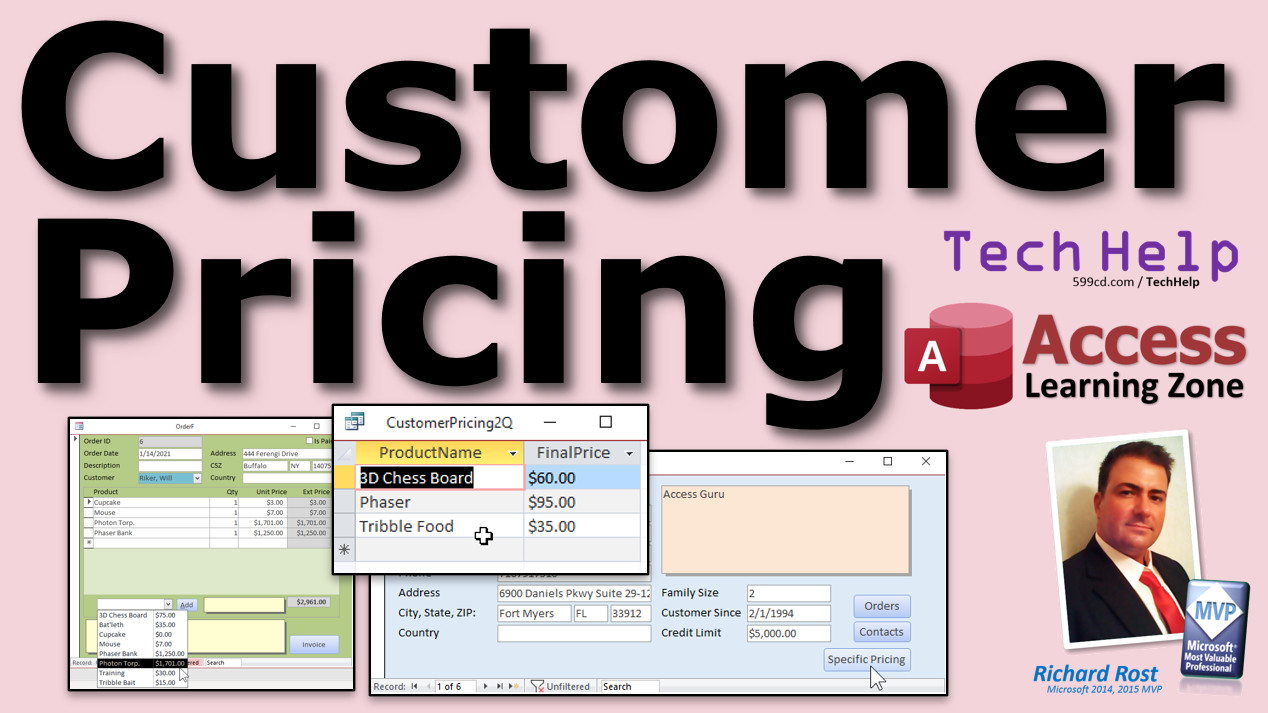
Customer-Specific Product Pricing for Invoices In this video I will show you how to set up product pricing that can be set different for each customer. Gianna from Montreal, Quebec (a Platinum Member) asks: I'm using your Invoicing Template which is very helpful. Thank you. Is there any way to setup pricing that is specific to each customer? I have certain customers that get special discounts due to the overall volume they purchase? It’s not a blanket discount. I’d like to modify the prices of certain products just for them. MembersMembers will learn how to apply these techniques to the Members Only Invoicing Database which allows them to pick from a list of products to add to the invoice.
Silver Members and up get access to view Extended Cut videos, when available. Gold Members can download the files from class plus get access to the Code Vault. If you're not a member, Join Today!
Links
Keywordsmicrosoft access, ms access, #msaccess, #microsoftaccess, #help, #howto, #tutorial, #instruction, #learn, #lesson, #training, #database, customer specific price levels, multiple prices, different pricing, customer based pricing
More InformationTranscriptWelcome to another TechHelp video brought to you by AccessLearningZone.com. I am your instructor, Richard Rost. In today's video, I am going to show you how to set up customer-specific product pricing for your Microsoft Access Order Entry invoicing system. I am going to show you how to set up product pricing that can be unique for each customer. So, if you have a specific customer who gets a special price on a product or two, instead of a blanket discount, for example, you can set that up. I am going to show you how in just a minute. Today's question comes from Gianna from Montreal, Quebec, one of my Platinum members. Gianna asks, "I am using your invoicing template, which is very helpful. Thank you." You are welcome. "Is there any way to set up pricing that is specific to each customer? I have certain customers that get special discounts due to the overall volume they purchase. If not a blanket discount, I would like to modify the prices of certain products just for them." Well, yes, of course, Gianna, there is a way to do pretty much everything in Microsoft Access. You just have to know how. With this specific example, since it is not a blanket discount like 5 percent off of everything or 10 percent off of everything, what I would say we should do is set up a second table that has a list of the products and the customers and their special price. So, we will use a new table for this. Let us see how this would work. Before we get started, there are some prerequisites. There are some things you have to know before you finish watching this video. If you are not familiar with query criteria, the IF function, the Immediate IF function, or the DLookup function, then go watch these videos first. You need to understand how these work before continuing. So, pause right now if you do not know what this stuff is. I will put links down below in the links section. You can click on those or go to those pages, whichever you prefer. Now, Gianna is one of my Platinum members, so she has access to the Members Only invoicing system, which allows her to pick a product from a list and then hit the Add button, and it adds it up here into the invoicing automatically. All her pricing is stored in a product table. Gianna, I will address how to handle this specifically in the Extended Cut for members. For everybody else, the non-members, I am still going to show you how to do this. You just will not be able to pick a product and add it automatically to the invoicing form. That involves a bit of coding, some VBA, which is why it is for the Extended Cut. You still have an invoicing form in here. There is just no way to pick a product. You have to type it in. But that is fine. We can still make a product list with customer-specific pricing, which, by the way, is one more video you should go watch. If you have not watched it already, my invoicing video is free. It is on my website on YouTube. It is how we built this entire template. Now we are back here in my TechHelp Free template with the invoicing. Let us set up a product list. We will set up a product table. So, create Table Design: a ProductID, that will be my AutoNumber, a ProductName, Short Text, and a Price, which will be Currency. Save this as my ProductT, my product table. No primary key? Say yes, and then we can put some data in here. Let us say we have got a Phaser - that is $100. We have got some Triple Food - that is $35. And we have got a 3D Chess Board - and that is $75. Just three products. That is fine for now. Now, we have to set up a cross-reference table between the customers and the products. I am going to take this product table and slide it over here, just so you can keep an eye on it. Here is the customer table. There are our customers. Let me slide this over next to it over here. We are going to make another table now that brings those two things together. This will be my CustomerPricingT table. So, this table gets its own ID, CustomerPricingID. That is the AutoNumber. We will need a CustomerID - that is a Number of type Long Integer. That is a foreign key. If you have not taken my Relationships video, go watch that too. I will put a link down below. You should know relationships before doing this stuff. I guess I should have made that prerequisites screen a little bit bigger. So, we know the customer. Now, we also need to know the product. ProductID - that is a Number of type Long Integer. That is going to point to the product table. And now, what is the custom price? So, Price - that will be Currency. Save this as CustomerPricingT. The primary key is this guy right here. Save it. Go into Datasheet View and add some data. CustomerID: let us say customer one - that is me. Product - the Phaser, product one. Normally, people pay $100. Let us say I get it for $95. Same customer: the 3D Chess Board - let us say I get it for $60. Triple Food is a commodity. No one gets a discount on that, so no one gets a special price on Triple Food. Now, let us go down to Jim Kirk, customer two. He gets Phasers for $65. He buys a lot of them. The 3D Chess Board - that is product three - he gets it for $45. You set your customers here. You set your products here. There is the price. Now all we have to do is set up a query where we list all the products, and then we say, is this product in the table for the customer that we are currently making an order for? Here is how we do that. Close any open tables and save changes if prompted. How do we know which customer we are dealing with? Well, let us make sure the customer form is open. For us to get the customer-specific pricing, we could base it on the order form, whichever one you want. I am going to base it on the customer form because, usually, if the order form is open, the customer form is open as well. In fact, with this database, the way we have it organized, you cannot get to the order form without going through the customer form first. So, when someone comes in and manually closes the customer form, this should work just fine. From the customer form, we will use the CustomerID off the customer form in a query. Here is how we are going to do it. Create - Query Design. Bring in the product table. Close down the "All Tables." We are not joining it to anything. Just bring in the product table. Bring down all the fields if you want to. Now we are going to create a custom field right here. I will use the Zoom key - Shift F2 to zoom into the text a little bit bigger. We are going to call this one CustomPrice. I just typed in "customer" and then backspaced. My fingers are just so used to typing in the word "customer" because I do it all the time for classes. CustomPrice: We are going to use the DLookup function. So, it is DLookup. What am I looking up? The Price field from CustomerPricingT - that is the table. What is the criteria? CustomerID equals " (and then concatenate) Forms!CustomerF!CustomerID. But we are not done yet. And ProductID equals whatever the ProductID is in the current record. See that? Look up the Price from the CustomerPricing table where the CustomerID equals six or whatever customer happens to be open on the form, and the ProductID equals whatever this ProductID is over here for this record. Hit OK. Let us make sure this works first. I am going to save this as my CustomerPricingQ. Let us run it and see what we get. Look at that. Now, the customer that is open is one. So, look at this. There is my custom pricing: $95 for the Phaser, $60 for the 3D Chess Board, nothing for the Triple Food. We will deal with that in just a minute. That is where the IF function is coming in. Let us change this. Close this. Change to Jim Kirk. Now run that query. Look at that. There is Jim Kirk's pricing: $65 and $45. Let us go to somebody else who does not have custom pricing, and they are all null. Looking good so far. Let us go back to me. Design View. Now, we have to deal with that null value. So, this field here is where we will say, if that price is null, use the default price; otherwise, use the custom price. I will zoom in for you so you can see it better. Here we go. MyPrice: IIf(IsNull([CustomPrice]), [Price], [CustomPrice]). Hit OK. What does that do? It says if CustomPrice is null (this guy here), then use the default Price over here from the ProductT; otherwise, use that CustomPrice value. Save it. Take a peek. There we go. See, $95 because it has a value, that one is null so it uses the $35, $75, but I have got $60. Now, you can format this as currency, but sometimes with these calculated fields the format does not stick. If you right-click, go to Properties, set the format to Currency, and save it, close it, and run it again, you will see it does not always stick with the calculated value. You can force it with the Format function. Come over here and say FinalPrice: Format([MyPrice], "Currency"), just like that. And yes, I have got lessons on format properties too. Now run it, and you can see it is formatted as a currency value. What I would do is make another query because you have to display all of this stuff for this to work. If you hide the Price, for example, then the calculations will not work, but you can make a second query and pop that up for your price list. So, close this one and save changes. Create - Query Design. Bring in CustomerPricingT. What do you want to see for each customer? The ProductName and the FinalPrice. Maybe sort it by ProductName. Save this as CustomerPricing2Q - it is based on the first one though. Now you just run that, and there is this customer's specific pricing. Now, to see a list of this customer's pricing when you are making an order for them, you can either put it on the order form or on the customer form, either way. Come over here to Design View. Make a button down here (Button), drop it, right, Miscellaneous - Run Query, CustomerPricing2Q - Specific Pricing. Next, give it a name if you want to - PricingButton - and then finish. Here is your Specific Pricing button for this customer. Save that, and now you can open it up that easily. If you want to add any more specific pricing for this customer, just open up the CustomerPricingT table and add it in here. Yes, in my full classes I show a lot more. You can create a little subform down here where you can pick the product from a list and give them specific pricing that way. There are all kinds of things you can do. I only have time for a brief introduction to it here, but I show a lot more in the Extended Cut and in my Access Developer 28 class, where I cover more specific pricing. For example, if you are putting in an order for a customer and you change the price here, it will ask you if you want to change it in the table. That is all covered in Developer 28. Want to learn more? In the Extended Cut, we update the members' database where we have custom pricing showing in the combo box when you go to add an order. You can see here, Richard Rost - that is me - I pay $3,000 for a Photon Torpedo, but Will Riker over here only pays $1,701. And you can click on the Add button and it goes right up here. That is in the Extended Cut for members. Silver members and up get access to all of the extended cut videos. Gold members and up can download all of my templates from the TechHelp videos. If you want to keep learning even more than that, Microsoft Access Developer 28: If you change the price on the order, it will say, "You want to make custom pricing for this customer?" Then, it will take that price and add it to the custom pricing table. Plus, I will show you how to make a subform on your customer form where you can see all of their custom pricing. That is in Access Developer 28. I will put links to all this stuff down below in the link section. How do you become a member? Click the Join button below the video. After you click the Join button, you will see a list of all the different types of membership levels that are available. Silver members and up will get access to all of the extended cut TechHelp videos, live video and chat sessions, and more. Gold members get access to a download folder containing all the sample databases that I have built in my TechHelp videos, plus my Code Vault where I keep tons of different functions that I use. Platinum members get all of the previous perks plus access to my full beginner courses and some of my expert courses. These are the full-length courses found on my website, and not just for Access. I also teach Word, Excel, Visual Basic, ASP, and lots more. Do not worry, these free TechHelp videos are going to keep coming. As long as you keep watching them, I will keep making more. If you liked this video, please give me a thumbs up and feel free to post any comments that you have. I do read them all. Make sure you subscribe to my channel, which is completely free, and click the bell icon and select "All" to receive notifications when new videos are posted. Click on the Show More link below the video to find additional resources and links. You will see a list of other videos, additional information related to the current topic, free lessons, and lots more. YouTube no longer sends out email notifications when new videos are posted, so if you would like to get an email every time I post a new video, click on the link to join my mailing list. If you have not yet tried my free Access Level 1 course, check it out now. It covers all the basics of building databases with Access. It is over three hours long. You can find it on my website or my YouTube channel. If you like Level 1, Level 2 is just $1. It is also free for all members of my YouTube channel at any level. Want to have your question answered in a video just like this one? Visit my TechHelp page and you can send me your question there. Click here to watch my free Access Beginner Level 1 course, more of my TechHelp videos, or to subscribe to my channel. Thanks for watching this video from AccessLearningZone.com. IntroIn this video, I will show you how to set up customer-specific product pricing in a Microsoft Access Order Entry invoicing system. We will learn how to create a table to store unique prices for particular customers, build a cross-reference table for products and customers, and use a query with DLookup and IIf functions to display the correct price per customer. You'll also see how to present this information in your forms and add a button to quickly view a customer's pricing list. This tutorial is perfect if you need to manage special pricing that is not just a blanket discount. QuizQ1. What is the primary goal demonstrated in this video? A. Applying blanket discounts to all customers B. Setting up customer-specific pricing for products in an Access invoicing system C. Creating a simple order entry form D. Designing a report for sales data Q2. Why is a new table required to implement customer-specific product pricing? A. It reduces the database size B. To store product names separately from the customer list C. To cross-reference customers, products, and their unique prices D. To enable users to search for orders faster Q3. Which functions are listed as prerequisites for understanding the tutorial? A. SUM, COUNT, and AVERAGE functions B. Query criteria, IF function, Immediate IF function, DLookup function C. VLOOKUP, HLOOKUP, and CONCATENATE D. LEFT, RIGHT, and MID functions Q4. What is the structure of the new cross-reference table (CustomerPricingT) described in the video? A. ProductID, ProductName, and Price B. CustomerID, ProductID, Price, and CustomerPricingID (as AutoNumber primary key) C. CustomerID, CustomerName, DiscountRate D. ProductID, Price, OrderDate Q5. In the CustomerPricingT table, what is the purpose of the CustomerID and ProductID fields? A. To act as unrelated identifiers B. To store the names of customers and products C. They serve as foreign keys linking to the customer and product tables D. To calculate the total order price Q6. Which function is used in a query to look up a custom price from the new table? A. SUM B. DCount C. DLookup D. VLOOKUP Q7. What is the purpose of the IIF function in this solution? A. To provide readable output in the query result B. To join tables efficiently C. To select the default price when no custom price exists D. To format prices as currency Q8. If the DLookup for custom pricing returns a null value, what happens in the query? A. The system throws an error B. The default product price from ProductT is used C. 0 is displayed D. The query skips the record Q9. How can you force a calculated field to display as currency in your query if it is not formatting correctly? A. Right-click the field and set decimal places B. Use the Format function in the query, e.g., Format([MyPrice], "Currency") C. Change the data type in the original table D. Apply conditional formatting in the form Q10. What method does the presenter suggest for viewing a specific customer's pricing when placing an order? A. Exporting the table to Excel B. Creating a subform on the customer or order form C. Adding a button that opens a query showing the customer's specific pricing D. Printing the list for each customer Q11. To expand the customer-specific pricing feature, which advanced solution is covered in the Access Developer 28 class? A. Automatically assigning discounts to all customers B. Prompting the user to create custom pricing if an order price is changed, and adding it to the custom pricing table C. Removing all pricing options entirely D. Requiring users to memorize all product prices Q12. What membership benefit is described as unique to Gold members? A. Access to all extended cut TechHelp videos B. Access to a download folder with all sample databases and the Code Vault C. Personal training session with Richard Rost D. Voting on new video topics Answers: 1-B; 2-C; 3-B; 4-B; 5-C; 6-C; 7-C; 8-B; 9-B; 10-C; 11-B; 12-B DISCLAIMER: Quiz questions are AI generated. If you find any that are wrong, don't make sense, or aren't related to the video topic at hand, then please post a comment and let me know. Thanks. SummaryToday's video from Access Learning Zone covers how to set up customer-specific product pricing in your Microsoft Access Order Entry invoicing system. My goal today is to teach you how to configure pricing so that each customer can have their own unique price for particular products. This can be handy if you have clients who receive special pricing for just a few items instead of applying a standard across-the-board discount. The inspiration for today's lesson comes from a viewer who asked about modifying her invoicing template to allow certain customers to have special prices on specific products, rather than giving everyone the same discount. Of course, Microsoft Access is flexible enough to handle this, provided you know how to set things up. The solution I'll show you involves creating an additional table that lists which products are linked to which customers, along with their special prices. By doing this, you can easily record which customer receives what price on each item, rather than trying to manage this with a blanket discount. Before jumping into the technical side, there are a few prerequisites. If you are not familiar with query criteria, the IF function, the Immediate IF (IIf) function, or the DLookup function, you should learn about those first. Understanding how these functions work is critical for following today's lesson. For those using my Members Only database template, such as some of my Platinum level students, you have an invoicing system where you can pick products from a list and add them to an invoice automatically, with pricing stored in a separate product table. I will show advanced features for this in the Extended Cut for members. If you are not a member, you will still be able to follow along, although your version may not have the automated product selection feature, and you might have to manually enter the data. Let's start by creating a simple Product table. This table will have fields such as ProductID (an AutoNumber), ProductName (Short Text), and Price (Currency). After creating and saving this table (ProductT), you can enter a few products as examples, such as "Phaser" for $100, "Triple Food" for $35, and "3D Chess Board" for $75. Next, you'll need to set up a cross-reference table to link customers and products together with custom prices. This new table, CustomerPricingT, will include its own ID (CustomerPricingID as AutoNumber), CustomerID (Number, Long Integer), ProductID (Number, Long Integer), and a Price (Currency) field. The CustomerID and ProductID fields serve as links to your customer and product tables. This structure allows you to specify custom prices for particular products for individual customers. You can now enter example data into this table. Suppose customer one (yourself) buys a "Phaser" at $95 (less than the standard $100), and a "3D Chess Board" at $60. Maybe "Triple Food" stays at the regular price for everyone. Another customer, Jim Kirk (customer two), could receive a "Phaser" for $65 and a "3D Chess Board" for $45. After the data is entered, you create a query to display product pricing for each customer. The key here is to check whether a custom price exists for the customer and product in question. To do this, use a DLookup function in your query. The function will look up the custom price from the CustomerPricingT table where both the CustomerID and ProductID match the current records. Once the DLookup works, you might notice that if there is no special price, the query returns a blank (null value). To fix that, use an Immediate If (IIf) function to display the regular product price when no special price is found. The logic is straightforward: if CustomPrice is null, use the default price from ProductT; otherwise, use the custom price. For better readability, you can format the final price as currency using the Format function in a calculated field. Sometimes, formatting may not stick in queries, so the Format function ensures the price looks like a currency value. At this stage, consider making a second query that lists only the necessary fields, such as ProductName and the calculated FinalPrice, for easier viewing and printing. You might also want to sort it by ProductName for consistency. To give yourself or your users quick access to this custom pricing list while creating orders, you can add a button to the customer or order form which opens this query. When new custom pricing needs to be added, just make an adjustment in the CustomerPricingT table. In my full courses and for members, I expand on this by showing how to use subforms on the customer form to display and manage custom product pricing directly, and how to trigger automatic prompts if you edit product prices on orders, offering to save these new prices for future use for a particular customer. These advanced techniques are included both in the Extended Cut of this lesson and in my Access Developer 28 course. In today's Extended Cut, members can learn how to update the members' database so that custom prices display right in the combo box when adding order items. For example, you can set distinct prices per customer and instantly add them to invoice lines with a single click. For those eager to learn even more, my Access Developer 28 course covers how to automate prompts for new custom pricing and how to create useful subforms for managing special prices. Membership comes in several levels with additional perks at each one. Silver members and up receive all the Extended Cut videos and live sessions. Gold members gain access to a library of downloadable sample databases and a collection of my frequently used code. Platinum members receive all these benefits plus access to complete courses across multiple topics, including Access, Word, Excel, Visual Basic, and others. Remember that my free TechHelp videos will always be available to everyone, as long as you keep watching and supporting the channel. If you found this session useful, please give it a like and leave your comments. I read all of your feedback. Make sure that you subscribe to my channel for updates, since YouTube notifications no longer arrive by email. If you want email notifications, be sure to join my mailing list. If you are new to Access or need a refresher, check out my free Access Level 1 course, which covers the basics of building databases. It runs over three hours and is available on my website and YouTube. If you enjoy Level 1, Level 2 is just $1 or free for all channel members. If you want to have your own question answered in a future video, visit my TechHelp page and submit your query there. You can find a complete video tutorial with step-by-step instructions on everything we discussed here on my website at the link below. Live long and prosper, my friends. Topic ListSetting up a product table with prices Creating a cross-reference table for customer-specific pricing Assigning custom prices to products for specific customers Using DLookup to fetch customer-specific product prices Building a query to display custom pricing per customer Handling null values with the IIf and IsNull functions Formatting calculated price fields as currency Displaying a customer's product-specific pricing with a query Adding a button to open a customer's custom pricing list Adding and maintaining customer-product specific pricing data Primary Topics
customer-specific pricing, Microsoft Access, order entry system, product table, cross-reference table, DLookup function, query design, calculated fields Secondary Topics
form design, subforms, VBA automation, developer course references |
||||||||||||||||||||||||
|
| |||
| Keywords: TechHelp Access customer specific price levels, multiple prices, different pricing, customer based pricing PermaLink Customer Pricing in Microsoft Access |