|
||||||

|
|
||||||
|
Quote, Invoice, ReceiptBy Richard Rost
 5 years ago
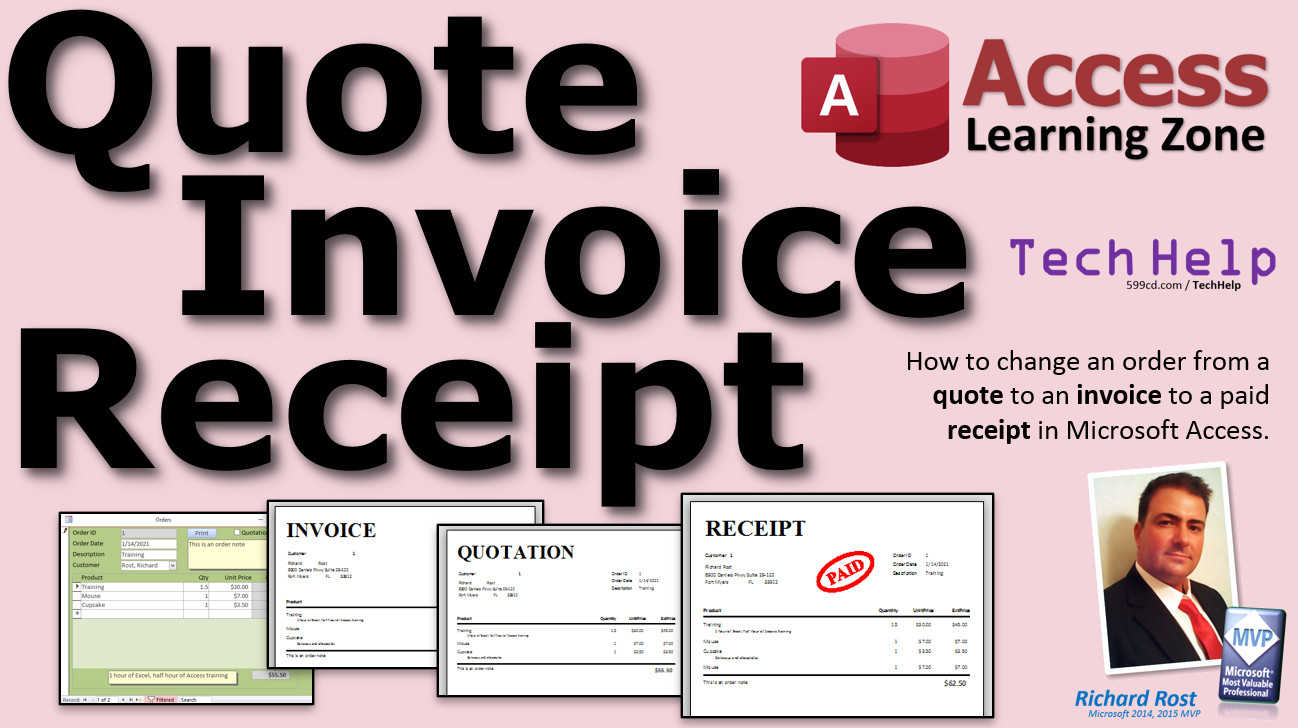
Change Orders from Quote to Invoice to Receipt In this video, I will show you how to change a quotation to an invoice, and then to a paid receipt in your Microsoft Access order entry database. Ethan from Orlando, Florida (a Gold Member) asks: I've been using your Invoicing database for a while now. It's very helpful. Thank you. Is there any way that I can differentiate between quotations (estimates), invoices, and paid receipts? Do I need to copy all the data between three tables? MembersMembers will learn how to do the same thing using VBA directly in the report. We will also add a nice red PAID stamp, and we will add some logic to make our order form smart: if the user clicks PAID then we will mark it as NOT a quotation, and if it is already paid they cannot switch it back to a quote without un-checking the PAID box.
Silver Members and up get access to view Extended Cut videos, when available. Gold Members can download the files from class plus get access to the Code Vault. If you're not a member, Join Today!
Links
Keywordsmicrosoft access, ms access, #msaccess, #microsoftaccess, #help, #howto, #tutorial, #instruction, #learn, #lesson, #training, #database, order entry, orders, invoice, invoices, quote, quotes, quotations, receipts, billing, invoicing, template
More InformationTranscriptWelcome to another TechHelp video brought to you by AccessLearningZone.com. I am Richard Rost, your instructor in today's video. I am going to show you how to change an order from a quote or quotation or an estimate to an invoice to a paid receipt in your Microsoft Access Order Entry database. Today's question comes from Ethan in Orlando, Florida, one of my Gold Members. Ethan says, "I've been using your invoicing database for a while now. It's very helpful. Thank you." You're welcome. "Is there any way that I can differentiate between quotations or estimates, invoices, and paid receipts? Do I need to copy all the data between three tables?" No, Ethan. In fact, you can use the same OrderT table that we use in the invoicing database to track all three things: quotations, invoices, and receipts. Quotations are basically when you're sending this to the customer and are not sure if they are going to buy it or not. That's a quotation or an estimate. Then, once they decide that they want it, you change it over to an invoice, which now indicates they owe you money. Then, once they've paid for it, we can switch the invoice over to a receipt. There is no need to have three separate tables here. All you need are two Yes/No fields: one to indicate whether it's a quotation or not, and the other one to indicate whether it's paid or not. So, if it's not a quotation and it's not paid, it's an invoice. If it's not a quotation and it's paid, it's a receipt. Now, some people like to copy quotations over to a separate record to track the difference between the estimate and the actual invoice. That's a lot more advanced. I'll talk about that toward the end of the video, but let me show you how to handle this first. A couple of prerequisites first: make sure you've watched the video where I build the invoicing database. It's free and it's on my website. I'll put a link down below. Of course, that is based on a previous video creating the blank database template, so watch that first too. Watch the invoicing database and the materials before it. For this video, you're also going to have to know the IF function, the Immediate IF (IIF I call it). Go watch that video too. We're going to use this to change that label on our report. Now you've got a copy of the TechHelp free template, the invoicing database, and you know how to use an IF function. So, if we go into our order table design view, we already have IsPaid in here. Now we just have to add IsQuotation. I'll just make it IsQuote. This will be a Yes/No value, and by default, I'm going to say No. I would rather have my people put orders in that are accidentally invoices when they should be quotations, instead of the other way around. Because if you default to the quotation and they enter it when it's supposed to be an invoice, then you are not expecting to be paid for that. So, I like to make IsQuote default to No. By default, it's an invoice when you put it in the system. To switch it to a quotation, change this value. Now, in the database, we've got some records already. Close that field list. IsQuote should be No on all of them. Now we have our OrderInvoiceQ, and this is what we use to generate the printed invoice. If we go in here, go to Orders, go to Invoice, this is based on OrderInvoiceQ. We are going to put a calculated text field in here using that IF function. It says, "If this is a quote, put the word QUOTATION there. If it's not a quote but it's paid, put RECEIPT there. Otherwise, put INVOICE." We're going to use a nested IF function. I cover nested IF functions in the extended cut, the extended help for the members after the IF video. Go watch that. Sign up as a Silver Member and go watch that video too. It's not super hard, though. I'll show you here how to do it. Let's go into this, right-click, Design View, and come all the way out here to the end. We're going to add a calculated query field out here. I also have a video on calculated query fields. I'll put a link down below. If you watched the IF function video, I'm pretty sure the prerequisite for that one is calculated fields. So you have to learn how to walk before you run. Everything's got prerequisites all the way back to the beginning—even Access 101, you have to know Windows. Some people ask, "Why are there so many videos before this one?" That's how knowledge works. You can't learn calculus without basic arithmetic first. Be fortunate that I'm pointing in the right direction with the links to the other videos. In this, we're going to call this field TopText. Let me zoom in so you can see it better. Here's my zoom window (Shift+F2). In here, I'm going to say: IIF(IsQuote, "QUOTATION", IIF(IsPaid, "RECEIPT", "INVOICE") ) If IsQuote is true, put the word QUOTATION here (I like it all in caps). Otherwise, if IsPaid is true, put RECEIPT. Otherwise, put INVOICE. Close up the parentheses. See how this works? Take a look at the inside one first. If IsPaid, it is a receipt; otherwise, if not paid, it's an invoice. Now this whole thing is the false condition for the first IF function. If it is a quote, mark out QUOTATION. Otherwise, whatever this function returns. Now, we can't run this query by itself from here because it's dependent upon the open order. We learned that in the invoicing video. So I'm just going to save this. Close that query. Now let's go into the order form. Pick a customer. Go to Orders. We need to do a little bit of work on this guy first. Before we do that, open up OrderInvoice. Let's see what we have in here. This should be the current order, Order 1. Slide over to the end, and it says "INVOICE" because IsQuote (we don't have it on here yet) is false, and IsPaid is false, so that's an invoice. If I were to mark this paid, come over here, run the query again, and now it should show "RECEIPT." See, receipt. It's based on the IsQuotation field and the IsPaid field. Let's put IsQuotation on the order form. Shrink this button up and change this to just the word "Print" now because it could be an invoice, a receipt, or a quotation. Here is IsPaid; let's just make this "Paid." Copy, paste, slide it over here. This is going to be "Quotation." Open up the properties for this checkbox. Double click and change the control source to IsQuote. Copy, paste. Save it. Close it. Open it back up again. Put that back. It's not a quote, but it's paid. If I run the query, it says "RECEIPT." If it is a quotation, which means it shouldn't be paid, and I run the query now, it says "QUOTATION." Now we just use this text in the receipt or in the actual printed report. Find that OrderInvoiceR, right-click, Design View. Now, this label is going to change to indicate whether it's paid or not, so I'm going to delete the label and slide the checkbox over into a corner. I'm going to make it not visible. Double click, open it up, change the visible property to No. I still want it on here in case you need to refer to it for some other values. Leave it there, hidden. Now, this guy is a label. We're going to replace this with our text box that we created in the underlying query. Remember, this report is based on OrderInvoiceQ, which is that query that we modified earlier. Open existing fields, find my TopText field, drag that, and drop it right there. Close the field list. Now, delete the label that comes in with it. Make this bigger so you can see the whole word. "QUOTATION" is probably the biggest word. Make sure that fits there. Save it. Close it. Now click the Print button. There we go—there's "QUOTATION." Close it, turn quotation off, click the print button—"INVOICE." So we get a paid invoice, and then a receipt. See how that works? The two fields here indicate what the value of the IF function is in the query, which changes the text on the printed report. You may have noticed that between clicks of the button, I was clicking down here in the detail section. If I change this, like unpay it, notice this record is dirty—the little pencil there means this data has not been saved to the table. If I open the report right now, it still says "RECEIPT" even though I marked it unpaid. Why? Because this record wasn't saved or refreshed in the table. So when I open this up, it is still pulling the old data. That's why I was clicking down here, because technically I just left this record—this is a subform—and when you leave a record, it saves to the table and updates. That's confusing for our end users to have to do. If someone's in here clicking on "Quotation" and hitting print and wondering why it isn't switching to "QUOTATION," they don't know that. So what you have to do is, in this button, put a refresh command before the report opens up. Bonus material: we are going to modify this button. Usually, I save this for my advanced classes. You are getting some bonus material. In the extended cut for the members, I usually use VBA. You just use DoCmd.Refresh. But this button was created using the Command Button Wizard. I'll show you how to modify a button that the wizard created; it's not hard. Right-click, Build Event. That opens up the macro editor. Normally, I don't use macros, but the Command Button Wizard in Access creates button macros, which are called embedded macros. In this macro, there is one command—just OpenReport. What we have to do is put a refresh in front of that OpenReport. To do this, come down here, type in Refresh, hit Tab. It says RunMenuCommand Refresh. That's what we want. Click and drag it up top so it comes before OpenReport. Make sure you have RunMenuCommand Refresh on top, then OpenReport below. Save this. Close that. That is saved inside this button. Now close the form, save changes, yes. Open up the button, open up the invoice, the order. Hit print—it is a quotation. Close it, turn off quotation without clicking down here (notice it is still dirty), but when I click the print button, look at that—it refreshed it first, then opened up the report, and now it's properly an invoice. Do the same thing with paid, print, and there you go—it's a receipt. So that's how you can control whether this is an estimate, a quotation, an invoice that needs to be paid, or a paid order. Now, in the extended cut for members, I'm going to show you how to do the same thing without using this macro and without using that IF function. We are going to open the report and, using VBA, just change what's in that box. We will change the Caption property on that label in the Build Event. That's for members—it's actually easier than setting up that query field, but I try to avoid programming in the regular TechHelp classes because I know there are a lot of beginners, so I hold off on that. I want to show non-developers how to do stuff in Access in the regular TechHelp classes. If you are a developer, that's what the extended cuts are for. If you want to learn VBA, programming, and all that stuff, that's where you'll find it. We are also going to put a little "Paid" sticker there—so it shows up on a slant, like a rubber stamp. We're going to put a little logic over there as well so that if it's already marked paid, you can't switch it back to a quotation. We're going to put some VBA logic in these buttons. If you want to learn a lot more about setting up invoices, Access Expert 9 and 10 cover a lot of this. Here is the whole big order entry system, building the printable invoice—it's a lot more detailed than what we build here. Access Expert 10 covers things like the invoice and the paid and all that. So I have hours and hours of classes on invoicing—it's one of the more popular things people ask me about. As I mentioned earlier, lots of people ask me how to keep the estimate and also keep the invoice, but make a copy of it and modify the copy for the actual order. Can you do that? Yes, and in Access Developer 24, I show you how to do it. It involves copying a record with children, which you can't do without programming—it's very difficult. I have a couple of lessons with a reservation system first, but copying an order with all the details does involve some coding. This lesson does cover that. The reason it involves programming is because you have to copy the parent order, then get the new order ID so you can copy the children (all the line items) and make those refer to the new order. It's a little complicated, but it can definitely be done, and I cover it in Access Developer 24. In the extended cut for members, we will use VBA and some code to change the label in the invoice report. We're not going to make the nested IF function in the query. I'm going to show you how to go right into the report, into the Build Event, and change the label caption directly. We're going to be using the report header Build Event. Then, we're going to add that cool "Paid" graphic—a little stamp—and I'll show you how to make that, or you can use any screen clipping you want. If you have some cool clip art, use it. We'll show or hide that only on a paid receipt. We will also add some logic. If it's paid, make it a receipt. In other words, if the user clicks "IsPaid" and it happens to be a quotation, make it so it's not a quotation automatically. But also, if it's marked paid, you cannot turn it into a quotation. You don't want someone taking a paid order and then clicking the IsQuotation button, and then it doesn't show up in your paid orders. That is all covered in the extended cut for members. Silver Members and up get access to all the extended cut videos. Gold Members can download the templates. How do you become a member? Click the Join button below the video. After you click the Join button, you will see a list of all the different membership levels that are available. Silver Members and up will get access to all the extended cut TechHelp videos, live video and chat sessions, and more. Gold Members get access to a download folder containing all the sample databases that I build in my TechHelp videos, plus my Code Vault where I keep tons of useful functions that I use. Platinum Members get all the previous perks plus access to my full beginner courses and some of my expert courses. These are the full-length courses found on my website and not just for Access. I also teach Word, Excel, Visual Basic, ASP, and lots more. Don't worry, these free TechHelp videos are going to keep coming. As long as you keep watching them, I'll keep making more. If you liked this video, please give me a thumbs up and feel free to post any comments that you have. I do read them all. Make sure you subscribe to my channel, which is completely free, and click the bell icon and select all to receive notifications when new videos are posted. Click on the "Show More" link below the video to find additional resources and links. You will see a list of other videos, additional information related to the current topic, free lessons, and lots more. YouTube no longer sends out email notifications when new videos are posted, so if you'd like to get an email every time I post a new video, click on the link to join my mailing list. If you have not yet tried my free Access Level 1 course, check it out now. It covers all the basics of building databases with Access. It's over three hours long. You can find it on my website or my YouTube channel. If you like Level 1, Level 2 is just one dollar, and it's also free for all members of my YouTube channel at any level. Want to have your question answered in a video just like this one? Visit my TechHelp page and you can send me your question there. Click here to watch my free Access beginner Level 1 course, more of my TechHelp videos, or to subscribe to my channel. Thanks for watching this video from AccessLearningZone.com. IntroIn this video, I will show you how to manage quotes, invoices, and receipts in your Microsoft Access Order Entry database using a single table and a couple of Yes/No fields. You will learn how to set up the database so you can easily switch an order between a quotation, an invoice, or a paid receipt, and how to modify your forms and reports to display the correct label based on the status. I will also show you how to update your Print button so it always shows the right information on your report without confusion for end users. QuizQ1. What is the recommended approach to managing quotations, invoices, and receipts in a Microsoft Access order database? A. Use three separate tables for quotes, invoices, and receipts. B. Use one table and add two Yes/No fields to differentiate between them. C. Copy data between three identical tables when status changes. D. Only keep records of paid invoices in the database. Q2. Which two Yes/No fields are suggested to distinguish order types in the OrderT table? A. IsProcessed and IsComplete B. IsPaid and IsQuote C. IsActive and IsClosed D. IsSent and IsReceived Q3. If a record is NOT a quotation and NOT paid, what type of document is it? A. Receipt B. Quote C. Invoice D. Credit Memo Q4. Why should the default value for the IsQuote field generally be set to No? A. So the default record is always a quotation B. To avoid accidentally marking an invoice as a quotation C. To ensure every order is marked as paid by default D. So that paid invoices are tracked correctly Q5. What function is used in a query to determine and display QUOTATION, INVOICE, or RECEIPT based on field values? A. Switch() B. Choose() C. IIF() D. DLookUp() Q6. What will the expression IIF(IsQuote, "QUOTATION", IIF(IsPaid, "RECEIPT", "INVOICE")) return if IsQuote is No and IsPaid is Yes? A. INVOICE B. QUOTATION C. RECEIPT D. PAID Q7. In this video, what is the purpose of the TopText calculated field? A. To indicate the order total B. To display "QUOTATION," "INVOICE," or "RECEIPT" on reports based on status C. To show the customer's name D. To flag overdue invoices Q8. Why does the report sometimes display incorrect values after changing IsPaid or IsQuote? A. The fields are not always updated in the query B. The record is not saved/refreshed before running the report C. There is a bug in the report design D. The data source is incorrect Q9. What is added to the Print button's macro to ensure the report shows up-to-date values? A. A Requery command after OpenReport B. A DoCmd.RunSQL command C. A RunMenuCommand Refresh command before OpenReport D. A DLookup refresh in the query Q10. For more advanced handling, such as copying a quote to a new invoice/order with related line items, what is required? A. No special action, Access does this automatically B. Programming using VBA to copy the parent and child records C. Only a simple append query D. Importing/exporting data manually Q11. To prevent user confusion when they mark a paid order as a quotation, what is suggested in the extended cut? A. Allow it, and notify the user in a message box B. Do nothing, as it will not affect reporting C. Add logic so that if paid, the record cannot be turned back to a quotation D. Clear the paid field automatically Q12. What benefit do Silver and Gold Members get that regular (non-member) viewers do not? A. Access to YouTube comment sections only B. Downloads of all sample databases and extended cut TechHelp videos C. Free advertising on the channel D. Ability to edit video content Q13. What type of users is the extended cut/VBA-based solution recommended for? A. Users who avoid any customization B. Database developers or advanced users C. Beginners with no programming experience D. Users with only Excel experience Q14. What is the role of the macro that controls the Print button? A. To export records to Excel B. To run a Make-Table query C. To refresh data and then open the invoice report D. To update customer address fields Answers: 1-B; 2-B; 3-C; 4-B; 5-C; 6-C; 7-B; 8-B; 9-C; 10-B; 11-C; 12-B; 13-B; 14-C DISCLAIMER: Quiz questions are AI generated. If you find any that are wrong, don't make sense, or aren't related to the video topic at hand, then please post a comment and let me know. Thanks. SummaryToday's video from Access Learning Zone demonstrates how to manage the progression of orders from quotes to invoices to paid receipts in a Microsoft Access order entry database. This topic originated from a question about whether it is necessary to copy data between separate tables for quotations, invoices, and receipts. The answer is no. You do not need three different tables for these stages. Everything can be managed within the same OrderT table, which is used throughout the invoicing database. A quotation or estimate is provided to a customer when it is not certain that the sale will happen. Once the customer decides to proceed, that quote becomes an invoice. After payment is received, the invoice is tagged as a paid receipt. To make this work, you only need two Yes/No fields: one to indicate if the record is a quotation, and another to show whether it is paid. If the record is not a quotation and not paid, it operates as an invoice. If it is not a quotation but is paid, it serves as a receipt. Some people like to keep separate records for quotations and invoices in order to track any differences between the original estimate and the final sale. That approach is more advanced, and I discuss it later in the video. First, I'll outline how to handle everything using just the two fields mentioned above. There are a few prerequisites to help you get the most out of this lesson. You should have already seen the video where I build the invoicing database, which is available for free on my website. That video builds on the blank database template lesson, so be sure to watch that beforehand. Additionally, familiarity with the IF function, specifically the Immediate IF function (IIF), is essential since this video demonstrates how to apply it to control certain labels on your reports. Assuming you have the free TechHelp template, the invoicing database, and understand how to use the IF function, here is what needs to be done. Open your order table in design view. The design should already include an IsPaid field. Add a new Yes/No field, which I call IsQuote. I recommend setting the default value for IsQuote to No. This way, new orders are assumed to be invoices unless someone explicitly marks them as quotations. This prevents someone from accidentally entering an order as a quotation when it's meant to be an invoice. With your table updated, move to your OrderInvoiceQ query, which is used to generate the printed invoice. We will add a calculated field to handle the labeling for the different stages: quotation, invoice, or receipt. The logic goes as follows: if a record is a quote, display "QUOTATION;" if it is not a quote but is paid, display "RECEIPT;" otherwise, display "INVOICE." To implement this, use a nested IIF function in a calculated query field. If you are not familiar with nested IIF statements, I cover that in detail in a separate members-only extended video after the main lesson on the IF function. The new field can be called something like TopText. Using the IIF function, the field will return "QUOTATION" if IsQuote is true, "RECEIPT" if IsPaid is true, and otherwise "INVOICE." This nesting allows the label to update automatically based on the status of these fields. Note that this query relies on the currently open order, and the query cannot be run directly outside the context of the active order. Save and close the query once you've updated it. Next, bring up your order form. Adjust the print button label since it can now output a quotation, invoice, or receipt, not just an invoice. Place checkboxes for IsPaid (rename it to "Paid") and IsQuote (label it as "Quotation") on the form. Set their Control Source properties appropriately, then save and close the form. Now, when you enter orders, you can toggle between quotation and paid statuses. The printed report will update the label accordingly, showing "QUOTATION," "INVOICE," or "RECEIPT" as appropriate. On the report side, update the OrderInvoiceR report to use the new TopText field from your query instead of a static label. Replace the fixed label with a text box bound to TopText, and make sure the control is large enough to display the longest label ("QUOTATION"). Hide the IsPaid and IsQuote checkboxes on the report design since you can reference these fields elsewhere if necessary but do not need users to see them when printing. Keep in mind that if you change the status of a record and do not save it, the updated information will not immediately appear on your printed report. For example, if you change an invoice to a receipt by marking it as paid but do not move off the record to save it, the report may still display it as an invoice. To correct this and ensure the latest status appears in the report, modify your print button to refresh the data before opening the report. To adjust the print button, open its embedded macro and add a Refresh command before the OpenReport action. This step ensures any changes made to the record are saved and reflected in the report output. With these adjustments, the database allows you to manage an order from quoting, to invoicing, to payment, all with just two Yes/No fields and a simple calculated label. For those interested in more advanced techniques, the extended cut for members explores handling this process with VBA instead of relying on macros or the IIF function. In that version, code runs in the report's event to set the label directly. Additionally, I show how to add a "Paid" graphic that appears like a stamp when a receipt is printed and implement logic to prevent users from mismarking records (such as setting a paid order back to a quotation). For even more intricate requirements, like carrying over quotation details to a new invoice while preserving the original estimate, I demonstrate that in Access Developer 24. This process involves copying a record and its related child records, which requires some VBA coding. Silver Members can access all of the extended cut videos, and Gold Members can download the templates and code samples I use in these lessons. Higher membership levels include access to my complete beginner and some expert Access courses as well as training for other Microsoft Office products and related technologies. Remember, the free TechHelp videos will continue, and you can always submit your own questions through the TechHelp page. Be sure to like, subscribe, and check the links below for more resources. If you want email notifications for new content, join the mailing list. Also, try out my free Access Level 1 beginner course if you haven't already. You can find a complete video tutorial with step-by-step instructions on everything discussed here on my website at the link below. Live long and prosper, my friends. Topic ListUsing one table to track quotes, invoices, and receipts Adding IsQuote and IsPaid fields to the Orders table Setting default values for Yes/No fields in Access tables Using the Immediate IF (IIF) function in queries Creating calculated text fields in queries Building nested IIF functions for label text Modifying queries to supply report header text Updating order forms to include IsQuote and IsPaid checkboxes Changing button labels to reflect multiple document statuses Adding checkboxes to forms and setting control sources Displaying calculated status text on printed reports Connecting report headers to calculated query fields Making report controls visible or hidden as needed Resizing and formatting controls on Access reports Ensuring record updates before printing reports Adding refresh commands to button macros Editing embedded macros generated by the Command Button Wizard Inserting RunMenuCommand Refresh above OpenReport in macros Testing how status changes affect report output Using two Yes/No fields to determine document status Avoiding multiple tables for related document types Saving and refreshing form data before generating reports Primary TopicsAccess order entry, quote to invoice process, YesNo fields, calculated fields, IIF function, dynamic report labeling, form design, report design, data refresh, macros Secondary TopicsVBA alternative approaches, user interface improvements, advanced copy record logic |
||||||||||||||||
|
| |||
| Keywords: TechHelp Access order entry, orders, invoice, invoices, quote, quotes, quotations, receipts, billing, invoicing, template PermaLink Quote, Invoice, Receipt in Microsoft Access |