|
||||||

|
|
||||||
|
Multi-Field FindBy Richard Rost
 5 years ago
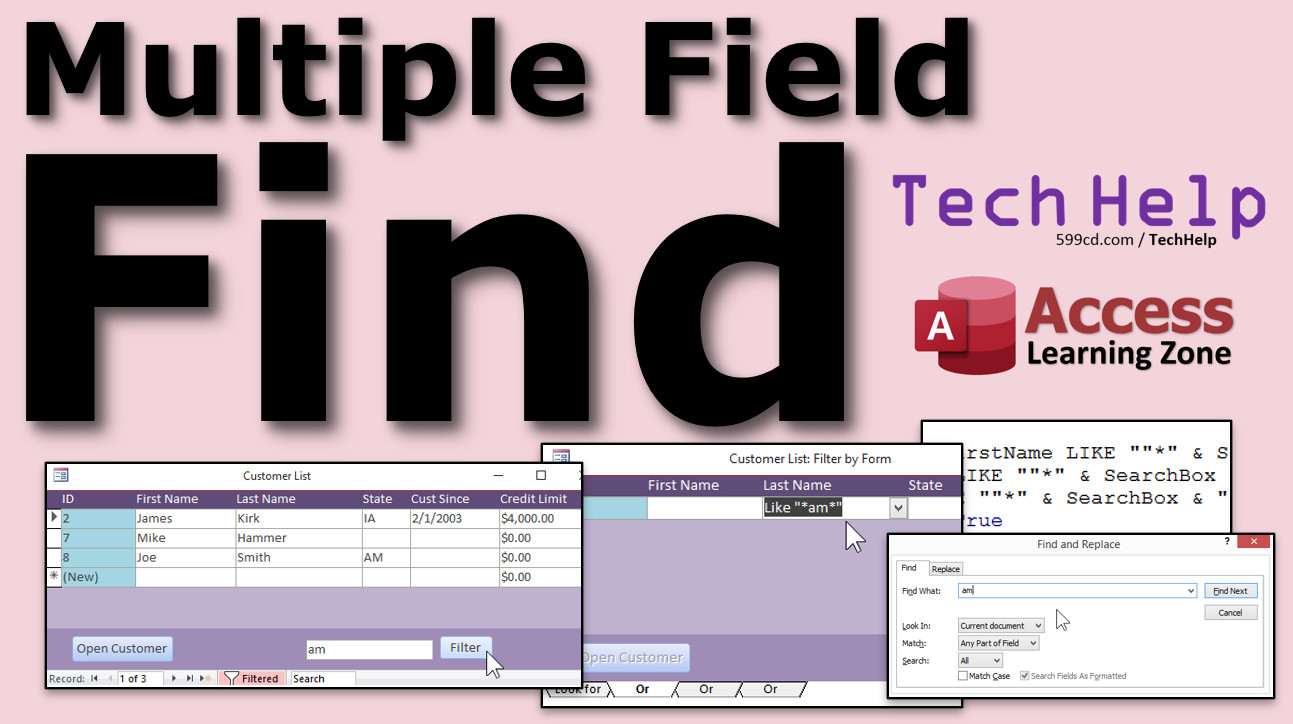
Multi-Field Find & Replace, Filter By Form, Me.Filter In this video, I will show you how to find data across multiple fields on your form using both Find & Replace and the Filter by Form tool. This will allow you to search for any values across those fields. David from Salt Lake City, Utah (a Silver Member) asks: I have multiple fields in my form (Part1, Part2, etc. up to Part10) and I want to be able to search across all of them. How can I do this in Access? MembersMembers will learn how to use VBA and a single text box to perform a similar search across multiple fields with the Filter and FilterOn commands.
Silver Members and up get access to view Extended Cut videos, when available. Gold Members can download the files from class plus get access to the Code Vault. If you're not a member, Join Today!
Links
Keywordsmicrosoft access, ms access, #msaccess, #microsoftaccess, #help, #howto, #tutorial, #instruction, #learn, #lesson, #training, #database, filter, filter by form, Me.Filter, Me.FilterOn, search box, selection, multiple fields
More InformationTranscriptWelcome to another TechHelp video brought to you by AccessLearningZone.com. I am your instructor, Richard Rost. In today's video, I am going to show you how to use the Find and Replace and Filter by Form to search based on multiple fields in your forms in your Access Databases. Today's question comes from David from Salt Lake City, Utah, one of my silver members. It says, I have multiple fields in my form, Part 1, Part 2, and so on up to Part 10, and I want to be able to search across all of them. How can I do this in Access? First of all, and yes, I already scolded David about this, you do not want to do that in your tables. You do not want to have Part 1, Part 2, Part 3, Part 4, etc. You want to make a second related table with a Part field and then relate that back to whatever your parent table is, just like we do customers and contacts in our contact database. You do not want to have contact one, contact two, contact three. We have already discussed that in a separate email. That aside, he has already got his database built and he does not want to change it. That is okay. That happens. But he wants to do a search for a part number, but he has to search across 10 different fields. Let me show you a couple of different ways to do that. We can do it with the basic Find and Replace, and we can do it with a Filter by Form. So here is my TechHelp Free template. This is a free download from my website. You can go grab a copy if you want to. You will find a link down below in the description. Now, finding fields always works better if you have a continuous form. I built this customer list in the videos where we built this database. If you have not watched it yet, go watch this. It is easier to find stuff if you can see multiple records at a time as opposed to just one record at a time in a single form. Let us say we are looking for some data. Instead of having 10 part fields, let us say we want to look across first name, last name, and the state field. I want to find, let us say, the characters AM together, like here in James. Let us say I have got another one, like Mike Hammer down here, so that AM would also show up. I want to search for that across multiple fields. The easiest way to do that is with a basic Find and Replace. Press Control F to bring up the Find and Replace dialog, and type in what you are looking for, AM. In the Look In, you want to pick Current Document. Current Document says search all of the fields on this form, every single field. For Match, you want to change to Any Part of Field. There is Whole Field, which means it has to be the whole thing, Start of Field at the beginning, or Any Part of Field. If you have a really big set of records, and you have long text and something here, this could take a while to run. For small data sets, short text, or even dates, this works just fine. Move this over to the side. Then we are going to click Find Next. It will start at the beginning. There is the first AM. Find Next. There is the next AM. Then that is it. Finished searching the records. If we had a state in here that was AM, let us say this is state AM. Find. Find. That is the easiest way to do it. There is another way you could do it too. Actually, there are several different ways to do it, but I am just going to show you the easy ones first. Another way you could do it is to use Filter by Form. You can filter stuff one at a time if you want to, but you really cannot do OR conditions easily with a filter. Right click, Text Filters, Contains, and then AM. But this is only first name contains. So there is your first name contains AM. Last name is not too much help. What if I want to use an OR condition? Come up top here, pick Advanced, and then Filter by Form. That brings up this thing. Now, you will see the other filter that we put in there is right here. This is why I mentioned earlier, go watch my wild card search. You get to know how to use wild card characters to use searching and filtering appropriately. Notice it is like an asterisk and then AM. It means anywhere inside that string, I want to see an AM. Down here in the bottom, you can make some OR tabs. Just copy this, come down over here, click on that, go to last name, paste. Go to the next one, state, paste. It does not really fit these ones. But look, I got that or that or that. Now toggle the filter. There you go. We got the AM here, the AM there, and I put it in the same one. See how that works? You can toggle the filter just like that. So those are the two easy ways you can do a search across multiple fields. You can also build a query to do it as well and then base a form off the query. That is another way. Ask for a parameter prompt. There are all kinds of things you can do. But I know what most people want. You want a single box down here in the footer you can click on, type in AM, and then hit search, and it applies all that automatically. You can certainly do that with just a couple of lines of VB code, and I will show that in the extended cut for the members. Here it is. One little box. Type in what you are looking for, AM. Hit the filter button. There you go. It searches across all three of these fields or as many as you want. There is an AM there and an AM over here in the state field. That is one little button, one little box, and like four lines of code. It is not that hard to do, and I covered that in the extended cut for the members. Members will learn about the Me.Filter property, the Me.FilterOn property, and how to build a multiple field WHERE condition in SQL. Silver members and up get access to all my extended cut videos, and gold members can download these templates. How do you become a member? Click the join button below the video. After you click the join button, you will see a list of all the different types of membership levels that are available. Silver members and up will get access to all of the extended cut TechHelp videos, live video and chat sessions, and more. Gold members get access to a download folder containing all the sample databases that I build in my TechHelp videos, plus my Code Vault where I keep tons of different functions that I use. Platinum members get all the previous perks plus access to my full beginner courses and some of my expert courses. These are the full-length courses found on my website and not just for Access. I also teach Word, Excel, Visual Basic, ASP, and lots more. Do not worry, these free TechHelp videos are going to keep coming. As long as you keep watching them, I will keep making more. If you liked this video, please give me a thumbs up and feel free to post any comments that you have. I do read them all. Make sure you subscribe to my channel, which is completely free, and click the bell icon and select All to receive notifications when new videos are posted. Click on the Show More link below the video to find additional resources and links. You will see a list of other videos, additional information related to the current topic, free lessons, and lots more. YouTube no longer sends out email notifications when new videos are posted, so if you would like to get an email every time I post a new video, click on the link to join my mailing list. If you have not yet tried my free Access Level 1 course, check it out now. It covers all the basics of building databases with Access. It is over three hours long and you can find it on my website or on my YouTube channel. If you like Level 1, Level 2 is just one dollar, and it is also free for all members of my YouTube channel at any level. Want to have your question answered in a video just like this one? Visit my TechHelp page and you can send me your question there. Click here to watch my free Access Beginner Level 1 course, more of my TechHelp videos, or to subscribe to my channel. Thanks for watching this video from AccessLearningZone.com. IntroIn this video, I will show you how to search across multiple fields in your Microsoft Access forms using the Find and Replace feature and the Filter by Form tool. We will talk about the best methods to quickly locate data across several fields, such as part numbers or customer information, and discuss some common mistakes in table design. You will see practical examples using continuous forms and learn how to apply basic search and filter techniques to improve your Access database searches. QuizQ1. What is the main topic of this video? A. How to use Find and Replace and Filter by Form to search based on multiple fields in Access forms B. How to create tables in Access C. How to design reports in Access D. How to add security to an Access database Q2. Why does Richard recommend NOT having multiple part fields (Part 1, Part 2, etc.) in the table? A. It makes data entry faster B. It is a best practice to have related data in a separate related table C. Access does not support more than five fields per table D. You cannot print reports from such a table Q3. If you want to search for a string such as 'AM' across all fields in a form using Find and Replace, what setting should you use in the Look In option? A. Start of Field B. Whole Field C. Current Document D. Current Field Q4. In the Find and Replace dialog, which 'Match' option should be chosen to search for any occurrence of a string within a field? A. Whole Field B. Start of Field C. End of Field D. Any Part of Field Q5. What is an advantage of using a continuous form when searching data? A. You can only see one record at a time B. It is easier to see multiple records at a time for searching C. Continuous forms increase database security D. You can have more fields in your form Q6. Which method allows you to easily perform an OR search across different fields in Access forms? A. Filter by Form with OR tabs B. Simple Filter by Selection C. Sorting the data D. Printing all records Q7. When using Filter by Form to search for a value in multiple fields, what wildcard character is used to represent any string before the search value? A. Question mark (?) B. Asterisk (*) C. Hash (#) D. Underscore (_) Q8. Why might the Find and Replace method be slow with large data sets and long text fields? A. It only searches numeric fields B. It examines every field in every record, which takes longer with more data C. It ignores wildcard searches D. It does not work with dates Q9. What feature can members access in the extended cut videos that allows them to search multiple fields with a single text box in the form footer? A. The Me.Filter and Me.FilterOn properties and multi-field WHERE conditions in SQL B. Advanced query builder only C. Print preview mode D. Only manual filtering Q10. What type of Access membership allows you to download sample databases and access the Code Vault? A. Silver B. Gold C. Bronze D. Free Q11. What is recommended if you want to receive email notifications for new videos since YouTube no longer sends emails? A. Subscribe to the YouTube channel only B. Join the mailing list to get email notifications C. Click the thumbs up on the video D. Follow on Twitter Q12. Which topic is NOT covered in this video? A. How to search across multiple fields in Access forms B. Membership levels and their benefits C. How to secure your Access database with passwords D. Using Filter by Form with wildcards Answers: 1-A; 2-B; 3-C; 4-D; 5-B; 6-A; 7-B; 8-B; 9-A; 10-B; 11-B; 12-C DISCLAIMER: Quiz questions are AI generated. If you find any that are wrong, don't make sense, or aren't related to the video topic at hand, then please post a comment and let me know. Thanks. SummaryToday's video from Access Learning Zone focuses on how to search across multiple fields in your Microsoft Access forms using Find and Replace as well as Filter by Form. This topic comes from a student who has several fields in his form titled Part 1 through Part 10 and wants to find a way to search all of these fields at once for a specific value. Let me first point out that, as a best practice, you should avoid designing your tables with repetitive fields like Part 1, Part 2, and so forth. Instead, I always recommend creating a second related table for parts so you can set up a relationship to your main table. This method is similar to how we relate customers and contacts in a well-structured database. Having a separate parts table is the more flexible and scalable approach. However, in this case, the student already has his database built and is looking for ways to search across these fields without redesigning his tables, which sometimes happens in the real world. If you need to search for a value that could appear in any one of several fields, such as looking for a part number across all ten part fields, there are a couple of simple approaches you can use. The first method is to use the built-in Find and Replace feature. When working with forms, searching is much more efficient if you use a continuous form rather than a single form. This way, you can see several records at once and easily spot where your search term is found. Suppose you want to look for the characters "AM" within fields like first name, last name, or state. The simplest way to do this is to open the Find and Replace dialog (you can use the keyboard shortcut Control F), enter your search text, and make sure the "Look In" option is set to "Current Document." This ensures that the search includes all visible fields on the form, not just a single field. Also, in the "Match" dropdown, select "Any Part of Field" so Access finds your text wherever it appears in a field, not just at the beginning or as the entire field. After you start your search, Access will cycle through all instances of your search term in any field on the form. This works well for small to medium-size record sets. If you have a large number of records or lengthy text fields, the process may take more time, but for most uses, it's a quick and easy solution. Another method is to use Filter by Form if you want to filter records based on criteria across multiple fields. While you can apply basic filters to individual fields, applying an OR condition across different fields is possible using Filter by Form. In the Filter by Form view, you can add wildcards like an asterisk before and after your search text to find the value anywhere within each field. You can set up separate conditions for different fields in OR rows, which tells Access to return records where any one of the fields contains your search value. Once you apply your filter, only the records matching at least one of your criteria will be shown. This method is also easy to use and helps you view results quickly. While these two methods are straightforward, other options exist, such as building a query that searches across all relevant fields or adding a parameter so users can enter their search value. With a query, you can construct OR criteria for each field to match your search term, and then base a form on that query. Many users want an even easier solution, like having a single search textbox at the bottom of the form. With just a bit of VBA coding, you can add a textbox and a search button, so when you enter a value and click search, Access will find records across multiple fields automatically. This approach uses properties like Me.Filter and Me.FilterOn and builds a WHERE condition in SQL to filter the data. I cover this method in detail in the Extended Cut for members, where I show how to set up the search box and the necessary code. This gives you the convenience of searching with just a single box and enhances your form's usability. If you're interested in my member videos, silver members and higher have access to all the extended cut videos, which go into more advanced techniques like the search box feature described above. Gold members can also download the database templates I use, and platinum members gain access to my complete set of beginner and some expert courses, covering not just Access but also Word, Excel, Visual Basic, ASP, and more. My free TechHelp videos will continue, and as long as you keep watching, I'll keep making new ones. If you found this video useful, please give it a thumbs up, leave your comments, and remember to subscribe to my channel. Make sure you activate notifications so you never miss a new episode. Additional resources, related videos, and free lessons are available through the link below. YouTube no longer sends email notifications for new videos by default, so if you would like to receive emails when I post new content, join my mailing list using the link provided. If you have not explored my free Access Level 1 course, I highly recommend starting there. It covers all the basics for building databases in Access and is available on my website or YouTube channel. If you like it, Level 2 is just a dollar and also included free with any level of YouTube membership. If you want to submit your own question for a future TechHelp video, visit my website for the submission page. You can find a complete video tutorial with step-by-step instructions on everything discussed here on my website at the link below. Live long and prosper, my friends. Topic ListUsing Find and Replace to search multiple fields in forms Setting the Look In option to Current Document Changing Match settings to Any Part of Field Using Filter by Form to search across fields Applying OR conditions with Filter by Form Entering wildcard criteria in Filter by Form Toggling filters to view filtered results Primary TopicsAccess forms search, Find and Replace, Filter by Form, searching multiple fields, form filtering, continuous forms, user interface techniques Secondary Topicsquery-based search, VBA search button, table normalization principles, wildcards, OR conditions |
||||
|
| |||
| Keywords: TechHelp Access filter, filter by form, Me.Filter, Me.FilterOn, search box, selection, multiple fields PermaLink Multi-Field Find in Microsoft Access |