|
||||||

|
|
||||||
|
HyperlinksBy Richard Rost
 5 years ago
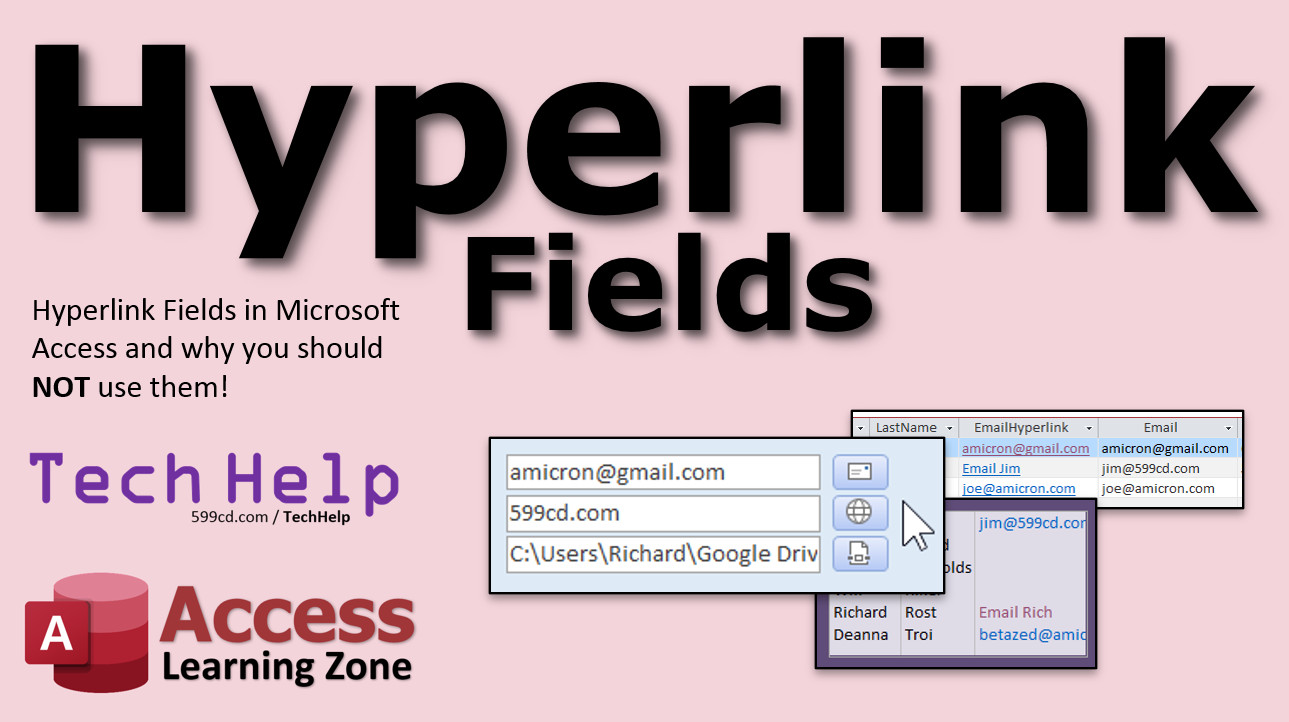
Hyperlink Fields & Why You Should NOT Use Them In this video, I'll show you how to use the Hyperlink Field data type in your Microsoft Access tables. And... I'll explain why you should NOT use them. I'll show you a better alternative using plain Short Text fields, and how you can still make buttons to easily navigate to those hyperlink destinations. Brent from Tracy, California (a Gold Member) asks: I have a list box where I am trying to change the font color. I have selected the list box in design mode and selected the color I want on the ribbon and all but one column changes to the color I pick. The one that doesn't change color is a field that holds emails and is a hyperlink field. How can I force all fields to be the same color? MembersMembers will learn how to deal with web page addresses that may or may not have http:// in front of them. I will then show you how to FIX a database that may have been made with Hyperlink fields. To do that, we will learn how to tear apart the complex Hyperlink field type into its individual components with the HyperlinkPart function. We will then use an update query to copy the actual Hyperlink to the appropriate text field.
NOTE: Members, I mentioned in the first video that I would show you how to browse and pick a file with a button. I totally forgot to do that in this Extended Cut, BUT I did cover it previously in my Images video. Silver Members and up get access to view Extended Cut videos, when available. Gold Members can download the files from class plus get access to the Code Vault. If you're not a member, Join Today!
Links
Updates
Keywordsmicrosoft access, ms access, #msaccess, #microsoftaccess, #help, #howto, #tutorial, #instruction, #learn, #lesson, #training, #database, ms access hyperlink field, hyperlink color, display text, hyperlink to file, hyperlink button, hyperlink to open, hyperlinkpart, hyperlink alternative
More InformationTranscriptWelcome to another TechHelp video brought to you by AccessLearningZone.com. I am your instructor, Richard Rost. In this video, I'll show you how to use the hyperlink field data type in your Microsoft Access tables, and I'll explain why you should not use them. I'll show you a better alternative using plain short text fields and how you can still make buttons to easily navigate to those hyperlink destinations. Today's question comes from Brent in Tracy, California. Brent is one of my Access veterans, a gold member, and a 10-year developer student. So Brent's been winning for a long time. Brent says, "I have a list box and I'm trying to change the font color. I've selected the list box in Design Mode and changed the color I want on the ribbon, but all but one column changes to the color I pick. The one that doesn't change color is a field that holds emails and is a hyperlink field. How can I force all the fields to be the same color?" This is what Brent is dealing with right here. You can see I've got a list box. I can try to change the colors, but no matter what I do, those colors are going to stay based on whatever the default hyperlink colors are on your system. You can't change them easily in Access. This is why I tell people in my classes hyperlinks are evil. Don't use them. They're difficult to work with. There's a much better solution available, and I'm going to show you in this video. In fact, hyperlink fields earn a place right there on my Evil Access Stuff page. If you want to see this whole page, I'll put a link down below in the link section. So what can we do with these hyperlink fields? Well, first, let me give you a little basic primer. Back when hyperlink fields first came out, I tried to embrace them. I actually taught them in a couple of my classes. They're okay for beginner users. They've got some pros, but mostly cons. Once you get into a little bit more advanced database development, you'll see that hyperlinks become a pain to work with. Let me show you why. Now, this is a copy of my TechHelp free template. You can download a copy of this off my website if you want. Again, you'll find a link down below in the link section. You'll see if you go to my customer form, I've got "email" right here, but it's a standard text field. That's how I like to store email addresses, web pages, and things like that: standard short text fields. All right, don't use hyperlink. So in order for me to show you the problems with hyperlinks, let's go create some hyperlink fields. Let's go to the customer table, right click, design view. Here's my email short text. All right, let's leave that there. Let's go down to the bottom. Let's make a secondary field. Let's call this one email address and we'll make that a hyperlink field. OK. Then let's make website. We'll also make that a hyperlink field. A lot of people don't know this: you can also use hyperlink fields to point to files on your computer or on your network. That's another use for them. In fact, let's say we're storing resume files. I'll just put in here "resume." We'll also make that a hyperlink. OK. All right, let's save the customer table. Let's go back over to the customer form and let's add those new fields: design view. Make it a little bit bigger. Go to form design. Go to "add existing fields" down here on the bottom. Click on email address, shift-click on resume, and then click and drag those right about there. Let's drop them right here on the bottom of this form. You can see they come in as hyperlink fields. All right, close this. Save it, close it, and open it back up again. We've got three nice blank fields on the bottom down here. The first problem that I have with hyperlink fields is they're difficult to edit once you've typed them in. If you've got a computer user, someone using your database who doesn't know a lot about computers, adding this hyperlink field in here is no big deal. They're typing in the customer's info, so they're typing in something like [email protected]. OK, good. Website is 599cd.com, and then their resume file, whatever. Now, if I click on this email address, you see I get a little finger there that will actually load up your email program and send a PC email to this person, which in this case, for me, I use Gmail, so it loaded up my web browser. If your default mail handler is Outlook, it'll load up. That's cool. Close that, back to here. If you want to go to this website, you click on it and you get the little finger. And boom, there's my shiny face. That's all well and good. But what if you want to edit this because you typed it in wrong? Where do you go? How do you click on this? Beginner users get confused with this all the time. Trust me, I've taught this class a million times in my classroom. You have to teach them: right-click on it, go to hyperlink, edit hyperlink. Now you can change stuff in here. Here's another problem. A hyperlink consists of many different things. You have "text to display," the email address, and you could optionally put a subject in here. So they might come in here and type in something different, like Joe Smith at amicron.com, thinking that's what they need to do. Hit OK. And it says Joe Smith at amicron.com. But hold your mouse over it and you'll see, no, it's still [email protected] because they edited the wrong thing. Go to hyperlink, edit hyperlink. See, that's the text to display. I've seen people do this a lot. This is designed so you can put something like "email Rick," or "Richard," or whatever, and then hit OK, and now it says "email Rich," which is another problem in and of itself. I just want the email address in this field. If I tab over there - let's see, it's on the bottom of the tab order now - let me tab to that field. If you tab to it, once you're sitting on it, if you hit F2 on your keyboard, that edits the text in place. And you can see what's stuffed into that email address field. A hyperlink consists of a couple of different parts: there's the visible part, there's where the link actually goes to, then there's optionally an address on a page that it'll jump to. It's a mess. It's a nightmare. I don't like using hyperlink fields, primarily for this reason. Let's put another one in. I want to show you something. Let's put in here for Jim Kirk. How about [email protected]? Let's put one more in. Let's do Deonitory. She's [email protected]. I always use my own domain names in my classes now because I used to put in just whatever.com and I'd get complaints from people at whatever.com: "Hey, you used our email address in one of your videos and we keep getting this." So I stopped doing that. I only use my own domain names now. Here's another problem. You got your customer table. If you open up the customer table, everything looks normal. It looks good. OK, let's export this to Excel. External data, we're going to export to Excel. Click the button. We want the file. We're going to drop it on my desktop. Click on browse, desktop, hit save, hit OK. All right, don't save the steps. I'm going to go to my desktop and open up that Excel file. It opens up in Excel and look at this garbage. Look at this over here. That's what's in your email address field, folks. So if you want to export those email addresses and send them to someone else, they're going to get these full formatted hyperlink fields. No, they don't want that. You just want to send out a list of email addresses or web page addresses. No, I don't want that. Let's take a look at Brent's listbox issue. Right-click, design view. Let's drop a customer list box right here on the main menu. Find list boxes, drag it out, right there. We'll use the wizard. Next, customer table. If you've never made a list box before, I've got videos for this. Bring in the customer ID, the first name, the last name, and the - yeah, not that - this is my email address. Come down and get the other email address. The bad one. Next. What do you want to sort by? Last name, then first name. Next. This is what it's going to look like. You can see the problem already. Shrink it up a little bit, then next and label finish. Get rid of that label. Let's see what this looks like. Save it, close it, open it back up again. There you go. You can see you got your standard hyperlink colors kicking in there. This guy is purple because we followed it. Let's try to change it. Design view. Come in here, format. Let's give it a background of light purple, and I want the foreground text to be blue. Not that blue because it looks like the hyperlink blue. Let's go with this green just to see - I know it looks nasty. Save it, close it, open it up again. Look at that. These guys are green, this stuff is still hyperlink colors. No, I don't want that. Even if you go design view and go into the properties in here, go to format. Here's your back color, here's your fore color. Even if you change this fore color to something like manually black, OK? It doesn't matter. Access doesn't care. You're still going to get those hyperlink colors. Combo boxes are even worse. If for some reason you wanted to make a combo box - let's say you want to pick an email address to send a particular email to. And you want to pick by a combo box. Let's say hypothetically the customer has a second related table. They could have multiple email addresses associated with them. So you want to pick one of them to send an email to. Make a combo box, same thing. Customer table. Bring in customer ID and then their email address. Next. Don't worry about sorting it. Next. That's what it's going to look like in the box. Next, then finish. I'm just going to show you here and delete that. Slide this over. I'm showing you what not to do right now, just so you have an appreciation for what I show you. Drop this down. Looks normal. Pick something. That's what goes in the box. Look, when you click on it, it's going to launch - actually, I don't think it's going to launch anything from the combo box. Nothing happens. It's the worst. It's a nasty looking link and it doesn't even work. So you can't use these in combo boxes. Another problem with hyperlinks: someone modifies the display text. Even if they did a good job and put "email Rich" in there, it works, it's fine. Make a report out of it now. Let's say you want to make a report. I'll use my blank one down here. Design view. Bind this to the customer table. Bind this to that email address. Now look what happens when I generate the report. Right-click, print preview. Look at that, I get "email Rich." So if someone does go in and starts using that, changes the display of the hyperlinks, it messes up all your data. Yes, you can come in here and you can format this to look like you want. You can change the color here, and you can change it with a normal text box too. Go to format, drop this down, go to black, turn off the underline. You can do that, that's not a problem. You can do that in a single form. I could change this to look like normal text. But you can't easily change that behavior. There are even properties in here. If you go into format, there is - where is it? Here it is right up here. "Is hyperlink" set to no, and then "Display as hyperlink." You've got "If hyperlink," "Always," and "Screen only." You can't even turn that off. It's going to either always be displayed if it's a hyperlink, or screen only. If I put "If hyperlink," which is the default, open it back up again, and it still looks like that but you got the finger still. The whole implementation of hyperlinks is just a pain. Oh, there's one more thing I have on my outline: if you decide you want to use it in a query, create query design. Bring in the customer table. Again, let's say hypothetically you've got the customer ID, the first name, and you want to bring in their email address. OK, no problem. You got the regular hyperlink there. But if you want to use this in any kind of situation where you concatenate something else onto it, let's say you've got multiple email addresses. Or let's say you want to put something else in this field. If you want to come in here and say, "email 2: " and then their email address, you want to format something to display in a report this way, and just have it email 2: whatever, you do that and you get that stupid looking hyperlink thing again. OK, so I've complained enough about hyperlinks, and I think you can see that aside from the most simplest uses, hyperlink fields are a pain, especially as you get into more advanced database development. Now, what's the alternative? The alternative is to do what I did here and use straight standard text. You just type in the email address, type in the web page address, type in the location of a document, whatever you want. So let's get rid of this stuff. Design view. Let's get rid of you. Goodbye. I don't know why I bother with it the other way. Let's go back to the customer table, actually, let's get rid of this stuff too. Design view. Goodbye. You guys are gone. You're useless. All right, and let's go back to the customer table. Right-click, design view. Come down here, and just delete these fields. Goodbye. We already have email address in there. Let's put in here "web," make that short text, and let's put "file location." Let's say you have some kind of file on them. Save that. Close this. Let's go back to our main menu and our customer form. We already have an email address here, so design view. Let's bring the email address down here. Let's bring them all so they're all buddies on the bottom. Just like that. Go to add existing fields, and bring in the web and the file location. Drop them right there. Slide you up like that. Bring these a little bit over like this. A little format painter action: click, click. Actually, I'm going to bring these down a little bit more right down here, because we're going to put some buttons next to them. Save that, close it, open it back up again. Let's put some stuff in here. So for web, 599cd.com. File location: let's say you have a file. It could be a PDF file, a Word document, an Excel spreadsheet, some file you want to store; maybe the resume, like I said before, with their account. Can you click a button and browse to a file? Yes, you certainly can. That's a little more involved, I'll show that in the extended cut for the members. For the rest of us, you just have to find a file somewhere on your network. Here, I got a blank document.pdf. It's a PDF file of a blank page. I use it for training. Here's the folder location: c:\\users\\richard\\google drive. I'll copy that, and then blank document.pdf. So, we'll put that right in here: paste, and then blank document.pdf. So I got three things in here. Tab. Let's go back; that's at the bottom of the tab order, remember. All right, I got an email address, a web page address, and a file location in there. Now, this is a pro because it's easy to edit. If your user decides, "Oops, I goofed, this should be Yahoo," well, that's not Yahoo, but I'll put it back to Gmail. See how easy this is to come in here and edit. You don't have to learn how to right-click and work with a menu, you can just type over this. You can just type over that. You don't have to worry about them changing the display name so it's different. This will work in a query, this will work in a report, this will work in a combo box, this will work in a list box. And Brent, yes, you'll be able to set whatever color you want. The only downside is you can't click on it and easily launch that application. You can't launch your email program or launch your web browser. But you can do it with one line of code, and I'm going to show you that line of code. But first, if you've never done any VBA programming, go watch my intro to VBA. I just re-recorded it yesterday. It's brand new, it's free, it's on my website, it's on YouTube. I'll put a link down below in the link section. Go watch this please if you've never done any VBA programming. We're only going to do one line of code, but you have to know where to put that line of code. I'm going to show it to you in just a second. And a very brief advertisement: if you really want to learn how to program and learn how to be an Access developer, check out my Access Developer Level 1 class. There's the link right there. I'll put a link down below. Check it out. All right, advertisements over. Let's see how to launch these hyperlinks. What I like to do is put little buttons next to these things to launch. If you want to launch the email program, click the button. You want to launch this web page, click the button. You want to open this document? Click the button. Hyperlink fields in Access behave like no other fields. For all the rest of these fields, you want to change something, you click on it; you want to change this, you click on it; you want to change for it, you highlight it and type something in. Why should these hyperlink fields behave any differently? You have to train your users for something totally weird. If you want to edit this email address, you just click here and edit the email address. So to launch this stuff, we'll put little buttons next to it that clearly indicate what to do. Remember, as a developer, you want to build this system to be easy for your users. So let's make a button. Let's do the web page first. That's the easiest one. Right-click, design view, command button, drop it down here. Unfortunately, what we need is not in the wizard, so cancel. I'm going to change the caption to just say "Go." We're going to put pictures on this in a minute, don't worry about that. Slide that, close a little bit like that. Let's open up the properties. Let's give it a good name; let's call this web button. Right-click, go to Build Event. That opens up my code builder. I see I got some code fragments in here. Let me just delete that. I'm down here on the bottom in my web button click. If you watched Intro to VBA, you know exactly what I'm doing. Here's the command that you need to launch a web page: Application.FollowHyperlink. Then the address. Where's the address? It's in the website field, which for us is just called "web." That's it. Save it. Now, there's one more little thing we have to do, but I just want you to see what happens first, because you're going to make this mistake. I made this too when I first started. Come back over here, close this, close this, open it up, and "Go." And this comes up: "Potential security concern has been identified. The location may be unsafe." Basically, Access doesn't know where this is because we didn't tell it where to go specifically. For those of you who know web page addresses, you have to put a little bit something in front of it, like http:// or https:// and then your address. If you want to make sure you're safe, you don't need to put the "s" on there. My site's all on the extra because it's a secure site, but most sites aren't. So you just do this and you'll be defaulted to a basic web page address. Now, this assumes the user hasn't put http:// in all the web page addresses. If you want to make sure that it covers both instances, you have to put a little if-then in here. I'll cover this in the extended cut. For the rest of you, just make sure you don't have this on the beginning of your web page addresses. Save it. Now come back over here and now click the button. It's loading on my other screen. There it is, it popped right up. I got four monitors, so it came up on a different monitor. Let's do the email one. Right-click, design view. Take this guy, copy-paste, slide it up here. Probably make these a little bit smaller. Make this guy like that. Change this guy's name to email button. Right-click, build event. Come in here, I'm going to copy this. Now, instead of http://, email is mailto:. That's it. And then the email field is what? Just "email." Come over here and change "web" to "email," and that will properly format an email address. Most of the time, people won't put mailto: in front of their email addresses. They're just typing the address. Save it. Come back over here, shut it down, open it up, and click. There we go. It launched my email program, which for me is just my web browser. Last one is the file location. Copy and paste again. Copy, paste. This will be the file button. Right-click, build event. Again, Application.FollowHyperlink. This one is literally just "file location." You don't have to put anything in front of this one because that assumes you gave it a complete path: c:\\something\\something, or somewhere on your network: \\\\server\\whatever. Give it a valid file name or folder name. You can use it to open a folder too, if each one of your customers has their own folder where all their documents are. If I hit "Go" right now, there it is, it opened up. There it was maximized. As you can see, it's blank document.pdf. It's a blank document, just a big white page, but it's a PDF file. It's valid. But if I get rid of that file and then I hit "Go," it just opens up my Google Drive folder. See? You can give it a folder too. Want to make these look pretty? Just come in here, design view, click on the button for email, go to where's the picture. Right there, picture property. There's a whole bunch of little pictures in here you can pick from. For email, I like to use envelope. There you are, envelope. Hit OK, there's an envelope picture. For web, there's a globe in there. I think it's called "world." Let's pick that one. I think that's in the bottom down here. World, yep, there it is. That last one, file location, there's a couple different ones you can use. If you're dealing with all Word documents, there's MS Word document. There's a whole bunch of stuff in here. These may or may not be different pictures depending on the version of Access you have installed. Right here, MS Word document. If it's Excel spreadsheets - and you don't have to specify the file type. I'm just saying if this is always an Excel spreadsheet, feel free to use the Excel button. I'm going to use - what do I use? Let's see. MS Access Form is pretty good. There's also a notepad icon. There's a PDF one in here too. Where's PDF? Right there. Pick that one. There's little pictures. Now, isn't this better? And less confusing for your user. See? They can come in here, type in an email address (that's a standard text field), a web page address, and if they want to launch it, they click the button. There you go. I think this is a much more user-friendly solution than trying to train them to work with hyperlink fields, which I think is a pain. I hate teaching hyperlink fields. This way, these behave just like normal fields. If you want to learn more about how to deal with hyperlinks, in my extended cut for members, I will show you how to intercept any hyperlinks that might have http or https in front of them if someone copies and pastes it into your form, which I do a lot. If I'm on a web page I want to put up in my database, I'll copy the whole address bar. I'll show you how to cut that off of there and deal with that. I'll also show you how to fix a table that might be built wrong. You might have built your database using hyperlinks. You might not have known better. I have been guilty of that in the past myself. So was Brent. I'll show you how to fix that with a function and an update query. We can take our old hyperlink fields and turn them into standard plain text fields that are much, much easier to work with, as you've seen. That's all covered in the extended cut for members. Silver members and up get access to all of my extended cut videos. I think we're approaching 200 of them now, so there's lots of stuff for you to learn. Gold members can download these databases. How do you become a member? Click the Join button below the video. After you click the Join button, you'll see a list of all the different types of membership levels that are available. Silver members and up get access to all of the extended cut TechHelp videos, live video and chat sessions, and more. Gold members get access to a download folder containing all the sample databases that I build in my TechHelp videos, plus my Code Vault, where I keep tons of different functions that I use. Platinum members get all the previous perks, plus access to my full beginner courses, and some of my expert courses. These are the full length courses found on my website and not just for Access. I also teach Word, Excel, Visual Basic, ASP, and lots more. These free TechHelp videos are going to keep coming. As long as you keep watching them, I'll keep making more. If you liked this video, please give me a thumbs up, and feel free to post any comments that you have. I do read them all. Make sure you subscribe to my channel, which is completely free, and click the bell icon, and select all to receive notifications when new videos are posted. Click on the Show More link below the video to find additional resources and links. You'll see a list of other videos, additional information related to the current topic, free lessons, and lots more. YouTube no longer sends out email notifications when new videos are posted, so if you'd like to get an email every time I post a new video, click on the link to join my mailing list. If you have not yet tried my free Access Level 1 course, check it out now. It covers all the basics of building databases with Access. It's over three hours long. You can find it on my website or on my YouTube channel. If you like Level 1, Level 2 is just $1, and it's also free for all members of my YouTube channel at any level. Want to have your question answered in the video just like this one? Visit my TechHelp page and you can send me your question there. Click here to watch my free Access beginner Level 1 course, more of my TechHelp videos, or to subscribe to my channel. Thanks for watching this video from AccessLearningZone.com. IntroIn this video, I will show you how to use the hyperlink field data type in Microsoft Access tables, explain the many problems and limitations that come with using hyperlink fields, and demonstrate why storing hyperlinks as plain short text fields is a better solution. You'll learn how to easily create clickable buttons with a simple line of VBA code to launch emails, websites, or files, making your database forms more user-friendly and easier to maintain. I will also address common formatting issues when trying to work with hyperlinks in list boxes, combo boxes, reports, and queries. QuizQ1. What is the main reason Richard advises against using the hyperlink field type in Microsoft Access tables? A. Hyperlink fields provide advanced security features B. Hyperlink fields are easy to customize and edit C. Hyperlink fields are difficult to work with and edit, especially for beginners and advanced users D. Hyperlink fields always retain text formatting across different controls Q2. When you export a table containing Access hyperlink fields to Excel, what is a common issue you encounter? A. The hyperlinks are stripped out completely B. The hyperlinks are converted to plain text C. The hyperlinks appear as complex, formatted strings instead of plain addresses D. The Excel file automatically emails the addresses Q3. What is one benefit of storing email addresses, web pages, or file paths in short text fields rather than using hyperlink fields? A. The fields automatically validate URLs B. The fields are easier to edit and maintain by users C. The fields are only readable inside Access D. The fields cannot be exported Q4. In Richard's solution, how do users launch an email, web page, or file from the database? A. By double-clicking on the text field B. By right-clicking on the text field and selecting "Hyperlink" C. By clicking a specially designed button next to the field D. By opening a separate application and copying the address Q5. What VBA command is used to open a web page or file from a button click in Access? A. Application.Navigate B. Shell.OpenFile C. Application.FollowHyperlink D. DoCmd.OpenURL Q6. If you want to launch an email program via a button, which prefix should you add before the email address in the VBA command? A. http: B. mailto: C. file: D. ftp: Q7. Why can't you easily change the font/color formatting of a hyperlink field in a List Box or Combo Box in Access? A. Because List Boxes do not allow formatting at all B. Because the formatting is controlled by Access Form color properties C. Because hyperlink fields override formatting with system default hyperlink colors D. Because access only displays hyperlinks in red Q8. Which of these is NOT a problem associated with Access hyperlink fields as described in the video? A. Difficult to edit for end users B. Difficult to customize formatting in lists and reports C. Automatically validates all links for correctness D. Can export poorly into Excel Q9. What must be included at the start of a web address in the button code to avoid the Access security warning? A. www. B. file: C. http: or https: D. ftp: Q10. What is a major risk if a user edits only the "text to display" in a hyperlink field but not the underlying link? A. The actual destination of the link becomes unclear and may lead to confusion B. Nothing happens; both are always updated in sync C. The field becomes unusable D. Access deletes the record Q11. Why does Richard recommend providing a button for users to launch files, web pages, and emails instead of making the field clickable? A. Buttons are harder for users to use B. It prevents users from making accidental edits to addresses C. It is more intuitive and consistent with other fields, and easier for users to understand D. It automatically formats the addresses as hyperlinks Q12. In what scenario does Richard NOT recommend using hyperlink fields, based on the video? A. For advanced databases that must be exported or integrated B. For showing only display text for links C. For storing user names D. For single-use tables Q13. What is one way to visually enhance the launch buttons in Access, as Richard suggests? A. Change the field to hyperlink formatting B. Use colored text C. Assign relevant icons/pictures to each button (like envelope, globe, PDF) D. Make the text bold Q14. How does storing addresses as plain text improve database interoperability? A. Plain text fields cannot be exported B. Plain text fields work seamlessly in queries, reports, list boxes, and combo boxes C. Plain text fields store more metadata D. Plain text fields require additional VBA code to view Q15. What is the correct argument to Application.FollowHyperlink to open a local file when the file location is in a field called "file location"? A. "file location" B. filelocation.txt C. The field's value, e.g., Me.File_Location D. "C:/Documents/filelocation.txt" Answers: 1-C; 2-C; 3-B; 4-C; 5-C; 6-B; 7-C; 8-C; 9-C; 10-A; 11-C; 12-A; 13-C; 14-B; 15-C DISCLAIMER: Quiz questions are AI generated. If you find any that are wrong, don't make sense, or aren't related to the video topic at hand, then please post a comment and let me know. Thanks. SummaryToday's video from Access Learning Zone addresses using the Hyperlink field data type in Microsoft Access tables, and I explain why it is generally best to avoid them. I also offer a better solution with short text fields and show how you can still allow easy navigation to hyperlinks using command buttons. This question comes from a seasoned Access user, Brent, who noticed a problem with formatting a list box. When he tried to change the font color of his list box columns, all but one column changed as expected. The exception was the column with email addresses stored as hyperlinks, which stubbornly stayed formatted based on Windows' default hyperlink colors. Brent wanted to know how to force uniform coloring across all columns. This situation comes up often. In Access, regardless of your formatting in the list box or form properties, hyperlinks will display using the system's hyperlink colors, usually blue or purple. These fields do not respond to the color settings you assign, which makes them frustrating to use in Access applications. This is just one reason why I warn students against using hyperlink fields whenever possible. Hyperlink fields have caused enough trouble that I've dedicated a spot to them on my list of problematic Access features. If you're interested, you can find a link to more information about this on my website. To review: originally, when hyperlink fields were introduced, they seemed like a handy feature, and for beginning users, they can be useful in some basic scenarios. However, most experienced Access developers quickly discover that hyperlink fields create more problems than they solve. Let me break down some of those issues. For example, I keep email addresses in a standard short text field in my customer tables, not as hyperlinks. To show you the pitfalls of using hyperlinks, I set up some sample fields--one for an email address, another for a website, and a third for a file location (like a resume). Hyperlink fields are versatile enough to point to websites, email addresses, and files, but this flexibility comes at a cost. Once you put data in a hyperlink field, editing becomes tricky. Users who are not familiar with hyperlink fields often get confused. To edit, you must right-click and choose 'Edit Hyperlink,' but even then, the field is split into multiple parts: text to display, the actual hyperlink, and sometimes an optional sub-address. Many people mistakenly change only the displayed text, not the actual link, leading to confusion and errors. If you use only their email address as the text, it seems straightforward, but that also means you lose any benefit from having different display text. Another issue arises when you try to export hyperlink fields to Excel. What looks like a clean email address in Access is exported as a messy, formatted hyperlink string in Excel. If you plan on sending out lists or exporting your data, this format becomes unmanageable and is not what most people expect or want. Brent's original problem showed up in list boxes. Hyperlink fields in list boxes ignore your formatting. Even if you set custom colors for the other columns, the hyperlink column uses Windows' system colors. Changing properties like text color or background color in the design view or property sheet has no effect. Combo boxes fare even worse. While hyperlink fields might populate a combo box, selecting an item does not launch any hyperlink and appears inconsistent with how other fields work. Reporting is another area where hyperlink fields create trouble. If someone customizes the display text, that's what appears in reports--not the underlying address. This leads to inconsistency in your data output. Queries introduce still more issues. If you try to concatenate or manipulate hyperlink field values, you often end up with awkward formatting or unexpected output, making these fields difficult to use in calculated expressions or custom record layouts. For these reasons, I strongly discourage using hyperlink fields except in the simplest of cases. Instead, I recommend creating standard short text fields for storing email addresses, websites, or file locations. Once you convert your hyperlink fields to short text, you can then provide command buttons next to these fields on your forms. These buttons, when clicked, will launch the relevant application: your email program for email addresses, a browser for websites, or open the specified file. This approach puts you completely in control of how these actions are triggered, and it is more intuitive for your users. Editing a short text field is much simpler--you can just type over the contents, avoiding all the hyperlink string formatting issues and confusion. If you're not familiar with basic VBA programming, now is a good time to watch my free introductory VBA lesson. It explains how to use simple procedures, like the one you'll need to get your command buttons working. The necessary VBA code consists of a single line per button, and I'll walk you through exactly where to place that. For each field type, you create a button: for websites, use a 'Go' button that calls Application.FollowHyperlink with the web address from your short text field. For emails, use 'mailto:' before the email address. For file locations, you simply store the full path and pass it to FollowHyperlink as well. As an added bonus, you can even enhance these buttons with icons that visually indicate their purpose. Access provides a variety of button images, such as envelopes for email, globes for websites, or PDF icons for document links. This makes your form more user-friendly and clear to anyone entering data or using the system. With this approach, you avoid all the headaches of hyperlink fields. You gain flexibility, easier editing, better compatibility across forms, reports, and queries, and full control over formatting. Plus, your users will find it much less confusing since the interface behaves consistently across all field types. In today's extended cut for members, I'll demonstrate how to handle cases where a user pastes in a web address that already includes 'http' or 'https' so your code won't duplicate or mishandle those entries. I'll also show you how to convert existing hyperlink fields in your tables to plain text using a function and update query. This is useful if you or someone else created the database before learning about these best practices. If you are interested in expanding your Access skills or want to access more in-depth content, including extended cut videos, you can join at the Silver membership level or higher. Gold members receive additional perks, including sample databases and exclusive function libraries. Platinum members unlock a broader set of complete courses, not only for Access but also for related software. If you're newer to Access or want a complete foundation, my free Access Level 1 course covers all the basics and is available both on my site and YouTube. Level 2 is just a dollar, and also comes free for any YouTube channel member. If you have a question you want answered in a future TechHelp video, simply head to my TechHelp page to submit your query. You can find a complete video tutorial with step-by-step instructions on everything discussed here on my website at the link below. Live long and prosper, my friends. Topic ListHow hyperlink fields work in Access tables Why hyperlink fields are problematic Limitations of formatting hyperlink fields in forms Issues with hyperlink fields in list boxes Problems with hyperlink fields in combo boxes Data export issues with hyperlink fields Hyperlink fields vs short text fields for storing links Problems editing hyperlink field values Breakdown of hyperlink data components Effects of display text changes in reports Behavior of hyperlink fields in queries Switching from hyperlink fields to short text fields Setting up short text fields for emails and URLs Using VBA to launch web pages from short text fields Using VBA to launch email programs from short text fields Using VBA to open files and folders from short text fields Adding command buttons to launch links Customizing button icons for different link types Improving user experience with short text fields and buttons Primary TopicsAccess hyperlink fields, problems with hyperlink data type, formatting limitations, exporting hyperlink fields, editing hyperlink fields, listbox/combo box formatting, short text alternative, VBA Application.FollowHyperlink, user interface design Secondary Topicsquery/report issues, file/folder hyperlinks, basic VBA integration, user experience best practices, form button image customization |
||||||||||||||||||||||||||||||||||||||||
|
| |||
| Keywords: TechHelp Access ms access hyperlink field, hyperlink color, display text, hyperlink to file, hyperlink button, hyperlink to open, hyperlinkpart, hyperlink alternative PermaLink Hyperlinks in Microsoft Access |