|
||||||
GroupsBy Richard Rost
 5 years ago
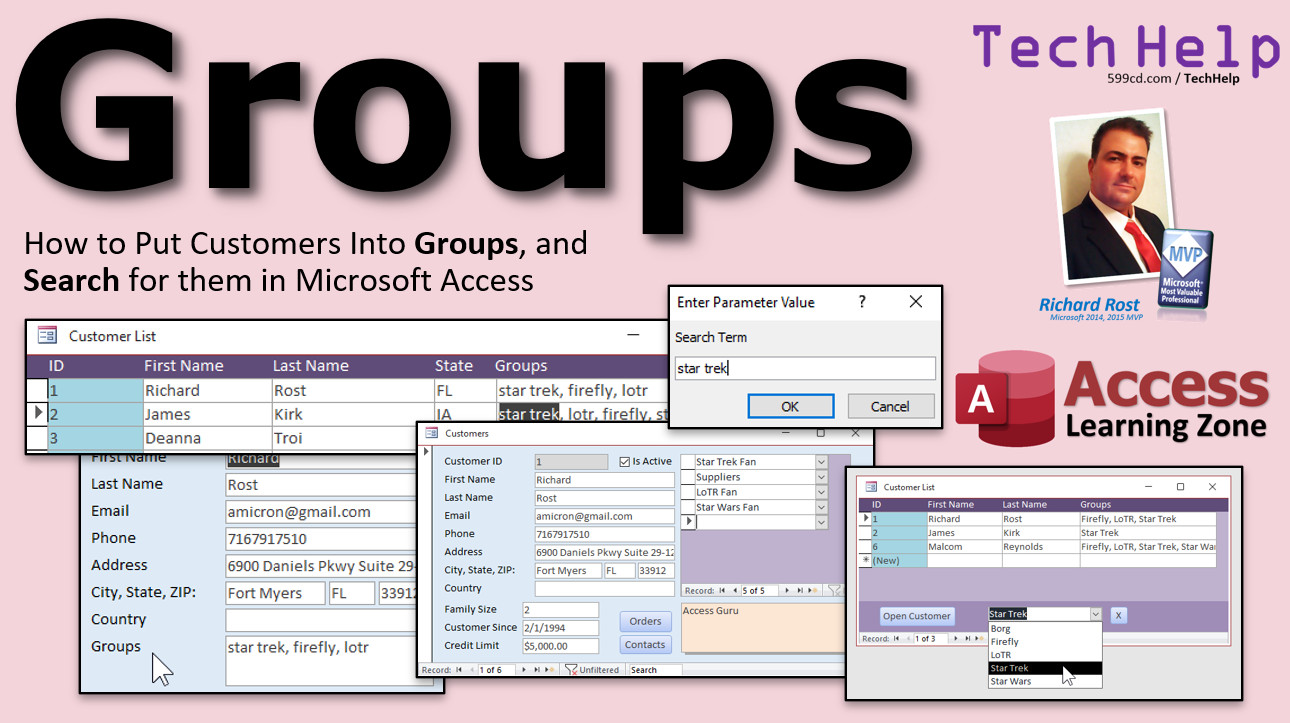
Put Customers Into Groups and Search for Them In today's video, I'm going to show you how to put customers in your Microsoft Access database into groups (classifications, categories, tags, etc.) and then search for people by group. Erica from Bay City, Michigan (a Platinum Member) asks: I'd like the ability to group my customers according to interests. I sell collectibles and memorabilia. I know you're very fond of science fiction and fantasy, so to use your example, let's say I want to tag customers who are interested in Star Trek, those who like Star Wars, Firefly, Doctor Who, Lord of the Rings, and so on. Then I'd like to be able to pull up a list of just the people who are in a specific group so I can market to them. What's the best way to do this? MembersMembers will learn how to actually make a Group Table with specific group names. This is better than using a single text field because you can have a specific list of group names, and you will minimize things like spelling errors. We will then filter our customer list by group by selecting from the list.
Silver Members and up get access to view Extended Cut videos, when available. Gold Members can download the files from class plus get access to the Code Vault. If you're not a member, Join Today!
Links
Keywordsmicrosoft access, ms access, ms access tutorial, #msaccess, #microsoftaccess, #help, #howto, #tutorial, #learn, #lesson, #training, #database, Groups, Categories, Classifications, Tags, Search, Find, Search for Customer, Junction Table, Many to Many Relationship, Composite Keys, Parameter Query, Criteria, Wildcard, Add to List, Not in List, Product Groups
More InformationTranscriptWelcome to another TechHelp video brought to you by AccessLearningZone.com. I am your instructor, Richard Rost. In today's video, I am going to show you how to put customers into groups and then search for them, search for customers by what group you want to look for in Microsoft Access. Today's question comes from Erica in Bay City, Michigan, one of my platinum members. Erica says, I would like the ability to group my customers according to interests. I sell collectibles and memorabilia. I know you are very fond of science fiction and fantasy. I am. So to use your example, let us say I want to tag customers who are interested in Star Trek, those who like Star Wars, and the weird ones who like both. Firefly, Doctor Who, Lord of the Rings, and so on. I would like to be able to pull up a list of just the people who are in a specific group so I can market to them. What is the best way to do this? Well, Erica, I am going to show you two ways to do it. One is the easy way and then another way is going to be the best way. We will do the easy way first in this video, then I will show you the best way in the member video after this. Before we get started, a couple of prerequisites. I would like you to know this stuff before watching this video. You should know how to do a wildcard search using the like keyword. You should know what query criteria are. String concatenation, that is putting two strings together, and how to filter records. These are all free videos. They are on my website. There are the links. I will put them down in the description below the video. You can also find them on my YouTube channel. So go watch these four videos before continuing on with this one if you do not know what any of this stuff is. Here I am in my TechHelp free template. This is a free download from my website. You can go grab a copy if you want to. In my main menu here, I have got a customer form. Now, for each customer, let us say I want to put tags on each customer to put them into different groups, kind of like you see tags on a website. We will just put in a tag field with whatever tags we want to associate with this customer. Let us go back to the customer table, right click, design view. I will come down to the bottom here and make a new field called tags. I am going to make this a long text field so it can be pretty much as long as you want. All right, let us save that. Close it up. Let us go to the customer form, design view. Now, since I have added that to the table, I can make a field down here for this customer's tags. Let us go to the form design tab here, go to add existing fields, grab tags and drop it right there. Long text fields come in pretty big. We do not need to be quite that big, maybe like that. Two lines are usually enough. I am going to format paint to copy that black down to there. Save it, close it, open it back up again. Now, in this tags field, put whatever tags you want to use to track these customers. If you want to use hashtags like on Twitter or whatever, that is fine. You can do something like Star Trek, Star Wars, Lord of the Rings, like that. Jim Kirk is obviously Star Trek. Let us go to the editor. She is Star Trek table. She is a Star Wars fan. She likes Lord of the Rings. We will do one more. Let us go to Malcolm Reynolds. He is a Firefly fan. He also likes Castle. So now I have got tags set up and you do not have to use the little hashtag mark if you do not want to. That is totally up to you. Access does not care. How do I bring up a list of people who are just Star Trek fans? We can do that with a query. Create, query design. Bring in the customer table. Close that. For this, let us say I just want to see customer ID, first name, last name, maybe their email address, so I want to send them all email. Then come down here and bring tags in. Now, down here for the criteria, you cannot just put in here Star Trek like that, because if I run it now, I am only going to see the customers where the entire tag equals Star Trek. We want it so that Star Trek can appear anywhere inside that field. So we have to use a wildcard search with the like keyword. That is why I want you to watch that wildcard video first. I am going to zoom in, shift F2. This needs to be like, and then inside here, star, then Star Trek, and then a star. That means put any number of characters before it, any number of characters after it. If you want, you can put the hashtag in there, but again, you really do not need it. Now when I run it, I will see all the people who are Star Trek fans. If you want to do a second one, you have got like, or going down. So you can go like Star Trek or like Lord of the Rings. Either one of those conditions can be true. If you want it to be and, you go across. It is or down, across over. We have to take this second one and put it over here. We have to add tags again. That is okay. Now put it there. Now they have to match both of those. If you run it, you will see there is me, I am in both of them. The first tag gets renamed expression_104, that is okay, just ignore that. Remember, it is and across, or down. This is something that I cover in great detail in my Access Beginner Level 5 class. We do a lot with wildcard conditions and across or down, all this stuff. Access Beginner Level 5 is on my website. All kinds of good stuff. Look at all this stuff that is covered in there. It is an hour and 14 minutes long. That is Level 5. I will put a link down below if you are interested in more information. Now, I am going to save this. Actually, let me get rid of this second one here. Let us say you only want to search for one at a time, but you do not want to have to hard code it into the query. You can use a parameter query. Go like this. Zoom back in. Do this. Watch this. Get rid of Star Trek in the middle here. Quote, star, quote, ampersand, and then inside square brackets, enter the tag, like that, and that. What this does is make a parameter query. I have a video on that too. I will put a link down below if you do not know what a parameter query is. This will prompt the user to enter the tag. That will put that inside of asterisks and then send that to the like. See what I am doing here? This way, I can save this query, run this query anytime, and then it will ask the user to type in the values. Let me save this now. This will be my customer tag search query. Now, if I run this, the first thing it says is to enter the tag. Star Wars, like that. Enter. Boom. Here are my Star Wars people. See? I close it. I can run it again. Type in Lord of the Rings. Boom. Here are your Lord of the Rings people. See how nice that is? Here is your email address. If you want to make it so you only see people with email addresses, you can put "is not null." That way, if you are going to send an email out, you will not be bothered with people in this list that do not have email addresses. I am going to get rid of that though because you want to see everybody. One more trick I will show you. We have got our customer list right here. Right click, design view. Let us say I do not care about this stuff anymore out here. Get rid of these. What I do want in here is the tag. Add existing fields, bring in my tag. Get rid of that label and we will slide this over like this. I am here and I have noticed that these guys are not exactly on the grid. So right click, size to grid. Let us extend this label out and we will make this say tags. I just use the same label in the header. I did not use to, I started doing this recently. I kind of like it better because it is one label. There is no big deal. It is just a bunch of spaces in there. Save that, close it. Now a quick way to see all the people who are Star Trek fans is just double click on Star Trek, right click, and then contains Star Trek. There you go. If you want to filter it down even more, if you want to see Star Trek fans and Lord of the Rings fans, add another filter. There you go, there is only one. That is me. You can unfilter that. You can also come in here and quickly add tags here too. He is a fan of the Borg. Well, Riker is not a fan of the Borg, so not Borg. Whatever. That is one way to put people into classifications or groups, to add tags to them. That is one way to do it. Now, this way obviously has its downsides in that you are relying on people to spell things right and use consistent tags. You might have even noticed when I first started typing in some of these, I actually kind of goofed on one of them. If I did this, you might not notice I typed in Star Trek. So you might want a consistent list of tags or groups. I will show how to do that in the extended cut for the members. If you want to learn more, in the extended cut we will build an actual group table where you can pick groups from a list instead of having to type in freely formatted tags. You have to deal with spellings and someone putting in something like Star Space Trek instead of just Star Trek as one word. This, I think, is a better solution. You can put people into unlimited groups. I will show you how to do a many-to-many relationship along with a junction table. You can then pick from the list. We will see how to filter on the customer list, right on our customer list. I will show you how to pick something like Star Trek and it will only show you people in the Star Trek group. We will use my dlookup plus function so you can get a list of them on here. That is all covered in the extended cut, 20 minutes long. Silver members and up get access to all the extended cut videos. Gold members can download these databases. How do you become a member? Click the join button below the video. If you click the join button, you will see a list of all the different types of membership levels that are available. Silver members and up will get access to all of the extended cut TechHelp videos, live video and chat sessions, and more. Gold members get access to a download folder containing all the sample databases that I build in my TechHelp videos, plus my code vault where I keep tons of different functions that I use. Platinum members get all the previous perks, plus access to my full beginner courses and some of my expert courses. These are the full length courses found on my website and not just for Access. I also teach Word, Excel, Visual Basic, ASP, and lots more. Do not worry, these free TechHelp videos are going to keep coming. As long as you keep watching them, I will keep making more. If you liked this video, please give me a thumbs up and feel free to post any comments that you have. I do read them all. Make sure you subscribe to my channel, which is completely free, and click the bell icon and select all to receive notifications when new videos are posted. Click on the show more link below the video to find additional resources and links. You will see a list of other videos, additional information related to the current topic, free lessons, and lots more. YouTube no longer sends out email notifications when new videos are posted, so if you would like to get an email every time I post a new video, click on the link to join my mailing list. If you have not yet tried my free Access Level 1 course, check it out now. It covers all the basics of building databases with Access. It is over three hours long. You can find it on my website or on my YouTube channel. If you like Level 1, Level 2 is just one dollar, and it is also free for all members of my YouTube channel at any level. Want to have your question answered in a video just like this one? Visit my TechHelp page and you can send me your question there. Click here to watch my free Access Beginner Level 1 course, more of my TechHelp videos, or to subscribe to my channel. Thanks for watching this video from AccessLearningZone.com. IntroIn this video, I will show you how to organize your customers into groups using tags in Microsoft Access, allowing you to quickly find and target customers based on their interests. We will cover adding a tag field to your customer table and form, entering tags for each customer, and building queries to search for specific groups using wildcard searches and parameter queries. I will also show you how to filter and manage these tags directly from your customer list to make marketing easier and more effective. QuizQ1. What is the primary goal of the technique demonstrated in this video? A. To track customer purchases B. To group customers by interests for targeted searching and marketing C. To manage employee records D. To create invoices for customer transactions Q2. What field type is used to store customer tags in the example? A. Short text B. Number C. Long text D. Date/Time Q3. Which feature in Access is used to show only customers who have a specific interest in their tags? A. Macros B. Parameter queries with the like keyword and wildcards C. Primary key fields D. Table relationships Q4. What is the purpose of using wildcards with the like keyword in query criteria? A. To sort records alphabetically B. To allow partial matches within the tags field C. To filter records by date D. To enforce data validation Q5. When using parameter queries for searching tags, what happens when the query is run? A. It displays all records with blank tags B. It prompts the user to type a tag to search for C. It deletes all tags in the database D. It automatically emails customers matching the tag Q6. In Access query design, how are "or" and "and" criteria combined? A. "Or" criteria go across and "and" criteria go down B. Both "or" and "and" criteria go down C. "Or" criteria go down and "and" criteria go across D. Both "or" and "and" criteria go across Q7. What is one key limitation of using free-form text tags for grouping customers? A. It restricts the number of tags per customer B. It requires numeric tags only C. It can cause inconsistent spelling and tagging D. Tags must always begin with a hashtag Q8. What improvement is suggested in the extended cut for handling customer groups? A. Using a calculated field for tags B. Creating a separate group table and a many-to-many relationship C. Using only the customer's full name for grouping D. Grouping customers manually in Excel Q9. Why might someone want to add "is not null" as query criteria for email addresses? A. To show records with multiple tags B. To display only customers with an email address C. To filter customers with null group IDs D. To group customers by phone number Q10. Which Access Beginner Level class was mentioned that covers wildcard conditions and query criteria in detail? A. Level 2 B. Level 3 C. Level 5 D. Level 1 Answers: 1-B; 2-C; 3-B; 4-B; 5-B; 6-C; 7-C; 8-B; 9-B; 10-C DISCLAIMER: Quiz questions are AI generated. If you find any that are wrong, don't make sense, or aren't related to the video topic at hand, then please post a comment and let me know. Thanks. SummaryToday's video from Access Learning Zone is focused on grouping customers in Microsoft Access so you can search and market to specific interests. I am going to address a question from a viewer who wants to categorize her customers based on their collectibles and memorabilia interests. She gave examples like Star Trek, Star Wars, Firefly, Doctor Who, and Lord of the Rings, and wants to quickly pull up lists of customers belonging to each of these groups for targeted marketing campaigns. To tackle this, I will show you two different approaches. First, I will demonstrate a simple method suitable for beginners, and then I'll cover a more robust solution in the members-only extended cut. Before getting started, there are a few concepts you should be familiar with. Make sure you understand how to use wildcard searches with the like keyword, know about query criteria, string concatenation, and record filtering. If you aren't sure what any of these are, take a look at the free intro videos on my website or my YouTube channel for a refresher. For this tutorial, I'm using my free TechHelp template, which you can also download from my site. Starting from the main menu, open the customer form. The goal is to be able to add multiple tags to each customer, similar to how you see tags on blogs or social media. To do this, go into your customer table in design view and create a new field called tags. Set it as a long text field so you can enter as many tags as you want for each customer. Once that's done, add the new tags field to your customer form. Usually, the long text field appears quite large, but you can resize it to save space. Two lines are generally enough. Once you have this set up, you can add tags like "Star Trek," "Star Wars," or "Lord of the Rings" to your customers' records in whatever format you prefer. You might want to use hashtags, but it's not necessary since Access doesn't require them. With this tagging system in place, you might want to see a list of customers interested in a specific group. To do that, you'll need to create a query. Open query design, add the customer table, and include fields like customer ID, first and last name, email address, and tags. For the criteria under tags, typing an exact value like 'Star Trek' will only find records where the tags field matches exactly. Instead, you need a wildcard search with like and asterisks so you'll find any record where, for example, 'Star Trek' appears anywhere in the tags field. You can also extend this by adding "or" criteria (down the criteria grid in the query) to search for customers in either group, such as 'like Star Trek' or 'like Lord of the Rings.' If you want to find customers who are in both groups, use "and" criteria by putting each tag in separate tags columns across the grid. This is discussed in much more detail in my Access Beginner Level 5 class, where you'll also find lessons on wildcards and complex query logic. If you don't want to hard-code your criteria each time, use a parameter query. This sends a prompt to the user when they run the query, asking what tag to search for. The code uses concatenation with asterisks and the entered value so you can easily search for anyone with the tag you specify. Save this as your customer tag search query and you can reuse it as needed, just by typing in a different tag each time. To refine your results, you can filter out customers who don't have email addresses if you plan to send a mass email. Simply add criteria for the email field with "is not null." This makes your recipient list more practical for sending out mailers. Another trick is to update your customer list form so you can see and edit tags more conveniently. Add the tags field to your continuous customer list form for a quick overview. You can use Access' filtering options directly in the datasheet or form view. For example, you can filter by a specific tag to only see, say, Star Trek fans, or stack filters to narrow down to people who have multiple interests. This tag-based method is easy to set up, but as with all freeform entries, consistency is a challenge. Typos and variations in tag spelling can make searches less reliable. For instance, users might enter 'Star Trek' with or without a space, or misspell a tag. For better consistency, it's usually preferable to manage groups using a separate table with predefined values. That's what I demonstrate in detail in the extended cut for members. In that extended lesson, I show how to build a group table so you can pick groups from a list instead of typing them in. This method avoids typos and ensures consistent group naming. I'll explain how to create a many-to-many relationship by using a junction table, so each customer can belong to multiple groups. You can then filter your customer list based on group membership. We'll also use my DlookupPlus function to create a list of groups for each customer. All of this is covered in a step-by-step fashion in the extended cut, which runs about twenty minutes. Silver members and up have access to these extended lessons, while gold members can also download all the sample databases I build in the videos. If you're interested in joining as a member, you can find all the details about the different membership levels by following the join link. Silver members unlock all the extended cut TechHelp videos and participate in live video chats. Gold members get access to all downloadable sample databases and code I use. Platinum members get full access to entire beginner and some expert courses, which cover not only Access but also Word, Excel, Visual Basic, and more. Don't worry, the regular TechHelp videos remain free and will continue as long as there is interest and viewership. If you found this lesson helpful, please hit the like button, subscribe to my channel, and turn on notifications for updates about new videos. For extra resources, downloadable files, and related lessons, be sure to check out the show more section under the video. To stay updated by email since YouTube no longer sends out notifications, join my mailing list for alerts when new tutorials are posted. If you haven't checked out my free Access Level 1 course, it's available on my website and on my YouTube channel. It covers all the basics for new users in over three hours of content. Level 2 is just one dollar or completely free for channel members at any level. If you want your question answered in a future video, visit my TechHelp page and submit your inquiry there. You can find a complete video tutorial with step-by-step instructions on everything discussed here on my website at the link below. Live long and prosper, my friends. Topic ListAdding a tags field to a Microsoft Access customer table Configuring the tags field as a long text type Adding the tags field to a customer form in Access Formatting and resizing the tags field on the form Entering multiple tags for each customer Creating a query to search customers by tags Using the LIKE operator with wildcard characters in queries Searching for partial matches of tags in a query Setting up query criteria for multiple tags using OR and AND logic Saving and reusing tag search queries Creating a parameter query to prompt for tag search input Filtering customer lists using the built-in form filter Editing tag entries directly in the datasheet view Understanding limitations of free-form tagging Primary TopicsAccess customer database, adding tags field, grouping customers, searching by tags, query design, wildcard searches, parameter queries, filtering lists Secondary Topicsdata consistency issues, form design, user interface tweaks, email marketing |
||||||||||||||||||||||||||||
|
| |||
| Keywords: TechHelp Access Groups, Categories, Classifications, Tags, Search, Find, Search for Customer, Junction Table, Many to Many Relationship, Composite Keys, Parameter Query, Criteria, Wildcard, Add to List, Not in List, Product Groups PermaLink Groups in Microsoft Access |