|
||||||

|
|
||||||
|
SurveysBy Richard Rost
 5 years ago
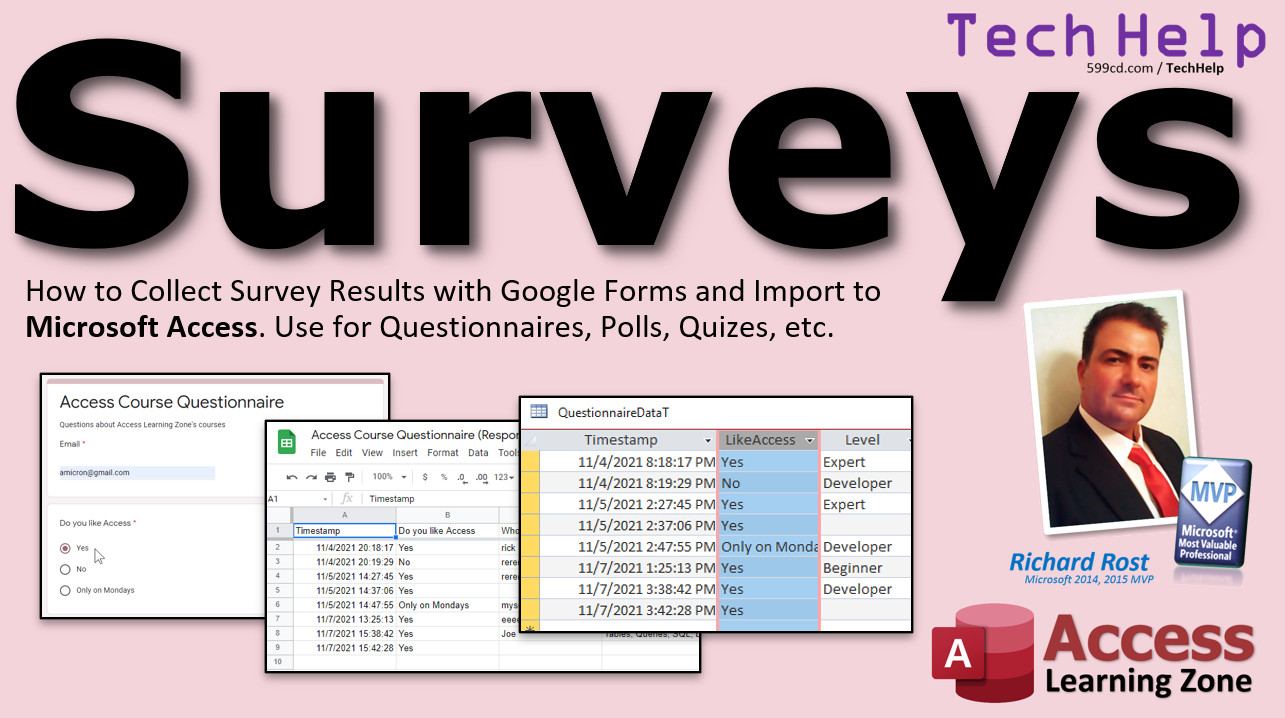
Send Customers Email to Update Information. In this video, I will show you how to use Google Forms to create a survey you can send out to your customers. We will then import the results directly into Microsoft Access. This technique is create for collecting large amounts of data online. You can use it for questionnaires, polls, quizzes, you name it. Renee from Michigan City, Indiana (a Platinum Member) asks: What is the best way to collect survey data from my customers and work with it in Access? Right now we send out an email like you showed in your Data Collection video, but it's a time consuming process to get all that data back into Access one record at a time. MembersMembers will learn how to use Microsoft Excel to connect to Google Sheets and import the data to a local spreadsheet. We can then connect to Excel from Access with a linked table. I'll also show you how to use a few lines of VBA code to have Excel refresh its data automatically so you get a one-click update. Gold Member Bonus!I will show you how to download the Google Sheets data automatically from the web site as a CSV file by using some code from the Code Vault.
Silver Members and up get access to view Extended Cut videos, when available. Gold Members can download the files from class plus get access to the Code Vault. If you're not a member, Join Today!
Links
Keywordsmicrosoft access, ms access, ms access tutorial, #msaccess, #microsoftaccess, #help, #howto, #tutorial, #learn, #lesson, #training, #database, Surveys, Questionnaires, Polls, Quizes, Multiple Choice, Header Image, Duplicate, Required, Delete, Sections, Shuffle Option Order, Short Answer, Paragraph, Allow Other, Dropdown, Linear Scale, Add Picture, Add Video, Get Link, Shorten Link, Import to Access, Link to Excel File as Table, Publish to Web, Get & Transform Data, From Web, Enable Background Refresh, Excel.Application, File Download from Web, Excel Automation
More InformationTranscriptWelcome to another TechHelp video brought to you by AccessLearningZone.com. I am your instructor, Richard Rost. In today's video, I'm going to show you how to collect survey results with Google Forms and then import that into Microsoft Access. You can use this for surveys, questionnaires, polls, quizzes, all kinds of stuff. Today's question comes from Renee in Michigan City, Indiana, one of my platinum members. Renee says: What is the best way to collect survey data from my customers and work with it in Access? Right now, we send out an email like you showed in your data collection video, but it is a time-consuming process to get all that data back into Access one record at a time. Well Renee, my data collection video was really designed for when you have customer information in your database already. You want to send them a form that includes all the stuff that you have in the database, like first name, last name, email, and so on, so they can verify it is accurate. They send it back to you and then you can import that information into your database. That is kind of a one-record-at-a-time thing. For the rest of you who have not seen that video, go watch that if you want to. My data collection video, there is the link. I will put a link down below in the link section too. You can just click on it. Now, if you want to collect survey data, you want to have a whole bunch of your customers fill out a survey or a questionnaire or something like that. I personally prefer using Google Forms. Google Forms is free. All you need is a Google account. There is the address. Again, I will put a link down below in the link section. You can set up whatever kind of survey or questionnaire you want. Send out emails to whoever you want to fill it out, or even put a link on your website. People fill out their responses. It all gets collected. Google collects it in a sheet in Google Sheets, which you can then export as a CSV file or an Excel file and pull that right into Access. Let me show you how to set it up. Log into your Google account and go to Google Forms. You can either use the link that I gave you before or you can go to your Drive and then go down here to where it says Google Forms and then create a blank form. Google will put you at a new blank form. Let's give it a name. I made my last one Access Course Questionnaire. Let's call this one Access Survey. You can put a description here if you want to. Write questions about Microsoft Access. Now, there are different kinds of questions you can use. You will see the list over here. Drop this down. You get short answer, paragraph (basically long text), multiple choice, check boxes, drop downs, file uploads. You can actually have them send you files if you want, like, hey, you have been sending your last database or something like that. You have linear scale, which is like a one to ten kind of thing, some more advanced options down here, date values, time values, and so on. Let's start off with a simple one. Let's do multiple choice. You put the question here. Let's do: Do you like Microsoft Access? Now, it is going to make some suggestions. It has got yes, no, and maybe if you like these suggestions. That is a yes or no question. Hit Add All and it will add those suggestions right here for you: yes, no, and maybe. If you want to change these, you can. Let's say you do not want maybe. How about only on Mondays? You can rearrange these if you want to. Click and drag. You can add more or add another option here if you want to. Do not want an option? Hit the X over here. You can actually add pictures to each of these if you want. That is kind of neat. You can also add a picture to the whole question if you want to. Hit the little question button there. You can upload a file, load from your camera, by URL, go to your Google Photos, your Google Drive, or do a Google image search. Let's say I want to search for Microsoft Access. Grab a logo. Down below here, you can hit Insert and it will put that image right in the question. See that? Now, if I decide I do not want that anymore, click the button here, Remove. So you can put pictures on each question if you want to. If you want to customize your theme, maybe you do not want purple. Purple used to be Access's color back in the day. Now it is red. They changed it. I had to change all the stuff on my website. Click Customize Theme. You can come over here and pick a theme color, like red. Wrong red? Hit that little button down there. Whatever red you want, like that one. Kind of cool. Want to put a header image up there? Just go Choose Image. You can pick from any of their stock images they have in here, or upload your own. I'll hit Browse, pick my file, it loads up. Slide this where you want it, hit Done, and there is your header, whatever kind of header you want at the top here. Let's say I want to add another multiple choice question. There is a Duplicate button right here. It duplicates the previous question. If you are going to add a bunch of multiple choice questions and you want the same stuff in here, you can, for example, ask if you like Microsoft Excel. Get rid of that option. Yes or no. If you want any of these to be required, just check the required box right there. Microsoft Excel required. To delete a question, click right there. Don't care about Excel? Hit Delete. Goodbye. There are more options over here. You can add a description. For example, more instructions. Tell us whether or not you like Access. There are more options in here, like "Go to a section based on an answer." I'm not going to get too crazy with how to set up these forms right now. You can set up sections, so depending on how they answer this question, it might send them to another one. Like if they say yes, they like Access, get more information about that. If they say no, you could send them to a different section that says, why do you not like it, and get more detailed preferences. If you want to see that, let me know. Give me some feedback. I'll make a whole separate video on setting up different sections and all the advanced options in here. You can shuffle the option order, so it is not always yes, no, Mondays. That way you do not have a bias. Sometimes people think that others have a tendency to click on the earlier options, so you can address that with shuffling the option order. Let's add another question. Over here, you can go Add Question. Let's change this one to a short answer, so the user is going to type in their answer as text, not picked from a list. Who is your favorite Access instructor? You better type in me. Required, yes or no? I'll leave that one. If you want to rearrange the order that these appear in, you can click on this and drag it to the top like that. You can rearrange your questions. There is an option in here somewhere to shuffle the question order too. If you want the questions to be shown in different orders, it will do that too. You can also do response validation right here for short answer text. This is just like validation rules in Access. It has to be a number, text, length, regular expression, that kind of stuff (greater than, less than, equal to). Just like validation rules. I'll turn that off though. I'm not going to get into that much detail right now. If you want to learn more about validation rules in Access, I have a video I'll put in the link section down below. Let's add some check boxes. Add another question: What topics are you interested in? Let's make this check boxes. We'll go option one: tables. Add another option: queries, forms, reports, VBA, SQL, whatever other items you want. Now, if you want to let them type in their own responses, depending on the survey you are doing, you can add another option called "Other." Other means they can click other and type whatever they want in here. That can be dangerous when you get to pulling in this information in Access, but if you want to allow them to do that, you can. Let's add another option here. Let's do a drop down, otherwise known as what Access people call combo boxes. Is your current skill level: maybe beginner, expert, developer. Actually, this is more like a true drop down box. A drop down box in the truest sense does not give you the option to type in the value, whereas in Access you have that ability, which is why it is called a combo box (a combination of a list box and a text box). Google Forms does not give you the option for "Other" with combo boxes or with drop downs. And I just realized this question got moved down, so let's move it up at the top. "Do you like Access?" should be first. Let's do linear scale: How likely are you to recommend Access Learning Zone? We'll go from one to ten. One label: "Not at all likely," and very likely is on the other end. You can get fancier too. They have multiple choice grid and check box grid. That is where you have, for example, three across, pick how much you like these objects. Objects could be tables, queries, forms, reports on the left, and then across the top, it might say, I like them, I do not like them, not enough information. It makes a grid and that kind of stuff. Again, I'm not getting that fancy today. We're just going with some simple survey stuff. You can add pictures and videos in here too. If you want to put a picture in place, upload a picture or whatever. I'll hit Browse, browse for a picture, and then boom, there it goes. Image title, etc. Now, what you can do with that picture is you can show them a picture of something, and then after the picture, ask: Did you like that picture? Or ask them questions about it or whatever. You can do the same thing with videos if you want to add a video. If you have something on YouTube, I recommend using it on YouTube, or you can point to a direct URL. Let's say I do Microsoft Access and type in 5.9 CD. You can just put a link to it. I'll put this one in there, select it, find a nice video, and then again, after that, ask: What was the main topic of that video? Make this one a short answer, for example. See how easy it is to add all these questions in here and set up your quiz? I've been using Google Forms for years. It is pretty straightforward. It is nice and easy. Over here on the left, you might want to give it a name: Access Survey, hit Update. When you change this here, it usually updates over there. It did not update for me, but there we go. Now, under Responses, this is where your responses are going to go when people respond to it. How are they going to be able to respond to it if they have not taken it yet? Well, you have to send them a link so that you can have them fill it out. How do you do that? Go to Settings. Come down here to Responses. Do you want to collect email addresses? I like to do that, especially if you are sending this to a select group of your customers. This way, you can match them up back in your database. When we import these results, we have their email address, and we can match it up with their customer ID in your customer table. Do you want to send responders a copy of their response? Yeah, why not? When requested. Do you want to allow them to edit their responses after they submitted? That is up to you. Now, do you want to limit to one response? I like to turn that on, because this says they must be signed into Google. They have to at least have a Google account. That way, it will prevent a particular customer from filling out the same survey five different times. I mean, if they have five different email addresses, I guess they could, but this is the best way to be sure that you get unique responses and only one response from each customer. You have some options down here for presentation. Do you want to show a progress bar? Sure. Do you want to shuffle the question order? There it is. You can edit the confirmation message. That is what they see when they're done instead of "Your response has been recorded." You can put in here, for example, "Thank you for filling out my Access questionnaire/survey," whatever. Save it. Do you want to share the results with everyone? If you are doing a poll, like "What is your favorite product of ours?" you can share those results with everybody by making that public. Down here, you have some form defaults. Do you want to collect the email addresses by default for new ones? Question defaults: make questions required by default for new ones, and so on. You could make this a quiz with a whole bunch of other options, which I will go over in a future video if you want to see how to do quizzes. So when you are happy with your poll or survey, hit the Send button and this pops up. How do you want to send it: via email, a link, or you can embed it in your website. If you want to send it by email, you put the people that you want to receive an email from Google in here, and it will send it out to everybody. I prefer doing the link and then sending out a link in one of my emails from my database, for example. I've got lots of videos on my website that will show you how to send emails directly from Access, either using Gmail, Outlook, or whatever your SMTP server is. I'll put a link to my "Send Email" video down below in the link section. Now, that is a pretty big long link there, so I am going to click on the Shorten URL that shortens it down for you. Copy this, Control-C, copy that to your clipboard, and drop it on Notepad or something if you want to. Here is Notepad, link to my form, and there it is. We will need that to send to people. That is your unique address for this particular form. Minimize it, set it up off to the side, do whatever you want with it. Now we can close this. One other thing I want to show you: Under Responses here, you can turn off accepting responses, which means that you are done with it. You no longer want to receive any responses. This little guy here will do in a second. This is to create a spreadsheet. You will see a spreadsheet of the results. When I have only results, yeah, I will show you that in a minute though. But drop this little guy down. And I like to check on "Get email notifications for new responses." This way, it will email you to let you know that you have new notifications. Select Response Destination is if you have a survey spreadsheet already set up in Google Sheets, or if you want to combine this with another survey, for example. Download Response is where we'll go to actually download a CSV file to pull that into Access, which we will do last. For now, let's go ahead and submit a couple of responses. I am going to open up a different browser window. I'm going to open up Edge here. I usually use Chrome for stuff, and then I use Edge when I want to be not logged in anywhere and do something different. So I'm going to copy that link that we got earlier. There is the link to my Google Form. Hit Enter. Now this is what your people will see. To fill out this form, you must be signed in. Your identity will remain anonymous. So when you send this to people requiring that they be logged in, they will have to sign in to do it. If they do not have a Google account, they will not be able to use this. So what I am going to do is go back and let me cancel this for now. Let me go back to the settings, and just for now, for the purposes of class, I am going to turn that off. You may have customers that do not have Google accounts. You can limit it yourself when you pull the stuff into Access. You can see if they have already submitted a form or not. Your changes in here are made instantly as soon as you do them. You do not have to save it again. Once you make a change in here, Google saves it automatically. Let's go back to Edge one more time. This time, you can see I can just fill out the survey and I do not have to be signed in. Now, this is a little confusing. This means that that field is required. Your email goes down here. You can see all the stuff I was typing in before, but I'll put in a real one here, I'll use that one. "Do you like Access?" Yes, no, only on Mondays. I'll do yes. "Who is your favorite Access instructor?" Some people might type in Rick, some people might type in Richard, so you have to be aware of that. "What topics do you want?" There we go. Current skill level: I am a developer. How likely to recommend: 10, of course. There is a picture. Did you like that picture? Maybe. Here's a video. Watch this video and then answer some questions about it. What was the main topic: making a template. Do you want to see a copy of your responses? No. And then when you are done, submit. There you go. Thank you for filling out Access Survey. Let's submit another response. There is nothing to stop people now, without a Google account, from doing this multiple times. So I can come in here now and fill out one for this email address. Do you like Access? Sure. "Who is your favorite Access instructor?" Richard. What topics are you interested in? Just these ones. Current skill level? Expert. How likely: 9. Did you like that picture? No. No clue. Same. We'll do one more really quick. Email address: let's do that one. Do you like Access? No. Maybe instructor: just leave this blank. Topics: let's leave this with another bar coding. Skill level? Beginner. Likely: 10. Picture: no. What was the main topic of that video? Let's leave that blank, too. Submit. Now we have three surveys submitted. I'm going to close that. You can see right here, Responses: 3. I probably got an email from Google saying that I have some responses. Click on Responses. The nice thing here is it will show you who has responded, and it gives you nice little graphs and stuff down here. Here is a little pie chart: Did you like Access? Who is your favorite Access instructor? What topics are you interested in? It adds them up by topic. That is pretty cool. What is your current skill level? How likely are you to recommend? Did you like that picture? Pretty cool stuff. You can break it down by question, and it breaks down each question: Who is your favorite Access instructor? How likely to recommend, etc. You can go per individual, too. Let's see the individual responses. But we want to get this data into Access. That is the whole point of doing this. Now we know how to create our survey, and we know how to get the responses. How do we get this stuff into Access? There are two ways you can do it. You can put it into Google Sheets or you can just download a CSV file. I am going to show you how to download a CSV file first. Click on that, and you will see if you are using Chrome, it is down here, "access survey.csv.zip." Open that up, show in folder. It is a zip file. Right-click on it. I have WinRar installed on my machine, which I like, but you can just use Extract All. Tell it where you want to go; that's fine. Hit Extract, and then it extracted the CSV file into a folder for you. CSV files are just text files. That is all they are: comma separated value. If you open that up and double click on it, it will open up in Excel. There you go. It says possible data loss – some features might be lost if you save this workbook in the CSV format. To save these features, save it in an Excel file format. I am going to close that though. Back in Forms, if you click on this guy, Create Spreadsheet, it will say "Create a new spreadsheet: Access Survey Responses." That is fine. Create. What it is doing is tying that to Google Sheets. Here we are inside of Google Sheets now. Google Sheets is basically Google's answer to Excel. It is pretty good. Excel is a lot more powerful; it does a lot more things. But Google Sheets is handy, free, and easy to use. I am personally an Excel fan, but I like this too. Their features are very similar; the functions are almost the same thing. Now, instead of doing it directly in Forms, once you link this, any new updates, any new responses that come in, will automatically get added to this sheet. It takes about five minutes, though. It is not instant. So if you go back over to the form and you submit a couple of test submissions and you do not see them right away in here, you have to be patient. It usually takes like two or three minutes, up to five minutes is what they say on Google. So just be patient. Once you have it in here, you can now go to File and then Download, and you can download it as an Excel spreadsheet file, which is better because it has more formatting and stuff and you will not have that possible data loss warning. Download as Excel. You will see it down here, accessory responses. Now, keep in mind, once you download this, it is not linked to the original anymore. This is a copy of the data. If you open this up in Excel, there it is. It is more truthful to the formatting. Enable editing is fine because this one is safe. Now, this is real simple to import into Access. I have other videos on how to do that. I'll put some links down below. I have a free "Importing Data from Excel," "Excel CSV," "Fixed Width Text." I cover that all in this video. And in my Access Expert Level 20 class, I'll put links to this down there too. I've got all kinds of other things, exporting XML and all kinds of other advanced stuff. How do I import that stuff into my Access database? Well, we are not going to import it. We are going to link to it, because even though that is just a copy of my data, if I download another copy from Google Sheets, it will keep my Access database updated. So we are going to go to External Data. This is my TechHelp Free Template, by the way; you can download a free copy of this on my website. There is a link down below. We are going to go Import and Link, New Data Source, From File, Excel File. Browse to it, it is in my Downloads folder. There it is right there. I can get rid of the previous version. Let me just delete that one. Select that one, hit Open. Now, do not just import it—link to it. Link to it. There we go. It has text in it. Access is weird sometimes like that. Hit OK. First row contains column headings. Next. What name do you want to give it? Let's call it Survey Responses or just SurveyResponseT to keep my table names and my query names similar. Finish linking, and now there it is as a linked Excel spreadsheet. Open it up. There you go. Now you have the data in your Access database. I do not particularly care for the field names that it uses, because it uses the full question. What I generally do is create a query with better names in it. So, bring in that table to your query. Unfortunately, it does not give you an ID that's useful, but now you just add your fields: timestamp, email address (I do not like spaces in my field names, so I just call that email: do you like Microsoft Access? I'll call this likeAccess:), and so on. I am not going to do them all; you get the idea. Save that as SurveyResponseQ. Now, when I run that query, it has better field names, so I can use these in my forms and reports. Remember, this is read-only, by the way. You cannot change this data. It is just to get the responses from your people into your database. I hope that shows you how to use Google Forms to get the data from your customers—whomever is doing the responding to your surveys—and then you can pull that information into Access using a simple import or linking to an Excel spreadsheet that you download. Now, members, I am going to show you how you can automatically have Excel connect to that Google Sheet online, and then with one button from inside of Access, you can tell Excel: Go out to Google Sheets, update the data, pull down any new responses, refresh the Excel sheet, save it, and then in Access, when you open it up, it will be all refreshed right in there automatically for you. We will connect to Google Sheets from Excel directly. We will use Access VBA to update it—a couple of lines of code, not much, like five lines of code— and then we will link directly to the Excel file from Access. So you click one button, and all your updates are done for you. And then I have a Gold Member bonus after that for just the Gold Members, where I will show you how to do it without even using Excel. We will download a CSV file directly from Google Sheets using goodies from the code vault. That is all coming up in the extended cut for the members. Silver Members and up get access to that one, and then Gold Members get this special Gold Bonus. Sometimes what happens with these TechHelp videos is I end up going a little overboard. I recorded several hours of additional lessons related to this survey stuff. Some of you have told me you want to get those extended cuts, but you really do not want to become a member— you do not like monthly commitments, etc. So if you want to learn more about these surveys, including the stuff I covered in the extended cut, go to my website and look for the Access Survey Seminar. It has lots of stuff. I cover all kinds of different things. Lesson one is what we just learned: creating the surveys. Lesson two is the Silver Member extended cut: connecting to sheets from Excel. Lesson three is the download stuff from the Gold Member bonus: how you can have Access download a CSV file (a comma file) right from Google Sheets, and then import that directly into Access without even using Excel. Then lesson four: we start importing that data into Access. I will show you how to parse multiple responses, so if someone says, I like this option, this option, that option, how do we store that in the database? You do not put multiple responses in one field, so we will make a separate related table to store that information. We will do all kinds of queries, tons of queries: duplicate respondents, surveys with helper data, non-customer responses, customers not responding, all kinds of stuff. Then we will make some forms. I will show you how to take a form, link it to your customer table, then you can open up the customer, show their survey responses, and in a subform, see their multiple responses for the questions that have multiple responses. Then we will go backwards, and go the other way. You will say, show me all of the questions and the possible responses. Pick one of those and see all the people that responded that way to that question. For example, if you want to say, show me all the people who said they are going to refinance their house within ten years—show me that question, that answer, and here are all the people. Then we will do some cool reports with sorting and grouping levels in them. That is the Access Survey Seminar. If you want to learn a lot more about how to do this stuff, go to my website; I will put a link down in the link section below. I hope you learned something. How do you become a member? Click on the Join button below the video. After you click the Join button, you will see a list of all the different membership levels that are available, each with its own special perks. Silver Members and up will get access to all of my extended cut TechHelp videos, one free beginner class each month, and more. Gold Members get access to download all of the sample databases that I build in my TechHelp videos, plus my code vault where I keep tons of different functions that I use. You'll also get a higher priority if you decide to submit any TechHelp questions to me, and you'll get one free expert class each month after you finish the beginner series. Platinum Members get all the previous perks, plus even higher priority for TechHelp questions, access to all of my full beginner courses for every subject, and one free developer class each month after you finish the expert classes. These are the full-length courses found on my website, not just for Access—I also teach Word, Excel, Visual Basic, and lots more. You can now become a Diamond Sponsor and have your name or company name listed on a Sponsors page that will be shown in each video as long as you are a sponsor. You will get a shout out in the video and a link to your website or product in the text below the video and on my website. But do not worry, these free TechHelp videos are going to keep coming. As long as you keep watching them, I will keep making more, and they will always be free. IntroIn this video, I will show you how to create a survey using Google Forms, send it to your customers, collect their responses, and then bring that survey data into Microsoft Access. We will walk through building a sample survey in Google Forms, discuss question types and customization, show how to distribute your form, demonstrate how to export responses as CSV or Excel files, and then link or import those results directly into your Access database for easy analysis and reporting. QuizQ1. What is the main benefit of using Google Forms to collect survey data for import into Microsoft Access? A. It is free, easy to use, and integrates with Google Sheets for exporting data B. It provides real-time direct linking to Access without any exports C. It automatically updates the Access database whenever a person submits a response D. It only works with a paid Google Business account Q2. What is the typical file format exported from Google Forms/Sheets to import data into Microsoft Access? A. PDF B. CSV or Excel file C. JPG D. HTML Q3. Which type of question can you NOT include in a Google Forms drop-down (combo box) question? A. Beginner level as an option B. Custom "Other" response entry C. Predefined options D. Single-choice answer Q4. What Google Forms feature helps prevent multiple responses from the same person? A. Enabling a password on the survey B. Limiting to one response and requiring Google sign-in C. Using a captcha only D. Making the survey view-only Q5. What's the advantage of linking, rather than importing, an Excel file into Access after downloading from Google Sheets? A. The linked data is always editable in Access B. New survey responses can be updated easily by replacing the file C. Linked files increase database size D. Linked files allow you to remove the original on Google Drive Q6. What should you do in Google Forms if you want users to type in their own survey responses not covered by choices? A. Add a required question B. Add an "Other" option C. Only use drop-down questions D. Use only yes or no questions Q7. Which is a correct description of how data appears when you download Google Form responses as CSV? A. Responses come as a set of PDF forms B. Data is presented as plain text files with comma separated values C. Files are encrypted and only openable in Google Sheets D. Files are in a proprietary format readable only by Access Q8. After creating a Google Form, which method can you use to send your survey to respondents? A. Only in person B. Email, link, or website embed C. Fax only D. Handwritten letters Q9. What is the recommended way to match survey responses to customers already in your Access customer table? A. Collect email addresses in Google Forms B. Include a handwritten signature field C. Use only anonymous responses D. Match based on first name Q10. Why does the video recommend creating a query in Access with better field names after importing or linking the response data? A. To add more data fields automatically B. Because Google Forms uses entire question text as column headings C. To encrypt the data D. Because queries run faster than tables Q11. What happens if you download data as an Excel file from Google Sheets and then continue collecting new survey responses? A. The Excel file automatically updates with new responses B. The downloaded file is a static copy and does not update automatically C. Google Forms stops collecting responses D. Access will not link to the Excel file anymore Q12. Why might you choose to include an "Other" option in check box questions, and what is a possible drawback mentioned? A. It increases survey length; it does not work with exports B. It allows custom answers; may complicate Access data processing C. It allows respondents to skip the question; decreases accuracy D. It is required for all survey questions Q13. Which Access menu should you use to link to an Excel file downloaded from Google Sheets? A. File > Export B. External Data > New Data Source > From File > Excel File C. Query Design > Add Table D. Table Tools > Add Field Q14. What does the presenter recommend regarding making questions required in your survey? A. Always require all questions B. Use the Required setting selectively based on importance C. Required questions are not supported in Google Forms D. Only use it for text questions Q15. What advantage is offered to Silver Members and above for TechHelp videos? A. Access to all extended cut videos and a free beginner class each month B. Free Google Forms tutorials C. License to resell AccessLearningZone.com content D. Physical copies of database manuals Answers: 1-A; 2-B; 3-B; 4-B; 5-B; 6-B; 7-B; 8-B; 9-A; 10-B; 11-B; 12-B; 13-B; 14-B; 15-A DISCLAIMER: Quiz questions are AI generated. If you find any that are wrong, don't make sense, or aren't related to the video topic at hand, then please post a comment and let me know. Thanks. SummaryToday's video from Access Learning Zone covers how to gather survey responses using Google Forms and then import that data into Microsoft Access. This method works well for collecting feedback through surveys, polls, questionnaires, or quizzes that you want to analyze in Access. This question originally came from one of my members, who requested an easier and quicker way to bring survey data back into Access. In my previous data collection video, I focused on emailing custom forms to customers based on information already in your database, collecting single records at a time. That works if you need to verify data for one person per message. However, if you want to collect numerous responses to a survey, there are more efficient ways. For broad surveys, I recommend Google Forms. It is free, simple to use, and only requires a Google account. You can create any survey or questionnaire, send out links via email or your website, and Google will collect all the responses for you in a Google Sheet. From there, you can export the data as a CSV or Excel file to work with in Access. To start, sign in to your Google account and launch Google Forms from your Drive. Begin with a blank form. Give it a title, for instance, "Access Survey," and optionally add a brief description. Google Forms supports many types of questions: short text answers, longer paragraph responses, multiple choice, checkboxes, dropdowns, file uploads, scales (like 1 to 10), dates, and more. For example, you might begin by adding a multiple choice question such as "Do you like Microsoft Access?" Google often suggests response options based on your question. You can accept, modify, or reorder these options, and even add images to both questions and choices to make your survey more engaging. You can customize the theme of your form. For example, you may wish to change the color to red if you want it to reflect Access's current branding. Add a header image by choosing one of Google's stock images or uploading your own. Resize and crop as needed. Duplicating questions helps when you have several with similar formats. For instance, you could ask about opinions on Access and then do the same for Excel. If a question is required, just set the required option. You can also add instructions or descriptions to questions, and for more advanced surveys, build sections that branch based on how the respondent answers. For example, an answer to one question could direct the respondent to different sets of follow-up questions. If you are interested in this level of customization, let me know, and I can produce a specific lesson on advanced Google Forms setup. You have additional options as well, like shuffling the order of answers to reduce bias, or requiring a certain answer format with response validation. This is similar to Access's validation rules, supporting rules like "must be a number" or "must be a certain length." Checkboxes work well for "select all that apply" questions, and you can allow write-in responses with an "Other" option. For dropdown questions (akin to combo boxes in Access), respondents pick one answer from a list but cannot enter additional text. Rating questions can use a linear scale, for example, asking how likely someone is to recommend a service, from 1 (not at all likely) to 10 (extremely likely). For richer surveys, you can add images and video directly to the form, then follow up with relevant questions. For example, show a picture or link to a YouTube video and ask respondents for feedback on that content. When your form is ready, move to the Responses section, where all incoming data will be collected. Under Settings, you can choose whether to collect email addresses, which allows you to match responses with customer data in Access. You might want to limit responses to one per person, which requires a Google login. Note that some customers without Google accounts would not be able to participate if you require sign-in. There are further settings for presentation, including progress bars, shuffling the order of questions, and customizing the confirmation message participants see when finishing the survey. Once ready, use the Send button to distribute your form. You can email it directly from Google, copy a shareable link to distribute however you prefer, or embed the form on your website. Google also provides a URL shortener to make sharing more manageable. As responses come in, you will see the number of completed surveys increase in the Responses tab. Google provides visual summaries such as charts and lists that show response breakdowns by question or individual. To access the raw data for import into Access, you have two main options. You can either download responses as a CSV file or export them to Google Sheets. To download the CSV, choose Download Responses, extract the CSV from the provided ZIP file, and open it in Excel if desired. Alternatively, you can link your form to a Google Sheet by choosing Create Spreadsheet. New responses appear in the Google Sheet, though new submissions can take a few minutes to appear. From Google Sheets, you can download your responses as an Excel file. Remember, this exported file is a snapshot of your data; it will not continue to update unless you export a new copy. To bring this data into Access, I recommend linking (not importing) the Excel file. This lets you periodically overwrite the Excel file with a new download when new responses are available, keeping your Access database up to date without re-importing. In Access, use the External Data tools to link to the Excel file. Access will treat your survey data as a read-only table. Typically, Google includes the full question text as column headers, which can be cumbersome. It is helpful to create a query in Access for that table, renaming the fields to simpler names for use in your own forms and reports. That way, you have more readable field names and can develop custom queries or reports as needed. This method gives you an efficient way to collect survey data from your audience and bring it into Access for analysis and reporting. For members, I go further by showing how you can use Excel to automatically connect and update data from Google Sheets, and how to use Access VBA to trigger these updates with a single click. This allows you to keep your Access-linked Excel file always up to date with the latest survey results. For Gold Members, there is an extra bonus lesson describing how to skip Excel entirely and use Access VBA to download a CSV file straight from Google Sheets, again using some handy custom code. If you are interested in even more in-depth training on survey data handling in Access, I have an Access Survey Seminar available on my website. This seminar covers everything from building surveys and parsing multi-option responses, to storing data efficiently, building queries and reports, and creating linked form interfaces to view survey results per customer and by question. To become a member and access extended video content, sample databases, and my code vault, just look for the Join button on my website. There are different membership levels for all learning needs. And as always, my free TechHelp videos will remain available to everyone. You can find a complete video tutorial with step-by-step instructions for everything discussed here on my website at the link below. Live long and prosper, my friends. Topic ListCreating a Google Form for surveys Choosing question types in Google Forms Customizing survey appearance and themes Adding images and videos to survey questions Setting up required questions Shuffling answer and question order Using response validation in Google Forms Sending survey links via email or website Configuring respondent settings in Google Forms Collecting and managing survey responses Downloading survey results as a CSV file Extracting and opening CSV survey responses Creating a Google Sheets spreadsheet from responses Downloading results as an Excel spreadsheet Linking Excel survey results to Microsoft Access Using Access External Data to link Excel files Renaming imported survey fields in Access queries Displaying survey results using Access queries Primary TopicsGoogle Forms survey design, question types in Google Forms, collecting and managing responses, exporting Google Forms data, importing or linking data in Access, connecting Google Sheets to Excel, handling survey data in Access Secondary Topicssurvey customization, data validation in forms, response restrictions, linking vs importing, query creation in Access, data normalization concepts, reporting and charting in Google Forms |
||||||||||||||||||||
|
| |||
| Keywords: TechHelp Access Surveys, Questionnaires, Polls, Quizes, Multiple Choice, Header Image, Duplicate, Required, Delete, Sections, Shuffle Option Order, Short Answer, Paragraph, Allow Other, Dropdown, Linear Scale, google sheets PermaLink Surveys in Microsoft Access |