|
||||||
Access Expert 16Macros, Action Queries, Make Table, UnionWelcome to Access Expert 16. In this course you will learn how to run multiple action queries using macros in Access, set warning messages off when needed, and use make table and union queries for tasks like backups and merging data. We will cover how to use delete queries across multiple tables, handle mailing lists with multiple parents, and review previous lessons and learning strategies, while also outlining the course structure and available student support resources. Lessons
Resources
Lesson SummaryWelcome! Action, Make Table & Union Queries - Welcome to Microsoft Access Expert Level 16. In this course we will continue our in-depth study of action queries in Access, covering advanced topics such as running multiple queries with a macro, setting warning messages off, using delete queries across multiple tables, make table queries for backups, and handling mailing lists with multiple parents. We will also discuss union queries to merge results from different tables, review previous lessons, explain recommended learning practices, and outline the structure of the course and available student support resources.
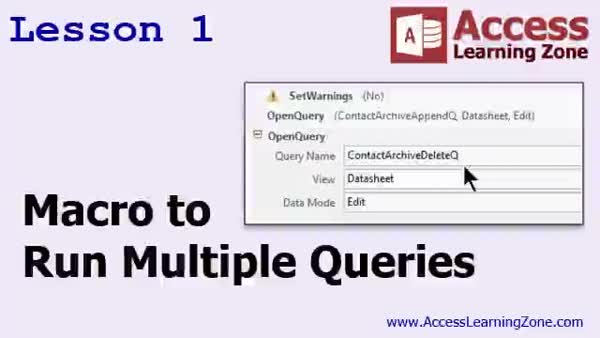
Lesson 1: Run Multiple Queries, Hide Warnings - In Lesson 1, we will walk through how to create a macro to run multiple queries in Microsoft Access, specifically to archive old contact records. I will show you how to use a command button to automate running both append and delete queries, disable warning messages during the process, and provide user feedback with a message box. We will also discuss the basics of embedded macros and where to find key macro commands like SetWarnings. This lesson focuses on automating repetitive tasks using macros and demonstrates each step involved in setting up the archive process.
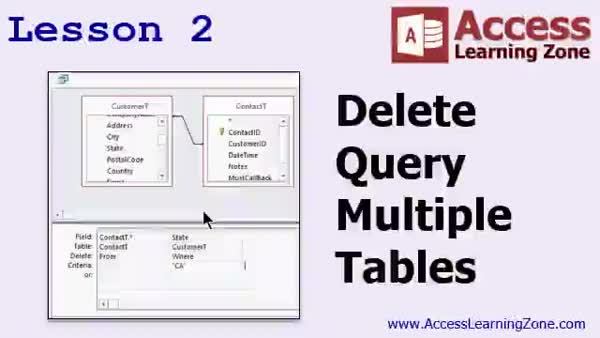
Lesson 2: Delete Records by Other Table - In Lesson 2, we discuss the proper technique for creating a delete query that works with multiple tables in Microsoft Access, especially when you need to delete data from one table based on criteria stored in another table. We will talk about referential integrity, relationships, and the implications of cascade deletes, and I will show you how to safely use a two-query method to accomplish deletion when traditional delete queries involving multiple tables are not supported. This approach is essential when you want to delete records from one table according to information found in a related table.
Lesson 3: Make Table Queries for Backup - In Lesson 3 we are going to learn about make table queries, including how to create a new table in Access based on data from existing tables. I will show you how make table queries can be used for tasks like creating backups, archiving data, exporting selected records, and automating processes for less experienced users. We will walk through setting up a make table query, saving the new table to the current or another database, and discuss some issues with multi-valued fields. I will also demonstrate how to automate backups using buttons and macros.
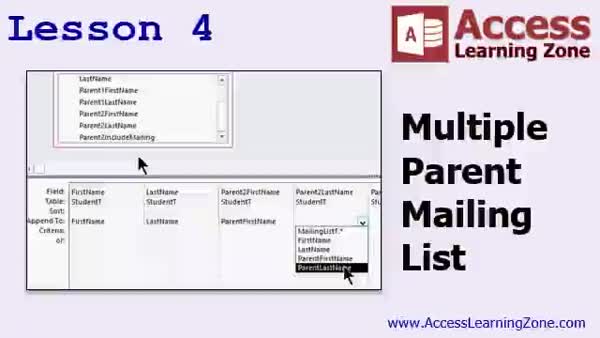
Lesson 4: Multi-Parent Mailing Lists Guide - In Lesson 4, we are going to set up a multiple parent mailing list. I will show you how to handle situations where a student record contains two parent fields and you need to send mailings to both parents, even if they do not live together. We will walk through two approaches: first, using action queries like make-table and append queries to create a mailing list from a single student table; then, I will demonstrate the more correct way, using separate related tables for students and parents, allowing for flexible mailings and better database design.
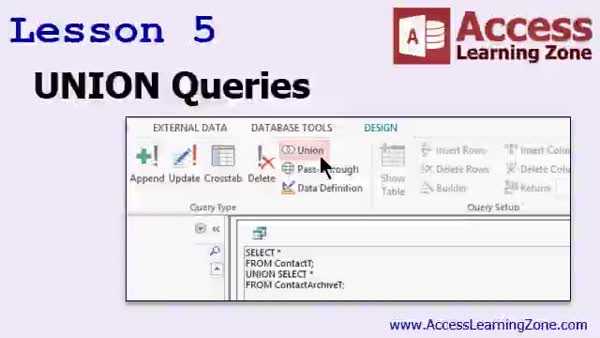
Lesson 5: Combine Tables with Union Queries - In Lesson 5, we will learn about union queries, which let you combine records from two or more tables or queries so they appear as a single set of results. I will show you how to create a union query in Access to join your contacts table with the contact archive, allowing you to search across both. We will walk through each step, including why matching field names matter, why the built-in Union button should be avoided, and how to write a union query in SQL view. We will also discuss your homework involving several types of action queries and preparing for more advanced union query options in the next lesson.
Lesson 6: Macros, Queries, Delete, Create, Union - In this course we learned how to create button and embedded macros in Access to run multiple queries, use the button wizard, and edit open query commands. We discussed suppressing and restoring warning messages, displaying all actions in the macro editor, and using message box commands. We built a delete query across multiple tables, covered referential integrity and cascade deletes, and handled more complex deletions based on criteria in related tables. We also worked with make table and append queries for mailing lists, discussed handling multiple parents, explored relational table solutions, and practiced using union queries to combine data from separate tables.
NavigationKeywordsrun multiple queries macro, disable warnings, append delete queries, macro command button, delete records criteria, make table query backup, archive records, union query, combine tables, mailing list multiple parents, referential integrity, cascade delete
More InformationTranscriptWelcome to Microsoft Access Expert Level 16 brought to you by AccessLearningZone.com. I am your instructor, Richard Rost. Today's class continues our in-depth study of action queries. We have already learned how to build update queries, append queries, and delete queries. In the first lesson today, we are going to make a macro to run multiple queries at once. We will make a single button that you click on to archive old contacts in the system. It will run an append query to copy those old records to a backup table, an archive table, and then it will delete them out of the primary contact table. We will learn how to set warnings to off so that Access does not bother you with all those prompts. Next, we will learn how to use delete queries with multiple tables, where you want to delete records in one table with criteria based on a value in a different table. For example, let's say you are not doing business in a state like California anymore. You want to delete all of the contacts from the customers who live in California, but you still want to keep the customer record. So you are deleting values from the contacts table based on a value in the customer table. Next, we are going to learn about the fourth type of action query: make table queries. A make table query is used to make a table to create a brand new table. We will use a make table query to back up our customer records. Anytime you want to make a change to the customer table or the data in the customer table, you can just click a button, and it will automatically make a backup copy that you can have in the current database or in a backup database somewhere else. I will show you how to do that. We will then use our knowledge of make table queries and append queries to handle a common problem that people ask me how to deal with. This is the multiple parents for a child mailing list problem. Let's say you have a list of students, and you have two parents listed on the student record, parent one and parent two. Perhaps they do not live together. So you want to be able to send mailings to both of them, but doing so is very difficult. In this list, I will show you a technique, actually two techniques, to deal with that problem. Finally, we are going to learn about union queries. Union queries let you merge the results from two or more tables or two or more queries to look like a single query. For example, earlier we pulled apart our contacts table. So we have all the old contacts in an archive table somewhere else. With a union query, we can temporarily put them back together so you can search through all the contacts. This class follows Access Expert Levels 13 through 15. In 13 through 15, I covered the other types of action queries: update, append, and delete queries. I strongly recommend you learn how to work with those before continuing on with today's lessons. This class was recorded using Access 2013. All the lessons should work just fine with 2007 or 2010. If you are using Access 2003 or earlier, you should go to my website and get the Access 2 to 2003 lessons. Those cover action queries for the older versions of Access. My courses are broken up into beginner, expert, advanced, and developer-level classes. Beginner-level classes are for novices. You should understand all the topics covered in them by the time you get to the expert-level classes, which you are in now. When you finish all the expert-level classes, the advanced classes will cover event programming and macros, and the developer classes will cover Visual Basic for Applications. Each group of classes is broken down into multiple levels: Level 1, 2, 3, and so on. In addition to my normal Access classes, I also have seminars designed to teach specific topics. Some of my seminars include building web-based databases, creating forms and reports that look like calendars, securing your database, working with images and attachments, writing work orders and running a service business, tracking accounts payable, learning the SQL programming language, creating loan amortization schedules, and lots more. You can find details on all of these seminars and more on my website at AccessLearningZone.com. If you have questions about the topics covered in today's lessons, please feel free to post them in my student forums. If you are watching this course in the online theater on my website, you should see the student forum for each lesson appear in a small window next to the class video. Here you will see all of the questions that other students have asked as well as my responses to them and comments that other students have made. I encourage you to read through these questions and answers as you start each lesson and feel free to join in the discussion. If you are not watching these lessons on my website, you can still visit the student forums later by visiting AccessLearningZone.com/forums. To get the most out of this course, I recommend you sit back, relax, and watch each lesson completely through once without trying to do anything on your computer. Then replay the lesson from the beginning and follow along with my examples. Actually, create the same database that I make in the video, step by step. Do not try to apply what you are learning right now to other projects until you have mastered the sample database from class. If you get stuck or do not understand something, watch the video again from the beginning or tell me what is wrong in the student forum and I will do my best to help you. Most importantly, keep an open mind. Access may seem intimidating at first, but once you get the hang of it, you will see that it is really easy to use. I strongly encourage you to build the database that I build in today's class by following along with the videos. However, if you would like to download a sample copy of my finished database file, you can find it on my website at AccessLearningZone.com/databases. Sometimes, if you get stuck, the easiest way to learn is to tear apart someone else's database. One of the ways that I taught myself Access years ago was by tearing apart the Northwind Traders database that comes with Microsoft Access. You will find there is a sample database for each of my courses on my website. Now, let us take a few minutes and go over exactly what we are going to cover in today's class. In the last class, Access Expert 15, we created a couple of queries to archive old contacts from our contact table to a contact archive table. In lesson one, we are going to go over the homework from that class, which was to create a single button that runs both of those queries and disables the warning messages. In lesson two, we are going to discuss the proper technique for running a delete query involving multiple tables, where the records that you want to delete are based on a criteria from another table. In lesson three, we are going to learn about make table queries as we can set up a query to create a new table based on other data. In lesson four, we are going to set up a multiple parent mailing list. What does that mean? We have a single student table, where you have the student's first name and last name. But then you have two parents in the same record, parent one and parent two. We need to be able to sometimes send multiple mailings out so that each parent, who might not live together, gets separate mailings. So how do we set that up properly in our database so we can create that mailing list? In lesson five, we are going to learn about union queries, which allow you to take two or more tables or other queries and put them together so it looks like one set of records, one query. IntroIn lesson 16 of the Microsoft Access Expert series, we continue working with action queries by learning how to automate multiple query operations with macros, set up a button to archive and delete old contacts, and control warning messages. We will cover delete queries involving multiple tables, make table queries for backing up records, and see how to solve the multiple parents mailing list challenge. Finally, we will introduce union queries to merge the results of separate tables or queries into a single set of records for easier searching and reporting. QuizQ1. What is the main purpose of the macro discussed in the first lesson of this class? A. To import records from Excel into Access B. To run multiple action queries at once, such as archiving old contacts and deleting them from the main table C. To automate report generation D. To sort contacts alphabetically Q2. What is a make table query used for in Microsoft Access? A. To modify data in an existing table B. To create a brand new table based on the results of a query C. To update data in multiple tables at once D. To remove duplicate records from a table Q3. When running multiple action queries with a macro, why should you turn warnings off? A. To increase the speed of the database B. To prevent Access from asking for confirmation before each query runs C. To save disk space D. To make Access close automatically Q4. How can a delete query work with multiple tables according to the video? A. By copying data from one table to another before deleting it B. By deleting records from one table based on criteria from another related table C. By deleting all records regardless of criteria D. By deleting tables instead of records Q5. What is the function of a union query in Microsoft Access? A. To filter records within a single table B. To update multiple tables at once C. To merge results from two or more tables or queries into one set of records D. To find duplicates between two queries Q6. What common database problem does the "multiple parents for a child mailing list" scenario address? A. Backing up student records automatically B. Making sure both parents listed for a student can receive separate mailings C. Removing duplicate parent names D. Limiting each student to one parent record Q7. What is strongly recommended before taking this expert-level class? A. Learning advanced SQL programming B. Understanding the basics of update, append, and delete queries C. Installing the latest version of Access D. Watching only one beginner video Q8. If you are stuck on a lesson, what is one method the instructor suggests for resolving issues? A. Restart your computer B. Skip the lesson and continue to the next C. Watch the video again or ask questions in the student forum D. Install third-party add-ons Q9. For what purpose does the instructor recommend downloading the sample database from his website? A. Because Access requires it to run macros B. To compare your work with the finished version and learn by example C. To enable additional database features D. Access will not work without the sample database Q10. What upcoming lesson focuses on combining multiple tables or queries to appear as a single set of data? A. Lesson one about macros B. Lesson two on delete queries with multiple tables C. Lesson five on union queries D. Lesson four on mailing lists Answers: 1-B; 2-B; 3-B; 4-B; 5-C; 6-B; 7-B; 8-C; 9-B; 10-C DISCLAIMER: Quiz questions are AI generated. If you find any that are wrong, don't make sense, or aren't related to the video topic at hand, then please post a comment and let me know. Thanks. SummaryToday's video from Access Learning Zone continues our exploration of action queries in Microsoft Access. In this Expert Level 16 class, I will guide you through some more advanced features that build upon what we have already discussed in previous lessons, including update, append, and delete queries. To start, I will show you how to create a macro that lets you run several queries in a sequence with just a single button. This is especially useful if you want to archive records, such as old contacts. We will set up a process where these old records are copied into a backup table using an append query, then deleted from the main table using a delete query. You will learn how to suppress all of Access's warning messages so that the process runs smoothly without unnecessary prompts. Next, I will address how to use delete queries across multiple tables. For example, if you have decided to stop doing business in a particular state, you might want to delete all contacts in that state but still keep the customer record itself. I'll show you how to set up a query so that deletions in the contacts table depend on information from the customer table. We will then move on to the fourth main type of action query in Access, which is the make table query. This type of query enables you to create a completely new table based on existing data. You will learn how to make a backup of your customer records quickly and keep that backup either in your current database or in a different file entirely. An important challenge that frequently comes up is how to handle mailing lists when a student has two parents, each possibly at different addresses. I will cover two different techniques to manage this scenario efficiently so you can send mailings to both parents, even though they are listed as parent one and parent two in the same student record. Finally, I will introduce union queries. These queries allow you to bring together data from two or more tables, or from multiple queries, and display them as if they were a single unified list. This is very practical if you want to review both current and archived contacts together without physically combining the tables. This class builds on concepts from Access Expert Levels 13 through 15, so if you need a refresher on update, append, or delete queries, I recommend reviewing those lessons. Although the videos use Access 2013, the material is also compatible with Access 2007 and 2010. If you are using an older version, visit my website for lessons tailored to Access 2 through 2003. Just as a reminder, my curriculum is organized into beginner, expert, advanced, and developer classes, each grouped into numbered levels. Expert-level classes like this one assume you have mastered the basic and intermediate material. If you are new to Access, be sure to start with the beginner classes before attempting these more challenging topics. Besides my regular courses, my collection of seminars focuses on particular advanced topics, including creating web-based databases, integrating calendar views into forms and reports, securing your data, handling images and attachments, managing work orders, tracking accounts payable, mastering SQL, developing loan amortization schedules, and much more. You can find more about these seminars on my website. If you have any questions as we work through the lessons, please use the student forums. For those watching in the online theater on my website, the appropriate forum for each lesson will appear alongside the video. Here, you can see the questions and comments from other students along with my answers. I encourage you to take advantage of this resource and join in the discussions. For those not watching directly on my site, you can always access the forums later on AccessLearningZone.com. To make the most of this course, I recommend that you first watch each lesson all the way through before attempting anything on your own computer. After this initial run-through, restart the lesson and follow along, building the exact database that I demonstrate. Do not try to adapt the material to other projects until you are comfortable with the class examples. If anything is unclear or you encounter problems, watch the lesson again or post your question to the forum and I will help you as much as I can. Remember to keep an open mind. Microsoft Access may seem complicated at first, but with practice, you will realize how approachable and powerful it really is. As you work along with me, I suggest building your own version of the class database. If you prefer, or if you get stuck, you can download a sample copy of my finished database from my website. Sometimes, dissecting a working example helps the most. Years ago, I learned a lot from tinkering with Microsoft's Northwind Traders database, and you can take a similar approach with my sample databases. Let me also outline what you should expect in today's lessons. Last time, in Expert Level 15, we began archiving old contacts. In today's first lesson, we will review your homework from that class, specifically building a button that runs two queries and suppresses warning messages. In lesson two, we will look at the correct way to use delete queries that involve multiple tables, deleting records based on criteria from another table. Lesson three will introduce make table queries, showing you how to generate new tables from existing data. In lesson four, we will tackle setting up a proper mailing list for students with multiple parents so each parent can receive mailings independently. And in lesson five, we will cover union queries, which can show results from several tables or queries as a single unified list. You can find a complete video tutorial with step-by-step instructions on everything discussed here on my website at the link below. Live long and prosper, my friends. Topic ListCreating a macro to run multiple action queries Building a button to archive old contacts Archiving contacts using append and delete queries Disabling warning prompts during action queries Using delete queries with criteria from another table Deleting records in one table based on another table's values Creating make table queries to back up data Making a backup copy of the customer table Saving backup tables to current or external databases Handling multiple parent mailing list scenarios Techniques for mailing lists with multiple parents per child Using make table and append queries for mailing lists Creating and using union queries Merging results from archive and main tables with union queries Primary Topicsaction queries, macros, delete queries with multiple tables, make table queries, parent-child mailing list scenarios, union queries Secondary Topicsdisabling warnings, archiving contacts, query automation, database backup techniques |
||||||||||||||||||||||||||||||||||||||||||||||||||||||||||||||||||||||||||||||||||||||||||
|
| |||
| Keywords: run multiple queries macro, disable warnings, append delete queries, macro command button, delete records criteria, make table query backup, archive records, union query, combine tables, mailing list multiple parents, referential integrity, cascade delete PermaLink Microsoft Access Expert 16 |