Flashcards
By Richard Rost

 4 years ago
Build a Flashcard Program in Microsoft Access
In this video, I'm going to walk you through creating a flashcard program using Microsoft Access and a little bit of VBA programming.
Rosa in Athens, Georgia (a Platinum Member) asks: Any chance you could show us how to make a flashcard program? I teach 3rd grade, and it would be really cool to show the kids.
Members
Members will learn how to learn how to make the database multiple choice. We will get the list of wrong answers from the existing cards instead of having to manually enter them for each question. We will learn how to do that with a recordset loop. There will also be a good deal of debugging in this video. I'll show you how to watch variables, set breakpoints, and step through your code. Lots of good stuff in this one. Over 40 minutes long!
Silver Members and up get access to view Extended Cut videos, when available. Gold Members can download the files from class plus get access to the Code Vault. If you're not a member, Join Today!
 Suggested Course Suggested Course
Links
Member Links
Keywords
microsoft access, ms access, ms access tutorial, #msaccess, #microsoftaccess, #help, #howto, #tutorial, #learn, #lesson, #training, #database, flash card, flash cards, flashcards, flashcard, quiz, test, microsoft access flashcards, How to Create Flash Cards with Microsoft Access, microsoft access flashcard database, terms, Making a FlashCard Form In Access, rnd, random
 Subscribe to Flashcards
Get notifications when this page is updated
More InformationTranscript Welcome to another TechHelp video brought to you by AccessLearningZone.com. I am your instructor, Richard Rost.
In today's video, we're going to have some fun. We're going to see how to make a Flash Card program in Microsoft Access.
Today's question comes from Rosa in Athens, Georgia, one of my Platinum members. Rosa says, any chance you could show us how to make a Flash Card program? I teach third grade and it would be really cool to show the kids.
Well, yes, of course Rosa, you're a Platinum member so anything goes. Plus, I love doing things for the kids. So, let's have a little fun and let's make some Flash cards.
Now, before we get started, there are a couple of videos I want you to watch first. First thing, watch my blank template video. That will explain how I've built my blank template, the database we're going to use to start this project with. I want you to understand all that stuff, including my status box that I build in that database. Go watch that if you haven't already.
Next, in order to randomize the Flash cards, we need to learn how to generate random numbers. So go watch that video. Then we'll need to know how to use the DLookup function to look up one of the cards from the deck, from the table. And to put all the stuff together, we're going to use a little bit of VBA. Not a lot, not a ton. I'll walk you through all the things that you need, maybe a handful of lines of code. Go watch my intro to VBA class if you haven't yet already. Don't let VBA scare you. This is a free video. These are all free videos that I recommended so far. This one is about 20 minutes long. It will teach you everything you need to know to get started programming in VBA. Go watch this right now if you haven't yet, because we will need a little bit of VBA to build Flash cards. You will find links to all of these videos below in the description below the video. Go click on that, go find them, go watch them, and come back.
So here I am in my TechHelp free template. It's a free download off my website. It's not exactly the same as what I ended up with in the blank video. There are two more videos after that one. There's contacts and there's invoicing, so there's extra stuff in here that you don't necessarily need for this video but go ahead and watch those if you want to as well. Those are free as well.
The first thing we need is a table to store our flashcards, our questions, and our answers. Let's go to Create, Table Design. We don't need the property sheet. We'll get a FlashCardID, that's our AutoNumber. We'll do a question (Short Text), and an answer (also Short Text). If you want to make the question Long Text, that's fine. If you want to have questions that are more than 255 characters, you are getting pretty crazy, but it's up to you, whatever you want to do. Now we're going to make this flashcard where the user types in the answer. So they have to type it in exactly as it appears in the table, which is good for spelling and vocabulary and things like that. If not, they'll just have to learn what the right spellings are for some of these words. We'll do a multiple choice flashcard in the extended cut with the members.
For now, for the basic video, you have to type in the answer exactly. Let's save this as FlashCardT, my flashcard table, primary key and all. Let's go ahead and put some data in here. Let's do some Star Trek questions. I am a big Trekkie.
I just typed in some questions. I'm not going to make you sit here watching me type them all in. I got some basic questions, five questions, and then five simple answers.
If you want to go ahead and make yourself a pretty little data entry form for this, so your users can type in new questions and answers, that's fine, that's up to you. That's real simple to do. That can be something along the lines of my continuous form customer list, where you have the question and the answer next to each other. I've already done this in a million videos. I'm not going to do it again.
Let's move on to the query that we're going to use to generate random flashcards. Now, you watched my random numbers video, as I told you to, so you know that we can use a random number to sort a list of items, then all we have to do is pick off the top one.
Let's make a query. Create, Query Design. I'm going to bring in my flashcard table and bring in the star, so you have everybody down here. And then right here, we're going to put a random number that we're going to use to sort this list. What's it going to be? X colon.
I'm going to zoom in so you can see this better. Shift F2. X colon. Just create me a number called X. Make it RND (random number) from the FlashCardID times the current timer interval value. The timer value times minus one. What does all that mean? I explained it in detail in the random number video. Go watch it. Basically, this just gives us a random number. If I run this now, you can see over here, we have our random number, random number from zero to one. All we have to do is sort based on this value.
I'm going to save this as my FlashCardQ, flashcard query. Every time this query runs, a different value will be sorted at the top. See? Number two. Number two again. You are going to get some duplicates of like five entries. See? Number three. Number two again. Number four, and so on.
Now we have a way of generating a random flashcard. So now in our form that we're going to use to actually take the flashcard quiz, actually have the flashcards run by us, all we have to do is just pick off the number one record from this query. Because the query will run and will sort the records, and we just get that and we compare the question to the answer.
To actually take the flashcard quiz, we're going to use an unbound form. Kind of like my main menu here is not bound to anything. It doesn't have any data in it, there's no table or query that's bound to it. We'll do the same thing with the flashcard form, and with our VBA code, we'll just read a value from the query, display it in the form, get the user's input, and then process what they type in.
What I'm going to do is I'm going to copy this main menu. Let's use the main menu. Copy, paste, Control-C, Control-V. We'll call this my FlashCardF, my flashcard form. Let's design this guy.
Right away, I'm going to change the color so I don't get this confused. Let's get rid of main menu. We'll get rid of this, and this. I'll get rid of my branding. That's fine. Let's keep this guy around. Let's change this color. Maybe go with that blue. Now a little darker. Let's go with that one. That one looks good.
We'll need boxes for our question and for our answer. This will be the question box. Let's copy, paste. Before we do that, let's go in here and change some of the properties.
This one is going to be called question. The control source, we're going to delete that. We're taking the date out of there. The format, we'll delete that too. This will be the question, and we'll make another one called answer. Copy, paste. This guy will be answer.
I'm going to get rid of the label for the question box. We're going to move this up top here and make it nice and big, so the question is real big across the top of the form. Let's go with light blue maybe. Now let's go later blue. Let's go with this one. We'll make it 16 point. That's where our question is going to go.
The answer will be right below it that you'll type in, which the answers aren't very big. So answer.
We're going to use this as our submit button that the user will submit their answer with. Submit. Maybe make that text a little bigger on that too. There we go. I'm going to make this button the default button.
The default button is a property for buttons called Default. If you set that to Yes, what happens is when you press Enter anywhere on this form, it presses that button. That's the default button. Cancel is another property, and that's if you hit the Escape key. That's good for closing a form. I want to type in the answer and press Enter and then have it process my response.
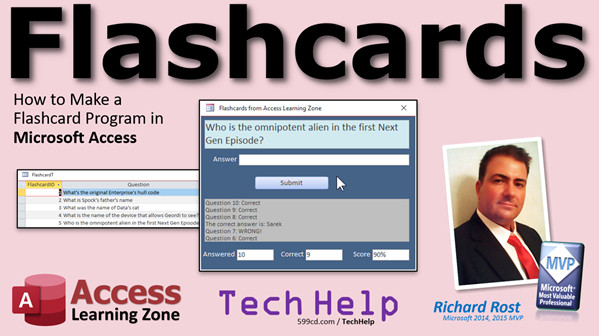
We'll keep the status box. You remember the status box from the blank template video. We'll have stuff going by in there like "Correct," "Wrong," "The correct answer was," that kind of stuff. That's basically like our output window. I don't like using message boxes all the time.
We'll need to keep track of some stats down below: how many questions they've answered total, how many have answered correctly, and then a score. Let's copy this guy. Copy, paste. Slide down here. This will be answered. I'm going to have "answered in total," basically a counter. Slide down like this. Number of questions answered, the number correct. Correct. And then there's score. Score.
Use this one here. We'll be answered. This one will be correct. We don't use Text22. We give our controls good names and this one will be score. We're never going to score.
Alright. Looks good. Let's solid design. Looking good. Let's save it. I'm going to just close it and open it up again. Let's make this button here open up that form. Design view. In this Hello World button, we're going to call this FlashCards. Right click. Build event. That's going to bring up your VBA editor. You went through Intro to VBA, so you know what this is.
Right down here is my Hello World button. We're going to do Command.OpenForm "FlashCardF". That's it. All you have to do to open a form. You don't need all those other parameters all the time.
Here we go. FlashCards. Boom. There's my flashcards. Now the form is all set. Our question will go here, our answer will be typed in here, we'll hit submit, we'll get results down here, and then our score will be calculated.
Now comes the fun part. The form's already built. I've got it laid out just the way I want it. I'll be honest with you. Most of the time, that's what I do. I lay the form out the way I want it to look, whether I'm doing a customer database or order entry or vehicle maintenance or something fun like this. I usually lay the form out first. Sometimes I'll draw it out on paper to get an idea of what I want.
Especially back in my consulting days when I was working with a client, I would sketch everything up either on paper or I'd do it in paint and say, this is what it's going to look like. Is this OK? Get them to sign off on it first. There's nothing worse than designing an interface and they're like, we don't like it, and we want it to do this.
Let's change our form caption real quick. Design view. Come over here. Change the caption to FlashCards by Access Learning Zone.
Every time I say the word "flash," I think of that Flash Gordon song from Queen. Flash, ah, remember that? You guys as old as me.
Let's go into the code for this guy here. I'm going to right click on this button. Actually, let's rename this button. Double click on it. Instead of Hello World button, let's call this my submit button. It's kind of like a web form, right? Submit. Right click. Build event.
We don't need a lot of the stuff on here. We can get rid of all of this code because we don't have those buttons anymore. We deleted them. All we really need is the status stuff and the submit button click.
The first thing we want to happen is when the form loads up, we want to blank the score. We're going to set these all to zero and then get the first question.
Let's find the form properties. Go to Event. Go to either On Load or On Open. In this case, it doesn't matter. This is On Load. This is On Open. On Load is easier to find. It's right there.
Form Load. This is what's going to happen when the form loads up. We're going to say answered = 0, correct = 0, and score = 0. Blank the score.
If you want to make the user a button on the form to restart the test, blank the score and zero, that's up to you. I'll just tell him, just close the form and reopen it. Do whatever you want. It's your database.
Now, when the form opens up, I want to get a question. So, let's make a subroutine of our own called GetQuestion.
We're going to come right up here, right above this sub, and make our own. Private Sub means only this form can call it. It's a subroutine as opposed to a function. It's not going to return a value; it's just going to do something. We're going to call it GetQuestion.
This will now run and pass execution up to this guy, and the reason why I'm doing that is because we want to be able to call this GetQuestion from multiple places. When I click that submit button, I'm also going to get another question. I'm going to process the response and get the next question.
So, what's GetQuestion going to do? Well, GetQuestion is going to basically go out to this query, the FlashCardQ. It's going to say, hello, FlashCardQ, give me the ID of your first record. So, look up the FlashCardID for that first record. It's going to return a three this time; next time it runs, it's going to return a four, and it's always going to be random. Once I have that ID, then I can look up the question and the answer values and then let the user type them in. Basically just grab that first record.
Doing it this way saves a whole lot of programming in here with trying to figure out how many records there are, then counting up to that one. This is the easiest method I can think of.
We're going to need some variables, some local variables. We'll need a variable to store that ID in. We'll need to store the answer and the question from the table so I can compare them later.
Now, there's a couple of different ways you could do this. You could make these hidden form fields if you wanted to. You could hide, you know, make some little invisible fields right here and store these values there, or you could just make a form-level variable. I covered this in my developer classes. Normally you Dim a variable in here. You'd say Dim ID as Long - we're going to look up the ID - Q as String - we don't want to call it question because we already have a field called question - and then A as String as well.
But if I declare them here, only this sub can use them. I can't check these values anywhere else. Look at my submit button code. So what I'm going to do is I'm going to take these variables and I'm going to declare them out here. These are now, I changed their scope, these are now form-level variables. They'll stay active and keep their values as long as this form is open.
Now I can come in here and get those values. I can say ID = DLookup("FlashCardID", "FlashCardQ"). Normally with DLookup, you'd say some kind of criteria, like "ID=12" or whatever. But if you don't do that, if you ignore that and don't give it a criteria (notice criteria is in brackets there, that means it's optional), you don't need it. If you don't specify it, that's just going to return the first record. Technically, it's going to go out and return any random record, but you can't always rely on that. It's usually the first record.
Now that's going to go out and grab the first record, which we've made sure is a random record because every time that DLookup function runs, it's going to rerun that query. Now I have a random ID for a flashcard. Now I'll just go and get the question and answer from that record.
Q = DLookup("Question", "FlashCardT", "FlashCardID=" & ID)
This is why I wanted you to watch that DLookup video first. Look up the question from the flashcard table. You can get it from the query, but the table is faster, because the query's got to run all that stuff and sort those records. Just go right straight to the table at this point, where FlashCardID equals the ID that we just looked up a second ago. That works.
Then we'll do the same thing with the answer. Change this to A, change this to "Answer". So now in memory, now in the computer's memory in a variable, I've got the ID, the question, and the answer.
Let's put that question on the form.
Question = Q
I set the form field question equal to the Q that I just looked up. We're going to hang on to A for now. We don't use A just yet, but I need it. We're going to need it later.
Let's set the answer field blank though.
Answer = ""
Let's set it to an empty string. That way the user can just type whatever they want. Otherwise, they might see the answer from the last time you ran it.
While we're at it, let's do
Answer.SetFocus
What's that going to do? That's going to put the cursor on the answer field, so I'm ready to type without having to click and do other stuff.
Let's save it and let's see what we have so far. When the form opens, it should blank my score and get the first question, now put the focus on the answer field.
Ready? Let's close this form, open it up, and look at that. It blanked the score and the answers, got a question, and put the focus right there for the answer. Let's close it and do it again. See? Spock's father's name. You're going to get some repeats with only five questions in here. What's the name of the device that was... see?
Now what happens at this point is, if I type in something and hit enter, nothing happens because we don't have any code in our submit button. So, guess what's next? The code for the submit button.
Let's go back over to our code here. We've already got the submit button click right there.
First thing, they've answered a question. Whether it's right or wrong, they've answered one.
Answered = Answered + 1
You answered a question, so increase the counter.
Now we have to check to see if they answered correctly.
If Answer (what they typed in) equals A (which is what we looked up), then they answered correctly.
Status = "Question " & Answered & ": Correct"
We're using our little status output window. That is going to say "Question 1: Correct," "Question 2: Correct," whatever that counter is. Now we're incrementing.
Correct = Correct + 1
Add one to the correct.
Otherwise, they answered incorrectly.
Status = "Question " & Answered & ": Wrong"
I have another video where I teach you how to play a sound. You can have it go "Wrong!" Play some kind of sound effect there if you want to.
Status = "The correct answer is: " & A
This is up to you. If you want to make this a learning experience, teach them what they answered wrong. "The correct answer is ..." and we happen to know what it is, A.
Let's update the score.
Score = Correct / Answered
Normally you have to watch for divide by zero errors here, but at this point, we can always be guaranteed that Answered is at least one unless they manually go in and change those scores.
If you want to prevent that, if you want to, if you are going to have your students run this on their own, you want to prevent them from messing with stuff, just take each one of these boxes and lock them. Set Data Locked to Yes. Now you can't type in those values yourself. I like to take locked values and make them just a slightly different color like a gray. Now the user knows only they can type there. You can lock this too if you want to. Lock it and lock this if you want.
Now the only thing that the user can type in is that. That's going overboard, but there are little things you can do. So, you never come down here. I can't change my score.
Once we update the score, we've told them whether they're right or wrong, and what the right answer is if the answer is wrong, update the score. Now reset everything and get the next question.
Call GetQuestion
That's why I want to make that its own subroutine. That will then pass up to here, look up the next value, display the question, blank the answer field, set focus on the answer, and you're ready to go.
That is all the code we really need to do this, plus the query and, of course, the properly designed form.
What have we got? One, two, three, four, five, six... ten... less than twenty lines of code to do this. Not hard at all.
So here we go. Flashcards. What was Spock's father's name? Sarek. Enter. "Correct." What is the evident alien in the first Next Generation episode? That was Q. Enter. See? What was Spock's father's name? You're going to get some repeats. I've only got five questions in here, it's going to repeat a lot. Let's say I type it in wrong. Jim. "Wrong." Correct answer: Sarek.
If you want the status box to go backwards, you can, if you want to, have it blank that every time. Just come into the status box text and instead of saying
StatusBox = S & vbNewLine & StatusBox
just get rid of the "& StatusBox" at the end, and it will just display what you send it. However, you'll have to put this together in one call, because this one will overwrite that one and blank it.
Or, if you want to, just come down here and say
StatusBox = ""
So every time you hit submit, it blanks it and then gives you your results. That's another way you can look at it.
So I can come in here and say, "Name the device?" It's the "visor." Enter. Question four, correct. Then we got Q again. Question five, correct. Spock's father's name, let's put it in "Jim" again. Question six, wrong. Correct answer: Sarek.
As far as capitalization goes, that's not important, upper versus lowercase. That is decided by this guy,
Option Compare Database
That is what says that we're just going to check upper/lowercase doesn't matter. Capital "A" lowercase "a" is the same. There are options for that. I teach that in my other classes.
So there you go, there's your real basic flashcard program.
If you want to learn more, in the extended cut for the members, we're going to turn this flashcard database into a multiple choice database. Or, like my high school math teacher used to say, "multiple guess." Rather than having to set up each flashcard where you have one right answer and then have to put in the three wrong answers (or however many you want), we're going to get the wrong answers from the list of other answers in the table. It makes it a whole lot easier to set up. Really, you just want repetition so that you get the stuff if you're studying with flashcards. So we'll just get the wrong answers from the other cards.
To do that, we'll have to learn a recordset loop, so we can loop through the cards and get the right things. A little more VBA in this one. This one isn't for the faint of heart, but if you'd like to do more advanced stuff, this is a great little programming lesson. There's a lot of debugging in this one because there are a couple of mistakes, and I left them in the video. Some people complain about it; a lot of people like it. Sometimes I'm going off the top of my head to make some little adjustments and stuff I didn't plan ahead of time, and there are some bugs. I get an endless loop in one of them, and I'm like, "What?" Let's figure it out. I'll teach you debugging, we'll set up breakpoints and watches, and we'll loop through the variables with the code and we'll step through it. This one's 40 minutes long. It's a good one, but you'll learn some extra VBA if you want. It's for the members, extended cut.
Silver members and up get access to all the videos, the extended cut videos. Gold members can download these databases and you get access to my code vault. That's some extra cool stuff on my website. Plus, members also get one free class from my class collection every month. They get a free one. Silver members get a beginner class. Gold members can get up to an expert class. You have to take them in order. I don't like to skip around; you have to take them in order. Platinum members can get up to the developer level.
There's lots of learning. Become a member. Sign up today.
How do you become a member? Click on the Join button below the video. After you click the Join button, you'll see a list of all the different membership levels that are available, each with its own special perks. Silver members and up will get access to all of my extended cut TechHelp videos, one free beginner class each month, and more. Gold members get access to download all of the sample databases that I build in my TechHelp videos, plus my code vault where I keep tons of different functions that I use. You'll also get a higher priority if you decide to submit any TechHelp questions to me, and you'll get one free expert class each month after you've finished the beginner series. Platinum members get all the previous perks plus even higher priority for TechHelp questions, access to all of my full beginner courses for every subject, and one free developer class each month after you've finished the expert classes. These are the full-length courses found on my website, not just for Access; I also teach Word, Excel, Visual Basic, and lots more.
You can now become a Diamond sponsor and have your name or company name listed on a sponsors page. They'll be shown in each video as long as you're a sponsor. You'll get a shout out in the video and a link to your website or product in the text below the video and on my website.
But don't worry, these free TechHelp videos are going to keep coming. As long as you keep watching them, I'll keep making more and they'll always be free. Intro In this video, I will show you how to create a basic flash card program in Microsoft Access. We'll set up a table to store your questions and answers, build a form where users can test themselves by typing in answers, and use a query to randomly select flashcards. We'll also use a little bit of VBA code to manage the quiz flow, keep track of user stats like the number of questions answered and correct answers, and display real-time feedback. This tutorial is perfect if you want a simple way to help students or yourself study using flashcards in Microsoft Access. Quiz Q1. What is the core purpose of the flashcard project demonstrated in the video?
A. To practice advanced SQL joins
B. To help users memorize information through random questions and answers
C. To automate invoice generation
D. To demonstrate data encryption
Q2. What is the first component you should create for the flashcard application?
A. A report for reviewing answers
B. A table to store flashcard questions and answers
C. A macro for printing flashcards
D. A relationship diagram
Q3. What fields are included in the FlashCardT table?
A. FlashCardID, Question, Answer
B. UserName, Question, Score
C. FlashCardID, Date, CorrectAnswer
D. Question, Answer, Difficulty
Q4. Why does the video recommend watching the random numbers video before creating flashcards?
A. To learn how to print flashcards
B. To understand how to load forms
C. To use random numbers for selecting flashcards
D. To design data entry forms
Q5. How is a random flashcard selected for display?
A. By picking the last record from the table
B. By the alphabetical order of the question
C. By sorting a query with a random number and picking the first record
D. By user input
Q6. What is the purpose of using DLookup in the FlashCardQ query?
A. To import data from Excel
B. To generate random numbers for forms
C. To retrieve values like the FlashCardID, question, and answer
D. To filter messages by date
Q7. What type of form is used to display the flashcard to the user?
A. A bound form linked directly to FlashCardT
B. An unbound form with VBA to display and process flashcards
C. A subform inside the contacts list
D. A split form showing the table and query
Q8. What controls are added to the flashcard form to enable interaction?
A. Just a question text box
B. Question and answer text boxes, a submit button, a status box, and stats counters
C. Only a list box for questions
D. An options group for multiple choice
Q9. What is the function of setting the submit button's Default property to Yes?
A. It prevents users from using the button
B. It allows pressing Enter to trigger the submit action
C. It links the button to the main menu
D. It makes the button read-only
Q10. What is the significance of form-level variables in this program?
A. They only exist while the submit button is pressed
B. They hold values throughout the lifetime of the form, such as current question and answer
C. They save data automatically to the table
D. They are used for report formatting
Q11. How does the program handle the user's answer input?
A. It ignores the input and skips the question
B. It checks if the input matches the correct answer and updates statistics accordingly
C. It saves every answer as correct
D. It converts every answer to uppercase
Q12. What additional feedback does the status box provide besides right or wrong?
A. It gives the user hints
B. It always shows the next question
C. It shows "The correct answer was ..." after a wrong answer
D. It displays the time spent on each question
Q13. What is recommended to prevent students from changing the statistics counters manually?
A. Using macro security
B. Hiding the status box from the form
C. Locking the controls for stats counters and changing their background color
D. Printing the scores
Q14. What does 'Option Compare Database' control in this VBA project?
A. Whether the form is bound or unbound
B. The way Access compares strings, making capitalization not matter
C. The number of questions shown in the quiz
D. The color of form controls
Q15. What feature is covered in the members' extended cut video?
A. Connection to SQL Server
B. Making the flashcard program into a multiple choice quiz by generating wrong answers from the table
C. Using macros to automate answering
D. Compressing the database for speed
Q16. Which of the following is a benefit of Gold membership as described in the video?
A. Ability to moderate the forum
B. Download all sample databases and access the code vault
C. Free merchandise each month
D. Phone support access
Q17. How are membership levels tiered regarding access to extended cut videos and classes?
A. All members get the same perks
B. Only Platinum members get access to extended videos, no classes
C. Silver and higher get extended videos and free classes according to level
D. Only free users get class downloads
Answers: 1-B; 2-B; 3-A; 4-C; 5-C; 6-C; 7-B; 8-B; 9-B; 10-B; 11-B; 12-C; 13-C; 14-B; 15-B; 16-B; 17-C
DISCLAIMER: Quiz questions are AI generated. If you find any that are wrong, don't make sense, or aren't related to the video topic at hand, then please post a comment and let me know. Thanks. Summary Today's video from Access Learning Zone covers how to create a Flash Card program using Microsoft Access. The idea came from a question asking how to set up such a system for third grade students, aiming to make learning both interactive and fun.
Before jumping in, I recommend reviewing a few key videos to get up to speed. Start with my blank template video to understand the structure of the initial database, including how the status box works. Next, learn how to generate random numbers in Access, which is essential for randomizing the order in which flashcards appear. It's also important to know how to use the DLookup function for grabbing specific records from your table, and finally, if you are not familiar with VBA, my introductory VBA class will be vital. All of these resources are free and will be linked on my website.
Let's begin by setting up the heart of the application: a table to store the flashcard data. This table needs fields for a unique ID, the question, and the answer. For most scenarios, the question and answer can be stored as short text, but if your questions are longer, feel free to use long text. The program will initially be set up so that users have to type the answer exactly as it appears in the table, which works well for reinforcing spelling and vocabulary. I will cover how to create multiple-choice flashcards in the extended cut for the members.
Enter sample questions and answers into this table to get started. If you prefer, you can build a simple form for easier data entry, which is similar to what I have shown in past videos, but it's not a requirement for this lesson.
Next, we tackle the query. The goal here is to generate a random flashcard each time. By leveraging a random number based on each FlashCardID and timer value, we can randomly order the records in the query. This query will return a different record at the top each time it runs, effectively ensuring that the flashcards are presented in random order.
After setting up the query, create the form users will interact with. We use an unbound form so that we control exactly what appears and how it is processed. The form needs fields for the question, an input box for the answer, a submit button, and a status box to display feedback such as "Correct" or "Wrong." Additionally, it will display statistics showing the total number of questions answered, the number answered correctly, and the user's score. It is useful to set the submit button as the default so that pressing Enter submits the response. To reduce errors, you might want to lock certain controls, like the stats boxes, so users can't modify them directly.
Once the layout is ready, program the code for the form's logic using VBA. When the form loads, counters are reset and the first random question is fetched using the query you created. Variables are used to store the current question, its correct answer, and the flashcard's ID. The DLookup function retrieves both the question and answer from the relevant record. On the form, the user types in their answer and when they click submit, their response is checked against the correct answer. The stats are updated accordingly with each submission, and feedback is provided using the status box.
The main procedure that fetches a new question can be called from multiple places in your code, making it straightforward to refresh the flashcard after every answer. Most of the logic can be accomplished with only a handful of VBA lines.
When the form is used, a random question is displayed, the user inputs their answer, and immediate feedback is given. The system also automatically tracks answered questions and updates the score. Duplicate questions may appear if the database contains only a small set of flashcards, but with more data, variety will naturally increase. If you want to adjust the feedback behavior, you can tweak the way the status box displays messages, either clearing it after each submission or keeping a running log.
By default, Access will treat uppercase and lowercase answers as the same because of the database's Option Compare Database setting, which makes the comparison case-insensitive. If you need a case-sensitive check, there are ways to modify this behavior, which I explain in other courses.
The core functionality of this flashcard application relies on a simple form, a basic query for random selection, and some straightforward VBA programming. With just a small amount of code and thoughtful design, you have a working flashcard system that can help make studying more engaging.
For those interested in more advanced features, the extended cut for members will cover transforming the flashcard program into a multiple-choice quiz. Instead of entering wrong answers manually, this approach automatically selects them from existing answers in the table, making setup easier. This requires using recordset loops in VBA and includes some valuable debugging practice. The extended lesson is a comprehensive tutorial on these techniques and is available to members.
If you become a Silver member, you'll gain access to all extended cut videos and a free class each month. Gold members can download the databases and get access to the code vault, which contains lots of useful VBA functions, along with a free expert class every month and higher priority for submitted questions. Platinum members get even more benefits, including developer-level classes and even higher question priority.
Membership is straightforward, with various levels offering different perks, such as downloading databases, accessing a library of code, or full classes on a range of Microsoft Office topics. Details on how to join and the full list of benefits are available on my website.
Even if you don't sign up as a member, these core TechHelp videos will always be available for free as long as there is interest.
You can find a complete video tutorial with step-by-step instructions on everything discussed here on my website at the link below. Live long and prosper, my friends. Topic List Creating a table to store flashcard questions and answers
Setting up fields for questions and answers in the table
Manually entering sample flashcard data
Creating a query to generate random flashcards
Using RND and Timer in a query for randomness
Sorting the query by a random number to select cards
Designing an unbound form for the flashcard quiz
Adding text boxes for question display and answer input
Setting up a submit button and configuring default properties
Displaying quiz status and feedback in a status box
Adding fields to track total answered, correct answers, and score
Opening the flashcard quiz form with a button and VBA
Initializing the form and resetting stats on load
Writing VBA code to retrieve a random question from the query
Using DLookup to get specific record data
Storing flashcard information in form-level variables
Displaying the question and clearing answer input each time
Handling the submit button click with VBA code
Comparing user input with the actual answer for correctness
Updating feedback, stats, and score on each answer
Locking form fields to prevent user editing of stats
Clearing or updating the status box after each submission
Making quiz scoring case-insensitive with Option Compare Database Primary Topics Microsoft Access forms, Access tables, Flash card quiz app, VBA programming basics, DLookup function, randomization in queries, user input validation, form design, scoring logic
Secondary Topics status box usage, recordset scope, securing form controls, Option Compare behavior
|




