Variables
By Richard Rost

 4 years ago
Declaring Variables in Microsoft Access VBA
In this Microsoft Access tutorial, I will teach you about variables in VBA: how to declare them, how to use them, and some other cool tips.
Links
Developer Courses
 Keywords Keywords
access 2016, access 2019, access 365, microsoft access, ms access, ms access tutorial, #msaccess, #microsoftaccess, #help, #howto, #tutorial, #learn, #lesson, #training, #database, #fasttips, declaring variables, dim statement, What is a variable, compile error, variable not defined, scope, static, public, private, tempvars, VBA Variables, Data Types, reserved words
 Subscribe to Variables
Get notifications when this page is updated
More InformationTranscript Welcome to another Fast Tips video brought to you by AccessLearningZone.com. I am your instructor Richard Rost.
In today's video, we are going to talk about variables and declaring variables in Microsoft Access VBA. We are going to talk about them - public, private, static, and lots more.
Before we get started with this video, I recommend you watch my intro to VBA. If you have never done any VBA programming before, do not worry. It is not scary. That video is about 20 minutes long. It is free. It is on my YouTube channel. It is on my website. Go watch it and then come on back.
What is a variable? Well, a variable is a named location in the computer's memory for storing a piece of information that can be changed during the execution of a program.
Basically, what that means in a nutshell is instead of storing information in a table like we are used to with Microsoft Access, you are just storing some bit of information in the computer's memory. It is just going to remember it for you.
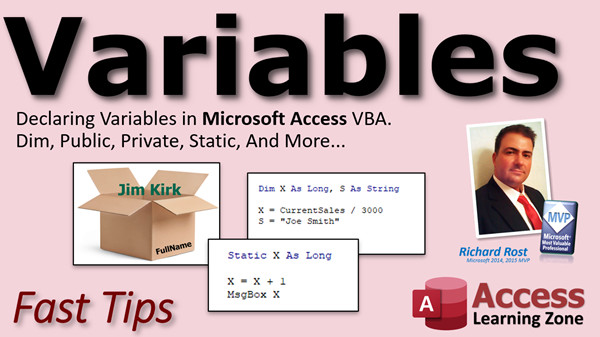
You could think of a variable like a box, and you can give the box a name like this box is named X. Or you can give it a more meaningful name like full name, just like you name your fields.
Then we can use that box to store a bit of information, like full name can store Ben Cisco. Later, if we want to change it, we just change it to whatever we want, like Jim Kirk.
Unlike the fields in our tables or text boxes on our forms, variables exist only in the computer's memory.
So, let's go add a button to a form and see a little bit how these variables work.
Here, I am in my database. Let's go into design view and I am just going to copy one of these buttons here. So, let's just go copy and paste, and I will just put the caption on here - My Button. I will open up the properties and I will go to All. Here, I will give it a name. We will call it My Button. I do abbreviate myBTN for My Button. That is just the name of the button itself.
Close these properties. Let's right click on the button, go to Build Event. That is going to open up our Code Builder. If you get a little window popping up that asks what kind of builder you want to use, pick the Code Builder.
Now you can see I am inside here in my Private Sub myBTN_Click. This is the code that is going to run when you click on My Button.
We can use the message box command to display the information in a form field or in a variable. So, if I typed in MSGBOX and then FirstName, save that, let's come back over to the database, switch over to Form View, and click the button, I get Richard in the message box.
Why is that? Because Access found that there is a field called FirstName there.
Back over to our code now. What if I put in here MSGBOX X and then try to click that button? What happens? I get an error message. It says Compile Error: Variable Not Defined.
What does that mean? That means the Access has no clue what you mean by X. It is looking for a form field - it does not find one. There is no field on that form called X. Then it looks for a variable that you might have declared called X, and it does not find one of those either. So, it just throws up an error message.
Quick side note: If you do not have the words Option Explicit up here on top of your module, then you will not get that error message. Make sure you put that there if it is not there already. It should be.
I have a whole separate video that explains what Option Explicit means. It basically forces you to have to declare your variables, and that is very important. I like it. I like to use it. Go watch this video. I will put a link down below in the links section you can click on to go watch this.
Since I got an error message, I am going to click on this little Stop button here to reset the compiler, and that is going to stop everything.
Access does not find something called X, so we have to declare what X is, since it is not a field on our form.
How do we do that? We come up here and say Dim X. Dim stands for dimension, basically means we are dimensioning a region of the computer's memory to hold some information, and we are going to call that region of memory X.
Now, if I come over here and click on My Button, what happens? I get an empty message box.
Why is that? Because X does not have any data in it. It is an empty box.
So, let's put something in there. Before we message box, let's come in here and say X = "Jim Kirk", like that. Save it. Back over here, hit the button, and there you go. There is Jim Kirk.
We have taken Jim Kirk, a string of characters, and we put that inside of X.
Now, X is not very meaningful, so I try to only use it for little things like loops or temporary variables. I try to make my variable names meaningful, so in this case perhaps CustomerName would be better.
Now, if I come over here and run it - oh, wait a minute, variable not defined. What happened? Well, I declared it as CustomerName, but I forgot to change this line. It still says X = "Jim Kirk". Let's stop the compiler again. Let's come over here, and I am going to back over that X there. I am going to type in CustomerName.
I did not capitalize customer name intentionally. Watch this - as soon as I leave that line, look at that - the C and the N capitalize themselves. That is because I declared it that way intentionally. When I am typing it, I can keep my eye open for that because if you type it in wrong - let's say I typed in customername with two a's - it did not capitalize. That way I know I have got something spelled wrong; variable not defined.
If you do not have Option Explicit up here, you will never know that that is a problem. So, go watch that video for Option Explicit tips.
Let's go back here and put that back to CustomerName, and now when I run it - oh, MSGBOX X. Forgot that one too, did not I? Let's fix that one too. Let's copy and paste. Copy, paste, and then -
Okay, everything's working now. So, you have to declare it, and you have to use it wherever you want to put it.
Let's talk a little bit about those variable names. CustomerName or X - the first character has to be a letter, cannot use a number. So, FirstName, LastName, CustomerName, those are all fine. Access allows up to 255 characters. You will never get anywhere close to 255 characters. 20 or 30 is more than enough.
You cannot use any of those characters there: period, exclamation point, at, ampersand. You cannot use certain reserved words - things that Access has internally. We have got a good list up there on the website. My buddy Alex maintains that list of reserved words: things like And, Then, certain words that are used as part of the language. The word Name you should not use.
Here are my rules: I say only use letters and numbers. I used to be a C programmer back in the day (programming language called C), and in C, we used to do an underscore like you would do first_name. If you like doing that, that is okay. I personally do not like it for VB. I like to do just like down the bottom there: FirstName, LastName, NumChildren - this kind of stuff.
Capitalize the words in the variable name so you can see them automatically capitalize when you leave the line. Little trick that I like to use.
In addition to declaring the variable name itself, you should declare a type for that variable.
What kind of information is CustomerName going to store? String. A string of characters.
What are the different data types? Well, there is Boolean, Byte, Integer, Long, Currency, Single, Double, Date, String, Object, Variant. Those are the popular ones.
The ones that I have bolded are the ones that you really have to worry about: Boolean for yes-no values, Long for all of your integer type numbers (do not worry about Byte and Integer - I almost never use them), Currency for dollar values, Double for anything with a floating point - 2.4, for example (do not worry about single), Date for date and time values, String for strings of characters like first name, last name, and that.
Then, when you get into the Developer classes, when you get into more advanced stuff, Object and Variant become handy, but we do not worry about them right now. We do that later in the Developer classes.
Object would be something like declaring an object that is like an Excel spreadsheet that you can work with. Variant just basically means I am not exactly sure what it is, but it is something, and it is something special. I cover that in the advanced lessons.
For example, I can come in here and say Dim CreditLimit As Currency. Then I can come down here and say CreditLimit = 1000, and then I could say MSGBOX CustomerName & ": " & CreditLimit.
Let's see what happens now. Save it, and then go. Jim Kirk: 1000.
Oh, but wait a minute, I have a field down here called CreditLimit. What happens in that case? Well, if you declare a variable with the same name as a form field, your variable will take precedence inside that code. Keep that in mind, because I do have a field here called CreditLimit right there.
In this case, I might want to call this something else, like ExtraCredit. Then here I can say ExtraCredit = CreditLimit + 1000, and then we will message box that with the extra credit.
So, see, I am declaring a variable called ExtraCredit as a Currency type. I am setting that equal to CreditLimit, whatever the field is, plus a thousand, and then I am message boxing that out.
Save that, come back out here, go back to Form View, and hit the button. There you go, you can see the credit limit is now 6000, to add the thousand onto that.
Notice here I put these on different lines. You can put them together on the same line if you want to, like this. But make sure you declare each of them and their type. I went Dim X As Long, Y As Long, Z As Long, like that. That is actually correct.
You cannot do this: X, Y, Z As Long. In this case, only Z gets declared as a Long; X and Y become variants. If you do not specify a type, it is a variant. Variants can generally hold any kind of information. It is usually not a big deal if it is a variant, but you just want to be careful about that.
There is a shorthand notation you might run into. If you find some code somewhere online or in a book, you can use different characters to declare your variables as different types. I never use this personally, but there they are. Just be aware of them if you see them. I never use them.
Variables can have different scopes.
A variable can belong to a procedure, which is a sub or a function - you can only use it there. For example, CustomerName will only work inside this subroutine, inside Private Sub myBTN_Click. ContactBTN_Click has no idea what CustomerName is. That is the scope of that variable.
You can also have module-level variables, which the whole form understands, or reports, or global modules if you have a system module.
There are all kinds of different ways that you can declare them. I cover more detail on scope in my Access Developer Level 4 class.
You can also have static variables, which keep their value between calls to that sub or function. For example, if you made ExtraCredit static - Static ExtraCredit As Currency - and you said ExtraCredit = ExtraCredit + 1000, then every time you click on that, it is going to come back and keep the same value.
Here we go: click on it, it is 1000; click on it again, it is 2000; click on it again, it is 3000. That is a static variable. It will keep that value until the form is closed and reopened again. If I close the form and open it back up again, it starts back at 1000.
You can also use a variable called a TempVar. TempVars are special variables that you can use in your code, but they can also be used to display values in forms and in queries, and you can even throw them in macros if you like to use macros.
Another benefit of TempVars is that they save their value even if something happens, like you get a system error. Global variables will reset, whereas TempVars will hold their value.
That is the basic lowdown on variables. I cover them in a lot more detail in my Access Developer Level 3 class. I recommend Developer 1, 2, and 3. Those are the basic developer classes where we go through the introduction of VBA - If...Then...Else statements, creating functions, For...Next loops, all that stuff.
If you want to learn how to program in VBA for Microsoft Access, try my Developer classes: Developer 1 first, then 2, then 3. I have lots of them. I think we are up to 38 now.
So, you want to learn how to program in VBA for Microsoft Access? Well, come on by and check them out. Hope you learned something.
We will see you next time. Intro In this video, we will talk about how to declare and use variables in Microsoft Access VBA. Topics covered include the basics of what a variable is, the importance of declaring variables using Dim, how to assign values, different data types, naming rules, and the concept of variable scope including public, private, and static variables. We will also cover common mistakes to avoid and introduce TempVars for storing values you can use across forms, queries, and macros. This is a great starting point if you are new to VBA programming in Microsoft Access. Quiz Q1. What is a variable in Microsoft Access VBA?
A. A named location in the computer's memory for storing a piece of information that can be changed during the execution of a program
B. A permanent record stored in a database table
C. A value that only holds texts and not numbers
D. A function used to display data in forms
Q2. What does the "Dim" keyword do in VBA?
A. Declares a region in memory to store data with a specified variable name
B. Deletes a variable from memory
C. Disables macros on forms
D. Calls a message box to the screen
Q3. What happens if you try to use a variable without declaring it and you have Option Explicit at the top of your module?
A. VBA throws a compile error: Variable Not Defined
B. The form field with the same name will be used
C. The value defaults to zero
D. The variable is automatically created as a String
Q4. Which of the following is a correct variable name for VBA?
A. FirstName
B. 2ndName
C. Name!
D. last@Name
Q5. Which characters are NOT allowed in a VBA variable name?
A. Letters and numbers
B. Period, exclamation point, at, ampersand
C. Underscore
D. Uppercase and lowercase letters
Q6. Why should you avoid using reserved words as variable names in VBA?
A. They are already used by Access for built-in language functions
B. They cannot be capitalized
C. They slow down code execution
D. They display error messages automatically
Q7. How should you declare multiple variables of the same type on one line in VBA to avoid unintended data types?
A. Dim X As Long, Y As Long, Z As Long
B. Dim X, Y, Z As Long
C. Dim X As Integer, Y, Z
D. Dim X; Y; Z As Long
Q8. What is the default data type for a variable if no type is specified in VBA?
A. Variant
B. String
C. Integer
D. Boolean
Q9. Which data type should you use for yes-no values in VBA?
A. Boolean
B. String
C. Currency
D. Long
Q10. What is the key characteristic of a static variable in VBA?
A. It keeps its value between calls to the sub or function until the form is closed
B. It is shared globally across all modules
C. It can only be used by macros
D. Its value is deleted after each subroutine
Q11. What advantage does a TempVar have over a global variable in Access VBA?
A. It holds its value even if there is a system error
B. It is faster than a global variable
C. It can only store numbers
D. It can only be used in queries
Q12. If you have Option Explicit at the top of a module, what does it do?
A. Forces you to declare all variables before using them
B. Hides your code from users
C. Automatically capitalizes variable names
D. Converts strings to uppercase
Q13. What is a module-level variable in VBA?
A. A variable that the whole form or report can access
B. A variable that exists only within a sub or function
C. A variable that can only be used in macros
D. A variable limited to the system module
Q14. What happens if you declare a variable with the same name as a field on your form in VBA code?
A. The variable will take precedence inside the code
B. The field value will always be used
C. VBA will display a warning
D. Both the variable and field cannot be used
Q15. What is the recommended practice for naming variables in VBA, according to the video?
A. Use only letters and numbers, capitalize every word for clarity
B. Use only numbers
C. Include special characters for better readability
D. Use all lowercase letters for consistency
Answers: 1-A; 2-A; 3-A; 4-A; 5-B; 6-A; 7-A; 8-A; 9-A; 10-A; 11-A; 12-A; 13-A; 14-A; 15-A
DISCLAIMER: Quiz questions are AI generated. If you find any that are wrong, don't make sense, or aren't related to the video topic at hand, then please post a comment and let me know. Thanks. Summary Today's video from Access Learning Zone covers variables and how to declare them in Microsoft Access VBA. We'll discuss the different types of variables, such as public, private, static, and more.
If you are completely new to VBA programming, I strongly recommend that you start by watching my introductory video on VBA. It runs about 20 minutes, is available for free on both my YouTube channel and my website, and will give you a solid foundation before moving on to today's material. Don't worry if you've never programmed before, VBA is not difficult or intimidating once you get started.
So, what exactly is a variable? A variable is simply a named spot in your computer's memory, designed to hold a piece of data that can change as your program runs. Think of a variable as a storage box in memory, and you give that box a name, such as X, or something more meaningful like CustomerName. You can use this box to hold any kind of value, for example, a person's name. If you want to store a new value later, you just replace what's inside.
Unlike tables or fields in your Access forms, variables are temporary and exist only in your computer's memory while the program is running.
To illustrate how variables work, let's add a button to a form in Access. Once you create the button, you can give it a name, such as myBTN, which makes it easier to reference in your code later.
Open up the button's properties and then get into the code editor by building an event for the button. This is where you'll write the VBA code that runs when the button is clicked.
You can use the MsgBox command (short for "Message Box") to display information stored in a form field or in a variable. For instance, if you create a message box that shows FirstName, and the form has a field with that name, then clicking the button displays the value from that field.
However, if you write MsgBox X without defining what X is, VBA will show a compile error saying, "Variable Not Defined." This happens because VBA looks for either a form field or a declared variable named X, and if neither exists, you get the error.
To make sure errors like this get flagged, you should have the line Option Explicit at the top of your module. Option Explicit forces you to declare all your variables before using them, which helps prevent mistakes. If you do not have Option Explicit in your code, you might not even notice these kinds of errors. I have a separate video explaining more about Option Explicit that I suggest you watch if you're unfamiliar with it.
When you see the error, you need to stop the code execution to reset everything. Since X is not defined, we need to explicitly declare it. You do this by writing Dim X, which tells VBA to reserve memory space for a variable named X.
If you run the code after declaring X but before assigning it a value, the message box will appear empty because X does not hold any data yet. Assigning a value, like X = "Jim Kirk", and then running the code will display "Jim Kirk" in the message box.
It's better to use meaningful names for variables instead of just letters like X. For example, naming the variable CustomerName makes the code easier to read later. When creating new variables, make sure to reference your new variable name consistently throughout the code to avoid errors. VBA will even help you spot typos in your variable names because they will not automatically capitalize as expected if you mistype them, which is another reason Option Explicit is so helpful.
When naming variables, remember that the first character must be a letter, not a number. You can use letters and numbers in variable names, but avoid punctuation marks such as periods, exclamation marks, @ signs, and ampersands. Also, try not to use reserved words or keywords that are part of Access's internal language. There is a list of these reserved words available on my website for your reference.
A good practice is to use meaningful names with capitalization for readability, such as FirstName or LastName, rather than something less clear.
In addition to naming, you should declare what type of data your variable is going to store. For instance, if CustomerName is meant to hold text, you would declare it as a String. The common data types in VBA include Boolean, Byte, Integer, Long, Currency, Single, Double, Date, String, Object, and Variant. For most practical uses, you will frequently use Boolean (for yes-or-no values), Long (for numeric values), Currency (for financial data), Double (for floating point numbers), Date (for date and time), and String (for text).
Object and Variant are used for more advanced programming and are covered in my developer classes. Objects let you work with complex items, such as Excel spreadsheets, and Variants are special flexible types that can hold any kind of data.
For example, you can declare a variable to store currency values using Dim CreditLimit As Currency, assign it a value, and display it together with a name using the message box. If you declare a variable with the same name as a field on your form, within your procedure, the variable will take priority.
It is important to use unique names to avoid confusion. If you do need to relate your custom variable to a form field, choose a different name such as ExtraCredit, then perform calculations by combining it with existing fields as needed.
When declaring multiple variables, you can do so in a single line, but remember that you need to specify the type for each variable. Writing Dim X As Long, Y As Long, Z As Long properly declares all three as Long. Writing Dim X, Y, Z As Long only declares Z as Long; X and Y will default to Variant unless specified otherwise. While Variants can store any type of data, relying on them may introduce subtle bugs, so it is better to explicitly declare variable types.
You might also come across shorthand notations for declaring types in old code or books, but it is rarely used and best to avoid unless you know what you are doing.
Variables also have what is called scope. This means where the variable can be used. Variables declared inside a procedure or function are only available there; the rest of the module, or other modules, cannot see them. There are also module-level variables and global variables, but these are advanced topics I cover more thoroughly in my Developer Level 4 class.
You can create static variables that retain their value between calls to the same procedure. By declaring a variable as Static, every time you trigger the code, the variable keeps its last value instead of resetting. This is useful if you want to keep a running total or count while the form is open. Once the form is closed, the static variable resets.
TempVars are another useful type of variable in Access. They are global in scope and can be accessed by forms, queries, and even macros. One of the major benefits of TempVars is that their values persist even if a system error occurs, unlike global variables which reset.
This video provides an introduction to working with variables in VBA for Access. If you would like a more detailed look at variables and VBA programming in Microsoft Access, I recommend my Developer 1, 2, and 3 classes. These courses cover the basics of VBA, conditional logic, loops, custom functions, and more. I now offer over 38 developer classes to guide you step by step.
If you want to learn how to program in VBA for Access, visit my website and check out the courses. A complete video tutorial covering everything discussed here, with step-by-step instructions, is available on my site at the link below.
Live long and prosper, my friends. Topic List What is a variable in VBA
How to declare variables in VBA
Using variables in button click events
Understanding Option Explicit
Variable naming conventions and rules
Declaring data types for variables
Common VBA variable data types
Assigning values to variables
Variable scope: procedure, module, and global
Declaring multiple variables on one line
Difference between variants and explicitly typed variables
Using static variables to retain values between calls
TempVars and their uses in Access VBA
Handling naming conflicts between fields and variables Primary Topics variables, declaring variables, data types, variable scope, Option Explicit, TempVars, static variables
Secondary Topics variable naming conventions, reserved words, message box usage, best practices
|




