Font Size VBA
By Richard Rost

 4 years ago
Change Font Size at Runtime with Access VBA
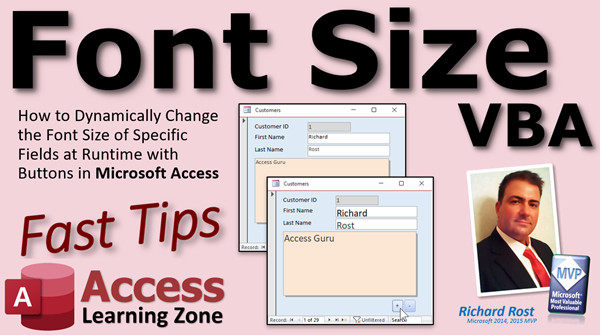
In this Microsoft Access tutorial, I'm going to teach you how to dynamically change the font size of your form fields using buttons. This way if your screen is big and you have a high resolution and you want to see more text in a textbox, you can just increase the size. Likewise, if you're on your little travel laptop like I have and you need the font bigger because it's too hard to see, you can jack it up. The user can change the font at runtime.
Pre-Requisite
Recommended Courses
Links
Topics
Keywords
access 2016, access 2019, access 2021, access 365, microsoft access, ms access, ms access tutorial, #msaccess, #microsoftaccess, #help, #howto, #tutorial, #learn, #lesson, #training, #database, #fasttips, increase font size at runtime, decrease font size at runtime, format text, programmatically setting font size, enlarge font
 Subscribe to Font Size VBA
Get notifications when this page is updated
More InformationTranscript Welcome to another Fast Tips video brought to you by AccessLearningZone.com. I am your instructor, Richard Rost.
In today's video, I'm going to show you how to change the font size of your fields using VBA. I'm not talking about just clicking on those little buttons when you design your form to make your font go bigger and smaller. Everybody knows how to do that.
I'm talking about when you're using the database, if you want the font to get larger or smaller on the fly, your user can click a little button and make the text bigger if they can't see it, or they can make it smaller if they want to see more on the screen.
Before we get started, yes, this example is going to require a little bit of VBA so you can dynamically resize the font up and down with a couple of buttons. If you've never done any VBA programming before, don't worry, don't panic, it's easy to go watch this video, it's free, it's on my website, it's on my YouTube channel, and it's about 20 minutes long. It teaches you all the basics, everything you need to know to get started programming with Visual Basic.
When I travel, I've got a small travel laptop that I like to carry with me. It's small, I can use it on the plane, it fits in my carry on, it's a good size for work but it's not as big as my desktop. So my Access database on my desktop in my office, the screens are really big and I can fit lots of stuff on there. I can use a smaller font because I can read it. But when I log on remotely, I like to use Chrome Remote Desktop. If you don't know what Chrome Remote Desktop is, I covered it in my new PC setup video. It's a really easy way to use a web browser to connect to your computer back at the office.
Anyhow, when I log on remotely, the font is really tiny because the resolution on my laptop is much, much smaller. So it would be nice if I could just blow up the font on the few things that I want to see, maybe some buttons and make these fonts a little bit bigger. Usually for me, it's the note fields that I like to make bigger.
But you can do this with any field that you want, providing of course you don't make the font too big that you can't see it in the text box. Can you make the text boxes themselves bigger? Yes, you can. That's going to be a separate video. In fact, in the extended cut for my auto resize video, I show you how to make a little button where you can click on it and it will make your form bigger, like you can slide out an extra piece of it.
A lot of people have asked me to make a video on how you can just resize a form and it resizes all the controls and makes everything bigger. I'm going to put a video together on that in the future. I haven't yet decided if it's going to be a TechHelp video or a developer-level video because it does involve quite a lot of code.
But for today, what I'm going to show you is just how to make the font a little bit bigger on demand with a couple of buttons. So if you're using your travel laptop, you can click the buttons, it makes the font bigger and easier to read. If you're back on your desktop, you just click the down button, whatever you want to do.
Go into design view. I don't need to use that big slide, so slide that over there. For the sake of this video, I'm just going to get rid of these fields here and make the notes field bigger, like that.
Now, I'm going to need a button to go bigger and a button to go smaller. So I'm just going to copy one of these buttons: copy, paste, Control+C, Control+V. We'll make this the plus button and we'll make it small. I like that. Then we'll copy and paste you and make this the minus button.
That's just the captions. Let's give them good names. Slide this over a little bit. I don't like Command30, so you're going to be the font up button and you'll be the font down button. Save it.
Let's work on the font. Let's work on just the notes field for now. Right-click, build event, and now in the code for the font up button, we're going to say notes.fontsize. Here's all the different stuff you can change, by the way: color, font weight (that's bold), font bold, font italics, there's a bunch of different stuff. We want font size right now.
notes.fontsize equals notes.fontsize plus one. That's it. One line of code. Save it.
While we're at it, right-click, build event, we'll just copy this code. Copy and paste. There you go, I'm going to go minus one for this one. Save it.
Come back out here. Ready? Here we go. Ding, ding, ding, ding, ding, ding, ding, ding, ding, ding, ding, ding - see, make it as big as you want. Within reason, there are limits. You don't want to go too small. Generate an error, let's see how small it can go. Oh, it's going up, there we go. It's got to be one to 127.
Let's program that in. Go back to our code. We'll say right here, if notes.fontsize is less than, let's say, reasonably, let's go five point, then exit sub. If we want to, it's four point, but who's going to see that? We'll do the same thing for the increase: if it's greater than, let's say, 100 point, then exit sub. So you can't get too big or too small.
Let's try it again. Let's go down again, down, down, down, down, down - it kind of stops there. That's even too small. Want to throw a couple extra fields in? Let's do first name and last name. We'll go the same thing here. Let's go back to the code window.
You can do the same thing right here: firstname.fontsize equals (then we'll just copy that), copy, paste, minus one. Then we'll just copy all that and go plus one. You shouldn't need to put different constraints on it. Unless you got these starting up, I usually would say put this up somewhere around seven. That way, if these are a few point sizes, it's not going to be a problem. You won't get lower than one.
Then we'll do the same thing with last name: copy and paste. And we'll just change to the lastname. You can do it for any field you want. Remember, you can use the technique I showed you, I believe it was the progress bar video. You can cycle through all the fields on here if you want to. What I would do is put something in the tag property.
Let me get to that in a second. Let's plus, plus, plus - see how they get just a little bit bigger. You have to make sure you don't get too big otherwise you don't fit in the text box anymore. You could turn the margins off inside here; there's a margin property. If you want this to fill the whole box, any time you get bigger, you can just reduce that margin to zero.
You can see how it makes it just a little bit bigger. Sometimes it's enough to make it easier to see. This is the video I was talking about, Progress Bar 2. I show you how to loop through all the controls in a form. You can assign something in the tag property, like you can put an X in there or a Y or whatever, and you can use that to determine if you want to make that font size get bigger or smaller as you loop through those fields.
There, I shrunk down the form just a little bit. I put these two fields on it with the customer ID and the notes field just so I could demonstrate how you can see the big difference there. See, you can make it nice and small. You can make it nice and small so you can see lots of stuff. Sometimes on my big screen, I like to see lots of text if someone sent me a long email, because I get all my email into my Access database too - I cover that in my email seminar.
I like to sometimes see a lot on the screen if I'm sitting up close, I've got my glasses on, got my big screen. But if I'm on the laptop, I want to be able to do this and blow it up, and then I can click here and scroll down if I have to.
There you go. There is your fast tip for today. I hope you learned something. We'll see you next time.
How do you become a member? Click on the join button below the video. After you click the join button, you'll see a list of all the different membership levels that are available, each with its own special perks.
Silver members and up will get access to all of my extended cut TechHelp videos, one free beginner class each month, and more.
Gold members get access to download all of the sample databases that I build in my TechHelp videos, plus my Code Vault where I keep tons of different functions that I use. You'll also get a higher priority if you decide to submit any TechHelp questions to me, and you'll get one free Expert class each month after you finish the Beginner series.
Platinum members get all the previous perks, plus even higher priority for TechHelp questions, access to all of my full Beginner courses for every subject, and one free Developer class each month after you finish the Expert classes. These are the full-length courses found on my website, not just for Access. I also teach Word, Excel, Visual Basic, and lots more.
You can now become a Diamond sponsor and have your name or company name listed on a sponsors page. You'll be shown in each video as long as you are a sponsor. You will get a shout out in the video and a link to your website or product in the text below the video and on my website.
But don't worry, these free TechHelp videos are going to keep coming. As long as you keep watching them, I'll keep making more and they'll always be free. Intro In this video, I will show you how to dynamically change the font size of fields in your Microsoft Access forms using VBA. You'll learn how to add buttons that let users increase or decrease the font size while the database is running, making it easier to customize the display for different screens and user preferences. We'll cover the step-by-step VBA code needed to adjust font sizes, set reasonable limits, and apply this approach to multiple fields for greater flexibility. Quiz Q1. What is the main topic of this video tutorial?
A. How to statically increase field font sizes during form design
B. How to dynamically change font sizes in Access forms using VBA
C. How to change font colors in Access using macros
D. How to lock form fields from being edited
Q2. Why might someone want to change the font size dynamically in an Access form?
A. To improve application speed
B. To be able to read text on different screen sizes or resolutions
C. To enhance security of the database
D. To automatically export forms as images
Q3. Which VBA property is used to adjust the font size of a control, such as a text box, in Access?
A. .textsize
B. .fontsize
C. .fontheight
D. .txtsize
Q4. What is the VBA code to increase the font size of the 'notes' field by one point?
A. notes.fontsize = notes.fontsize - 1
B. notes.size = notes.size + 1
C. notes.fontsize = notes.fontsize + 1
D. notes.font = notes.font + 1
Q5. What is the recommended maximum and minimum value for font sizes as per the video example?
A. Minimum 10, maximum 50
B. Minimum 1, maximum 150
C. Minimum 5, maximum 100
D. Minimum 20, maximum 127
Q6. How does the instructor suggest controlling which fields have their font size changed?
A. By listing field names in a separate table
B. By using the Tag property to mark fields for font sizing
C. By hardcoding all field names in the VBA code
D. By setting the Visible property to True
Q7. Which property can you adjust, besides font size, to help fit large text inside a text box?
A. Margin property
B. BorderStyle property
C. Locked property
D. ControlSource property
Q8. What does the instructor mention about resizing the text box itself, along with the font?
A. It is not possible in Access
B. It can be done and is covered in another video
C. It can only be done using macros, not VBA
D. It is done automatically when font size increases
Q9. What technique does the video suggest for handling multiple controls that should change size together?
A. Place them all in a subform
B. Loop through controls using VBA, checking the Tag property
C. Create duplicate buttons for each control
D. Use conditional formatting
Q10. What additional features are mentioned as available for Gold members of AccessLearningZone.com?
A. Access to all TechHelp videos only
B. Download sample databases, Code Vault, higher TechHelp question priority, free Expert classes
C. One free Developer class and monthly software updates
D. Lifetime support for all Microsoft products
Answers: 1-B; 2-B; 3-B; 4-C; 5-C; 6-B; 7-A; 8-B; 9-B; 10-B
DISCLAIMER: Quiz questions are AI generated. If you find any that are wrong, don't make sense, or aren't related to the video topic at hand, then please post a comment and let me know. Thanks. Summary Today's video from Access Learning Zone focuses on adjusting the font size of your form fields using VBA in Microsoft Access. This isn't about simply resizing fonts when designing your form with the formatting toolbar. Instead, the goal today is to give users the ability to increase or decrease font size while actually using the database, so if someone is having trouble seeing the text or wants to save space, they can easily make an adjustment with the click of a button.
This technique uses a little bit of VBA programming to allow users to make the font bigger or smaller dynamically. If you've never written any VBA code before, there's no need to worry. I recommend watching my beginner-friendly VBA introduction video, available for free on my website and YouTube channel. It covers all the basics you need to get started and is only about 20 minutes long.
Personally, I often work on a small travel laptop in addition to my desktop. My desktop's large monitors allow for smaller fonts because everything is easy to see. But when I connect remotely with a compact laptop using tools like Chrome Remote Desktop, the screen resolution is lower and fonts can become difficult to read. In these cases, it helps to be able to increase the font size for certain fields, especially ones like notes that frequently need easier readability.
You can implement this feature for any field as long as you keep in mind that making the font too large could overflow the text box. Adjusting the size of the text box itself is covered in a separate lesson. In fact, for those interested in resizing both the form and all of its controls automatically, I show how to do that in the extended cut of my auto resize video, where you learn to add a button to expand part of your form.
Many people have asked for a solution that allows the form and all controls to resize automatically, but this is a bit more advanced and will probably be covered in a future video, possibly aimed at developer-level users as it requires more complex programming.
For today, let's focus on adding buttons that let you increase or decrease the font size on demand. This is particularly helpful for switching between devices with different screen sizes. On your desktop, you may prefer a smaller font, but on a travel laptop, making the font larger can be a real help.
To set this up, go into design view and select the field you want to adjust, such as the notes field. Add two buttons to your form: one for increasing the font size, and one for decreasing it. Give the buttons meaningful names, like FontUpButton and FontDownButton, to make maintenance simpler later.
You'll write a small amount of VBA for these buttons. For the increase button, the code will add one to the font size property of the field you want to adjust. For the decrease button, subtract one from the same property. It really is that straightforward, and these changes take effect immediately when users click the buttons.
There are limits to how big or small you can make the fonts. You'll want to put some constraints in your code, perhaps setting a low end around five points and a maximum around one hundred, to ensure the font size remains reasonable and the text stays visible in the controls. If you set the size too small or too large, you'll either encounter errors or the text will spill outside the box.
If you want to adjust multiple fields at once—for example, first name, last name, and notes—you simply add similar code for each control. If needed, you can loop over all controls and look for a marker in their tag property, which identifies which fields should have their font size adjustable. This is discussed in more detail in my Progress Bar 2 video, where I show how to loop through controls using the tag property.
Keep in mind that when increasing the font size, text might not fit in its entire box. You can use the margin property to minimize internal spacing if needed, letting the text grow as much as possible inside the object.
This kind of flexibility is important to me because sometimes, when I'm reviewing long emails imported into Access, I want to see as much text as possible on my big screen. Other times, when using my smaller laptop, I prefer the content to be as legible as possible, even if it means displaying less of it on the screen at once.
To recap, you now have a method for letting users adjust field font sizes on the fly, making your Access forms more accessible and easier to use on different devices.
If you're interested in becoming a member on my site, you can see all the options available. Silver members and higher get access to the extended cut versions of my TechHelp videos, a free beginner class each month, and more. Gold membership unlocks downloadable sample databases, the Code Vault full of useful functions, higher question priority, and a monthly Expert class. Platinum members receive all prior rewards plus access to every Beginner course for every topic I teach and a free monthly Developer course after completing the Expert classes. These full-length courses cover Access, Word, Excel, Visual Basic, and more.
No matter your membership status, these free TechHelp videos will continue to be available. As long as viewers keep watching, I'll keep making more.
You can find a complete video tutorial with step-by-step instructions for everything discussed here on my website at the link below. Live long and prosper, my friends. Topic List Changing font size of fields with VBA on a form
Adding buttons to increase and decrease font size
Naming command buttons for font adjustment
Writing VBA code to modify field font size
Implementing minimum and maximum font size limits
Applying font size changes to multiple fields
Adjusting text box margins for better fit with resized fonts
Looping through controls to apply font size changes
Using the Tag property to identify fields for font resizing Primary Topics Microsoft Access, VBA, form design, font size adjustment, button controls, runtime customization, user interface accessibility
Secondary Topics margin property, tag property, code constraints, looping through controls, Chrome Remote Desktop usage, progress bar loop technique
|




