Follow Hyperlink
By Richard Rost

 4 years ago
Open Websites, Documents, Folders, Email, More
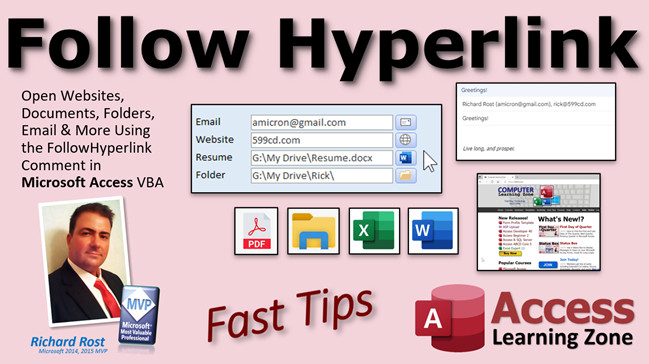
In this Microsoft Access tutorial, I'm going to teach you how to open websites, Word documents, PDF files, Windows folders, your email client, and more using the Application.FollowHyperlink command in Microsoft Access VBA.
Pre-Requisites
Recommended Course
Links
Database File
Keywords
access 2016, access 2019, access 2021, access 365, microsoft access, ms access, ms access tutorial, #msaccess, #microsoftaccess, #help, #howto, #tutorial, #learn, #lesson, #training, #database, #fasttips, Application.FollowHyperlink, How to open a URL, how to open a website, how to send an email, open a document, open a word document, open an excel file, open a text file, open a network document, internet basics, launch a website
More InformationTranscript Welcome to another Fast Tips video brought to you by AccessLearningZone.com. I am your instructor Richard Rost. In today's video, I'm going to show you how to open websites, documents, folders, your email client, and lots more using the Follow Hyperlink command in Microsoft Access.
I have another video called Hyperlink Fields where I go through the theory of why I don't like Access's built-in Hyperlink Data Type. I hate it. I think it's awful, and I don't use it. About 20 minutes into this video, I show you my method, which is to simply store hyperlink data as a text field. Then we make little buttons that we can use to launch those things like your email program, a web page, a file on your drive, etc.
The purpose of this Fast Tips video is to just show you this part here without having to make you watch all the other theory stuff if you don't care about that. The point of the Fast Tips is to get you the tip fast, and then if you want, afterwards I'll show you some extra cool stuff. I know some of the Fast Tips can go 30-40 minutes, but I show you the stuff quickly and then we do other fun stuff afterwards. So let's get to it.
Before we get started, though, there are some actual prerequisite videos. If you've never done any VBA programming before, you're going to need a couple lines of code. Just one. One command will launch the hyperlink, but you've got nowhere to put it. If you've never done any VBA programming before, go watch this. It's free. It's on my website and on my YouTube channel. I'll put a link down below you can click on.
You also need to know about string concatenation. That's putting two strings together to make one. Watch that if you don't know what I'm talking about.
Here I am in my TechHelp free template. This is a free database. You can grab a copy on my website if you want to, but you can use any database you want for this example. Now, in my customer form, I've got an email address, but I've saved it as plain text. I did not use the Hyperlink field. Why? Go see that other video.
Let's say we want to store an email address, their web page, maybe a file on the hard drive, like the resume. Let's say we're doing HR or whatever. You want to store a link to their resume so you can just click and it'll open up in Word or a PDF or whatever it is. One more - we'll do a folder location. Maybe you've got a whole bunch of documents stored in a specific folder for each customer.
So what we have to do is add fields to our table to store all that data. We're going to come in here and go to the customer table, design view. Here's our email. Again, it's just short text. Let's come down here. We'll put in website, again short text. Resume file. If you've got lots of different files that you want to store, you could do a whole separate table with a list of all the documents. I do that in my ABCD videos. ABCD Part 5 has got a whole document management system built into it. If you're curious and want to learn more about this, look on the link.
But for the example today, let's say this is an HR database. Really, all I care about is their resume. That's all. Finally, we'll do a customer folder location.
It's important that we have a distinction to know what we're opening because you have to put different prefixes on for a web page and for a mail location. If not, it will just open up in Explorer. Let's see how this works in the form. Close this, save changes. Yes. Let's go back to our customer form. I'm going to put all of these together. Let's take email and slide it down here. We'll put all the links together just for the class. Make it look pretty.
Here's their email and I'm going to slide this in like that because we're going to put a little button here. I'm just going to copy one of these other buttons, copy, paste, control C, control V. I'm going to slide that over here. I'm going to make this say Open. We'll put a little image in it in a minute. Open.
Now we're going to open up the properties, go to the All tab, and change this to my open email button. Right click, build event, that will open up your code editor. Here we are in my VBA editor right inside open email button click. We don't need the Project Explorer for this lesson, so let's get rid of that. I'll slide this over here. I like to keep this here so I can see everything.
The command you need to follow a hyperlink is Application.FollowHyperlink. In older versions of Access, you do have to have the Application. If you've got, I think, 2013 or 2016 (don't quote me), just FollowHyperlink by itself works just fine. You don't need the Application dot; it's assumed.
When you press space you get a whole bunch of parameters. Really, the only one I ever use is the first one. All the rest of them are optional. I will be covering all of the rest of these parameters in a future video for my members in an extended cut. But today we're just going to worry about address.
What's this address? Normally I want to follow what the field is. So normally I would just put email here. But there are two things you have to remember. If you are following an email address, you have to start it off with mailto:. So since this is an email field, we have to put mailto: and then a little string concatenation and then the email address. That will tell Windows, when the Follow Hyperlink is activated, use whatever your mailto client is and open up this to send email.
That could be your web browser. I use Gmail. So for me, it's going to open up my web browser, and I have a whole separate video on how to make Gmail your default web browser, if that's what you want to do. If you're using Outlook, it'll open Outlook. It'll open whatever your email client is.
Save that. Back over here. We're going to close this and reopen it. Always close and reopen your stuff. People always ready. Hit Open. Click and it'll open up on a different screen. Let me move it. There it is. My web browser opened up and started Gmail with a send. Now I can put in the subject. I'll show you how to automate that subject in just a minute too. Then you can just type in your stuff, hit send, and you're done.
So that's email. More with email in just a few minutes. Like I said, the Fast Tips, I get to it as fast as I can, but that doesn't mean we can't have some fun at the end of class.
Let me resize this just a bit. We're going to replace that with a picture. For now, just make it smaller.
Let's do the next one, the web page. So, copy, paste, and we're going to change this guy. We're going to have a website here. Open you up. Go to the All tab. The control source is now website. Of course, if you change a control source, always change the name as well.
What do we call this one? Open email button. Open web button. Right click, build event. Now, for this one, we're going to say FollowHyperlink website.
A couple of things we'll talk about in a second. Hold on. Save that. Come back out here. Close it. Open it up. Now, I'm going to type in http://599CD.com. That's my website. I had 599CD. Long story, I have a whole web page on it on my site. Ready? Hit Open. Boom. There you go. It opens up in your browser.
That http or https stuff at the beginning is important. Close this. Nine times out of ten, if you're copying and pasting that from your browser, it'll bring that along with it. I like to leave that there. If the user doesn't put that in, you've got a couple of options. You can either change it here so if they just type in 599CD.com, then you can add that. But if you've got a whole bunch of web page addresses in there already, you might not want to mess with it. You might want to just check for it when you click the open button.
Let's say, for example, I've got a bunch of web page addresses without that prefix on them. Bonus material, folks. This is a little bonus stuff here. What we're going to do is say, now, you can change that website if you want or you can just add it to a variable and then send that. It's totally up to you. I'm going to add it to a temporary variable. I don't want to actually change what's in the table.
We're going to say, Dim w as String for the website. Now, we're going to say, If Left(website, 7) = "http://" or Left(website, 8) = "https://" Then w = website. Otherwise, we have to add the prefix onto it. We'll just assume the regular prefix. w = "http://" & website.
So, we're just going to add regular http on the beginning of it. Are there other prefixes? Yes. There's a bunch of them. There's ftp and Skype and lots of other stuff. We're just covering the basics today. Could you just check the left four characters for http? Yes, you could. But what if their website is actually http.com or httpTraining.com? So you want to check for this whole thing.
Now you're ready. Here we go. Run it. Oh, can't help with this specified file. Hold on. Debug. What do we have? Website is what? Just 599CD.com. Hold on a second. There's a goof there. Anybody see it? If I make this mistake, chances are you're going to make this mistake.
Stop the code. What did I do? Well, I sent website instead of w, the variable I just declared. I do that a lot. So, be aware of that. I sit here for an hour scratching my head like, why doesn't it work? Make sure you get the right variable that you're sending there. Ready? Open. Again, it opens up in a different browser. There it is.
Now, file location. These are easy. You can do files or folder locations. I'm going to copy this stuff again. Copy, paste. Let's say this is going to be their resume. Resume. Copy, paste. This is going to be the open resume button. Right click, build event. Now, for file types, we're just going to follow the hyperlink. This is going to be resume file, the field name. Nothing new to add to it. You don't have to put a prefix. You don't have to tell Windows to do it. Look at the file extension, and that's how it knows what to open.
So all you have to put in here is a valid file name. I have other videos where I teach you how to click to browse for a file. I cover this in the extended cut of my images video because it's a little bit more advanced. It's for the members. If you're interested in learning how to do that, there's the video for you.
But for now, I'm going to type in the full path to where my file is. If it's in the database folder, you can just type in the file name. Usually, we don't leave files just roaming around in our database folder, so give it a full path. In my case, it's G:\\My Drive\\resume.pdf.
Now, let's click open and see what happens. Boom, there it is. Windows knew to open a PDF file in my browser. If you have Acrobat, it'll use Acrobat. It just looks at that file extension to know the type it's opening. That's my resume.
If this is a doc file, a Word document file, I have another file in here called resume.docx. That's how I made the PDF file. Ready? Open. It launches Microsoft Word because it knows docx files get opened in Word. You can do it with PowerPoint slides, Excel files, text documents, whatever you want. File hyperlink will follow it if it's a file.
If it's just a folder, we've got another one for that. We've got the customer folders. Let's pop it. We'll do one more. I keep copying it and then unselecting it and then re-slotting it. Let's put in here their customer folder. You can set up a separate folder for each customer if you want to. This will be now instead of the resume file, we'll point that to the customer folder.
Yes, I've got other videos where I show you how to make automated customer folders. I cover that in ABCD5 where every document that you add goes in a folder under the customer's folder, like based on their ID. There's all kinds of stuff you could do.
Save it. Don't forget to put our code in here. We have to do open customer folder button. Right click, build event. Again, same thing, we're just going to follow hyperlink: FollowHyperlink customer folder. You could do checks to make sure this is a valid folder, look for a backslash on the end. All kinds of stuff you could do. I'm just showing the basics. It's a fast tip.
Come back in here and let's do G:\\My Drive\\Rick. Then we'll hit open. There it is. It opened right up in File Explorer.
Want to make these buttons pretty? Design view. I show this in the other video too, but it's really easy to do. Open these guys up, pick picture right here, and find what you want. For email, let's see, there's an email thing. It's been a while since I've done these. I think envelope is what I used. There's a bunch of different ones though. There's a little email guy, see that right there.
For website, there's like a globe, I think. I don't use these often. I'm not teaching this, I don't use it myself. I like text on button. It's a world. Anyway, that should make one. It's called globe too.
For resume file, there's probably a document one in there somewhere. Address book would work. Access form looks pretty good. There is an MS Word icon if you're sure it's always a Word document. There's PDF or XPS. I don't really care for that one. I usually use the built-in ones because I'm not that fancy and, like I said, I don't usually personally use pictures that often.
Customer folder is pretty easy. There is an open folder one, I believe. There you are. Open folder.
Save that. Close it. Open it back up again. Want their folder? Click. There's the folder. No, you don't have much control over the size. It's pretty much going to pop up at the last size it was at. Web page, email, Word document, or PDF or whatever.
You want a little bonus material? A little something on the side? More bonus. We got more bonus. This is definitely a double bonus. I used to make a little double bonus thing, but I'm not going to do that today. You can actually supply parameters for email if you're using a client that supports it. Not all of them do.
For example, I use Gmail so you can use these parameters. Come into your code, find the email button. You're going to send the email address itself and tack on the end of that ?subject=greetings, like that, or whatever you want for the subject. Then hit go. Greetings goes right in the subject line. You can customize that for whatever you want.
You can add other stuff like a CC, a BCC. You can put the body in here if you really want to. I don't recommend it, but you can. You put an ampersand for the next parameter. That goes inside the string (you're doing string concatenation in what's called the query string of the URL). So in other words, you're not doing it out here, which is the Access string, you're doing it inside this string.
You could say [email protected]. Now when I click it, it always opens up in a different window, and I'm going to drag it over here. See? There's the CC!
You can put the body in here if you want to. Let's try it. I honestly have not tried this in a while. Let's put in &body= and then we'll do a little concatenation here: "This is to remind you that you are overdue." I don't know, whatever. Don't get too crazy with this because I'm not sure how many characters this allows. It might be like a thousand. I wouldn't use this for big long things.
I've got better videos to teach you how to send email like this. This video here, Send Outlook Email, will use your Outlook client. You can send them automatically and you can make pretty good emails with it. I've got another one in my email seminar that shows you how to automate mass email (you can use Gmail for that too). This I would only use if you want to pre-populate some stuff you are always typing and don't want to put it in your signature or something.
Let's see if this works. I'm not even sure if it will. Oh yeah, it did work. But I do notice that if you put a body in here, it gets rid of your signature. I like my Gmail signature, so I probably wouldn't use that. I would use this for when you want to fire off a quick personal email. I honestly would not use that to populate the body.
The subject if you want, sure, maybe a CC if you want to make sure that your coworker on the team always gets a copy. You can use BCC in here as well. But I wouldn't use that for "serious" email.
There's lots more to learn. I cover a lot more with FollowHyperlink in my Access Developer 39 class, a pretty advanced class. It also covers things like Microsoft Word automation and things like that. I do a lot with FollowHyperlink in there too.
There, I clean that all off nice and pretty for the cover photo that I have yet to shoot, which is coming right now. Sometimes I make the title slide after the video, unless I run through it ahead of time. Sometimes I do that and then I take that one. But it depends. Depends on how I'm feeling that day.
There you go. There's your fast tip for today. I hope you learned something and I'll see you next time. Intro In this video, I will show you how to use the FollowHyperlink command in Microsoft Access to open websites, launch files and folders, and start new email messages directly from your forms. We will discuss how to store hyperlink data in text fields, set up buttons to launch each type of link, handle missing web prefixes, and pre-fill email parameters like subject and CC. You will also learn some tips for customizing your command buttons with images for a more user-friendly interface. Quiz Q1. What is the main purpose of using the Application.FollowHyperlink command in Microsoft Access?
A. To create new tables automatically
B. To open external items like websites, documents, folders, or email from Access
C. To encrypt database fields
D. To back up the entire database
Q2. According to the video, why does Richard prefer storing hyperlinks as text fields rather than using Access's built-in Hyperlink data type?
A. Built-in Hyperlink fields are limited to websites only
B. He finds the built-in Hyperlink data type unreliable and prefers the flexibility of text fields
C. Text fields take up less database space
D. Hyperlink fields cannot launch files or folders
Q3. What is required to launch an email client using the FollowHyperlink command?
A. Just the email address itself
B. The email address with "mailto:" prefix
C. The email address with "http://" prefix
D. The email address with "file://" prefix
Q4. Which function is recommended if you want to check if a web address contains "http://" or "https://" at the start?
A. Right()
B. Mid()
C. Left()
D. Len()
Q5. When launching a web page, why is it important to include the "http://" or "https://" prefix in the stored text?
A. Without the prefix, Access will open the link in File Explorer instead of a browser
B. The prefix encrypts the link for security
C. It automatically fills in missing domain names
D. The prefix is only required for secure sites
Q6. What happens if you use FollowHyperlink on a file path (like a resume or a document)?
A. It attempts to send the file via email
B. It tries to open the file with the default Windows program for that file type
C. It compresses the file first
D. It ignores the command
Q7. How can you make buttons look more visually appealing in the form, according to the video?
A. By changing their size only
B. By adding images/icons specific to the button's function
C. By coloring them with VBA code
D. By renaming the button captions
Q8. Which VBA technique is shown to allow launching both files and folders from Access?
A. Using DoCmd.OpenForm
B. Using Application.FollowHyperlink with the appropriate path
C. Using an SQL UPDATE statement
D. Using the Shell function exclusively
Q9. What additional feature does Richard demonstrate for prepopulating an email message using FollowHyperlink?
A. Changing the email background
B. Adding parameters like subject, CC, and body via the query string
C. Auto-attaching files
D. Encrypting the email address
Q10. When concatenating additional query parameters to a mailto link (e.g., subject, CC), which symbol is used to separate each parameter?
A. /
B. #
C. &
D. %
Q11. What should you do if users sometimes do not include the "http://" or "https://" prefix in website entries and you want to ensure the hyperlink works?
A. Ignore the problem as it will fix itself
B. Use VBA code to check and add the prefix when needed
C. Only allow links without a prefix
D. Change all fields to the Hyperlink data type
Q12. What should you remember to do after editing VBA code in a form's button event before testing the changes?
A. Reboot the computer
B. Close and reopen the form to ensure changes take effect
C. Rebuild the entire database
D. Send the updated file to all users
Q13. If you want to let users browse and select files to store the file path in your database, what does the instructor recommend?
A. Manually typing the path only
B. Using advanced techniques covered in other videos for members
C. Using built-in hyperlink fields
D. Using Access macros exclusively
Q14. Which statement is TRUE regarding opening folders using FollowHyperlink?
A. You must specify the file extension
B. FollowHyperlink on a folder path opens it in File Explorer
C. Folders cannot be opened with FollowHyperlink
D. It opens the folder as a Word document
Q15. What is one advantage of adding images to command buttons as demonstrated?
A. It allows buttons to resize automatically
B. It helps visually communicate the button's function (e.g. email, website, folder)
C. It restricts access to those buttons
D. It prevents the use of text captions
Answers: 1-B; 2-B; 3-B; 4-C; 5-A; 6-B; 7-B; 8-B; 9-B; 10-C; 11-B; 12-B; 13-B; 14-B; 15-B
DISCLAIMER: Quiz questions are AI generated. If you find any that are wrong, don't make sense, or aren't related to the video topic at hand, then please post a comment and let me know. Thanks. Summary Today's video from the Access Learning Zone demonstrates how to use the FollowHyperlink command in Microsoft Access to open websites, documents, folders, and even your email client. The goal here is to provide a fast, focused tip on how to implement this functionality, skipping over the lengthy theory behind Access's built-in Hyperlink Data Type, which I personally do not endorse. Instead, my preferred approach is to store hyperlink data as plain text fields and provide buttons to launch your intended destination, whether that's a website, a file, a folder, or an email client.
For the sake of this tutorial, I assume you have some prior familiarity with basic VBA programming and string concatenation. If either of those concepts is new to you, I have links on my website and YouTube channel to help you get started. These prerequisites will help you follow along smoothly, since adding a button to a form that opens a hyperlink through VBA is at the center of today's discussion.
I am working in my free TechHelp template, but you can use any database for this example. Suppose we have a customer form with an email address stored as a plain text field rather than as a Hyperlink field. If you want to store a customer's email address, their website, a link to their resume, or a folder containing all their documents, you simply add these as text fields to your table. For more sophisticated scenarios, like handling multiple files per customer, you might want to use a related documents table, but for the sake of this demonstration, we'll just set up fields for the email, website, resume file, and folder location.
Once you've added the necessary fields, you can organize them on your form for easier access. I like to group these fields together visually and add "open" buttons next to each. To make the button function, you need to open its properties and add a simple line of VBA code using the Application.FollowHyperlink command (or just FollowHyperlink, depending on your Access version).
For email addresses, you need to prepend "mailto:" to the address when invoking FollowHyperlink. This ensures that Windows recognizes it as an email link and opens the default mail client. If your default is Gmail, it will open in your browser; if you use Outlook, it will open there, adapting automatically to your setup.
For website links, the process is similar. When invoking FollowHyperlink on a website field, make sure the address starts with "http://" or "https://". If your users forget to add the prefix, you can include logic in your VBA code to check and automatically add it as needed, all without actually changing the stored value in your table. This is a simple way to avoid inevitable headaches if you have legacy data without prefixes.
Moving on to document files such as resumes, all you need to do is provide a valid file path. Windows will handle opening the file with the appropriate application based on its extension, whether that's a PDF, Word document, Excel spreadsheet, or something else. While you can leave files in just the database folder, I recommend storing full paths for organization. If you want to get fancy, you might even automate folder management or use browse dialogs to select files; I cover these more advanced features in other videos for those who are interested.
Opening folders is just as straightforward. If you pass a folder path instead of a file to FollowHyperlink, Windows will open it in File Explorer. This is helpful when you want quick access to a directory full of customer documents or related files.
To improve usability, you can customize the appearance of these buttons, replacing the text with appropriate icons—an envelope for email, a globe for websites, a document symbol for files, and a folder image for folders. While I typically stick to plain text for simplicity, adding icons is a nice touch if you prefer a visual interface.
As a bonus, you can include additional parameters in your email links. For example, adding "?subject=Your Subject" after the email address will pre-populate the subject line in your mail client. Further parameters like "cc=", "bcc=", and "body=" can also be added, although not every email client supports all of these, and using "body=" may cause your email signature to disappear. So while these features are available, they are best reserved for simple use cases or for pre-populating repetitive components of your emails.
If you're interested in sending emails with more control or automating bulk emails, I have additional resources that demonstrate how to use Outlook or Gmail for these tasks, as well as more in-depth tutorials on more advanced uses of the FollowHyperlink command.
Everything discussed here is demonstrated step-by-step in my complete video tutorial, which you can find on my website at the link below. Live long and prosper, my friends. Topic List Storing hyperlinks as text fields in Access
Adding fields for email, website, file, and folder links
Creating command buttons to launch hyperlinks
Using Application.FollowHyperlink in VBA
Building button click events to open emails
Prefixing email addresses with mailto: for hyperlinks
Concatenating strings for dynamic hyperlink addresses
Building button click events to open websites
Handling missing http or https prefixes in URLs
Using variables to manage and correct URL prefixes
Building button click events to open files and folders
Launching files based on extension from Access
Opening folders via FollowHyperlink command
Customizing button appearances with icon images
Adding email parameters for subject, cc, and body via URL
Discussing the limitations of built-in hyperlink data type Primary Topics Access VBA, FollowHyperlink command, custom text fields for links, opening email clients, opening web pages, opening files, opening folders, form button event code Secondary Topics button customization with images, string concatenation, prefix handling, email URL parameters, troubleshooting, member/advanced material references |






