Merge Tables
By Richard Rost

 4 years ago
Merge Tables From Many Sources Into One Database
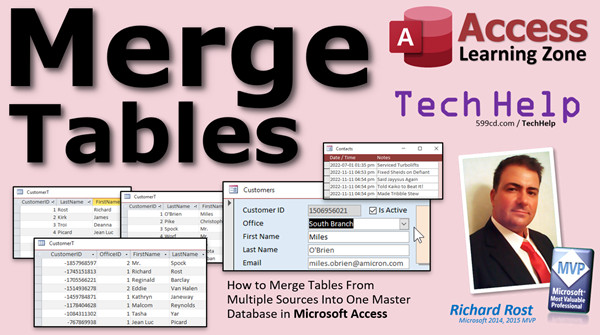
In this video, I will show you how to merge the customer tables from two different offices of the same company. They have been using their own copies of the same Access database for years, but now want to merge them together. How do you keep the records unique?
Douglas from Ann Arbor, Michigan (a Platinum Member) asks: I built my company's database using your lessons over the past several years. Each of our three offices uses my Access database, but they all have their own local copy with the data only for that office. Now we want to merge them all together and move the data up to SQL Server Online so we're all working with the same information. How can we do that and keep our customers unique for each office? Should I have Customer1T, Customer2T, and Customer3T? How would that work with forms and reports?
Members
Members will learn how to handle the relationship issues that come up with merging multiple parent tables together. We'll need to pull some additional tricks out of the hat using Union Queries, Double Joins, and lots more.
Silver Members and up get access to view Extended Cut videos, when available. Gold Members can download the files from class plus get access to the Code Vault. If you're not a member, Join Today!
Pre-Requisites
Links
Recommended Course
 Keywords Keywords
access 2016, access 2019, access 2021, access 365, microsoft access, ms access, ms access tutorial, #msaccess, #microsoftaccess, #help, #howto, #tutorial, #learn, #lesson, #training, #database, Ways To Merge Tables In Access Database, How do I combine multiple tables in Access, Can you merge Access databases, How do you merge two tables in Access, How to merge two Access databases, Combine Data from Two Tables, How to Merge two Databases, merge two companies, merge two offices
 Subscribe to Merge Tables
Get notifications when this page is updated
More InformationTranscript Welcome to another TechHelp video brought to you by AccessLearningZone.com. I am your instructor Richard Rost.
In today's video, I'm going to show you how to merge tables from multiple sources into one master database in Microsoft Access. Today's question comes from Douglas in Ann Arbor, Michigan, one of my platinum members.
Douglas says, I built my company's database using your lessons over the past several years. Each of our three offices uses my Access database, but they all have their own local copy with the data only for that office. Now we want to merge them all together and move the data up to SQL Server Online so we're all working with the same information. How can we do that and keep our customers unique for each office? Should I have customer table one, customer table two, customer table three? How would that work with forms and reports?
I've been hearing this a lot lately from a lot of different students. They have multiple offices in different geographic locations and want to be able to all work online and share data. How do you get your databases together and sync your customers, your orders, your contacts, all that stuff?
Especially now, since it's very easy to put your data online and to use your Access database with something like SQL Server, lots of people want to know how to do this. I will start off by saying no, you definitely don't want multiple customer tables. You're going to keep one customer table, you're going to merge all the data into it, and if you want to separate it by office, you'll just have an office ID so you know that this customer came from office one, this customer came from office two, and so on.
Let me show you how to set it up.
Before we get started, I have a couple of prerequisite videos for you. If you haven't watched my random auto numbers video, go watch this right now. When it comes to merging multiple tables together, random auto numbers are perfect. Go watch this and it will explain exactly what I'm talking about.
You're also going to need to know how to use append queries. That's taking data from one table and moving it into another one. That's very important. Go watch that video.
If you want to learn more about what Douglas is talking about, moving your Access database online, go watch my Access online video. I explain all the different ways you can take your Access database and put it up on the web so you can work with it from multiple locations. These are all free videos. They're on my website, they're on my YouTube channel. Go watch them and then come on back.
It goes without saying, any time you do any major work to your database like this, or even minor work, or just every day, you should back up your data before doing anything. Don't make any major changes to your database and then complain to me that something broke. Go watch this video on how to make backups of your database. Very important, critical. Do it every day.
For this video, I'm going to be using my TechHelp free template. This is a free database. You can download a copy off my website if you want to. In here, we've got customers and a nice big customer table.
What I'm going to do is make two copies of this database. Here it is. We're going to call this Office 1. Then we're going to make a second copy of it. We're going to call this one Office 2. And just so no one is confused, we're going to make a third copy over here, and this is going to be my new database. We're going to put all the data together in this one. This is my old database, the old one. I'm going to save that and move it over to my backup folder, so we're just going to get that out of there for now.
Now we're going to pretend for the purposes of class that this is the database from Office 1 and this is the database from Office 2.
We have to do a little bit of prep. I'm going to open up Office 1, and in my customer table, I am going to delete everyone from 15 down. Now, right now, I've got two different customer tables, but they all have unique customer IDs still because it's basically two copies of the same thing.
What I want to do is make these overlap the other auto numbers. So this is one, two, three, four. Because that's the challenge with bringing together two databases: you've got auto numbers that are the same in both tables, and you have to somehow merge those.
I'm going to select all of these records, cut them out (Control X). Now, if I paste them in now, that still doesn't do any good because the auto numbers keep going up. So what I'm going to do instead is delete those again, then compact the database. Database Tools, Compact. All right, it's compacted. Now, open up the customer table again, and now paste them in. Look at that, you got one through 15 back. That's a trick: if you want to get any auto numbers back after they've been deleted, you can use that trick. You compact the database, and you get the next available auto number, which in this case is one because I deleted all the records.
So now I've got two customer tables, one from Office 1 and one from Office 2, and they've got conflicting customer IDs. I want to get those together in the same database, but everyone's got to have a unique customer ID, and I still have to know who came from which office.
How do we do that? Let's close this. Let's go over to our new database. Sometimes when you compact the database, if it's sitting on your desktop, when Access closes it and reopens it in the background, sometimes it moves your shortcut on you.
Let's go into our new database here. This is the new database. We're going to open up the customer table and delete everything in here. Once again, compact this database so we get a fresh set of auto numbers.
If I start putting people in here, you can see they start getting new auto numbers. But again, let's delete them. Give it a good compact.
Now, with this customer table, I'm going to be bringing in the records from those other two tables, and I want to preserve their existing customer IDs. But I don't want customer ID in this table to assign new auto numbers to them right here, because I've got one, two, three, four, five in the other databases. So we're going to unmark that as the primary key and set it to just a number. A number of type long integer. I'm basically going to receive whatever customer ID they've already got in the other table.
Save that. Close it. Save changes, yes, sure. If you open this up and you start putting new records in here, that's just a number now. There's no auto number in this table at all. Delete that.
Now, I do need a new auto number for new records. When I bring those records in, when I import them, I need to assign them new auto numbers. This is where we're going to use that random auto number.
Why random? Because when we put the two together, that auto number doesn't matter. It could be 6, it could be -4, it could be 36. The chances of two of those random numbers having a conflict are off the charts. Unless you've got millions of records, you're not going to have to worry about that.
We're going to create two new fields in here. The first is new customer ID. That will be our new auto number and make the type random. The second field we're going to add is office ID. That will just be a number. I'm going to make this my primary key now and move it up to the top, because I just like to have my primary keys at the top of the table.
So when I bring in those customers that we already have, we're going to keep their customer ID, we're going to mark their office as one or two so I can tell who's who, and we're going to assign them a new customer ID that's going to be a random auto number. This way we won't have any conflicts.
If you want to test this, just save it, close it, open it back up again, and if you add some records in here, look at that. There's your random auto numbers. It's totally random.
I did the math before. Random auto numbers: you've got over four billion combinations. If you added one record every second for a whole year, you'd still only have a one in 136 chance of running into a duplicate value. Chances are, you're not going to have to worry about duplicates. Is it possible? Yes, it's possible but very, very, very unlikely.
Get rid of all these, and now let's bring in the records from our other tables.
Here's our main database. Open up Office 1, slide you over here, here's Office 1. We're going to grab customer ID and bring it over here, drop it, customer T1, structure and data. There it is. We can close that.
Bring in Office 2, same deal. Customer T, bring it in, customer T2. These are only temporary. We're not keeping these. Remember I said in the intro, you don't want customer table 1, customer table 2, customer table 3. That's bad. We're just doing it for now because we have to import the data.
Could you just link to them? Yes, you could just link to them. If you have lots and lots of records, it might be better to link, but for the purpose of the class, just import them into your database.
Now we're going to do some append query work. I will close this.
Append queries: we're going to append the records from customer table 1 into the customer table. Here we go. Create, Query Design. We're going to make an append query.
What are we appending into? I'm appending into the customer table. What table is the data coming from? Customer T1. We're going to do each one of them separately. Don't bring them both in at the same time.
Since all the fields match up, bring in the star; that will append all the customer T1 records into customer T, keeping that customer ID. There's one field that we don't have that we need to add also. That's that office ID that we added. Come down here and pick office ID, and for this, this is Office 1, so just put a 1 up here. That's going to call it expression 1. Don't worry about that. Put the number 1. So it's going to copy all these records with their existing customer ID, and copy the office 1 ID. We're going to get a new random auto number.
Are you ready? Run it. Now you may see warning messages; I have my warning messages turned off. Access says you're about to append 50 records or whatever. Just say yes. Now, go take a look at your customer table. Look at that. There's your new customer ID, totally random, the old customer ID, and now we know what office they're from. That's from office 1.
Now we're going to do the same thing and bring in office 2. Delete that. Change the office to 2 down there. You'll have to do this for each office. I know Douglas said you had 3, so you just have to do this 3 times. The beauty of this is the steps I'm showing you now, yes, there's a lot of steps, but you only have to do this once. When you're done, you're done. You don't have to do this again.
So it might seem like a lot of work, but then once it's done, it's done.
Bring in customer T2, bring in that star, and then run it. Now check your table, and there you go. Look at that. They're sorted by customer ID. You can see they're all staggered 1, 2, 1, 2, 1, 2, but there's all 29 of our records, the customer and the office. We know what office they're from, what their old customer ID is, and what their new customer ID is.
Now we no longer need this query; we can get rid of that. Save changes, no. We no longer need these two tables, so we can delete these. Remember, make sure you have everything backed up first.
Now as far as using your database goes, in your customer form, you're not going to want to refer to this customer ID anymore. You're going to want to refer to the new customer ID here. So I'm going to change this control source to new customer ID. That's the one you want to use. Copy, paste, OK. To know what office they're from, we're going to add a combo box in here. I'll slide all these guys down.
If you plan on adding lots of offices in the future, right now we only have, let's say, two or three, and they've got names. If you are the kind of business where you're adding and removing them, like McDonald's franchises, then make a table and then build a combo box properly. Of course, I've got videos on building relational combo boxes.
I'm going to, for class, do the simple way and just make a value list combo box where I type it in, which is fine if you've got two or three offices and that hasn't changed in ten years.
I get a combo box, drop it here, and type in the values that I want. I want two columns. One is my north office, and two is the south office. Then I will hide column one, just like that. Next, column one is the bound column, and I want to store that value in the office ID. Next, what label do I want? Office. Then finish.
There's a little format painting action. Do that. The ID over there. Change the tab order. Oh, of course, it's combo 30. I always forget that. That's one of my pet peeves. I wish the wizard would ask you what name you want for your box. For relational combo boxes, I usually call it something like office combo. But if it's just a value list and that office ID is the same, I just use the name like that.
We'll slide this out like so, and now I can change the tab order. Tab order. There you are. Where are you? Office ID. Slide it up. Put it right underneath customer ID, like that.
Anyway, save it, close it, open it back up, and there you go. There's your ID, there's your office. You know where everybody came from, north or south.
Now you have a merged customer table that still has your old information in case you have to look something else up, but you also now have a combined set of new customer IDs. This is what you can upload to your SQL Server, and then everyone can work on the same table. As you add new records, you don't really have to worry as much about any conflicts either. You can even import records if you have another remote user, say, that isn't connected. They can type in a new customer record, import it into here, and chances are you won't have a conflict.
In fact, I'm starting to seriously wonder why we don't use random auto numbers for everything because of that reason.
Now that you know how to do this, there's one other issue that you have to take into consideration. That is all the related data in your other tables, like your contacts, like your orders. These have customer IDs in them that are pointing to the old table. So you have to go through with some append queries or some update queries and change these to the new values.
How do you do that? That will be covered in the extended cut for the members. I will show you how to use a union query to bring together both contact one and contact two tables, the different contact tables from the other databases. We'll union them together, then we'll do a double join; because we know the customer ID and the office ID now, we can link that together to get the new customer ID and then put those together in the table. It's not super hard, but I will walk you through it step by step in the extended cut.
Silver members and up get access to all of my extended cut videos. There are well over 300 of them now. Gold members can download these databases. So what are you waiting for? Join today.
That has been your TechHelp video for today. I hope you learned something and I'll see you next time. Intro In this video, I will show you how to merge tables from multiple Microsoft Access databases into a single master database. We will talk about dealing with duplicate auto numbers, using random auto numbers to prevent conflicts, and adding office IDs to track records from different locations. I will walk you through prepping your tables, importing data from separate office databases, and using append queries to combine everything into a unified customer table while preserving the source information. Quiz Q1. What is the recommended approach for merging customer data from multiple offices into a single master database?
A. Create a separate customer table for each office
B. Merge all data into one customer table with an office ID field
C. Only keep data from the main office
D. Use Excel instead of Access for merging
Q2. Why should you avoid having multiple customer tables like CustomerT1, CustomerT2, and CustomerT3 permanently in your master database?
A. It makes reports more efficient
B. It increases storage efficiency
C. It complicates forms and queries
D. It creates more user accounts
Q3. What is a critical step you should do before making any major changes to your database?
A. Print out all your tables
B. Run all append queries first
C. Back up your database
D. Rename all fields
Q4. What is the purpose of the 'office ID' field when merging tables from multiple office databases?
A. To calculate sales per office
B. To track which office each customer came from
C. To assign new invoice numbers
D. To set user permissions
Q5. What is the benefit of using random auto numbers when merging records from different databases?
A. They are easier to remember than sequential numbers
B. They prevent duplicate auto number conflicts during merging
C. They sort records by office location
D. They link directly to user profiles
Q6. Before importing records from the old databases, what should you do with the CustomerID field in the master table?
A. Delete the CustomerID field
B. Set it to text instead of number
C. Remove it as primary key and make it a simple number field
D. Make it a foreign key
Q7. What new fields are created in the merged customer table to facilitate the merge?
A. Region code and employee ID
B. NewCustomerID (random auto number) and OfficeID
C. Email address and phone number
D. MergeDate and MergeStatus
Q8. Why do you need to preserve the old CustomerID from each office after merging?
A. To use as the new primary key
B. To allow import into Excel
C. To reference related data from other tables, like contacts or orders
D. To identify duplicate entries automatically
Q9. What type of query is used to bring records from each office's customer table into the merged customer table?
A. Make table query
B. Crosstab query
C. Append query
D. Update query
Q10. In the example shown, what is the purpose of creating temporary tables like CustomerT1 and CustomerT2 in the master database?
A. To keep separate tables for each office permanently
B. To temporarily import customer records for the merge process
C. To store backups of old data
D. To test new reports
Q11. What should you do after performing all append queries and merging the records?
A. Leave all temporary tables in the database
B. Delete the temporary tables and queries used during merging
C. Change all field names to match each other
D. Move all data to Excel for backup
Q12. After merging, which field should forms and reports refer to as the new primary key for customer records?
A. Old CustomerID
B. Name field
C. NewCustomerID (random auto number)
D. OfficeID
Q13. If you expect your business to add new offices frequently, what is a better way to manage OfficeID selection on forms?
A. Use a single value list combo box
B. Hard-code office names into each form
C. Create and use a relational combo box linked to an Offices table
D. Only enter OfficeID by hand
Q14. What is a key consideration when dealing with related tables (like contacts or orders) after merging customer tables?
A. Only update forms, not tables
B. Update related data so foreign keys point to the new CustomerID values
C. Ignore them, as they update automatically
D. Delete all old related records
Q15. What technique is recommended to update related tables with the new CustomerID values?
A. Use a crosstab query
B. Use append or update queries with table joins on old CustomerID and OfficeID
C. Delete all related tables and recreate them
D. Use alphabetical sorting
Answers: 1-B; 2-C; 3-C; 4-B; 5-B; 6-C; 7-B; 8-C; 9-C; 10-B; 11-B; 12-C; 13-C; 14-B; 15-B
DISCLAIMER: Quiz questions are AI generated. If you find any that are wrong, don't make sense, or aren't related to the video topic at hand, then please post a comment and let me know. Thanks. Summary Today's video from Access Learning Zone focuses on how to merge tables from multiple sources into a single master database using Microsoft Access. This lesson addresses a common scenario that many businesses encounter, especially as more companies move their databases online and need to unify data from several separate copies.
The specific question we are tackling comes from a student whose company has three different offices, each maintaining its own local Access database. Now, they want to combine everything into one central database and migrate it to SQL Server Online, so all team members work with the same unified information. The main concern is how to handle customers so that each remains unique and can still be identified by office of origin.
The very first point I want to stress is that you should not create multiple customer tables. Just use one customer table and merge all your data into it. To distinguish which office each customer came from, simply include an office ID field. This keeps your data manageable and your forms and reports far easier to work with.
Before you begin, there are a few prerequisite topics you'll need to know. If you're unfamiliar with using random auto numbers, I have a video that explains why they're perfect for this sort of data merging. You'll also need to be comfortable with append queries, which allow you to move data from one table to another. Lastly, if you're curious about moving your Access database online, I have another video that covers all the major options for that transition. All of these resources are free, and I recommend watching them before proceeding.
It's absolutely essential to back up your database before making any major changes, especially when performing operations like these. Even with minor changes, frequent backup is best practice. I have a video showing how to do this as well, and backing up should be part of your regular routine.
For this lesson, I'll be using my free TechHelp template, which you can download from my website. This template includes a customer table that we'll use as the starting point. To simulate having multiple office databases, I create two copies of the main database and label them as Office 1 and Office 2. Then, I make a third copy to serve as the new, combined database.
The challenge we face is that each office's table has overlapping customer IDs, since they're just duplicate copies of the original. Before merging, we need to address these conflicting auto numbers. I demonstrate how to reset auto numbers by deleting records, compacting the database, and then re-importing data so auto numbers start fresh.
Once we have these two tables representing data from each office, and their customer IDs overlap, our goal is to move all this data into the new master database and ensure everyone has a unique identifier going forward, while retaining the office origin info.
We start by opening the new master database and clearing out any records from the customer table, then compact it to reset the auto numbers. Next, instead of letting Access assign the CustomerID as an auto number, we change it to a regular long integer. This lets us import existing customer records with their original IDs.
However, we also want a fresh, unique identifier for all records moving forward. To do this, we add a new field that is assigned a random auto number. This dramatically reduces the risk of any duplicate values, since Access has billions of possible values to choose from. Alongside this new customer ID, we also add an office ID field to mark each record by its source office.
To bring in the data, we import the customer tables from Office 1 and Office 2 into our new database as temporary tables. Even though we brought over both customer tables, we only keep them temporarily to facilitate the appending process. The next step is to create append queries that transfer these office-specific records into the master customer table. While doing this, we copy the original customer ID, assign the appropriate office ID, and let Access generate a new random ID for each entry.
After appending data from each office and verifying that all customers now have their own unique random ID and office association, the temporary import tables can be deleted. All further references to customer records in your forms and reports should now use this new random customer ID as the primary key.
To make office identification easy for users, you can add a combo box to the customer form. For businesses with just a few offices, you can use a simple value list. If you have many offices or expect to add more in the future, it's better to use a separate lookup table for office information, but for the purpose of this demonstration, a value list is sufficient.
Now that you have a merged customer table with both old and new IDs plus office attribution, you can upload this data to SQL Server and allow all your offices to work together in one system. New entries will be assigned random IDs, preventing future conflicts. In fact, using random auto numbers like this can simplify merging in many multi-location scenarios.
One final but critical point: related tables, such as those for contacts or orders, will still reference the old customer IDs from the separate office databases. You'll need to use append or update queries to update these tables to use the new random customer IDs. This process involves using union queries to combine related tables and then joining customer records using both their original IDs and office IDs to ensure accuracy when assigning the new ID. I cover this important step in detail in the Extended Cut video, where I walk you through the process step by step.
If you're a Silver member or higher, you have access to all of my extended cut videos, which now number well over 300. Gold members can also download the databases featured in these tutorials.
You can find a complete video tutorial with step-by-step instructions on everything discussed here on my website at the link below. Live long and prosper, my friends. Topic List Merging customer tables from multiple offices
Handling conflicting auto numbers during merge
Using compact and repair to reset auto numbers
Modifying table structure to preserve original IDs
Setting up a new random auto number field
Assigning office IDs to track data origin
Importing tables as temporary staging tables
Using append queries to merge data into a master table
Appending data with office identification
Cleaning up temporary tables post-merge
Updating forms to use the new customer ID
Adding and configuring a combo box for office selection
Adjusting form tab order for new controls
Preserving historical customer ID data for reference Primary Topics merging tables, database consolidation, Access auto numbers, random auto numbers, append queries, unique identifiers, office identification, SQL Server migration, customer data integration
Secondary Topics backup procedures, form design, combo boxes, value lists, Access table design
|




