Import Objects
By Richard Rost

 3 years ago
Import Objects From Another Access Database
In this tutorial I'm going to show you how to import objects from another Microsoft Access database. By objects I'm talking about the actual tables, queries, forms, reports, and other such items, not just the data.
Pre-Requisites
Links
Recommended Courses
Keywords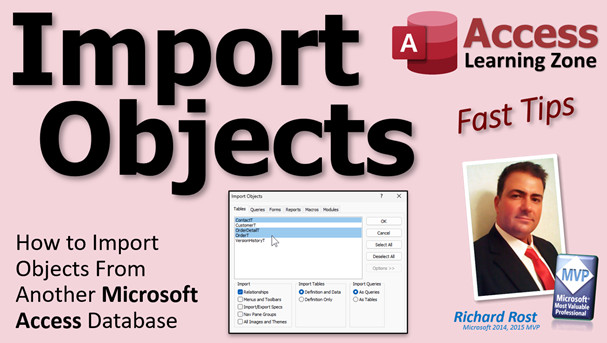
access 2016, access 2019, access 2021, access 365, microsoft access, ms access, ms access tutorial, #msaccess, #microsoftaccess, #help, #howto, #tutorial, #learn, #lesson, #training, #database, Import database objects into the current Access database, Importing Objects from Another Access Database, How To Import Access Database Objects, import table, import query, import form, import report, import VBA, import macro
 Subscribe to Import Objects
Get notifications when this page is updated
More InformationTranscript Welcome to another FastTips video brought to you by AccessLearningZone.com. I am your instructor Richard Rost. Today we're going to see how to import objects from one Access database to another.
Now I'm talking about the actual objects themselves - tables, queries, forms, reports, macros, modules, that kind of stuff. Not necessarily just the data. I've got different videos on importing data. Today we're going to talk about the objects.
So you have yourself a blank database or a database you've been working on. And you've got another database that's got stuff in it that you want to reuse in this database. I do this a lot with forms or reports or maybe complicated queries that I built.
If I open up this database here, you'll see it's completely blank. We'll set this aside for a minute. I'll just minimize that. This guy is my source database that's going to have all the stuff in it that I want to bring into the other one. This is just my TechHelp database.
Now if you can get both databases open, all you have to do to bring stuff from one database to the other one is literally just click and drag it and drop it in the other database. That's it. I just imported that whole table right over here. You can do that with queries. You can hold down the Shift key and click on other stuff or click on the Control key to pick individual ones. Pick all the things you want to import - modules, whatever. Then click and drag and drop. There they go.
Now that's the easy way to do it. But sometimes you can't open this database. It could be in a different version of Access that yours won't open. It could be a business issue. So there's another way you can do that.
Let me close this database and let me once again delete all of these objects. Delete. Yes. Goodbye.
So let's go in a different way. External data, new data source, from database, and then pick Access. Browse to where your database is. Mine's sitting on my desktop. It's right down here - Source DB.accdb. Open that guy up.
Now you get the import objects menu. Click on the objects you want to import. There is also a select all or a deselect all. Click the ones you want. Pick your queries. Pick whatever forms, reports, macros, or modules you want.
There are some additional options. Do you want to import the relationships? Do you want the menus and toolbars, the import/export specifications you've set up, your navigation pane groups, the images and themes? Importing tables - do you want the definition and the data, or the definition only? In other words, do you want the structure of the table by itself, or do you want the table with all of its data?
And queries - do you want them as queries or as tables? In other words, if you pick as tables, Access will generate the output of that query and then import that as a table. I almost never do that, but it is an option.
And then when you're all done, hit OK. It'll bring it in. This is where it asks you if you want to save this. If you're planning on doing this multiple times in the future, you can save these import steps. But I'm going to hit close.
And there's my stuff. Now this will sometimes work, especially if you can't open the other database file for any reason, provided it's not corrupt, of course. If you can't open it and it's a database you should be able to open, try running through a compact and repair first. If that doesn't work, try my troubleshooter. There's my compact and repair video and my troubleshooting video. I'll put links to both of these down below in the description. You can click on them to go watch those.
And yes, this method will also work - I pulled out some older copies of some of my old databases. Here's my Payables 2000 MDB file. Let's try to import that stuff. New data source, from database, Access, import tables. Browse to it. There's my payables. Hit open. And it can read it just fine.
Pick whatever you want out of here - forms, reports, macros, whatever. And there it goes.
So that's pretty much it. That's how you import objects from one database to another. I get people asking how you've got a 32 bit database and you want to try to open it, but you can't open it sometimes in a 64 bit database. Sometimes it does work just fine, but even if it doesn't work, you can still open up a blank 64 bit database and import the objects from the 32 bit database.
Now this does not work with ACCDE encrypted databases, only the ACCDBs and MDB databases. If it's an ACCDE, you're going to have to go get the original and use that.
If you want to learn more about this stuff, I cover a lot more about importing database objects in my Access Expert Level 21 class. I'll put a link to that down below as well.
So that is your FastTips video for today. I hope you learned something and I'll see you next time. Intro In this video, I will show you how to import tables, queries, forms, reports, macros, and modules from one Microsoft Access database to another. We'll cover both the simple drag-and-drop method when both databases can be opened, as well as using the External Data wizard for situations where direct access is not possible, including importing from older databases and dealing with different Access versions. I will also discuss options for importing relationships, definitions, and data, as well as some troubleshooting steps for common issues. Quiz Q1. What types of items can you import from one Access database to another as discussed in the video?
A. Tables, queries, forms, reports, macros, and modules
B. Only data tables
C. Only forms and reports
D. Only queries and macros
Q2. What is the simplest way to import objects if you can open both Access databases at the same time?
A. Export as CSV then import
B. Copy and paste the objects
C. Drag and drop the objects from one database to the other
D. Use Access macros to transfer objects
Q3. Which key(s) can you use to select multiple objects for import via drag and drop?
A. Alt and Tab
B. Shift or Control
C. F1
D. Escape
Q4. When should you use the External Data import method instead of drag and drop?
A. Only with encrypted databases
B. When you cannot open the source database in Access
C. To transfer only data, not objects
D. When using Microsoft Excel
Q5. What is the purpose of the 'definition only' option when importing tables?
A. To import just the data, not the structure
B. To import only the table structure without any data
C. To import only field descriptions
D. To import only relationship diagrams
Q6. What does the option to import queries as tables do?
A. Converts all forms to reports
B. Imports the output of the queries as tables
C. Renames all queries
D. Imports queries with their SQL code intact
Q7. Which database file types are supported for imported objects, as explained in the video?
A. Only ACCDE files
B. Both ACCDB and MDB files
C. Only ACCDB files
D. CSV and TXT files
Q8. What should you try if you cannot open the source database file for any reason before importing?
A. Restart your computer
B. Run compact and repair
C. Change the file extension
D. Reinstall Access
Q9. Can you import objects from a 32 bit Access database into a 64 bit Access database?
A. No, it's not possible
B. Only if both databases have the same name
C. Yes, by importing objects into a blank 64 bit database
D. Yes, but data will be lost
Q10. What database type is NOT supported for this object import method?
A. ACCDB
B. MDB
C. ACCDE encrypted databases
D. Non-encrypted databases
Answers: 1-A; 2-C; 3-B; 4-B; 5-B; 6-B; 7-B; 8-B; 9-C; 10-C
DISCLAIMER: Quiz questions are AI generated. If you find any that are wrong, don't make sense, or aren't related to the video topic at hand, then please post a comment and let me know. Thanks. Summary Today's video from Access Learning Zone covers how to import objects from one Microsoft Access database into another. This process is useful when you want to reuse specific database elements like tables, queries, forms, reports, macros, or modules, rather than just transferring data. I frequently do this when I have a prebuilt form, a complex report, or an advanced query that I want to use in another project.
Suppose you have a blank database or perhaps one you have already started working with, and you also have another database with the components you want to bring across. One straightforward method is to open both databases at the same time. Once you have them open, you can simply click and drag the object you want from the source database and drop it into your target database. This works for pushing over tables, queries, forms, and even modules. If you wish to select multiple objects at once, you can hold the Shift key to select a group or the Control key to pick specific items, and then drag them all at once into your target database.
Dragging and dropping objects is the simplest way, but sometimes you might not be able to open the source database in Access. This could happen if the other database is in a different version of Access, or there may be business restrictions that prevent you from opening it directly. In those cases, using the import feature in Access is a better choice.
To use this method, first remove any unwanted objects in your target database to keep things tidy. Then, go to the External Data tab, select the option for bringing in data from other databases, and choose Access as your source. Browse to the location of your source database, select it, and you will be presented with a menu that lets you pick exactly which objects you want to import.
The import menu also provides several options. For example, you can choose to include relationships, menus and toolbars, import and export specifications, navigation pane groups, as well as images and themes. When importing tables, Access lets you decide whether you want to import just the table definitions (structure only) or include the existing data as well. If you import queries, you can choose whether to bring them in as queries or have Access run the query and import its results as a new table. This last option is rarely used, but it is available.
Once you select what you want, click OK and Access will begin importing those objects. There is also an option to save these import steps for future use if this is something you plan on doing regularly.
If you are unable to open the database for any reason other than it being corrupt, this method should work. For corrupted files, try running a compact and repair first. If standard approaches fail, you might find my troubleshooting video helpful, which goes through more advanced repair options.
You can also use this method for importing objects from older databases, such as MDB files created in previous versions of Access. The import process remains mostly the same, and modern versions of Access can generally read older database files with no trouble.
It is worth mentioning that while this method works for most standard database files such as ACCDB and MDB formats, it does not work with ACCDE files, which are compiled and encrypted. If you run into this, you will need to get the original ACCDB or MDB file.
Additionally, some people run into issues when trying to move objects between 32 bit and 64 bit versions of Access. In most cases, you can still create a blank 64 bit database and import objects from a 32 bit database just fine, but it is always a good idea to test this process with your own files.
If you want a more in-depth look at importing objects—especially in complex situations—I cover this topic in greater detail in my Access Expert Level 21 class.
For step-by-step instructions on everything discussed here, you can find the complete video tutorial on my website at the link below.
Live long and prosper, my friends. Topic List Importing Access objects by drag-and-drop between databases
Selecting multiple objects for import using Shift and Control
Importing objects when source database cannot be opened
Using External Data menu to import from another Access database
Browsing to select source database file for import
Importing specific object types: tables, queries, forms, reports, macros, modules
Options for importing relationships, menus, toolbars, and navigation pane groups
Choosing to import table definitions only or with data
Importing queries as queries or as tables
Saving import steps for repeated use
Accessing and importing from older MDB database files
Importing objects between 32 bit and 64 bit Access versions
Limitations with importing from ACCDE encrypted databases Primary Topics importing Access objects, drag and drop import, external data import, selecting import options, ACCDB and MDB compatibility, import objects limitations
Secondary Topics troubleshooting import issues, compact and repair, import options for data and structure, import from older database versions
|




