IP Addresses
By Richard Rost

 3 years ago
Storing IP Addresses in Access, No Dups, Sort
In this Microsoft Access tutorial, I will teach you how to properly store IP addresses. I will show you how to prevent duplicate values yet also how to sort the list numerically. I'm going to show you two different ways to accomplish this. In the first video will split the IP address up into four separate fields and then in the extended cut for the members we'll store it as a single text field and split it up with functions.
Dan from Sacramento, California (a Gold Member) asks: I need to have a list of IP addresses that is searchable. I cannot have duplicate values. If I split the IP address into 4 separate fields, then I can't use Indexed (No Duplicates). If I enter the full IP address as a text field, then the sort is wrong (192.168.1.100 comes before 192.168.1.2). What is the best way to accomplish this?
Members
Members will learn how to store the IP address in a single text field and use the split function to break it up into its four component values.
Silver Members and up get access to view Extended Cut videos, when available. Gold Members can download the files from class plus get access to the Code Vault. If you're not a member, Join Today!
Pre-Requisites
Links
Recommended Courses
Additional Resources
Keywords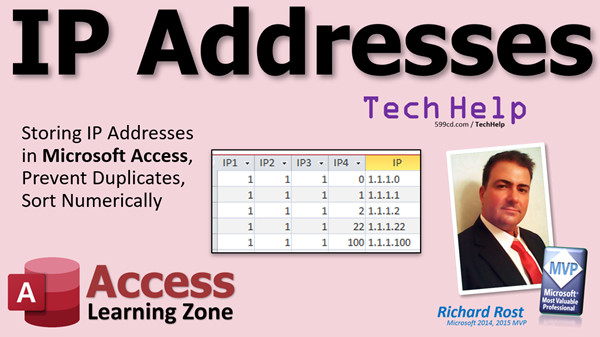
access 2016, access 2019, access 2021, access 365, microsoft access, ms access, ms access tutorial, #msaccess, #microsoftaccess, #help, #howto, #tutorial, #learn, #lesson, #training, #database, how to properly store IP addresses in Microsoft Access, split IP address, sort IP addresses
 Subscribe to IP Addresses
Get notifications when this page is updated
More InformationTranscript Welcome to another TechHelp video brought to you by AccessLearningZone.com. I am your instructor, Richard Rost. In today's video, we are going to talk about IP addresses, how to store them in your Microsoft Access database, preventing duplicates, but also allowing you to sort them numerically instead of alphanumerically.
Today's question comes from Dan in Sacramento, California, one of my Gold members. Dan says: I need to have a list of IP addresses that is searchable. I cannot have duplicate values. If I split the IP address into four separate fields, then I cannot use "indexed no duplicates." If I enter the full IP address as a text field, then the sort is wrong - 100 comes before 2. What is the best way to accomplish this?
Well, Dan, there are two ways we can go about this. We can either store each component in a separate field, IP1, IP2, IP3, IP4, and then put them together; or we can store it as a single text field and break it up when we want to do things like sort on it. I am going to show you both ways. We will do the first method in this video and then in the extended cut for the members, I will show you the other method. Both work just fine. It all depends on how you want to enter the data and store it in your tables.
Here I am in my TechHelp free template. This is a free database. You can grab a copy up on my website if you want to, but for this example, we really do not need it. I am just using it because I have it built.
Let's say for each of my customers, I am going to go into design view. I want to store their IP address. Obviously, you are going to use this for users on your network and what their IP address is or whatever, but we are just going to put it in this field.
I am going to store this as four separate fields. This is the first way we are going to do it. We are going to call it IP1 and that will be a number. IP2, number, IP3, number, and IP4. Those are the four different parts.
If you want, you can come down here and put a validation rule - it would have to be between 0 and 255. Put validation text down there if you want to, and you can just copy that to these.
Now, you cannot index each of these individually, but you can index all four of them together in what is called a composite key. I have a whole separate video on composite keys. Here it is. Go watch that. You will find that on my website. You will find that on my YouTube channel. I will put a link down below you can click on, but I am going to show you how to do it right now.
We are going to come up here and click on Indexes. This is a list of all the indexes that are already in the table. CustomerID Email is a primary key. We are going to create our own named index right here. I will call it the IP address. Then you put, here in this column, the names of the fields that you want - IP1, IP2, IP3, IP4. I do not really care for the way Microsoft does this, but everything under that, as long as this is blank, that is all part of the same index. It is weird, but you get used to it.
The properties are right here in the Name field. Now, it is not a primary key, but we do want it to be unique. So change that to Yes. There is Unique - Yes and No.
What that means is the combination of these four fields has to be unique. Close that and save it. The integrity rules are going to be checked.
If you get an existing violation error, it is because of a validation rule on these fields and there is no value in them. That is okay.
Let's go into here. Now, here are my IP addresses. If I go 1,1,1,1 - I am not using valid IP addresses, I know. If I go 1,1,1,1 again, it gives an error. But if I go 1,1,1,2, it comes out fine. 1,1,2,1. 1,1,1,0, whatever.
The problem you were having is if you have, say, 1,1,1,100 and then 1,1,1,2. If you sort that as a text field, it is going to get sorted alphanumerically and you are right - 100 will come before 2. But now if I bring this into a query, I can sort it based on these fields in order. You can also bring these together so that you can have the normal IP address the way you like to see it.
We will create a query, create design, bring in the Customer table, and then bring in the IP address fields - 1,2,3,4. I am going to set this to "Is Not Null" so we do not get blank ones. We can sort these now ascending.
We can put them all together over here. What is this going to look like? Well, the full IP address is going to be IP1 and a period, and IP2 and a period, and IP3 and a period, and IP4. A little string concatenation there for you.
Now if I run this, there you go. You can see these are sorted properly in numerical order if that is what you want. So you can put that IP together using a calculated query field and it will sort in the right way.
The only problem with this method usually is it is a pain to enter an IP address like this in four separate fields. Personally, I would go the other way. I would have the user enter the IP address like that in a text field and then we can use the Split function to split these out.
I will cover that in the extended cut for the members.
In the extended cut for the members, what we are going to do is store the IP address in a short text field. It is easier to type in, it is easier to search on, and it is easier to edit than having four separate fields. Then we will use the Split function to break that up into its component parts. Once we have those separated in a query, we can then sort numerically based on those to get your sorting value.
As a reminder, Silver members and up get access to all of my extended cut videos and Gold members can download these databases and have access to the code vault. So join today. Intro In this video, I will show you how to store IP addresses in your Microsoft Access database using four separate number fields for each part of the address. We'll talk about how to prevent duplicate IP addresses by creating a composite unique index and how this setup allows you to sort IP addresses numerically instead of alphanumerically. You'll also see how to build a query to display and sort your IP addresses in the correct order. Quiz Q1. What is the main challenge of storing IP addresses as a text field in Access?
A. IP addresses cannot be searched by the database
B. Text fields require more storage space than numeric fields
C. Sorting is alphanumerical, so 100 comes before 2
D. Access does not allow text fields for IP storage
Q2. What is a composite key in Microsoft Access?
A. A key made from concatenated text fields
B. A key that can only include one field
C. An index involving multiple fields which together form a unique key
D. A primary key created automatically by Access
Q3. What validation rule should each of the four IP address fields use?
A. Between 1 and 1000
B. Between 0 and 255
C. Greater than 255
D. No validation rule is needed
Q4. What does setting the composite key to "Unique: Yes" accomplish?
A. Prevents any duplicate value in each individual field
B. Ensures that the combination of the four IP fields is unique
C. Creates a primary key automatically
D. Allows duplicates in all fields
Q5. Why is storing IP addresses in four separate fields sometimes less convenient?
A. It makes searches impossible
B. It is harder to sort them
C. Entering and editing the data is less user friendly
D. It cannot be used in queries
Q6. How can you display a full IP address from four separate fields in a query?
A. By running a macro to create a new field
B. Using string concatenation to join IP1, IP2, IP3, and IP4 with periods
C. Using only the first field in the query
D. Sorting the query by IP1 only
Q7. What method does Richard suggest as a more convenient alternative for entering IP addresses?
A. Using a series of checkboxes for each octet
B. Entering the address as a single text field and then splitting it as needed
C. Reversing the IP numbers before storing
D. Storing only the last octet
Q8. How can you sort IP addresses numerically when they are stored as a single text field?
A. By sorting them alphanumerically
B. By using the Split function to separate each part and sorting those fields
C. By changing them all to binary
D. By storing IP addresses in reverse order
Q9. What additional features do Silver and Gold members receive?
A. Access to the code vault only
B. The ability to edit database templates
C. Access to extended cut videos and downloadable databases
D. Unlimited support on all courses
Answers: 1-C; 2-C; 3-B; 4-B; 5-C; 6-B; 7-B; 8-B; 9-C
DISCLAIMER: Quiz questions are AI generated. If you find any that are wrong, don't make sense, or aren't related to the video topic at hand, then please post a comment and let me know. Thanks. Summary Today's video from Access Learning Zone focuses on how to work with IP addresses in a Microsoft Access database. We'll be exploring the best way to store IP addresses, prevent duplicate entries, and ensure that sorting behaves as expected, which means sorting numerically instead of alphanumerically.
The question came in from one of my Gold members who needs to keep a searchable list of IP addresses with no duplicates allowed. If you try to store an IP address in a text field, you may run into sorting issues. For example, '100' will be sorted before '2', which is not correct numerically. On the other hand, if you split the IP into four separate fields (one for each section of the address), you lose the ability to use the "indexed no duplicates" property on the full address. So, what is the best way to accomplish this?
There are essentially two approaches you can take. The first is to store each section of the IP address in a separate field, which we'll call IP1, IP2, IP3, and IP4. The second approach is to use a single text field for the whole IP address and split it up as needed for sorting and searching. In this lesson, I walk you through the first method, and then in the extended cut available to members, I demonstrate the alternative method. Both give you the protection against duplicate IP addresses and let you sort them properly; the main difference is how the data is stored and entered.
Starting with the first method, you'll want to set up four Number fields within your table design – one for each part of the IP address. You can create validation rules for each field to make sure they're between 0 and 255, which keeps the data valid according to IP address conventions. The validation text can also be set to provide a helpful error message if someone enters an invalid value.
While you cannot apply a unique index to each field individually, you can apply a composite index, meaning you combine all four fields together to determine uniqueness. This is done in the indexes section of the table design. Create a new named index, select all four IP fields under that index, and then set its property to Unique. This ensures that the combination across these four fields must be unique, effectively stopping duplicate IP addresses from being entered.
If you try to save and get a violation error, it most likely means there's existing data in those fields that doesn't meet your new validation rule, which you'll need to address.
Once this setup is in place, you can enter unique IP addresses by separately entering each part of the address into the four fields. If you try to enter a duplicate complete IP address, Access will prevent it. If only one part is changed, it will be accepted, which is exactly the behavior you want.
For sorting, if you bring this data into a query, you can sort based on the four IP fields in order, which accomplishes correct numerical sorting. By combining the four fields in a calculated query field, you can display them as a single IP address in dotted-decimal format while maintaining the numerical order.
One possible drawback to this method is that entering IP addresses split into four separate fields is less user-friendly. In many cases, you'd probably prefer to have users enter the IP address as a single string. In that case, storing it in a single Short Text field and then breaking it up as needed is a better approach.
I cover this alternative method for members in the extended cut video. Storing the IP address as a single text value makes data entry, searching, and editing much easier. When you need to sort, you can use the Split function in a query to divide the address into its parts and sort numerically that way.
If you're interested in step-by-step instructions for both methods, as well as how to use the Split function to process IP addresses for sorting and searching, you can find my full video tutorial with detailed explanations and demonstrations on my website at the link below.
Live long and prosper, my friends. Topic List Storing IP addresses as four separate number fields
Setting validation rules for IP address fields
Creating a composite index for multiple fields
Enforcing uniqueness with composite keys
Sorting IP addresses numerically in queries
Concatenating IP address fields in a query
Building calculated fields for formatted IP addresses in queries
Handling data entry and validation errors with IP fields Primary Topics IP address storage, composite key, unique index, numeric sorting, Microsoft Access tables, query concatenation, data validation
Secondary Topics string concatenation, input validation, extended Split function method
|




