List Box Align Right
By Richard Rost

 3 years ago
List Box Column Align Right in Microsoft Access
In this Microsoft Access tutorial I'm going to show you how to get one column in a list box to align right. This is especially handy for currency values.
Pre-Requisites
Recommended Courses
Steps
- C1: CStr([CreditLimit])
- C2: Format([C1],"Currency")
- C3: String(13-Len([C2])," ")
- C4: [C3] & [C2]
- Monospaced Font like Courier New
Keywords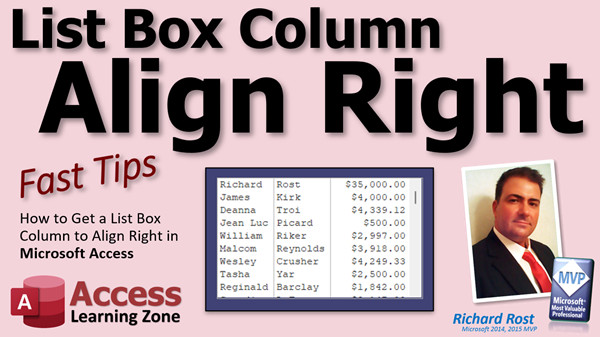
access 2016, access 2019, access 2021, access 365, microsoft access, ms access, ms access tutorial, #msaccess, #microsoftaccess, #help, #howto, #tutorial, #learn, #lesson, #training, #database, String Function, String(), Is there a way to right-align a numeric column in a ListBox, Right Align listbox columns Access, right justify text in list box column, right-align a column in ListBox, fixed width font, monospaced font
More InformationTranscript Welcome to another Fast Tips video brought to you by AccessLearningZone.com. I am your instructor, Richard Rost.
In today's video, I'm going to show you how to align one column in a list box to the right, which is pretty cool for things like currencies and dates.
Before we get started, you need to know a couple of things. There's no VBA in this one. This is pretty simple, but we will need a couple of functions first. You should know how to do calculated fields in queries. Second, go watch my string functions video. Specifically, we're going to use the length function to determine how long a string is (in the number of characters). Finally, go watch my video on the format property and function so you know how that works. These are all free videos. They are on my website, and they're on my YouTube channel. Go watch them and then come on back.
This is one that comes up every now and then. It's been on my list to make a video for it for a while, and someone just posted today in the forums asking how to do this. So let's take a look at what I'm talking about.
First, let's make a list box right here on the main menu. I'm just going to delete this stuff because we don't need it. Let's grab our list box control, which is right there. Drop it down here, and the wizard starts up. This is a good wizard. I don't mind the list box and the combo box wizards.
Let's make a list box from a table and pick our customer table. Let's bring over the ID, the first name, the last name, and a currency value. We've got credit limit down here. Let's use that. Next, let's sort it by ID. That's fine. Next.
This is what it's going to look like now. Unfortunately, there's no property sheet for each of these columns. There's no way to say, "Okay, I want these guys left and this guy to the right." So we're going to have to play some tricks, some gymnastics with this in a little bit. But let me just show you how this turns out. Finish it up, delete that little label that comes in with it, slide that over here, maybe make it a touch bigger. Save it, close it, open it back up again. There you go. Looks fine. But I want this column lined up to the right, kind of like that.
You see this in Excel a lot, especially in currency columns where all the numbers go on the right-hand side. For some reason, that's how people like it. I like everything aligned left myself, but I am not an accountant.
So how do we do this? Well, I've been doing this for years a particular way, and I like my way the best. Every time I do one of these videos, I do a little quick search of Google to see what other people have to say about it. I've seen some variations on this and some ways that are a little bit easier, but they don't work as well or look as nice when you're done. And I've seen some stuff that's just plain wrong. So be careful what you find online.
What we're going to do is make a query to start with. Go to Create > Query Design and just bring in the stuff you want to have in that list box. I'm going to base it on my customer table. Close that.
I want the ID - always bring in the ID first. That's the bound column, which will allow us to bind it to the table. First name, last name, and bring in that credit limit again.
We'll save this as our CustomerQQ (for query). Let's run it and take a peek. Looks pretty good.
This looks exactly like what we want in the list box, but list boxes unfortunately work with text. You have to find a way to get your text over to the right side. The first thing we're going to do is convert this numeric value (the currency value) into text using a string conversion function.
Come up here to Design View. We're going to make a couple of calculated columns. The first one we're going to call C1, and we're going to convert this to a string using CStr (Convert to String) function, passing in the credit limit field like this:
C1: CStr([CreditLimit])
I'll zoom in so everyone can see. We're creating an alias, a new field called C1, and we're setting it equal to CStr (Convert to String) of the credit limit field.
Let's run it and see. First of all, you lose some formatting, but that's okay. We'll fix that next. Notice that this is now a number, same as over here, but it's lined up on the left side of the column.
Access has fields and records, but I know everyone thinks of these as cells. That's an Excel term, but we'll call it a cell.
So now I've got this set up as text. Next, I want to convert it to have a currency format, but I still want to keep it as text. To do that, we'll use the Format function. You can do this all in one calculation, but I like breaking it up. It makes things easier to read later and easier to figure out what you were doing. It also makes it easier for someone else to read your stuff. I like to break this up into multiple steps if possible. Same thing in Excel too.
So, zoom in again. We're going to call this guy C2. We can call it CreditLimitFormatted or whatever you want, but I'll keep it simple. We're going to use the Format function: Format(C1, "Currency").
Now let's see what we've got. It looks exactly the same as before, but it's still a text value, so it's lined up on the left, which is what we want.
There are other tricks you can play with the Format function using pound signs and zeros and all kinds of things, but you're not going to get the exact same results I get, trust me. Wait till we're done and you'll see.
If someone has a better method to do this, I want to hear from you. Post in the comments down below.
Now what we have to do is take this text string and pad spaces on the left side of it, because list box columns think in terms of text. Let me show you what I mean.
Here I am in Excel. Excel is great for demonstrating stuff. Let's say I've got some values. This represents the column in my list box, and each one of these squares is going to represent a character. I've got a thousand dollars, so $1,000.00, and next I've got $500.00.
If I want to get this to line up on the right side of the column, I've got to pad four spaces in front of it. How do I get that? Take the total width you want and subtract the length of that text string.
For example, that's 9 characters. Let's say our whole width is 13. So 13 minus 9 is 4. That's how many spaces I need to put in front of that.
For $500.00, it's 7 characters. 13 minus 7 is 6, so I need to pad 6 spaces in front of it.
When I do that, I end up with everything aligned on the right.
So that's what we have to do. We have to say, "Give me that number of spaces in front of my string of text characters that represents that numeric value." I know this seems kind of weird, but trust me. It's easier once we see it in action. I wanted to give you the theory first.
Back in Access, let's make another calculated field. We'll call this guy C3 and I'll zoom in here for you.
I want a number of characters equal to the total width, so pick some arbitrary number: 13 is fine, 12, whatever the biggest value you're going to have is. Then subtract the length of your currency string, and add that number of spaces to the beginning using the String function.
So: String(13 - Len(C2), " ") (for now, you can use "X" to see it better).
Now let's see what we got. 13 minus however many characters are here gives me the right number of X's.
Let's make a really small one (like $1.00). You'll see a lot of X's. Make one even bigger, and you'll see fewer X's.
But I don't want X's, I want spaces, so change the "X" to a space.
Now C3 is going to be the left side, and then after that, I want C2 to come after it.
Now we'll make our final value. C4 is going to be C3 & C2 (concatenated).
Now you'll end up with values that appear aligned. It almost looks like it's centered, which looks strange, but notice there are a bunch of spaces in front of the number.
I'm going to show you how to fix this in just a second, but first, let's put C4 in that list box. Save changes, yes.
Now let's go back to our list box. We're going to change it a little bit. You can rebuild it if you want to from scratch and just use CustomerQQ, but I'm going to make a little change to it, since I know a little bit of SQL.
First, let's change "List16" to something better, like "CostList" or whatever. Go to Data. Here's the Row Source. This is the SQL behind that list box. It's where its data comes from.
There's a lot to unpack here. I cover this in my SQL classes, but since we're only getting our data from one place, we can get rid of all the "CustomerT." prefixes, and since we don't have spaces in our field names, we can get rid of all the brackets. It makes this a lot easier to read. Let me clean this up real quick: last name, credit limit, etc.
Actually, we can get rid of the ORDER BY altogether.
So it's: SELECT CustomerID, FirstName, LastName, CreditLimit FROM CustomerQQ
I don't want CreditLimit anymore, I want C4 (the new field we created).
See how easy that was to change? Super easy.
Save that, close it, and open it back up again.
It looks kind of like it did in the query. Now here's the trick, and there's really no way around this. The problem and the reason why this doesn't look aligned to the right is the font.
Look at the font. I changed the font. This is what's called a fixed-width font or a mono-spaced font, where every character is the exact same width. The period is the exact same width as the "W," and the exact same width as a blank space.
Most fonts are not fixed-width fonts. They use kerning to space the letters, so, for example, "I" takes up a lot less horizontal space than "M" does, even though it's the same font. The "L" and the "O" will be different widths.
So the reason why this works is that, with a mono-spaced font, the spaces in front of the numbers take up exactly the same width as any other character, so everything lines up.
All you have to do now is go to Format and pick a mono-spaced font. How do you know which ones are mono-spaced? Some will say "mono." My favorite is Courier New. You can look up a full list of all the mono-spaced fonts. I like to go a little bit smaller because they tend to be wide.
Save it, close it, and open it back up again. Now your column is aligned right. Why? Because it's treating this as text, we formatted the text to look like currency, we padded spaces in the beginning of it, and now it fits exactly in that space with a mono-spaced font.
And that's the trick.
I've seen a few other ways to do this online. I don't like them. I prefer this method. I've been doing it this way for years. This will work in VB too - if you're a programmer and you want to load up your data with padded text values.
If you have a better method to do this, let me know. I'll make a video about it and give you full credit.
There are a few steps here. You could do this all in one step. I initially wrote the function as one big long function, and then I broke it down for you. You could also write a VB function to handle the whole thing, passing in the full width of the field, the number of characters, or even look up the largest value.
There's a lot of stuff you can do with this. This is a Fast Tip; if you want to see more about this kind of stuff, let me know.
If you want to learn more, I will suggest a couple of my classes:
- Expert Level 25: I cover more of these string functions, including Left, Right, Mid, and String functions, all this kind of stuff and logical functions.
- Expert 26: I cover more with the String function and type conversion functions. The String function was in 25; 26 is the type conversion functions: Convert to Integer, Convert to Long, Convert to String, Convert to Date, Convert to Currency, and why you would want to use them.
I've got a big set called the Comprehensive Guide to Access Functions, starting with 25. It's like six lessons long, about 10 hours of content that covers all the different functions in Access, when you want to use them, different examples, including trigonometry (like figuring out the height of a building). I know that's a niche topic, but some people want it. We'll make a dice roller, do all kinds of cool stuff.
My classes are fun. If you enjoy these Fast Tips videos, imagine how much fun my classes are.
There's your Fast Tip video for today. Now you know how to align a list box column to the right. This will work with combo box columns too. You do not need to do this with forms, because you can just take a form field and align it to the right. But you can't do it inside of a combo box or a list box - now you know how.
I hope you learned something.
Live long and prosper, and I'll see you next time. Intro In this video, I will show you how to align a column to the right in a Microsoft Access list box, which is handy for displaying currency or date values. We'll create a query with calculated fields to convert the numeric data into formatted text, use string functions to pad spaces for right alignment, and update the list box to display the results. I will also demonstrate why using a mono-spaced font is essential for proper alignment. This is a straightforward solution that requires no VBA, just some simple query techniques and formatting tips. Quiz Q1. What is the main goal of the technique demonstrated in the video?
A. Align a column in a list box to the right
B. Sort records alphabetically by last name
C. Apply conditional formatting to a form field
D. Group customer records by region
Q2. Which data types does a list box natively treat its columns as, affecting alignment?
A. Boolean
B. Numeric
C. Text
D. Date/Time
Q3. What function is first used to convert the currency field for alignment purposes?
A. CInt
B. CCur
C. CStr
D. CSng
Q4. What is the purpose of using the Format function in the process?
A. To sort the list box data
B. To apply currency formatting to a text string
C. To merge two columns together
D. To create calculated totals
Q5. Why are spaces padded to the left of a string when aligning a list box column?
A. To increase the total character count of the field
B. To trick the list box into right-aligning the text visually
C. To highlight missing data
D. To center the text in the form
Q6. What function is used to generate a string of spaces that helps with alignment?
A. Replicate
B. SpaceGen
C. String
D. PadLeft
Q7. What do you subtract from the desired total column width to determine the number of spaces to pad?
A. The number of records in the list box
B. The sum of all currency values
C. The length of the formatted currency string
D. The maximum field size allowed
Q8. Why is it important to use a mono-spaced font like Courier New in this technique?
A. Mono-spaced fonts are more readable than other fonts
B. Mono-spaced fonts ensure each character, including spaces, takes up equal width
C. Mono-spaced fonts automatically align text to the right
D. Mono-spaced fonts compress data for storage
Q9. If you want to use this right-aligning trick in combo boxes, what is required?
A. Rewrite the entire form
B. Use the same technique as with list boxes
C. Use VBA code to align the column
D. It is not possible to align combo box columns
Q10. What is the advantage of breaking the steps into multiple calculated fields versus doing it all in one calculation?
A. It reduces database storage requirements
B. It makes the query run faster
C. It makes the logic easier to read and troubleshoot later
D. It increases the security of the database
Answers: 1-A; 2-C; 3-C; 4-B; 5-B; 6-C; 7-C; 8-B; 9-B; 10-C
DISCLAIMER: Quiz questions are AI generated. If you find any that are wrong, don't make sense, or aren't related to the video topic at hand, then please post a comment and let me know. Thanks. Summary Today's video from Access Learning Zone covers how to align a single column in a Microsoft Access list box to the right, which is particularly useful for displaying currency values or dates.
This is a common challenge for Access developers and users, as there is no built-in way to right-align just one column in a list box. While working on this task, you will not need any VBA code, but you should be comfortable working with calculated fields in queries. I also recommend being familiar with string functions in Access, such as using the Len function to determine string length, and understanding the Format property and function. If you need a refresher, those topics are covered in free videos on my website and YouTube channel.
The need for this workaround comes up regularly, and I have seen many variations posted online. From my experience, some methods work better than others, and some simply do not give professional results. Today, I will show you how I handle this in my own databases.
First, we create a list box on a form, like a main menu. The Access list box wizard makes it straightforward to build a list box from a table. For this example, we use a customer table, including the customer ID, first and last names, and a currency field, such as a credit limit. Once the list box is created and shows our desired fields, you will notice that every column is left-aligned by default, with no per-column alignment settings available. This is unlike Excel, where you can easily adjust alignment for income or currency columns.
To achieve right alignment, we must use a workaround that takes advantage of how list boxes treat their underlying data as text. The approach involves modifying the query that supplies data to the list box. Begin by creating a new query that includes the fields you want to display. In this query, you convert the numeric currency value into a string using the CStr function. This step ensures that the field is treated as text.
After converting the value to a string, you may notice that it loses its currency formatting. To resolve that, use the Format function in Access, applying the proper currency format to your text value. While this could be done in a single calculated field, splitting the process into clear stages makes it easier to understand and maintain.
With your currency value now formatted as text, you face the challenge of aligning it on the right side. You accomplish this by adding a calculated field that pads the left side of your value with a number of spaces. The number of spaces needed is based on the total width you want for the final value, minus the length of your current formatted string. This ensures that all numbers appear aligned on the right edge of the list box column, much like you would expect in Excel.
To calculate the necessary padding, determine how many characters you expect the widest value to occupy (for example, 13). Subtract the length of the current value from this width to get the number of spaces needed. Use the String function to generate these spaces.
Finally, concatenate the padding spaces with the formatted value to generate the final field you will display in your list box. Update the Row Source property of your list box so that it pulls this new field from your query in place of the original currency field.
However, there is another important factor: font choice. To ensure the padding works as expected, you must use a mono-spaced (fixed-width) font such as Courier New, where each character, including spaces, takes up the same width. If you use a proportional font, the alignment will not look correct, as different characters will have varying widths. Once you change the font of your list box to a mono-spaced font, you will see your currency column lines up perfectly on the right.
This approach works in both list boxes and combo boxes. It relies entirely on query calculations and formatting, without any need for VBA. If you ever need to automate or replicate the logic elsewhere, you could do it within a single calculated field or create a VBA helper function.
If you found this technique helpful and are interested in learning more about string manipulation or type conversion functions in Access, I recommend looking into two of my expert classes. Expert Level 25 covers string functions like Left, Right, Mid, and String, while Level 26 explains type conversion functions such as how to convert values to Integer, Long, String, Date, or Currency.
For a more comprehensive study, my Access Functions guide covers dozens of different functions, including advanced uses and mathematical examples.
With this tip, you can now right-align a column in your Access list box (or combo box) whenever you need to display data like currency or dates in a more professional and readable format.
You can find a complete video tutorial with step-by-step instructions on everything discussed here on my website at the link below. Live long and prosper, my friends. Topic List Creating a list box in Access for right-aligned columns
Using the list box wizard to create a customer list
Adding fields to the list box including currency values
Understanding list box column property limitations
Building a query to serve as the list box data source
Creating calculated fields in an Access query
Converting numeric values to strings with CStr
Formatting numbers as currency with the Format function
Calculating string lengths using the Len function
Padding text fields with leading spaces using String
Concatenating padded spaces and formatted text
Modifying the list box Row Source to use the custom query
Cleaning up SQL in the Row Source property
Adjusting list box display with a mono-spaced font
Choosing and applying a fixed-width font like Courier New
Achieving right-aligned numeric/text columns in list boxes Primary Topics Microsoft Access, list box formatting, right-align columns, query calculated fields, text padding, mono-spaced fonts, Format function, String function
Secondary Topics combo box alignment, field type conversion, SQL row source editing, none
|





