No Orders 30 Days
By Richard Rost

 3 years ago
Show Customers With No Orders in 30 Days
In this Microsoft Access tutorial I'm going to show you how to create a query showing all customers who have not placed an order in the past 30 days.
Grace from Fargo, North Dakota (a Platinum Member) asks: Is there an easy way to generate a report showing the customers who haven't placed an order in the last 30 days so that I can follow up with them and maybe send them an advertisement?
Members
There is no extended cut, but here is the database file:
Silver Members and up get access to view Extended Cut videos, when available. Gold Members can download the files from class plus get access to the Code Vault. If you're not a member, Join Today!
Prerequisites
Links
Recommended Courses
Keywords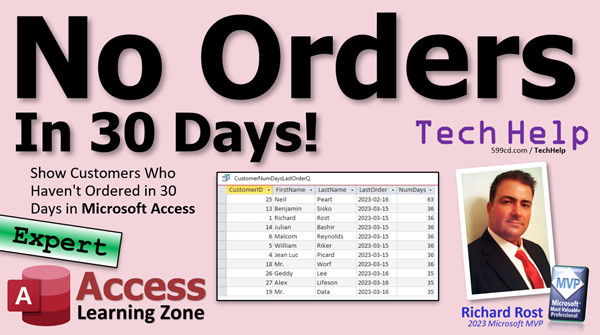
access 2016, access 2019, access 2021, access 365, microsoft access, ms access, ms access tutorial, #msaccess, #microsoftaccess, #help, #howto, #tutorial, #learn, #lesson, #training, #database, customers who have not purchased in 30 days, customers inactive for 90 days
More InformationTranscript Welcome to another TechHelp video brought to you by AccessLearningZone.com. I am your instructor, Richard Rost.
In today's video, I'm going to show you how to generate a query showing customers who have not ordered in the last 30 days.
Today's question comes from Grace in Fargo, North Dakota, one of my platinum members. Grace wants to know if there's a way to generate a report showing customers who haven't placed an order in the last 30 days so she can follow up with them and maybe send them an advertisement.
Well, of course, Grace, let me show you how. Now, this is going to be an expert-level video. What does that mean, expert-level? Well, it's not quite developer, but it's a little more than beginner, so there are a few things you need to know before we start today. You don't need any programming, but you do need these other things.
First, go watch my invoicing video. That's where I show you how to build the order entry system. We've got customers, we've got orders, we've got invoices, all that good stuff.
Next, go watch my video on outer joins. Outer joins is where you can say, show me all of the customers in the database whether or not they have any contacts or orders or something else in a related table. This is how we can also see customers who do not have any orders.
Go watch my video on calculated fields in queries. This is a big one. We're going to need the NZ function to convert null values to something else. 0 is just a default.
We're going to need to know how to make an aggregate query. That's where we can group stuff together by some field. We're going to group together a customer, group all of his orders together, and show the maximum date so we get the last date that they placed an order.
And of course, you need to know how to use query criteria.
If you haven't watched any of these videos, go watch them first. Then come back. These are all free videos. They're on my YouTube channel and they're on my website. Go watch them now and then come back when you're ready.
Here I am in my TechHelp free template. This is a free database you can download and copy from my website if you want to. In here, I've got customers, and each customer has one or more orders.
I want to find the most recent order date for each customer. Then I want to see which customers do not have an order date that is more recent than 30 days ago.
Remember, the way dates work, higher values are further in the future. So I'm going to look at today's date, go minus 30, and show everyone with maximum order dates less than that.
Let's start off with the query. Create - Query Design.
I'm going to bring in my customer and my order tables. Those are joined together by the customer ID. You can see right there.
Bring in the fields you want. You can bring in customer ID. Let's bring in first name and last name. Optionally, I've got an is active field down here. You can use that to indicate if a customer is no longer active - maybe they died, they moved out of the area, whatever. You could bring that in at this point if you want to track that.
From the order table side, bring in the order date field. We don't need all the other stuff in here. Maybe "is paid" if you only want to track paid orders, if that makes a difference to you. For class, I'll just keep it simple.
If you run this query, you get all of your customers that have orders and all of their order dates. Some customers are in here multiple times and some customers are missing completely. Notice customers three, seven, eight, and nine are missing. You want to see those people too.
If you're going to send out an advertisement to customers who haven't placed an order in the last 30 days, that also includes the customers who haven't placed any orders. We want to get those people in this query too.
That's where that outer join comes in. Double-click on this join line and pick the second option here: "Include all records from customer T." That "all" is significant. I want all of the customers and only those records from order T where they join. In other words, show all of the customers whether they have an order or not, but if they have an order, join it up. That's what that does with the little arrow.
Now, when I run this, I see all of the customers, including Deanna Troi, Wesley Crusher, people who haven't placed an order at all.
Now, I don't want to see customers multiple times, like me - I've got two orders. That's where the aggregate comes into place. Go back to design view. Turn on the Totals (make an aggregate query), and for order date, pick Max (not Last, Max). We want the highest value.
In fact, I have a whole separate video on why you never want to use First and Last - you always want to stick to Max and Min. You could put an order in the system today but backdate it, and that will be the last order. So stick with Max if you want the highest date.
Now, save this query (Ctrl+S), and we're going to make this the "Customer Max Order Date Q" (my Customer Max Order Date Query). You don't always want to try to do too much with one query, and in fact, in this case, you have to save this. Then we're going to use this query to build another query, because we need this query to generate this Max of Order Date value. Then we're going to put some criteria on this, but we can't put the criteria on just yet, so we need to do some more stuff with it.
Shut this query down, save changes, and create another query. Pull that query into this one.
Bring in customer ID, first name, last name - whatever fields you want to see. Now, this max of order date, I'm going to use the NZ function to say, if this is null, we're going to put some super old value in here, like January 1, 1990.
We're going to create a calculated column and call this LastOrder: It's going to be set equal to NZ([MaxOfOrderDate], "1/1/1990"). Now, usually with NZ, if you're looking up ID fields, you'll set it equal to 0 if there's no ID. If you're looking up a string value, you'll usually put an empty string. If you're looking up first name, last name, use an empty string.
But for this, we want to change it to some really old date. NZ is very helpful for giving you whatever you want your default value to be if one doesn't exist. So in this case, I'm going to put in January 1, 1990, inside pound symbols because it's a date: #1990-1-1#.
I am using the ISO date standard as everyone should. I am on a mission in life to get everyone to use this date format: year-month-day. It's the only one that makes sense, the only one.
So if there is no max order date, I want to set it to January 1, 1990. Hit OK. Let's run this real quick and take a peek.
Look at that. Deanna Troi did not have an order, so she's 1/1/1990. Set it to a really old date, something before your company existed. That's your ground zero date.
Sort this now. We can sort on this field: ascending. There you go. There are all the people who have never ordered, and then you have these other customers down here.
Now, I want to count the number of days between this date and today. Using our date math, we know that a day equals 1. We do not need complicated DateDiff functions and all that stuff. Just simple date math: subtract one date from another and you get the number of days between them. Go watch my date math video for some more tricks.
What I could do is call this NumDays. Let me zoom in for you. NumDays is going to be today's date minus LastOrder, which is the value that I created here. You'd think that would work, but you're going to get an error. Why? Because at that point, this is trying to do that calculation, and LastOrder doesn't technically exist yet.
So you can either feed this query into a third query, or you can just copy this entire calculation and stick the same thing in here. I don't like duplicating it, but in certain cases, like this, it's okay.
Take today's date, subtract that max order date, and that will give you the number of days since their last order. Hit OK, and now run it, and there you go: number of days since that date.
Now, it's easy to put our criteria on and say we want this number to be greater than or equal to whatever your preference is - 30. So come down to criteria and say: >=30. Now, when I run it, I get all the people who have not placed an order in at least 30 days. Everybody less than 30 does not show up.
That is how you do it. I will save this query as my "Customer Num Days Last Order Q," or whatever you want to call it. I'm just saving it for the gold members.
Now, if you want, you can use that query to feed a form or a report, or you can print it out and mail it to someone, or whatever you want to do with it.
If you want to learn more cool stuff like this, I recommend my Access Expert 27 and 28 classes, "A Comprehensive Guide to Access Functions," and 27 starts the date time function. There are two levels of that. One of the things we do in here is a really cool age account. You'll report all kinds of other date-based coolness like that with orders and things with chemical parts and molecular structures and moving things.
There you go. There is your fast tip for today. I hope you learned something. I had fun. Live long and prosper, my friends. I'll see you next time. Intro In this video, I will show you how to create a query in Microsoft Access to find customers who have not placed an order in the last 30 days. We will talk about using outer joins to include customers with no orders, aggregate queries to find each customer's most recent order date, calculated fields with the NZ function to handle missing values, and simple date math to calculate the number of days since the last order. You'll also learn how to apply criteria so you can quickly identify customers to follow up with if they have not ordered recently. Quiz Q1. What is the main goal of the query discussed in this video?
A. To find customers who made their first order in the past 30 days
B. To show customers who have not placed an order in the last 30 days
C. To list all customers and their total orders
D. To calculate revenue from orders in the last month
Q2. Which database feature is essential for including customers who have never placed any orders in your result?
A. Inner join
B. Self-join
C. Outer join
D. Cross join
Q3. When finding the last order date for each customer, which aggregate function should be used in the query?
A. Sum
B. First
C. Count
D. Max
Q4. Why is it important to avoid using First or Last aggregate functions for finding the last order date?
A. They only work with numeric fields
B. They do not consider the actual date values
C. They may return incorrect results if orders are backdated
D. They are deprecated in Access
Q5. What is the purpose of using the NZ function in this context?
A. To remove duplicate records from the query
B. To group customer names alphabetically
C. To replace null order dates with a default old date
D. To convert dates to string values
Q6. What value is used as the default in the NZ function for customers with no orders?
A. 0
B. An empty string
C. January 1, 1990 (1 1 1990)
D. The current date
Q7. After calculating the maximum order date for each customer, how is the number of days since that last order determined?
A. By using the DateDiff function
B. By subtracting the date of their last order from the current date
C. By dividing the last order year by the current year
D. By counting the number of orders per customer
Q8. What criteria should be applied to show customers who have not placed an order in the last 30 days?
A. NumDays < 30
B. NumDays = 0
C. NumDays >= 30
D. NumDays is Null
Q9. Why might you save your Max Order Date query as a separate query before applying additional criteria?
A. To make it easier to join with other tables
B. Because the calculation needs to be built upon in a second query
C. So that it can be exported to Excel
D. To prevent users from making changes to the data
Q10. What is a practical use for the final query that lists customers who have not ordered in at least 30 days?
A. Calculating profit margins
B. Sending follow-up advertisements to those customers
C. Generating employee schedules
D. Updating product inventory
Q11. What is the recommended ISO date format used for the default date in the video?
A. Month-Day-Year
B. Day-Month-Year
C. Year-Month-Day
D. Month/Year/Day
Q12. What is one reason given for not trying to do all steps in a single query?
A. Access cannot handle multiple tables
B. Query criteria can only be used once per query
C. Some calculations require output from prior queries as input
D. Forms cannot use queries as sources
Answers: 1-B; 2-C; 3-D; 4-C; 5-C; 6-C; 7-B; 8-C; 9-B; 10-B; 11-C; 12-C
DISCLAIMER: Quiz questions are AI generated. If you find any that are wrong, don't make sense, or aren't related to the video topic at hand, then please post a comment and let me know. Thanks. Summary Today's TechHelp tutorial from Access Learning Zone covers how to generate a query in Microsoft Access to find customers who have not placed an order in the last 30 days. This is a useful technique if you want to identify inactive customers and perhaps reach out to them with a marketing campaign.
This topic came up from a question about creating a report that lists customers who have not ordered recently, so you can follow up with them. The method I'll walk you through today is aimed at those who are comfortable with Access at an expert level. While you do not need to know any VBA programming, there are a few other concepts you should understand before proceeding.
First, make sure you are familiar with how to build an order entry system in Access. This means having tables for customers and orders (or invoices) and understanding how they are related. I recommend watching my invoicing video if you need to refresh on this structure.
Second, it is important to understand the concept of outer joins in queries. Outer joins allow you to select all records from the main table (in this case, customers), whether or not they have related entries in the orders table. This ensures you also capture customers who have never placed any orders.
You should also understand how calculated fields work in queries, particularly using the NZ function, which lets you substitute values for nulls. For this scenario, you will be turning any missing order dates into a specific default date.
Additionally, knowing how to build aggregate queries is essential. Aggregates let you group records by a field, such as consolidating all orders for a customer and identifying their most recent order date using the Max function.
Lastly, familiarity with setting criteria in queries is a must, since you'll need to filter for customers who have not ordered within your target time frame.
If you are new to any of these concepts, I suggest reviewing the respective videos on my site or YouTube channel before moving forward with this lesson.
To begin, you should be working in a database that includes tables for customers and orders, joined by a customer ID. The goal is to find the last order date for each customer and then select only those whose last order was more than 30 days ago.
Start by creating a new query and adding both your customer and order tables. Make sure they are joined by customer ID. Select the fields you need: customer information (such as ID, first name, last name, and maybe an 'is active' field if you track whether customers are currently active) from the customer table, and the order date from the order table.
At this stage, you may notice that running the query as is will only show customers who have placed orders, and customers with multiple orders will appear multiple times. To also include customers with no orders, change the join between customers and orders to an outer join, choosing the option that includes all customers (even those without a matching order).
After making this adjustment, all customers will appear, including those with no orders. However, for customers with multiple orders, you still see them listed once per order. To fix this, turn the query into an aggregate query. Enable the Totals option, group by customer details, and set the order date to use the Max function. This gives you the most recent order date for each customer. It is always better to use Max and Min for dates rather than First or Last, since First and Last might not return what you expect if orders are backdated.
Save this as a separate query, for example "Customer Max Order Date Q." It is often best practice not to add too much complexity in a single query, so you will use this as the base for the next step.
Create a new query using the "Customer Max Order Date Q" as its data source. Add the customer fields and include the Max of Order Date. Since some customers will have no orders, the order date could be null. Handle these nulls using the NZ function by creating a calculated field (such as LastOrder) that sets the date to January 1, 1990, if it is null. Use the ISO date format (year-month-day) for consistency.
You can now see all customers, with those who have never ordered showing the default old date. Next, calculate the number of days since each customer's last order by subtracting the order date from today's date. This basic subtraction gives you the correct day count; there is no need for the DateDiff function for this type of calculation.
If you run into trouble because the calculated LastOrder field cannot be referenced in the same query, you can duplicate the NZ expression directly into your days calculation as a workaround.
Once you have the number of days since last order calculated, set the criteria to show only those with 30 or more days since their most recent order. This provides a list of customers who can be targeted for follow-up due to a lack of recent activity.
At this point, save your query as "Customer Num Days Last Order Q" or another descriptive name. You can now use it to feed reports, forms, or export the list for marketing purposes.
To expand your knowledge on similar techniques, I recommend my Access Expert 27 and 28 classes, which cover date and time functions and more advanced date-based reporting.
For step-by-step demonstrations of everything discussed here, you can find a complete video tutorial on my website at the link below.
Live long and prosper, my friends. Topic List Creating an aggregate query to find the latest order date per customer
Using outer joins to include customers with no orders
Applying the NZ function to replace null order dates with a default
Calculating days since last order using date math
Filtering customers by days since last order
Sorting customers by last order date
Creating a query from another saved query for complex logic
Using ISO date format for consistent date handling
Displaying customers who have not ordered in the last 30 days Primary Topics Access query design, aggregate queries, outer joins, calculated fields, NZ function, date comparison, customer order analysis, filtering records Secondary Topics query criteria, database reporting, date formats, null handling |






