Copy Same Field
By Richard Rost

 3 years ago
QuickTip Shortcut Keys: Copy Field Previous Record
In this Microsoft Access tutorial I'm going to teach you how to copy the value from the same field in the previous record with a keyboard shortcut trick.
The Key
- Ctrl-' (That's Ctrl + Single Quote)
Other Shortcut Keys
Keywords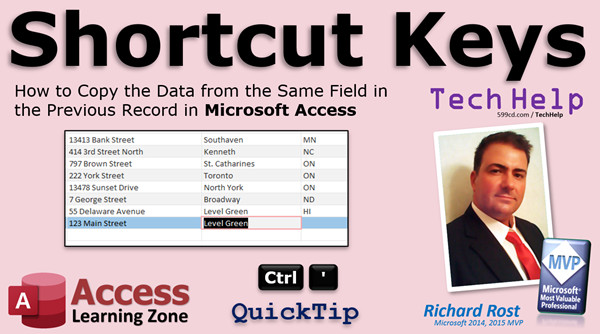
access 2016, access 2019, access 2021, access 365, microsoft access, ms access, ms access tutorial, #msaccess, #microsoftaccess, #help, #howto, #tutorial, #learn, #lesson, #training, #database, shortcutkeys, copy data from previous record, copy same field previous record, keyboard shortcuts
More InformationTranscript Today we're going to do something we haven't done in about two years. It's a quick tip video. It's a shortcut key.
Now, I personally don't use a ton of different keyboard shortcuts, but when I find one that's useful, I tend to keep using it. So this is one I just recently found out, and I've been using Access pretty much since it came out about 30 years ago, and I just learned this one myself.
It's Control Single Quote, and what that does is it copies the same value from the same field in the previous record. I first figured this out. I was like, what? What just happened? But it's really cool. Check it out.
So you have a single form. Go to the last record: Regina Barkley. Go to a new record. Hit Control Single Quote. Look at that. It copies the data from the last record. It works in single forms. It works in continuous forms. You come down here to the end. Boom. Look at that.
This is handy if you're entering a bunch of cities and states in a row. You don't have to keep typing them in or copy and paste, copy and paste.
It works in tables if you go right to table design. Let me get rid of these. You're typing in a bunch of new people. You have Joe Smith, and you want to type in the same city. Boom. State. Boom. Zip code. Look at that. I'm like, what? What just happened?
So that's it. That's a quick tip for today. If you want to learn more of these, I'll put a link down below to my previous keyboard shortcut keys. I hope you learned something today.
Live long and prosper, my friends. We'll see you next time. Intro In this video, I will show you a useful keyboard shortcut in Microsoft Access that lets you quickly copy the value from the same field in the previous record using Control Single Quote. We'll see how this shortcut works in both forms and tables, making data entry faster and easier when entering repetitive information. This is a quick tip that can help save time during data entry in your Access databases. Quiz Q1. What is the main shortcut key discussed in the video?
A. Control Single Quote
B. Alt Shift
C. Control Shift F
D. Alt F4
Q2. What does the Control Single Quote shortcut do in Microsoft Access?
A. Copies the value from the same field in the previous record
B. Saves the current form
C. Deletes the current record
D. Moves to the first record in the table
Q3. In which views or objects does the Control Single Quote shortcut work?
A. Only in single forms
B. Only in table datasheet view
C. In single forms, continuous forms, and tables
D. Only in reports
Q4. Which scenario was given as an example of when this shortcut is particularly useful?
A. Entering a series of phone numbers
B. Entering consecutive cities and states
C. Creating new database tables
D. Exporting data
Q5. What does the presenter say about their use of keyboard shortcuts?
A. They use every shortcut available
B. They only use a few, but stick with the useful ones
C. They never use keyboard shortcuts
D. They only use shortcuts in Excel
Q6. Why did the presenter express surprise upon discovering the shortcut?
A. They had just started using Access
B. The shortcut opened a new table
C. They had used Access for many years without knowing it
D. The shortcut deleted their data
Q7. What is an advantage of using Control Single Quote over copying and pasting?
A. It is more secure
B. It is faster and requires fewer steps
C. It provides spell check
D. It creates a backup automatically
Q8. What encouragement does the presenter give at the end of the tutorial?
A. Learn SQL programming
B. Explore advanced database design
C. Check out more shortcut key videos
D. Switch to another database program
Answers: 1-A; 2-A; 3-C; 4-B; 5-B; 6-C; 7-B; 8-C
DISCLAIMER: Quiz questions are AI generated. If you find any that are wrong, don't make sense, or aren't related to the video topic at hand, then please post a comment and let me know. Thanks. Summary Today's TechHelp tutorial from Access Learning Zone features a quick tip that I discovered after many years of using Microsoft Access. While I do not rely on a ton of keyboard shortcuts in my daily work, every once in a while, I stumble onto one that turns out to be genuinely helpful. Today, I will share one of these shortcuts that I only recently learned about, despite having worked with Access for nearly three decades.
The shortcut in question is Control plus the single quote key. When you use this keyboard combination, Access will copy the value from the same field in the previous record. This means that if you are entering data and want to duplicate a value from the record above, you can instantly fill it in simply by pressing this shortcut.
Let me explain how this works. Suppose you are working in a single form and you reach the last record, for example Regina Barkley. If you move to a new record and press Control and the single quote together, Access will automatically copy the data from the previous record into the same field. This works not only in single forms, but also in continuous forms. If you are entering data in a continuous form and reach the end, pressing this shortcut fills in the information from the prior record very quickly.
This particular shortcut is especially useful if you find yourself frequently entering repeated data, such as multiple records that share the same city, state, or zip code. No more copying and pasting values over and over again. Just use the shortcut and the field is filled for you.
You can use this technique in tables as well. If you are in datasheet view entering new records, try it out. Start with a new person, enter their information, and when you need to use the same city as before, just press Control and the single quote. The value from the previous record is copied immediately into the current field. The same applies for state, zip code, or any repeating data.
That wraps up this quick tip for today. If you would like to learn about more helpful keyboard shortcuts, I will include a link below to additional resources on my previous tutorials. I hope you picked up something useful from this lesson.
You can find a complete video tutorial with step-by-step instructions on everything discussed here on my website at the link below.
Live long and prosper, my friends. Topic List Using Ctrl + ' to copy field values in forms
Using Ctrl + ' in single form view
Using Ctrl + ' in continuous form view
Using Ctrl + ' in table datasheet view
Speeding up data entry with Ctrl + '
Copying values from the previous record in Access Primary Topics
Access keyboard shortcuts, Ctrl+Single Quote function, data entry efficiency, copying field values, Microsoft Access forms, Microsoft Access tables
Secondary Topics
data redundancy reduction, none
|





