Optional Parameters
By Richard Rost

 3 years ago
How to Use Optional Parameters in Access VBA
In this Microsoft Access tutorial I'm going to teach you how to use optional parameters in your procedures (subroutines & functions) in VBA. Will also talk about default values for different data types and a check for missing variants.
Members
There is no extended cut, but here is the database file:
Silver Members and up get access to view Extended Cut videos, when available. Gold Members can download the files from class plus get access to the Code Vault. If you're not a member, Join Today!
Prerequisites
Recommended Courses
Keywords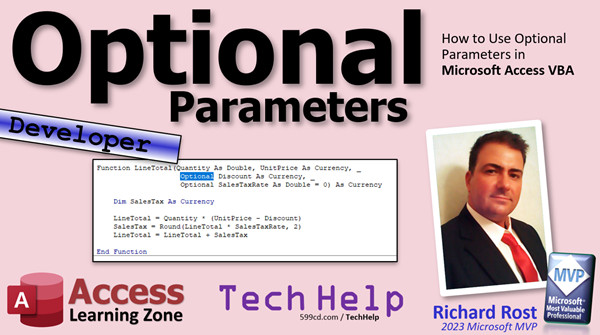
access 2016, access 2019, access 2021, access 365, microsoft access, ms access, ms access tutorial, #msaccess, #microsoftaccess, #help, #howto, #tutorial, #learn, #lesson, #training, #database, VBA, Optional parameters, custom function, custom sub, argument not optional, ismissing, optional arguments, default values, missing parameter
More InformationTranscript Welcome to another TechHelp video brought to you by AccessLearningZone.com. I am your instructor, Richard Rost.
In today's video, we're going to learn how to create optional parameters for our subs and functions. Of course, in order to understand what an optional parameter is, you should know what a regular parameter is. First, if you haven't watched my Intro to VBA class, go watch that first. That will give you all the basics. It is about 20 minutes long and teaches you everything you need to know to get started programming in VBA.
After that, if you've never made your own sub or function before, go watch my Create a Function video. I'll teach you how to make your own custom functions in VBA. At this point, you should know what a function is, how to send information into it, and how to get a value back from it.
Today, we're going to talk about optional parameters where you can specify things that you might want to send into it, but not always. In the case that you don't want to bother, you can specify a default value for that parameter. We're going to talk about all that in today's video.
All right, so here I am in my TechHelp free template. This is a free database. You can download a copy if you want to. In my Hello World button down here that I've created, I go to Build Event.
All right, my VB Code Editor opens up. You can see down here, I've got Status Hello World. Status is a function that I created that takes in one parameter: s as a string. What does that do? It just simply puts some data into the status box.
OK, let's get rid of that for now. Let's message box something. Real simple sub, message box space, and you can see there's the prompt: Hi there. And then after that, you see a bunch of stuff in brackets. See the square brackets? Buttons, title, help file - those are all optional parameters. You don't have to specify those if you don't want to, and it also gives you a default. VBOKOnly is the default.
So if I don't put anything in there, just a "Hi there," save it, come back out here, close the form, re-open it, hit the button. "Hi there." I don't know what "hijay" is; I just have fat fingers.
In other words, the optional parameters are available for you if you want to use them. If you want to specify a different set of buttons, VB critical, you can change the buttons or the little icon that shows up. You can also go plus, VBS, No Cancel. That will give you three buttons and a "Hi there."
There you go. That's the critical symbol, the little sound that plays, and "Hi there." Yeah, I got to change that. I'm cracking myself up. "Hi there."
So those are what optional parameters are, but you don't have to specify them at all. You can just leave it like that and you'll get the defaults.
Now, let's say you're working with your own function. Let's hypothetically say we're writing a function to send it a quantity and a unit price, and we want to calculate the line total of those two items and then return that value.
All right, so we'll write a real simple function: Function LineTotal. We'll give it some parameters that are required, regular parameters: quantity as a double, comma, unit price as currency. We'll have that function return a currency. If you don't know how to do that, go watch the other video I just pointed you to about creating a function.
All this guy is going to do, real simply, is just multiply those things together and return it. So, LineTotal equals the quantity times the unit price. And that's it.
OK, now down here, I can say message box, LineTotal, and then send it my two values. You can see right there, quantity as a double, unit price as a currency. All right, so I want 2, 100. So two items at $100 a piece. That's it. Save it. Back out here, click the button. There's my function.
OK, easy enough. Easy peasy, lemon squeezy.
Now let's pretend that I've got this line total calculation, this LineTotal function, all over the place in my database. I don't want to have to change the list of parameters that are going into it, and I could even be using this function in multiple databases. You could use a global search and replace to find them all, but you still have to go through and change them all.
Anytime you want to make a modification to this, it's a nightmare. Let's say I want to add something else to this function. Let's say I want to add a discount. I want to do this multiplication, then subtract a certain number of dollars.
So we'll add another parameter here. I'll come in here and I'll say discount as currency. Let's say the one place that I have it, I add that, then if I go and compile my database or if I try to run the database, I get "argument not optional." What does that mean? That means you have to specify that discount everywhere this LineTotal function exists. If you've got it in 500 places in your database, you've got to find them all and add a discount, whether you want it or not.
This is where optional comes in. In older versions of VB, like in VBScript (which ASP is built on), they don't have an optional parameter, and it really drives me nuts because I still use ASP on my website, which is great. I love it. It works fantastic. It has been 20 years in the running and it's perfect. But there's no optional parameter, so I either have to make a slightly different function with the new parameter on it, or figure something else out.
Fortunately, with VBA, we have this thing called optional. You can put the optional keyword in there. So now you can put the discount down in here somewhere. It depends on how you want to calculate the discount. Is it a discount off the entire line? If it is a discount off the entire line, you would say it is the quantity times the unit price minus the discount. So if you bought 20 items, you'd still get the same discount. Or, if you want to do it the other way, you could say it's the quantity times the unit price minus the discount (that's if you're taking the discount off of each item). However you want to calculate it, it doesn't really matter for the purposes of this example.
But now, if I go up to debug, compile, I'm good. This will work now. Why? Because I made this guy optional. If I click the button, it works. 200.
Now, the default value that you're getting is 0. The reason why is if you don't specify a default value for this, numeric types are all 0. That includes currency values, dates, Boolean values (false will be 0). String values will be an empty string. So if this was a string, it'd be an empty string. For variants or null (by the way, variants are a whole different topic), okay, whatever.
But it is a good idea for you to manually specify that just to be sure, just to be safe, put the "= 0" in there. Just to make sure that you're on the same page with whoever might be reading your code later, including you 10 years from now.
So now it's specified as 0. If I come in here, click the button, good to go. If you want to now specify that value somewhere, you can just come in here and go comma and look at that: there's your discount as currency in square brackets. Put your negative 2 in here or whatever, or let's see, discount minus, discount. So it would be a dollar discount, let's say. Then run it. There you go. You get a dollar discount on each item.
All right, let's add another one. Let's add another optional. Here is another rule: once you have an optional parameter, everything after that has to also be optional. Once you've got the first optional parameter, the rest of them after that one have to also be optional. You can't make a required one after that. You could check down in the code here to see if they don't send it, and you can pop up an error message or do whatever you want, but after your first optional, they all have to be optional.
Let me move down to the next line here, so we have some room on the screen.
OK, optional discount as currency, comma. Let's do another optional. How about sales tax rate as a double equals zero? We're going to add the sales tax rate; it's going to be a double. So 10 is 0.1, and the default will be 0.
This makes our calculation a little more difficult down here, but that's OK. We're going to dim a sales tax as a currency. We figured out the line total here, so the sales tax is simply we're going to round the line total times the sales tax rate to two decimal places. Then we're going to say the line total equals the line total plus the sales tax.
Easy enough. I cover a lot more with calculating sales tax in my Access Expert Series, but this is a pretty straightforward calculation.
If I hit the button now, I still have my 198. But now I can come in here and go comma, what's the tax rate you want? Let's say 10, 0.1. Now if I come in here and I run it, there you go. The 17.80 seems about right.
Now, since things are optional, you don't always have to specify them. For example, you might have seen me when I've done my OpenForm videos. You can do command.OpenForm, the form name, FormF, and then I go comma, comma, comma, because I don't care about those parameters. What I care about is the where condition - where the customer ID equals whatever, 426, etc.
Those optional parameters, you don't have to specify them. So the same thing here, you don't have to specify that one if you don't want to. You can leave it like that, and the system will use whatever the default is.
Go back over here, click the button, and it still works. You didn't get a discount.
OK, you want to make the storekeeper angry, you lost your discount? I don't know. You're trying to smuggle out a pack of M&Ms. Who knows.
All right, so those optional parameters are totally up to you. You can come in here and you can do, whoops, see, come here, come back here, lost my mouse, lost my mouse, all right, comma. All right, discount as currency equals zero. Yeah, that's fine. Comma, sales tax rate. I don't want either of those, so you can just do this. And that's how you end up.
There is one more thing you can use called a variant. I've talked about variants in some of my videos before. A variant is where you basically don't know what the type of variable is going to be, and variants can be null.
Let's say we have another parameter in here. Let's just call it x as a variant. Since (whoops), saying I'm going to do... Oh, see, it caught me. It caught me. Look, I forgot the optional keyword. You have to have everything after the first optional also be optional.
So, optional x as a variant. I'm not specifying a default value, so by default, that's going to be null. If you debug, compile, it compiles. If you click the button, you get your results. But variant or x can be anything.
In fact, some programmers build in an optional last variant in a lot of their functions, just in case they want to send something random in the future, and it might be something different in any particular case. But you can use that value if you want, or you can even check to see if it's missing. That's the reason why I bring this up. This only works with variants. You can say, "If IsMissing (as a function called IsMissing), x then message box, 'missing'."
Save it. Come in here, click the button. Oh, it's missing. That's how that works.
I honestly almost never use this. I think the only time I've used IsMissing in my 30-year career with Access is to teach it in a class. I don't think I've ever really used it, because honestly, you're generally going to send things into a function of a particular type, and you can just check their values in here and see, do what you want with them. But this is like theory stuff. I've never used that in a practical database, personally. I'm not saying you haven't, but, yeah, OK.
So there you go. That's it. That's how you set up optional parameters. If you want to learn more stuff like this, I've got tons and tons of lessons on all kinds of VBA. Microsoft Access Developer Lessons. Check them out. I'm up to 43 now, I think. So there's enough to keep you busy for a Saturday afternoon.
That is going to be your TechHelp video for today. I hope you learned something. Live long and prosper, my friends. I'll see you next time. Intro In this video, we will learn how to create optional parameters in your subs and functions using Microsoft Access VBA. I will show you what optional parameters are, how to set default values, and how Microsoft Access uses them, with examples like adding discounts and sales tax rates to a line total calculation. We will also look at rules for parameter order and briefly discuss using variants and the IsMissing function with optional arguments. Quiz Q1. What is the main purpose of an optional parameter in a sub or function?
A. To allow you to omit a parameter when calling the sub or function, using a default value instead
B. To prevent a function from being used in multiple databases
C. To force users to always provide all possible values when calling a function
D. To specify the data type of a function's return value
Q2. When dealing with optional parameters in VBA, what happens if you do not supply a value for one?
A. VBA will throw an error
B. The optional parameter will use its default value, if specified, or the type's default
C. The function will ignore the parameter and proceed without it
D. All following parameters are considered required
Q3. Consider the following function declaration:
Function LineTotal(quantity as double, unitprice as currency, Optional discount as currency = 0) as currency
What is the default value of discount if it is not specified in the function call?
A. Null
B. 1
C. 0
D. An empty string
Q4. What is the rule regarding the placement of optional parameters in VBA functions or subs?
A. Optional parameters can be anywhere in the parameter list
B. Only the first parameter can be optional
C. After the first optional parameter, all subsequent parameters must also be optional
D. You cannot have more than two optional parameters
Q5. If you declare an optional parameter as Optional taxrate as double, what is its default value if not otherwise specified?
A. 1
B. False
C. Null
D. 0
Q6. In the function declaration below, what will happen if you try to declare a non-optional parameter after an optional one?
Function Example(Optional x as integer = 0, y as string)
A. VBA will accept it without error
B. VBA will generate a compilation error
C. y will automatically become optional
D. The optional keyword is ignored
Q7. In the context of VBA, which statement about variant parameters is true?
A. Variant parameters always require a value
B. The default value for an optional variant parameter is an empty string
C. Optional variant parameters default to Null if not given
D. You cannot use an optional parameter of type variant
Q8. How can VBA code check if an optional variant parameter was actually supplied by the caller?
A. By comparing it to 0
B. By using the IsMissing function
C. By comparing it to False
D. By checking if it is a string
Q9. Why is it suggested to explicitly specify a default value for an optional parameter, even though VBA provides one based on the data type?
A. To ensure compatibility with older VBA versions
B. To make the intended default clear to anyone reading the code
C. To prevent the sub or function from being called at all
D. Because VBA only uses the explicit default
Q10. Which of the following is NOT a benefit of using optional parameters?
A. Allows you to add new parameters to functions without breaking existing code
B. Lets you provide reasonable defaults for function calls
C. Ensures that all parameters always have to be specified when calling functions
D. Makes your code more flexible and easier to maintain
Q11. In what scenario might you need to use multiple commas in a function call, like Command.OpenForm "FormF", , , "Where Condition"?
A. To force execution to stop at the call
B. To delete parameters from the function
C. To skip optional parameters you do not want to specify
D. To indicate you want to use only the required parameters
Q12. Which of the following data types, when used as an optional parameter, will default to an empty string if not specified?
A. Double
B. String
C. Currency
D. Variant
Q13. According to the video, what is the general practice regarding the use of IsMissing with optional variant parameters?
A. It is used in almost every function
B. It is commonly used for checking missing numeric parameters
C. It is rarely used in practical Access databases
D. It is the only way to check if any optional parameter was supplied
Answers: 1-A; 2-B; 3-C; 4-C; 5-D; 6-B; 7-C; 8-B; 9-B; 10-C; 11-C; 12-B; 13-C
DISCLAIMER: Quiz questions are AI generated. If you find any that are wrong, don't make sense, or aren't related to the video topic at hand, then please post a comment and let me know. Thanks. Summary Today's TechHelp tutorial from Access Learning Zone focuses on using optional parameters in your subs and functions in Microsoft Access VBA. Before diving in, it is important to have a solid understanding of basic VBA concepts. If you are new to programming in VBA, I recommend watching my Intro to VBA class, which covers all the fundamentals you will need to get started. Additionally, if you have never created your own subroutine or function, check out my Create a Function video. These resources will ensure you know what a function is, how to send input to it, and how to retrieve values from it.
Once you have that foundational knowledge, you are ready to learn about optional parameters. Normally, parameters are values you must provide when calling a function or subroutine. However, sometimes you may want to pass a value only in certain situations, and if you do not, a default will be used instead. That is precisely what an optional parameter enables you to do.
In Microsoft Access VBA, you may have noticed that some built-in procedures, like the MsgBox function, allow you to provide just the minimum required value, with many others in square brackets. For example, MsgBox takes a prompt as its primary argument, but you can also specify things like buttons, a title, and a help file, all of which are optional. If you do not supply them, the function uses defaults.
Let's look at how this works in our own custom functions. Imagine you are creating a function that calculates a line total, given a quantity and a unit price. You might define your function with two required parameters: quantity (as a double) and unit price (as currency). This calculation is simply quantity multiplied by unit price. You can then call your function elsewhere, passing in the two required values, and get the result back.
The challenge arises when you want to add a new feature, for example, accounting for a discount. You could modify the function to include a third parameter for the discount. However, now every instance where your function is called throughout your database will break unless you update them all to include this new argument. If you have used the function many times, this quickly becomes tedious.
This is exactly where optional parameters are helpful. In VBA, you can use the Optional keyword to indicate that an argument does not have to be supplied every time the function is called. You can also specify a default value for this parameter, such as zero for a numeric value. If someone calls your function without supplying the optional parameter, the default is used.
When you add the optional discount parameter, but do not supply a value, VBA uses zero. For currency, double, boolean, or date types, the default is zero. For string types, it is an empty string, and for variants, it is null. Even though VBA automatically sets numeric types to zero if you do not give a default, specifying it in your code makes your intention clear, for your sake and for anyone else (including your future self) who might read your code later.
Now, suppose you want to add more optional parameters, such as a sales tax rate. There is an important rule in VBA: after your first optional parameter, every parameter that follows it must also be optional. Once you have an optional parameter in your list of parameters, you cannot go back to making required ones after that.
Calculation with these options can get more complex, but you simply adjust the function to use the values provided (or their defaults). For example, you can specify the tax rate as another optional parameter. When you call your function, you only provide values for the arguments you want to override. For the rest, the defaults are used.
You may have seen this approach in practice when working with procedures such as OpenForm in Access, where several parameters are available, but you might only care about setting the where-condition. You can skip parameters by providing commas.
There is also a special data type called Variant, which can accept values of any type and can also hold null. Sometimes programmers include an optional variant parameter at the end of their parameter lists as a catch-all for future needs. There is a function, IsMissing, that you can use to check if a Variant parameter was supplied or not. However, in practice, I have rarely encountered a scenario where I truly needed to use IsMissing in a database project. It is more of an academic feature, but good to know about.
Using optional parameters allows your code to be much more flexible and future-proof. You can change or extend functionality without breaking every existing call to your functions.
If you want to expand your understanding of topics like this, I have many lessons on Microsoft Access development and VBA. You can find a complete video tutorial with step-by-step instructions on everything discussed here on my website at the link below.
Live long and prosper, my friends. Topic List Creating optional parameters for VBA subs and functions
Understanding required vs optional parameters
Setting default values for optional parameters
Using optional parameters in built-in functions like MsgBox
Adding optional parameters to custom VBA functions
Specifying default values for numeric and string types
Modifying a function to include an optional discount parameter
Using multiple optional parameters in a function
Order rules for optional parameters in VBA
Adding an optional sales tax rate parameter
Calculating values using optional parameters
Using variants as optional parameters
Detecting missing optional variant parameters with IsMissing Primary Topics VBA optional parameters, subs and functions, default values, parameter order, variable types, IsMissing function Secondary Topics variants, message box optional arguments, global code changes, compatibility with VBScript |






