Hide With Macro
By Richard Rost

 3 years ago
Show or Hide Controls in a Report Using a Macro
In this Microsoft Access tutorial I'm going to teach you how to hide fields in a report based on the value of another field. For example if we're printing an invoice and the order is paid we're going to make a giant paid label show up and if not hide it. We will use a macro for this since some people either cannot or will not use VBA.
Henry from Bend, Oregon (a Gold Member) asks: I need to be able to hide certain fields in a report based on the value of another field. For example we do a lot with demographics and if someone is in a particular state then I need to hide certain questions from showing up. Unfortunately my employer has locked down the systems and refuses to let anyone use VBA in Microsoft Office. So is it possible to do this with a macro?
Prerequisites
Links
Recommended Courses
Keywords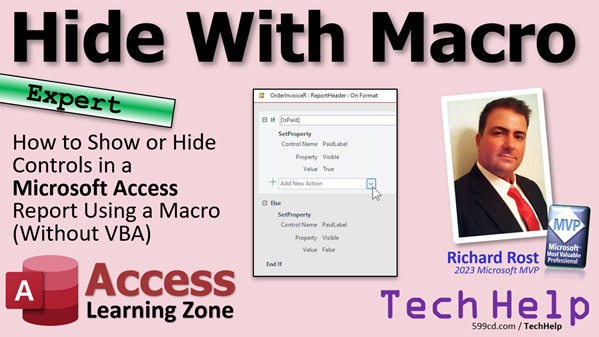
access 2016, access 2019, access 2021, access 365, microsoft access, ms access, ms access tutorial, #msaccess, #microsoftaccess, #help, #howto, #tutorial, #learn, #lesson, #training, #database, hide field with macro, visible property, setproperty, if then block
More InformationTranscript Welcome to another TechHelp video brought to you by accesslearningzone.com. I am your instructor, Richard Rost.
In today's video, I am going to show you how to show or hide controls in a Microsoft Access report using a macro without VBA. No VBA.
Now, before all my nerd developer users complain and say, why are we using a macro? There are some valid uses for macros.
Some companies, as you are going to see in just a minute from today's questioner, do not allow VBA. You can lock down your system so that VBA just is not an option. So you need to use macros if you want to automate anything with Access.
Another reason is if you want to distribute your database and you do not want to jump through all the security hoops, you can use the safe actions in macros, and they do not trigger those security warnings or get disabled like VBA does.
Plus, let's be honest, there are a lot of people out there that really do not want to become programmers. They do not want to learn VBA, and macros are a way of simply automating some tasks like you are going to see in just a few minutes.
And then, of course, there is Access web apps. Wait a minute. Never mind, Microsoft canceled web apps. Microsoft was trying to add web apps where you could take your Access database and put it online and run it in a web browser, and it just did not work right.
So they were pushing, hey, use macros because they will work in web apps, and then they dropped web apps. I forget about that, but there are still some good, compelling reasons to use macros.
Now, I will be honest, I am personally a VBA guy myself. I almost never use macros, but it is handy to know them, to have them in your toolkit as a developer, just in case.
Alright, so today's question comes from Henry in Bend, Oregon. See there, I pronounced it right this time, Oregon. Thank you for the feedback, Oregonians. Henry is one of my Gold members.
He says, I need to be able to hide certain fields in a report based on the value of another field or example. We do a lot with demographics, and if someone is in a particular state, then I need to hide certain questions from showing up. Unfortunately, my employer has locked down the systems and refuses to let anyone use VBA in Microsoft Office. Is it possible to do this with a macro?
Yes, Henry, this is one of those instances where it is good to know macros if you cannot use VBA. So let's see how to do it.
Here I am in my TechHelp free template. This is a free database you can download off my website if you want to.
Now, for those of you who have been following me for any length of time, you know that I pretty much always stick to VBA for 99.9 percent of what I do. So I have Access set to automatically always open the VBA editor.
So the VBA editor - say that 10 times fast. What I am going to do is go to File and then Options and then under Object Designers, I have this thing checked that says always use event procedures. That pops me right into the VBA editor instead of asking me if I want the code builder or the macro builder or whatever. So turn that back off. That is the default setting. Turn it back off if it is checked on, of course. It says you have to reopen the database, but you really do not have to.
Now, in my database, I have got a customer form. Customers can have orders, and orders can be printed into invoices. Right now, I just have this little teeny checkbox there that says whether it is paid or not. Let's make a big label that says paid. No big deal, just so that if this is paid, we will show that label. Otherwise, we will hide it. We will use the Visible property.
So we will use an If Then block in a macro, and then we will use the SetProperty command to change the Visible property on or off.
The first step, go to Design View. I am going to turn off this block down here on the bottom. We do not need groups in this one.
There is paid. I am just going to slide you over to the side over here. We still need this value. This guy's value is IsPaid. That is the field.
Let's add another label. I just copy this one. Copy, paste, Ctrl C, Ctrl V. We will slide that over here like this. We will change the caption to say Paid. Maybe make it a little smaller, like that. Maybe make it red. Do whatever you want to do.
Let's give it a good name, because we are going to refer to it. We do not want to call it Label25. Change this to PaidLabel. If you want to set its property normally to No - it is not normally visible.
Save it, close it, preview it again. We do not see it, because it is invisible.
How do I trigger it to come on if that order is paid? We are going to use the Build Event for this section that it is in. Build Event is just a fancy way of saying something that happens when Access draws this section, either on the screen or when it prints it out.
Right click, go to Build Event. It is going to ask you what builder you want. This is what we just turned back on a minute ago. Normally I go to the Code Builder to write VBA code, but we are going to go to the Macro Builder this time. Macro Builder. Hit OK.
Now I am in familiar territory in here. You have this Action Catalog over here. If you do not see it, the button is right there, turn it on, Action Catalog.
Now we want to say, if IsPaid is true, or just if IsPaid - equals true is assumed. If IsPaid, then set that PaidLabel.Visible property to true. Otherwise, set it to false.
So how do we do that? Here is an If block. Double click on If; that adds the If statement here.
We are going to say If IsPaid. There it is right there. You can just double click on it if you want to. Access puts it inside of brackets for us. But we are good little Access developers and we do not put spaces in our field names or table names. We do not use spaces at all, so we do not need to put the brackets on there ourselves.
If IsPaid - you could say equals true, but again, equals true is assumed, so you can just say If IsPaid. If that is true, then do something.
What is the action we want to use? Drop this down. There is a whole ton of actions in here.
If your concern is distributing your database, then do not turn on Show All Actions, because there are unsafe macro actions too. The list that you normally see are generally safe actions. In other words, they do not trigger the security warnings and usually do not get disabled.
Now, the property that we are looking for - and there are tons of these properties in here, I could easily spend half an hour going over each one - but we are looking for SetProperty right there. SetProperty.
What is the control name? That is the label we just created. The label is going to be my PaidLabel. There it is right there. PaidLabel, double click on it.
What is the property you want to change? We are looking for the Visible property. There are all the properties. You can change the color, the caption, all these things.
What is the value? If IsPaid is true, then the value in here should be true.
But that is only half the work now, because if it is not paid, we have to make sure that guy is false. If you have multiple records in your report, which we do not in this one, you want to make sure it gets turned back off if it is not paid and the next record is paid.
So we are going to add an Else.
So we have If this, then do some stuff. Else means otherwise, if IsPaid is false. In here, say SetProperty. What is the thing? PaidLabel. Visible. You can type most of this without having to click on it. Then False.
That is it. Save it, Ctrl S. Close that.
We can shut all this down now. Save changes.
Let's take a peek. Oh, look. There is our Paid. Let's go to a different order and click on it. It is not there. Isn't that nice?
One thing I do teach when I cover this in my normal class is that you may need a Refresh in there too. If you mark this paid and then open this up, it is still okay. In this case, it is showing, but sometimes that will not update because this is not being saved to the table. I think I handle that in the button.
Let me see - right click, Build Event. Yes, I do handle that in here with a Me.Refresh. So if you are doing this straight with a macro, if you are using a macro to open that report, you might have to put a Refresh in there. Again, this is something that can be done with a macro. If you use the Command Button Wizard in the database, it will build those buttons using macros.
But again, I use VBA.
For your report, if you are in here and you open this up and you have state in here as a field, you do the same thing up here. So, in your section, you are going to say something like If State = "New York" - that will be your condition. Remember, New York is a text string, so you have to make sure you put it inside double quotes like that. Dates have to be inside of pound signs, all those things.
Now, you knew it was coming. Let me show you how to do this simple thing with VBA, and show you how easy it is without using macros, if you are able to. Obviously, you have got yours turned off, Henry, but for the rest of us, let's see how we can do this with that.
I am going to go back in here and turn that setting back off again under Object Designers. I like event procedures, I almost never use macros myself. Come in here, Design View.
To get rid of that macro, go to the Events section. See where it says Embedded Macro, select that, hit delete, and it is gone now. The macro is actually embedded inside the report. Now, right click, Build Event. This time it is going to take me right into here.
Now I can just come in here and say
If IsPaid Then
PaidLabel.Visible = True
Else
PaidLabel.Visible = False
End If
and I am done.
Once you learn VBA, you see how much faster and easier that is than going through all those menus in the macros. Macros do make things easier for beginners, especially when you are not familiar with all the commands.
That is why I take it slow in my class as I teach a couple little commands here and there. We go through a few at a time. You cannot learn the whole list of commands in one day.
Now, VBA is an option for you. If you are just scared of it and want to learn it, go watch my Intro to VBA video. It teaches you everything you need to know to get started in about 20 minutes.
If you want to learn more about macros, I do have six different lessons in my full series where I cover macros. This was back in 2013, when Access still had web apps. I was all excited about web apps and was going to make a bunch of advanced courses to cover macros because macros were supposed to port over nicely into web apps, and then they canceled web apps. So I kind of canceled my advanced series. That is why there are only six of them, and then I went straight to the developer lessons, where I cover VBA.
This series goes over benefits and limitations of macros, smart macros, different events and event timing, things like that. These are still some good lessons, especially if you cannot use VBA, like if it is locked down in your office or you want to distribute a database without worrying about features getting disabled, that kind of stuff. These lessons are good if you want to learn macros. Check them out; I will put a link down below.
There you go, folks, there is your TechHelp video for today. I hope you learned something. Live long and prosper, my friends. I will see you next time. Intro In this video, I will show you how to use a macro to show or hide controls in a Microsoft Access report without using VBA. We will talk about situations where VBA is not allowed, reasons for using macros, and step through creating a simple macro that controls the visibility of a label based on a field's value. I will demonstrate how to use the SetProperty action in a macro, explain when to use Else and Refresh actions, and compare this approach with the equivalent VBA code. Quiz Q1. Why might someone choose to use a macro in Microsoft Access instead of VBA?
A. Because macros do not trigger security warnings like VBA and can be used when VBA is restricted
B. Because macros offer more advanced programming capabilities than VBA
C. Because macros automatically optimize query performance
D. Because macros require fewer computer resources than VBA
Q2. What is a common scenario when using macros is necessary in Access?
A. When distributing a database to users who cannot use VBA due to security policies
B. When you need to create complex data models
C. When designing SQL Server Reporting Services reports
D. When using Access web apps, which are still widely supported
Q3. In the context of the tutorial, what does the SetProperty macro action accomplish?
A. It changes a property such as Visible for a specified control on a form or report
B. It permanently deletes a control from the report
C. It exports report data to Excel
D. It creates a new event procedure in VBA
Q4. Which report property is changed to show or hide a control based on the value of another field?
A. ControlSource
B. Caption
C. Visible
D. TabIndex
Q5. In the example provided, what field determines whether the Paid label is shown or hidden?
A. FirstName
B. OrderDate
C. IsPaid
D. State
Q6. When writing a macro condition to check if the State field equals "New York", which syntax is correct?
A. State = [New York]
B. State = "New York"
C. State = 'New York'
D. State = NY
Q7. Why is it important to include an Else statement in the macro when toggling the visibility of a label for records in a report?
A. To handle multiple records and ensure the label resets correctly for each record
B. To add a summary total at the end of the report
C. To prompt the user for additional input
D. To increase the report's loading speed
Q8. What is the purpose of the Build Event option in Microsoft Access?
A. It lets you specify what happens when a particular section of a report is drawn or printed
B. It creates a backup copy of your database
C. It imports data from external sources
D. It formats cells in a report automatically
Q9. If you want a control, like a label, to be hidden by default in Access, what property should you set?
A. Set its Caption to blank
B. Set its Visible property to No (False)
C. Set its ControlSource to empty
D. Set its BackStyle to Transparent
Q10. What limitation of macros was highlighted in the video regarding the evolution of Access web apps?
A. Macros were once necessary for web apps, but web apps are no longer supported
B. Macros can only be used in Access 2003 or earlier
C. Macros can only operate on table data, not on reports
D. Macros cannot handle any conditional logic
Q11. What should you do if, after marking a record as paid, the Paid label does not show or hide immediately?
A. Add a Refresh action or method to update the display
B. Increase the font size of the label
C. Change the report's sorting order
D. Delete and recreate the label
Q12. What is a main benefit of using macros for database distribution to other users?
A. Macros do not get disabled or cause warning messages as easily as VBA code
B. Macros can be converted to SQL scripts automatically
C. Macros provide real-time data syncing with online sources
D. Macros encrypt the database for security
Q13. For users who want to learn programming automation in Access but are not ready for VBA, what is recommended?
A. Use macros to start automating basic tasks in Access
B. Immediately enroll in advanced VBA classes
C. Only use manual data entry and avoid automation
D. Learn database normalization instead
Q14. If you want to revert from using an embedded macro to VBA in a report, what should you do?
A. Delete the Embedded Macro from the Events section and create an event procedure in VBA
B. Compress and repair the database
C. Run a query to reset all macros
D. Change the report's RecordSource property
Answers: 1-A; 2-A; 3-A; 4-C; 5-C; 6-B; 7-A; 8-A; 9-B; 10-A; 11-A; 12-A; 13-A; 14-A
DISCLAIMER: Quiz questions are AI generated. If you find any that are wrong, don't make sense, or aren't related to the video topic at hand, then please post a comment and let me know. Thanks. Summary Today's TechHelp tutorial from Access Learning Zone covers how to show or hide controls in a Microsoft Access report using a macro, without touching any VBA code.
Many developers prefer VBA, myself included, but there are solid reasons why someone might need to work strictly with macros. Some businesses lock down their Office installations so that VBA is unavailable. If you need to automate tasks in Access and VBA is not an option, macros become necessary. Macros also have the advantage of including only safe actions, which will not trigger security warnings when you distribute your database. For those who want to keep things simple and avoid learning VBA, macros provide a straightforward way to automate routine tasks.
While Access web apps were once part of Microsoft's vision, they have been discontinued. However, macros were originally promoted because they were compatible with those web apps. Even though that use case is gone, other reasons for using macros remain compelling.
Now, let's consider a question from a student who needs to hide certain fields on a report depending on the value of another field. For example, a report might include demographic information, and specific questions should be hidden based on the individual's state. In this particular case, the employer has disabled VBA, so macros are required.
To tackle this, I'm working with the TechHelp free template database, which is available for download from my website. In my own development, I almost always use VBA, and my copy of Access is set to open the VBA editor by default. If you want to use macros instead, you might need to disable that setting in Access's Options under Object Designers, so you're prompted to use either the Macro Builder or Code Builder.
Suppose you have a report showing customers and their orders. For this example, assume there is a simple checkbox indicating whether an invoice is paid. The goal is to create a label that says "Paid" and have it appear only when the order is paid.
First, design the report by copying an existing label control or creating a new one, naming it something clear like PaidLabel rather than the generic default. Format it however you like. Set its Visible property to No so it stays hidden by default.
The next step is to trigger the label to appear only when the order is marked as paid. In Access reports, you can run a macro when a section of the report is formatted. This is called the Format event. In Design View, right-click on the section and select the event builder. Choose the Macro Builder, which lets you build the logic without any VBA.
Inside the Macro Builder, use an If block to check if the field IsPaid is true. If the field is true, use the SetProperty action to set the PaidLabel's Visible property to True. If not, set it to False. Remember, when using If blocks in macros, Indicate what action you want: SetProperty, targeting your label and setting Visible to the correct value.
Don't forget the Else condition. If you switch from one record to another in a report, you need to ensure the label hides or displays at the right times for each. That means you must explicitly set it to False if the paid condition is not met.
After saving your changes, preview the report. The Paid label will only appear when the appropriate condition is met. Sometimes, you might need to add a Refresh action if the report data has changed and you want to ensure the controls update their visibility correctly.
If your condition deals with text fields, such as checking if someone's state is "New York," compare that field to a text string inside double quotes. For dates, enclose them in pound signs.
Although macros are required in some environments, it is much quicker and simpler to accomplish the same result using VBA. For those who have VBA available, a few lines of code will handle conditional visibility of controls with less effort. You can easily write a simple If statement in an event procedure to set the Visible property directly, making future adjustments much more straightforward.
If you want to learn VBA, I have an Introduction to VBA video that covers the basics in about twenty minutes. Or, if you need to stick with macros, I provide several lessons focusing on macro automation, covering their benefits, limitations, event timing, and more. While ongoing development of advanced macro lessons stopped when Access web apps were discontinued, the available macro lessons still cover essential skills for anyone who needs to use them, especially in secured or distributed environments.
You can find a complete video tutorial with step-by-step instructions for everything described here on my website at the link below. Live long and prosper, my friends. Topic List Showing and hiding report controls with macros
Using the SetProperty macro action for visibility
Creating conditional formatting in Access reports without VBA
Designing a label control to display paid status
Naming and referencing controls for macros
Building If/Else logic in an Access report macro
Assigning macros to report section events
Setting control properties based on field values
Distinguishing macro actions that avoid security warnings
Refreshing reports to update macro-based changes
Using macro conditions for text fields (e.g., State = "New York")
Removing embedded macros from report events
Comparing the process of building macros vs VBA for conditional display Primary Topics Access macros, report design, conditional formatting, SetProperty, visibility control, event handling, macro builder
Secondary Topics Access security, Access VBA comparison, macro safety, distributing databases, limitations of macros
|





