Highlight Row
By Richard Rost

 3 years ago
How To Highlight Entire Row Of Continuous Form
In this Microsoft Access tutorial I'm going to show you how to highlight an entire row of fields in the selected row of a continuous form using conditional formatting and a wee bit of VBA programming.
Frank from YouTube (a Silver Member) asks: Hello. With a continuous form, how do I make the background color of every field in the row change to the same background color just by clicking on any of them, regardless of content. I would just like users to know which row of data they're on at a glance without squinting at the screen.
Prerequisites
Links
Recommended Courses
Keywords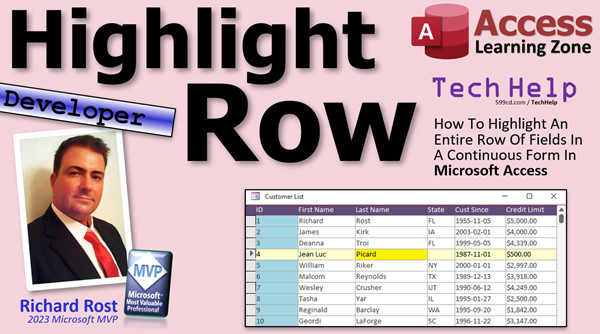
access 2016, access 2019, access 2021, access 365, microsoft access, ms access, ms access tutorial, #msaccess, #microsoftaccess, #help, #howto, #tutorial, #learn, #lesson, #training, #database, Field has focus, row has focus, ms access conditional format highlight row, ms access highlight row in continuous form, Apply Conditional Formatting to Entire Row, Highlight Current Record in Continuous Form, Conditionally Format Rows, conditional format record, highlight record
 Subscribe to Highlight Row
Get notifications when this page is updated
More InformationTranscript In today's video, I'm going to show you how to highlight an entire row of fields, which we call a record in Microsoft Access, in a continuous form. You can see right here we are going to highlight the entire row, and the field that you are in will highlight a slightly different color. Looks pretty cool, right?
Today's question comes from Frank, one of my YouTube members, a Silver member. He posted this in the developer forum on my website. Frank says, "With a continuous form, how do I make the background color of every field in the row or record change to the same background color just by clicking on any of them regardless of the content? I would just like users to know which row of data they are on at a glance without squinting at the screen."
I'm actually going to give the win on this one to one of my moderators, Scott. He posted a solution and answered this question a little over two weeks ago. This just goes to prove, folks, if you have a question and you want to see it get solved relatively quickly, post it in the forums on my website. Don't email it to me and don't post it on YouTube because I only check that one maybe once a week. I'm the only one that can check the YouTube account, so post it on my forum. I have six moderators, they are awesome, and they answer questions a whole lot faster than I can.
Scott posted a perfectly working solution. It works great. I'm going to make one little tweak to it, but aside from that, this is a fantastic solution and it works. I'll post a link to this thread down below if you want to go check it out.
Now, before we get started, if you've never used conditional formatting before, go watch my conditional formatting video first. This is essential. In fact, in this video, I show you how to highlight a single field when someone clicks on it. Today we are going to expand that to the entire row.
In order to do that, you're going to also need to know how the "expression is" option works. Go watch this video. This is a developer level video, so we are going to need a little VBA programming. If you've never done any VBA before, go watch this video. It's about 20 minutes long and will teach you everything you need to know to get started. Don't panic though, we literally only need one line of code today. The important thing is where we put that code.
Where are we going to put it? We are going to put it in the "On Current" event for the form, which is my little tweak that I make in Scott's solution. These are all free videos. They're on my YouTube channel and on my website. Go and watch those and come on back.
Here I am in my TechHelp free template. This is a free database. You can download it on my website if you would like to. In here, I have a continuous form with all of my customers, the customer list. I can double click to open up one of these guys.
It's very easy to make it so that when you click on a field, that field gets highlighted. Let's review that real quick. Go into design view. Select all of these fields. Go to Format, Conditional Formatting. Make sure it says Multiple here. New Rule, Field Has Focus. Then let's change it to maybe yellow. Hit OK. Hit OK. Close it. Save it. Open it up again. You can see as I move around, whatever field I'm in is highlighted yellow.
Now, using "expression is," I can say, regardless of which field I'm in, I want to say, if the CustomerID is equal to the CustomerID of the current record that I'm on, I want to highlight that field. So if this state is on CustomerID of the CustomerID that I'm on, highlight that field as well. That makes sense logically in your brain.
So let's do that. Let's select all these. Go back to Format, Conditional Formatting. I'm going to delete this rule. Delete it.
Let's make a new rule. This time, we're going to use "expression is." I'm going to say, if the CustomerID equals the CustomerID that I'm on, then let's change this to yellow. Hit OK. Hit OK. Close it. Save it. Open it.
What happened? Everybody's highlighted now. What's going on? There are a couple of issues at play here. Let's take a look at the first one.
If you look at the conditional formatting for all of these fields again, go to Format, Conditional Formatting, you'll see it's gone. What happened? I don't know. That's weird. Let's check this out. Cancel this. Let's take a look at one of them. Let's take a look at just CustomerID for the conditional formatting.
There it is. Notice Access put CustomerID inside of brackets. I always tell you don't use spaces in your field names because nine times out of ten, you'll be okay. This is one of those times out of ten where you're not okay. Watch what happens. CustomerID is fine because that's the name of the field. Take a look at First Name, initial formatting. Look at that. Access was trying to be helpful, but it made CustomerID a string. In this particular case, a string containing CustomerID is always equal to a string containing CustomerID. This will always evaluate to true. That happened for all of the rest of the fields. Look at that.
So we have to delete these all one at a time. Can't select them all because they have different rules technically. So delete. Hit OK. Open this one up. Delete. I know it's a pain, but this is a mistake that a lot of people make, so I wanted to make sure I included it in the video. Delete. Initial formatting. Delete. And the last one over here. This one is fine too. Look, it left that one alone. Weird stuff. Access does weird stuff sometimes. Credit Limit and CustomerID are fine. These guys in the middle got changed.
But this is the format that I want. I want the field CustomerID = CustomerID. So I'm going to copy that. Then we're going to apply it to these ones over here.
Conditional formatting. New Rule. We're going to go "Expression Is." Then we're going to paste that in there. Hit OK. Hit OK. Save it. Close it. Open it.
Still not working right. It's still showing all of these as highlighted. Why is that? These aren't showing up at all. And these ones over here, they're all highlighted. What's going on?
Access evaluates each row at a time for conditional formatting. In this particular case, CustomerID is always going to be equal to CustomerID in that field. If you click on this row, the CustomerID is equal to CustomerID of that record. Yep. CustomerID is equal to CustomerID of that record. So what we need is some way to independently keep track of which CustomerID is selected.
Let's put that value somewhere else, like down here in the form footer. We'll stick it down here. Whenever the user clicks on a record, set that value equal to - in this case - five. Now set it equal to thirteen. Then we can use that one to compare to the selected CustomerID and see if they match.
Once again, let's go in here. Let's delete all those again. We're back in here: Format, Conditional Formatting. They're all slightly different, so now we have to delete them all individually again. Delete. I'm not going to make you watch me do them all.
There's the list. So they're all clear again.
Now let's take CustomerID, copy it, and paste it down here. We're going to hide this one eventually, but for now I want to leave it visible. When I'm planning on hiding fields, I make them red. That way I know in the future it's going to be hidden, or when I go into design view I can see the ones that are hidden fields.
Let's open up this guy. This is not going to be CustomerID, so we're going to delete that. It's going to be an unbound field. It will have its own value that we will set. You can't make that equal to CustomerID because again, every row will just be CustomerID for every record. That doesn't work. You can't bind that one. Let's call this one SelectedID.
Now save that. Close it. Close it. Open it up.
It's blank right now. What I want to do is when the user moves from record to record, set the value of the current CustomerID in there. When do we do that? What is an event that runs when you move from record to record? That's the On Current event. That's the one change I made from Scott's code. Scott was doing something very similar, but he was using the Got Focus event for each field. That will work, but you have to copy it in each field. On Got Focus runs once when you move from record to record.
We're going to double click here, go to Event, go to On Current. I'll open up your VBA code editor. In here, literally all you have to say is SelectedID = CustomerID. Now, when you move from record to record, that SelectedID will be set to whatever record you're on.
Save it. Close it. Close it. Close it. Open it back up again.
Now it says one. Click over here, it says six. Click here, it says ten.
Now what we're going to do is we're going to compare the CustomerID to the value in that box in our conditional formatting. Design view. Let's select them all. Format, Conditional Formatting. New Rule. Expression Is. We're going to use our brackets here. SelectedID = CustomerID. Let's make this yellow, but let's change it to a lighter yellow. You'll see why in a second. More colors. Let's make it a light yellow. We're going to make the field that you're on a little bit darker yellow. Hit OK. Hit OK. Save it. Close it. Open it.
Look at that. The row that you're on, the On Current event fires, sets that value down there. Then the conditional formatting for each field looks to see if CustomerID is equal to SelectedID. In that case, it is, so it lights them all up. Is this CustomerID equal to that SelectedID? No, it's not, so it doesn't light those ones up.
Now let's go back in here, design view. Let's make it so the selected field is darker. The whole row will be light yellow, and the field that you're on will be dark yellow. Select it. Format, Conditional Formatting. New Rule. Has Focus. Now we'll go with that darker yellow. Hit OK. We have two rules here. Hit OK. Save it. Close it. Open it.
Wait a minute. Why isn't it working? What's going on? Can anyone figure it out? Pause the video right now. Figure it out.
Did you figure it out yet? Design view. Select them all. Go back into conditional formatting. It's the rule, the order that they're shown in. With Access, once a condition is met, it stops running. I know Excel has an option so that you can continue running more rules and then stop when you want to. Not in Access.
All we have to do here is take this guy and move it up so it is a higher priority. This one will stop after it selects the one that's got focus. If this one doesn't run, it moves to the next one.
Hit OK. Save it. Close it. Open it. There we go. As I tab, tab, tab, you can see how it's working nicely. That is how you select the whole row and additionally, the field that you're in as well.
If you want to learn a lot more about conditional formatting, I cover this and a lot more advanced stuff about conditional formatting in my Microsoft Access Expert Level 19 class. If you enjoy this programming stuff, I have a whole series of developer lessons that are available. I have like 40-some of them right now. There's lots, and I make a new one every month.
Thanks again to Frank for the question and to Scott for posting a timely answer. That's awesome. Like I said, my moderators are fantastic. Second to none. Best of any website that I've ever been on. My guys. Yes.
If you have questions, post them on my site. That is going to be your TechHelp video for today. I hope you learned something. Live long and prosper, my friends. I'll see you next time. Intro In this video, I will show you how to highlight an entire record row in a continuous form in Microsoft Access so users can easily see which row they are on. We will review how to use conditional formatting to highlight both the active field and all fields in the current row, discuss common pitfalls with field names, and use a small amount of VBA code in the On Current event to track the selected record. This is a step-by-step tutorial using questions from the community and solutions from the developer forum. Quiz Q1. What is the primary goal of the tutorial presented in the video?
A. To highlight every field containing a specific value in a continuous form
B. To highlight the entire row in a continuous form when any field in that row is selected
C. To create a report that highlights duplicate records
D. To color-code fields based on the data type
Q2. What is the recommended Access technique to highlight a selected row in a continuous form?
A. Using calculated controls only
B. Conditional Formatting with an "expression is" rule and an unbound field
C. Applying formatting manually to each record
D. VBA code to change the color of all controls at runtime
Q3. Why did the initial attempt to use "expression is" with CustomerID = CustomerID not work as expected?
A. Because conditional formatting only works with text fields
B. Because Access interpreted CustomerID as a string in some fields, always making the expression true
C. Because CustomerID fields were empty
D. Because conditional formatting cannot compare numeric values
Q4. What is the purpose of adding an unbound field called SelectedID in the form footer?
A. To store the customer's name temporarily
B. To keep track of which CustomerID is currently selected and compare it in conditional formatting
C. To act as a primary key for the form
D. To calculate summary statistics
Q5. In which event did the instructor advise placing the code "SelectedID = CustomerID" to update the selected record?
A. On Open event
B. On Load event
C. On Current event
D. On Click event
Q6. What line of VBA code is used to set the SelectedID field?
A. SelectedID.Value = Me.CustomerID.Value
B. SelectedID = CustomerID
C. Me.SelectedID = Forms!CustomerID
D. SelectedID = SelectedID + CustomerID
Q7. How does conditional formatting use the SelectedID to highlight the correct row?
A. It checks if SelectedID is greater than CustomerID
B. It checks if SelectedID matches CustomerID for each field in the row
C. It highlights every record except the one with SelectedID
D. It only works when the form is filtered
Q8. What is the effect of the "Has Focus" conditional formatting rule?
A. It highlights all fields in all rows with the same color
B. It highlights only the current field with a special color
C. It applies a border to the entire form
D. It highlights all fields with the same data type
Q9. Why was the order of conditional formatting rules important in the solution?
A. Access allows only one rule to run and ignores the rest
B. Access adds the colors from all rules together
C. The rules must match alphabetically
D. Access does not support conditional formatting in continuous forms
Q10. What should be done if the conditional formatting is not working as expected after setting up the rules?
A. Reinstall Microsoft Access
B. Check the order of the rules and move the "Has Focus" rule above the others
C. Delete the form and create a new one
D. Remove all unbound controls from the form
Answers: 1-B; 2-B; 3-B; 4-B; 5-C; 6-B; 7-B; 8-B; 9-A; 10-B
DISCLAIMER: Quiz questions are AI generated. If you find any that are wrong, don't make sense, or aren't related to the video topic at hand, then please post a comment and let me know. Thanks. Summary Today's TechHelp tutorial from Access Learning Zone focuses on how to highlight an entire row, or record, in a continuous form in Microsoft Access. The goal is to provide a visual cue so users can easily see which record they are currently on, with the row highlighting in one color and the specific field with focus displaying a second, slightly different color.
The question at the heart of this tutorial comes from a student who wanted to know how to change the background color of every field in a row in a continuous form simply by clicking on any field in that row, regardless of the data inside. The purpose is to help users instantly identify the current record without having to visually scan and squint at the screen.
Credit for the solution goes to one of the moderators on my forum, who provided a working answer for this situation. I've made a small adjustment to the method, but otherwise, his approach is exactly what you need. This also serves as a reminder that if you ever encounter a technical problem, the fastest way to a solution is to post your question on my website's forums. My team of moderators answers questions much more quickly than I can via YouTube comments or email.
Before jumping into this topic, it's important to make sure you're comfortable with conditional formatting in Access. If this is new to you, I recommend watching my introductory video on conditional formatting first. In that lesson, I cover how to highlight a single field that's clicked. Today, we're expanding on that, aiming to apply highlighting to the whole row.
You'll also want to understand how the "expression is" option in conditional formatting works, so check out that video if you haven't already. Since today's lesson includes a little bit of VBA programming, complete beginners should also familiarize themselves with the basics of VBA. However, don't worry, you only need to write a single line of code. The real key is placing that line in the correct spot, specifically in the On Current event for your form.
In my example, I'm using the free TechHelp database available on my website. The demonstration uses a continuous form that lists customer records. Normally, it's easy to highlight just the field that is in focus, but here we want to extend that to the whole row.
Here's a quick review for highlighting only a single field: In design view, select your fields, open conditional formatting, create a new rule based on "Field Has Focus," and choose your highlight color. With this setup, as you navigate, only the active field is highlighted.
However, if you attempt to use the "expression is" condition to highlight all fields in the active row, you'll run into a problem. For instance, if you attempt to use a rule that checks if CustomerID equals CustomerID for each control, every row will end up highlighted. This happens because Access compares the field in each record to itself, which always evaluates to true.
Moreover, if your field names include spaces or special characters, Access might convert references into strings, resulting in rules that always return true and are thus ineffective. This is a common pitfall and a good reason to avoid spaces in your field names.
To properly track which row is selected, you need a way to store the identifier for the current record somewhere else in the form – the form footer is a good spot for this. You create an unbound text box and assign it a name such as SelectedID. This box is updated each time the user moves to a new record.
To update the SelectedID box, you use the form's On Current event. This event triggers whenever the user navigates to a new record. All you need is a line of VBA code that sets SelectedID to the value of CustomerID. This way, you always know which CustomerID is currently active.
Once this is set up, you can use a new conditional formatting rule. For each field in the row, set up a rule using "expression is," where SelectedID equals CustomerID. Pick a highlight color for the active row. If you want to further highlight the specific field you are on, add another rule for "Has Focus" with a slightly darker shade. The order of these rules matters – make sure the "Has Focus" rule is first so it takes precedence.
After these changes, as you move from record to record, the entire row is highlighted and the field with focus is even more clearly marked. If you run into trouble where rules seem not to be applying correctly, double-check the order in conditional formatting because Access stops evaluating conditions after it finds the first match.
For those interested in more advanced conditional formatting techniques, I have a whole Expert Level class covering similar and more complex examples, and a wide library of developer-level lessons for users looking to deepen their Access skills.
Remember, if you have a question, the best place to post it is on my website's forums, where you're most likely to get a quick and thorough response.
You can find a complete video tutorial with step-by-step instructions on everything discussed here on my website at the link below. Live long and prosper, my friends. Topic List Setting up conditional formatting in an Access continuous form
Highlighting the active field using conditional formatting
Using "Expression Is" in conditional formatting rules
Troubleshooting conditional formatting with field names
Understanding why all rows highlight incorrectly
Creating and using an unbound control for row selection
Setting and updating the SelectedID value in the form footer
Writing VBA to set SelectedID using the On Current event
Comparing SelectedID and CustomerID for conditional formatting
Applying conditional formatting to highlight the entire row
Setting distinct colors for active row and active field
Reordering conditional formatting rules for correct priority Primary Topics Microsoft Access, continuous forms, conditional formatting, form events, VBA basics, user interface enhancement
Secondary Topics Access field naming issues, form design tips, error troubleshooting
|




