Decimal vs. Double
By Richard Rost

 3 years ago
Decimal vs. Double Number Field Sizes in Access
In this Microsoft Access tutorial I'm going to teach you the difference between decimal and double number types, their specifications, benefits & problems, and when you should use each of them.
Avery from Burlington, Vermont (a Platinum Member) asks: I'm new to Access. I created a field to hold the number of gallons of fuel a particular vehicle used, and selected the Decimal data type. I try typing in 5.5 and it just rounds to 5. What's the problem? I thought decimal values could have digits after the decimal point.
Prerequisites
Links
Recommended Courses
Notes
- If you are a beginner with Access, don't use the Decimal field size. Stick with Double. It's easier to deal with.
- Decimal is specifically designed for scientific or financial applications that demand exacting precision but is more difficult to use.
- By default, Decimal values don't allow values after the decimal point (which I think is dumb).
- Double is a floating point value. You can store much larger numbers, but with less precision, and they are prone to rounding errors.
- Decimal is a fixed point value. They store smaller numbers, but with exact precision, and they are not susceptible to rounding errors.
Keywords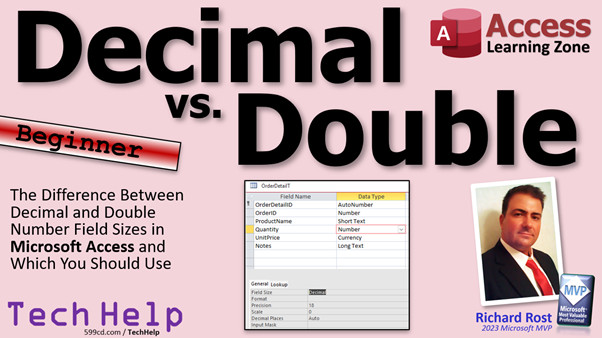
access 2016, access 2019, access 2021, access 365, microsoft access, ms access, ms access tutorial, #msaccess, #microsoftaccess, #help, #howto, #tutorial, #learn, #lesson, #training, #database, Double, decimal, floating point, fixed point, precision, scale, some data may be lost, the decimal field's precision is too small to accept the numeric you attempted to add
More InformationTranscript Welcome to another TechHelp video brought to you by AccessLearningZone.com.
I'm your instructor, Richard Rost. Today, we're going to talk about decimal versus double number types. Lots of people ask me why they shouldn't use the decimal type, and that's because, well, decimals are cool. They have their place, but you have to know how to use them.
There are some specific things you have to know to use a decimal number type properly. We're going to talk about that in this video.
This question comes to me from Avery in Burlington, Vermont, one of my Platinum members, but I literally get asked this probably once a month. Avery says, I'm new to Access. I created a field to hold the number of gallons of fuel a particular vehicle used, and selected the decimal data type, which a lot of people do. They see decimal. I tried typing in 5.5, and it just rounds to 5. What's the problem? Decimal values should be able to have digits after the decimal point.
You would think that if you are a new Access user and you go in and pick decimal, you would be able to type in some decimal values. But it's not that easy.
Before we get into the details, if you haven't watched my data types video, go watch it first. It's free. I go over all the different types of data types, and which ones you should use for which situations. So go watch that first.
And I literally just did this video not too long ago about number field sizes, where I talk about there are generally two types of numbers that you should work with. If you're dealing with counting numbers, stick with long integer, and if you're dealing with decimal values, stick with double, not decimal. So go watch this one too.
Of course, I also talk about this topic in my free four-hour-long Access Beginner Level One class. So go watch that too.
But here's the problem. I see a lot of people do this. You come into your table, let's say the customer table. Let's look on the order table. We use the customer table all the time. You want to put the number of gallons down here. Gallons. So you come over here.
You need a number. The first thing people do is they stick with number. They don't realize it's a long integer. They save it. They come in here. They try to type in their gallons, 5.5. And oh, it gets changed to 6. It got rounded up. That's not what you want.
So let's go back in here. What's wrong? Gallons. It's a number. Let's drop this box down here. And I say, oh, there's decimal. That's got to work. That will let me have values after a decimal point, right? It's right in the name: decimal.
So let's give that a try. Save it. Come back out here. Let's come back over here. I try to put 5.5 in. It chopped it off to 5. What's going on here? 1.1. Why can't I put any decimal values in a decimal field?
Well, this is why. If you go into here, you go in the properties, you'll see there are two properties right here called precision and scale. Decimal values, like I said, have their place. Their place is for really advanced scientific stuff or more for accounting people or mathematicians.
You can specify the total number of digits in the number, which in this case, the default is 18. You can specify the scale. The scale is how many digits you get after the decimal point. I think it's dumb that Microsoft defaults that to zero. I'd like to see that at least maybe three.
The total for the two of those, the biggest value you can have is 28. So you're basically saying now I can have three digits after the decimal point. Save it now, come back out here. Now I can type in 5.5 and I'm good. I can type in 5.666 and I'm good. But if I type in 5.9999, it'll get truncated.
My advice to you, if you're a beginner, is to stick with double. They are easier to deal with. They are a lot more universally accepted. You have to know what you're doing to work with the precision and scale of a decimal type value. Especially if you get into any other calculations or programming, doubles just work better in most cases.
Now, let's get into the nitty-gritty. Now that I showed you what's going on, let's talk about doubles and decimals in a little more detail.
As I mentioned, if you're a beginner with Access, don't use decimal. It's tougher to deal with. There's more than I just mentioned, but that's the basics of it. Stick with double. It's easier to deal with.
Decimal is specifically designed for scientific or financial applications that demand exacting precision. But it is more difficult to use. By default, decimal values don't allow values after the decimal point, which I don't know why Microsoft did that. I would have liked to have seen maybe a default of a precision of 10 and a scale of 3 or 4. But that's just me. Maybe someone out there knows why they chose to make it zero and confuse everybody.
What's the big deal between the two? Double is a floating point value. The decimal point "floats" around. It can move. You can have one digit, you can have 10 digits after it. You can store much larger numbers, much bigger numbers. We'll talk about the specifics in a second for the nerds out there. But you get less precision. You can't make exactly the number of decimals that you want after that decimal point, the number of digits you want. Plus, doubles are prone to rounding errors. We'll talk about rounding errors in just a second too.
Decimal values are fixed point values, which means you specify exactly where that decimal point goes. You can have this number of characters on the left, this number of characters on the right, and that's it. They store smaller numbers than doubles, but with exact precision. You know exactly how many decimal places you're getting. They are not susceptible to rounding errors. So if you're landing a probe on Mars, you know what you're doing, you might want to use a decimal. I would hate for my Mars probe to fail because of a rounding error. Kind of like how we had a Mars probe fail because of a metric to English conversion error.
Why are we not using metric yet? Everyone else does.
For the nerds, here are the specs. There is double and decimal. There is also this other one, the little cousin of double, called single. Single is basically a half-size double, roughly. Here's the number of bytes it takes up in computer memory. There's the range: plus or minus 3.4 times 10 to the 38th power. That's a pretty big number. 3.4 with 38 zeros after it. The doubles can go much bigger: 308 zeros after that. They can also hold really tiny numbers too. These aren't the exact precision, but it's one over some crazy large number like that too. So you can get really close to zero as well.
These are both floating point numbers, though, so they are prone to rounding errors. Decimals take up more space, 12 bytes, but it's 9.9 times 10 to the 27th power, and it's fixed. So you can specify exactly what kind of precision you're dealing with.
Why would you want to use a decimal value? Scientific applications. You need exact calculations down to very small fractions with exact specifications. Accounting. You're dealing with specific fractions of a penny. You don't want any of those Superman 3 slash Office Space rounding errors. Or you're a mathematician. Mathematicians like things exact, even more so than accountants do.
The max precision of a decimal value is 28 digits on the left and right. You can specify the scale, which is the right side. These were introduced in Access 2000 and later. So if you're still using Access 97, I don't know why you're even on YouTube. They store exact numeric values and they are not susceptible to floating point errors.
What's a floating point error? This is pretty fun. Let's do this.
Let's turn this back into a double real quick and let's call it D. Make this a double. Save it. It's a double.
Let's create a query. Create Query Design. Bring in that order table. Bring in D. Run it. There is our double.
The query we're going to calculate is D minus one. So right next door here, we'll call it X, and we'll say it's D minus one. Run that now.
That looks good. Values like 100, that works fine. Negative 90, that works fine.
Now try 1.001. As you can see, that is not correct. It literally can't subtract one from 1.001. That's a floating point error. It's rare, but it happens. For most applications, it's not going to cause that big of a deal, but if you're dealing with something scientific, and you're landing a probe on Mars, you might not want to have to deal with that.
Now, do the same thing with a decimal with a scale of three. So let's do the same thing and switch it over to a decimal value.
Go back in here, not in the query, leave the query alone. Save the query. Save this as Q.
Let's go back into here, Design View. We're going to change this now to a decimal. Let's make it 18 with a scale of 3. Save it. Now you get the "some data may be lost" warning because doubles can be much, much bigger than decimals. So it's warning you, if you have numbers that are too big for this, they are going to get truncated. Are you sure you want to do that? Yes, go ahead.
Let's take a look. All my values look normal. That's fine. That's what we had before. Run that query now. And oh, look at that. It was able to subtract one from 1.001 because it's got exact fixed point decimals in there.
So I hope that shows you if you need a specific number of decimal points, go with a decimal.
Double does have some other problems. In older, pre-2003 versions of Access, doubles had some issues. They wouldn't sort correctly in descending order. I don't know why, but they didn't. Doubles wouldn't export correctly sometimes. They got changed into text values. But I've just tested both of these, and it's currently 2023, and this doesn't seem to be a problem anymore.
I don't mean to drop the hammer on doubles. I use doubles. I really haven't built any applications where I've needed a decimal. I don't do anything super scientific, though.
If you're working with numbers, first of all, you should use the currency data type for money. If you're going to be working with money, use currency, which is especially optimized for money values.
Doubles are easier for beginners to work with. Most functions more readily accept double than decimal values. Floating point errors, even though they're possible, are rare. Doubles are faster and take up less space, although with modern computers, that's really not a big deal unless you get millions and millions of records. They do store really, really big or small numbers. I have never had a need for numbers that large in any practical database. Even the scale of the smallest one, the singles, are just fine for me.
One more thing about decimals. There is no decimal data type in VBA. If you're doing any programming, another reason to stick with doubles is because you can use doubles in VBA. If you have a decimal, you have to use a variant for it or convert it to a double with the CDBL function.
So there you go. There are the basics of why you should stick with double, unless you absolutely need a decimal. If scientific precision or accounting precision is important for your numbers and you know what you're doing, then use a decimal. If not, stick with double.
There are two types of numbers you should use: long integer and double. Just worry about those. Don't worry about any of the rest of them. Use currency for money.
So that's going to do it for today folks. There is your TechHelp video. Hope you learned something. Live long and prosper, my friends. I'll see you next time. Intro In this video, we will talk about the differences between the decimal and double number types in Microsoft Access. I'll explain why you often see rounding issues when using the decimal type, how precision and scale settings affect your data, and in what situations each type is appropriate. We'll look at floating point errors, why double is generally recommended for most users, and the specific cases where decimal is the better option. I'll also address common pitfalls, show examples of how these types behave in tables and queries, and share tips on working with numbers in Access. Quiz Q1. Why might entering a decimal like 5.5 into a new Access "number" field result in the value being rounded to 6?
A. The default number type is long integer, which only stores whole numbers
B. The decimal data type is used incorrectly
C. 5.5 is too small to be stored as a number
D. Microsoft Access does not allow decimal values in number fields
Q2. What is the main reason beginners are advised to use the double data type instead of decimal in Access?
A. Doubles can store only whole numbers
B. Doubles offer simpler handling and more universal compatibility
C. Doubles are more secure
D. Doubles use less storage for all numbers
Q3. What does the "scale" property define in a decimal number field in Access?
A. The total number of digits allowed on both sides of the decimal
B. The maximum size in bytes for the field
C. The number of digits allowed after the decimal point
D. The minimum value that can be stored
Q4. Why do many users find the default settings for the decimal data type in Access confusing?
A. The default precision is set too low
B. The default scale is zero, so no digits after the decimal point are allowed
C. Microsoft hides the decimal data type
D. Default settings always allow all decimal places
Q5. In what cases is using the decimal data type recommended over double?
A. When storing dates and times
B. When exact precision is required, such as in scientific or accounting applications
C. When you need the smallest possible file size
D. When processing only text data
Q6. What is a key difference between double and decimal number types in Access?
A. Double is a fixed-point type and decimal is floating-point type
B. Double allows a fixed number of decimals, decimal allows an unlimited number
C. Double is floating-point and may introduce rounding errors, while decimal provides exact, fixed precision
D. Decimal stores only whole numbers
Q7. What is the main disadvantage of doubles compared to decimals in calculations?
A. Doubles cannot store negative numbers
B. Doubles are more prone to rounding errors
C. Doubles cannot be used in queries
D. Doubles only allow two decimal places
Q8. What happens if you enter more decimal places than the "scale" property allows in a decimal field?
A. Access will store all decimal places without warning
B. The extra digits will be truncated
C. Access will round all inputs to the nearest whole number
D. Access will reject the value entirely
Q9. When should you use the currency data type instead of double or decimal in Access?
A. When storing dates and times
B. When you need extremely large number ranges
C. When storing monetary values or prices
D. When you want fixed-point numbers for scientific data
Q10. Which data type is not directly available for use in VBA programming in Access?
A. Double
B. Currency
C. Decimal
D. Long Integer
Q11. Why is double generally easier for beginners to use than decimal in Access?
A. Doubles require less memory
B. Doubles do not need configuration of precision or scale
C. Doubles only allow whole numbers
D. Doubles cannot cause rounding errors
Q12. What is the maximum precision allowed for an Access decimal type?
A. 18 digits total
B. 28 digits across both sides of the decimal
C. 6 digits after the decimal
D. Unlimited, restricted only by computer memory
Q13. For what primary reason would a mathematician or accountant choose Decimal over Double?
A. Decimal supports larger number ranges
B. Decimal is faster to calculate
C. Decimal guarantees exact, fixed precision with no floating-point errors
D. Double is unsupported in queries
Q14. Which of these statements is true regarding the Double data type?
A. Doubles have fixed decimal places specified by the user
B. Doubles are immune to rounding errors
C. Doubles are floating point and can represent very large and small numbers, but are susceptible to rounding errors
D. Doubles are not compatible with VBA
Q15. If you need to use decimal values in VBA, what data type or approach must you use?
A. Currency
B. Single
C. Variant or convert to double with CDBL
D. Integer
Answers: 1-A; 2-B; 3-C; 4-B; 5-B; 6-C; 7-B; 8-B; 9-C; 10-C; 11-B; 12-B; 13-C; 14-C; 15-C
DISCLAIMER: Quiz questions are AI generated. If you find any that are wrong, don't make sense, or aren't related to the video topic at hand, then please post a comment and let me know. Thanks. Summary Today's TechHelp tutorial from Access Learning Zone is all about understanding the difference between the decimal and double number types in Microsoft Access. This is a topic that comes up quite often, and many users are uncertain about why or when to use one over the other. While decimal numbers certainly have their place, you have to be aware of the nuances involved in using them correctly.
It is common for users, especially beginners, to select the decimal data type when they want to store values with digits after the decimal point, such as fuel measurements like 5.5 gallons. However, when they enter a value like 5.5, Access often rounds it to 5, which can be quite confusing. At first glance, you might expect the decimal type to handle decimal values automatically, but it is not as straightforward as it seems.
If you are new to Access and have not yet watched my data types video, I suggest starting there. It covers the broad range of data types available in Access and discusses which types are appropriate for various situations. In addition, I recently made a video about number field sizes, which touches on why you typically want to use either long integer for counting whole numbers or double for numbers that include decimals. Both of these resources can help provide some foundational knowledge.
The issue with decimals comes into focus when you create a field in a table, label it with something like "gallons," and choose the number type. By default, Access will use long integer, so if you try entering a value like 5.5, it will round it up to 6. If you switch to decimal, assuming it will allow for decimal values, you may still find that the value gets chopped off at the decimal point. The problem lies in two key properties of the decimal type: precision and scale.
Precision is the total number of digits the number can have, and scale is the number of digits allowed after the decimal point. By default, Access sets the scale to zero. This means you cannot enter digits after the decimal point unless you specifically change this setting. If you adjust the scale to something like 3, you will then be able to enter values like 5.5 or 5.666 and have them stored correctly. If you try to enter more digits after the decimal than your scale allows, the extra digits will be truncated.
My advice for most Access users, especially beginners, is to use the double type for storing decimal values. Doubles are easier to manage, widely accepted across functions, and do not require the same technical maneuvering as decimals. Dealing with precision and scale in decimals can be complicated and, unless your application has specific scientific or accounting needs, doubles meet most requirements.
To break it down further, here is how the two types compare. Double is what is called a floating point value. The decimal point can "float" to accommodate more digits, either before or after the decimal. They allow you to store very large numbers, sometimes up to 308 digits, or numbers extremely close to zero. However, doubles do not always offer exact precision after the decimal point and can be prone to rounding errors.
Decimals, on the other hand, are fixed point values. You can specify exactly how many digits are allowed before and after the decimal point, which makes them ideal for cases where you must have exact figures, such as in accounting or scientific measurements. Decimals take up a bit more space in memory and support up to 28 total digits. They do not have the same rounding issues as doubles because you control exactly how numbers are stored.
If you are handling money, the currency data type is usually the best fit because it is optimized specifically for monetary values. If you do require a specific number of decimal points for scientific or financial calculations, then consider using decimal, but be sure you understand how to configure precision and scale.
One illustrative difference between the two comes from an example where a double field is used in a query to subtract 1 from 1.001. Ideally, you would expect to get exactly 0.001, but due to floating point error, that is not always the case. If you switch the field to a decimal with an appropriate scale, you get the exact result you expect.
Doubles have had some minor quirks in prior Access versions, like issues with sorting or exporting, but for the vast majority of users today, these are not major concerns. Unless your work involves extremely precise numeric calculations, doubles are fast, efficient, and easy to use for most database needs.
One last important point is that VBA in Access does not have its own decimal type. If you need to use decimals in VBA, you have to use a variant or convert the value to a double explicitly. This is another reason to stick with doubles unless a true decimal type is absolutely required for your application.
In summary, stick with long integer and double for general numbers and use currency for money. Only use decimal if you specifically need the features it offers and understand how to configure it. For most users and most tasks, double is the simpler and more efficient choice.
You can find a complete video tutorial with step-by-step instructions on everything discussed here on my website at the link below. Live long and prosper, my friends. Topic List Problems when entering decimal values in Access tables
Difference between decimal and double number types
Default precision and scale settings for decimal fields
How to adjust precision and scale for decimals
Use cases for decimal: scientific and financial data
Use cases for double: general numerical values
Explanation of floating point errors in doubles
Example of floating point error in double calculations
Comparison between single, double, and decimal types
Storage size and numeric range of double vs decimal
Why beginners should use double instead of decimal
Max precision and scale for decimal fields
Exact numeric storage with decimals
Lack of decimal data type in VBA and workaround
Using currency data type for monetary values
Handling data type changes and Access warnings
Why most Access functions work better with doubles Primary Topics Access number data types, decimal vs double, field properties, precision and scale, floating point errors, when to use double, when to use decimal, data entry pitfalls
Secondary Topics currency data type, legacy Access issues, VBA compatibility, performance considerations, none
|





