DLookup Slow
By Richard Rost

 3 years ago
What to do if DLookup is Slow in your Access DB
In this Microsoft Access tutorial I'm going to teach you a few things to try to speed up lookups (DLookup, DSum, DCount, etc.) in your Microsoft Access database
Lucas from Chino Hills, California (a Platinum Member) asks: I don't know why one of my forms is loading so slowly. It's basically my customer list, but I need to look up their sales rep from the employee table based on their state. The form ran fine before I added the DLookup, but I really want that information on there. What should I do?
Prerequisites
Links
Recommended Courses
Checklist
- Indexing
- Network (cache locally)
- Does form load fast without DLookup
- Multiple records (reports, continuous forms, queries)
- Avoid in VBA loops (use recordsets)
Keywords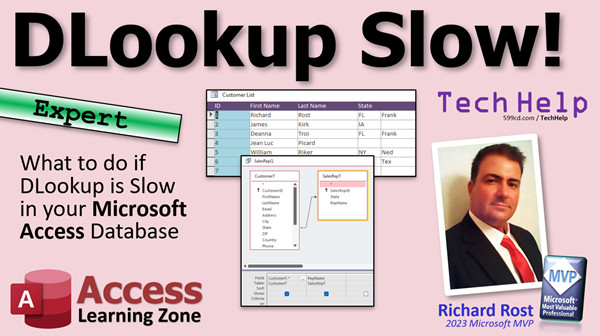
access 2016, access 2019, access 2021, access 365, microsoft access, ms access, ms access tutorial, #msaccess, #microsoftaccess, #help, #howto, #tutorial, #learn, #lesson, #training, #database, DLookup too slow, DLookup slow results, DLookup running very slowly, Need something faster than DLookup, domain aggregate functions, dlookup, dsum, dcount, dmax, dmin, dlookup in query
 Subscribe to DLookup Slow
Get notifications when this page is updated
More InformationTranscript Welcome to another TechHelp video brought to you by AccessLearningZone.com. I am your instructor, Richard Rost.
Today we are going to talk about what to do if your DLookups are really slow in your Microsoft Access database. Today's question comes from Lucas in Chino Hills, California, one of my platinum members.
Lucas says, I do not know why one of my forms is loading so slowly. It is basically my customer list, but I need to look up their sales rep from the employee table based on their state. So each state has its own sales rep. The form ran fine before I added the DLookup, but I really want that information on there. What should I do?
Well, Lucas, whenever I hear someone say that DLookup, or any of the domain functions - DLookup, DSum, DCount, any of those things that start with a D - is running slowly, this is my little checklist that I go down to see what the problem might be.
Now you have already answered number three. You said the form loaded fine without DLookup, so you know where the problem is. Since you said it is your customer list, I am assuming it is your customer list form, or report, it would not matter.
If that is the case, try to do it without DLookup. You can use a join in a query to get the same information, and queries will run much faster. Every day with subqueries will load up a lot faster than every record in the continuous form having to process that DLookup command.
I am going to show you how to fix that in today's video. Yes, my voice is a little hoarse today. Sorry.
Other things to check is your indexing. Make sure all of your IDs are indexed. If they are autonumbers, primary keys, then they should automatically be indexed. If not, if you are looking up based on some other thing like the state field, make sure that is indexed, duplicates okay. Indexing will definitely speed up searches and sorts.
Another thing, if you are running across a network and your network is slow, then those reports and continuous forms and queries that have lots and lots of records in them are going to load slower. If it is something that you can cache locally, you can do that.
For example, let us say you are looking up the sales rep by state. You can make a local copy of that table just to open up this form or report. You will use an update query first, pull down just those records into a local temporary table, and then link that into your employee list or your customer list or whatever you are looking up. That way, it does not have to keep going over the network to get these records over and over again.
For your programmers out there, try to avoid using the domain aggregate functions like DLookup inside of a loop. Use a recordset instead of recordsets. Even if you have to open and close a recordset, it will still run faster than DLookup in my experience.
Let us take a peek at what is going on here. This is my TechHelp free template. You can download a copy of the database off my website if you want to. It is free.
Here is the customer list that Lucas is talking about. Let us say every state here has a dedicated sales rep. So I will make a sales rep table. Go Create, Table Design. We will make an ID. Let us call it SalesRepID. That will be my autonumber.
We will have the state abbreviation in here. Again, this is where you want to make sure that this is indexed. Yes, duplicates okay. That will speed up your lookups.
Then put the rep name in here. Yes, I know the rep name should be an ID based on a sales rep table, but just for the example for today's class, we are just going to put a rep name in there.
Save this. SalesRepID or T. Excuse me. Primary key. Yes. Save it. Put a few sample records in here. Let us say Florida is Frank. Let us say New York is Ned. Let us say Texas is Tex. Let us do one more, Pennsylvania as Pete. Just those for now. Yes, I know this should really be done using an employee table. I get it.
Now, what you probably did is in your customer list, you want to add the sales rep in here based on that state field. I am just going to get rid of these for now.
Let us copy this guy here, copy, paste, slide it over here. We are going to open that up. We will call it Sales Rep.
Here is where people go wrong. They go and put the DLookup right here in the control source. That is going to be =DLookup. Cannot type today apparently.
What are we looking up? The rep name from the SalesRepT where the state equals double double quotes, close quotes, and whatever this person's state is, and close the quotes.
If you do not know anything about this, go watch my concatenation video and my double double quotes videos. I will put links to those down below.
Hit OK, save it, close it, close it, open it up, and there it is. Now that works, and this is fast because I am running a small local database. I have only got 29 customers and what, 4 sales reps, so it is going to run quickly here. But if you had tens of thousands of customers, hundreds of reps, this could slow down.
I have seen some, I have got some forms in my database that I still need to optimize because I have pulled this trick. Usually only one page at a time will load, so if you scroll down, it reloads more.
There is a much, much faster way to do this. Instead of using that DLookup, we are going to create a join in a query. On this form right now it is only based on the CustomerT. We are going to make a query to do this.
Create, Query Design. This is what a query is good for.
Bring in your customer table and then bring in your SalesRepT. Now Access did not see the join there, so we are going to make it. Right here, state, the state, like that.
Now, we have some states that we do not have sales reps for. To make sure we still see all of our customers, we need to make this an outer join by selecting option two here. If you want to learn more about that, go watch my outer join video. Again, I will put a link down below.
Now I am going to bring in all the stuff in the customer table and just the stuff from this table that I want to see. In this case, I only need the sales rep.
Save this. SalesRepQ.
If I run it, you will see I get all my data from the customers and there are the rep names, and this will load a lot faster than using DLookups.
Now all you have to do is go into your customer list form, right click, design view. Change where this guy is getting its data from - for the SalesRepQ. Now you can add the rep name field right from the field list.
Go save it, close it, close it, open it. Boom. There you go. See how much easier that was? No DLookups. Just a nice, simple join. Use a query if you can.
Remember, you can add the same table multiple times. I have seen people - I have a whole video on this too - you can add a field. Let us say you have got sales rep in here. Here is your sales rep table. Let us pretend you are doing employees. You have got a sales rep. You have got a service rep. You have got a trainer. You can add SalesRepT multiple times to join it to different IDs in the customer table. I have a whole separate video on that. I will put a link to that down below as well.
If you want to learn more about this kind of stuff, I cover relationships and different kinds of joins in my Access Expert Level 1 class. Access Expert Level 10 goes over DLookup a lot more, and I have got the Access Relationship Seminar that covers everything you ever want to know about relationships in Microsoft Access.
There you go. There is your TechHelp video for today. I am going to go get some tea for my throat. Live long and prosper, my friends. I hope you learned something. I will see you next time. Intro In this video, we will talk about what to do if your DLookup functions are running slowly in your Microsoft Access database. I will show you why using DLookup can slow down your forms and reports, how using joins in queries can speed things up, and what indexing settings can help improve performance. We will also discuss options like caching data locally and using recordsets instead of domain functions for programmers. If you are struggling with slow form loading after adding DLookup, this video will walk you through practical steps to optimize your database. Quiz Q1. What is typically the main reason a form in Access loads slowly after adding a DLookup function?
A. DLookup processes each record individually, which increases load time
B. The form contains too many text fields
C. Access does not support domain functions
D. DLookup is only meant for reports, not forms
Q2. Which of the following is often a faster alternative to using DLookup on a form?
A. Creating a join in a query to retrieve the needed data
B. Increasing your RAM
C. Compacting and repairing the database
D. Adding more indexes to unrelated tables
Q3. What effect does indexing fields have when used in searches and sorts?
A. Indexing increases speed by allowing faster lookups
B. Indexing decreases speed because it takes up more space
C. Indexing has no impact on performance
D. Indexing makes fields read-only
Q4. When is using DLookup in a continuous form most likely to cause performance issues?
A. When there is a large number of records
B. When there is only one record
C. When form contains only textboxes
D. When used in a report header
Q5. If you are searching for a value based on a field like "state," what should you ensure regarding that field?
A. The state field is indexed, allowing duplicates
B. The state field is set as a primary key
C. The state field is hidden from the form
D. The state field is only used in one table
Q6. What is the recommended type of join to show all customers even if some do not have matching sales reps?
A. An outer join
B. An inner join
C. A self join
D. A cross join
Q7. Why might network speed affect the performance of forms using DLookups?
A. DLookups may repeatedly access data over the network for each record
B. The display resolution is too high
C. Forms do not run over a network
D. Forms automatically cache everything
Q8. How can you minimize network delays when using lookup tables in Access forms?
A. Cache data locally in a temporary table and link it to your main table
B. Increase the form's default font size
C. Remove all validation rules
D. Add more pictures to the form
Q9. For programmers optimizing loops, what should be used instead of DLookup inside a loop?
A. Recordsets for batch processing
B. Macros
C. Hyperlinks
D. Direct SQL statements only
Q10. What is a benefit of using queries with joins over DLookup in forms and reports?
A. Queries with joins retrieve data for all records at once and display faster
B. Queries with joins are less accurate than DLookup
C. Queries with joins cannot display calculated fields
D. Queries only allow data for one table
Q11. If you need to join the same table multiple times in a query for different purposes, how should you do it?
A. Add the same table to the query multiple times with different aliases
B. Only add the table once and reuse it
C. Use a Cartesian join
D. Use only domain aggregate functions
Q12. What is a possible drawback of using DLookup as the control source for a calculated field in forms with many records?
A. The form becomes slow because DLookup is called for every record
B. The calculation becomes more precise
C. DLookup automatically updates other fields
D. DLookup saves memory
Answers: 1-A; 2-A; 3-A; 4-A; 5-A; 6-A; 7-A; 8-A; 9-A; 10-A; 11-A; 12-A
DISCLAIMER: Quiz questions are AI generated. If you find any that are wrong, don't make sense, or aren't related to the video topic at hand, then please post a comment and let me know. Thanks. Summary Today's TechHelp tutorial from Access Learning Zone covers how to improve performance in your Microsoft Access database when using DLookup, especially if you notice your forms or reports loading slowly.
I received a question from a student who shared that his customer list form became sluggish after adding a DLookup to pull the sales rep for each customer based on their state. Previously, the form loaded without hesitation, but after adding the DLookup, things slowed down considerably. The requirement is to display the sales rep from the employee table according to the customer's state, where each state has an assigned rep.
Whenever I hear that DLookup or any of the domain functions like DSum or DCount are running slowly, I run through a checklist to diagnose the issue. First, I want to confirm that the slowness started after introducing the domain function. Since, in this case, the form was quick before DLookup was used, we know exactly where the problem lies.
When working with lists such as a customer form or report, try to avoid DLookup if possible. Queries with joins usually offer much better performance for this kind of operation. Every time Access encounters a DLookup on a continuous form, it needs to recalculate the expression for each record, which can cause significant delays, especially as the number of records increases.
To resolve this, consider using a join in a query instead of performing a DLookup on each record individually. A query with a join can retrieve all of the matching information quickly and efficiently. I will outline how you can make this adjustment.
Before switching to a query with a join, also make sure your database tables are properly indexed. All ID fields should be indexed, which is automatically true for fields set as primary keys or autonumbers. But if you are using another field, such as the state abbreviation, for lookups, make sure that field is indexed as well, allowing duplicates if necessary. Proper indexing will always help speed up searches and sorting in your database.
If your database is hosted over a network, network speed will be another factor. Large forms, reports, or queries that access a lot of data can slow down if the network connection is not fast or stable. If working across a network is causing a problem, you might consider pulling just the necessary records into a temporary local table before loading your form or report to reduce the amount of data transferred.
For developers, avoid using domain functions inside loops in VBA code. If you need to loop through records and pull related data, opening a recordset or using nested recordsets is usually much faster than calling DLookup repeatedly.
Let me walk you through an example similar to the scenario described in the question. Let's say you have a customer list form, and every state has a dedicated sales rep. You would have a table to store the sales reps, which includes an ID, the state abbreviation (indexed, with duplicates allowed), and the rep name. While the ideal setup is to have the rep name linked as a foreign key to an employee table, to keep the example simple, you might just use the rep name directly.
After creating this sales rep table and entering a few sample records for different states, your goal is to display the appropriate rep in your customer list form based on state.
A common mistake is to insert a DLookup expression directly into the control source of the sales rep text box in the form. The DLookup would retrieve the rep name from the sales rep table where the state matches the customer's state. This works perfectly well in a small database with a handful of records, but it can slow down dramatically as the number of customers and reps increases. Each row in a continuous form requires a separate DLookup, so the inefficiency grows quickly.
To address this, instead of using DLookup, you can build a query that joins the customer table with the sales rep table using the state field. If there is no existing relationship, you can manually drag the join line in the query design between the appropriate fields. To ensure all customers appear in your results, even if some states do not have assigned reps, use an outer join. This will make sure every customer shows up, with a blank rep if one is not assigned.
Once your query shows the customer data along with the sales rep, save it. Next, go to your form's design view and set its record source to this new query. You can then add the rep name to the form directly from the field list. With this method, the rep name is displayed efficiently for all records using the join in the query, and you avoid the performance problems associated with DLookup.
Remember, you can also add the same table multiple times to a query if you need to match multiple roles, like having a sales rep, a service rep, and a trainer all linked to the customer in different fields. Each can be joined separately to the relevant ID field.
For those wanting to explore these database concepts further, I discuss relationships and joins in detail in my Access Expert Level 1 class. DLookup gets individual attention in Access Expert Level 10, and I cover everything about relationships in my Access Relationship Seminar.
If you want to see exactly how these steps are carried out, you can find a complete video tutorial with step-by-step instructions on everything discussed here on my website at the link below.
Live long and prosper, my friends. Topic List Diagnosing slow DLookup performance in forms
Replacing DLookup with a query join
Creating a SalesRep table for state assignments
Indexing fields for faster lookups
Creating a temporary local table for caching data
Using an update query for local copies of data
Avoiding domain functions inside loops
Creating a join between customer and SalesRep tables
Building an outer join to retain unmatched records
Modifying a form to use a query as its record source
Adding fields from a joined query to a form
Comparing DLookup performance to join-based queries Primary Topics DLookup performance, query joins, form optimization, indexing, local caching, table relationships
Secondary Topics domain aggregate functions, recordsets, outer joins, multi-table joins
|




