Decision Tree 5
By Richard Rost

 3 years ago
Access Decision Tree Database Part 5: Viewer Form
In this series of Microsoft Access tutorials, we are going to build a decision tree database that can be used for troubleshooting, logical decision-making, questionnaires, tech support, game development, and lots more.
In today's video, we are going to create the form for the end user to work with our Decision Tree. We'll replace the subform with a listbox, and replace the parent combo with a Back button.
Members
There is no extended cut, but here is the database download:
Silver Members and up get access to view Extended Cut videos, when available. Gold Members can download the files from class plus get access to the Code Vault. If you're not a member, Join Today!
Prerequisites
Recommended Courses
Keywords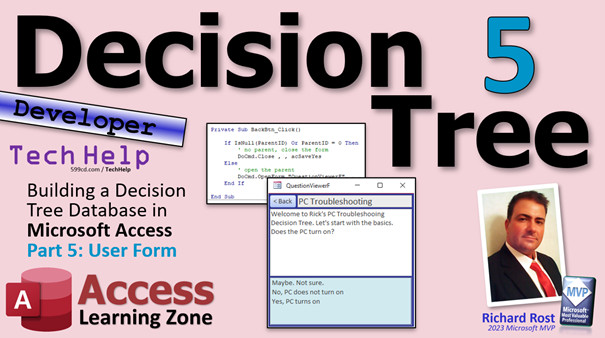
access 2016, access 2019, access 2021, access 365, microsoft access, ms access, ms access tutorial, #msaccess, #microsoftaccess, #help, #howto, #tutorial, #learn, #lesson, #training, #database, user form for decision tree, list box, back button
More InformationTranscript Welcome to another TechHelp video brought to you by AccessLearningZone.com. I'm your instructor Richard Rost. Today is part five of my decision tree series. I put the big five up here because some of you emailed me saying you didn't realize that there was a part two, part three, because I just had it down here really small. So, I put a big five up here.
If you haven't watched parts one through four, go watch those first. You'll find a link down below, or you can scan this little QR code there. Go watch parts one through four and then come back for part five.
What are we doing today? We're going to make a user-friendly form for the user to run through the decision tree and answer the questions it asks. Previously, we built the editor form, the one for you to edit it. But this isn't exactly user-friendly, so today we're going to make this form a lot more user-friendly. They can read this, double-click on the answer down here, and then it loads the next one, and so on.
All right, so the first thing we're going to do is reuse parts when possible. I'm a big fan of reusing parts. We're just going to reuse the question editor and call it the question viewer. So, let's copy and paste this form (Control+C, Control+V) and call it question viewer F.
Let's open this one up in design view. We're going to delete the subform because we're going to have a different, better way for displaying that information. We're going to use a list box instead because the user doesn't have to edit things in here.
There is no need for a subform when a list box will do. Plus, this gives me a chance to show you how to do something a little bit differently - more legos in the box. We're also going to delete the parent combo box. We don't need to see that in here either.
In fact, we're not going to need question ID either, but leave it here for now. I want to show you something.
Now, we don't need them to be able to edit this information, so it's important that they can't. I'm going to go to the form properties, go to Data, and turn off Allow Additions, Allow Deletions, and Allow Edits. But this is also going to cause a problem, and I want to show you this too. I'm going to leave this in here so that you can see exactly what happens.
We're also going to go to Format, turn off the Scrollbars, turn off the Record Selectors and the Navigation Buttons. No need for those, we're going to handle all that ourselves.
Save this for now and close it.
Come back to the main menu. We need a way to get into that form. We have the editor here, we can click on Editor, but I want to be able to double-click on this to open it in the viewer.
Go to Design View, open up this form, go to Events, and use the On Double Click event, right here.
Let me move my editor. When I'm working in my regular database that's not a class, I move this because I have a big monitor on my desk. I slide it over.
We're going to open up the question viewer for the current question. So, DoCmd.OpenForm "question viewer F", , , "questionID=" & questionList. Very similar to what we did before, just a different form.
Come back here, close it and open it, and then we'll double-click on PC Troubleshooting, and it opens up our question viewer form.
Now I've got the question here in the viewer. I need a list box down below to show the children for this question. I already have a list box in the editor, so let's copy this one over here and then we'll change what's in that box.
In Design View, copy the list box you already have. Move to the question viewer, and paste it in design view.
Let's make some room at the bottom here and paste it in. Slide it where you want it. Make it a little bigger or shorter, depending on how many options you've got. It doesn't have to be as big - maybe about there.
Space it a little bit, slide it up. We can get rid of any unnecessary controls. The question ID is going to go away in a minute, but leave it there for now. I like to make the description control a bit bigger, maybe make the text a little larger too - 16 point so we get two lines of text.
Looking better. Let's change the colors a little so it's visually distinct from the editor form.
If this is the primary means by which your user is going to work with your database, you can make this look as nice and pretty as you want to. I'm just showing you the basics here. Let's go with a different background, like dark blue. This can be white too, while the yellow is for editing. Change it to white there.
That looks better. I might change that to a light gray.
I'm happy with that. Save and close it. Open it up again. PC Troubleshooting - looks much better. Place it where you want and save it.
Now, I don't want this to show the top-level nodes. I want to show what's under this question - what's under PC Troubleshooting, its children.
The value that we need is right here in the question ID. We want the ParentID of these records to be equal to that.
Open up the data source for the list box. Here's the data source.
SELECT questionID, description FROM questionT WHERE parentID=0 OR parentID IS NULL
But I want this to be whatever the current questionID is out here. Let's see what we have to do to get it to work.
This is going to be a learning experience for you. Can I just put questionID in here? That's a field right there, right? OK. Close it and reopen it - and I got nothing.
That's not working. Let's try something different. Maybe sometimes you have to put those field names inside square brackets. How about that? Save it. Slide this over for now.
Open it up again - still not working.
How about if we refer to it as Me.questionID? Sometimes that helps because sometimes Access needs help distinguishing between a field and something that's on the form. Try that.
Change this to Me.questionID.
Save it, close it, open it - still not working.
What else can we try? Maybe put the Me outside the brackets, Me.questionID. Save, reopen - doesn't understand that one either.
There are lots of different variants you can try - Me!questionID, none of that's going to work. That's because this SQL statement has no idea what this is.
Here's what you want to use to get it to work. You want to use the full name of that control: Forms!question viewer F!questionID.
I've tried dozens of different variants and that's the only one that works here. I'm pretty sure that's because the SQL statement actually runs outside of the form and has no idea what the form's value is. But this will work.
If you're stuck and can't figure out how to get any kind of row source or record source inside the form to see a value on the form, use its full name - Forms!FormName!ControlName.
Here's an interesting thing to note: once you do this, as long as the questionID is in the underlying table or query (the record source underneath), you don't really need it on the form. I have a whole separate video coming out about this topic very soon.
As long as that field is in the underlying table, it doesn't have to be on the form. Stay tuned for a future video where I'll explain in detail why - and in what cases that's not true.
Save, close, open, and there you go.
Now we have a nice working question viewer.
Now we need a way for the user to click on one of these options and go to the child record, but hold on. I'm clicking and nothing's happening down here.
Remember earlier, we made the whole form so that Allow Edits is No. That not only locks any bound fields, but it also locks unbound controls as well. We can't use Allow Edits set to No; otherwise it disables everything on here.
Turn Allow Edits back to Yes. What you have to do is for any bound fields you have in here, like notes and description, set Locked equal to Yes. That still locks those controls, but allows you to use the list box.
For those of you who haven't been following along, that's my hourly chime on my computer - the Enterprise beaming sound.
Now I can click on these values, but I still can't edit the stuff up here. Typing doesn't work. That's good.
When I double-click on one of these options, I want to load the question viewer on that question, just like we did with the editor. This is an event on Double Click, or you could make it single click if you want to. I like double click.
It's the same as before: DoCmd.OpenForm "question viewer F". Yes, a form can open itself again with a different set of criteria. QuestionID equals QuestionList - same thing as from the main menu.
Close, open, and try it. PC turns on - double click.
Let's go to PC turns on and getting power. You can also set the list box's value to Null so it doesn't have a particular item highlighted. So, we can come in here and - oh look, wait a minute, these options aren't changing. I missed that.
What do we have to do? After we load the next record, we have to refresh this list down here, don't we? After we load it, we have to say QuestionList.Requery - requery the list of data. So let's start over.
PC Troubleshooting - does it turn on? Yes, and there you go, it refreshes.
Yes, Windows boots.
You can also set the value to Null if you want because it still technically has a value of the last ID. If you want, you can put a Null in here. I don't think that's necessary, though.
We also need a way to get back to the previous question, so I'm going to use a back button. I don't like to see the parent up here and then have to double-click, so we're going to use a back button.
Right-click Design View. Slide things over a bit, and put a back button there. In form design, drag the button in, cancel the wizard. This will just be a simple back button. You can put the word Back on it, or just leave it as an arrow. You could put a control tip text in too.
Name it BackButton, set control tip text to Back to previous or Up to Parent or whatever you want. If they hover over it, they'll see it.
Resize it - maybe 20 point is too big, so maybe try a smaller size. You could even put an icon in here.
Right-click, build event. What's going in here? First, we have to make sure that we have a ParentID. Remember, we don't have to have ParentID on the form, as long as it's in the underlying table or query. We can still check its value.
If this is a top node, then we'll just close the troubleshooter and go back to the main menu.
If IsNull(ParentID) Or ParentID = 0 Then
DoCmd.Close , , acSaveYes
You can use the default options to close the current object. You can go acForm if you want to, but I like using acSaveYes. I explain this in several other videos. If it's your user and they've got an ACCDE (an execute-only front end), then it won't matter because they can't save design changes anyway. But for you, if you've made some design changes and switch to form view and click your button, you'll lose your changes if you don't use acSaveYes. That's my reasoning.
Otherwise, open the parent record, basically the same as before, but use ParentID instead of the QuestionList value.
Save that. Always good to throw in a Debug.Compile once in a while. Oh, look, ParentCombo - I typed in ParentCombo up here. Oh, actually, this brings up a good point. ParentCombo was on my editor form. On the question editor, we had the ParentCombo box, but that's no longer here.
I forgot to delete all of the unnecessary code from my VBA editor. That's a good thing to check. Whenever you copy a form, don't forget, like I just did, to go into the VBA editor and delete anything you don't need. Running Debug.Compile will catch stuff like that if it refers to controls that no longer exist. It won't always catch everything.
Let's come back up. Close this and open.
Let's try the button. It closes. Open it back up again. We'll go to "No, the PC does not turn on." Yes, it's plugged in. Oh, wait, let's go back. OK, that's good. "No, it's not plugged in." There you go - plug that in! You could have a finish or something.
As of right now, we have a fully functioning decision tree database. We have our editor for making changes and the user version working as well.
It's working, it's functional. I've gotten feedback from some people who posted comments about things they would like to see.
The number one request is the ability to put pictures in here, especially for the dungeon crawl. It would be cool to see a little picture here of what you're looking at. Even for PC troubleshooting, you could have a picture of a power strip, or a diagram or something.
If you'd like to see that, put a comment down below.
Another request was to see the trail of steps that a person took. Maybe over here, have a list box going all the way back through your decisions, so you see the series of answers made. You could go back to any step up that tree, instead of always having to hit back several times. If you'd like to see that, let me know - post a comment.
Other suggestions include more complex logic, like if-then logic to take different branches based on certain answers made in previous questions. There is also interest in randomizing things for the game version if we go that route.
Some people wanted to see tracking of popularity - each time an option is selected by the user, it adds one to a counter, so you could later generate a report showing which problems or solutions are most common.
There is a lot you can do with this, tons of options.
To be honest, the decision tree videos aren't getting as many views as my regular ones. We might continue the decision tree as either an extended cut, a seminar, or something else. I like to make things that lots of people want to watch for the free TechHelp videos.
Let me know your comments, thoughts, and ideas.
In the meantime, don't forget to check out my developer series of courses if you'd like to learn more about VBA programming and all that. Check those out - they're on my website, and there's a link right there. You can scan the QR code.
That's going to be your TechHelp video for today. I hope you learned something.
Live long and prosper, my friends. I'll see you next time. Intro In this video, we continue our Microsoft Access decision tree series by building a user-friendly form that allows users to step through a decision tree by answering questions interactively. I'll show you how to convert the editor form into a viewer form, use list boxes for navigating decisions, handle double-click events to move through the tree, and add a back button for easy navigation. You'll also learn how to reference form controls from SQL statements and adjust form properties to control user interaction. This is part 5. Quiz Q1. What was the main goal of this video tutorial (part five of the decision tree series)?
A. To create a user-friendly form for users to walk through the decision tree
B. To build a complex SQL query from scratch
C. To improve the performance of Access queries
D. To teach how to create VBA classes for randomization
Q2. Why is the list box used in the viewer form instead of a subform?
A. List boxes allow users to edit data directly
B. Subforms are not available in Access
C. List boxes provide a simple way to display options for navigation without editing
D. List boxes have better formatting options for printing
Q3. When copying the question editor form to make the viewer form, why do some controls (like subform and parent combo box) get deleted?
A. They are unnecessary for the user-friendly viewing experience
B. They cause errors in the viewer form
C. Access requires different controls for viewing forms
D. Deletion improves database speed
Q4. Why should Allow Additions, Allow Deletions, and Allow Edits be turned off on the viewer form?
A. To improve database security
B. To prevent users from modifying the questions or options
C. To allow navigation through questions
D. To enable list box selection
Q5. What problem arises when Allow Edits is set to No on the viewer form?
A. Users cannot select items in the list box
B. The form background color changes unexpectedly
C. The subform does not load child records
D. Parent records are deleted accidentally
Q6. What is the correct way to reference a control value in the WHERE clause of a form's Row Source SQL?
A. [questionID]
B. Me.questionID
C. Forms!question viewer F!questionID
D. Forms[question viewer F][questionID]
Q7. What does the back button do in the decision tree viewer form?
A. Returns to the main menu in all cases
B. Moves up one level to view the parent question
C. Randomizes the displayed options
D. Deletes the current question from the tree
Q8. Why is it important to delete unnecessary event code after copying a form?
A. To prevent memory leaks
B. To avoid referencing controls that no longer exist, which can cause errors
C. To keep the VBA editor organized alphabetically
D. To allow form compiling by users
Q9. When opening a child question by double-clicking an option in the list box, what must you do to display the new set of options correctly?
A. Refresh the entire database
B. Manually clear all list box values
C. Requery the list box to reload its data
D. Close and reopen the form
Q10. What is a suggested feature that users have requested for this decision tree database?
A. The ability to export the tree to PowerPoint
B. Including pictures or diagrams for each step/question
C. Hosting the database on a public web server
D. Automatic spelling correction in answers
Q11. What is the main reason for using acSaveYes when closing a form in VBA?
A. To save any user data entered
B. To save form design changes made during the session
C. To speed up form closing events
D. To prevent accidental deletion of records
Q12. What is the advantage of having the field (like questionID or ParentID) in the record source but not on the form itself?
A. It reduces the database file size
B. It cleans up the user interface while still allowing record source access for logic
C. It speeds up form loading
D. It makes queries run automatically
Q13. Which of the following is NOT a potential enhancement discussed in the video for the decision tree application?
A. Displaying a trail of the user's previous decisions
B. Complex logic with conditional (if-then) branching
C. Adding popularity tracking for options selected
D. Converting the database into a spreadsheet
Q14. What design advice is given when creating user-facing forms in Access?
A. Use as many controls as possible for flexibility
B. Match the colors and layout to your users' needs and make it visually distinct from editor forms
C. Only use default themes for consistency
D. Always show Navigation Buttons for easy access
Q15. What must be set for any fields on the form that should not be editable, while still allowing interaction with controls like list boxes?
A. Set Allow Edits to No for the entire form
B. Set the Locked property to Yes for the specific controls
C. Remove the fields completely from the form
D. Place the controls in a subform
Answers: 1-A; 2-C; 3-A; 4-B; 5-A; 6-C; 7-B; 8-B; 9-C; 10-B; 11-B; 12-B; 13-D; 14-B; 15-B
DISCLAIMER: Quiz questions are AI generated. If you find any that are wrong, don't make sense, or aren't related to the video topic at hand, then please post a comment and let me know. Thanks. Summary Today's TechHelp tutorial from Access Learning Zone continues the decision tree series, focusing on making a more user-friendly form for navigating through a decision tree in Microsoft Access. This is the fifth part of the series, so if you have not already watched the previous four sessions, I recommend reviewing those first to ensure you have the necessary background.
Up to this point, we created a form that acts as an editor for modifying the decision tree, but the editor is not ideal for regular users who need a straightforward way to answer questions and proceed through the tree. In today's lesson, I am going to show you how to build a simple interface—what I call a 'question viewer'—so that users can easily move through the questions by simply double-clicking answers.
A principle I always stress is reusing existing parts wherever possible. Rather than starting from zero, I take the existing question editor form, make a copy of it, and rename it as the question viewer form. I then open it in design view, remove unnecessary elements like the subform (since users won't be editing), and opt to show available answers in a list box instead. A list box provides a clean presentation for users to choose from, and it's effective for this purpose.
I also remove other editing elements like the parent combo box and, eventually, the question ID field itself, although I leave the question ID for the moment to demonstrate a point. Since the end user should only be navigating, not editing, I go into the form's properties and disable the ability to add, delete, or edit records. As you'll see, this control can affect other parts of the form, and I intentionally leave the question ID on the form to illustrate this later.
Next, in the form's properties, I turn off scroll bars, record selectors, and navigation buttons, relying instead on the navigation we'll build ourselves. After saving this setup, I ensure there is a way to enter the viewer from the main menu. To do this, I utilize the On Double Click event in the main menu form, allowing a double-click on a listed question to launch the viewer form for that specific item.
With the viewer form now openable from the main menu, I want to display possible options or answers beneath the current question. I already have a suitable list box in the editor form, so I copy it over to the viewer. Arranging it neatly at the bottom, I adjust its size as needed and remove any superfluous controls. For better readability, I enlarge the description field and adjust the font size. Visual distinction is also important, so I adjust background and font colors to differentiate the viewer from the editor version.
At this point, rather than showing top-level nodes, I want the list box to display only the options directly related to the current question—the 'children' nodes. To do this, I look at the list box's data source. The initial SQL SQL query pulls options where the ParentID is zero or null, but what we need instead is for ParentID to match the current question's ID. I try several approaches to refer to this value—using the field name directly, putting it in brackets, and even referencing it as Me.questionID—but none of these approaches work in this context.
The solution is to use the fully qualified control name—Forms!question viewer F!questionID. This approach links the SQL statement to the specific control on the open form, making sure that the list box updates with children of the currently displayed question. If you're ever struggling to reference a value from a form in a control's row source or record source, using Forms!FormName!ControlName is the key.
Additionally, once the necessary field (like question ID or ParentID) is part of the form's underlying data set, the field does not actually need to be on the form itself. There will be an upcoming video where I explore this concept further and explain exceptions to this rule.
Now with the form displaying the appropriate options, the next step is allowing users to select answers and advance through the decision tree. At first, you may notice that clicking items in the list box does nothing. This is because by turning off edits for the form, we have also unintentionally disabled controls like our list box. To address this, I re-enable edits for the form, but I individually lock any fields like description or notes that should remain uneditable. This locks down editing while still letting the list box work.
Users can now double-click a list box option to load the next question. To do this, another instance of the question viewer form opens, filtered for the chosen child node. Each time the form loads, I force the list box to refresh its contents by calling its Requery method. This ensures that the form always shows the appropriate answers for the current question.
Additionally, it's helpful to allow users to move backwards in the decision tree. I add a back button and position it on the form. This button is programmed to check if there is a parent question—if the current question is a top-level node (no parent), the button closes the form and returns the user to the main menu. Otherwise, it opens the viewer form again, displaying the parent question. As a reminder, if you copy forms, it's important to clean up your VBA code and remove references to controls that don't exist in the new version. Running Debug.Compile helps catch lingering issues like this.
Testing the back button and navigation, you'll find you can follow a path through the decision tree and backtrack as needed. The foundation for a fully operational decision tree system is now in place, featuring both an editor for making changes to the tree and a streamlined user interface for navigation.
Several viewers have requested additional features. There's interest in displaying pictures alongside questions, which could be useful for both game-like scenarios and more practical tutorials like PC troubleshooting. Some people would like to see a history or breadcrumb trail of the decisions made, allowing navigation not just step-by-step backward, but also directly to any previous decision. Others have suggested more advanced logic, such as branching based on earlier answers or randomization for game applications, and even statistics to track which answers are chosen most often.
At this stage, the core functionality is working well, and the database is fully usable. I always welcome your feedback and suggestions for future improvements or extensions. Let me know what features you'd find useful.
If you want to expand your skills even further, consider exploring my developer series of courses on VBA programming. You'll find more advanced material there, as well as links and additional resources on my website.
You can find a complete video tutorial with step-by-step instructions on everything discussed here on my website at the link below.
Live long and prosper, my friends. Topic List Creating a user-friendly decision tree viewer form
Copying and modifying the editor form for user viewing
Replacing a subform with a list box for options
Deleting unnecessary controls from the form
Disabling add, delete, and edit form properties
Adjusting form appearance and formatting controls
Opening the viewer form from the main menu using double-click
Setting the list box Row Source to filter child questions
Using Forms!FormName!ControlName in SQL row sources
Understanding when fields need to be present on the form
Configuring controls to remain read-only while allowing interaction
Double-click event in the list box to navigate to child questions
Requerying the list box after navigation
Adding a back button to return to the previous question
Back button logic to close or load parent question
Cleaning up unused code after copying forms
Testing navigation between questions in the decision tree Primary Topics Access forms design, decision tree navigation, usability improvements, list box controls, form events, form property configuration, VBA form automation
Secondary Topics copying form objects, troubleshooting query references, design aesthetics, handling parent-child relationships, suggestions for advanced features
|






