Database Server 4
By Richard Rost

 3 years ago
Transform Access into a Database Server, Part 4
This is Part 4 of my series on transforming Microsoft Access into a makeshift database server. This can be a handy solution for small-scale applications and proof-of-concept projects. We will pass SQL statements to an Access back-end database that will process our requests and send only the data we need back to the front-end. This is much like what a real database server, such as SQL Server, does.
Members
There is no extended cut, but here is the database download:
Silver Members and up get access to view Extended Cut videos, when available. Gold Members can download the files from class plus get access to the Code Vault. If you're not a member, Join Today!
Prerequisites
Up Next
Keywords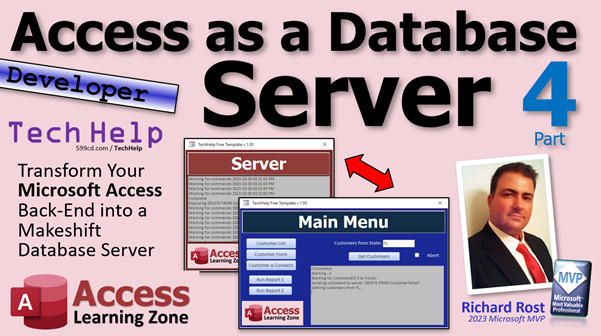
access 2016, access 2019, access 2021, access 365, microsoft access, ms access, ms access tutorial, #msaccess, #microsoftaccess, #help, #howto, #tutorial, #learn, #lesson, #training, #database, database server, sql server, back-end, front-end, split database, linked tables, pass-thru query, timer loop
More InformationTranscript Welcome to another TechHelp video brought to you by AccessLearningZone.com. I'm your instructor, Richard Rost.
Today is part four of taking your Access back-end database and turning it into a database server. Since this is part four, if you haven't watched parts one, two, or three, go do it, watch it, and come on back.
In yesterday's video, we got it to where we're putting commands in the command table, and now we have to go over to the server to actually read those commands and do something with them.
I click "Get Customers," it puts that in there. I'm going to abort, and we'll take a look at the command table. There it is, it's sitting right in there.
Now, the server has to pick that up and run it. Let's go work on that now.
Open up the back end. Here is the server form just sitting there.
What we're going to do is use a timer event in this form to run every, let's say, second. You can run it more or less frequently if you want to. I think a second is about perfect for me.
Let's go into here. The first thing I want to do is activate that timer when the user turns the server on. You can set this to true and run it in the On Open event if you want to, but I'm going to make it so it's a manual thing for now.
During development, I don't always want it starting up and running.
This guy is an After Update event. Let's go to Events and then After Update.
We can get rid of most of the stuff in here. We don't need a lot of this stuff, this Customer Contact button, all this stuff. I'm going to leave the Form Load. We can get rid of you.
In the Running checkbox we're going to say: if running, that means we've checked it on, then
Me.TimerInterval = 1000
I'm setting the timer interval for the form to 1000 milliseconds, which is one second, so the timer event is going to run every second.
Else
Me.TimerInterval = 0
That turns off the timer event.
Now we need to actually program that timer event. So, again, let's go to the form's properties this time, find On Timer, which is way down here.
What are we going to do in the form timer event? For right now, let's just do status: "Waiting for commands," and then we'll put the current time in there.
Save it, come back out here, let's reopen it.
Yeah, I've got code that slides it down. I'm going to move the window.
Now when I turn the timer on, it's just going to sit there waiting for commands every second. You'll see that: "waiting for commands."
Now we actually have to make it look for commands. So let's turn that back off. Always turn off any timer events whenever you go to work on it, because if you leave this timer running...
I get asked this one all the time: you come back in here and you start doing stuff, you put like this, and oh look, it says syntax error because that timer event is running on the form, and it's going to interfere with you working with it. If the VBA editor is acting weird, you've got a timer event running somewhere.
I get asked that all the time. So make sure you disable any timer events before you go into this, and I've got to close and reopen the form so that it clears all that out.
So, in that form timer event right here...
What are we going to do? We're going to need a recordset. So
Dim rs As Recordset
This one works best with a recordset.
Status: "Waiting for commands"
Now we're going to
Set rs = CurrentDb.OpenRecordset("SELECT * FROM CommandT WHERE CommandCompleted = False ORDER BY CommandDateTime")
If there are multiple commands in there, I want you to execute the lowest one.
The way this is set up right now is the user database is only going to issue one command at a time. It's going to issue the command, wait for it to finish, issue the command, wait for it to finish. So there shouldn't be more than one command in there.
I'm building it this way for future upgradeability so you can launch multiple commands at once. Again, there are lots of reasons why - just trust me at this point.
Later on, we can set it up so that the user machine can lock the server, send a bunch of commands, unlock it, and wait for them to finish running.
But for now, this is the way we're doing it.
Yes, after I built my prototype database and after recording a few videos of this, I've thought of like 15 different ways to do this, some of which may be better, but this works.
If Not rs.EOF Then
What we're saying is if there is a record. So it's going to try to open up that recordset. If there is no record in there, it's just going to exit out.
If there's no record, at this point
rs.Close
Set rs = Nothing
But in the event that there is a record, what do you want to do? We have a command. So let's just see what it is first.
Status: "Executing " & rs!CommandText
I want to just see it in my status bar. Again, you can hide this later if you want to.
CurrentDb.Execute rs!CommandText
In other words, take that command text that I got sent from the user workstation and run it here.
That's the whole point: get that delete statement and run it here, get that update statement, that append statement, whatever, run it here.
This is essentially what a database server does: it gets a command from the workstation and executes it. That's executing it locally so we can handle the data here.
When that's all done, status: "Complete"
You can put all kinds of error checking in here and make sure it ran successfully, but we're just keeping it simple at this point.
Now we have to mark this command as having been finished and executed so that the workstation knows it's done.
rs.Edit
rs!CommandCompleted = True
rs.Update
Now the workstation will be notified that it's finished.
As soon as I start this, it's going to execute that, which I believe there's that delete statement in there. Yeah, there's a delete command in there. So as soon as I start the server, it should see that and run it.
Let's make sure what is in the CustomerTempT.
Okay, so there's stuff in CustomerTempT, and the first command is going to be to delete all that stuff.
I'm going to start the server.
As soon as it ran, look, it got it. It executed the statement, marked it complete, and now it's waiting for commands again. Let's take a look - the command is now marked complete.
If we look in CustomerTempT, they're gone.
This table is clear now.
Let me close this.
Let's go back to the front end database.
I'm going to just manually put some stuff in the CustomerTempT table. There's just some garbage in here.
There are some records in CustomerTempT.
Now I'm going to start up the server.
I'm going to let you sit over here and I'm going to let the server go running. The server is sitting there on its computer over in the corner, in the closet, whatever, and it's running.
On this machine, I want to execute a statement. So I'll hit that "Get Customers," it sent it, it's waiting over here.
Look, it got it and it's done and this guy is marked completed. See, that happened really fast.
Sent the command, it went into the command table, this guy got it and ran it, marked it complete, and this guy marked completed.
Now if I look in the CustomerTempT table, that stuff is gone. That's the power of this: this guy issues the command, this guy runs it. Now they're talking to each other.
In tomorrow's video, we're going to finish that and send the second command. We'll delete what's in the CustomerTempT and then we'll fill it with the data that we want.
So come on back tomorrow, same bat time, same bat channel. We'll continue working on this database.
That's going to do it for your TechHelp video for today. That's part four. I hope you learned something. Live long and prosper, my friends. I'll see you tomorrow. Intro In this video, we continue building a Microsoft Access database server by showing how to set up a timer event on the server form to automatically process commands from the command table. You'll learn how to configure the timer, use VBA to read and execute pending commands, and update their status after completion. We also talk about best practices for handling timer events during development and demonstrate the automatic execution of delete statements on the server side. This is part 4. Quiz Q1. What is the primary role of the timer event in the server form described in the video?
A. Automatically log off users after inactivity
B. Periodically check for new commands to execute
C. Refresh all tables in the database every second
D. Backup the database every minute
Q2. Why does the video recommend turning off timer events before working in the VBA editor?
A. To prevent system shutdowns
B. To avoid timer events interfering with code editing
C. To reset all table data
D. To enable faster VBA compilation
Q3. What does setting Me.TimerInterval = 1000 do in the server form?
A. Runs the timer event every 100 seconds
B. Turns off the timer event completely
C. Runs the timer event every 1 second
D. Sets the timer interval to 1 millisecond
Q4. How does the server form determine which command to execute next?
A. It picks the most recent command entered
B. It selects all commands with CommandCompleted = True
C. It executes commands in order of CommandDateTime where CommandCompleted = False
D. It runs a random command from the table
Q5. What is the purpose of marking a command as CommandCompleted = True?
A. To indicate that the command failed
B. To notify the workstation that the command has finished running
C. To lock the record for exclusive access
D. To delete the command from the table
Q6. When the server executes a command, where does the actual SQL command text come from?
A. It is hardcoded in the server
B. It is entered manually by the user each time
C. It is retrieved from the CommandT table
D. It is imported from an external file
Q7. Why is the current design issuing only one command at a time?
A. To improve the user interface speed
B. Because multiple commands are not supported by Access
C. To simplify the process for future upgrades and prevent conflicts
D. To comply with licensing restrictions
Q8. After the server executes the command and marks it complete, what does it do next in the timer event?
A. Exits Access
B. Waits for the form to be reloaded
C. Goes back to waiting for the next command
D. Closes all open tables
Q9. What table is referred to for temporary data manipulation in the demonstration?
A. CustomerT
B. CommandT
C. CustomerTempT
D. OrdersT
Q10. What is one advantage of building the system to use a timer-based event loop instead of executing commands immediately as they are inserted?
A. It uses less memory overall
B. It is more user friendly for beginners
C. It allows for centralized command handling on the server and potential batching of commands
D. It is the only way Access can communicate between databases
Answers: 1-B; 2-B; 3-C; 4-C; 5-B; 6-C; 7-C; 8-C; 9-C; 10-C
DISCLAIMER: Quiz questions are AI generated. If you find any that are wrong, don't make sense, or aren't related to the video topic at hand, then please post a comment and let me know. Thanks. Summary Today's TechHelp tutorial from Access Learning Zone focuses on the fourth part of transforming your Access back-end database into a database server. If you have not followed along with parts one, two, or three yet, I highly recommend you watch those first before continuing with today's lesson.
Yesterday, we reached the point where our system could place commands into the command table. Now, our next objective is to configure the server so that it can read those commands and process them accordingly.
Once I press the "Get Customers" command, it gets recorded in the command table. You can see the command sitting there, ready to be picked up.
Now the responsibility shifts to the server to detect and execute these commands. To achieve this, let's open the back-end database and examine the server form. The approach I prefer is to use a timer event in the server form. This event can run every second, or whatever interval suits your needs, but I find a one second interval to be just about right.
First, you need to activate the timer whenever the user enables the server. While you could set it to run automatically when the form is opened, I like to keep this as a manual process during development so the server doesn't start running on its own every time you open the form.
On the server form, we use a checkbox that allows you to turn the server on or off. When this checkbox is checked, the form's TimerInterval property gets set to 1000 milliseconds, which tells the form to fire the timer event once per second. If the checkbox is unchecked, that interval is set to zero and the timer stops running.
With that in place, we need to program the timer event itself. For testing, you might start off by displaying a simple status message that says "Waiting for commands" along with the current time. This gives you a clear indication that the timer is functioning as intended.
Now, once the timer is running, the next step is to have it actually look for commands in the command table. It is very important to remember to disable the timer event whenever you make changes to your code or work in the VBA editor. If you leave the timer running, it can interfere with your ability to edit code properly and often leads to confusing errors, such as syntax errors popping up unexpectedly.
Inside the timer event, you will need to set up a recordset to check for new commands. Specifically, you want to look for any records in the command table that are not yet completed, sorting them by the date and time they were issued so that you execute the oldest command first.
The system is currently designed so that the user's workstation will typically issue one command at a time and wait until it finishes before sending the next. This is intentional to keep things simple for now, but the structure is flexible enough that you could modify it later to allow multiple simultaneous commands.
If there is at least one command waiting to be executed, the server form displays a status message indicating which command it is about to execute. Then, it will take the command text received from the user's workstation and execute it using the local database engine. This could be a delete statement, an update, or any other SQL command you have designed to send from the workstation.
Once the command has successfully run, you should mark it as completed in the command table, so the workstation will know that it has finished. This involves editing the record, setting its CommandCompleted field to true, and then updating the record.
Testing this process, you can see that as soon as a command appears in the command table and the server is running, the server picks it up, executes it, marks it as complete, and then returns to waiting for the next available command. You can verify that the command has done its job by checking the relevant tables, such as CustomerTempT, and you should see that the intended data changes have taken place.
To further illustrate, if you manually add some test records to CustomerTempT and trigger the server, the command processing happens automatically and the server will handle the command as soon as it is sent. The process is fast and seamless, demonstrating effective communication between the user's workstation and the server.
In the next video, we will complete this project by adding in the ability to send a second command. After deleting the old data from CustomerTempT, we will populate it with the actual data that we need.
That concludes today's TechHelp tutorial, part four in this series. If you would like to watch a complete video tutorial with detailed, step-by-step instructions for everything discussed here, you can find it on my website at the link below.
Live long and prosper, my friends. Topic List Activating form timer event for server processing
Setting timer interval programmatically
Enabling and disabling timer events
Programming On Timer event in a form
Displaying server status using a text box
Reading pending commands from the command table
Using VBA recordsets to process commands
Selecting commands based on completion status
Executing SQL commands from table data
Marking commands as completed after execution
Managing form events while debugging
Updating status messages during command processing
Clearing temporary tables using server commands
Synchronizing user workstation and server actions Primary Topics Access server form, timer event, backend command table, recordset processing, SQL command execution, status updates, transaction completion
Secondary Topics command table design, error prevention tips, user interface feedback
|






