Speed Up Loops
By Richard Rost

 2 years ago
Speed Up Loops in Microsoft Access VBA In this Microsoft Access tutorial, I will discuss how to speed up your loops in VBA by using SQL statements, updating the screen less often, asynchronous processing, and avoiding form controls in your loops. Brooke from Hilliard, Ohio (a Platinum Member) asks: I've got a loop that [does stuff] however it's tremendously slow if I display a status on the screen. If I get rid of the status, then it runs much faster, but it still takes a few minutes to run, and I don't want the user to think the database is locked. Any suggestions? MembersThere is no extended cut, but here is the database download: Silver Members and up get access to view Extended Cut videos, when available. Gold Members can download the files from class plus get access to the Code Vault. If you're not a member, Join Today!
PrerequisitesLinksRecommended Courses
Keywords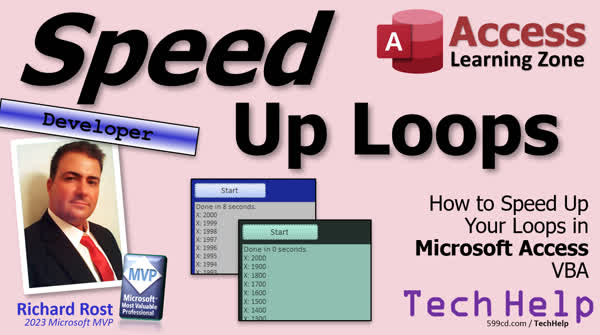 TechHelp Access, speed up loops VBA, optimize VBA loops, asynchronous processing Access, update screen less often VBA, improve VBA performance, echo command VBA, use SQL instead of loops, avoid form controls in loops, memory variables VBA, status box function VBA, date diff function VBA, record set VBA, avoid variants VBA
 Subscribe to Speed Up Loops
Get notifications when this page is updated
More InformationTranscript In today's video, we're going to talk about how to speed up your loops in your Microsoft Access VBA. Fun stuff. Today's question comes from Brooke in Hilliard, Ohio, one of my Platinum members. Brooke says, "I've got a loop that does stuff." She explained what it does, but the stuff that it does really is inconsequential. However, it's tremendously slow if I display a status on the screen. If I get rid of the status, then it runs much faster, but it still takes a few minutes to run and I don't want the user to think the database is locked. Any suggestions?
Well, yes, Brooke, I've got a couple of suggestions. Let's get into it. First off, if you can use an SQL statement instead of a loop, then do that. SQL is much, much faster than looping through records using VBA, whether it's a record set or moving through records in a form, any of that stuff. SQL is always much faster. I get it because when I first started programming, I learned BASIC on an old TRS-80 when I was a kid. So my brain tends to think in terms of loops, in terms of BASIC, right regular programming. I didn't learn database SQL stuff until I was well into my 20s so I often think of loops first and then, "No, can I write this as an SQL statement?" later. So if you can do that, granted some things will require a loop. Like if you want to send a bunch of emails to people, you have to loop through all the records and send an individual email to everybody, so loops are unavoidable. But if you can use SQL, then do that.
Update the screen less often. If you're using something like my status function, my status box, which I'll talk about in a minute, instead of updating it for every record, then update it maybe every 100 records or every 1,000 records or whatever your numbers happen to be. We're going to go through an example of how to do this in a few minutes. But it is definitely those screen writes that are slow. They're usually the slowest thing in a loop.
You can turn off screen writes altogether with the echo command. I've covered this in a couple of different videos but I don't recommend it because, for a couple of reasons, it doesn't solve your problem. If your event takes a few minutes to run and the user is going to sit there and go, "What happened?" and then maybe, you know, close Access and, you know, task manager, kill it, whatever, because they think that it's locked. You don't want that, so you still want to update them every couple of seconds so they know something is going on. Plus with the echo command, if you turn echo off and you do end up with an error or something aborts your loop, if you don't turn echo back on, your database is going to appear to have crashed. I don't recommend that option, but it is an option.
You can use asynchronous processing. What this means is having two processes run at the same time. I mentioned a minute ago that email batch. Well, instead of having your main database do it while the user sits there and waits, you could do it in the background. Now, Access by itself does not support asynchronous processing, but you can shell out to a second database. Make a button that opens up another database and that database can process in the background while your user can go back to work. That's definitely an option. I do that all the time myself. In fact, here's a video that explains how to launch another database from your main database. If you're interested, go watch this one.
Next up, try not to use form controls in your loop. Bound controls especially if it's bound to a table, okay, or any form control if you can help it. It's much, much faster if you stick to memory variables. So, if you have to do some stuff, read that form value into memory and then perform the loop on that variable that you've declared. Don't work with the form fields if you can avoid it because that's, again, going to slow things down. And along the same token, try to avoid moving around on forms using go to record, go to control, all that kind of stuff. If you need to loop through records, use a record set. It's much, much faster. And if you don't know what a record set is, well, go watch this video. I've got videos for everything.
And finally, avoid variants if possible. Variant memory types or data types, they're just slow. They're slower than longs and strings and all that. Why? Don't worry about it. It's above your pay grade. There's a long technical explanation why. But if you're looping through tens of thousands of records and you can use a number type like a long type or whatever, use that instead of a variant. It'll speed things up for you.
Alright, so let's take a look at an example of one of these. How to update the screen status less often. Let's see how to do that. But first, some prerequisites. Like I mentioned before, this is going to be a developer-level video. What does that mean? Well, that means if you don't know any VBA and you want to learn some VBA, VBA is really cool, folks. Go watch this video, it will get you started in about 20 minutes. For the purposes of this video, I'm going to use a for next loop just to loop a bunch of stuff, alright, just to sample something happening, but you can use any kind of loop you want. You can use a while loop, you can use a do loop, you can use a loop de loop, you can use a, I don't know, hula hoop loop, whatever.
I am going to use my little status box function that I created which basically puts the information you want to put in a little box on your form. And I explained how I use this in this video. If you want to learn that, it's basically something better than using the status bar or popping up a message box. And finally, I don't have a cool screen for this one, but it's an older video, that's why. We're going to use the modulus function mod to determine if we've, you know, displayed a hundred records or a thousand records or whatever, and we're going to use the mod function to do that.
So, go watch this video if you don't know what the mod function is. These are all free videos. They're on my website, they're on my YouTube channel. I'll put links down below, go watch those, and then come on back.
Alrighty then, so here I am in my TechHelp free template. This is a free database you can download off my website if you want to, but you can do this stuff in any database you want. Now, I've got a Hello World button here, and all that does is use the status function and displays Hello World. So, instead of doing that, let's hijack this button and make it loop like 2,000 times through a loop here. And then we'll display the data to the screen, and you can see how slow it is. Watch this.
Right-click Build Event. It brings up my code builder. Alright. I'm right here. I don't want a status Hello World. Let's do a loop. So, let's dim x as long. And I'll say for x equals 1 to 2,000. I tested it before. 2,000 seems about right. It takes about six seconds to run. And then we're going to status x is going to be x, like that little concatenation. It puts the string there, x colon, and then it puts the actual value for x after it. Nice and easy. Then next, that means we're done with the loop. Alright, and then we'll beep when we're done. Okay, save that. And I'll come back over here, I'm going to close it, reopen it, and hit the button. Alright, one, two, three, you can see how slow it is. Four, five, six, about six seconds. Okay, want to see exactly how long it takes? You can put that calculation in here. A little side project for us. Let's get the start time, the end time, and we'll calculate the difference between them. That sounds like a fun little project. See, I always like to throw, even if you think you know the topic, watch the video anyway because I like to throw these little cool tricks in here.
Let's do a start time as a date, end time as a date, and then we'll calculate the seconds between them. So, we'll go sec diff as long. You don't want to use seconds, that's a reserved word. So before the loop starts, we'll say start time equals now, that's right now, using the now function. The current date and time to the second. To the second, can you get more precise than that? Yeah, you can. That's a topic for a different video though. Alright, and then when this is done, we're going to say end time equals now. Now we can calculate the difference between them using the date diff function. So, sec diff, that's my variable, equals date diff seconds with S, start time, end time, just like that. I got a whole separate video on date diff if you want to learn how to take the difference between two dates and times. You can do months, years, whatever. I'll put a link to that down below. And now we can say status done in sec diff seconds like that. It will tell you how many seconds it took. And then our beep.
Alright. This should be cool already. Save it. Always throw in a debug compile when you make some changes. Major changes. Alright. Hello, world. It's running. It should take about six seconds. It's a good way for me to kill some time. No, I'm just kidding, just kidding. Alright, almost done. And boom, done in oh, eight seconds that time. When I ran it earlier, it took six seconds. You know what? Before when I tested this, I ran it a bunch of times and it always took six seconds, but I wasn't recording a video. So right now I'm recording, so I'll bet you that my screen recording software is taking up a little bit of processor cycles and that's causing that difference in time.
OK, but the slow thing here is the screen writes. Obviously, if in the middle of this loop you're sending an email, that's probably going to be the slow thing, and this technique might not help you as much. Because sending that email and connecting to the mail server and sending it, that's definitely going to be the slow thing. And that's where asynchronous processing comes in. Hang on, someone's beaming in from the Starship. Right? The asynchronous processing, I use a second database for that. So my database, when I put together like a mail batch, my database queues up the emails in a table, and the other database then sends them out in the background. That's an example of using two different databases. But in this particular case, this could be something simple in the middle here that you're doing. And the status is definitely the slow thing so how do we improve the screen writes well we'll just say, "I only want you to display it on the screen every, what, hundred records?" That should be about right. Let's do that. So I'm gonna say in here if x mod one hundred equals zero then do that. X mod 100 means if X is evenly divisible by 100, if the remainder after that division is 0, that's what modulus is, then go ahead and update the status.
Let's see how long it takes now. Ready, go. Done. 0 seconds. And obviously if this was a longer thing, let's add this up. Let's make this 100,000 records. Let's see what happens. Alright, save it and go. Alright, still taking a while, but it only took four seconds to do a hundred thousand, whereas it took eight seconds to do twenty thousand before. We can increase that rate. Instead of displaying every hundred, let's display every thousand. So you've got to kind of twerk, twerk, you've got to tweak this to your needs. There we go. Zero seconds again. So see, it's definitely the screen writes that are the slow thing there.
Now could you make this processor independent? Yeah, you could put something in here to check the time. You can have it so it only updates the screen every second because remember, I don't know if you guys are as old as I am but way back in the day. It was a Tuesday. Back in like the 90s and 80s and stuff, we had a turbo button on our PC. Who's old enough to remember the turbo button? Because all those games that were written for old PC XT computers, they were written to play with the clock speed of the computer. So if you're playing Tetris, the blocks fall at a particular rate based on the clock speed. It wasn't based on the real-time clock. And so when the newer, faster 386, 486 machines started coming out, you go to play Tetris and it went done. You're just dead in three seconds. So they added a turbo button so you could literally slow the computer down so you could play your old games. So, you could put something in here that says only update this every one second or every three seconds. However you think the user is going to deal with it. I'm not going to do that now, but if enough of you want to see how to do it, maybe I'll do it in another video. So post a comment down below if you'd like to see how that works.
Also, if you're going to run through a loop like this with 100,000 records, and let's say again you're sending an email batch to all your customers. I mean, I got like, I don't know, 200 some thousand people on my mailing list. And I like to watch it as it batches up and I can see what's going out and, "Oh, I discovered a typo and it's only going out to 50 people," so you want to stop the loop and then make a fix and then restart it. Well, you might want to put a little abort checkbox there so you can abort that loop. I'll talk about that in tomorrow's video.
But that is going to be your TechHelp video for today. I hope you learned something, my friends. Live long and prosper. I'll see you tomorrow.
Want to learn more? Click the show more link below the video to find additional resources and links. YouTube does a pretty good job of hiding it. It's right down there. See this part of the description here. The name, the videos up here. There's a little show more down there, right down the bottom. It's kind of hard to find. But once you click on that, you'll see a list of other videos, additional information related to the current topic, lessons, and lots more.
And YouTube no longer sends out email notifications when new videos are posted like they used to do. But if you'd like to get an email every time I post a new video, click on the link to join my mailing list. And you can pick how frequently to get emails from me, either as they happen, daily, weekly, or monthly.
Now if you'd like to become a paid member of my channel and receive all kinds of awesome perks, click on the Join button. You'll see a list of all the different membership levels that are available, each with its own special perks, including my extended cut videos, access to my code vault, lots of VBA source code in there, template downloads, and lots more. I'll talk more about these perks at the end of the video.
Even if you don't want to commit to becoming a paid member and you'd like to help support my work, please feel free to click on the tip jar link. Your patronage is greatly appreciated and will help keep these free videos coming. I got some puppies to feed. But don't worry, no matter what, these free TechHelp videos are going to keep coming. As long as you keep watching them, I'll keep making more and they'll always be free.Now, if you really want to learn Access and you haven't tried my free Access Level 1 course, check it out now. It covers all the basics of Microsoft Access including building forms, queries, reports, and more. It's over 4 hours long. You can find it on my website or on my YouTube channel. I'll put a link down below you can click on. And did I mention it's completely free? The whole thing, free, 4 hours, go watch it.
And okay, okay, a lot of you have told me that you don't have time to sit through a four-hour course. So I do now have a quicker Microsoft Access for Beginners video that covers all the basics faster, in about 30 minutes. And no, I didn't just put the video on fast forward. But I'll put a link to this down below as well.
Now, if you like Level 1, Level 2 is just a dollar. That's it, one dollar. That's another whole like 90-minute course. Level 2 is also free for paid members of any level, including supporters. So if you're a member, go watch Level 2, it's free.
Okay, want to get your question answered in a video just like this one? Visit my TechHelp page and send me your question there. Members get priority, of course. While I do try to read and respond to all the comments posted below in the comments section, I only have time to go through them briefly a couple of times a month, and sometimes I get thousands of them. So send me your question here on the TechHelp page and you'll have a better chance of getting an answer.
And while you're on my website, be sure to stop by my Access Forum. We've got lots of lively conversations about Microsoft Access and other topics. I have a fantastic group of moderators who help me answer questions. Shout out to Alex, Kevin, Scott, Adam, John, Dan, Juan, and everybody else who helps out on the site. I appreciate everything you do. I couldn't do it without you.
Be sure to follow my blog. Find me on Twitter and of course on YouTube. Yeah, I'm on Facebook too, but I don't like Facebook. Don't get me started.
Now, let's talk more about those member perks if you do decide to join as a paid member. There are different levels: Silver, Gold, Platinum, and Diamond. Silver members and up get access to all of my extended cut TechHelp videos, one free beginner class every month, and some other perks.
Gold members get all the previous perks plus access to download the sample databases that I build in my TechHelp videos, plus access to my code vault where I keep tons of different functions that I use, the code that I build in most of the videos. You'll also get higher priority if you do submit any TechHelp questions. Now answers are never guaranteed, but you do go higher in the list for me to read them. And if I like your question, you've got a good chance of it being answered. You'll also get one free expert level class each month after you've finished the beginner series.
Platinum members get all the previous perks plus even higher priority for TechHelp questions. You get access to all of my full beginner level courses for every subject, and I cover lots of different subjects like Word, Excel, VBA, ASP, lots of different stuff, not just Access. These are the full-length courses found on my website. You get all the beginner ones. In addition, once you finish the expert classes, you get one free developer class per month, so lots of training.
And finally, you can also become a Diamond Sponsor. You'll have your name or your company name listed on a sponsors page that will be shown on each video as long as you're a sponsor. You'll get a shout out in the video and a link to your website or product in the text below the video and on my website.
So that's it. Once again, my name is Richard Rost. Thank you for watching this video brought to you by AccessLearningZone.com. I hope you enjoyed. I hope you learned something today. Live long and prosper, my friends. I'll see you again soon.
Live long and prosper, my friends. I'll see you again soon.
TOPICS:
Using SQL instead of loops in VBA
Updating the screen less frequently in loops
Turning off screen writes with Echo command
Using asynchronous processing in VBA
Avoiding form controls in loops
Using memory variables instead of form fields
Using record sets for faster processing
Avoiding variant data types in loops
Using the modulus function (mod) to update status
Calculating execution time for loops
Implementing status updates in loops
Reducing screen writes to improve performance
COMMERCIAL:
In today's video from Access Learning Zone, we'll tackle speeding up your VBA loops in Microsoft Access. Brooke from Hilliard, Ohio, asks about slow loops, and I'll share some practical tips. First, consider using SQL instead of VBA loops for faster performance. Next, learn how to update the screen status less often, reducing the lag caused by frequent screen writes. We'll also explore alternative methods like asynchronous processing and working with memory variables instead of form controls. Finally, avoid using variants to enhance speed. You'll find the complete video on my YouTube channel and on my website at the link shown. Live long and prosper my friends. Intro In this video, we'll talk about how to speed up your VBA loops in Microsoft Access. I'll share tips such as using SQL instead of loops when possible, reducing slow screen updates by only refreshing your status display every set number of records, and working with memory variables instead of form controls. We'll cover why turning off screen writes with the Echo command isn't always the best idea, ways to handle asynchronous processing, and how choosing the right data types can improve your loop's performance. I'll also demonstrate using the modulus function to control status updates and show how to measure your loop's execution time. Quiz Q1. Which method is generally faster than using loops in VBA for data processing in Microsoft Access?
A. Using SQL statements
B. Using Form Controls
C. Using echo command
D. Using synchronous processing
Q2. What is the main advantage of updating the screen status less often during a loop?
A. To increase the complexity of the code
B. To include more data in the updates
C. To decrease the overall execution time
D. To improve the visual appeal of the form
Q3. What command can be used to turn off screen writes altogether in Microsoft Access VBA?
A. SQL command
B. Echo command
C. Status command
D. Timer command
Q4. What is a potential downside of using the echo command in loops?
A. It significantly increases memory usage.
B. Users might think the database is locked if an error occurs.
C. It improves execution speed but complicates code readability.
D. It only works with a specific type of loop.
Q5. How can asynchronous processing be achieved in Microsoft Access?
A. By running multiple forms simultaneously
B. By using echo off command
C. By shelling out to a second database
D. By updating form controls directly
Q6. Why should you avoid using form controls in loops in Microsoft Access VBA?
A. They provide inaccurate data.
B. They prevent the loop from completing.
C. They are much slower than using memory variables.
D. They create security vulnerabilities.
Q7. What type of variable should be avoided in loops for better performance?
A. Integer
B. Long
C. String
D. Variant
Q8. What function can be used to determine if a loop has processed a specific number of iterations?
A. MOD function
B. SUM function
C. AVG function
D. MID function
Q9. What concept is explained in the video when referring to adjusting the screen update rate to improve performance?
A. Form Record Navigation
B. Variable Data Types
C. Modulus Function
D. Asynchronous Processing
Q10. What historical computing feature was referenced that allowed slowing down the computer's speed?
A. DOS mode
B. Safe mode
C. Turbo button
D. Overclocking settings
Q11. What additional feature was suggested to add for long-running loops to allow user intervention?
A. A pause button
B. An abort checkbox
C. A restart option
D. A sound alert
Q12. Which VBA function was used to calculate the difference between two dates or times?
A. TimeDiff
B. DatePart
C. DateAdd
D. DateDiff
Answers: 1-A; 2-C; 3-B; 4-B; 5-C; 6-C; 7-D; 8-A; 9-C; 10-C; 11-B; 12-D.
DISCLAIMER: Quiz questions are AI generated. If you find any that are wrong, don't make sense, or aren't related to the video topic at hand, then please post a comment and let me know. Thanks. Summary Today's TechHelp tutorial from Access Learning Zone focuses on making your Microsoft Access VBA loops run faster. I often get questions from students about why their loops seem slow, especially when providing real-time feedback on the screen. Brooke recently asked about this issue. She mentioned that when she displays the status during processing, everything seems sluggish. Without the status display, things improve, but the process is still not as fast as she would like. What can you do to speed things up and keep your users informed?
I have several good recommendations. The first and most important tip is to avoid looping altogether whenever possible and use SQL statements instead. SQL is exponentially quicker than working through each record with VBA, whether you are using a recordset or manipulating data via a form. For example, when you want to update many records or perform calculations, encapsulating the action in a single SQL statement will always be more efficient than using a loop. I understand how tempting it is to fall back to loops since many of us learned programming in environments like BASIC, where iterative logic is second nature. But if you can translate your process into SQL, that should always be your first go-to.
Of course, some tasks do require loops. For instance, if you are sending out individual emails to many users, you cannot avoid looping through each person. In such cases where you must use loops, the next strategy is to minimize how often you update the display. If your code updates the screen on every pass through the loop, those writes are a significant bottleneck. Instead, update the display less frequently - perhaps every hundred or thousand records. We'll look at a practical demonstration of this in a moment.
Another measure you might hear about is turning off all screen updating using the echo command. While this can prevent screen redraws from slowing things down, I do not recommend it in most circumstances. First, it does not let your users know the system is still working, so they may assume the database hung and forcibly close it, potentially creating more problems. Second, if an error happens and echo remains off, Access will seem unresponsive, and you'll have a tough time getting things back to normal.
If you want to get even more advanced, think about asynchronous processing, which involves running processes in the background so users can continue working. Access does not support true multithreading, but you can achieve similar results by opening a second database that performs the heavy lifting while the user keeps using the main application.
Another tip is to avoid interacting with form controls within your loops, especially bound controls connected to tables. Accessing form fields in a loop is much slower than working with in-memory variables. So, if you need to work with data from a form, read the values into local variables before starting your loop. Similarly, do not move through records or controls in a form when updating data. If you need to iterate through records, use a recordset instead - it processes much faster.
Data types also make a difference in loop performance. Try not to use the Variant type inside your loops. Variants are slower than explicitly declared types like Long or String. So if you are processing many thousands of records, and you can specify a more precise data type, do it.
Let me give you an example to demonstrate the effect of optimizing how often you update the screen. Assume you want to loop through 2,000 iterations and display each result to the user. If you update the status on every iteration, you will notice a substantial delay. In my sample code, it took about six to eight seconds, depending on what else my computer was doing. The cause of this delay is the need to refresh the screen each time the status is updated.
Now, suppose you only update the status every one hundred records by using the modulus function (for example, if x mod 100 is zero, then update). The entire process becomes nearly instantaneous. The status only refreshes periodically, so the screen writes no longer bottleneck your loop.
For more precise timing, you can capture the start and end times using the Now function, then measure the difference in seconds using the DateDiff function. It is always good practice to calculate your execution time if you are trying to optimize your process.
You can experiment with different frequencies for display updates based on how responsive you want the application to feel. You could even develop a method to update based on elapsed time, so the display only refreshes once per second, regardless of how many records have been processed since the last update.
If your process involves looping through very large numbers of records, such as for mass emailing, consider adding a means to abort the process partway through, such as a cancel checkbox or button. This approach provides additional control and stops you from sending the wrong information out to thousands of recipients before you can intervene.
In summary, here are the main points I recommend for speeding up your VBA loops in Access:
- Use SQL statements wherever possible to handle set-based tasks.
- Reduce the frequency of screen updates substantially by updating status only every X records.
- Avoid using the echo command to suppress all updates, as you want to keep users informed of progress.
- Consider asynchronous processing for lengthy operations.
- Work exclusively with memory variables inside loops, not with form controls.
- Use recordsets for data processing, not form navigation.
- Explicitly declare data types such as Long or String to avoid the performance hit of Variants.
- Use the modulus function to control update intervals for status displays.
- Measure your loop performance with start and end time variables.
- Implement logic that allows users to abort long operations if necessary.
If you would like to see exactly how to implement these techniques, including sample code and a full demonstration, you can find a complete video tutorial with step-by-step instructions on everything discussed here on my website at the link below.
Live long and prosper, my friends. Topic List Using SQL statements to replace VBA loops
Updating status messages less frequently in loops
Limiting status box updates with the mod function
Turning off or limiting screen writes for performance
Using asynchronous processing with a second database
Storing form values in memory variables for looping
Avoiding use of form controls inside loops
Using recordsets instead of forms for record processing
Avoiding variant data types in large loop processing
Calculating loop execution time with start and end times
Displaying loop execution time using date diff function
Adjusting frequency of status updates in large loops Primary Topics VBA loop optimization, reducing screen updates, using SQL instead of loops, asynchronous/background processing, efficient variable use, memory vs form controls, avoiding variant data types, using modulus for status updates, measuring execution time
Secondary Topics intro to VBA, referencing status functions, using record sets, handling user aborts, none
|




