Students & Parents 2
By Richard Rost

 2 years ago
Relate Students & Parents in MS Access Database Part 2 In this Microsoft Access tutorial, I will show you how to properly relate students and parents in your database, including setting up a junction table and using an append query to fix existing records. This is part 2. MembersThere is no extended cut, but here is the database download: Silver Members and up get access to view Extended Cut videos, when available. Gold Members can download the files from class plus get access to the Code Vault. If you're not a member, Join Today!
PrerequisitesLinksRecommended CoursesUp Next
Keywords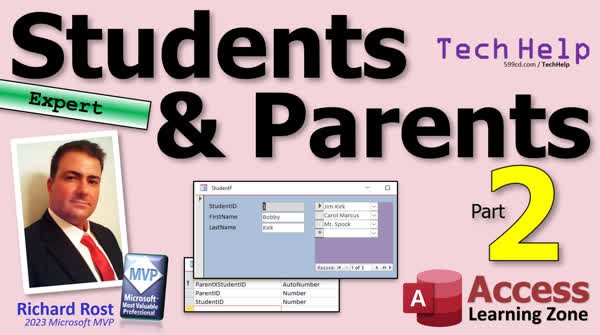 TechHelp Access, relate students to parents, many-to-many relationship, parent x student table, append query, junction table, track multiple parents, subform creation, data migration, database backup, compound relationship, auto number field, primary guardian tracking, student-parent pairing, form design, Access action queries, append data, database normalization
More InformationTranscript Today's part two of my students and parents video series where I'm teaching you how to relate students to parents the right way. I'll show you the wrong way in part one. Well, not the wrong way, but not the best way.
Today we're gonna fix the database from part one and make it better. So if you haven't watched part one yet, go watch part one first and then come on back. All right, so yesterday we set up a parent table and we got a student table. And in our student table, we got two fields to track who the parents are.
But the problem is, what if we want three parents or six parents or 25 parents or who knows how many parents. I don't want just combo boxes in here to pick two parents. And I don't want to add five because then it's no. It's just no. No. It goes against all the proper rules for making databases.
So what we're going to do is we're going to make a subform here that is going to allow us to pick as many parents or guardians as we want. But the trick here, the key here is we don't want to lose the data. I only got a couple in here right now. So it wouldn't be a big deal to just retype these.
But the original questioner, Darren, says he's got thousands of them. You don't have to redo all that data. So we're going to copy it over using an append query. So the first thing we have to do is set up our junction table for our many-to-many relationship. So we're going to create table design. This will be our parent x student table.
So we're going to start off with an ID, that's our auto number. Do you need that auto number? No, not really. You can get away without it. I have a personal rule that I always put an auto number in pretty much every table, just in case later on you've got to write some code or do something that refers to that specific record, that specific relationship. And yeah, you could index no duplicates and move a compound relationship. There's all kinds of things you can do, but the auto number just makes it simple.
OK, now in here we're going to have a parent, parent ID, that's our number, and a student ID. All right, that's one relationship between one parent and one student. Now in here you can also put any other information that you want about this specific pairing of a parent and a student. If you want to keep track of, is this the primary guardian of the person, you can put that in here. Maybe we'll do that in a future video. There's all kinds of things you can put in here about that relationship. The date that it started.
That would be good, for example, with employees and supervisors. What date did this person start being the supervisor of the team? That kind of stuff. Anything related to this relationship. It's not about the parent, it's not about the student, it's about the pairing of the two. So any of those other things can go in here. I will save this as my parent x student table. That's just how I name my junction tables, the relationship between the two. Does it matter if it's parent x student or student x parent? No, not really. It's the same either way. It doesn't matter. OK?
Now, normally if I was setting this up from scratch, and I was putting data in it without having to copy over existing data. Let's get this stuff up here so we can see it. There's the parents, here's the students. All right, the data that I want right now is in these two fields, OK? And if I were to put this stuff in this table manually, here's what it would look like. Here's Bobby Kirk. So that's student one. And his parent one is parent one. So that's Jim Kirk. Student one also has a parent two, which is record five. See that? So there's student one. There's student one. And his two parents are one and five. See that? So that's what that data would look like in this table.
All right, the next student, Sue Kirk. She's got two records also, so two, two, and what are her two parents? She's got parent one and parent five, same two parents as Bobby. See how that works? OK, but if you've got thousands of records in here, you're not going to copy these all by hand unless you want to hire a temp or you have an intern you can make them do it for free but then you got to deal with errors and stuff.
All right, so what we're going to do is we're going to use an append query to copy all of this data and all of this data into this table. How do we do that? Well, let's close all this stuff up for now and let's go create a query. Create query design of before we do this by the way backup your database as my slide I should put like a danger will robinson robot backup your data before you do anything involving major changes to your tables so far we really haven't been fighting destructive but an append query you you could run into some problems any kind of an action query backup data of course you should be backing up the database every night if you don't know how to go watch this video explain all that to you back up your stuff back up your computer back up all your documents everything and databases I'd like to backup my database before I do any major changes to even though I have a nightly backup if I don't sit down and be making some changes and make a manual backup copy the file.
That's a regular query. Where's the data coming from? The data's coming from our student table. So that's all we need over here from the student table. OK. And now that you've got the student table in here, we're going to click on append. Where is the data going to? Where are we appending it to? Well, we're adding it to our junction table, parent x student table. Hit OK. Now you've got the append to down here. All right, what data's got to come out of here? Well, we need the student ID and the parent ID.
Now, we have to run this as two separate queries. And I'm assuming this is usually the kind of thing that you run once and you're done. One and done. You run it once, you copy the data over, and now your database is fixed. You can move forward. Unless this is something where you're getting this data, like you get a weekly download from the main office and you have to do this all the time, there's no need to save this query, you're not going to be using it more than once to just fix your data. But again, that's up to you.
So the student ID, that's easy. It goes right in the student ID field. Parent 1 ID doesn't match up down here because it's going into parent ID. You've got to run this twice because if you try to put this down here and do this, you're going to get an error message if you try to run it, you get duplicate output destination. So you have to do it in two passes, one for parent one, one for parent two, and it copies the data in the same field.
One more thing you might also want to do, since we've got some zeros in here, you don't want to copy those over. If you look on our student table, you've got some zeros. I don't need those records. So you can come down here and you can say the criteria in here is not zero, like that, or greater than zero, whatever you want to put in there if you got null values you can say is not null right you don't need those records all right so now I'm ready to run the query run it boom I have my warning messages turned off go watch my append query video if you want to learn how to turn the warning messages off but if you look in here now you should have there you go there's all the parent ones okay and now we'll just switch this to parent two and then we'll run it again. Ready? Run it a second time. Don't keep clicking that because you're gonna keep adding records. Be careful. Okay, and there we go.
So I've got a total of 13 records here and if I check I should have, if I go into student table, I should have 1, 2, 3, 4, 5, 6, 7, 8, 9, 10, 11, 12, 13 entries between those two fields. That's right. It worked. There you go. If you want to save this, you can. We'll just save this as our append parents query, whatever you want to call it. I'm not going to use this again. I'm done with it. But I'll save it for you guys in case you want to see it. Gold members in your download.
And that's that, there we go. Now we've got our junction table that has all of the same data that the student table had in it here. We can now find this data in this table and now we can base this data on a form that we can put in as a subform on the student form.
Make sense? We can get rid of this stuff too now. Again, back up your database first, but now I don't need these fields anymore. Right? Goodbye. Delete. Right? Which means I also don't need those combo boxes in here. In fact, they don't work anymore because the data is gone. So we can get rid of these. Right? We'll save that. And now we can make a subform and put it in here. And it's gonna look just like this. So we can pick multiple parents and we'll have the parents that we just appended copied over in there already and we'll do that in tomorrow's video.
You know the drill, tune in tomorrow, same bat time, same bat channel and we'll finish building up this student form with the subform on it. And if you're a member, you're going to watch it right now because that's one of the benefits of being a member. So that's going to be your TechHelp video for today. I hope you learned something. Live long and prosper my friends. I'll see you tomorrow for part three.
A special thank you and shout out to our diamond sponsor, Juan Soto with Access Experts Software Solutions. They're manufacturing experts specializing in Microsoft Access and SQL Server. Juan is a 13-time Microsoft Access MVP. Check them out at accessexperts.com.
TOPICS:
Creating a subform for multiple parents
Setting up a junction table for many-to-many relationships
Creating table design for parent x student table
Adding fields for parent ID and student ID
Importance of auto number in tables
Copying existing data using an append query
Creating append query in query design
Appending data to the junction table
Running append queries in multiple passes
Filtering out invalid data in append queries
Validating data transfer to the junction table
Removing old fields from student table
Deleting redundant combo boxes on forms
Preparing to create a subform as part of the student form
COMMERCIAL:
In today's video from Access Learning Zone, I'm showing you how to relate students to parents the right way. We're going to fix the database from part one and make it better. After setting up a parent and student table, I'll guide you through creating a subform to connect as many parents or guardians as needed. We'll ensure you don't lose any data by using an append query to copy everything over. You'll learn to create our many-to-many relationship junction table and set up the necessary queries. Find the complete video on my YouTube channel and on my website at the link shown. Live long and prosper my friends. Intro In this video, we'll learn how to properly relate students to parents in Microsoft Access by creating a many-to-many relationship using a junction table. I'll show you how to redesign your database to allow each student to be connected to any number of parents or guardians, set up the necessary fields, and use an append query to safely copy existing data into the new structure. We'll also cover how to remove old fields and combo boxes from your student table and prepare to add a subform for easy data entry. This is part 2. Quiz Q1. What was the first thing we created to manage the many-to-many relationship between students and parents?
A. A new student table
B. A new parent table
C. A junction table
D. A combo box
Q2. Why is it recommended to include an auto number ID in the junction table?
A. To avoid using any numbers
B. To simplify referring to specific records for coding or queries
C. To create a compound relationship
D. To add unnecessary complexity
Q3. What two fields should the junction table definitely include for the many-to-many relationship between students and parents?
A. Student Name and Parent Name
B. Student ID and Parent ID
C. Student Birthdate and Parent Address
D. Student Grade and Parent Occupation
Q4. When copying existing data, which query type is used to move data to the new junction table?
A. Delete Query
B. Update Query
C. Append Query
D. Select Query
Q5. Before running an append query, what precautional step is recommended?
A. Updating the software
B. Backing up the database
C. Printing the query results
D. Closing the database
Q6. During the transfer of data to the junction table, what criteria can be used to exclude certain records from being copied?
A. Records with values greater than 1
B. Records with values less than 0
C. Records that are zero or null
D. Records that contain text
Q7. Why do we need to run the append query twice in this scenario?
A. To ensure the query runs correctly
B. To handle duplicates effectively
C. To avoid duplicate output destination errors by appending parent 1 and parent 2 separately
D. To initialize the fields first
Q8. After transferring the data to the junction table, what can be removed from the original student form?
A. The subform
B. The combo boxes for parents
C. The entire student table
D. The backup copies of the database
Q9. What is planned for the next video tutorial following the completion of the junction table?
A. Creating a student combo box
B. Deleting the parent table
C. Building a subform on the student form
D. Adding more fields to the junction table
Q10. Which Microsoft Access and SQL Server expert is mentioned in the special thank you section?
A. Juan Soto
B. Darren Smith
C. Bobby Kirk
D. Jim Kirk
Answers: 1-C; 2-B; 3-B; 4-C; 5-B; 6-C; 7-C; 8-B; 9-C; 10-A
DISCLAIMER: Quiz questions are AI generated. If you find any that are wrong, don't make sense, or aren't related to the video topic at hand, then please post a comment and let me know. Thanks. Summary Today's TechHelp tutorial from Access Learning Zone will show you how to properly set up a relationship between students and parents in your database. This is part two of my students and parents video series. If you have not seen part one yet, you should watch that first so the concepts build in order.
In the first video, we created a parent table and a student table. In the student table, we used two fields to indicate the students' parents. Although this method works when each student only has one or two parents, it is not flexible enough for situations where a student might have three, six, or any other number of parents or guardians. Simply adding more fields or more combo boxes is not a good way to structure your data, because it breaks proper database design practices.
To solve this, we will set up a subform that allows you to assign any number of parents or guardians to each student. The key challenge is transferring your existing data. For people like the original questioner, who already has thousands of records, re-entering everything is not practical. Instead, we will use an append query to move the data efficiently.
The first step is to create your junction table. This table, which I like to call the parent x student table, handles the many-to-many relationship between students and parents. Each record in this table will link one parent to one student. I always include an auto number as the primary key in my tables, even if you could get by without it. This habit makes life easier later on if you need to refer to a specific record. In addition to the auto number, the junction table needs a parent ID and a student ID, both as number fields. You can also add any other information you wish about the relationship itself—such as whether a person is the primary guardian, or the date the relationship began.
For context, think about how you would normally fill out this table manually. Each row links a student to a parent, and if a student has two parents, you'll see two rows for that student, one for each parent. If you only have a small amount of data, you could do this by hand. However, with thousands of records, this is not realistic.
To automate this process, we will use an append query to migrate the existing parent information from the student table into your new junction table. Before making any major changes to your tables using an action query like an append query, make sure you back up your database. I recommend making a backup copy before you start.
The information you'll need comes from the student table. Set up your query so that it appends data to the parent x student table. You will actually need two append queries—one for each parent field in the student table—because you cannot append both parent fields to the same destination in a single run. First, use the student ID and the first parent ID to create the records in the junction table. Then, repeat the process for the second parent ID. Make sure you do not accidentally run the append queries more than once, or you will duplicate your data.
Also, remember to filter out any values that are zero or null, since you do not want these entered into your junction table. Add a criteria to the query so it only takes valid parent IDs.
Once the data has been copied over, check the junction table to verify everything is there. The total number of rows should match the total number of actual parents listed for all students in your original fields. If you want to save this append query in case you need it in the future, you can, but for most people, this is a one-time fix.
Once the data is safely in the junction table, you no longer need the old parent fields in the student table. Delete them and remove the related combo boxes from your forms, since they will no longer work. Your database is now ready for the next step, which is to create a subform based on the parent x student table. This subform can be placed on your student form, allowing you to assign as many parents or guardians as needed to each student with complete flexibility. We will cover building this subform in the next video.
You can find a complete video tutorial with step-by-step instructions on everything discussed here on my website at the link below. Live long and prosper, my friends. Topic List Creating a subform for multiple parents
Setting up a junction table for many to many relationships
Creating table design for parent x student table
Adding parent ID and student ID fields to a table
Using auto number fields in tables
Copying existing parent data using an append query
Creating an append query in query design
Appending data from student table to junction table
Running multiple append queries for each parent field
Filtering zero or null values in append queries
Validating data transfer from student table to junction table
Removing obsolete parent fields from student table
Deleting redundant combo boxes from forms
Preparing a subform for parent student relationships Primary Topics many-to-many relationships, junction table design, Access table design, append query, data migration, subform preparation, database normalization, data integrity Secondary Topics form cleanup, backup best practices, field removal, future enhancements |






