|
||||||
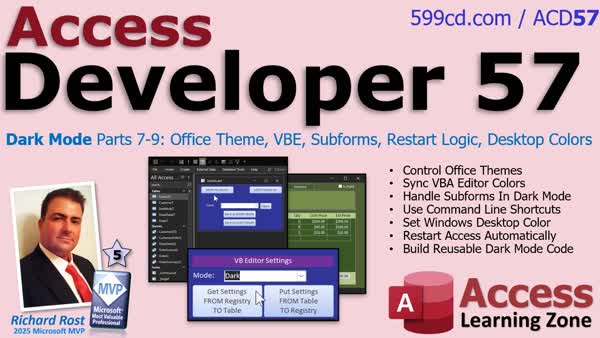
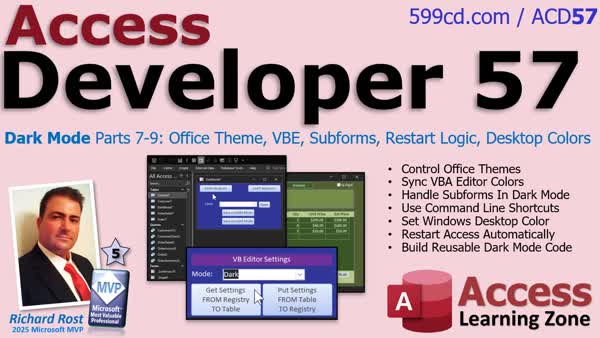
Access Developer 57Dark Mode 7-9: Office Theme, VBE, Subforms, ColorsWelcome to Access Developer 57. In this lesson, we continue building the dark mode system for Microsoft Access applications. We will teach Access to control the Microsoft Office theme so that programs like Word, Excel, and Access can switch between colorful and black mode automatically. We will also bring the VBA editor into the system, handle subforms, desktop colors, command line shortcuts, and show you how to switch your entire setup with one click, creating a comprehensive dark mode experience. Lessons
ResourcesNavigationLesson SummaryAccess Developer 57: Office Theme, VBE, Subforms - Welcome to Microsoft Access Developer Level 57. We will continue developing the Dark Mode system, turning it into a fully integrated solution. I will show you how to control the Microsoft Office theme, interact with Windows settings, manage the VBA editor, adjust desktop colors, and launch Access from command line shortcuts. Along the way, we will discuss handling multi-monitor taskbars, subform management, automatic restarts, and refactoring code into reusable procedures. By the end, you will have a polished Dark Mode system to easily switch your entire development environment between day and night modes.
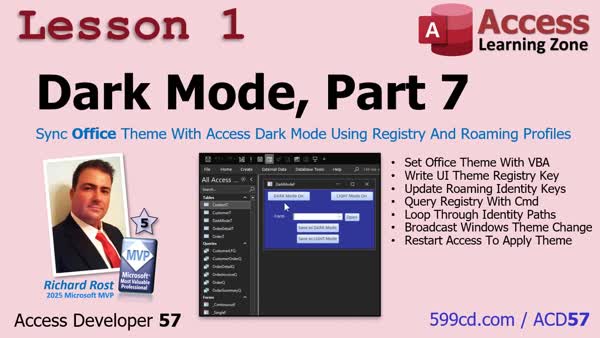
Lesson 1: Sync Office Theme via Registry & Profiles - In lesson one, we will walk through how to control the Microsoft Office theme from inside Access using both the Windows registry and roaming profile settings, ensuring Office applications like Access, Word, and Excel match your dark and light mode preferences. I will show you how to dynamically locate and update the correct registry keys for each user's Microsoft profile, broadcast theme changes across Windows components, and automatically restart Access to apply changes. We will discuss how theme settings sync across devices and how to find your own Office theme values. Next lesson, we will integrate the VB editor for full dark mode support.
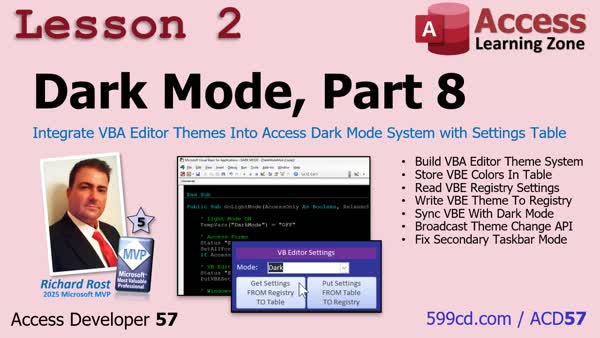
Lesson 2: VBA Editor Themes in Dark Mode - In lesson two, we continue by bringing the VBA editor into our dark mode system, making its theme settings switch automatically using values stored in the registry. I will show you how to handle multiple monitors so all taskbars update correctly, discuss the quirks of getting external apps like Office programs to respond, and demonstrate how to read and write VBA editor color settings from and to the registry using a settings table. We will also refine the interface and clean up button actions, ensuring dark mode changes apply smoothly across your Access environment.
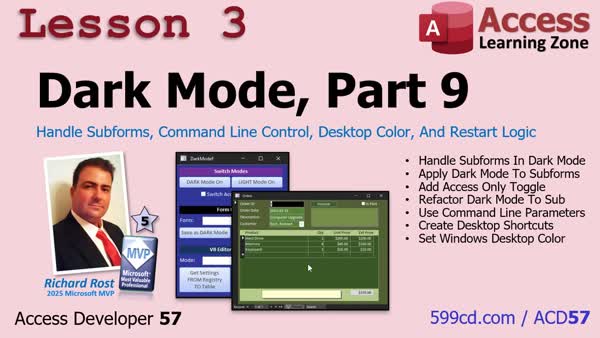
Lesson 3: Subforms, Cmd Line, Win Color, Restart - In lesson 3, we will walk through completing the dark mode system by addressing subforms, adding command line control and shortcuts, setting the Windows desktop color based on mode, and refining the code for reusability. We will also discuss handling Access-only dark mode, demonstrate how to create desktop shortcuts to toggle modes with command line parameters, and explain how to find and adjust Office theme values in the Windows registry or with PowerShell. This lesson wraps up the dark mode system for now, unless further requests are made.
Up Next: Review & Next Steps for Developer 58 - In this lesson, we wrap up Access Developer 57 and the Dark Mode series. We review how to create a complete Dark Mode system in Microsoft Access, covering how to coordinate Office themes, the VBA editor, subforms, command line shortcuts, and desktop colors so you can switch the development environment between day and night modes with ease. I also discuss what is coming next in Access Developer 58, which will focus on building a kanban board system with advanced VBA techniques such as form resizing and drag-and-drop functionality inside Access.
KeywordsAccess Developer, dark mode system, form color system, light and dark palettes, Windows API calls, Windows registry detection, Office theme control, auto switch colorful black mode, VBA editor dark mode, subforms dark mode, desktop color automation, comma
More InformationTranscriptHi, this is Richard Rost with accesslearningzone.com. I just released Access Developer Level 57, where we are continuing work with my dark mode system. In case you missed Developer 55 and 56, we started building the form color system, saving and applying light and dark palettes for your forms, handling the Access background, and then improving it with Windows API calls and Windows registry detection. Now we are going to teach Access how to control the Microsoft Office theme, so Word, Excel, and Access can switch between colorful and black mode automatically. Then we will bring the VBA editor into the system so your coding environment switches right along with everything else. Finally, we will handle subforms, desktop colors, command line shortcuts, and allow you to switch your whole setup with a single click. If you want a polished dark mode system that controls your Access workspace, Office, Windows, and the VBA editor, this course brings it all together. For more information, visit my website or drop a comment down below if you have any questions. Live long and prosper, my friends. I will see you in class. IntroWelcome to Access <B>Developer 57</B>. In this lesson, we continue building the dark mode system for Microsoft Access applications. We will teach Access to control the Microsoft Office theme so that programs like Word, Excel, and Access can switch between colorful and black mode automatically. We will also bring the VBA editor into the system, handle subforms, desktop colors, command line shortcuts, and show you how to switch your entire setup with one click, creating a comprehensive dark mode experience. QuizNo quiz available. SummaryToday's video from Access Learning Zone highlights the release of Access Developer Level 57, where I continue expanding my custom dark mode system for Microsoft Access. If you missed the previous classes, Developer Level 55 and 56 introduced the basics of the form color system. We started by saving and applying both light and dark color palettes to Access forms, as well as customizing the main Access background. I also worked on improving the system by integrating Windows API calls and detecting the Windows registry so the theme could adapt even more smoothly. In this new course, I take things a step further by showing how to let Access control the Microsoft Office theme itself. This means you will be able to make Word, Excel, and Access automatically change between a colorful mode and black (dark) mode, based on user preferences or system settings. After that, I demonstrate how to extend this theme-switching system to include the VBA editor. With this update, your coding environment will stay in sync with your chosen theme, giving you a seamless experience across all your development tools. The course then addresses how to handle subforms, update your desktop background colors, take advantage of command line shortcuts, and configure everything so your entire setup can switch themes with just one click. If your goal is to have a comprehensive dark mode that coordinates Access, Office applications, Windows, and your VBA editor, Access Developer Level 57 shows how to bring all these elements together into a unified, professional system. You can find a complete video tutorial with step-by-step instructions on everything discussed here on my website at the link below. Live long and prosper, my friends. Topic ListControlling Microsoft Office theme with VBA Automatically switching Word, Excel, and Access themes Integrating the VBA editor with theme switching Handling subforms in dark mode Managing desktop colors in Access Creating command line shortcuts for theme control Implementing one-click setup switching ArticlePrimary Topics
Access dark mode implementation, Office theme automation, VBA editor theme control, Windows API calls, Windows registry detection, subform and desktop color handling, command line shortcuts, unified theme switching Secondary Topics
user interface customization, palette management |
||||||||||||||||||||||
|
| |||
| Keywords: Access Developer, dark mode system, form color system, light and dark palettes, Windows API calls, Windows registry detection, Office theme control, auto switch colorful black mode, VBA editor dark mode, subforms dark mode, desktop color automation, comma Page Tag: whatsnew PermaLink Dark Mode Parts 7-9: Office Theme, VBE, Subforms, Restart Logic, Desktop Colors |