Quick Queries #99
By Richard Rost

 3 months ago
Fixing Automation Error: Catastrophic Failure In Quick Queries 99, we address the "Automation Error Catastrophic Failure" message in Microsoft Access, explaining what causes it and why it often is not as serious as it sounds. We will discuss simple troubleshooting steps such as backing up, restarting, compact and repair, and decompiling the database. Other topics include questions about the new form Zoom feature, when it is acceptable to break normalization rules, and whether a database is ever truly finished. We will also cover tips for importing data from Excel, optimizing Access with SQL Server, and regional differences in Access queries. Garrett from Alexandria, Virginia (a Platinum Member) asks: I was working on my Access database last night and everything was fine. This morning I opened it back up and now I'm getting an "Automation Error: Catastrophic Failure" message every time I try to run my code. I didn't change anything major, so what happened? Is my database corrupted, or is there an easy way to fix this? PrerequisitesLinksRecommended CoursesUp Next
Keywords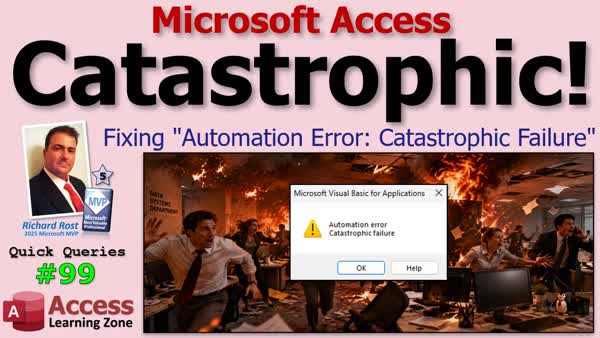 TechHelp QQ Quick Queries, automation error catastrophic failure, error 0x8000FFF, compact and repair, decompile VBA, VBA pcode, missing references, broken ActiveX control, form zoom feature, database normalization, Excel import, linked SQL Server tables, optimization
More InformationTranscript Ever open your Microsoft Access database only to be greeted by the terrifying message Automation Error Catastrophic Failure? Don't panic, it's usually nowhere near as bad as it sounds.
Welcome to another TechHelp Quick Queries video brought to you by Access Learning Zone. I'm your instructor Richard Rost. Today we're going to talk about what causes that infamous Catastrophic Failure error, why it usually isn't Catastrophic at all, and the simple troubleshooting steps that can often get your database back up and running.
We've also got questions from YouTube, my website forums, emails, and other sources about the new Zoom feature, when it's okay to break normalization rules, whether a database is ever really truly finished, and plenty of other Microsoft Access tips and gotchas.
Alright, let's jump right in.
Leading off to bat today, we got Garrett from Alexandria, Virginia, one of my platinum members. Garrett says, "I was working on my Access database last night and everything was fine. This morning I opened it back up and now I'm getting an Automation Error Catastrophic Failure. Automation Error Catastrophic Failure message every time I try to run my code. I didn't change anything major, so what happened? Is my database corrupted or is there an easy way to fix this?"
Yeah, this is one of those error messages that people get and then they start panicking and I always have to say, don't panic. Of course, it's like telling someone to calm down. No one ever calms down in the history of calming down from telling them to calm down.
But this definitely has to be one of the most overly dramatic error messages in all of Microsoft's kingdom. Catastrophic Failure sounds like your database exploded, caught fire, and is now selling itself on some CD street corner to pay for therapy. But in reality, most of the time it's nothing nearly that serious. You get this error 0x8000FFF whatever. It's just a generic catch-all. Access is basically throwing up its hands and saying something weird happened and I don't know exactly what it is. So here's a generic error message for you.
The good news is that most of the time, it's not your code or your database that's broken. There's just a very good chance your database needs some love, and it's probably perfectly recoverable with just a couple of simple steps. So let's take a look at what those are.
Most of the time, this error comes down to one thing: your compiled VBA code. When you write VBA, Access doesn't run your source code directly. It compiles it into an internal format called pcode, which is basically a faster version that Access can execute.
Now for the nerds out there like me, because I know people are going to ask, pcode stands for pseudo code. It's an intermediate compiled version of your VBA. When you hit Debug Compile, Access translates your source code, your actual VBA, into this internal format that can run faster. Your original VBA code is still in there, but Access actually executes the compiled pcode.
Now if that compiled copy gets corrupted or falls out of sync with your source code, that's when you can get weird errors like automation error, catastrophic failure. This can happen after an Office crash, bad Windows or Office update, importing sketchy objects from another database (I've done that myself, from importing stuff from both my students and from other databases that I wrote 20 years ago that shouldn't have imported). It can be a broken ActiveX control, which you all know that I hate, or a missing reference. And sometimes honestly it's just because Access woke up cranky that morning and didn't have its coffee. We've all seen those weird situations where you didn't change a thing, but today Access decided it just woke up on the wrong side of the bed.
The important thing to remember is it usually doesn't mean that your VBA code is bad. Most of the time it's just that the compiled copy has gotten itself into trouble. That's usually pretty easy to fix.
So what should you do? First thing you do is back up your database. Make sure you got a nightly backup running. Back up, backup, and backup again. And you should have rotating backups. So it backs up like my database, I backup the last five days, I keep the last five days. And then I keep the last month. So I got to go back to the first of last month, the first of the month before that, and so on.
And yes, even if you think your database is corrupted, make a backup copy of this corrupted version of the database before you start messing with it. Don't experiment on your only copy. You might make things worse. So back it up even if it's broken. Copy the file to a safe place before you do anything else.
Next, shut down Access completely. Then open up your task manager, make sure there aren't any other stray msaccess.exe processes still running in the background. If there are, end them. Shut them down. Sometimes Access crashes but leaves a part of itself behind. If you open up another copy of the database, that old database might still be running somewhere.
If that doesn't fix it, reboot Windows. I know it sounds simple, but a restart clears out a lot of those weird Office and Windows problems. And do an actual shutdown and restart. There may be another Office application that has something locked up. The Office apps, Word, Excel, PowerPoint, they all share some code. Some shared DLLs are in there, so sometimes you just need a fresh restart of Windows because that PowerPoint presentation that you were showing last Monday is still hanging out in your memory somewhere. And your presentation was so boring that even the PowerPoint presentation wants to just give up.
Now if you do all that and you come back online and you're still getting the error, try a compact and repair. That's like the number one troubleshooting tip. If the database structure has gotten a little messy, sometimes this can clean things up.
If that doesn't work, it's time for the big hammer: Decompile. What Decompile basically does is it throws away that compiled P code that we talked about earlier. It doesn't touch your original VBA source, but it gets rid of all the P code. Then when you open the database again and go to Debug Compile, now Access builds a completely fresh compiled copy from your source code.
So watch this video for instructions on how to decompile your database. I know the slide title says just compile your database, but this video does talk about decompiling as well. There's the command right there that you get to type in. The video explains all the details why.
Usually I would say decompile will fix this problem 90 percent of the time. I've had this happen several times. In fact, I just had this happen to myself a couple of weeks ago. And this little dialog box here that's on the title slide for this video, I didn't have to Google that. I actually got that a little while ago. I was going to make a video on this and then I got the email from Garrett. So I figured, might as well do it now.
Decompile will usually fix this problem. And then of course, once you've got everything working again, make another backup. This way you've got a fresh, known good copy. And of course, make sure you got your automatic nightly backup system in place too, so I don't have to yell anymore.
Now if decompile doesn't fix it, now we're looking for something a little deeper. The first thing I check is your references. Open your VBA editor, go to Tools, References, and see if anything in there is marked missing.
VBA editor: Yes, I'm in dark mode because it's nighttime. Tools, References. In here you'll actually see the word missing if something is missing. If it is, find it and fix it or remove it completely. And hopefully your database doesn't need it. If you do have missing references, I've got a video for it. Go check this one out. A broken reference can cause all kinds of strange behavior that doesn't seem related at all.
Next up, you might have a specific form or report that is corrupted. Usually that'll happen if you only get the error message when you open up that specific form or report. Good chance that that object itself has become corrupted. If you got a backup, try deleting that object and then importing the last one that you know was good, and see if it fixes it.
If you're using ActiveX controls, which you know I hate, they're troublemakers. Things like the tree view control, the progress bars, calendar controls. These have been known to break after a Windows or Office update. That's one of the reasons I generally avoid ActiveX controls as much as possible.
Next thing to try is you could try an Office repair from the Windows Control Panel. Sometimes one of the Office components has become damaged and a repair pulls everything back the way it should be.
If all else fails, you could try creating a blank new ACCDB file and then start importing your objects into it one at a time. Sometimes that alone clears out whatever corruption was lurking in the old file. The container file itself, the ACCDB file itself, can be corrupted. I've seen that happen. You create a blank new file, you import all the objects, and everything just works. Sometimes that corruption just sticks around on the shell file.
If you find that one particular object refuses to import, which is why you do them one at a time, then congratulations, you found the culprit.
If you're still stuck after all of that, visit my troubleshooting checklist page. I have lots of stuff on here. There's a video on here as well. I try to list the stuff in the order that you should run it. Just go down the list. This is from most likely to least likely. Reboot the computer, reboot clean, copy, repair, compile the database - all this kind of stuff. Just run down this list. It could be something weird. You never know.
Third party software, virus scanners, I've seen cause this problem before. So check it out. If you have problems after that and you still can't figure it out, post a comment and maybe we'll help you figure it out. Maybe we can figure it out together.
But the big takeaway: Don't panic. Despite the name, catastrophic failure isn't usually catastrophic. Most of these databases are recoverable. Just remember, you can recover most everything. The Borg assimilated Captain Picard and they still managed to recover him. They got him back. So your database probably has a better chance than he did and he still made it.
But seriously, start with the simple stuff. Make sure you get a backup. Reboot Windows, run compact and repair, then decompile and compile again. Those few steps will solve the majority of cases. If that doesn't work, go through all the rest of the stuff that I talked about.
Finally, if this whole experience taught you anything, let it be this: Backups are not optional. They're the difference between a minor inconvenience and a really truly catastrophic problem.
Fortunately, Garrett is a long-time student. He did have a backup and he was able to get it recovered after a debug compile and everything was fine. So there you go.
Next up, I've received a bunch of comments and some emails and some posts in the forums. Several people have asked me recently about the new form Zoom feature that's being added to, well, that has been added to Microsoft Access, and specifically whether or not there's a way to disable it. As of right now, the answer is no. I reached out to the Access team directly because I was getting this question from a lot of people.
As many of you might know, I built my own form Zoom template years ago. I use it whenever I'm traveling because my laptop screen is a lot smaller than my desktop monitor. I like to be able to zoom in and make stuff bigger, which you couldn't do in Access for the longest time until recently. I know a lot of other developers have also created similar solutions. The problem is that Microsoft's new built-in Zoom feature can interfere with those existing Zoom systems, especially if you're using things like Control Plus or the Control Mouse Wheel or other keyboard shortcuts to resize the forms.
The Access team told me there isn't currently a way to disable the built-in form Zoom. However, after I explained the conflict with existing developer solutions, they said they've discussed adding additional options, things like a minimum and maximum Zoom limit that have come up recently. They agreed that a per-database setting to disable the built-in Zoom would probably be a straightforward feature to add. It's just not available yet.
You can turn off the status bar on the bottom for the entire application. That's in the options. But if you've got your own Zoom functionality, your choices right now are to modify your own code to use different shortcuts. However, if it's practical for your environment to stay on an earlier version of Access until Microsoft adds this option, personally, I'd love to see both a database-level setting and a VBA property so developers can decide how they want their applications to handle zooming. Something like a form property like Me.AllowZoom = No or something like that. But if I hear anything new from the Access team, I will be sure to let you know here.
Alright, next up, I want to answer a few questions from Colin, one of my students over in England. Every couple of weeks, he rides the train from London up to Newcastle and somewhere along the way, I usually get an email full of thoughtful database questions. So I figured some of these were interesting enough that everyone would benefit from them. So let's tackle a few.
First up, he says, "I recently combined two related tables into one. It violates database normalization, but it made the database much easier to use. Is it ever okay to break the rules if it results in a better user experience?"
Absolutely, Colin. This is a great question because people sometimes treat normalization like it's a law of physics. It's not. It's a design guideline. When I'm building a database myself from scratch, I absolutely normalize my tables. I remove duplicate data, create proper relationships, and build it the way it's quote-unquote, supposed to be built, textbook. But then I actually start using the database and people start using the database and that's when reality shows up.
Sometimes duplicating one small bit of data makes your forms dramatically easier to use and your queries get simpler, your code gets easier to maintain. If you're doing that intentionally and you're not creating data integrity problems, I think it's perfectly reasonable. Database normalization is supposed to be a tool. It's there to help you build a better database, not to make your life miserable.
I had a situation for a client years ago that I built a database for. Their data - it was a call center and their data was constantly being added to the database all day long. Only once a month did they actually report on it. So I de-normalized a lot of the tables to make it easier to add data and to look up some stuff than it was to run these reports. Was it perfect normalization? No, but it worked best for their situation. So it all depends. In fact, I got a whole video on de-normalizing and when it makes sense.
Next question: "My database just keeps evolving. Every few weeks I find another little improvement that makes it easier to use. Should a database ever be considered finished?"
Personally, I don't think any software, databases included, are ever really finished. It's not like writing a novel where you go "the end" and then you put it on a shelf or send it off to the publisher and you're done. Every time I use a database, I notice something that could be just a little bit better. Maybe this button belongs somewhere else. Maybe this process could take one less click. Maybe that report doesn't really need half the information on it. Look at my own fitness database series. You compare that first episode to where it is now and almost everything has changed just because sometimes using the software teaches you how to improve it.
When someone tells me their database is completely finished, my first thought is, really? You're never going to think of another improvement? That's why it's so important to constantly keep learning this stuff. I can't - I mean, personally, I still learn stuff about Access. I follow a lot of other creators and I watch what they do and think, oh really, you could do it that way. Sometimes it's stuff I knew how to do just in a different way and it makes you think about stuff differently. So, yeah, never consider it done.
Third and finally for Colin for today: "I've noticed that some of my databases get used every day while others just collect dust. Is the real measure of a good database simply how often you actually use it?"
People judge databases by all kinds of things. They count tables, they admire clever VBA, they debate normalization like it's a sporting event, but none of that really matters if nobody actually uses the database. A good database solves a problem. If opening your database saves you time every day, then it's a good database. If it's so complicated that you avoid using it, then it probably isn't a good database. One of my favorite sayings is the best database is the one that gets used. So it doesn't have to be perfect, it doesn't have to be elegant, it just has to make your life easier. If it does that, you've succeeded. So that's my two cents. Thank you again, Colin, for all the very thoughtful and stimulating emails.
Next up, let's head over to the YouTube. We got Tuffy asking, "Can you build a database in Excel and then import it into Microsoft Access?"
Absolutely. If you've already got your data in Excel, Access can import it very easily. In fact, that's one of the most common ways people get started with Access. Just keep in mind that Excel is a spreadsheet and Access is a relational database. So after you import the data, you may want to reorganize it into proper tables and relationships and all that. But yes, importing Excel into Access is built right in and it works very well. I've got a video that shows you exactly how to do it and here's a link. I'll put a link down below. But thanks for your question.
Next up, Ruben asks, "If you're building a moderately complex system that's eventually going to use SQL Server, is it better to build everything in Access first and migrate later or to start directly in SQL Server?"
Great question. It depends on what you're most comfortable with. For me, I would absolutely start in just Access first. If Access had one superpower, I'd say it's rapid application development. You can go from an idea in your brain to a working application incredibly fast. That's exactly how I build my own projects. I mean, just look at the fitness database series. You can prototype forms, reports, queries, and business logic much faster in Access than anywhere else.
Once the application is working the way I want, then I split the database into front end and back end. That gets everything ready for migration. After that, if you've got all the tables isolated, then I start moving the tables to SQL Server one at a time. Move them up, copy up the data, relink them into Access, make sure everything still works. Then you can begin optimizing for SQL Server. Move the heavy queries and the views or stored procedures where it makes sense. You don't have to do all this at once or overnight. You can slowly start moving pieces up. This way you can put out a working solution too.
If you're working in your office and you've got 10 people using the database, you start slowly moving some things up as you've got time. Of course, if you're already a very experienced developer that's been designing in SQL Server for years and you think that's the smoother path, then great. Go right ahead. If you want to build SQL Server first and that's what you know, there's nothing wrong with that. I'm just speaking from my experience. I think it's easier to prototype in Access first. The nice thing about all of this is you never have to throw away your Access front end. You can keep using it. SQL Server just becomes a much stronger back end.
If you already know SQL Server inside and out, then sure, building there from day one can make sense. For most Access developers, myself included, I like to prototype first in Access, and then I optimize later for SQL Server. Here's a bunch of videos that might help you out. If you need help splitting your database, check this one out. I have a full level one course for SQL Server for Microsoft Access users that teaches you all the basics of getting your SQL Server set up and migrating your tables up and all that good stuff. So check it out and I'll put links down below.
Next up, we got a quick Windows troubleshooting tip from Ninja Mandalorian. I love that name. They mentioned that on some laptops, the embedded controller, or EC, can get confused about the system's power state. They found that simply unplugging and reconnecting the charger immediately restored full performance. That's interesting. I have never seen that before. Can't promise that'll fix every sluggish Windows machine, but it's certainly a quick thing to try before you spend hours chasing drivers or reinstalling Windows. Sometimes it's the simple stuff that surprises you.
Next up, we got Oh Bab-a-y-le. "How can I build a query that returns the last two orders for each customer instead of just the most recent one?" Good question. This is actually one of those cases where you don't want to use first or last, like I mentioned in that video that you're replying to. You want to use Max or Min. I did a whole video on those explaining why those can be misleading because they don't necessarily mean first or last chronologically. Yes, I added a syllable to chronologically.
Instead, if you want the last two orders, usually you're looking at a top query. Sort the records by the order date and descending order. Then use top two. If you're doing it for every customer, it gets a little more advanced because now you're grouping within each customer, but the basic idea is still the same. Think top, not last. Here's a video that shows how to use the top setting, either in the query, you can do it in the graphical query builder, or you can do it in SQL directly. Here's that video on why you don't want to use first and last, stick to Max and Min for most things. First and last have their uses, but most of the time people say they want the first two orders, they want the Min two orders.
Next up, Pertour wants to remind everyone to shop smart, shop S-Mart. Got that?
See, once in a while someone does take a moment to ask me how my day has been and I really appreciate that. Thank you very much.
Next up, head over to my website. It's something I wrote about in my captain's log this morning. I managed to break the forums on my website yesterday by improving it. You know when you may try to do a little upgrade and you end up breaking something. I'll post a full link to this down below if you want to read the whole thing. Here's the SQL statement.
Basically in a nutshell, I was optimizing one of the main forum pages on my website because it had gotten really slow on really long discussion threads. Originally the page loads all the replies and then inside the loop does several DLookups for every single reply to look up some other information, some related information. It worked. For most threads, you couldn't tell the difference if there were 3, 4, 5, maybe even 10 replies. You started getting really long conversations like 20, 30, 40 replies, then you'd notice it really started to slow down.
So I rewrote it properly. My website's been evolving over the past 20 years, and when I first started building it years ago, I didn't know as much as I know today and I took a lot of shortcuts. So I joined in some stuff that I was doing DLookups on before and it works great and it's much, much faster now. Unfortunately, I also introduced a subtle SQL bug that only affected one specific type of user, regular logged in users. Since I log on as administrator and then I test as a public viewer, I never saw the problem. Platinum Member Bill reported it this morning and once I put the SQL directly in the SSMS in SQL Server Management Studio, the error jumped right out at me: this CustomerID.
It's actually in three of the tables. So what are the takeaways when I'm bringing this up? First of all, don't use DLookups inside of loops, whether you're on a website or you're using SQL Server or if you're just talking about Access or anything, really, don't put DLookups or any kind of a lookup inside of a loop. If you can retrieve the data in a single query, do it there. One database call is almost always better than hundreds.
Also, don't get lazy with Select Star to bring all the fields in. Only list the fields that you need and it makes problems much easier to spot because I didn't realize the CustomerID is in there as well. It's in that reply queue.
Third, if you're debugging SQL, don't rely on the application to tell you what's wrong. Run the SQL directly in SSMS or directly in Access or whatever database engine you're using. The database will give you much better error messages than your web browser will if you're building online.
The fourth takeaway is test every user path. On my website, I've got administrators (me and Alex), then I've got moderators, then I've got regular logged in users, and then I've got guests. They don't always execute the same code. A bug can hide in one path while everything else appears to work perfectly.
Finally, optimization is almost always worth doing, but every optimization deserves just as much testing as the original code. Making something faster can sometimes break code that has worked perfectly for years as it did in my case.
So hopefully that gives you a nice little story. Credit to Bill for catching this. These are great lessons that I think everybody can learn from and feel free to read the whole story. There's the whole saga here on the website, including, you know, Jordy and Scotty were yelling at me.
Next up, Amadou, one of my silver members from Mauritania, noticed that one of my query examples using the IN function didn't work on his computer. This one probably comes down to regional Windows settings. This doesn't always use the syntax you see in my videos. It uses whatever your Windows list separator is set to. You can see the difference here. Here in the US, the list separator is usually a comma. So my examples work with the comma. But in many parts of Europe, Africa, and elsewhere, Windows uses the semicolon as the list separator instead. In that case, Access expects semicolons too. So if you ever copy one of my examples and it throws a syntax error, don't panic. Just check your Windows regional settings. Chances are it's just using a different list separator. It's one of those little regional differences that catches a lot of people. It's one of the reasons why I like to switch all my databases and stuff over to the ISO date standard. ISO dates, that way everyone's on the same page when it comes to dates.
Finally tonight, we got a question that came in on the forums on my website from Holcott, and he's basically asking whether it's better to build forms that generate SQL manually in VBA so that all the filtering happens on SQL Server or whether linked SQL Server tables are efficient enough nowadays. He posted a bunch of code. I'll put a link to this down below so you can read it and my entire response down here.
In a nutshell, Access is much, much better nowadays at working with SQL Server and not pulling down more records than it needs to. This is something that I've kind of been guilty of saying myself over the years because years and years ago, back in the Access 2.0 days, Access 95, 97, it was pretty common for Access to pull down a lot more data than it really needed to from SQL Server. That's where the old saying comes from that Access downloads the whole table.
Modern versions of Access are much, much smarter. So if you're using a properly indexed linked SQL Server table (the indexing is important), and your query can be translated into SQL Server syntax, then Access will usually push the filtering, sorting, and searching up to SQL Server in the background without you doing anything extra. That means it's often able to retrieve only the records that you actually need - it doesn't have to pull down the whole table.
If you're reading old articles online or even some of my really old, 20-plus year old videos, I might have mentioned that. There are still some exceptions. If you're using VBA functions, Access-specific expressions, or really complicated queries that are doing aggregating with lots of joins, SQL Server won't be able to understand that. So Access might have to do more of the work locally. That's where pass-through queries, SQL Server views and stored procedures can help. So if you've got something that's really complicated, you're better off making a view or a stored procedure out of that or at least writing a pass-through query.
But don't assume that you have to build every form with custom VBA just to get good performance. Start with a linked table. They are a lot better than they used to be. Then optimize the parts that actually need it.
One tip that I still use all the time myself is I open continuous forms with a WHERE condition of WHERE 1=0. That way you get no records at first, but then you can let the user do a search, sort, or filter. That avoids even trying to attempt to load thousands of records. If they just want people from Florida, have the first thing they do is type in what state do you want, and then filter stuff first before loading the form up.
So there's lots to it, but the bottom line is Access has gotten much, much better lately at working with SQL Server. It doesn't have to download tons and tons of records like it used to. Try it and see, and then the parts that are slow, that's what you work on optimizing.
Don't forget to stop by my website. You can check out the new faster forums with my SQL now properly fixed. While you're at it, check out my captain's log, which is stuff that happens to be rattling around in my brain. You can read about my new project I'm working on, which is my Access to Web Publisher, which is coming along quite nicely. Its beta version 1.0 has been released to a select few - and by select few, I mean my moderators.
Don't forget, I got the movie's name on everything, merchandising, merchandising. It's where the real money from the movie is made. Can't wait for Spaceballs 2. But yeah, grab a mousepad, grab a hoodie, grab a copy of my book on Amazon. Stop by the forums if you've got questions or post them down below in the comments section.
So today we learned that catastrophic failure error usually isn't catastrophic. If you start with the basics like backups, compact and repair, decompiling your database, and all that good stuff. We also talked a bit about the new form zoom feature, breaking normalization rules, and that the best databases are constantly evolving, constantly.
Post your comments down below and let me know how you like today's video. If you got questions for next week's Quick Queries (it's going to be number 100 people!) I'm excited. I still don't know what I'm going to do for it. I'll do something special, I don't know. But yeah, that's going to do it for number 99.
Your Quick Queries video, brought to you by Access Learning Zone. I again am Richard Rost. I hope you learned something. Live long and prosper my friends. I'll see you next time. Enjoy your weekend. And yes, I actually got one on a Friday for once. It's been a while.
Take care, everyone. Intro In Quick Queries 99, we address the "Automation Error Catastrophic Failure" message in Microsoft Access, explaining what causes it and why it often is not as serious as it sounds. We will discuss simple troubleshooting steps such as backing up, restarting, compact and repair, and decompiling the database. Other topics include questions about the new form Zoom feature, when it is acceptable to break normalization rules, and whether a database is ever truly finished. We will also cover tips for importing data from Excel, optimizing Access with SQL Server, and regional differences in Access queries. Quiz Q1. What is the most common cause of the "Automation Error Catastrophic Failure" message in Microsoft Access?
A. Corrupted compiled VBA code (pcode)
B. Incorrect table relationships
C. Bad network connection
D. Outdated printer driver
Q2. What does the "decompile" process do in Access troubleshooting?
A. It removes all VBA source code
B. It deletes all objects from the database
C. It clears the compiled pcode without removing the source VBA code
D. It permanently removes user data
Q3. What is the FIRST thing you should do when troubleshooting a potentially corrupted Access database?
A. Open the database and edit forms
B. Back up your database file
C. Delete all forms and reports
D. Format your hard drive
Q4. Which of the following is LEAST likely to cause a catastrophic failure error?
A. Broken ActiveX control
B. Out-of-date references
C. Compiled code corruption
D. Incorrect font in a report
Q5. When should you use the Compact and Repair tool in Access?
A. Only after making design changes
B. Whenever the database seems "messy" or is behaving unexpectedly
C. Only after getting a missing references error
D. Every time Access starts
Q6. If you see a "MISSING" item in Tools > References in the VBA editor, what should you do?
A. Ignore it; it is not important
B. Fix or remove the missing reference
C. Delete the VBA editor
D. Reinstall Access immediately
Q7. What is a main drawback of using ActiveX controls in Access forms or reports?
A. They are not customizable
B. They can break after a Windows or Office update
C. They prevent backups from working
D. They make the database read-only
Q8. If decompiling, repairing, and checking references do not resolve catastrophic failure, what is a recommended next troubleshooting step?
A. Reboot the computer several times
B. Import all objects into a new blank Access database one at a time
C. Open the database on a different monitor
D. Change the file extension to .bak
Q9. Which of the following is TRUE about database normalization, according to the video?
A. It is a law that cannot be broken
B. It is a helpful guideline that can sometimes be bent for usability
C. It is not necessary in any real-world database
D. It only applies to SQL Server databases
Q10. According to the video, what is the best indicator of a good database?
A. The number of tables it contains
B. How often it gets used to solve real problems
C. How normalized it is
D. The amount of VBA code written
Q11. What can importing Excel data into Access help with, according to the video?
A. Making Access slower
B. Quickly getting started with relational databases
C. Automatically creating relationships between all tables
D. Preventing data loss forever
Q12. If you plan to eventually use SQL Server as your backend, what does Richard recommend?
A. Build everything directly in SQL Server only
B. Prototype in Access, then migrate tables to SQL Server gradually
C. Write all forms in Excel first
D. Only use pass-through queries from the very beginning
Q13. Modern versions of Access, when linked to SQL Server tables, will typically:
A. Download the entire table before filtering
B. Offload filtering and sorting to SQL Server automatically, if possible
C. Prevent you from running queries at all
D. Require complex VBA for every form
Q14. What should you AVOID inside loops, especially in website backend code or Access VBA, to enhance performance?
A. DLookup() functions
B. WHERE clauses
C. SELECT statements
D. Forms with multiple tabs
Q15. If you encounter problems with query syntax using the IN function in Access, what might the issue be?
A. The query uses wildcards
B. Regional settings for list separator (comma vs semicolon)
C. Your database is too large
D. The form has too many controls
Q16. When is a database really considered "finished," according to the video?
A. When it runs without errors for a week
B. When users no longer find any improvements to make
C. Almost never; databases constantly evolve with new needs
D. When it passes an official certification
Q17. What is a useful technique for limiting records loaded when opening a form linked to big tables?
A. Use a WHERE 1=0 filter initially, then let the user search
B. Always open with SELECT *
C. Load all records and filter in VBA
D. Set the form to read-only
Q18. If you have existing custom Zoom functionality in your Access database, what issue was highlighted in the video?
A. The built-in Access Zoom feature can interfere with it
B. The database will not print reports
C. Access disables the status bar automatically
D. Custom Zoom prevents backups
Q19. According to the troubleshooting checklist suggested, what should you do before ANY experimentation on a problematic Access database?
A. Set all forms to design view
B. Back up the current version, even if it is corrupted
C. Decompile the VBA first
D. Rename all database objects
Q20. What is a key lesson emphasized by Richard regarding backups?
A. They are optional for experienced developers
B. They are only necessary before major changes
C. They are essential and should be done regularly to avoid catastrophe
D. They take up unnecessary disk space
Answers: 1-A; 2-C; 3-B; 4-D; 5-B; 6-B; 7-B; 8-B; 9-B; 10-B; 11-B; 12-B; 13-B; 14-A; 15-B; 16-C; 17-A; 18-A; 19-B; 20-C
DISCLAIMER: Quiz questions are AI generated. If you find any that are wrong, don't make sense, or aren't related to the video topic at hand, then please post a comment and let me know. Thanks. Summary In today's Quick Queries video from Access Learning Zone, I address a variety of Microsoft Access questions and troubleshooting issues sent in by students and viewers. Let me start by talking about a particularly alarming error message that tends to worry a lot of people: "Automation Error Catastrophic Failure." While the name sounds terrible, it is rarely as disastrous as it appears.
When you encounter this error in Access, try not to panic. Access is just reporting that something unusual occurred, but the underlying problem is often fixable. In most cases, it has to do with your compiled VBA code. Access runs an internal compiled version of your VBA, referred to as pcode, for efficiency. If this pcode becomes corrupted, you can start seeing strange errors like the one in question.
Corruption of the compiled version can happen for several reasons: Office or Windows may have crashed, a recent update may have caused issues, importing objects from questionable sources, broken ActiveX controls, or a missing reference. Sometimes, it can even occur for no particular reason at all.
Most importantly, it generally does not mean your VBA source code has a fatal flaw. The compiled code just needs to be refreshed. Here are the typical troubleshooting steps I take:
First, always back up your database before doing anything else. Even if you believe your file is corrupted, copy it to a safe place before experimenting. I recommend using rotating or scheduled backups, so you have copies from several days and months past.
Next, fully close Access and check your task manager to ensure there aren't any stray msaccess.exe processes still running. It's possible for Access to leave background processes open after a crash.
If the error persists, restart Windows. A full reboot can often clear up little glitches or locked DLLs shared by Office applications.
After rebooting, try running a Compact and Repair on your database. This operation often tidies up any underlying structural problems.
If that does not resolve the issue, try performing a decompile. Decompiling purges the corrupted pcode without affecting your actual VBA source code. Opening the database after decompiling and compiling the VBA forces Access to create a clean, new compiled copy. This one step alone will resolve this problem in the majority of cases I have seen.
Once everything is working again, be sure to make another backup so you know you have a good working copy stored safely.
If you still experience problems, check your references. Open the VBA editor and view the list of references to see if any are marked as missing. Fix or remove any missing references.
Sometimes the corruption only affects a single object, like a specific form or report. If you only receive the error message when opening a particular object, try deleting that object and then importing a known good version from your backup.
ActiveX controls can also be the culprit, especially after updates. Avoid them if possible, and check whether their absence or malfunction is related to your error.
You can also attempt a repair install of Office itself, which can restore damaged shared components.
If nothing else has worked, create a new blank database and import your objects one at a time. This helps isolate the problem if a single object is too corrupted to import, and it can clear up issues in the database file itself.
If after all this, you are still stuck, I recommend working through my full troubleshooting checklist, which includes more detailed and ordered steps, as well as tips like looking out for third-party software or antivirus issues.
The big idea here is that although "catastrophic failure" sounds overwhelming, it almost never spells total disaster. Recovering your work is usually possible, especially if you maintain good backup habits.
On to other questions. I have received several inquiries about the new form Zoom feature Microsoft added to Access. At this time, it cannot be disabled, which may conflict with custom Zoom solutions many developers have built over the years. The Access team is aware of this feedback and may add more configuration options in the future, like minimum and maximum Zoom limits, or per-database settings. For now, the best workaround is to adjust your own code or stay on an earlier version if that is practical for your environment.
Another topic that came up involves database normalization. I was asked whether it's acceptable to break normalization rules for the sake of usability. In my experience, normalization is a guideline, not a law. Sometimes denormalizing a table slightly leads to a much better user experience and easier maintenance, as long as you manage data integrity properly. Use normalization to help yourself, not to make things more difficult.
Related to this, I was asked if a database is ever truly finished. In my opinion, the answer is no. Databases and software as a whole continuously evolve as you use them and spot opportunities for improvement. You will always find a button to move or a process to streamline.
Other students asked what really defines a good database. It's not clever coding or perfect structure. The best measure is whether it actually solves a problem for you or your users and gets used regularly. If it saves you time and helps accomplish your goals, that's the true sign of a successful database.
There was also a question about importing data from Excel into Access. This is straightforward. Access makes importing from Excel easy and it's a common place to start. Once imported, you may want to organize your data into properly related tables.
Regarding database migration, I was asked if it's better to build everything in Access and migrate to SQL Server later or start in SQL Server from the beginning. My recommendation is to prototype in Access first, split your database when ready, then gradually move tables and processes to SQL Server as needed. This allows for rapid development, ongoing optimization, and minimizes disruption.
A helpful Windows tip also came in about restoring laptop performance just by disconnecting and reconnecting the charger, which is a quick thing to try before troubleshooting deeper.
For those looking to build queries that return, for example, the last two orders for each customer (rather than just the most recent), remember that you will need to use a 'top' type of query sorted by date, rather than relying on functions like First, Last, Max, or Min, since those do not always align with chronological order.
I also shared a quick story about optimizing the performance of my website's forums. Originally, my web page used several Dlookup statements inside a loop, which slowed down long threads. By rewriting the process into one efficient query with the necessary joins, the page loads much faster. The lesson here: avoid performing repetitive lookups in loops, only retrieve the fields you need, test every user scenario, and realize that even small optimizations require careful testing.
Another issue I touched on was syntax for the IN function in queries, which depends on your local Windows regional settings. In the US, comma is usually the list separator, but in other regions semicolon may be needed. If you copy an example and it doesn't work, check your regional list separator.
Finally, I addressed whether it is necessary to write custom VBA to generate SQL manually for filtered forms connected to SQL Server, or if linked tables are efficient enough. Modern Access does a much better job than it used to of pushing sorting, filtering, and searching up to SQL Server, provided your queries are compatible and indexed. While you may still need pass-through queries or views for really advanced scenarios, start simple and only optimize where you notice performance issues. One useful trick is to open forms with no records by default, then have users filter down to the data they need.
Remember, backups are not optional. They can make the difference between a small setback and a true disaster.
If you are interested in step-by-step video instructions on these topics, you will find a full tutorial covering everything discussed here on my website at the link below. Live long and prosper, my friends. Topic List Causes of Automation Error Catastrophic Failure in Access
Understanding compiled VBA code and pcode in Access
Troubleshooting steps for Automation Error Catastrophic Failure
Importance of backing up Access databases before troubleshooting
Checking for leftover msaccess.exe processes in Task Manager
Rebooting Windows to resolve Access errors
Running Compact and Repair to fix Access databases
Decompiling Access databases to fix compiled code issues
How to use Debug Compile in the VBA editor
Checking for missing references in VBA
Identifying and fixing corrupted forms or reports in Access
Dealing with broken or missing ActiveX controls
Performing Office Repair via Windows Control Panel
Importing database objects into a new ACCDB to fix corruption
Using a troubleshooting checklist for persistent Access errors
Summary of common causes and solutions for catastrophic failure in Access Article If you have ever opened your Microsoft Access database and been confronted by the message "Automation Error Catastrophic Failure," it can be alarming. Despite the dramatic wording, it usually does not mean your database is destroyed. In most cases, this error points to a problem with your compiled VBA code, not your actual database or logic.
When you write VBA code in Access, the program creates a compiled version behind the scenes, called pcode, which helps things run faster. Sometimes, this compiled pcode gets corrupted or out of sync with your readable source code. This often happens due to a crash, a failed or partial Windows or Office update, a problematic import from another database, a broken ActiveX control, or a missing reference. Occasionally, it just happens for no obvious reason.
The good news is that this problem is generally fixable. If you encounter this error, the first thing to do is to back up your database. Even if you are certain the file is corrupted, make a backup copy before you try any repairs. This ensures that you have something to go back to if things get worse while troubleshooting.
After making a backup, shut down Access completely. Double-check in Task Manager that there are no leftover Access processes running in the background, and close any you find. Sometimes, Access can leave a hidden process lingering if it crashes. If problems persist, restart your computer. Restarting can resolve temporary glitches in Windows or Office that sometimes affect Access.
Next, try the built-in Compact and Repair Database feature. This tool cleans up and optimizes your database, and can often fix corruption and other issues in the database file itself.
If you still see the error, the next step is to perform a "decompile." Decompiling your database erases all the compiled VBA code without touching your readable code. When you next open the database and compile your code again, Access creates completely fresh pcode from your source. This step fixes most cases of catastrophic error, because it removes the corrupted compiled code and replaces it.
If decompiling does not resolve the problem, you should check the references in your VBA editor. In the VBA editor, go to the Tools menu and look at References. If you see anything listed as "Missing," you either need to fix the missing reference or remove it if your database does not require it. Broken or missing references can cause some very strange errors.
Sometimes, the issue is with a single form or report. If the error only happens when you open a certain object, that object may be corrupted. Delete it and import a clean copy from a backup if you have one. ActiveX controls are another possible cause. These are known for breaking after a Windows or Office update, so try removing any ActiveX controls if you suspect they are the culprit.
You can also try repairing your Office installation from the Windows Control Panel. This fixes any damaged Office components.
If all else fails, try creating a new blank Access database file and import your tables, forms, queries, reports, and modules one at a time from the problem database. Sometimes, the outer database file itself gets corrupted, and importing your objects cleans away the issue. If you find that a single object refuses to import, you have probably found the corrupt element.
Throughout all of these steps, it is wise to work from backups and make new backups at each stage once you believe you have fixed the problem. This way, if anything goes wrong, you have a recent good copy to return to.
Beyond this error, there are some other common issues and debates in the Access community. One is about the built-in Zoom feature for forms. As of now, it cannot be disabled. If you have created your own custom Zoom tools for your database, Microsoft's built-in Zoom might interfere with your solution. While there is no current way to turn the built-in feature off, the Access team is aware and may add this option in the future. In the meantime, avoid conflicts by adapting your code to use different shortcuts if possible.
Another topic is normalization. Strictly following database normalization is not always required. While normalization avoids duplicate data and maintains integrity, sometimes deliberately breaking it can make your database easier to use or maintain, so long as you are aware of the risks and manage them. Practicality and ease of use often matter just as much as theoretical purity. If a small bit of duplicated information makes life easier and does not cause confusion, sometimes that is the best route.
Databases, like all software, are rarely ever "finished." As you and your users interact with the database, you will almost always discover ways to improve the workflow or usability. You may realize that a certain field is unnecessary, a button could be better placed, or a process could be smoother. Being open to continuous improvement is a key part of successful database design.
You can import data from Excel easily in Access. This is one of the most common ways to get started, but remember that Excel is a spreadsheet and Access is a database. After importing, you should reorganize your data into properly related tables for best results.
If you are building a system that will eventually run on a SQL Server back end, it can be efficient to design and prototype everything in Access first. Access is excellent for rapid development. Once your forms and logic work, you can split the database and start moving tables to SQL Server as needed. Then you can optimize queries to run as SQL Server views or stored procedures if required.
Access is much better now at working with linked SQL Server tables than it used to be. When you open a linked table or use a query, Access will often push the filtering and searching right to SQL Server, retrieving only the records you need as long as your queries are straightforward and the tables are indexed properly. Complex queries that use built-in VBA functions or very complicated calculations may require extra work or a move to pass-through queries or views.
When designing queries where you want, for example, the last two orders for each customer instead of just the most recent one, you should sort the records by order date descending and use a query that limits the results to the top two per customer. You want to avoid using "first" or "last" aggregate functions and instead think in terms of sorting and using "top" settings.
For performance, avoid using functions like DLookup inside loops when processing records or generating output such as reports or web pages. Instead, try to design queries that join related information in one shot. Accessing the database once is almost always faster than making dozens or hundreds of individual calls.
If you are ever puzzled by Access throwing syntax errors when using the IN() function or list-based queries, remember that your system's regional Windows settings control the list separator. In the US, this is usually a comma, but in some regions it may be a semicolon. Adjust your queries accordingly if copying examples that do not work as expected.
Finally, never underestimate the importance of regular backups. A good backup plan is the difference between a minor problem and losing weeks or months of work. Make backups before making changes or repairs, and keep older versions in case you need to roll back further than your most recent copy.
In summary, the "catastrophic failure" error in Access is typically fixable, most often by backing up, compacting and repairing, decompiling and recompiling your VBA code, and checking for missing references or corrupted objects. Beyond that, keep improving your database, consider practical solutions even if they bend the rules, and always prioritize solutions that make your life and your users' lives easier. Primary Topics Automation Error Catastrophic Failure, Access troubleshooting, VBA pcode corruption, decompile, backups, compact and repair, missing references, normalization, Excel to Access migration, SQL Server migration
Secondary Topics ActiveX controls, new form Zoom feature, de-normalization, database evolution, query optimization, continuous forms filtering, regional settings issues, Access with SQL Server
|





