Navigation Forms
By Richard Rost

 22 days ago
How to Create a Navigation Form in Microsoft Access In this lesson, we will walk through creating Microsoft Access Navigation Forms to provide users with a simple starting screen for opening forms and reports. You will see several navigation layouts, including vertical tabs and two-level navigation, learn how to add existing forms by dragging them onto the navigation control, and discuss the advantages and limitations of using navigation forms compared with custom main menu forms. Dominic from Folsom, California (a Platinum Member) asks: I've built a small Access database with forms and reports for my staff, but when they open it, they're faced with a confusing list of tables, queries, and other objects. They don't know where to begin, and I'm worried they'll open something they shouldn't. Is there a simple way to give them one clean starting screen? PrerequisitesLinksRecommended Courses
Keywords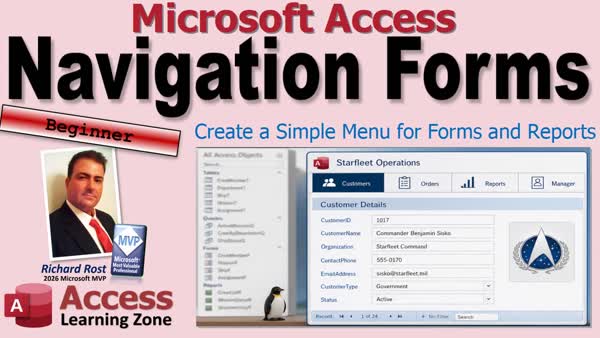 TechHelp Access, Access Navigation Forms, navigation form, startup form, Navigation Pane, vertical tabs, two-level navigation, form navigation menu, subform navigation, custom main menu form, database front door, built-in menu system
More InformationTranscript Are your users opening your database and staring at a big list of table queries, forms, and reports with no idea where they're supposed to go first?
Maybe it's time to give them a proper front door.
Welcome to another TechHelp video brought to you by Access Learning Zone. I'm your instructor, Richard Rost.
Today, we're going to talk about Microsoft Access Navigation Forms. It's one of the easiest built-in ways to create a simple menu for the forms and reports in your database. You can give your users a clean place to start, keep the Access plumbing out of their way, and make it much easier for them to find the stuff they're actually supposed to use.
And the best part is, you can set one up without writing any VBA code.
Today's question comes from Dominic in Folsom, California, one of my Platinum members. Dominic says, "I built a small Access database with forms and reports for my staff, but when they open it, they're faced with a confusing list of tables, queries, and other objects. They don't know where to begin, and I'm worried they'll open something they shouldn't. Is there a simple way to give them one clean starting screen?"
Well, absolutely, Dominic. Access has a built-in way to create a simple front door for your database without a lot of extra work. Let's take a look at how it works, and then I'll show you different ways you can set it up.
Although I've been using Microsoft Access for over 30 years, one of the questions I still get all the time is, what's the easiest way to create a menu where your users can move between the different forms and reports in your database?
One of the easiest built-in options is the Microsoft Access Navigation Form. Think of it like the table of contents at the front of a book. Your users don't need to know where every chapter is stored. They just pick the section they want and go there.
A navigation form gives users a simple interface for opening the forms and reports they need without having to work directly with the Navigation Pane or know how your database is put together behind the scenes.
That's especially helpful when you're building a database for someone who just wants to get their work done and has absolutely no interest in seeing your tables, queries, and other Access plumbing. And honestly, can you blame them? "I just want to sit down and do my work." I hear that all the time. "I don't need to know all this stuff."
Now, in a nutshell, a navigation form is a built-in menu system for your Access database. You can organize your forms and reports into an easy-to-use interface, and setting one up is mostly drag and drop. You don't need any VBA, which is Visual Basic for Applications, Access's programming language.
And that's important because it means you can build a useful menu without writing a single line of code. For example, you might have tabs for customers, orders, reports, a manager task list, that kind of stuff. When the user clicks Customers, a customer form appears. You click Reports, and your reports appear there instead.
And for beginners, or for a database where you need a quick and simple user interface, Access Navigation Forms can be a great solution. Now, they're not trying to win a beauty contest, but they are making your database easier to use.
Now, Microsoft Access gives you several different Navigation Form layouts. You can use simple horizontal tabs across the top, which work nicely when you have few choices. You can use vertical tabs on the left or the right, which are better when your menu labels are longer or you have more items.
There's two-level navigation. That's useful when you've got broad categories with related items underneath them. For example, one group could be Customers, with choices for a customer list, customer details, customer letters, and so on. Another group might be Orders, with order entry, order history, invoices.
There isn't one magic layout that's always best. A small database might be perfectly fine with four tabs across the top, and a larger database might need categories so the menu doesn't turn into a row of tiny tabs that look like a packet of Chiclets.
So, pick the layout that helps your users find things without making them think too hard.
The biggest advantage of a navigation form is that it's quick. You don't have to build an entire menu system yourself. You create the navigation form, drag your existing forms and reports onto it, arrange the tabs the way you want them, and you've got a usable database interface.
You can even make the navigation form your startup form, meaning it's the first thing users see when they open the database. So, instead of dropping them into the Navigation Pane where they see all your tables, queries, forms, and reports, and possibly things that should be left alone, you give them a nice clean front door.
Now, this doesn't provide security by itself. Hiding the kitchen door doesn't make the restaurant secure. But it does make the database much friendlier and helps guide people toward the objects they're supposed to see. And for many small business databases, that simple improvement makes a big difference.
Now, are navigation forms what I personally use in my databases? Usually, no. They're perfectly fine, especially for beginners, and I'm going to show you exactly how to build and use them.
But as your database becomes more advanced, particularly when you start using VBA and referring to controls on different forms, navigation forms can make things a little more complicated. The reason is that the forms you open are displayed inside the navigation form. They're still your forms, but they're living inside another form. And that can affect how you refer to them in code and how you design more advanced interactions.
That's why I personally prefer building my own custom menu forms. They give me complete control over how everything looks and works. But custom menus aren't automatically better because they're more advanced. A built-in navigation form is fast, easy, and often exactly what beginner databases need.
So, before you can decide which method is best for you, you should understand how navigation forms work. So let's go ahead and build one.
So, the navigation forms go under Create. And then in the Forms section, you'll see Navigation right here. Now, Navigation Forms gives you a bunch of different ways to control the interface.
I personally like Vertical Tabs, Left. That looks like this.
Now, basically what you've got here is a form with a navigation control in it. These are up here in the toolbox. You can add them manually if you want to. And then a subform over here.
Now, the way this works is you pick something over here, and it opens the form as a subform inside of the navigation form.
Now, the main reason I don't like this is because, as far as naming your forms goes, if you want to have a query that refers to the customer form, now you've got to treat it as a subform on the navigation form. It just turns into a pain. I really don't like it. I'm sure I have to use it. But I personally don't like these. That's just my opinion.
So, to add something here, you just grab it, like Customer Form. You click and drag it right on that Add New. See that? Boom. Customer Form.
Contact Form.
When I click on these here, you can see them. Want to move them around? Click, drag, drop. Boom. Just like that.
I want to put something else. Put the Main Menu on there. It doesn't matter.
Now, when you save it, Navigation Form is fine. We're not keeping it. Close it. Open it up. And there you go. Customer Form. Contact Form. Main Menu Form.
Say, yeah, that's okay. I just don't like it because, again, from an advanced database standpoint, if you make a query or another form, it's going to refer to these values. Now it's got to be Forms, Navigation Form, Subform Name, .Form, !Customer. It just becomes a pain. That's a nightmare.
You can do a two-level Navigation Form, too. That's kind of cool. So, go to Create, Navigation.
Oh, I hit Form Wizard by accident. I don't want that.
Navigation. You could do Horizontal Tabs, Two Levels, or you could do Horizontal and Vertical. That gets really confusing, I think, though.
The Horizontal Tabs, Two Levels, is neat. Get rid of this.
With the two levels, you do groups across the top, and then you do the forms at the bottom here. Across the top, let's say here, let's call this Customer Stuff. Make it a little bit wider.
Then over here, we'll make this Manager Stuff.
Now you put your stuff down below. The Customer Stuff, click, boom. Be careful when you drop it, too. You've got to grab it and click it and drop it right there. Don't drop it there. Drop it right there.
And then maybe, I don't know, this guy. Click, drag, drop it there.
Now go over to the Manager Stuff, and you can put, like, Order Form there, or Detail, maybe next to it, whatever.
Now, when you save this, sure, close it, open it up. Now you've got two levels here. See, you've got the Customer Stuff with this stuff, and you've got the Manager Stuff with these things under here.
I don't know. It's kind of neat. It's okay.
Again, it's the naming conventions that get messed up, but the reason why they added this is because now it makes it easy for beginner users, for novices, to be able to make a way to navigate around the database.
Of course, another problem with using these built-in navigation forms is, once you get into developer-level stuff, again, this becomes notoriously difficult to code for.
I mean, as you can see, it's easy to set up, but it's a little interface here that I don't particularly like. That's just my opinion. If you like it, great. Use it.
So, this finally brings you to a custom main menu, like I developed in the blank form video. Now, mine's really simple. It's a blank form. Turn off the scroll bars. Turn off the navigation buttons, the record selectors. We covered all this in the blank form video.
Drop command buttons on here to open up your customer list and all the other things, Customer Form. Pretty straightforward.
So, there you go. Now you know how to build a Microsoft Access Navigation Form.
And that is going to be your TechHelp video for today. I hope you learned something. Live long and prosper, my friends. I'll see you next time. Intro In this lesson, we will walk through creating Microsoft Access Navigation Forms to provide users with a simple starting screen for opening forms and reports. You will see several navigation layouts, including vertical tabs and two-level navigation, learn how to add existing forms by dragging them onto the navigation control, and discuss the advantages and limitations of using navigation forms compared with custom main menu forms. Quiz Q1. What is the primary purpose of a Navigation Form in Microsoft Access?
A. To provide users with a simple menu for opening forms and reports
B. To automatically repair damaged tables
C. To convert forms into reports
D. To create relationships between tables
Q2. Why can Navigation Forms be helpful for users of a database?
A. They eliminate the need for tables and queries
B. They let users work without seeing the Navigation Pane and database objects
C. They encrypt all forms and reports automatically
D. They prevent users from entering incorrect data
Q3. What programming is required to create a basic Access Navigation Form?
A. VBA code is required for every navigation tab
B. SQL code is required to connect forms
C. No VBA code is required
D. A macro must be written for each form
Q4. Where can you create a built-in Navigation Form in Access?
A. Database Tools tab, Relationships group
B. External Data tab, Import group
C. Create tab, Forms group, Navigation
D. File tab, Options menu
Q5. How do you normally add an existing form or report to a Navigation Form?
A. Copy and paste its design into the navigation form
B. Drag the form or report onto the Add New area
C. Create a new table for each item
D. Rename the form to match the navigation form
Q6. When a user selects an item on a Navigation Form, how is the selected form generally displayed?
A. It opens as a subform inside the Navigation Form
B. It is converted into a table
C. It opens only in Print Preview
D. It is added to the Navigation Pane
Q7. Which Navigation Form layout can be useful when you have broad categories with related items underneath each category?
A. Single record form
B. Datasheet form
C. Two-level navigation form
D. Split form
Q8. Why might vertical navigation tabs be useful?
A. They are required for reports
B. They work well with longer labels or more menu items
C. They automatically secure database objects
D. They prevent forms from opening as subforms
Q9. What is one way to make a Navigation Form the first screen users see when opening a database?
A. Set it as the startup form
B. Save it as a query
C. Put it in a table's primary key
D. Export it to Excel
Q10. Does hiding the Navigation Pane and using a Navigation Form provide complete database security?
A. Yes, users can never access any hidden object
B. Yes, all tables are automatically password protected
C. No, it improves usability but does not provide security by itself
D. No, because Navigation Forms cannot open reports
Q11. What is a potential drawback of Navigation Forms in more advanced databases?
A. They cannot display reports
B. Forms displayed within them must be referenced as subforms in code and expressions
C. They do not allow drag and drop
D. They require all tables to be hidden
Q12. Why might an advanced developer prefer a custom main menu form instead of a built-in Navigation Form?
A. Custom menus provide more control over appearance and behavior
B. Built-in Navigation Forms cannot open forms
C. Custom menus automatically create tables
D. Navigation Forms cannot be saved
Q13. What kind of form can be used as the foundation for a simple custom main menu?
A. A blank form with command buttons
B. A datasheet form with calculated fields
C. A report with page breaks
D. A table form with a primary key
Q14. Which controls are commonly placed on a custom main menu to open other forms?
A. Label controls only
B. Command buttons
C. Attachment controls
D. Hyperlink fields
Answers: 1-A; 2-B; 3-C; 4-C; 5-B; 6-A; 7-C; 8-B; 9-A; 10-C; 11-B; 12-A; 13-A; 14-B
DISCLAIMER: Quiz questions are AI generated. If you find any that are wrong, don't make sense, or aren't related to the video topic at hand, then please post a comment and let me know. Thanks. Summary Today's video from Access Learning Zone is about Microsoft Access Navigation Forms, one of the easiest built-in tools for creating a simple menu system for your database.
If your users open your database and immediately see a long list of tables, queries, forms, and reports, they may not know where to begin. They may also open objects that were intended only for developers or administrators. A navigation form gives them a clean starting point and directs them to the forms and reports they are actually supposed to use.
Think of a navigation form as the table of contents in a book. Users do not need to know where every form, report, table, or query is stored. They simply select the section they need, and Access displays the appropriate object.
A navigation form is especially useful when you are creating a database for people who just want to perform their daily work. Most users do not care how the database is built behind the scenes. They do not need to see tables, queries, relationships, or other Access plumbing. They need a clear interface that helps them get to the correct form or report quickly.
The good news is that you can create a navigation form without writing any VBA code. Access provides several built-in navigation form layouts, and you can set them up primarily by dragging your existing forms and reports into place.
You might create a navigation form with sections such as Customers, Orders, Reports, and Manager Tasks. When the user selects Customers, the customer-related form appears in the main area of the navigation form. When the user selects Reports, the report-related forms or reports appear instead.
Navigation forms are not designed to be visually elaborate, but they are practical and easy to set up. For a beginner database or a small business database that needs a quick user interface, they can be an excellent solution.
Access provides several navigation form layouts. A simple horizontal tab layout works well when you only have a few choices. If you have longer labels or more menu items, vertical tabs on the left or right side may be more suitable.
Access also provides two-level navigation layouts. These are useful when you have broad categories with several related items underneath each category. For example, you might have a Customers category containing options for Customer List, Customer Details, and Customer Letters. You could have an Orders category containing Order Entry, Order History, and Invoices.
There is no single navigation layout that works best for every database. A small database may only need a few tabs across the top. A larger database may benefit from categories and subcategories so that the interface does not become cluttered with a long row of small tabs.
The goal is to organize the database in a way that makes it easy for users to find what they need without having to think too hard about how the database is structured.
One of the biggest advantages of a navigation form is speed. You do not have to build an entire menu system from scratch. You create the navigation form, add your existing forms and reports, arrange the tabs or categories, and you have a usable interface.
You can also make the navigation form your startup form. That means it will be the first object users see when they open the database. Instead of opening Access and seeing the Navigation Pane full of database objects, users are presented with a clean front door to the database.
Keep in mind that a navigation form does not provide security. Hiding the Navigation Pane or placing objects behind a menu does not prevent knowledgeable users from reaching those objects if they have access to the database. However, navigation forms do improve usability and help keep ordinary users focused on the objects they are supposed to use.
To create a navigation form, go to the Create tab in Access. In the Forms group, select Navigation. Access will display several navigation form layout options.
One of the available layouts is Vertical Tabs, Left. This creates a navigation form with a vertical menu area on the left and a large display area on the right. The objects you select from the menu are displayed in the right-hand area as subforms or embedded reports.
After creating the navigation form, you can add an existing form or report by dragging it from the Navigation Pane onto the Add New area of the navigation control. Access creates a navigation tab for that object. You can add multiple forms and reports this way, then rearrange the navigation items by dragging them into the desired order.
For example, you might add a Customer Form, a Contact Form, and a Main Menu Form. Each item will appear as an available navigation selection. When the user chooses one of those items, Access displays the selected form within the navigation form.
You can save the navigation form with an appropriate name, such as Navigation Form, and then open it like any other form. The navigation tabs will provide access to the forms and reports you added.
Although navigation forms are easy to use, I personally do not use them very often in my own more advanced databases. They are perfectly acceptable for beginners, and they are useful when you need a quick menu system without code. However, they can become inconvenient when you begin building more advanced features with VBA, queries, expressions, and references to controls on other forms.
The reason is that forms opened from a navigation form are displayed inside the navigation form as subforms. They are still the same forms you created, but Access treats them as forms contained within another form. This can make references to controls more complicated.
For example, if you want a query, expression, or VBA procedure to refer to a control on a form that is currently displayed within a navigation form, you may need to reference the navigation form, the subform control, the embedded form, and then the control itself. That can become cumbersome, especially in a larger database with many interconnected forms.
For that reason, I generally prefer to build custom main menu forms. A custom menu form can be a blank form with scroll bars, navigation buttons, and record selectors turned off. You can place command buttons on the form to open your customer forms, order forms, reports, and other database objects.
A custom menu gives you more control over the appearance and behavior of your database. It is also often easier to work with in advanced VBA programming because the forms are opened directly rather than being embedded inside a navigation form.
That does not mean custom menus are automatically better in every situation. A built-in navigation form is fast, simple, and often exactly what a beginner database needs. If you are creating a small database and want to give your users a clean place to start, a navigation form may be the right choice.
Access also includes two-level navigation form layouts. One option is Horizontal Tabs, Two Levels. This layout lets you create broad categories across the top of the form and place related forms or reports underneath each category.
For example, you could create a category called Customer Stuff and another category called Manager Stuff. Under Customer Stuff, you could add customer-related forms such as Customer Form and Contact Form. Under Manager Stuff, you might add forms for orders, order details, manager tasks, or other administrative functions.
When users select a top-level category, Access displays the related lower-level navigation options. Selecting one of those options displays the corresponding form or report in the main section of the navigation form.
This type of layout can be helpful when your database has enough objects that a single row of tabs would become confusing. It lets you organize your database into logical groups and gives users a more structured way to move around the application.
Navigation forms are a good built-in option for users who need a straightforward database menu without learning VBA. They are easy to create, easy to update, and can make a database feel much more organized and professional.
However, as your database grows and you begin working with more advanced VBA, cross-form references, and custom user interface behavior, you may eventually prefer a custom main menu form. The important thing is to understand both options so you can choose the one that makes the most sense for your particular database.
You can find a complete video tutorial with step-by-step instructions on everything discussed here on my website at the link below. Live long and prosper, my friends. Topic List Microsoft Access Navigation Forms overview
Navigation Form layout options
Creating a vertical tab Navigation Form
Adding forms to a Navigation Form
Reordering Navigation Form tabs
Creating two-level Navigation Forms
Setting up navigation groups and subitems
Navigation Forms versus custom menu forms Article A Microsoft Access Navigation Form provides a simple menu system for your database. Instead of opening the database and seeing a long list of tables, queries, forms, and reports, users can begin at one organized screen and select the area they need.
This is especially useful when your database is intended for staff members or other users who do not need to work directly with the underlying database objects. Most users simply want to open the appropriate customer screen, enter an order, run a report, or complete another task. A navigation form gives them a clear starting point and helps keep the database easier to use.
A navigation form works by displaying menu tabs or buttons along one side or across the top of a main form. When a user selects one of those tabs, Access opens the associated form or report inside a display area on the navigation form. In effect, the selected object becomes a subform within the navigation interface.
To create one, open the Create tab in Access and locate the Navigation option in the Forms section. Access provides several layouts, including horizontal tabs, vertical tabs on the left or right, and two-level navigation layouts.
Horizontal tabs are useful when you only have a few menu choices with short names. Vertical tabs are often better when you have more choices or longer labels. A two-level navigation form is useful when you want broad categories at the first level and related items beneath them. For example, you might create top-level categories named Customers, Orders, and Reports. Under Customers, you could include forms for customer details, customer lists, and customer letters. Under Orders, you could include order entry, order history, and invoices.
After you choose a layout, Access creates a new navigation form in Design View. You can add objects by dragging existing forms and reports from the Navigation Pane onto the Add New area of the navigation control. Access creates a navigation item for each object you drop there.
You can rearrange the navigation items by clicking and dragging them into a different order. You can also rename the labels so that they are clearer to users. For example, the underlying form might be named frmCustomerList, but the navigation tab can simply display Customer List.
When you save and open the navigation form, clicking an item will display the associated form or report in the main area of the navigation form. This gives users a centralized workspace and prevents them from needing to locate objects in the Navigation Pane.
You can also make the navigation form the startup form for the database. When users open the database, Access can automatically display that form first. This creates a cleaner and more professional first impression because users are taken directly to the menu rather than to the list of database objects.
A navigation form improves usability, but it is not a security feature. Hiding the Navigation Pane or directing users to a startup form does not prevent someone with sufficient knowledge and permissions from accessing tables, queries, or other objects. If you need actual security, you should use appropriate file permissions, database design practices, and other security controls. However, for ordinary day-to-day users, a navigation form is an effective way to guide them toward the objects they are supposed to use.
Navigation forms are quick to set up and require no VBA programming. They are a practical choice for simple databases, prototypes, and beginner projects. They allow you to create a menu-driven interface with very little design effort.
However, they can become less convenient in more advanced databases. Because the forms displayed by the navigation control are technically opened as subforms inside the main navigation form, referring to controls on those forms can be more complicated. Queries, macros, and VBA code may need to refer to the navigation form, the subform control, and then the form contained within it. This can make advanced interactions more difficult to design and maintain.
For more complex databases, many developers prefer to create a custom main menu form. A custom menu is usually a blank form containing clearly labeled command buttons. Each button opens a specific form, report, or other database feature. The buttons can be organized into sections such as Customers, Orders, Reports, and Administration. This approach offers more control over the appearance and behavior of the menu, and the forms it opens remain independent forms rather than embedded subforms.
If you eventually add automation or programming to a custom menu, the code should simply handle tasks such as opening the correct form or report when a user clicks a button, applying filters when appropriate, and controlling which options different users can access. The navigation logic can remain straightforward while the menu itself is tailored to the needs of your database.
For a small or beginner-level database, a Navigation Form is often an excellent starting point. It gives users a clean front door, reduces confusion, and makes the database feel more organized without requiring you to build a complete custom interface from scratch. Primary Topics Access Navigation Forms, navigation form layouts, drag-and-drop menu setup, two-level navigation, startup/front-door forms, navigation pane usability, custom menu alternatives Secondary Topics Navigation control, subforms, form references in queries and VBA, hiding Access objects, beginner database interfaces |





