What is a Form?
By Richard Rost

 5 years ago
What is a Form in Microsoft Access?
Forms are used for viewing and editing data on your screen. You can use different types of controls such as text boxes, command buttons, list boxes, and more. Forms can also be used to create menus and a complete user interface for your database.
PrerequisitesWhat's NextRecommended Courses
Keywords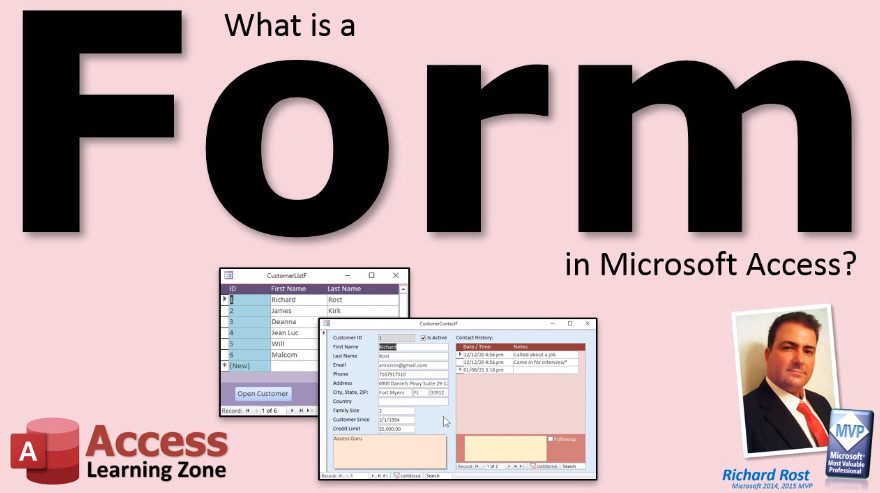 TechHelp Access, what is a form
More InformationTranscript What is a form in Microsoft Access? Forms are used for viewing and editing data on your screen.
Forms allow you to build a nice, user-friendly interface to work with data. Whether you are building a database for just yourself or for other people to work with, forms are a major time saver.
You can display information however you want. You can include just the types of data that you want your users to work with. You can combine information from multiple tables, such as displaying a summary of a customer's orders on the customer form.
You can secure your fields so users can only modify specific fields and can only see other types of data. You may not want all of your employees pulling up credit card numbers, for example.
You can also display calculations on your forms, such as the total number of days an employee missed work. Your forms can also contain drop-down lists called combo boxes so users can select data.
Command buttons allow us to perform tasks such as opening other forms or finding records. In fact, you can turn a form into a main menu for other forms.
The benefits of working with forms go on and on, but essentially you will build the interface with which users will work with your data out of forms. You never want your end users to work directly with your tables. You will build them nice, pretty forms they can use to work with the database. Intro In this video, we will talk about what a form is in Microsoft Access, and why forms are important for viewing and editing data in your database. We'll cover how forms let you create a user-friendly interface, control which fields users can see or edit, display combined data from multiple tables, use combo boxes for selections, and add command buttons for tasks like opening other forms. You'll also hear about some of the ways forms help keep your data secure and why you should always use forms instead of letting users work directly with tables. Quiz Q1. What is the primary purpose of a form in Microsoft Access?
A. Viewing and editing data on your screen
B. Creating relationships between tables
C. Generating printed reports
D. Storing textual documentation
Q2. Why are forms considered a major time saver when building a database for others?
A. They allow creation of backup copies of data automatically
B. They provide a user-friendly interface for data interaction
C. They eliminate the need for tables entirely
D. They auto-generate all data analysis for you
Q3. How can you control what data users can see and edit in an Access form?
A. By modifying table properties only
B. By using forms to include or restrict fields as needed
C. By editing the database schema
D. By hiding the database file
Q4. What is a combo box in the context of Access forms?
A. A list of forms you can choose from
B. A type of table relationship
C. A drop-down list for selecting data
D. A button for executing queries
Q5. What is one security benefit of using forms in Access?
A. Users can modify all fields without restriction
B. Users can only see or edit authorized data fields
C. All data is encrypted automatically
D. Only administrators can see any data
Q6. In addition to data entry, what other features can Access forms provide?
A. Displaying calculations such as totals or summaries
B. Creating new databases
C. Building server connections
D. Exporting code modules
Q7. What is the recommended way for users to interact with data in an Access database?
A. Directly editing tables
B. Using forms designed for data entry and editing
C. Writing SQL queries in the backend
D. Creating reports only
Q8. What function can command buttons on a form perform?
A. Opening other forms or finding records
B. Editing the database schema
C. Synchronizing with Excel automatically
D. Changing user passwords
Q9. How can forms help display information from multiple tables?
A. By combining and showing data such as order summaries on a customer form
B. By deleting unrelated tables
C. By combining all data into a single table
D. By preventing access to related tables
Answers: 1-A; 2-B; 3-B; 4-C; 5-B; 6-A; 7-B; 8-A; 9-A
DISCLAIMER: Quiz questions are AI generated. If you find any that are wrong, don't make sense, or aren't related to the video topic at hand, then please post a comment and let me know. Thanks. Summary Today's video from Access Learning Zone focuses on what a form is in Microsoft Access. Forms serve as user-friendly interfaces for viewing and editing your data right on the screen. They are essential tools, whether you are designing a database for your own use or for others.
With forms, you can present your information exactly as you want. You can selectively include only the fields necessary for your users, making the experience as efficient as possible. It's also possible to bring together information from multiple tables. For example, you can show a summary of a customer's orders directly on that customer's form.
Forms give you the control to secure your data by allowing certain users to modify only specific fields, while perhaps restricting access to sensitive information like credit card numbers. This way, not all employees or users have the ability to see or edit all the data in your system.
Another strength of forms is the ability to display calculated values automatically. For instance, you could show the total number of days an employee has missed work without any manual calculations. Forms can also contain combo boxes, which are drop-down lists that let users select data from predefined options, making data entry faster and more accurate.
Command buttons are another powerful feature. These can be assigned tasks like opening other forms or searching for records. You can even design a form to act as the main menu for navigating your database.
There are many advantages to using forms in Access, but the main idea is that forms provide the interface for users to interact with your data. You should avoid letting users work directly with tables. Instead, design user-friendly forms to give your database a professional look and make data management easier and more secure.
You can find a complete video tutorial with step-by-step instructions on everything discussed here on my website at the link below. Live long and prosper, my friends. Topic List What a form is in Microsoft Access
Using forms to view and edit data
Customizing the appearance and layout of forms
Displaying data from multiple tables on a form
Securing fields and restricting user access on forms
Displaying calculations and summaries on forms
Using combo boxes for selecting data
Adding command buttons to perform tasks
Creating a user-friendly main menu with forms
Building interfaces for users to interact with tables safely Primary Topics Microsoft Access forms, data entry interfaces, data viewing, data editing, user privileges, interface customization Secondary Topics data security, calculation display, combo boxes, command buttons |




