Expression Builder
By Richard Rost

 24 hours ago
Expression Builder Tutorial for Beginners In this lesson, we will explore the Microsoft Access Expression Builder and learn how it helps you create expressions without memorizing every function or object name. We will walk through building a calculated query field for a line total using Quantity and Unit Price, and create query criteria that references a control on an open form. We will also discuss where to open the Expression Builder, how to browse functions, fields, forms, and operators, and why checking your results is important. Nina from Halifax, Nova Scotia (a Gold Member) asks: What is the Expression Builder for, and when should I use it instead of typing the expression myself? MembersThere is no extended cut, but here is the file download: Silver Members and up get access to view Extended Cut videos, when available. Gold Members can download the files from class plus get access to the Code Vault. If you're not a member, Join Today!
PrerequisitesLinksRecommended Courses
Keywords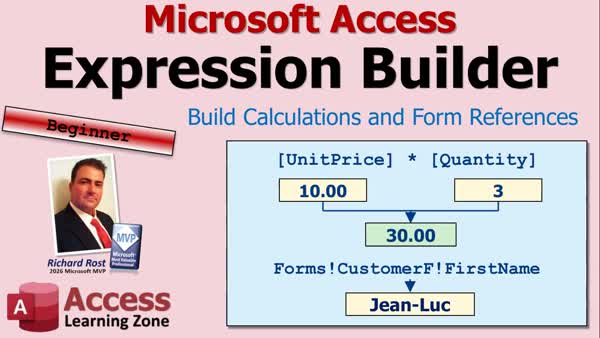 TechHelp Access, Access Expression Builder, calculated fields in queries, query criteria from open form, form control reference, calculated query field, line total calculation, Access expressions, Access query design, Control-F2, built-in functions, expression syntax
More InformationTranscript Have you ever opened the Expression Builder in Access, looked at all those lists, and thought, okay, where do I even start? You know the answer you want, but getting Access to understand it is another matter.
Welcome to another TechHelp video brought to you by Access Learning Zone. I'm your instructor, Richard Rost.
Today, I'll show you what that window is for and how to find your way around it. Then we'll use it for two simple jobs: calculating a line total in a query and getting a value from a control on an open form.
Today's question comes from Nina in Halifax, Nova Scotia, one of my Gold members. Nina says, "I was adding a calculation to a query and opened a window with lots of categories, functions, and symbols. I had no idea where to start. What is that window for, and when should I use it instead of typing the Expression myself?"
Well, Nina, that window is the Expression Builder. It helps you find pieces of an expression and put them together in the right place. You can still type stuff in directly if you want to, but as a beginner, sometimes the Expression Builder makes it much easier to find what you're looking for and put it together into an expression.
So let's take a look at the Expression Builder and what you can do with it.
Before we get started, though, there are some prerequisites for you. You should know what a query is in Microsoft Access. You should know what calculated fields are. You should know all about Access query criteria, what that means. And you should know what a form is.
These are all free videos. Go watch them if you don't know what any of these topics are. They're on my website. They're on my YouTube channel. Go watch them, and then come on back.
All right, so what exactly is an Expression? What is this Expression Builder building?
Well, an Expression is something that Access can evaluate to get an answer. The answer might be a number, some text, a date, I guess, or no value, and other stuff.
Let's say one order line has a unit price of $10 and a quantity of $3. You multiply those together, and you get $30. That's an Expression. Access takes the values from that record and then works out the answer. The next record could have a different price and quantity, so it gets its own answer.
You can also do things like concatenation. You could put first name and last name together, or you can compare a due date with today's date. The Expression Builder helps you write those instructions. But you still decide what you want the answer to mean.
Now, why use the Builder? I'll be the first to admit I almost never use the Expression Builder for myself anymore. I've been working with Access for over 30 years, and it's usually faster for me to type the Expression directly.
But when you're learning, it's helpful to see what you've got available. You don't have to remember the name of every function. You can browse through a list, read what the function does, and let Access help you with the syntax.
It's also useful for references to controls on forms. You might know you want the customer's first name from that form over there, but not how to spell out the whole thing. Me, for example, I always forget what I name forms, what I name the controls. So sometimes I'll pop into the Expression Builder because it gives you what all the names of the forms and the controls are. And that's exactly what our second example is going to show.
Even if you're comfortable with typing expressions, you can still come back here when you need to look something up. I sometimes do.
Now, where will you find the Expression Builder? Well, you can find it in a couple of different places. You'll usually open the Builder from the place where you're entering the Expression.
In Query Design, you can click on a field or a Criteria cell and use the Builder command. And depending on your version of Access, you can also right-click and choose Build.
On a form or report, an Expression-capable property, such as Control Source, might have that little 3.BuildButton, little dot dot dot button I call it sometimes. Be careful with that, though. Access has other builders, so every 3.Button does not necessarily mean it's going to open up the Expression Builder.
You can also use Control-F2 in supported contexts. Click the appropriate cell or property first, and then use Control-F2, not Shift-F2. Shift-F2 opens up the Zoom box, so make sure you're using Control-F2.
And where you start matters. Access offers different objects and choices depending on the query or the property that you're starting with. So if you don't see the Expression Builder and something weird opens up, just close it. It'll be fine. No one will make fun of you.
Now, once you get the Builder box open, at the top you'll see the Expression box. That's where you can type, edit, or insert the pieces that you choose. If the lower lists are hidden, click the More button to expand it.
Those three lists on the bottom are the Expression elements, the Expression categories, and the Expression values. Think of them as a way to narrow down what you're looking for.
For functions, you can expand Functions, choose the Built-In Functions, pick a category, and then pick the actual function. Now, these contents will change with your selection, as you'll see in just a minute.
If you choose a form, the middle list can show that form's controls. And the right list will show the controls' properties. And you can type in here too, and IntelliSense suggests names as you type. And the help text can describe a function or show its arguments.
Now, most Expressions use just a few kinds of pieces. A field or a form control supplies a value. An operator tells Access what to do with it. For our line total, the fields are going to be Unit Price and Quantity, and the asterisk means multiply. That's the operator.
A function does a particular job. Date with a pair of parentheses returns today's date. You can also supply a value yourself, a fixed value, such as "paid." In quotes, that puts the actual word "paid" there.
Remember that punctuation matters. Brackets identify names if you've got spaces in them, especially quotes, surround text, and parentheses belong to functions or groups of operators. You don't need to memorize every rule today. We're going to look at what the Builder inserts and start recognizing some of the patterns.
And always check your results. An expression can be written correctly, or so it looks, and still calculate something very different from what you intended. That happens to me all the time.
All right, so let's put this into practice with the simplest useful example. We've got Unit Price and a Quantity on each order line. We want a new query column, a calculated field called Line Total, or Extended Price, or whatever you want to call it.
Ten times three should give us 30, seven and a half dollars times two should give us 15, and so on. Basic calculation. And these are easy answers to check, so we can tell if the expression is doing the right thing.
All right, so here I am in my TechHelp free template. This is a free database you can grab off my website if you want to.
And for our first example, we're going to use this Order Detail query. This thing here opens up. It's got all of the order information for each line item. A Hyperdrive, one of them at $2,000. All right, phaser banks for 200. For some reason, the phaser banks were delicious and chocolatey. I don't know why. I don't know how that got in there.
Now, you can see I've already calculated an Extended Price. And if we go into Design View, right-click, Design View, you'll see I've got an Extended Price in there, and I put this in in one of my other videos.
So let's pretend, for the sake of today's video, I don't have that in here yet. That's what we're going to do.
So I've got two fields. I've got Quantity and I've got Unit Price. Now, they're going to be included because I included the asterisk down here. OrderDetailT.* means put all the fields in here.
So right here is where I want to put that extended total or line total, or whatever you want to call it.
Now, if I click here, if you drop this down, you see a list of fields. I don't want that. And there's no dot dot dot button here, but I can right-click and select Build. That'll bring up the Expression Builder.
There it is. And you can make this thing bigger if you want. You've got more room in here. You can see more things.
Your expression is going to go up top here. On the left, you've got Expression Elements. Here you've got Categories, and here you've got Values.
If you start from the top, you've got the Order Detail Q. And here's a list of fields in your Order Detail query. Extended Price. We loaded this list when the query opens, so it still sees Extended Price even though I already deleted it. So ignore Extended Price for now.
But we've got Notes, Order ID, Order Detail ID, and all the stuff in here. Quantity and Unit Price are the ones that we want to work with. We'll come back to that in just a second.
Let's take a brief look at everything else that's in here. Next, we've got Functions. And if you open this little box up here, you'll see some categories. There's Built-In Functions. You've got the TechHelp free template. These are functions that exist only in this database.
Here you can see, for example, my Window Positioning mod, and I've got a couple of my own functions. Web services, don't worry about it.
But under Built-In Functions, you'll see the functions by category and then the exact functions themselves. And again, you're not going to remember all these. Even I don't remember all of these functions, probably most of them, but not all of them. And I do have videos that cover most of these.
But they're also broken down by categories. So if you want date and time functions, there's date and time functions. If you want financial functions, there's financial functions. If you want math, there's math, and so on.
We don't need that for today, so we're going to close that up.
Now, this one here, this is the one I actually do use from time to time. This will show all the objects in your database. Here's all your tables. You click on a table, there's all that table's fields.
If you go down to Queries, you see there's the queries. There's the forms. We're going to use the forms in just a minute. And so on, reports.
Constants. These are pretty simple. False and all, True, Empty String.
Operators. These are all the arithmetic operators. Multiply, divide, integer divide, and so on. Comparison operators, less than, greater than, and so on. Then you've got some common expressions down here. The Current Date puts the Date function in, and so on.
What do we want for this specific query? Well, we want the fields from Order Detail Q. So right up top here, this is the object that you're currently working with, Order Detail Q. And I want to multiply the Quantity times the Unit Price.
So all you've got to do is double-click on Quantity. Oh, look at that. Put it right up here. And then double-click on Unit Price. And look at that. It sticks that in there too. How nice is that?
Now, there's something between it that says Expr. What's an Expr? Well, that's shorthand for Expression. In other words, you can't just stick two fields next to each other like that. That's kind of silly. You've got to do something with them. Well, the something we want to do is multiply.
Now, you can come down here in the Operators and you can find it, it's right there, or you can just come right up here and, if you know what you want, just type it. Boop. I just typed a little asterisk there.
So that says multiply Quantity times Unit Price. Now our expression is all set. I hit OK. Boop. Boop goes right there in that spot where we right-clicked. This is the next field over.
Now, Access named it Expr1, Expression1. You could give it a name if you want. This is called an alias. You could call it Line Total if you want to. I think I called mine initially Extended Price, so we'll leave it back at Extended Price.
And now, when I run my query, look at it. It works. Double-check the math. I always double-check the math. Make sure it's good. It looks good. That one looks fine.
And then you save it. And then you close it. That's that simple. That's the Expression Builder.
Now, that was a simple example. Let's take a look at a little more detailed one.
Now, this is an instance where I occasionally use it myself. Let's say you've got a form open. You've got the Customer form open. And here's me. I'm Customer ID number one.
And I've got an order. Where's the Customer Order query? Right here. The Customer Order query shows every customer and every product that they've ordered. It's all joined together in a complicated query that's got three tables in it.
But what I want to do is I want to say, when I run this query, instead of seeing everybody, I just want to see Customer 1, the currently open customer.
So for that, we're going to use a criteria based on the Customer ID. I'm going to click in the Criteria field right there. Right-click and go to Build. Oh, it's off the screen. Let me move this up so you can see it. Right-click and go to Build.
That opens up the Expression Builder. Now, what do I want? I want the field that I'm on right now, which is Customer ID. I want that to be equal to the Customer ID of the currently open form. And we can find that using the Expression Builder pretty easily.
Click on TechHelp Free Template. Go to Forms. Go to Loaded Forms. Loaded Forms means that form is currently open. Drop that down. There's Customer F and Main Menu F. Those are the two open forms.
If you want all the forms in the database, if it's not open right now, it's right there. If you're building something like this, though, I recommend you open the form so you'll see sample data when you run it.
So I'll pick Customer F. And this is where I sometimes need help because I forget what all the field names are on my forms. So there's Customer F, and Find Customer ID right there.
Now, it'll also show you all of the properties of that. You can get the caption property and a ton of them. You can ignore this for now. This is more advanced. But for now, I just want the Customer ID. So I'm going to double-click on it.
Look at that. This is one thing that a lot of my students have problems with, getting the proper name of a control on a form somewhere else. It's Forms bang. That little exclamation point is called a bang symbol. Forms!CustomerF is the form name, bang CustomerID. That's it. That's all you've got to do.
I'll hit OK. And it puts the criteria right there where you can see it. Let me widen that column out. Look at that. There you go.
Save it. And let me scroll back up here because I moved it. And now when I run the query, look at that. I just see me.
Now I'm going to close it. I'll go to somebody else. I'll go to Jean-Luc. I'll run the query again. Look at that. Now it's just Jean-Luc. And I saved the query up there. Let me move it down.
Because that criteria is saved in the query. If you come back in here, it looks at you. You don't have to put a number in here. It looks to that form and gets whoever that person's Customer ID is when you're on the query. See how nice?
All right. So, in addition to calculations, you can use it to reference a value on an open form. You can get the Customer ID like we did. You can get their first name. You can get any field you want off of that form.
Now, these two examples give you the basic idea of how it works. Once you recognize an expression, you'll start seeing places to use them all throughout Access.
You might decide you want to put first name and last name together for a report without changing how those names are stored in the database. That's called string concatenation. You've got a whole separate video on that one.
You might use a date function so, let's say, you want to see only orders that were placed last week. You might want to have a form display a message based on whether a balance is overdue. All those things can be done with the Expression Builder.
And you don't have to learn how to do all that stuff right now. When you have a job to do, look for the pieces that solve that job. Start with something small and simple enough that you can check the answer, and then work from there.
Now, in our first demonstration, our expression went into a field cell. I created a new value, a new field, a calculated field. You'll get one of those for each record.
In the second demonstration, the form reference went into a Criteria row under Customer ID. The slide I put together has First. I was going to do First Name initially, and then I said, no, Customer ID is a little more useful. But I'm not redoing all the slides.
But the criteria tells Access which records to show, whether it's First Name or Customer ID or whatever. So there's calculated fields and there's criteria. You can use the Expression Builder for both of those things.
All right. So, coming back to the question that Nina posed, the Expression Builder lets you find the right names or the right syntax for whatever you're trying to do. You could browse the fields. You could browse the functions. You can browse the controls on an open form. And then the Expression Builder helps you put it all together.
Now, as you get more comfortable with this stuff, you'll probably find that it's faster to type it in on your own, like I do. But that comes through repetition and through doing it. So don't be embarrassed to use the Expression Builder. I still use it from time to time myself if I don't feel like digging through a form to find what the control names are.
But the important thing is understanding the expression, understanding what the Expression Builder is trying to put together for you. And once you get that down, use whichever method works for you.
All right. If you want to learn more, I've got some other videos to talk more about some of the stuff that I briefly mentioned in today's class. Oops, someone's beaming in.
All right. Concatenation lets you join first and last names together, for example. It takes two text fields and puts them together.
Here's one of my favorite functions called the Immediate If function. It's like an If Then statement in a function. Check this one out.
And for more structured training on this topic, if you want to learn more about query criteria and all the expressions and things of that nature and how to build parameter queries, that's all covered in my Access Beginner Level 5 class. I'll put a link to that down below.
All right, so there you go. Now you know your way around the Expression Builder. And you've even seen it calculate a line total and build a reference to a control on an open form.
Start simple, check your results, and the syntax will get more familiar as you use it more. It's just practice.
Do you use the Expression Builder, or do you prefer typing expressions yourself? Let me know in the comments down below.
And that is going to be your TechHelp video for today. I hope you learned something. Live long and prosper, my friends. I'll see you next time. Intro In this lesson, we will explore the Microsoft Access Expression Builder and learn how it helps you create expressions without memorizing every function or object name. We will walk through building a calculated query field for a line total using Quantity and Unit Price, and create query criteria that references a control on an open form. We will also discuss where to open the Expression Builder, how to browse functions, fields, forms, and operators, and why checking your results is important. Quiz Q1. What is the primary purpose of the Expression Builder in Access?
A. To help you find and assemble parts of an expression
B. To automatically repair damaged tables
C. To import data from Excel worksheets
D. To create relationships between tables
Q2. What is an expression in Access?
A. A saved query that displays records
B. An instruction that Access can evaluate to produce a result
C. A form used to enter customer information
D. A table that stores calculated values permanently
Q3. Which of the following is an example of an expression?
A. Creating a new table named Orders
B. Multiplying Unit Price by Quantity
C. Adding a new field to a table in Design View
D. Printing a report
Q4. When might the Expression Builder be especially helpful?
A. When you need to compact and repair a database
B. When you need to browse available functions or form control names
C. When you need to change a table's primary key
D. When you need to create a backup copy of the database
Q5. Which keyboard shortcut can open the Expression Builder in supported contexts?
A. Shift-F2
B. Alt-F2
C. Ctrl-F2
D. Ctrl-Shift-F2
Q6. What does Shift-F2 normally open in Access?
A. The Zoom box
B. The Expression Builder
C. The Query Wizard
D. The Navigation Pane
Q7. In the Expression Builder, where do you type or edit the expression being created?
A. The Expression box at the top
B. The Expression Elements list on the left
C. The Categories list in the middle
D. The Values list on the right
Q8. What operator should be used to calculate a line total from Quantity and Unit Price?
A. +
B. /
C. *
D. &
Q9. If Access creates a calculated query field named Expr1, what does that name represent?
A. A required table field name
B. A default name for an expression result
C. A special built-in financial function
D. A temporary form control name
Q10. What is an alias in a query expression?
A. A backup copy of a query
B. A different name assigned to the calculated result field
C. A type of relationship between tables
D. A way to hide a table from users
Q11. Which expression correctly refers to a CustomerID control on an open form named CustomerF?
A. [CustomerF].[CustomerID]
B. Forms!CustomerF!CustomerID
C. CustomerF!Forms!CustomerID
D. [Forms].[CustomerID].[CustomerF]
Q12. What does the Loaded Forms section in the Expression Builder show?
A. Forms that are currently open
B. Forms that have been deleted
C. Forms that have no controls
D. Forms that are available only in reports
Q13. Where would you place an expression that limits a query to the current customer shown on an open form?
A. In the query's Criteria row under CustomerID
B. In the table's Validation Rule property
C. In the report's Page Header section
D. In the database startup options
Q14. Which punctuation is used to surround text values in an Access expression?
A. Parentheses
B. Square brackets
C. Double quotes
D. Semicolons
Q15. Why should you check the results of an expression after creating it?
A. Access might automatically change the table structure
B. An expression can be syntactically correct but produce an unintended result
C. Calculated fields are always saved permanently to the source table
D. Expressions cannot use fields from queries
Answers: 1-A; 2-B; 3-B; 4-B; 5-C; 6-A; 7-A; 8-C; 9-B; 10-B; 11-B; 12-A; 13-A; 14-C; 15-B
DISCLAIMER: Quiz questions are AI generated. If you find any that are wrong, don't make sense, or aren't related to the video topic at hand, then please post a comment and let me know. Thanks. Summary Today's video from Access Learning Zone is about the Expression Builder in Microsoft Access. The Expression Builder can seem intimidating at first because it contains lists of fields, functions, operators, database objects, and properties. However, it is simply a tool that helps you construct expressions without having to remember every function name or syntax rule.
An expression is something that Access evaluates to produce a result. That result might be a number, text, a date, a True or False value, or even a blank value. For example, if an order line has a unit price of $10 and a quantity of 3, multiplying those values produces a line total of $30. That calculation is an expression.
Expressions can also combine text, compare dates, test conditions, retrieve values from forms, and perform many other tasks. For example, you might combine a customer's first and last name, determine whether an invoice is overdue, or display only the records associated with the customer currently shown on a form.
Although I usually type expressions directly because I have been working with Access for many years, the Expression Builder is especially useful when you are learning. It lets you browse available fields, functions, operators, forms, controls, and properties. You do not need to memorize the name of every function or remember the exact syntax immediately. The Builder can help you locate the pieces you need and insert them correctly.
The Expression Builder is also helpful when you need to refer to a control on a form. It is common to remember that you need a value from a form but forget the exact name of the form or the control. The Builder provides a convenient way to browse those names instead of opening the form in Design View and searching through its properties.
Before working with the Expression Builder, you should have a basic understanding of Access queries, calculated fields, query criteria, and forms. These concepts are important because expressions can be used in many different places throughout Access.
You can open the Expression Builder from several locations. In Query Design, you can use it when creating a calculated field or entering criteria. You can generally right-click in the appropriate query design cell and select the Build command. Some versions of Access also provide this command in the Ribbon.
On forms and reports, certain properties can accept expressions. The Control Source property is a common example. Some properties include a small Build button that opens a builder window. Keep in mind that not every Build button opens the Expression Builder, because Access includes several different types of builders.
You can also use Ctrl+F2 in many situations where an expression is supported. First select the appropriate property or query cell, then press Ctrl+F2. Do not confuse this with Shift+F2, which opens the Zoom box instead.
The choices you see in the Expression Builder depend on where you open it. If you open it from a query field cell, Access will show options related to fields and query expressions. If you open it from query criteria, it can help you build a condition that determines which records appear. If you open it from a form property, you may see different available objects and options.
At the top of the Expression Builder is the Expression box. This is where Access displays the expression you are creating. You can type directly into this box, edit text already there, or insert items by selecting them from the lists below.
If the lower portion of the Builder is not visible, use the More button to expand it. The lower section normally contains three lists: Expression Elements, Expression Categories, and Expression Values.
The list on the left contains broad groups of items. These may include fields available from the current query, Functions, database objects, constants, operators, and common expressions.
The middle list changes based on what you select in the left list. For example, if you select Built-In Functions, the middle list displays categories such as Date and Time, Financial, Math, Text, and other function groups.
The list on the right displays the specific values associated with the category you selected. If you choose a category of math functions, the right side will show the individual math functions. If you select a form, the right side may show controls or properties associated with that form.
Access includes many built-in functions, and nobody expects you to memorize all of them. Even experienced developers often use the Expression Builder or the Access Help system to find an unfamiliar function. The functions are organized by category so that you can narrow down the choices based on the type of task you are trying to accomplish.
The database object section is particularly useful. It allows you to browse tables, queries, forms, reports, and other objects in your database. If you select a table, you can view its fields. If you select a form, you can locate its controls. This is useful when you need Access to retrieve a value from a specific object.
You will also find constants in the Builder. These include common values such as True, False, Null, and an empty string. Operators are available as well. Operators tell Access what action to perform. Arithmetic operators include addition, subtraction, multiplication, and division. Comparison operators include equal to, less than, greater than, and similar comparisons.
Many expressions use only a few basic parts. A field or control provides a value. An operator tells Access what to do with that value. A function performs a specific job. A fixed value supplies a literal value, such as a word or date.
Punctuation is important in Access expressions. Brackets are commonly used around names that contain spaces or special characters. Quotation marks indicate text values. Parentheses are used with functions and can also control the order in which Access performs calculations. You do not need to memorize every syntax rule immediately, but you should begin recognizing these patterns as you work with expressions.
It is also important to check your results. An expression can be syntactically correct and still produce a result that is not what you intended. Start with simple examples where you can verify the answer easily.
For the first example, consider an order detail query that includes a Quantity field and a Unit Price field. The goal is to calculate a line total for each order line. If the quantity is 3 and the unit price is $10, the result should be $30. If the quantity is 2 and the unit price is $7.50, the result should be $15.
In Query Design, create a new calculated field in an empty field column. Open the Expression Builder from that cell. The Builder will show the fields available from the query. Select the Quantity field and the Unit Price field, then place the multiplication operator between them.
Initially, Access may give the resulting calculated field a generic name such as Expr1. You should replace that with a meaningful field alias such as Line Total or Extended Price. The alias identifies the calculated field in the query results.
When you run the query, Access calculates the value separately for every record. Each order line receives its own result based on that record's quantity and unit price. Always review several records to confirm that the totals are correct.
This is one of the most common uses for expressions in queries. You can create a new calculated field without storing the result in a table. Access performs the calculation whenever the query runs.
For the second example, consider a customer form that is currently open. Suppose you have a query that displays customer orders, but you only want to see the orders for the customer currently shown on the form.
This requires query criteria. Rather than entering a fixed customer ID into the query, you can create a criterion that retrieves the customer ID from the open form.
In the query design grid, place the cursor in the Criteria row beneath the Customer ID field. Open the Expression Builder. From the database object section, browse to Forms and then to Loaded Forms. Loaded Forms means forms that are currently open in Access.
Select the customer form from the list of open forms. Access will then show the controls available on that form. Select the control that contains the customer's ID. The Expression Builder inserts the correct reference to that form control into the query criteria.
This is an area where the Builder can save you a lot of frustration. Form references must use the correct form name and control name. If either name is misspelled, the query will not work correctly. Browsing through the Builder helps ensure that Access inserts the proper reference.
After saving the query, Access will use the ID value from the customer form whenever the query runs. If you move to another customer on the form and run the query again, the query will automatically return records for that new customer. You do not have to edit the query each time or manually enter a different customer ID.
The calculated field example and the form reference example demonstrate two different uses of expressions. A calculated field creates a new value for every record returned by a query. Query criteria determine which records the query should display.
Expressions can be used throughout Access. You might concatenate first and last names for a report without changing the way names are stored in the table. You might use a date function to show only orders placed within a certain date range. You might use a conditional expression to display a message when an account balance is overdue. You might use an expression on a form control to calculate a value or retrieve information from another form.
As you become more comfortable with Access, you may find that typing expressions directly is faster. That is perfectly normal. However, there is nothing wrong with using the Expression Builder whenever you need help finding a field, function, form, control, property, or operator.
The important part is understanding what the expression is supposed to accomplish. The Expression Builder can help you assemble the pieces, but you still need to decide what result you want Access to produce.
Start with simple expressions that you can verify easily. Practice creating calculated fields, using criteria, and referring to values on open forms. Over time, the syntax will become more familiar, and you will be able to choose whether you prefer using the Builder or typing expressions directly.
You can find a complete video tutorial with step-by-step instructions on everything discussed here on my website at the link below. Live long and prosper, my friends. Topic List Expression Builder purpose and benefits
Opening the Expression Builder
Expression Builder panes and navigation
Expression elements, categories, and values
Fields, operators, functions, and constants
Creating calculated query fields
Calculating a line total with Quantity and Unit Price
Naming calculated fields with aliases
Using Expression Builder in query criteria
Referencing controls on open forms
Filtering a query by the current form record Article The Expression Builder in Microsoft Access is a tool that helps you create expressions without having to remember every function name, field name, operator, or reference format. An expression is simply an instruction that Access can evaluate to produce a result. That result might be a number, text, a date, a True or False value, or no value at all.
For example, if an order line has a Unit Price of 10 and a Quantity of 3, the expression [Unit Price] * [Quantity] produces 30. Access evaluates that expression separately for each record, so every order line can have its own calculated result. Expressions can also combine text, compare dates, test conditions, refer to controls on forms, and much more.
You can type expressions directly once you become comfortable with Access syntax. However, the Expression Builder is particularly useful when you are learning, when you cannot remember the exact name of a function, or when you need to refer to a form control and are unsure of its name. It lets you browse available fields, functions, database objects, forms, controls, constants, and operators, then insert the correct item into your expression.
You will usually open the Expression Builder from the place where you are entering an expression. In Query Design view, click in a Field or Criteria cell, right-click, and select Build. In many supported situations, you can also press Ctrl+F2 after selecting the appropriate cell or property. On forms and reports, some properties that accept expressions, such as Control Source, have a button with three dots beside them. Clicking that button may open the Expression Builder, although Access uses similar buttons for other kinds of builders too.
When the Expression Builder opens, the Expression box appears at the top. This is where the expression is assembled. Below it are normally three lists. The left list contains Expression Elements, the middle list contains Expression Categories, and the right list contains Expression Values. If these lists are not visible, use the More button to expand the window.
The contents of the lower lists change depending on what you select. If you select Functions, you can browse Built-In Functions by category. For example, you can look through date and time functions, text functions, math functions, financial functions, and other categories. Selecting a particular function shows information about what it does and often indicates the arguments it expects.
The Expression Builder also shows objects in your database, including tables, queries, forms, and reports. This is especially helpful when you need the exact name of a field or control. Access can insert the reference for you, which avoids spelling mistakes and syntax errors.
A useful way to understand expressions is to think of them as being made from a few common pieces. A field or control provides a value. An operator tells Access what to do with that value. A function performs a specific task. A literal value supplies fixed information.
For instance, [Quantity] and [Unit Price] are field references. The asterisk, *, is the multiplication operator. The expression [Quantity] * [Unit Price] multiplies the two fields. The function Date() returns the current date. Text values such as "Paid" must be enclosed in quotation marks. Names that contain spaces are normally enclosed in square brackets, such as [Unit Price].
Suppose you have an order detail query containing Quantity and Unit Price fields, and you want to calculate the total for each order line. Open the query in Design view and move to the first empty Field cell in the design grid. Right-click in that cell and choose Build to open the Expression Builder.
In the Expression Builder, select the current query from the Expression Elements list. Its available fields will appear. Double-click Quantity to insert it into the Expression box. Then type an asterisk, or select the multiplication operator from the Operators category. Finally, double-click Unit Price to add that field.
The resulting expression should read:
[Quantity] * [Unit Price]
When you click OK, Access places the expression into the query design grid. At first, Access may give the calculated column a name such as Expr1. You can rename it by typing an alias followed by a colon before the expression. For example:
Line Total: [Quantity] * [Unit Price]
When you run the query, Access calculates a line total for every record. If a record has a Unit Price of 10 and a Quantity of 3, the Line Total will be 30. Always check a few results manually, especially while you are learning. An expression can be valid but still produce an answer that is not what you intended.
The Expression Builder is also very useful for using a value from an open form as query criteria. For example, assume you have a Customer form open and a query that shows orders. You may want the query to display only the orders for the customer currently shown on the form.
Open the orders query in Design view. Find the Customer ID field in the query grid, then click in its Criteria row. Right-click and select Build. In the Expression Builder, browse to the database objects, then Forms, then Loaded Forms. Loaded Forms are forms currently open in Access.
Select the Customer form. The available controls on that form will appear. Choose the control containing the customer ID. Access will insert a reference similar to this:
Forms!CustomerF!CustomerID
The actual form name and control name will depend on your database. The important part is the structure. Forms! identifies the Forms collection, the next name identifies the form, and the final name identifies the control on that form.
After you click OK, the form reference appears in the Criteria row for Customer ID. When you run the query, Access reads the Customer ID value from the open form and shows only matching records. If you move to a different customer on the form and run the query again, the results change automatically.
This type of expression is useful whenever a query needs to respond to what the user is currently viewing or entering on a form. You can use it for customer IDs, names, dates, status selections, search text, and many other values.
Expressions can be used in many places throughout Access. In queries, they can create calculated fields or filter records through criteria. In forms and reports, they can calculate values for display, combine fields, control visibility, set default values, and evaluate conditions.
A common text expression combines first and last names into one display value. Another common expression uses a date function to find records from today, last week, or another date range. Conditional expressions can display different text or values depending on whether a balance is overdue, an order has shipped, or a field is blank.
You do not need to memorize all available functions or every punctuation rule immediately. Start with a simple task where you can easily verify the result. Use the Expression Builder to explore fields, functions, operators, and form controls. As you work with expressions more often, the syntax will become familiar, and you may eventually find it faster to type many expressions yourself.
The Expression Builder is not required for writing expressions, but it is a practical reference tool and a reliable way to insert the correct names and syntax. Use it whenever you need help finding the right piece for an expression, especially when working with unfamiliar functions or controls on forms. Primary Topics
Access Expression Builder, expressions, calculated query fields, query criteria, form control references, built-in functions, operators, Expression Builder navigation
Secondary Topics
Control-F2 shortcut, Build command, expression aliases, brackets and quotes, IntelliSense, loaded forms, syntax checking
|






