Quick Queries #108
By Richard Rost

 4 hours ago VB vs VBA vs VB.NET vs VBScript Explained - QQ 108 In today's Quick Queries we will clarify the differences between VB6, VBA, VB.NET, and VBScript, including which language Access uses and why the runtime environment matters. We'll also discuss Access SQL comments, database launchers and permissions, Outlook email automation, shared VBA libraries, datasheet subforms, OCR options, and questions about Access as a multi-user front end for SQL Server. PrerequisitesRecommended CoursesUp Next
Keywords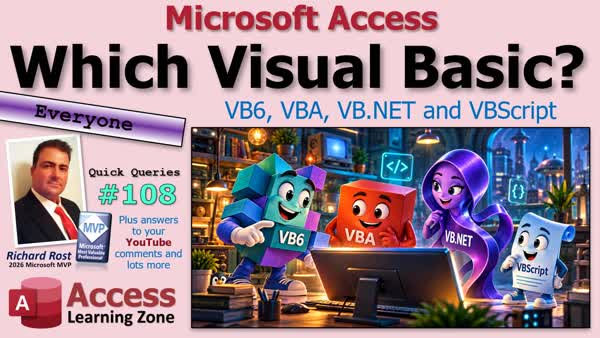 TechHelp QQ Quick Queries, VBA vs VB.NET vs VBScript, Visual Basic 6, VB6 support, VBA in Access, VBScript deprecation, Access SQL comments, Monaco SQL editor, pass-through query comments, new Outlook MAPI Access, Access database launcher, Access library references
More InformationTranscript What's the difference between VB, VBA, VB.net, and VBScript? They all sound alike. The code can look alike, but that can send you down the wrong path on your search for help.
Welcome to another TechHelp Quick Queries brought to you by Access Learning Zone. I'm your instructor, Richard Rost.
Today, we'll sort out what each one is for, including my old favorite, VB6. Then we'll get into questions and comments from YouTube, the website forums, email, and more.
Are you ready? Let's go.
Today's question is one I hear a lot. Theo from Auckland, New Zealand, one of my silver members, says, "I keep seeing VB, VBA, VB.net, and VBScript when I look for programming help. Are these different names for the same thing? Which one am I learning in Access? And can I use examples written for the others? Also, where does the old VB6 fit into all this?"
Well, the short answer is, in Access, you're learning VBA. That's Visual Basic for Applications. These names all belong to a related family, but they aren't interchangeable. The most useful question isn't which name sounds newest. It's where your code is going to run.
So let's take a look at them one at a time.
All right, let's start with Classic Visual Basic, especially VB6. This was my favorite version. We had a visual form designer. You dropped controls onto a form. You wrote code for those things, like clicking a button.
And if that sounds familiar to an Access developer, there's a reason. They share a lot of the same event-driven way of thinking. But VB6 built Windows applications outside Access. You weren't building an Access form that needed the Access environment.
The catch today is that the development environment is old. Microsoft unfortunately ended support for VB6 in 2008. Now, that doesn't mean that every VB6 program suddenly stopped working. Microsoft still supports the core runtime on supported Windows versions with limited servicing.
So when somebody says their company has a VB6 application, ask which version. A VB6 project is very different from a modern .NET project.
Now VBA, again, Visual Basic for Applications. This is what we're using when we write code behind an Access button, open a report, or work with a recordset. The application supplies the environment and the objects you are controlling.
In Excel, that means things like workbooks and worksheets. You'll also find similar custom VBA code in Microsoft Word and PowerPoint, even in Outlook.
In Access, we have forms, reports, database objects, and the language is familiar between all of them. But an Excel example that talks about a worksheet isn't automatically going to work in Access without some tweaking. You have to understand which application's objects the code uses.
Now VBA is useful because you're extending the solution you've already built, not starting a separate application from scratch each time. And it isn't limited to recording a tiny macro. You can build substantial Access applications with VBA.
The limitation is it still needs the host environment, and importantly, VBA is not the same as something like VBScript.
Now next is VB.net. Microsoft often just calls this Visual Basic now, which doesn't exactly help the confusion. The .NET part tells you which platform we're talking about. You use tools such as Visual Studio to build applications and libraries that use .NET and its libraries.
Windows Forms is one familiar example. So you'll still see a form designer and buttons. But the similar-looking designer doesn't make this VB6 with a fresh coat of paint. The project structure, runtime, and libraries are all different.
So you can't assume an old VB6 project or an Access VBA procedure will just paste in and run. Modern Visual Basic is very much alive and is still supported.
Unlike VBScript, which is the scripting member of the VB family. A VBS file is a text file, and it requires a host such as WScript or CScript to run it, which is part of the VBScript language. It has also been used in older web environments, including Classic ASP, which I run my website on.
And there's no single required VBScript editor. You can use Notepad if you want to. Historically, it was useful for small automation jobs, working with COM objects, that kind of thing. But it isn't the same language environment as your Access VBA project or VB.net.
Now Microsoft has deprecated VBScript and is phasing it out of Windows. Now, that doesn't mean it's already disappeared. Availability depends on the Windows version, configuration, and the rollout stages.
If you maintain an old script, identify what runs it and plan for that change. Microsoft has said, for the near future at least, it'll still be available. It just might not be installed by default.
So if you're using old VBScript, you can still install it on new machines. You just have to manually install it yourself.
So here's the takeaway. Start with the application or the environment, not just the letters VB. If you're writing code in your Access database, look for Access VBA examples. If you're maintaining an old Windows application, find out whether it's Classic VB6 and what components it needs.
If you're working on a .NET project, modern Visual Basic is the relevant branch. And if you've inherited some VBS files, well, that's VBScript. And that's a totally different life cycle to plan around.
I've still got a bunch of those myself that I use. They're not going away anytime fast, so don't worry about it.
Similar syntax can help you recognize what the code is doing, but the objects, project files, and runtime still matter.
And of course, if you're new to all this and you want to learn some VBA, check out my intro to VBA video. It's absolutely free. It'll get you started programming in Microsoft Access VBA. That's VBA specifically for Microsoft Access.
And you'll find VBA for Excel and Word and all those other Office applications as well. But this is a good spot to start.
All right, let's see what else we got in the mailbag.
All right, first up, we got Amir. Have you ever come back to a query you wrote six months ago, then wondered, "What was I thinking?" That's why we leave comments.
And Amir wants to know whether he can put those notes right in his Access SQL instead of keeping a separate file. He's using Notepad++. I used to use that all the time. Now I just use regular Notepad because I'm not picky.
I got lots of helpful comments on here. Donald points out that the new Monaco editor supports comments at the beginning of an Access query. And Kevin showed some different stuff you can put in a pass-through query because this runs on SQL Server. So you can use SQL Server's rules, and it allows more comments in there.
And of course, my take is the first thing to ask is who's actually running the SQL. Seeing the code inside Access doesn't necessarily mean that Access is executing it.
So a pass-through query sends it to that database engine, like SQL Server. And that engine has its own rules. But for a regular Access query in the Monaco editor, put the comments at the very beginning before the SQL statement.
All right, go into the editor, SQL view. If you've got the new Monaco editor, you've got the color, little blue SELECT and blue FROM. If you've got the older editor from older versions of Access, you can't do this. Sorry.
All right, but at the very beginning, you could put dash dash for comments like that. It'll show up in green. Or you can do the longer multi-line style ones, which is a slash, then an asterisk. And then you get a multi-line one that comes from C, I think. There you go.
So that's the only spot you can do it, though, is right up top there. Don't put them between the clauses of the query or tack them onto the end. Because if you do, it'll look green. It shows up green, but if you try to run the query, sorry, only allowed at the beginning of the query.
Maybe the Access team is going to fix that in the future and surprise us. Who knows?
All right, but that will still run your query. Hope that answers your question.
All right, next up we got David. He wants one menu where you can pick a database and open it without having to work through Access's list of recent files.
We got some tips in here from Alken. He describes the basic launcher approach, a separate database with a form that opens the selected file. Kevin suggested my database launcher video, which is this guy.
You get different databases. Well, you have a launcher database. It opens up customers, opens up vendors. These are great if you have multiple different databases that you work with throughout the day and you want just one database, one database to rule them all. It opens up all the databases for you. That's all it does.
And this is exactly what a database launcher is for. Think of it like a front door to several separate applications. You can give people friendly names like inventory, scheduling, customers, or orders, and keep the actual file locations behind the menu.
And the databases don't have to be related to each other. They can just be whatever that person needs.
And you can add a little security, too, because if you've got some accounting stuff in the accounting database, you could put that accounting database in a folder that only the accounting people have Windows permissions to. And then that's another way of adding a level of security to your different databases that you have.
And also, the opposite is true because an important distinction to make is that you've got to be careful who can open what database. Taking a database off of the menu doesn't necessarily stop someone from browsing to the file directly. If they have permission to open the file, the menu doesn't necessarily take that permission away.
That's where you want to look at the actual Windows folder permissions or use something like SQL Server. And good backups, too, because someone deleting a file, if they've got access to read and write it, they have access to delete it too. So be careful there.
And I love Sam's LCARS-style Star Trek database menu. That's great. I love that.
And also, this is a pretty good thread. I'm going to put a link to this down below. We talked some about the permissions, some issues that you run into using trusted folders and setting up some security that way, security warnings.
There's also using FollowHyperlink versus using Shell to open the database. So, lots of good stuff in here. Even though the folder might be trusted, using FollowHyperlink that you can use to open most web links or files might still throw up that security warning, whereas Shell or ShellExec can sometimes get you around that too.
Here's a frustrating one. You can open an Outlook attachment PDF, click Send, and everything works. And then you try to send a report from Access and it doesn't behave the same way. Paul figures he must have missed a setting in Access.
And that's a reasonable question. But there's another detail that we need first: which Outlook are you using? Because there's the new Outlook and then there's the old Outlook.
So the new Outlook generally doesn't work well with Access. And Alken goes into explaining MAPI, what MAPI is: the Messaging Application Programming Interface. I always thought it was the Mail Application Programming Interface. I had to look it up to be sure.
But MAPI is an interface that lets another application like Access work with your mail program. So sending an email yourself and having Access hand one over aren't the same operation.
Now, before you go changing a bunch of settings, you should identify the exact step that's failing. Did Access create the message? Is the attachment there? Is the message in your drafts? Is it sitting in the outbox? Is it showing in the sent items? That'll tell you a lot more than just saying that the email doesn't work.
Now, new Outlook and Classic Outlook don't have the same automation support. Microsoft still lists the traditional MAPI interface and the Outlook object model as unsupported in new Outlook. So if your Access solution relies on those interfaces, test it with Classic Outlook configured for the account you're actually using.
Being able to send a normal email doesn't prove that the interface that your Access code expects is available. So flip that little switch from on to off to try the new Outlook. No, do not use the new Outlook if you want to use it with Access. No, bad.
Now here's the useful ending. Paul eventually did get it to work with the new Outlook. And he said he could send it manually, and that's great. But that's all you need. That is what matters.
I know that it won't work unattendedly. Like, if you want Access to be able to drop it in and send it by itself, I still keep my old Outlook set up. Even though I use Gmail for 99% of things, I still use my Access database to email an invoice or something once in a while.
So it's a one-click process. It sends it to Outlook. It uses old Outlook, and then it just sends it right out for me.
But if you're happy just having Outlook prepare it and put it in your outbox, and then you've got to click Send, then great.
I'm curious, are a lot of people out there still using Outlook? Do you still use Outlook for sending email from Access, or have you switched to a different solution? There's lots of different solutions out there too.
I also use SendGrid from Twilio to do my bulk emailing, forum notifications, that kind of stuff. So I'll be curious to see what you guys have. Post a comment down below. Let me know what you're doing.
There's a couple of questions from Mohammed, and I'll leave a copy of the link to this thread down below.
In a nutshell, his major question is, we're talking about library references, which I covered in my Access Developer 63 class. You can create a reference file, make an ACCDE out of it so no one can get into your code, and you can distribute that so that other people can attach to it and use your functions and your subroutines and even your forms or reports.
I cover all this in Developer 63. But he wants to know, if he gave someone else a database, does the library come along for the ride?
And essentially, you have to make sure, if you're giving someone a database, you give them a copy of the front end and your library file.
So you've got two basic choices. You can give each user a local copy or have the applications use one copy on a network share. That's the same way with distributing a front end. They can either have the front end and the library file on their local drive, or they can have the front end on their local drive and you can keep a shared library file on the network.
Now, if your library file is small and you only have a couple functions in it, yeah, you could share it across the network. It's best, I think, in my opinion, to also distribute the library file as another front end. But that's just up to me.
And here's a bunch of stuff that I put on this one. A local copy avoids depending on the network location every time the library is needed. But now you also have to distribute library updates.
With a shared copy, there's one file to maintain, but everybody depends on that path and the file being available. And if you want to make changes, you've got to kick everybody out.
And one shared file doesn't mean you can casually replace it in the middle of the workday. You've got to close all the applications. Everybody gets out of the database. And then you can update that file.
So, me personally, I like distributing it with the front end, but it's totally up to you. Both will work.
And finally, for my website, I like this one because sometimes a useful discovery is hiding behind a tiny little plus sign. A tiny plus sign.
Donald had a single form with a subform on it. And he switched the main form to Datasheet view and saw a plus sign beside the rows. And he clicked on it, and there was the subform expanded right inside the list.
And I said, "Nice find. I did not know you could do that."
That's a good reminder that knowing a program well doesn't mean you've seen every combination of its features. Throughout the years, they've snuck all kinds of little things in that even I missed. I don't know everything this program does. That's how complicated it is.
And Kevin brings up a good point. The main form is now a datasheet, so you don't get the same main form layout and buttons that you have in Single Form view. And that's why subdatasheets are usually on my evil Access list. Lots of reasons why. You'll have to read the evil Access list to find out why.
And Donald says that it doesn't have to be right for every situation to be useful to know about. And I wouldn't rebuild a working screen just to add a little plus sign. But if that expandable view fits what your users need, give it a try.
Put it in a copy. See if people like it. See if it fits your workflow. Open and close the details, move between the records, and just make sure that the controls that you rely on behave the way you expect.
So it's another tool for the toolbox, not a replacement for every form. But thanks for sharing it. I love it when you guys teach me new things. I love it when you guys show me new features that I never knew about in Access.
There's lots of them. You get to building a certain way, especially me. I've been working with Access since 1994, since version 2.0. So I got set in a certain way of building, a certain set of tools, a certain way of using things.
And yeah, throughout the years, I've picked up some new things that were released. But there's all kinds of new stuff that got thrown in, especially around Access 2007 when they did the ribbon rebuild and all that stuff. There's lots of stuff they snuck in there that I missed.
All right, before we get to the YouTube comments, I just want to take a minute to thank everybody who commented on my recent tribute to Sir Patrick Stewart.
I received so many wonderful comments on YouTube, on my website, in the forums, and even a few personal emails. I read through all of them. I really appreciate everyone who took the time to share their thoughts and their experiences.
Sir Patrick Stewart meant a lot to me, not just as an actor, but as a human being. I never had the pleasure of meeting the man, but through his work, his characters, and the way he carried himself through life, he had a real impact on me.
And judging by all the comments I received, I know I'm not alone in feeling that way. So from the bottom of my heart, thank you. It means a lot.
And all right, let's get on with the questions.
Next up, I got some comments on my changing clocks are still dumb video, which I haven't reposted yet. We just did the stupid clock changing yesterday, and I'm just so tired of this nonsense.
I'm actually going to probably update and repost my video, but I always add a little bit to it and then post the rest of the old one.
But here's the thing: I don't care whether we stay on standard time or go to daylight saving time permanently. I don't care. Just pick one and leave the clocks alone.
It's annoying from a software standpoint, from a having-to-run-around-my-house-changing-clock standpoint, from my microwave just being wrong. There's no good reason to keep doing this. There's none. There's no good reason, in my opinion.
All right, enough. Next question.
Next up, Hamid. He wants to see me do a video on OCR to read images to text for invoices. Yeah, you could definitely do it. Access by itself can't do it, but you could do it with a helper application.
I do it myself. I have a utility that I use that does some OCR. You could take an image like a JPEG or even a PDF or whatever, and it can scan it. Now Access has to shell out to another little application that does the work, and then it does the OCR and saves it as a text file. And then Access can read that back in.
So yes, this is definitely on my list. I'll be covering it soon enough.
Next up, Fleet Ferris commented on my regular expressions video. He says, "Great topic, but the video is a bit grainy."
I'm glad you enjoyed the video. As far as the quality goes, I upload all my videos the same. They're all at 720p. So this one shouldn't be any different. You're the only person who has mentioned a problem, so it's got to be something with your buffering.
Maybe YouTube automatically dropped your playback resolution because of something with your connection speed or whatever. But it's not grainy on my end, so check your connection.
And I do cover lots more on regular expressions in Access Developer 65. Check it out. I'll put a link down below.
Next up, Abbo says, "Can you turn the Arabic audio translation on?"
This is completely up to YouTube. I have all of the audio translations on, all of the subtitles on for every language it's available in.
Sometimes when I upload a new video, it can take a few days to a week even for all of those auto-dubbings and translations and stuff to go into effect. So if it's not available now, just wait a little bit.
I have zero control over it. I've got it all turned on. It's all up to YouTube. So just be patient. And thanks for the comment.
Next up, I had a bunch of comments on my Why Access Won video, Why Access Won: The Desktop Database Wars.
Sean says Microsoft bought dBase and FoxBase, turned FoxBase into FoxPro, and eventually killed FoxPro because it didn't make financial sense to maintain two competing database products. He also points out the arrival of 64-bit systems as the final nail in the coffin.
Well, Sean, I definitely understand your frustration when you've spent several years developing applications in a particular language or platform. Having the company discontinue it is a real kick in the beep.
But there is a little history we need to straighten out. Microsoft never bought dBase. That belonged to Ashton-Tate, which was acquired by Borland in 1991. Microsoft bought Fox Software in 1992, and FoxPro already existed before that acquisition.
And Microsoft continued developing FoxPro for years. Visual FoxPro 9 came out in 2004, and Microsoft didn't announce the end of further development until 2007.
Now, you're right that Microsoft never produced a 64-bit version of Visual FoxPro, but whether that was the deciding factor in killing it or whether Microsoft simply wanted to focus its development resources elsewhere, we can't say for certain.
And that is something that I mentioned in my original video. We can look at what Microsoft did, but we shouldn't automatically assume that we know why they did it.
I do sympathize with developers who were left supporting applications built on a discontinued platform. That's a very real concern. And it's one of the reasons I always tell people to consider the long-term future of whatever technology they're building on, whether it's Access or whatever.
But Access and FoxPro both had their strengths. And I don't think the history is quite as simple as Microsoft buying one just to kill the other.
Next up, this user shares a great story about his journey through database software over the years. He started back in 1983 with a Commodore 64, remember those, with a program called Superbase.
He wanted to turn his collection of music albums, tracks, and artists into an electronic catalog. Here's the part I really like: every time he moved to a new computer or database program, whether it was dBase, FoxPro, Clipper, or eventually Access, he'd rebuild that same music catalog to learn the new software.
That's pretty cool. That's a fantastic way to learn. You've already got the problem that you understand. So instead of figuring out what to build, you can concentrate on learning how the new software works.
He eventually settled on Access 97. And one of the things that won him over was how easy it was to work with combo boxes and list boxes.
Thanks for sharing that. I love hearing stories from people who've been doing this stuff as long as, if not longer than, I have. And I think using the same project to learn different platforms is excellent advice for anybody learning programming today.
Next up, Kay has been using Access for about 20 years, and he brings up several good points. He says Access helped him analyze data in a much more structured and repeatable way than some of the older database products he used, like Paradox.
He also mentions Rushmore, which we talked about in the original video. That was FoxPro's query optimization technology that Microsoft brought into Access 2.0, and it made a big difference in performance.
I wouldn't know. I started using Access in 2.0, so I never used 1.0 to know how slow it was. But everyone says it was.
He raises two concerns, however. First, what's the future of Access as more people move away from traditional desktop Office applications? And second, why are we still dealing with database corruption and Compact and Repair?
Well, as far as the future goes, I don't see Access disappearing anytime soon, and I've said this in a lot of my videos. Microsoft is still maintaining it. There are tons and tons of businesses out there still running critical applications built with Access.
Could somebody eventually build a cross-platform Access replacement using AI? Sure, it's possible. But there's a big difference between generating new forms and queries and recreating everything Access does, including VBA, reports, and compatibility with decades of existing applications.
Believe me, I've tried. I've been working on a little project in my spare time called the Access Web Publisher, and all it really does is take your forms that you've designed for Access and publish them up to a web page.
Your website has to be connected to SQL Server, and your tables all have to match, which is another thing I'm working on. But even that little part, even with a little bit of AI assistance, is still taking me a long time to put together.
Replacing Access completely with its programming language and reporting and queries and all that, that's a huge task. There's millions of small business users still working with Access databases every day.
Are they slowly moving over to other web-based applications? Sure, but there are millions of businesses that don't need that too. So I'm not worried about Access disappearing in the near future.
Now, as far as your other part goes, corruption, I agree that a single-file database architecture has its limitations. But remember, you can split your Access database into front-end and back-end. That way, your forms, reports, and VBA are separate from your data.
SQL Server really is the future of where to store your data. So if your database is multi-user on a network and being used by lots of people, you really want to start considering moving the tables at least up to SQL Server.
That is my preferred setup for larger multi-user applications. If you've got more than two or three people using an Access database on a regular basis, you really want to think about SQL Server.
It's not hard to set up. I've got a free course to teach you how to do it. That's right here, and I'll get you started. So no excuses.
Next up, Dask says that Access doesn't work as a multi-user database over a network or the internet. Well, that's not entirely true. Access absolutely supports multiple users. I've built plenty of multi-user Access applications over the years.
On a local network, you can split your database into front-end and back-end and give each user their own copy of the front end and have everybody share the same data.
If you want to work over the internet, you can connect your Access front end to an online SQL Server database. Of course, you need to configure that properly. And I recommend using a VPN or another secure solution rather than just exposing your database server to the internet.
That's why I have a hosted SQL Server with Winhost. They handle the network security, and I just have to worry about my database.
Now, if you're talking about opening a web browser on any device and using your database through web forms, then you're right. That's not what Access was designed to do. Access is a Windows desktop application.
But you can also use something like Remote Desktop to run Access remotely on pretty much any device. As long as you've got a PC sitting there with your Access database on it, you can connect remotely. I do it with my phone or my tablet or another PC or anything.
So yes, Access can absolutely be part of a multi-user, internet-connected solution. You just have to use the right architecture and use the right tool for the job. And I talk about all of these different options in this video.
Next up, we got Celestial Newbian. He says that Paradox was 100 times better than Access. Everything Microsoft created in the 90s was substandard.
Well, you know what they say about opinions. They're like certain body parts. Everyone's got one, and they all stink. LOL.
But seriously, though, was Paradox better than Access 1.0 back in 1992? Yeah, probably. I never used Access 1.0, but Paradox was already a mature, stable product and Access was brand new.
Even Access 2.0, which is where I started, had plenty of room for improvement. But Access had real strengths right from the beginning too. And over the years, Microsoft kept improving it.
By the time we got to Access 97 and 2000, which were products of the 90s, it had grown into a pretty powerful development platform. By the year 2000 or 2001, I was doing a lot of very serious consulting work, database development, and stuff like that for clients on Access 97 and Access 2000. And they were great products.
And saying everything Microsoft made in the 90s was substandard, come on. You've got Windows 95, which wasn't the best, I get it, but it was revolutionary. You got Windows 98, Office 95, Office 98. Those are some pretty fantastic versions of Word and Excel.
Were they perfect? Of course not. But calling all of that substandard is a bit of a stretch.
And I used some of those older database products myself, and they were excellent tools. I'm not knocking Paradox, but saying one product was 100 times better than another doesn't really tell us much unless we're talking about what you're actually trying to accomplish.
Next up, this user says he loves Access and uses it as a front end for both MySQL and SQL Server. He's hoping Microsoft will eventually bring it to Android devices.
Well, first off, I agree. Access makes a fantastic front end for SQL Server. I've been using that combination for decades. It's one of my favorite setups.
And as far as Access running natively on Android, though, I wouldn't hold my breath. I don't see Microsoft developing an Android version anytime soon. And to be honest, I don't think that's where I'd want them spending their development resources anyway.
I'd much rather see better options for building web-based interfaces directly from Access. These days, almost everybody has an internet connection on their phone and tablet that's almost always on, or if not, they're on Wi-Fi.
So why build a separate Android application when you could just build a web interface that works on just about everything?
And if you really need to run an existing Access application from your phone or your tablet, you can always just use Remote Desktop. That's what I use. I can do it from my phone or from my tablet. When I'm on the road, I can just connect, and I've got Access-sized screens for my Android phone, and that works just fine too.
And I talk about all that in the last video that I showed.
So personally, I'd rather see Microsoft focus on improving Access as a desktop development platform and making it easier to integrate with web-based solutions than trying to squeeze the whole thing into an Android device.
But thanks for the comment.
Next up, this user, we'll call him D, says that Access is not really a database. It's a rapid application development tool, RAD. And he says it's just an expensive front end. He also questions whether Access really won the desktop database war.
Well, first off, I agree with you about the RAD part. Access is definitely a good RAD tool. It's one of Access's greatest strengths.
As a single developer, I can sit down in an afternoon and build a working database application with tables, queries, forms, reports, and VBA, something that might take weeks to build with other more sophisticated development tools.
And that's incredibly valuable, especially when you're a consultant. When I used to work in consulting full-time, you could build a prototype in an afternoon, put it in front of your client, and let them actually use it.
And then when it grows a little bit, you want to put it in front of a couple people, split the database. Multiple people can work with it and beat it up a little bit and see what works, what doesn't work.
And then when you're ready to finally roll it out, you can scale it up, move the data and the queries up to SQL Server, and keep your Access front end just like you built it. That's the strength of Access. It's extremely scalable.
You don't have to throw away your forms and reports and all the code you built just because you've outgrown the Access database engine, which admittedly is for small groups or single users.
Now, as far as Access being an expensive front end, I completely 100% disagree. Access is included with several Microsoft 365 subscriptions. You can get it for less than $10 a month.
And you don't need to buy a full copy for every user. Microsoft provides a free Access Runtime. So you can distribute your finished applications to users who don't need development tools.
So you could get a 20-user network. You need one copy of Access to develop it. You can install the free Runtime edition on 19 other machines, and you can install the free SQL Server Express, and you're running for $10 a month.
Come on. That's not expensive at all. In fact, that's a damn inexpensive way to deploy a custom business application.
So did Access win? Well, in the Windows desktop database development market, yes, absolutely. And that's the market I'm talking about in my video.
I'm not claiming that Access replaced Oracle in large enterprise systems or that it's the most popular database everywhere in the world. That's a completely different discussion.
But for building custom Windows desktop database applications, Access became enormously successful. And there's a reason why so many businesses are still using it today.
And that's really the whole point of the video. It's not about which product has the most sophisticated database engine. It's about how quickly you can build something useful that solves real business problems.
But thanks for the comment.
And this next comment from John Casey perfectly fits what we were just talking about. John says, "I've been using Access pretty much as long as you. What drove me nuts was developers and DBAs calling Access a toy. Yes, Access has limitations, but there are other areas where we're a giant.
"This is the way I look at it. If your wife wants a picture hung, you don't go to the shed, drag in your nail gun, compressor, hoses, and everything else, and set it all up just to drive in one nail. You grab a hammer and you're done. Access is the hammer. You want your roof done, the nail gun makes sense. Oracle, SQL Server, and the others are the nail gun."
And John, I absolutely love that analogy. I am going to be stealing it. That's exactly what I've been saying for years: the right tool for the job.
I've seen developers spend weeks building something with a complicated development environment that I could put together in Access in a few hours.
Now, if you're building a massive enterprise application with thousands of concurrent users, then you're going to need something more sophisticated. But if you're building a small database application for a small business with five or ten people, why bring in all that extra complexity if you don't need it?
And the best part is, with Access, you can have both. You can use Access for your forms, reports, and VBA, and SQL Server for your data.
You can start out with the hammer. When your business is small, you have five or ten users. Now you're growing, and you've added 20 or 30 people. Now you can upscale your data to SQL Server. And now you can go out and get the nail gun.
So John, yes, absolutely. Thank you for sharing that. And I am definitely stealing that analogy.
Next up, we got a comment from, we'll call them K. I'm done trying to pronounce everybody's usernames. It's just your first letter now. You're K.
K says he's been using Access since the early days. He says his company originally got a copy of Access to demonstrate some pricing calculations to customers, put together some tables, forms, and reports, and before long, Access became a central part of their business. And he ended up using it for about 20 years. Good for you.
And that's a great example of what I was talking about earlier. You start with a little prototype, and before you know it, you've built something the whole company depends on.
But he brings up an interesting question toward the end. He says, "With people moving away from traditional Microsoft Office applications, what's the future of Access? Could AI eventually build an Access replacement that doesn't need Windows?"
Well, I'm sure that's entirely possible. We're already seeing people use AI to recreate software interfaces and build applications that would have taken teams of developers a lot longer to put together.
Now, are those applications as mature and reliable as the originals? Not necessarily, but it's a start, and the technology is improving.
But here's the bigger point I want to make. I think there are two kinds of people when it comes to this stuff. This doesn't just apply to Access. It applies to programming, math, science, medicine, just about anything.
There are people who just want the answer. They have a problem, they need a solution, and they don't particularly care how it works. And that's perfectly fine.
If you need a database for your business and you don't want to be a programmer, you don't have any desire to become a database professional, and you can just tell AI what you want and it builds you something that works, great. You've accomplished your goal.
But then there's the other group, and this is where I fall. I actually enjoy learning how this stuff works. I love programming, I love tinkering, I love figuring out why something works the way it does. For me, that's half the fun.
I don't want to just tell ChatGPT to build me an entire application and have it spit out 20,000 lines of code and drop it into my business and call it a day.
Now, don't get me wrong, I use AI all the time. If I've got a little procedure that I already understand how to write, AI can save me 20 minutes of typing. Fantastic. That's a tool that's making me more productive.
But I still want to understand what the code is doing, especially if it's code I've already written. I've already written a million recordsets. Sometimes I tell ChatGPT, "Hey, I need a recordset that loops through this table and does this and this and this. Write it for me." Boom, I've got it.
But I already could sit there and take a half an hour to write the whole thing. So I already understand it, but I use it as a junior developer, as an assistant.
And that's where I think people need to be careful. If you're going to let AI build an entire business application for you, make sure somebody understands how to maintain it. Because eventually something is going to break.
Even in the most well-written software, something is going to have a bug or your business requirements are going to change. And what happens when the AI can't figure out how to fix it? You don't want your entire business depending on a piece of software that nobody understands.
How many Star Trek episodes have we seen like that? The whole society is run by the computer, and the people that built the computer have been dead for generations.
It's kind of like math. Sure, you can just use a calculator to get the answer. But I think there's value in understanding the arithmetic behind it.
How many times do you see people on Facebook with the stupid "answer this question" posts? Four times four plus eight times two. People don't know the order of operations. Come on.
Will AI eventually build something that could replace Access? Yeah, maybe. I wouldn't rule it out.
But will that eliminate the need for people who actually want to learn how to build databases and write software? I don't think so. As long as there are people out there who want to learn this stuff, then I'll be here making videos and teaching it. Because that's what I enjoy doing.
There you go.
Next up, Lucy says she remembers spending hours back in the 80s working with Clipper, writing all that code just to draw a form on a screen, then compiling, linking, finding bugs, and doing it all over again.
I remember Clipper. Those were the days. You'd spend half your time just getting the interface to look right, and then you'd compile the whole thing only to discover something else was broken.
We've come a long way since then, but I have to admit there's a little part of me that misses those days too. Thanks for the trip down memory lane.
Not only that, but I remember before I learned Access, I tried to write my own database engine in C. Not C++, not C#, classic C. I tried to build the whole thing: screen interface, windows, all that in C.
No, no. Then someone handed me a copy of Access, and I was like, "Oh, pretty shiny. What's this?"
Finally, we've got a comment from It's the Shan, 1977. He asks whether it's still worth becoming a Microsoft MVP in 2026. That's the best way to go about it. He says he's constantly being recognized for his knowledge of Word, Excel, and Access.
First off, that's fantastic. I love hearing when people like to help other people. That's what this is all about, paying it forward. Someone helps you, you turn around and help someone else out. That's the way I look at it.
Being an MVP isn't something you can just sign up for. You actually have to be nominated by someone who is already an MVP or a full-time Microsoft employee. Even then, being nominated doesn't guarantee that you'll be accepted.
Microsoft looks at what you've been doing to help the community. That's really what the MVP program is all about. It's not just about how much you know, it's about what you do with that knowledge to help other people.
For example, I've been making Access tutorials for years. I help people in my forums, I answer questions, and I really love teaching this stuff.
I first got nominated for an MVP award back in 2014. I was nominated then by my good friend, Alex Hedley, who many of you might recognize because he helps me out quite a bit on my website and my forums and stuff.
And back then, you didn't have to be an MVP to nominate someone else for the program. So that's when I got my first and second award. I got a re-award in 2015.
But then life got in the way. I had some health issues, some other commitments, and I just didn't have time to keep up with everything. I wasn't posting that many videos, so I fell out of the program.
And then I got back into it in 2020. When the pandemic started, I had lots of time. I just started cranking out videos. So I got back into the groove.
So then Mike Wolfe from No Longer Set, who is also a Microsoft MVP, nominated me again. And I was fortunate to get back into the program.
And yes, to answer your question, I absolutely think it's worth it. It's nice to have Microsoft recognize the work that you do helping people learn their products.
Now, I've been doing this for over 30 years, working with Access. And I've spent most of that time teaching other people how to use Access. I used to teach in the classroom, and then I did online training, and then I started the video training.
So I've been teaching Access in one way or another since around 1994, 1995, or 1996. It's been a while.
So having that MVP designation gives my opinions a little extra credibility. It's Microsoft's way of saying, "Hey, this guy knows what he's talking about."
But here's my advice. Don't just start helping people because you want an MVP award. Help people because you enjoy helping people. That's why I do it.
Even when I got back into it in 2020, I wasn't looking for an MVP nomination. And then Mike just contacted me. He's like, "Hey, I'm going to nominate you." I'm like, "Fantastic. Awesome. Thank you."
But if you're knowledgeable about Word, Excel, and Access, just get involved in the community, answer questions, write articles, make videos, and help people solve problems.
And if you're constantly making positive contributions, get to know some of the MVPs in your field. And one of them might eventually nominate you.
So for me, the award is a nice recognition of something that I'd be doing anyway. I love teaching, and I'm going to keep making videos whether Microsoft gives me the little badge or not. But I do love the little badge. It's nice.
So thank you. And it's great to meet and hang out with the other MVPs when I go to little Microsoft events like Access Day and the MVP Summit. It's just a fun little group to hang out with. I love all those guys.
All right, so that's going to do it for today.
Before you go, don't forget to stop by my website and check out what's new. I'm always adding new videos, updates, quizzes, templates, and random bits of Access goodness here and there. So check it out, see what you might have missed.
I've also got a new tech news page where I put new stuff that's happening in tech and Access and SQL Server and all that. I've got some videos from Alex, lots of stuff.
Don't forget to check out my Captain's Log, where I post random thoughts, whatever I happen to be thinking about. Is it always Star Trek-related? No. Is it mostly Star Trek? Yeah. There's a lot of Star Trek stuff in there. That's what I love. Sorry. It's my blog, and I'll post whatever I want there, damn it.
Check out the merch store. Pick up a hat, pick up a sweater, pick up a hoodie. Still looking for inflatable penguins. We'll get those eventually. There you go. Get a mouse pad. If you set it, you got to forget it, all that stuff.
Amazon storefront, pick up a copy of my book. Stop by my forums. Got questions? I only spend the bare amount of time on YouTube answering comments and stuff. The forums are where I spend most of my time answering people's questions, and I've got a lot of other volunteer moderators and stuff that help out there too.
So if you've got questions, stop by the forum. Even if you're not one of my paid students, you can still use the visitor forum and post your question there. I look forward to helping you.
Hey, before you go, make sure you subscribe to my mailing list. Hit that Like and Subscribe if you're not already subscribed to my YouTube channel. It's absolutely free. It helps other people find my videos, and I really appreciate it.
All right, so there you go, folks. There's your Quick Queries number 108. And we're getting up there.
I hope you learned something. If you've got questions or comments, post them down below, post them on my website, post them somewhere, send me an email, send me a subspace radio transmission, whatever you want.
That's going to do it for today, folks. Hope you learned something. Live long and prosper, and I'll see you next time. Intro In today's Quick Queries we will clarify the differences between VB6, VBA, VB.NET, and VBScript, including which language Access uses and why the runtime environment matters. We'll also discuss Access SQL comments, database launchers and permissions, Outlook email automation, shared VBA libraries, datasheet subforms, OCR options, and questions about Access as a multi-user front end for SQL Server. Quiz Q1. Which language are you learning when writing code behind forms, reports, and controls in Microsoft Access?
A. VBA
B. VBScript
C. VB.NET
D. Classic VB
Q2. What is the most useful question to ask when determining which Visual Basic family a code example applies to?
A. Which syntax uses the fewest lines
B. Which version has the newest name
C. Where the code is going to run
D. Which language uses the most forms
Q3. What was Classic Visual Basic, including VB6, primarily used to build?
A. Web browser applications
B. Windows applications outside of Access
C. Macros inside Excel only
D. SQL Server stored procedures
Q4. Why might an Excel VBA example not work directly in Access VBA?
A. Access cannot run VBA code
B. Excel VBA is compiled into EXE files
C. Access does not support objects
D. The application object models are different
Q5. What is a major difference between VBA and VBScript?
A. VBA requires an Office host application, while VBScript requires a scripting host such as WScript or CScript
B. VBA can only be used for web pages
C. VBScript can only run inside Access
D. VBScript is the same as modern Visual Basic
Q6. Which statement best describes VB.NET?
A. It is simply a newer version of VB6 that runs old projects unchanged
B. It is a .NET language used to build applications and libraries with .NET tools and libraries
C. It is the scripting language used by Access macros
D. It is an Access-only version of Visual Basic
Q7. Why should someone maintaining VBScript files plan for future changes?
A. VBScript cannot work with files
B. VBScript can only run on mobile devices
C. Microsoft has deprecated VBScript and is phasing it out of Windows
D. VBScript no longer supports text files
Q8. In a regular Access query using the Monaco editor, where should comments be placed?
A. Anywhere between SQL clauses
B. Only at the very beginning before the SQL statement
C. Only after the final semicolon
D. Inside field names
Q9. Why can a pass-through query have different SQL comment rules than a regular Access query?
A. Pass-through queries do not contain SQL
B. Access automatically converts them to VBA
C. They are always executed by the Access database engine
D. They are sent to another database engine, such as SQL Server
Q10. What is the primary purpose of a database launcher?
A. To repair corrupted tables
B. To create new databases automatically
C. To provide a friendly menu for opening several database applications
D. To convert Access databases to web pages
Q11. Removing a database from a launcher menu does not prevent a user from opening it directly if:
A. The user still has Windows permission to access the file
B. The database has no forms
C. The user is using Access Runtime
D. The database contains SQL Server tables
Q12. What should you investigate first when Access email automation does not work as expected?
A. Change every Access email setting immediately
B. Identify the exact step that is failing, such as draft creation, attachment, outbox, or sent items
C. Reinstall Windows
D. Convert the report to a spreadsheet
Q13. Why is Classic Outlook generally preferred over new Outlook for Access email automation?
A. Classic Outlook provides better support for traditional MAPI and the Outlook object model
B. New Outlook cannot send any email
C. Classic Outlook does not require an email account
D. New Outlook cannot display attachments
Q14. When distributing an Access front end that uses a referenced library file, what must you ensure?
A. The library file is renamed to match every form
B. Users receive or can access both the front end and the library file
C. The library is stored inside every table
D. The library is converted to VBScript
Q15. What is one advantage of distributing a local copy of a library file with each user's front end?
A. It avoids depending on a network location whenever the library is needed
B. It allows all users to edit the same library at once
C. It removes the need to distribute updates
D. It makes Windows permissions unnecessary
Q16. What is a disadvantage of using one shared library file on a network?
A. It cannot contain functions
B. It cannot be referenced by Access
C. Everyone depends on the shared file path and availability
D. It always makes the application run offline
Q17. What can the plus sign beside records in a datasheet form indicate?
A. A required field has not been filled in
B. A related subform or subdatasheet can be expanded
C. The record is permanently locked
D. The record has been deleted
Q18. Why should expandable subdatasheets be tested carefully before using them in an application?
A. They automatically convert all forms to reports
B. They only work with SQL Server
C. Datasheet view changes the available layout and controls compared with Single Form view
D. They prevent users from viewing related records
Q19. What is a recommended architecture for a larger multi-user Access application?
A. Store everything in one shared Access front-end file
B. Use Access forms, reports, and VBA with data stored in SQL Server
C. Convert all forms into VBScript files
D. Give every user full access to the database server over the internet
Q20. What is an important caution when using AI to create a complete business application?
A. AI-generated applications never need maintenance
B. AI cannot create any code
C. Someone should understand how to maintain and fix the application when requirements change or problems occur
D. AI only works with Access tables
Q21. What is the main purpose of the Microsoft MVP program described in the video?
A. To reward people for buying the most Microsoft products
B. To recognize people who use their knowledge to help the community
C. To provide a required certification for all programmers
D. To give users permission to distribute Access Runtime
Answers: 1-A; 2-C; 3-B; 4-D; 5-A; 6-B; 7-C; 8-B; 9-D; 10-C; 11-A; 12-B; 13-A; 14-B; 15-A; 16-C; 17-B; 18-C; 19-B; 20-C; 21-B
DISCLAIMER: Quiz questions are AI generated. If you find any that are wrong, don't make sense, or aren't related to the video topic at hand, then please post a comment and let me know. Thanks. Summary In today's Quick Queries video, I answer a variety of questions about Access, VBA, Outlook, SQL Server, old programming languages, and a few other technology topics.
The first question is one I hear often: what is the difference between VB, VBA, VB.NET, VBScript, and the older VB6? They are related languages, and their syntax can look similar, but they are not interchangeable. The most important thing to identify is where the code will run.
If you are programming inside Microsoft Access, you are using VBA, which stands for Visual Basic for Applications. VBA is the language used behind Access forms, reports, buttons, queries, and automation. It is also used in other Office applications, including Excel, Word, PowerPoint, and Outlook. The language may be familiar across those products, but the objects are different. An Excel VBA example that works with worksheets and workbooks will not automatically work in Access, because Access uses forms, reports, tables, recordsets, queries, and database objects.
VBA is designed to extend an application that already exists. In Access, you are building on top of the Access environment. You are not normally creating a separate Windows application from scratch. VBA can be used for much more than simple macros, however. You can build substantial business applications with Access forms, reports, queries, tables, and VBA code.
Classic Visual Basic, especially VB6, was a separate Windows development environment. VB6 included a visual form designer, where you could place buttons, text boxes, labels, and other controls on a form, then write event-driven code for those controls. That should sound familiar to Access developers because Access uses a similar event-driven model.
The difference is that VB6 was used to build standalone Windows applications. Those programs did not require Access to run. VB6 development ended many years ago, and Microsoft ended mainstream support for the VB6 development environment in 2008. However, many old VB6 applications still exist, and the core VB6 runtime remains supported on current Windows versions with limited servicing. If you inherit an old application, determine whether it was written in VB6 or modern VB.NET, because they are very different technologies.
VB.NET, now usually called Visual Basic by Microsoft, is the modern .NET version of the language. It is typically developed in Visual Studio and uses the .NET runtime and .NET libraries. You may see familiar concepts such as forms, buttons, event procedures, and visual designers, but VB.NET is not simply VB6 with a new appearance. The project structure, runtime, object libraries, and deployment methods are all different.
You cannot assume that code from Access VBA or VB6 will paste into a VB.NET project and work without changes. The languages share some common roots, but they run in different environments and use different object models. Modern Visual Basic is still supported and remains useful for .NET development.
VBScript is another member of the Visual Basic family, but it is intended for scripting. A VBScript file usually has a .vbs extension and is a text file run by a host such as WScript or CScript. VBScript was also used in older web environments, including Classic ASP.
VBScript has historically been useful for small automation tasks and for working with COM objects. It is not the same as Access VBA, VB6, or VB.NET. Microsoft has deprecated VBScript and is gradually phasing it out of Windows. It may still be available depending on the Windows version, configuration, and rollout stage, but it may not be installed by default in the future. If you maintain old VBScript files, determine what runs them and begin planning for eventual replacement or migration.
The key lesson is to start with the environment, not just the letters VB. If you are writing code inside an Access database, search for Access VBA examples. If you are maintaining an old Windows program, determine whether it is a VB6 application. If you are working in Visual Studio on a .NET project, then modern Visual Basic is the relevant language. If you have inherited .vbs files, you are dealing with VBScript and should account for its changing support status.
Similar syntax can make code easier to recognize, but the project type, runtime, available libraries, and application objects are what determine whether the code will work.
I also discussed adding comments to Access SQL queries. It is very common to return to an old query and wonder what you were thinking when you originally wrote it. Comments can make your SQL much easier to maintain.
With the newer Monaco SQL editor in Access, you can add comments at the very beginning of a regular Access query. You can use either the double-dash comment style or the slash-and-asterisk multi-line comment style. These comments should appear before the SQL statement itself.
This is important because regular Access queries do not allow comments everywhere in the SQL statement. Even if the editor colors a comment correctly, placing a comment between SQL clauses or at the end of a query can cause the query to fail. For standard Access queries in the Monaco editor, keep comments at the very beginning.
Pass-through queries are different. A pass-through query sends SQL directly to another database engine, such as SQL Server. In that situation, the rules are determined by the remote database engine, not by Access. SQL Server supports comments according to SQL Server syntax, so you may have more flexibility in a pass-through query than in a normal Access query.
The general rule is to ask which system is actually running the SQL. Seeing SQL in Access does not necessarily mean that Access is the database engine interpreting it.
Next, I covered the idea of using a database launcher. A database launcher is a separate Access database that acts as a central menu for opening other databases. Instead of relying on the list of recently opened files in Access, you can create a menu that provides friendly choices such as Customers, Inventory, Scheduling, Vendors, or Accounting.
This is useful if you work with multiple unrelated databases during the day. The launcher can act as a front door to several separate applications. The databases do not have to be connected to one another. The launcher simply provides a convenient way to organize and open the databases that a user needs.
A database launcher can also help with security organization, but it is important to understand its limitations. Removing a database from the launcher menu does not prevent someone from opening that database directly if they have Windows permission to access the file. If a person has permission to browse to a database file, read it, modify it, or delete it, a launcher menu does not override those permissions.
For real file-level security, use Windows folder permissions. You can keep sensitive databases, such as accounting databases, in folders that only the appropriate employees can access. If users have read and write access to a database file, remember that they may also have permission to delete it. Good backups are essential.
There are also different ways to open another database from a launcher. Some methods can trigger Access security warnings, particularly when trusted folders and hyperlinks are involved. Depending on the circumstances, using Shell or ShellExec may behave differently from FollowHyperlink. The correct approach depends on how your databases are deployed, where they are stored, and how your Access security settings are configured.
Another question involved sending email from Access through Outlook. A person may be able to open a PDF attachment in Outlook, manually send an email, and have everything work normally, but then find that Access does not behave the same way when it creates or sends an email.
The first thing to identify is which version of Outlook is being used. New Outlook and Classic Outlook do not provide the same automation support. Access applications often rely on MAPI, which stands for Messaging Application Programming Interface, or on the traditional Outlook object model.
MAPI is the interface that allows another application, such as Access, to communicate with an email program. Sending a normal email manually in Outlook is not the same operation as having Access create, address, attach, and send an email through automation.
Microsoft does not support the traditional MAPI interface or Outlook object model in New Outlook in the same way that Classic Outlook supports them. If your Access solution depends on Outlook automation, you should test it with Classic Outlook configured for the email account you actually use.
When troubleshooting email problems, identify the exact step that fails. Determine whether Access creates the email message, whether the attachment appears, whether the message is placed in Drafts, whether it reaches the Outbox, and whether it appears in Sent Items. That information is much more useful than simply saying that email from Access does not work.
If your goal is only to have Access prepare an email and let the user click Send manually, you may be able to make that work with New Outlook. If you need Access to automate the entire process, including sending email without manual intervention, Classic Outlook is usually the more reliable option.
For bulk email, website notifications, and similar automated messages, services such as SendGrid can be a better solution than relying on Outlook automation.
I also answered a question about Access library references. You can place common VBA functions, subroutines, forms, reports, and other shared resources into a separate library database. You can then create an ACCDE version of that library to protect the source code before distributing it.
If you distribute a front-end database that depends on a library file, you must also provide access to the library file. The library does not automatically travel with the front end unless you deploy it with the front end.
You generally have two choices. You can give every user a local copy of both the front end and the library file. Alternatively, users can have local front ends that all point to a shared library file on a network location.
A local copy of the library reduces dependence on the network every time the library is needed. However, it means you must distribute updates to each user when the library changes.
A shared library provides one centralized file to maintain, but all users depend on the shared path and file being available. You also need to coordinate updates carefully. You cannot casually replace a shared library file in the middle of the workday while people are using applications that reference it. Users need to close their databases before you replace the shared file.
Personally, I generally prefer distributing the library alongside the front end, especially if the library is relatively small. However, both local and shared-library approaches can work if they are managed correctly.
Another useful discovery involved datasheet forms and subforms. If a main form is displayed in Datasheet view and has a related subform, Access can display an expandable plus sign beside each row. Selecting that plus sign can expand the related subform data directly beneath the corresponding row.
This can be useful in the right situation, but it is not a replacement for every type of form design. When a main form is shown as a datasheet, you lose the traditional Single Form layout, command buttons, and other interface features that may be important to users.
Subdatasheets are often on my list of Access features to use carefully because they can cause performance, usability, and design issues. Still, knowing that the feature exists is useful. If it fits your users' needs, test it in a copy of your database. Make sure expanding and collapsing records, moving between records, and interacting with related data behaves the way you expect.
It is another tool for the toolbox, not a universal design solution.
I also took a moment to thank everyone who commented on my tribute to Sir Patrick Stewart. I received many thoughtful comments through YouTube, my website, the forums, and personal email. Sir Patrick Stewart has had a significant impact on many people, not only through his acting but through the characters he portrayed and the way he has conducted himself throughout his life. I appreciate everyone who shared their thoughts and memories.
I then returned briefly to the subject of changing clocks for daylight saving time. My opinion remains simple: I do not particularly care whether we stay on standard time year-round or daylight saving time year-round. I just want the clock changes to stop. They are inconvenient for people, confusing for software, and annoying for every clock around the house that must be adjusted.
Next, I discussed OCR, which stands for optical character recognition. OCR can be used to read text from images, scanned documents, PDFs, invoices, and similar files. Access cannot perform OCR by itself, but it can work with another application or service that does the OCR processing.
For example, Access can send a file to an external utility, allow that utility to extract text, save the results to a text file or other storage location, and then read those results back into Access. OCR can be useful for processing invoices, receipts, and other documents, although the quality of the results depends heavily on the source image and the OCR system being used.
I also addressed a comment about video quality. My videos are uploaded at a consistent resolution. If a particular video appears grainy, YouTube may have lowered playback quality automatically due to buffering, connection speed, browser settings, or device conditions. It is worth checking the selected video resolution and internet connection before assuming the original upload is low quality.
A question came up about Arabic audio translation. The availability of translated audio and subtitles is controlled by YouTube. I enable the translation and dubbing options available to me, but YouTube may take several days or even longer to process those features after a new video is uploaded. If a language option is not available immediately, it may appear later once YouTube has completed processing it.
I also responded to several comments about the history of Access, FoxPro, dBase, Paradox, and other desktop database products.
Microsoft did not buy dBase. dBase belonged to Ashton-Tate, which was acquired by Borland in 1991. Microsoft purchased Fox Software in 1992, and FoxPro already existed before Microsoft acquired the company.
Microsoft continued developing FoxPro for many years. Visual FoxPro 9 was released in 2004, and Microsoft announced in 2007 that it would not continue further development. Microsoft never produced a 64-bit version of Visual FoxPro, but we should be cautious about assuming exactly why Microsoft made its business decisions. We can identify what happened historically without claiming to know every internal reason behind it.
Developers who spent years building applications in a discontinued platform understandably feel frustrated. This is one reason it is important to consider the future of any technology you adopt. At the same time, Access and FoxPro both had real strengths, and the story is more complicated than one product simply being acquired to eliminate another.
One viewer shared a great story about learning multiple database systems by rebuilding the same project over time. Beginning with a Commodore 64 and Superbase, the person built a music catalog to track albums, artists, and tracks. As new computers and database products became available, the same catalog was rebuilt in dBase, FoxPro, Clipper, and eventually Access.
That is an excellent learning strategy. When you already understand the business problem, you do not need to spend time inventing a new project. You can focus on learning the new technology, its data structures, forms, controls, queries, reports, and programming methods. Rebuilding a familiar project is one of the best ways to learn a new platform.
I also discussed concerns about the future of Access. Some people worry that traditional desktop Office applications may eventually disappear as more organizations use web-based systems and cloud applications.
I do not see Access disappearing anytime soon. Microsoft continues to maintain it, and many businesses still rely on critical applications built with Access. It is certainly possible that someone could eventually create a cross-platform replacement using AI or modern web technology, but recreating all of Access would be a massive task.
Access includes much more than forms and tables. A true replacement would need to account for VBA, reports, queries, macros, compatibility with existing applications, forms, controls, automation, data access, and decades of real-world business solutions.
I have been working on projects involving publishing Access-style forms to the web, and even limited projects like that are substantial. The challenge is not merely generating a screen with text boxes and buttons. The real challenge involves data handling, validation, reporting, security, user interaction, compatibility, and the many small details that Access developers rely on every day.
Access still has an important role, especially for desktop business applications. Many businesses do not need a browser-based application for every task. They need a reliable internal tool that solves a specific business problem efficiently.
Database corruption and Compact and Repair remain concerns for Access applications that use a shared ACCDB or MDB back end. A single-file database architecture has limitations. The standard way to reduce risk is to split the database into a front end and a back end.
The front end contains forms, reports, queries, VBA modules, macros, and other application objects. Each user should have a local copy of that front end. The back end contains the shared tables and data.
For larger multi-user systems, particularly when more than a few people use the database regularly, SQL Server is usually the better choice for storing the data. You can retain Access as the front end while moving the tables to SQL Server. This gives you the rapid application development strengths of Access along with the more robust multi-user data capabilities of SQL Server.
If you have more than two or three users regularly working in the same Access application, you should seriously consider SQL Server for the data layer. SQL Server can be set up without excessive difficulty, and SQL Server Express is free for many smaller deployments.
Access absolutely can be used in a multi-user environment. On a local network, a split Access database can support multiple users when each user has a local front end and all users connect to the shared back-end data file.
For internet-connected applications, an Access front end can connect to SQL Server hosted online or on a properly configured server. Security is important. You should use a VPN or another secure architecture rather than exposing a database server directly to the public internet without proper protection.
Access is not designed to provide browser-based forms that users can open from any device without additional infrastructure. It is a Windows desktop application. However, you can still use Remote Desktop to access an Access application from a phone, tablet, or other device. If you have a Windows computer running Access, you can remotely connect to that machine and use the application from almost anywhere.
Access can be part of a multi-user and internet-connected solution. The key is selecting the proper architecture.
I also responded to the claim that Access is only a rapid application development tool and not really a database. Access is absolutely a strong RAD tool, and that is one of its greatest advantages. A single developer can build a useful working application with tables, forms, reports, queries, and VBA in a short amount of time.
That does not make Access a toy. It makes it practical.
When I worked as a consultant, I could often build a prototype for a client in an afternoon. The client could then interact with real forms, real data, and real reports instead of trying to interpret abstract diagrams and specifications. As requirements changed, the prototype could grow into a working system.
If the application later needed more data capacity or more users, the data could be moved to SQL Server while keeping the Access forms, reports, and VBA. You do not necessarily need to throw away everything you built just because the Access database engine is no longer the right place to store the data.
Access is also not expensive in the way some people suggest. It is included with several Microsoft 365 subscription plans, and the free Access Runtime allows users to run completed Access applications without purchasing the full development version of Access.
For example, a small business could have one developer with a full copy of Access, deploy the free Runtime to other users, and use SQL Server Express for the database server. That is an extremely affordable way to deploy a custom business solution.
In the Windows desktop database development market, Access was enormously successful. That does not mean it replaced Oracle in large enterprise environments or became the only database product in the world. It means Access became one of the most successful tools for building custom Windows desktop business applications.
One viewer provided an excellent analogy. If someone needs one picture hung on a wall, they do not need to bring in a compressor, hoses, and a nail gun. They can use a hammer and finish the job quickly. If they need to build an entire roof, then the nail gun makes more sense.
Access can be the hammer. SQL Server, Oracle, and other enterprise-level systems can be the nail gun. The correct tool depends on the size and requirements of the job.
The best part is that Access can work with SQL Server. You can begin with Access for forms, reports, queries, and automation. As the organization grows, you can move the data to SQL Server and continue using the Access application you already built.
I also discussed AI and the possibility that AI could eventually generate applications that replace some of what Access does. That is certainly possible. AI is already being used to generate code, design interfaces, and help developers create applications more quickly.
However, there is an important distinction between people who simply want an answer and people who want to understand how something works.
If a business owner wants an application and has no interest in becoming a programmer, it may be perfectly reasonable to use AI or a low-code platform to create a solution. If the application works and meets the business need, that can be a good result.
On the other hand, many of us enjoy understanding the technology. We enjoy programming, troubleshooting, learning why a system behaves a certain way, and having control over the solution.
I use AI as an assistant. If I need a small procedure that I already understand how to create, AI can save time by generating a starting point. But I still want to understand the code before I rely on it in a real application.
If AI generates an entire business application, someone still needs to maintain it. Business requirements change. Bugs appear. Security issues arise. Data structures need to be updated. If nobody understands the system, the business can become dependent on software it cannot properly maintain.
AI can be a powerful tool, but it does not eliminate the value of learning programming, database design, mathematics, technical troubleshooting, and other underlying skills.
I also took a short trip down memory lane to the days of Clipper and older programming environments. In those days, developers often spent hours writing code simply to draw forms and screens, compiling programs, linking components, finding bugs, and repeating the process.
Before I began using Access, I even tried writing my own database engine in classic C. I attempted to handle the interface, windows, forms, and the many other components myself. Then I was introduced to Access, and it became clear how much faster it was to build practical database applications using the tools Access provided.
Finally, I discussed the Microsoft MVP program. Becoming a Microsoft MVP is not something you simply apply for. You must be nominated by a current Microsoft MVP or a Microsoft employee, and a nomination does not guarantee that you will receive the award.
Microsoft looks at how you contribute to the technical community. It is not only about knowledge. It is also about what you do to help others with that knowledge. Answering questions, writing articles, creating tutorials, participating in forums, making videos, and helping people solve problems are all examples of the types of community contributions that matter.
I was first nominated for an MVP award in 2014, received another award in 2015, and later returned to the program after becoming more active again in the Access community. The MVP designation is a nice recognition, and it can add credibility to your work, but it should not be the only reason you help people.
My advice is to contribute because you enjoy helping others. If you are knowledgeable about Word, Excel, Access, or another Microsoft technology, participate in the community. Answer questions. Share solutions. Write useful content. Make videos if that is something you enjoy. Over time, you may develop relationships with other community members and MVPs, and someone may eventually nominate you.
The award is a recognition of work that should be valuable on its own. I enjoy teaching and helping people learn, and I would continue doing that whether I had an MVP badge or not.
You can find a complete video tutorial with step-by-step instructions on everything discussed here on my website at the link below. Live long and prosper, my friends. Topic List VB6, VBA, VB.NET, and VBScript differences
Choosing code examples for the right VB platform
Access VBA versus Office application object models
VBScript deprecation and Windows availability
SQL comments in Access Monaco query editor
SQL comments in Access pass-through queries
Creating an Access database launcher
Database launcher security considerations
Access email automation with Outlook
Classic Outlook versus new Outlook for MAPI
Distributing Access library reference files
Local versus shared Access library files
Subforms displayed in datasheet subdatasheets
OCR invoice processing with Access helper tools
Access as a SQL Server front end
Scaling multi-user Access applications with SQL Server
Access multi-user and remote access options
Microsoft MVP program nomination requirements Article The names Visual Basic, VBA, Visual Basic .NET, and VBScript describe related Microsoft technologies, but they are not interchangeable. They share some syntax and programming concepts, which can make them look similar at first, but the important question is always where the code runs and what objects or libraries it can use.
If you are writing code inside a Microsoft Access database, you are using VBA, which stands for Visual Basic for Applications. VBA is the programming language built into several Microsoft Office applications, including Access, Excel, Word, PowerPoint, and Outlook. In Access, VBA works with Access objects such as forms, reports, controls, queries, tables, and recordsets. In Excel, the same language works with workbooks, worksheets, cells, charts, and ranges.
This means an Excel VBA example may look familiar to an Access developer, but it may not work without changes. The language itself is similar, but the application objects are different. A procedure that reads or writes an Excel worksheet cannot be pasted directly into Access and expected to work, because Access does not have worksheets. When looking for programming help, search for Access VBA if you are working in Access.
Classic Visual Basic was a separate Windows application development environment. It allowed developers to design forms, place controls such as buttons and text boxes on those forms, and write event-driven code behind them. Its design style will feel familiar to Access developers because Access forms also use events. For example, a button click can run code that opens a form, saves a record, or performs another action.
The difference is that Classic Visual Basic was used to create standalone Windows programs. Access VBA runs inside an Access database and depends on Access being the host application. A Classic Visual Basic program had its own executable application outside of Access.
Many businesses still maintain old Classic Visual Basic applications. Those programs may continue to run because the necessary runtime components remain available on supported Windows systems, but the original development environment is no longer a modern platform for new projects. If you inherit one of these applications, identify its dependencies carefully. It may rely on older controls, libraries, databases, or Windows components that need special attention.
Visual Basic .NET is the modern member of the Visual Basic family. Microsoft often refers to it simply as Visual Basic, which unfortunately makes the naming even more confusing. Visual Basic .NET is used with the .NET platform and development tools such as Visual Studio. It can be used to create Windows applications, web applications, services, libraries, and other kinds of software.
Visual Basic .NET may still have a visual form designer and event procedures for buttons, so it can look similar to Classic Visual Basic or Access VBA. However, it uses a different runtime, different project structure, different libraries, and different programming rules in many areas. You should not assume that an Access VBA procedure or a Classic Visual Basic project can be copied into a .NET project and run unchanged.
VBScript is another relative, but it is a scripting language rather than a full application development environment. A VBScript file is usually a plain text file that is run by a script host such as Windows Script Host. VBScript was also used in older web technologies such as Classic ASP.
VBScript can automate Windows components and COM objects, but it is not the same environment as Access VBA. It has fewer features than VBA, does not provide the Access object model automatically, and has a different long-term future. Microsoft has deprecated VBScript and is gradually reducing its availability in Windows. Existing scripts may still work, but organizations that depend on VBScript should identify what runs each script and begin planning alternatives where appropriate.
The practical rule is simple. Start by identifying the host environment. If the code is inside an Access database, look for Access VBA help. If it runs from an Excel workbook, look for Excel VBA help. If it belongs to an old standalone Windows program, determine whether it is a Classic Visual Basic application. If it is a .NET project, use Visual Basic .NET resources. If it is a text-based script with a .vbs extension, it is VBScript and should be treated as a separate technology.
Similar-looking syntax can help you understand the general intent of code, but the actual objects, project files, libraries, runtime requirements, and security model matter just as much as the language keywords.
Access developers also need to be aware that the software executing a query may not always be Access itself. For a normal Access query, Access and its database engine determine what SQL syntax is accepted. In newer Access SQL editing environments, comments can be placed at the very beginning of a saved query, before the SQL statement. This can be useful for documenting the purpose of a query, assumptions it makes, or reminders for future maintenance.
Comments should be used carefully in Access queries. A comment that appears acceptable in the editor may not run if it is placed in the middle of a statement or added to the end. If comments are supported, keep them at the top of the query before the actual SQL begins.
Pass-through queries are different. A pass-through query sends its SQL directly to another database server, such as SQL Server. In that situation, the remote server decides which SQL syntax and comment styles are accepted. The fact that you are typing the query in Access does not mean Access is interpreting the SQL. Always determine which database engine is executing the statement before assuming that a particular SQL feature will work.
If you work with several Access databases each day, a database launcher can make your workflow easier. A launcher is simply a separate Access database containing a menu that opens other databases. It can provide friendly names such as Customers, Inventory, Scheduling, or Accounting while hiding complicated file paths from users.
A launcher is convenient, but it is not security. Removing a database from a menu does not stop someone from opening it directly if they know where the file is located and have permission to access it. Real security comes from Windows folder permissions, database server permissions, user authentication, and proper file management.
If certain users should not open an accounting database, place that database in a folder where only authorized users have permission. Also remember that users who have permission to modify files may also have permission to delete them. Reliable backups are essential.
When Access needs to send email through Outlook, it is important to distinguish between manually sending a message and automating Outlook from Access. A person may be able to create an email in Outlook, attach a file, and click Send with no problem. That does not prove that Access can create or send messages through Outlook automatically.
Traditional Outlook automation commonly uses MAPI, the Messaging Application Programming Interface, or the Outlook object model. New Outlook versions do not provide the same automation support as Classic Outlook. If an Access application depends on Outlook automation, test the exact setup being used.
When troubleshooting email, identify the exact step that fails. Determine whether Access creates the message, whether the attachment appears, whether the message is saved as a draft, whether it reaches the outbox, and whether it appears in Sent Items. Those details help determine whether the problem is in Access, Outlook, MAPI, account configuration, or the mail server.
Some organizations are satisfied with having Access prepare an email for a user to review and send manually. Others need unattended sending, such as sending invoices or notifications automatically. Those are different requirements and may need different solutions. For automated bulk email or system notifications, a mail delivery service can be more reliable than desktop Outlook automation.
Access libraries are another useful way to organize larger applications. A library database can contain shared forms, reports, functions, procedures, and other reusable components. Other Access databases can reference that library and use its shared functionality.
When distributing an application that relies on a library, remember that the library file must also be available. You can distribute a local copy of the library along with each user's front end, or you can store one shared copy on a network location. A local copy reduces dependence on the network but makes updates more complicated because every user must receive the new version. A shared copy is easier to update in one place, but every user depends on the network path and shared file being available.
Do not replace a shared library file while users are actively working with applications that reference it. Make sure affected applications are closed before updating the shared file.
Access forms can also display related records in different ways. One lesser-known option is a datasheet form with expandable related records. In some situations, a user can click an expansion symbol next to a record and view related child records beneath it. This can be useful when users need to scan a list and occasionally inspect details without opening another form.
This approach is not a replacement for a well-designed main form and subform. Datasheet forms have limitations, especially when you need custom buttons, detailed layouts, calculated controls, or guided data entry. Treat expandable related records as another tool rather than a universal design pattern. Test it with real users and make sure navigation and editing behave the way your application requires.
Access can also participate in more advanced workflows such as optical character recognition. Access cannot read text from images or PDF files by itself, but it can coordinate with another application or service that performs OCR. The general process is to send a file to an OCR tool, have that tool extract the text, save the results in a usable format, and then import or process those results in Access.
This can be helpful for invoices, receipts, scanned forms, and other documents. The difficult part is not just reading the text. It is also recognizing which values represent the vendor, invoice number, date, total, line items, and other fields. OCR quality depends heavily on the quality and consistency of the source documents.
Access remains useful because it is a rapid application development tool. A developer can build tables, forms, reports, queries, and automation quickly. That makes it especially valuable for small businesses, internal departmental tools, prototypes, and custom applications where a full enterprise development project would be unnecessary.
Access has limitations, particularly when many users need to work with the same data over a network. A good starting point for a small multi-user application is a split database architecture. Each user receives a local copy of the front end containing forms, reports, queries, and VBA. The shared data remains in a back-end database on the network.
For larger or more demanding systems, Access can remain the front end while the data moves to SQL Server or another server-based database. This gives users the familiar Access forms and reports while improving reliability, security, concurrency, backup options, and performance for shared data.
Access is not a web browser application and it does not run natively on phones or tablets. However, it can still be part of an internet-connected solution. An Access front end can connect securely to a remotely hosted SQL Server database. Users can also access an existing Access application through Remote Desktop when appropriate. The correct solution depends on whether users need a full desktop application, a browser-based interface, occasional remote access, or mobile data entry.
It is easy to dismiss Access as a small tool because it is approachable, but that is one of its greatest strengths. Not every business problem needs a large enterprise platform. If someone needs a small internal application for a handful of employees, a rapidly built Access solution may be more practical than a much more complex development stack.
At the same time, responsible developers should understand when Access is no longer the right tool by itself. A single shared file can become fragile when many users, large volumes of data, unreliable networks, or internet access are involved. Splitting the application, moving data to a server, using proper permissions, and maintaining backups can extend the useful life of an Access application considerably.
Artificial intelligence can help developers write routines, explain errors, generate sample logic, and save time on repetitive tasks. It is best used as an assistant rather than as a substitute for understanding. A business application will eventually need changes, repairs, testing, and maintenance. Someone should understand how the application works well enough to maintain it.
The same principle applies whether the application was created in Access, Visual Basic, a web platform, or any other technology. Tools change, but the ability to understand requirements, organize data, test results, secure systems, and maintain software remains valuable. Primary Topics
Visual Basic language family, Access VBA, Classic Visual Basic, Visual Basic on .NET, VBScript lifecycle, Access SQL comments, database launcher menus, Outlook email automation, Access library references, Access and SQL Server architecture Secondary Topics
Monaco SQL editor, pass-through queries, Windows folder permissions, trusted folders, FollowHyperlink, Shell execution, MAPI, Classic Outlook versus new Outlook, subdatasheets, OCR integration, regular expressions, Access future, multi-user deployment, R |