Case Sensitive
By Richard Rost

 3 years ago
Perform a Case Sensitive Comparison in Access
In this Microsoft Access tutorial I'm going to teach you how to perform a case sensitive comparison between two strings using the StrComp function.
Amelia from Providence, Rhode Island (a Platinum Member) asks: I need to verify that what the user types into a particular text box is exactly what is requested, including capitalization. How can I do a case sensitive comparison in Access?
Prerequisites
Links
Recommended Courses
Usage
- CaseSensitiveCompare: StrComp(FirstName, LastName,0)
- 0 = String are equal
Keywords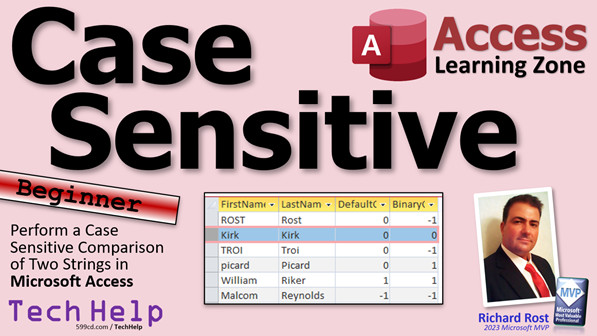
access 2016, access 2019, access 2021, access 365, microsoft access, ms access, ms access tutorial, #msaccess, #microsoftaccess, #help, #howto, #tutorial, #learn, #lesson, #training, #database, Strcomp, how to do a case sensitive comparison in microsoft access, How to write Case Sensitive Query, How do you make a query case-sensitive, Is Access database case-sensitive, Can you use case in Microsoft Access, Case-Sensitive Criteria, Can Access Be Made Case-Sensitive
 Subscribe to Case Sensitive
Get notifications when this page is updated
More InformationTranscript Welcome to another TechHelp video brought to you by AccessLearningZone.com. I am your instructor, Richard Rost.
Today we're going to talk about doing a case-sensitive comparison between two strings in your Microsoft Access database. Today's question comes from Amelia in Providence, Rhode Island, one of my Platinum members. Amelia says she needs to verify that what the user types into a particular text box is exactly what is requested, including capitalization. How can I do a case-sensitive comparison in Access?
Well, Amelia, to do this we're going to use the StrComp function. StrComp stands for string comparison, I guess. It takes two or three bits of data: string one, string two, and an optional parameter. String one and string two by themselves will give you a normal comparison. That's what Access usually does, so it ignores capitalization. For example, "Jim Kirk" with a capital "J" and "K" and "jim kirk" in lowercase are basically the same thing.
If you add a third parameter with a zero in it, it will do what is called a binary compare. Binary means it will actually check the ASCII code values of each character, and they have to be identical.
Let's see how this works in your database. As a prerequisite, I am going to use calculated fields in a query for this. You could do it in a form. You could do it in VBA code. You could do it all over the place. StrComp works everywhere. But, if you don't know how to make calculated fields, watch this video first.
Here I am in my TechHelp free template. This is a free database you can download from my website if you want to.
Let's make a query: Create - Query Design. I am going to turn this guy off, and let's bring in just the customer table. Let's compare first name and last name.
Let me zoom in so you can see it (Shift+F2 to zoom in).
Let's make just "X" as the name of the field, and we'll say it's "FirstName = LastName". That's going to check if first name is equal to last name. You can do that without the function. Just say "FirstName = LastName". It will return a true or false value. If I run that, you can see they all return false. Remember, false is zero and true is nonzero, basically negative one usually, but it's nonzero.
If I come over here and I put in "Kirk" on that one, now they equal each other. If I put in "KIRK" with a capital K, they still equal each other because by default Access does a text level comparison, so it doesn't check case.
That's where StrComp comes into play. Let's go back here.
StrComp works a little differently. With true/false, you get zero or negative one. StrComp works a little different. Zero is if they're equal. Negative one means string one is less. Positive one means string one is greater than string two. So, it works a little differently.
Let's get rid of the previous calculation. Now, let's do a normal StrComp. StrComp(FirstName, LastName) by itself will do a normal text level compare. Let's see what we get.
Right, we get some zero, some one, and some negative ones. Negative one here means that "Richard" is less than "Rost", which R-I alphabetically is less than R-O, so that works.
"Kirk" equals "Kirk" because we are doing a normal comparison, so it doesn't check case. That one's equal, it's a zero. "Deanna Troi" D is less than T, so it's negative one, same with Jolene for Card. "William Riker", W is greater than R, so that's a positive one. See how StrComp works a little differently?
Now, let's do the binary comparison. Binary means every digit is compared to its ASCII value, and in the ASCII chart--we have talked about ASCII charts before--all the uppercase letters have lower values than all the lowercase letters. When the chart was made, it just had the uppercase letters, then later added lowercase letters.
Let's do a binary comparison. Zoom in, right, binary. StrComp(FirstName, LastName, 0). Zero is the binary option.
If you run it, you get more accurate results. Negative one now means that all caps "Kirk" is less than "kirk" with a lowercase "k", because lowercase letters have higher ASCII values. So, they are not the same thing. Just like down here, if I put in capital "Deanna", you'll see it goes to positive one because this is higher than this in the ASCII chart.
If you go to the Microsoft website and look up the StrComp function, you'll see "string1", "string2", and the comparison option. VB BinaryCompare is the one I just taught you--zero. That's an actual constant you can use in VB programming, though you can't use that in queries. That's why I just used zero.
Basically, one and two are for the most part the same thing--it's a textual comparison.
If either one of the values is null, the result will be null for StrComp.
Here are some VB examples. It works pretty much the same way as what I just showed you.
So there you go, there's your TechHelp video for today. That's a real simple way to do a case-sensitive comparison.
I hope you learned something. Live long and prosper, my friends. I'll see you next time. Intro In this video, you will learn how to perform a case-sensitive comparison between two strings in Microsoft Access using the StrComp function. We'll talk about the differences between regular and binary comparisons, how Access normally handles string equality, and demonstrate step-by-step how to set up case-sensitive string checks in a query using calculated fields. You'll also see examples showing how case affects comparison results and get an overview of how StrComp works in both queries and VBA. Quiz Q1. What is the main purpose of using the StrComp function in Microsoft Access?
A. To compare two strings for exact equality, including capitalization
B. To automatically capitalize strings
C. To count the number of characters in a string
D. To convert all strings to uppercase before comparing
Q2. By default, when you use the equals operator (=) to compare two text fields in Access, what kind of comparison is performed?
A. Numeric comparison
B. Case-sensitive (binary) comparison
C. Case-insensitive (textual) comparison
D. ASCII code comparison
Q3. How do you perform a case-sensitive (binary) comparison in Access using StrComp?
A. Only specify the two string arguments
B. Add a third parameter with a value of zero
C. Add a third parameter with a value of one
D. No extra parameters are needed, Access does this by default
Q4. What does a result of zero indicate when using StrComp with binary comparison?
A. String one is greater than string two
B. String one is less than string two
C. Both strings are exactly equal, including case
D. The comparison is invalid due to a null value
Q5. In ASCII values, how do uppercase and lowercase letters compare?
A. Uppercase letters have higher ASCII values than lowercase
B. Lowercase letters have higher ASCII values than uppercase
C. Uppercase and lowercase letters have the same ASCII values
D. ASCII values are only for numbers, not letters
Q6. What value should be used as the third parameter in StrComp to enable binary comparison?
A. 1
B. 2
C. 0
D. -1
Q7. What happens if either of the compared values is null when using StrComp?
A. StrComp will return an error
B. StrComp will return 0
C. StrComp will return null
D. StrComp will return -1
Q8. What is the result when StrComp returns a negative one (-1)?
A. String one is equal to string two
B. String one is greater than string two
C. String one is less than string two
D. The comparison is invalid
Q9. Can you use the VB constant 'VB BinaryCompare' in Access queries?
A. Yes, in all Access queries
B. Only in reports
C. No, only in VB programming code
D. Yes, but only with calculated fields
Q10. Where can the StrComp function be used within Microsoft Access?
A. Only in forms
B. Only in queries
C. Only in VBA code
D. In queries, forms, VBA code, and more
Answers: 1-A; 2-C; 3-B; 4-C; 5-B; 6-C; 7-C; 8-C; 9-C; 10-D
DISCLAIMER: Quiz questions are AI generated. If you find any that are wrong, don't make sense, or aren't related to the video topic at hand, then please post a comment and let me know. Thanks. Summary Today's TechHelp tutorial from Access Learning Zone will demonstrate how to perform a case-sensitive comparison between two text strings in your Microsoft Access database. A common challenge in Access is verifying that user input matches exactly what is required, including capitalization. Many comparisons in Access are case-insensitive by default, so matching "Jim Kirk" with "jim kirk" will return true since Access ignores case differences during standard comparison operations.
To achieve a case-sensitive comparison, I recommend using the StrComp function. StrComp is short for string comparison, and it accepts two or three arguments: the first string, the second string, and an optional parameter that tells Access how to compare the strings. When you compare two strings using StrComp without the third parameter, Access performs a standard text comparison, which ignores case.
However, when you add a third argument set to zero, StrComp conducts a binary comparison. This means Access checks the exact ASCII values of each character so capitalization matters. For example, "Kirk" with a capital K and "kirk" in all lowercase letters will be considered different, because their ASCII values do not match.
To illustrate, let's use a query with calculated fields. These comparisons can be made anywhere in Access, including forms and VBA code, but a query works well for demonstration purposes. If you are not familiar with creating calculated fields in queries, I suggest learning about them first.
Within my TechHelp free template, which is available for download from my website, I created a query based on the Customer table. I chose to compare the FirstName and LastName fields. Starting with a simple comparison, setting a calculated field to FirstName = LastName, Access returns true or false results. Typically, true is stored as a nonzero value, while false is zero. If the two fields match, regardless of case, the result is true. For example, if FirstName is "Kirk" and LastName is "KIRK", Access still considers them equal using this basic method.
This is where StrComp makes a difference. Unlike the simple true or false result, StrComp outputs 0 if the strings are equal, -1 if the first string is less than the second, or 1 if it is greater. A regular StrComp(FirstName, LastName) call performs a regular text comparison, still ignoring case. This will return zero for equal names, or -1/1 depending on alphabetical order if they are different.
To perform a case-sensitive comparison, you need to use StrComp with the optional third argument set to zero. Using StrComp(FirstName, LastName, 0) enforces a binary, case-sensitive comparison. Uppercase and lowercase letters are not considered the same, since their ASCII values are different. In ASCII, uppercase letters have lower values than their lowercase counterparts. That means, for example, "Kirk" (upper case K) is considered less than "kirk" (lower case k) in a binary comparison. As a result, StrComp now distinguishes between differently capitalized versions of the same word.
You can consult the Microsoft documentation for more details on StrComp, which explains that the function takes two text strings and a comparison option. Setting the option to 0 invokes a binary comparison. If you want a regular, non-case-sensitive comparison, you can use the default or pass 1 instead. If either string is null, StrComp returns null.
To summarize, if your goal in Access is to compare two strings so that the comparison checks capitalization, StrComp with a binary comparison is your solution. This approach works in queries, forms, and VBA code. I hope this helps clarify how to conduct case-sensitive comparisons in your Access database.
You can find a complete video tutorial with step-by-step instructions on everything discussed here on my website at the link below. Live long and prosper, my friends. Topic List Case-sensitive string comparison in Access
Using the StrComp function for string comparison
Understanding the third parameter in StrComp
Binary comparisons and ASCII values
Creating calculated fields in a query
Comparing fields for equality in queries
Interpreting StrComp return values
Using StrComp for case-insensitive comparison
How null values affect StrComp results
Demonstration of StrComp in Access queries Primary Topics case-sensitive comparison, StrComp function, Access queries, binary comparison, ASCII values, calculated fields Secondary Topics string equality, text-level comparison, null values, VBA, Microsoft documentation |




