Select Case
By Richard Rost

 3 years ago
Use Select Case as Alternative to If Then in Access
In this Microsoft Access tutorial I'm going to teach you how to use a Select Case statement as an alternative to an If Then statement in your VBA programming.
Prerequisites
Links
Recommended Courses
Keywords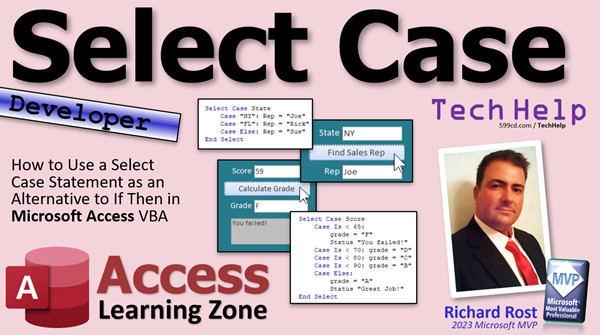
access 2016, access 2019, access 2021, access 365, microsoft access, ms access, ms access tutorial, #msaccess, #microsoftaccess, #help, #howto, #tutorial, #learn, #lesson, #training, #database, select case statement, vba select case, case statement, select case ms access
 Subscribe to Select Case
Get notifications when this page is updated
More InformationTranscript In today's video, we're going to take a look at the Select Case statement in Access VBA and how it's a good alternative to the IF THEN statement.
Recently, one of the moderators in my forums on my website, Kevin, let me know that I don't have a video for this yet for Select Case. I know I cover it in my developer courses. We'll talk about that toward the end of the video.
If you come across a Microsoft Access term and you do a Google search for it and I don't show up in the YouTube video results, let me know. I want to show up for every search for anything Microsoft Access related for one of my TechHelp videos. That's my goal.
So, what is Select Case? Select Case is basically just an option, an alternative, something else, another tool to have in your box. I personally don't use Select Case myself. I pretty much stick to IF THEN statements, but a lot of developers say that Select Case is a lot more readable, it's a lot more concise than IF THEN, and those are valid points. You will definitely see Select Case in the wild if you go to any other sites and find some code you want to use. So, it's a good tool to have. You want to make sure you understand how it works. I am going to cover the basics in this video.
Of course, this is a developer level video, so you need to know a little bit of VBA. If you haven't yet watched my intro to VBA class and you want to learn how to program, it's not hard. Go watch. It's about 20 minutes long and teaches you everything you need to know. I even talk a little bit about IF THENs in there. And of course, I have a more comprehensive IF THEN video. Go watch this guy too. It's really good to have a solid understanding of how IF THEN, especially with the ELSE IF and ELSE branches, works. Make sure you understand that before trying to pick up Select Case.
Here I am in my TechHelp free template. This is a free database. You can download a copy off my website if you want to. Let's make a simple button that we can click on. Let's pretend we're doing sales reps for states. We have three sales reps. Joe covers New York, Rick, I cover Florida, and Sue covers everything else. Let's say we only do business in maybe five states. Joe is in New York, I'm in Florida, Sue covers everything else.
So what we're going to do is repurpose this guy here. We're going to type in the state. I am going to get rid of the date out of this thing here. We're going to get rid of the format, and we'll call this thing "state." We'll repurpose my Hello World button. We'll say "Find Sales Rep." Whoop, Repo? Find Sales Repo. Wait, someone's beaming in. Hold on. I watched the new Strange New Worlds last night. It was wonderful.
You can change the button name if you want. I'll just leave it as Hello World button. Change it to Find Sales Rep. Let's copy this and paste it. Control-C, Control-V. We'll slide it down here, and this will put the rep's name in here.
Normally, yes, I get it. Normally, you'd put this in a table and use a DLookup or something else. But this is a programming example, so it's not necessarily real world. We're putting our academic caps on today. So we'll call this thing, we'll call this the "rep box." We're going to look up the state, and we're going to put it in the rep.
We're going to use an IF THEN statement first, so I can show you how it works. Right click, build event. Here is my code builder. We're right down here.
With IF THEN, it would be:
If state equals New York, then rep equals Joe. Else, if state equals Florida, then rep equals Rick. That's me. Else, any other condition, rep equals Sue. And that's your basic IF THEN statement.
Save it. Always give it a good debug compile just to make sure, especially after doing a bunch of coding. We're going to close this down, reopen it, and I'll put in a state. I'll put in New York. Find Rep, there's Joe. I'll put in Texas, which isn't in there. There's Sue. I'll put in Florida, and there's me.
So that's simple. We're all on the same page so far. That's easy.
How do I rewrite that as a Select Case statement? Down here, we're going to delete the IF THEN first, but I'll leave that up there so you can see it.
You start off with "Select Case," and then what field are you checking? We're checking state. So we're doing a select case on the state field. It works with variables too, whatever you're using.
Case "New York." Now, you can put multiple lines down below, or if it's just one thing at a time like my previous example, you can just use a colon, and then "rep = Joe."
Case "Florida," rep = Rick. And then your else statement is simply "Case Else," rep = Sue.
Is that a little more concise than the previous one? Yes, kind of a little more readable. I'm just used to IF THENs. I'm used to my TRS-80 Tandy Radio Shack 1980 color computer. I learned on there. There was no Select Case back then.
Save it. Come back out here. Click. Oh, hang on. Oh, very important. Good thing I left that in the video. "End If without block If," what does that mean? Well, I goofed. This should be "End Select." If you would have left that there and did a debug compile, the compiler would have caught it, but I didn't. So, end select.
If I made that mistake, and I've made it before, chances are you'll make the same mistake. So that's why I leave those kinds of things in the videos. That was just serendipitous.
Let's write it down. There we go. Let's put in "DD," whatever that is. If Sue, and put in "New York," Joe. Okay.
Now that's a nice simple example. Select Case works well with ranges too. Ranges are good.
Let's do another example. Instead of looking up a sales rep for a territory or a state, let's do a score and a letter grade. So let's change this to score. We'll put a number in here, like 75. And we'll put in here "Find" or "Calculate Grade." This will be the grade, A, B, C, D, E.
Let's go back to our code. With a typical IF THEN statement, what would this look like?
If score is less than 65, then grade equals F.
Else if score is less than 70, then grade equals D.
Else if score is less than 80, then grade equals C.
Else if score is less than 90, then grade equals B.
Else grade equals A.
Typical IF THEN with an ELSE IF and an ELSE in there.
Give it a test, close it here, save changes, open it back up again. I'll put in 78 and I get a C. Easy enough.
How do we write this as a Select Case statement? Let's come in here.
We'd have "Select Case score." Now, there are two ways to do ranges. If you're just dealing with whole numbers, you don't have fractional decimal components at all, you can use a "To" statement. So, "Case 0 To 64," grade equals F. And again, that assumes you're not using negative numbers. You got a 0, you got a 63, whatever.
Case 65 To 69, grade equals D.
There's C, B, and A, and then End Select.
We'll just change our numbers.
We have 70 to 79.
We have 80 to 89.
We have 90 to 100.
That would be C, B, A.
Delete this one now.
Save it, come out here.
Let's try a 67. There's my D.
Let's try a 98. There's my A.
Let's try a 98.5.
Let's see, 67.9.
It's working for the D.
It will work if that value falls between that range.
But what if we did a 64.5?
That's it there.
This could give you nothing because that value doesn't fall between any of those ranges.
So instead of writing it like this, you can write it like this:
You can say, Case Is < 65: you get an F.
It's just like if you go, if score is less than 65.
Then you change this guy, you say case Is < 70, same thing.
Is < 80, Is < 90, Case Else, you get an A.
There are a million different ways to write this.
Save it, come back out here.
Now if we try our 64.5, we get our grade.
As I briefly mentioned before, if you want to do multi-line statements in here, let's say you want to do grade = F and then you also want to give them a message like "you failed punk," you can do it like this. You can put it on the next line, say "grade = F" and then "status = You failed," like that. You can put as many lines in there as you want to. The colon just basically says we're going to put the next statement on the same line.
Case Else, grade = A, status = Good job, like that.
If you don't know what "status" is, go watch my status box video. It's where I show you how to put this box on here and display messages in it. It's really easy to do. It's a little function or sub up here. It just takes what you send to it and puts it in that status box. It's in the module that you're in if you're working on my database. Just go to the top.
There is more to the Select Case statement than I covered here. There are other things you can do with it. You can use "To" like one to four, seven to nine, that kind of stuff. I'll put a link to Microsoft's page down below. Of course, I cover Select Case statements in my Access Developer Level 2 class. We do lots of stuff in there. All kinds of cool stuff. I cover Select Case down here. We do all kinds of neat, nifty things in my developer classes.
Unlike these TechHelp videos, where it's just a random topic, whatever I feel like covering that day, whatever questions get sent to me, my developer lessons teach you step by step in the proper order. Today we're going to do this. Today we're going to do IF THEN, then we're going to do a little Select Case. Then we're going to do some of this and some variables. I have about 40 levels of it and I make a new one every month or two. If you want to learn VBA programming for Microsoft Access the right way, come and check out my developer classes.
So that's it. That is your TechHelp video for today. I hope you learned something.
Live long and prosper, my friends. I'll see you next time. Intro In this video, we will look at how to use the Select Case statement in Microsoft Access VBA and compare it to the traditional IF THEN statement. I will show you examples of how Select Case can make your code more readable and concise, including checking for specific values and ranges, and provide some real-world scenarios like assigning sales reps to states or grading a score. If you are learning VBA for Access or want to see practical coding demonstrations, this video covers the basics of Select Case and why it might be useful in your projects. Quiz Q1. What is the primary benefit of using a Select Case statement over an IF THEN statement in Access VBA?
A. Select Case statements are considered more readable and concise
B. Select Case statements are faster to execute in all cases
C. IF THEN statements cannot handle string values
D. IF THEN statements take up less space in the code
Q2. In the example in the video, if the state is "New York," which sales rep is assigned?
A. Sue
B. Rick
C. Joe
D. Kevin
Q3. How do you indicate the default action in a Select Case block, similar to an ELSE in an IF THEN structure?
A. Case Default
B. Case Else
C. Else Case
D. Otherwise
Q4. Which of the following is a correct way to specify a range of values in a Select Case statement for integers?
A. Case 65, 66, 67, 68, 69
B. Case Between 65 And 69
C. Case 65 To 69
D. Case = 65-69
Q5. When checking if a score is less than 65 in a Select Case statement, which syntax is correct?
A. Case < 65 Then
B. Case Is < 65
C. Case If < 65:
D. Case Where < 65
Q6. What error occurs if you forget to close a Select Case block properly?
A. End If without block If
B. End Select without block Select
C. Missing Next Statement
D. Block Case must end with End Case
Q7. What is the purpose of using a colon (:) in a Select Case block?
A. To terminate the Select Case block
B. To run two statements together on the same line
C. To indicate a comment in code
D. To declare a variable
Q8. Which statement about Select Case is true based on the video?
A. You cannot use Select Case for variable values, only direct fields
B. Select Case can handle both exact matches and ranges of values
C. Select Case only works with string data types
D. Select Case is obsolete and should not be used
Q9. In the grade example, which Select Case syntax would correctly assign an F for scores 0 to 64?
A. Case Is < 0 To 64: grade = "F"
B. Case 0 To 64: grade = "F"
C. Case = 0-64: grade = "F"
D. Case If 0 To 64: grade = "F"
Q10. What is the recommended practice after writing code in VBA as demonstrated in the video?
A. Compile and debug the code to check for errors
B. Immediately execute the code without checking
C. Only check for errors after multiple changes
D. Ignore possible error messages
Q11. Which of the following allows running multiple statements for a single case in Select Case?
A. Use a semicolon between statements
B. List each statement on a new line directly under the case
C. Enclose statements in parentheses
D. Use ELSE IF within the case
Q12. According to the video, what should you do if you want a comprehensive understanding of IF THEN before learning Select Case?
A. Skip IF THEN and go straight to Select Case
B. Watch the intro to VBA and the IF THEN video
C. Only watch the Select Case video
D. Use online forums instead
Answers: 1-A; 2-C; 3-B; 4-C; 5-B; 6-A; 7-B; 8-B; 9-B; 10-A; 11-B; 12-B
DISCLAIMER: Quiz questions are AI generated. If you find any that are wrong, don't make sense, or aren't related to the video topic at hand, then please post a comment and let me know. Thanks. Summary Today's TechHelp tutorial from Access Learning Zone focuses on the Select Case statement in Access VBA. This statement provides a helpful alternative to the classic IF THEN structure, so it's an excellent addition to your programming toolkit.
I was recently reminded by someone in my forums that I had not yet created a specific video covering Select Case in detail, even though I do delve into it in my more comprehensive developer courses. Before we move on, if you ever search for an Access-related term and cannot find one of my tutorials in your results, please reach out and let me know. My aim is to have accessible content for every Microsoft Access term out there.
Let me start by explaining what Select Case is. Essentially, it is another method for controlling program flow based on specific conditions—very similar in spirit to IF THEN but often considered more readable and concise. I tend to use IF THEN out of habit, but many developers prefer Select Case for its clarity. Even if you do not use it daily, you will encounter Select Case in code samples or other people's databases, so understanding how it works is important.
This tutorial is aimed at those with some basic experience in VBA. If you are just getting started, I recommend first going through my introductory VBA class, which covers the basics and also introduces IF THEN statements. I also have a more detailed video dedicated to IF THEN. Having a solid grasp of IF THEN, including ELSE IF and ELSE, will help you get the most out of using Select Case.
For this example, I am using my free TechHelp template, which is available for download on my website. Imagine we are managing sales representatives by state. Joe covers New York, I cover Florida, and Sue handles the remaining states. For the sake of this exercise, let's assume our company operates in only a handful of states.
Within the database, we will create a simple setup where you enter a state and then determine which rep covers it. While in a real-world solution you might put your data in a table and use a DLookup function, here we are focused on the programming aspect. So, we will keep things straightforward and academic.
Let's start by examining how you would approach this using an IF THEN statement. The logic is straightforward. If the user enters "New York," the rep is Joe. If the user enters "Florida," the rep is me, Rick. For any other state, Sue is the rep. Using IF THEN structures like this is simple and familiar to most VBA users. After coding, I always recommend compiling to check for errors before closing out of the editor.
Now, let me show you how to express the same logic using Select Case. Select Case begins by specifying the variable or field you are checking—in this scenario, "state." Next, you list the cases for each possible value such as "New York" and "Florida," and assign the appropriate rep. For all other possibilities, you use Case Else to handle the default. Compared to IF THEN, Select Case is a bit more succinct and some would say easier to read. Just remember that instead of "End If," you need to use "End Select" when closing the Select Case structure. It is a common mistake, so if you see an error message about "End If without block If," check for this issue.
Select Case is particularly powerful when working with ranges. To demonstrate further, consider changing the scenario from sales rep lookup to assigning letter grades based on a numeric score. You might enter a score like 75 and expect the output to be a letter grade such as "C."
Using IF THEN, the logic would cascade through each condition. If the score is less than 65, it's an F. Less than 70 is a D, less than 80 is a C, and so on, ending with A for any higher score. Running through a few input values should confirm everything works as expected.
Rewriting this logic using Select Case, you can take advantage of ranges. With whole numbers, the "To" keyword allows you to specify ranges directly—such as Case 0 To 64 for a grade of F. This method simplifies the code and is very clear, especially if you are not working with decimal values. Adjust the ranges as needed for each letter grade.
However, if your score values might include decimals, such as 64.5, using "To" may cause some gaps where certain values are not covered. In this case, you can use "Case Is < 65" and similar statements to capture every possible value accurately. This approach provides full coverage for all possible scores.
Additionally, Select Case lets you include multiple actions within each case. For example, you might set the grade and also update a status message with additional feedback to the student. If you want to display custom messages, you can refer to my video on status boxes where I explain how to do this in your forms.
There is more flexibility to Select Case than what I have covered here. You can use it with different types of ranges and values. If you are curious about more advanced options, Microsoft has detailed documentation available online, and I include deep dives and extra examples in my Access Developer Level 2 class. My developer courses are designed to teach you Access VBA in an organized, progressive way, from the basics to much more complex topics.
That wraps up today's TechHelp tutorial. You can find a complete video walkthrough with step-by-step instructions for everything discussed here on my website at the link below.
Live long and prosper, my friends. Topic List Introduction to Select Case in Access VBA
Comparing Select Case with IF THEN statements
Building a form button to trigger VBA code
Assigning sales reps based on state using IF THEN
Assigning sales reps based on state using Select Case
Using Case Else as a default in Select Case
Troubleshooting End Select vs End If in Select Case
Creating a letter grade calculator using IF THEN
Creating a letter grade calculator using Select Case
Using Case To for numeric ranges in Select Case
Using Case Is for comparisons in Select Case
Multi-line statements within Select Case blocks
Assigning multiple actions for a single Case
Displaying messages based on Select Case results Primary Topics Access VBA, Select Case statement, IF THEN statement, conditional logic, case ranges, code readability, event-driven programming
Secondary Topics debugging, sample form controls, status box messaging, developer course promotion
|




