Combo Box Select One 2
By Richard Rost

 2 years ago
Add Custom Hint Text to Combo Box, Part 2 In this Microsoft Access tutorial, I will show you how to add "Select One" or custom hint text to a combo box and use the before update event to ensure the user makes a valid selection. This is part 2 of my combo box "select one" series. MembersThere is no extended cut, but here is the database download: Silver Members and up get access to view Extended Cut videos, when available. Gold Members can download the files from class plus get access to the Code Vault. If you're not a member, Join Today!
PrerequisitesLinksRecommended Courses
Keywords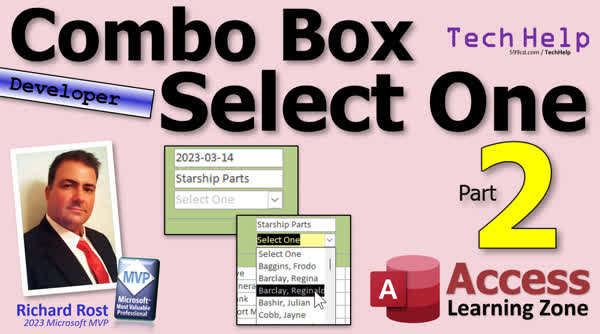 TechHelp Access, custom hint text, combo box tutorial, VBA for combo box, union query Access, select one text, Access form validation, combo box default text, Access VBA tips, Access query tips, combo box default value, Access form design
More InformationTranscript Today's part two of my combo box "select one" series, part two of two, where I show you how to put "select one" in a combo box so the user knows they have to, you know, like, select one or something, or you can put whatever text there you want to. I don't care.
If you haven't watched part one, go watch part one first, then come on back. You'll find a link to it down below.
All right, so in part one, we made this query right here. We got a union query where we got to "select one" up top and then we put it in as a combo box option. Now the problem is we have to check to make sure that the user didn't leave this as "select one" if they started putting a record in. Right now with the new there, that means that there's no record here, so as long as I close this, all is good. But as soon as you start putting stuff in a new record, right, and an auto number is assigned, now you cannot leave because this is going to generate an error message.
I'm gonna hit escape. What we're gonna do is we're gonna use the before update event for the form to check to make sure that the user put something other than zero in here.
Okay, so we're gonna come in here, design view. Now in my before update event video that I had you watch before part one, that covers the before update event for a field. Okay, there's a before update for the field; there's also a before update event for the form itself. So make sure this has form up here and then find before update right there. And the nice thing about before update is that you can verify data here and cancel the event if the data doesn't meet up with your expectations.
So dot dot dot, that'll bring up my VBA editor. Let me resize this. All right, so in the before update event for the form I want to say, if the customer combo, that's the combo box, we're going to say cancel equals true, that's going to cancel the event. If you cancel the before update event, it exits out and doesn't let the customer leave the form or save the record. Okay, that's what cancel equals true is.
Yeah, it's an integer, I know; you should give it a one or a zero or something like that, but I just use true and false because it makes more sense and it works. It's looking for zero or not zero basically. And now just tell the user what's going on. So message box, you must select a customer, and if you want to be nice we can put the focus on that combo box and open it up for them. So customer combo dot set focus, that will move the mouse, move the focus, move the cursor on that combo box, and then customer combo dot drop down, that will open it up.
Okay, that's it. That's all you need. Save it, give it a debug compile. All right, let's come back over here. Let's close it, close it, open it, and let's go to a new record. And now I'll come in here and put in some stuff. So I've got a record starting, and I'm gonna try to leave the record. If you click on the sub form, by the way, that's the same as leaving the record. All right, look at that, you must select the customer. Same, hit okay, and it opened it up. You cannot leave this record now unless you pick somebody. Now I can leave. See, isn't that nice?
All right, let's make this guy look different if it's on a new record. Let's make this look gray like our text box ones did. Now unfortunately the format property is not enough to do it here. We're going to use conditional formatting. All right, so let's go right click, design view. I usually assume once we get to the developer level that you guys know what conditional formatting is. If not, go watch this video. So let's go that light gray right there. That looks pretty good. Hit okay. Hit okay. Save it. Close it. Open it. Go to a new record and, oh, look at that.
Look at it. It's nice and gray. See? That's pretty cool. Now, the problem is if you drop it down, well, that's not too bad. This still looks like that. Sometimes, let's see, put a record up here. Sometimes I've seen it before where this all stays gray. So what you can do is you can also add in another one and maybe do it if the field has focus, make it yellow. I like that one too. You can select this guy, go to format, conditional formatting, new rule, field has focus. We're gonna go background yellow, but not that obnoxious yellow. Let's go with a light yellow. And I'll make the foreground color black. Okay, now I'm gonna move this one up so it takes precedence. Hit okay. Save it. Close it. Open it. And let's go to a new record.
Okay, now when I drop this down, you can see now it's got focus, so it goes yellow and it's easier to read. Right? That's up to you. You can do whatever you want with your Legos. Now, there's a million different ways to do this stuff. This is how I opted to do it with a little union query here. Like I said, you can make a record with a bogus ID. Just make it, if you don't feel like going through all this with the Union Query, just make a record in here and then you'll just use its ID here and have that one that they can't pick. If your "select one" is 33, okay fine. But mine, you can easily sort it and get it back up top on the list there with the Union Query. I just like doing it that way. It doesn't require any extra records in your table.
If you like this stuff, if you like learning with me, I got lots and lots of developer lessons on my website. Members get a free class every month at your membership level, so check it out. And if you have any questions, of course, feel free to post them down below.
Now, this is just my way of tackling this. This is how I would go about it. I can think of two or three other ways to do it. How would you do it? How would you tackle this problem? You got any other ideas that I didn't think about? Post them down below in the comments. And that's going to be your TechHelp video for today. I hope you learned something. Live long and prosper, my friends. I'll see you next time.
TOPICS:
Combo box "select one" implementation
Union query for default combo box option
Using the Before Update event for a form
Validating combo box selection before saving
Implementing Cancel Equals True in VBA
Displaying message box for validation feedback
Setting focus on a specific form control
Opening a combo box programmatically
Applying conditional formatting to a combo box
Changing combo box appearance for new records
Using conditional formatting for field focus
Union query versus extra table records for default text
COMMERCIAL:
In today's video from Access Learning Zone, we finish our combo box "select one" series. First, I show you how to make sure users can't leave a combo box set to "select one". We use the before update event to check if the combo box is still at the default. Then, I walk you through adding conditional formatting to change the combo box's appearance, making it easier to use. We wrap up by discussing alternative methods. It's practical, hands-on, and perfect for anyone looking to refine their database skills. You'll find the complete video on my YouTube channel and on my website at the link shown. Live long and prosper my friends. Intro In this video, I will show you how to ensure users do not leave a Microsoft Access combo box at the default "select one" value by using the Before Update event for the form to validate their choice. We will walk through how to display a helpful message if a proper selection isn't made, set focus on the combo box, open it programmatically, and apply conditional formatting to visually highlight the combo for new records or when it has focus. We'll also explore a few different ways to handle the default option in your combo box. This is part 2. Quiz Q1. In the video tutorial, what event does the instructor use to ensure the user does not leave the combo box selection as "Select One"?
A. After Update event for the field
B. Before Update event for the form
C. On Load event for the form
D. On Click event for the combo box
Q2. What programming language is used to write the code for the Before Update event in the tutorial?
A. Python
B. JavaScript
C. VBA (Visual Basic for Applications)
D. C#
Q3. What happens when the 'Cancel' property is set to 'True' in the Before Update event?
A. The form closes immediately
B. The data validation check is bypassed
C. The event is canceled, preventing the user from leaving the form
D. The event is submitted regardless of validation
Q4. What is the purpose of setting focus on the combo box and opening it using 'customer combo.set focus' and 'customer combo.drop down' in the Before Update event?
A. To reset the form
B. To guide the user back to the combo box for correction
C. To clear the combo box
D. To automatically select the first item in the combo box
Q5. How does the tutorial suggest making the combo box look different when on a new record?
A. By changing the text to bold
B. By using conditional formatting to change the background color to gray
C. By adding a border around the combo box
D. By making the combo box text italicized
Q6. According to the tutorial, why is conditional formatting used instead of the format property for the combo box?
A. It allows for more customization options
B. The format property only works for numeric fields
C. The format property cannot change the background color
D. Conditional formatting is easier to apply
Q7. How does the tutorial suggest handling the drop-down list appearance when the combo box has focus?
A. Make the text bold
B. Change the text color to blue
C. Apply a yellow background color and black foreground text
D. Animate the drop-down list
Q8. What is one reason the instructor prefers using a union query for the "Select One" option in the combo box?
A. It makes the combo box read-only
B. It simplifies code maintenance
C. It avoids adding extra records in the table
D. It makes sorting the records easier
Q9. What should you do if you want to highlight the combo box when it has focus?
A. Use conditional formatting to apply a different style when the field has focus
B. Change the format property of the combo box
C. Apply a CSS style if using a web form
D. Modify the form's background color
Q10. What is the primary goal of adding the "Select One" option to the combo box according to the tutorial?
A. To ensure users can only select predefined options
B. To indicate to the user that a selection must be made
C. To increase the loading speed of the form
D. To reduce the number of options in the combo box
Answers: 1-B; 2-C; 3-C; 4-B; 5-B; 6-A; 7-C; 8-C; 9-A; 10-B
DISCLAIMER: Quiz questions are AI generated. If you find any that are wrong, don't make sense, or aren't related to the video topic at hand, then please post a comment and let me know. Thanks. Summary Today's TechHelp tutorial from Access Learning Zone wraps up my two-part series on implementing a "select one" default value in a combo box. The goal is to provide clear guidance for users so they realize they need to make a selection, or you can customize the prompt text to fit your application.
If you have not seen part one, I strongly recommend that you view it first, as it lays the groundwork for everything discussed here.
In the previous lesson, we created a union query to add a "select one" prompt at the top of our combo box options. This works well to direct the user's attention, but we also need to enforce that the user actually makes an appropriate selection. As it stands, users could begin entering data in a new record, at which point an auto number is assigned. If they attempt to leave that record with the combo box still set to "select one", an error will occur.
To prevent this, I use the form's Before Update event. This event allows me to check the data before the form is updated or closed and to cancel the action if something is not as it should be. In this example, if the combo box, which I'll refer to as CustomerCombo, is still set to the default value, the event is cancelled using Cancel equals True. This halts the operation, keeping the user in the record until the required selection is made.
Even though Cancel uses an integer behind the scenes, I like to set it to True or False since this is more intuitive and functions as expected. If the validation fails and cancellation is triggered, I let the user know with a message box explaining that they must make a selection. To further assist the user, I programmatically set focus back to the combo box and open its dropdown list to prompt them to act.
After making these changes, I test the solution by entering a new record, attempting to leave it without making a selection, and confirming that the validation works as intended. The message appears, the combo box is highlighted, and the dropdown opens automatically - all guiding the user to take the correct action.
Next, I improve the user interface by making the combo box appear gray when on a new record. This offers a visual cue like we have for text boxes in other situations. Unfortunately, the Format property alone is not enough here, so I use Conditional Formatting. I apply a light gray background to the combo box when no selection has been made. If you want to enhance this further, you can add another condition so that when the combo box has focus, the background turns a light yellow to highlight that the user needs to interact with it. Again, these options are very flexible and you can design the appearance as you prefer.
Once everything is set, I try different actions to make sure the combo box displays correctly when creating new records, dropping down the list, or selecting items. The flags for new records and field focus work as intended.
A lot of people ask if it is better to use a union query or just create a record with a placeholder ID for "select one". Both approaches are possible, but using a union query has the advantage of keeping your table data clean without unnecessary records. However, if you prefer, you can always add a single record specifically for the prompt and filter it as needed.
This is just my preferred way to handle the problem. There are certainly other methods, and I encourage you to share your solutions and thoughts. If you want to learn more about developer techniques in Microsoft Access, I have many detailed lessons available on my website. Members also get access to free classes each month, so have a look if you are interested.
You can find a complete video tutorial with step-by-step instructions on everything discussed here on my website at the link below.
Live long and prosper, my friends. Topic List Combo box select one implementation
Union query for default combo box option
Using the form Before Update event
Validating combo box selection before saving
Implementing cancel equals true in VBA
Displaying message box for invalid selection
Setting focus to the combo box with VBA
Opening the combo box with VBA
Applying conditional formatting to combo boxes
Changing combo box background color for new records
Conditional formatting for combo box field focus
Alternatives to union queries for default items Primary Topics Access combo box default value, union query for combo boxes, form before update event, VBA validation, conditional formatting, user experience improvement Secondary Topics combo box drop down programmatically, alternative combo box initialization methods, field focus highlighting |






