Fill In PDF
By Richard Rost

 4 years ago
Fill In PDF Forms with Microsoft Access Data
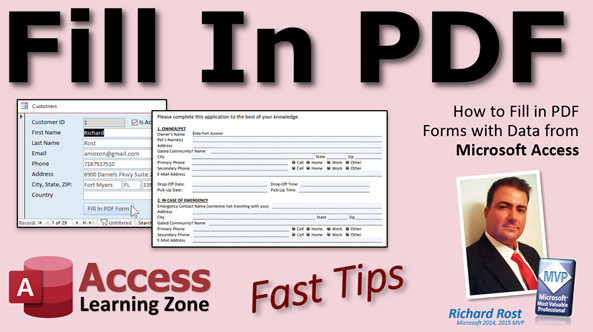
In this Microsoft Access tutorial, I will teach you how to take an Adobe Acrobat PDF form, open it from Access, fill in the form fields with data, save it, and close it, all with just a few lines of VBA code.
Pre-Requisites
Recommended Course
Links
Database File
Keywords
access 2016, access 2019, access 2021, access 365, microsoft access, ms access, ms access tutorial, #msaccess, #microsoftaccess, #help, #howto, #tutorial, #learn, #lesson, #training, #database, #fasttips, fill in a pdf form, PDF Form Filler, Fill PDF Form from Access VBA, populate pdf form fields, bad customer service from adobe
 Subscribe to Fill In PDF
Get notifications when this page is updated
More InformationTranscript Welcome to another Fast Tip video brought to you by AccessLearningZone.com. I am your instructor, Richard Rost.
Today, we're going to tackle a question that I get asked all the time: how to have your Microsoft Access database fill in a PDF form. I get asked this one all the time. "Hey, I got a PDF form from my insurance company or whatever that I have to fill out. A vendor form, a product acquisition, whatever."
First, let me say that I am a strong proponent of doing as much as you can with Access without having to use other stuff. So, if this is a case where you can just recreate this form and print it out, then I would do that straight in Access.
In fact, I have another video where I teach you how to do just that. You can take any printed paper form - there's a difference in terms here. Access forms are things we use on screen like this, whereas I'm talking about paper forms, like a PDF form. I like to make this kind of stuff as an Access report if I can and then just fill the data in in Access. This video explains how to do that.
But sometimes, especially insurance companies, I know how they are, they want you to fill out their form. They send it to you, you fill this out and then email it back to them with the data in it, and it's got to be that form. So, can you use Access to do that? Well, yeah, sure, of course.
Now, before we get started, I have a bunch of videos I want you to watch first if you have not already. First, this requires VBA, no way around it. Go watch my Intro to VBA video. If you've never done any programming in Access before, it's super easy. Take about 20 minutes to watch this video. It's not hard. Don't be scared by it.
I want you to know how to do an IF THEN statement. Go watch that. We're going to use a For Next loop. Go watch this too.
A lot of people say to me, "Rick, why do you make us jump around all these different videos?" That's because stuff is out of order. There are things you need to know before we do what we're doing today. If you watch my full course from start to finish, every level builds on the one before it, so you don't have to jump around to different videos like that. That's why you take my course. But, if you want to stick with the Fast Tips, you're going to have to do a little jumping around.
A couple days ago, I released this video called Follow Hyperlink. This is how we're going to open up the PDF file from Access. Go watch this. The Follow Hyperlink command lets us click a button and open up that PDF file that we're filling. Go watch this.
We're going to need a sleep timer. The sleep timer puts the database code to sleep for a second. It puts a pause in there because there is going to be a short delay between the time we issue the command to open up the PDF file and the time it is loaded and ready to accept entry. You might have to wait like a second or two, so you need to put a sleep timer in there. Go watch this video.
Finally, go watch my Send Keys video. That's how we're going to get the data into the PDF file. Now, I am not a huge fan of Send Keys. If you watch this video, I'll explain why. I don't love it, but it works some of the time. It's what I call the king of the GIGO ("good enough sometimes") functions. It's the easiest way to get the data into our PDF file without crazy programming and having to buy an actual copy of Acrobat Pro. So just watch this, and this is what we're going to use today.
Here I am in the TechHelp free template. This is a free database. You can grab a copy up on my website, and you would know this if you watched any of the previous videos that I told you to go watch.
First, we need a form to fill out. Now, I just happened to have gotten one a couple of days ago. We're going to use this one. I got this PDF form from a place called the Country Pet Ranch. I highly recommend them. They're where we board our dogs and they wanted us to fill this out with the owner name, the pet information, all this stuff. It has a nice form in here, and it's perfect for the class.
So we're going to use this, and I'm going to make these guys famous. If you have pets here in the Southwest Florida area, bring them to these guys.
This is saved at G my drive (that little character is a space), so it's G my drive and then ranch.pdf. That's what we have to use in the follow hyperlink function to open that guy up.
We're going to go to the customer form because this has a lot of data in it that we can use to send, like name and address and stuff. I'm going to take a button, copy one of these, copy and paste, and I'm going to put a button right down here. I'll just put "Fill in PDF" on the caption.
I'm just going to show you the techniques that you have to use. You're going to have to customize this a lot for whatever PDF you're using, and you're at the mercy of the document changing in the future. Some document that you save, that you're going to use over and over again: open it up, fill in some data, email it to people, whatever, then you're good. But if that document changes even in the slightest, you're going to have to retool your database. That's another reason why this method isn't perfect, but it works.
If the insurance company sends you a new version of this PDF form that you have to fill out, better test it. Make sure it works. As I said, if you can, it's better to build the whole form in Access itself instead of relying on the PDF.
Open this guy up. Let's call this "Fill in PDF" button. Right-click, build event, give me my code window.
First thing, let's open up the PDF file. If you remember from the Follow Hyperlink video: FollowHyperlink "G:\\My Drive\\ranch.pdf". That's my file. Save it. It opens. Click and it opened on a different window. It's open and it's right there. I've got four different monitors on my desk, so it just picks one to open it randomly. Yes, there is a way to control that. It requires crazy VB code, Windows API stuff, but this is good enough for now.
We've got the document opening with our Follow Hyperlink. Now, the next thing you're going to need is a sleep timer right here. Every time I try this without one, nothing happened. Like I said, it takes a second or two, usually depending on the speed of your computer and whether or not that's a network file. If it's a local file, a second is probably good enough.
But you're going to want to put a delay in there between the time that you open it and the time that you start sending keys or doing stuff. I'm going to put a one second delay. To get a delay, we need to use the sleep timer from the sleep video. We get that on my website in the sleep video. Here's the free source code down here. It's in the Code Vault, and we need that line right there. It's the only one we really need. Copy it. I'm back to Access.
We're going to create a module. I think I'm going to add the sleep timer to the template because I've been using this a lot lately. Now that I've taught you guys how to use it, I've been using it a lot. Save. GlobalMod is fine. Now we can close what I'm doing here. Basically, this window is on top of the other one, so I'm just going to close this little module window and it brings me right back to this guy.
We're going to sleep 1000, which is 1000 milliseconds. Wait for PDF to load.
Let's see what's going to happen once that actually loads. Come back here, click the button, it opens up, and now don't touch anything. Now, you'll see the browser has focus. What I have to do is get the cursor down here on this form field. What I'm going to do is I'm going to hit the tab key and count the number of times I have to hit it. One, two, three, four, five, six, seven, eight, nine, ten, eleven, twelve, thirteen, fourteen. See that? The focus starts on the browser itself and you have to tab through all those controls in the header. Each one of these is a tab stop, then down here through these hyperlinks, and finally you land down here. Fourteen times I had to tab.
Again, this is completely dependent upon what application you're using. If you have Acrobat on your computer, it's going to open up in Acrobat. You might need a longer pause. You might need more or fewer tabs. It's all depending on your document.
I need to put in here 14 tabs. I need to send keys to the tab key 14 times before I get to the first form field. Let's go back to our code. In fact, I'm going to close this thing again and let's go back to our code window.
I'm going to use a loop. That is why I wanted you to watch the For Next video. So: Dim x As Long. Little timer here. We need to loop 14 times. Let's put in here: Send 14 tab keys.
So: For x = 1 To 14
SendKeys "{TAB}", True
Sleep 200
Next x
Now, again here, you need a really short delay, otherwise, they go all at once and it messes up. I put in here Sleep 200. That's one fifth of a second.
When that finishes, the cursor should be sitting on that first form field. Save it. Let's try it and see. Ready? Here we go. Click.
Oh, OK, and I made a mistake. Again, I leave my mistakes in the videos so you guys can see I make them too. I'm so used to this being an IF THEN block. This has to be a For Next. Simple mistake. That would have been caught if I would have simply done a Debug Compile beforehand. I wish Debug Compile had an F key because you can just hit from like F6 or whatever, but it doesn't.
Save it. Come back over here. Here we go. Ready? Click. It opened up on a different window again, but it worked. I'm still looking right at it. Hang on. Let me see if I can get it. Let me put it up here.
I'm going to leave this browser window here so that this is usually the last browser window that was open. Like, I'm using Chrome. It will open up a new tab in that browser window. Let me go to my home page here. I'm going to leave this browser open, sitting on my home page, and that should hopefully be the one it jumps back to. I'll start again. Ready? Click. Yes, it did.
Here we go. Watch: tab, tab, tab, tab, tab, tab, tab, tab, tab, tab, tab, tab, tab, tab. Perfect. Fourteen little tabs and it goes right to the pet name.
Another thing to notice is their form fields -- their tab order is messed up. Watch this. Tab, tab, see? You have to deal with whatever order is set. You can tell them to fix their form, but good luck. Country Pet Ranch people, if you guys are watching, you should fix your tab order. I'll tell you. It's a common mistake. When you make these PDF forms sometimes, the order - it's like Microsoft Access when you're building forms, the tab order sometimes happens to be the order in which you put the controls on the form. So if you do first name, last name, and then you add custom afterward, that's going to be third in the tab stop.
So we're down here now. I've got to put the pet name in there. Now we can send keys for the pet name.
Let's go back to our code. Actually, I'm going to close this tab, so we'll leave that open. Back here, back to the code. Now we can actually fill in fields. We're going to SendKeys to read the pet name.
SendKeys "Carter{TAB}", True
Sleep 200
We're going to send Carter (one of my dog's names) and then a tab, wait for that to finish, and then sleep 200.
Let's see what happens here. Save it. Back to the database and click. Tab, tab, tab... (it fills in Carter).
All right, we're down to "Gated Community Name." We don't need that, so we can send another tab. Now we're up to "Owner's Name." So, we'll send two tabs after the dog's name, and now we're down to the owner's name. So, I'm going to send keys for first name and then space and last name, and a tab.
SendKeys Me.FirstName & " " & Me.LastName & "{TAB}", True
Sleep 200
Save it. Let's try it again. Click... tab, tab, tab... perfect. Look at that.
We'll do one more: Address. Now we're sitting on the Address field. Actually, we've got Address, then City, then State, then Zip, and then Phone Number. Address, City, State, Phone Number. We just tab past all these fields. Let's fill those in real quick.
Now, what I'm going to do is - you see a lot of repetition here - so we can make a little subroutine out of this.
Private Sub SendData(s As String)
If IsNull(s) Or s = "" Then s = " "
SendKeys s & "{TAB}", True
Sleep 200
End Sub
Now, instead of having all of this stuff down here, we're going to use SendData.
SendData "Carter"
SendData Me.FirstName & " " & Me.LastName
SendData Me.Address
SendData Me.City
SendData Me.State
SendData Me.Zip
SendData Me.Phone
That's good enough for now. Save that. Come over here, close this, and ready: click. Tab, tab, tab... filling in some data... and look at that.
Again, SendKeys is sometimes unreliable. Whenever it comes to controlling other applications, it's literally just some trial and error. Open up the application, tab around where you have to tab, send whatever you've got to send.
I never use SendKeys inside of Access anymore. There's no need to. You can control everything in Access without SendKeys. SendKeys' only purpose really is to control stuff outside of Access. Again, there are ways to do this without using SendKeys. You can get the full version, the paid version of Adobe Acrobat, and it comes with an API (Application Programming Interface), and you can install that on your computer, and then you can programmatically use VBA to control PDF files, just like with Office you can control Excel and Word. I've done some videos on how to do this. I have more coming out. But you have to have the paid version of Acrobat to do that, which I personally don't have. I've never had. I think years ago I bought a copy of Acrobat. And we're talking years ago, back in like 97 or so. Before you could create PDF files with just Microsoft Office, you had to buy Acrobat before you could create PDF files. Adobe finally got smart and licensed it to Microsoft or whatever, because it is a pretty ubiquitous file format. But I have no need for the full version of Acrobat. I don't do a lot with them aside from creating PDF files from Office documents, from Word, from Access, from Excel. If any of you really want to see how to do that, I would be happy to put together a video for it, but I don't have Acrobat. So if one of you wants to buy me a version of Acrobat Pro, I think it's like $239 or something like that, send me a legit copy and I will get it, and I will figure it out. It's not that hard. I've seen code online for it. Do a Google search, you'll find it. It's like 20 lines of code, and it can be done. You just have to get the names of these form fields, fill them all in with the VBA code, and you're done.
I just don't need to do it myself, so I've never bothered. That's the same deal I made with one of my students, Nancy, a little while back. She's like, "Can you print to Dymo labels from Access?" I'm like, I don't know, I've never done it before, I've never tried. I don't have a Dymo label printer. If you want to send me one, I'll figure it out. And I did, and there's the video.
So same deal goes. If you guys want to learn how to control PDF files, well, I need a copy of Acrobat. I'm not going to buy it myself. I don't need it.
The problem with using the full version of Acrobat, though, is it will install a library file. So, in your code, under Tools - References, there is some Acrobat stuff in here if you look. Where is it? It used to be here years ago. I don't see it anymore. Again, I haven't done much with this lately. But it will install Adobe Acrobat library files in here. The downside to that is, if you've been following my videos for any period of time, I don't like using anything outside Microsoft Office. I really don't. I try to avoid it at all costs. Because if you're the only person using this, it's not that big of a deal. If you have to distribute this to other people, they have to have the exact same files on their machines, the exact same library files, sometimes in the exact same locations, and if this company that makes this library file decides to upgrade or change their software, you're stuck. It will affect your application. So that's why I always say, try to do whatever you can in Access without using third-party software.
I've seen in my research for this video a couple of other utilities from some other people that claim to be able to do this. Again, I haven't used them, I haven't tried them, so use them at your own risk.
But moving on, if you want to try, let's do one more thing here. Let's say you filled this out completely, just go down all these fields in here, fill out whatever you need to using your tab, tab, tab, whatever. And now, it's time to save this thing.
You can save this file. You can even give it a unique file name. So let's say you're filling it out for this customer, you click the button, fill it out, save it, close the tab, close the account, whatever, and then do another one. And you can save these all as individual files. If you watch my email video, you can then email it as an attachment from Access.
Let me show you how to save this. Come in here, we're going to save it. Save the file, and we're going to SendKeys. Now, how do you do Ctrl+S to save? That's going to be "^s". Be careful here. I made this mistake earlier myself. If you use a capital S, then it's Ctrl+Shift+S, which is not save. You've got to be very careful with that stuff when you're hitting control keys. Ctrl+S, you want to make sure you specify the lowercase s.
SendKeys "^s", True
In fact, I'll put in here, "Be careful not to use capital S." I know this is a Fast Tip, but I'm going to save this database. Gold members, you'll be able to download this off my website. It will be around the page that you're watching the video on. If you're on YouTube, go to my website, Gold members, you'll be able to find this.
Now, when this is done, I've noticed that you have to have a little tiny bit longer of a sleep timer here. So we're going to Sleep 500, half a second. When you hit Ctrl+S, it opens up the file save dialog box. Then we're going to SendKeys for where you want to save this file to. I recommend sending the whole thing.
SendKeys "G:\\My DriveewPDF " & Me.CustomerID & " " & Format(Now(), "yyyymmdd-hhnnss") & ".pdf", True
So you'll get a file name that's NewPDF, one for customer one, and then the format of the year, month, day, hour, minute, second. I've got a format video; you can go watch that if you want. I'll put a link down below. And don't forget your , True. After you send that, we're going to sleep again. We're not going to use our SendData for that because we're putting a tab after each one there; we don't need the tab after these ones.
When you're all done:
SendKeys "{ENTER}", True
That should issue the save command. Then we're going to sleep another half a second. If you want to, you can close it. Ctrl+F4 closes the browser tab. Alt+F4 will close your browser completely. I'll type in the command for you so you have it.
SendKeys "^{F4}", True ' Close browser tab
I think the percent sign is Alt; it's on Microsoft's page. But I'm not going to actually do that. I want to see it happen.
Let's give it a shot. Save it. I'm going to close this tab down, go back to the database, and go. Tab, tab, tab… fill in some stuff, and we should see the save dialog box. It came and it went real fast. Let me see if the file is there. Yep, there it is. I moved it because I've got other stuff in my MyDrive folder. I don't want you guys seeing it. I don't feel like cleaning it all up. But there's the file; I created it. If I double click on this guy, there it is with all my data.
If you want to see that dialog box appear a little bit longer before it just finishes and goes away, you can feel free to put a longer delay in here. Put a full two-second delay there before it presses Enter. Let's try it again. Let's do someone else this time. Let's go with James Kirk. Ready? Of course, you'd have a field in here with this dog's name. Oh, we've got the portos. Do I have Archer in here? No, I don't have Archer. But all right, we'll do Picard.
Ready? Go. Tab, tab, tab… it's fairly reliable. What happened? Oh, that's interesting. It's sent in Paris, and then it stopped because, I'll bet you, he does not have a state. He's missing data. So, what we're going to have to do is say, hey, if that's missing or empty, just send a space. That's what I would do. See, an invalid use of null, debug.
Because we tried to send that, and it can't handle it. Now, we could check each one of these at this level, or we could make our Private Sub deal with it. Now, you can't send it as a String, but you can send it as a Variant. If you send it as a Variant, it can accept a null value. What I will say here is, right here, if IsNull(s) Or s = "" Then s = " ". You could send a space to the PDF file, and it will just take the space and go in, and no one will know the difference. But you can't send a null value, so it's actually good that this came up.
Let's try it again. Sometimes, even when I ran through this beforehand before I record the video, and sometimes things happen. I'm leaving this in the video so you'll see what happens.
Ready? Hit the button and go. Tab, tab, tab, tab… put some stuff in there, put a space in the state, and perfect, there's my two-second delay and save. We have a winner, folks! There you go. That's it. This works with any application, pretty much. As long as you open it and it's at the foreground, you can tab around, you can control it, you can do stuff with it. Make sure you don't lose focus. Like I said in the Send Keys video, don't rely on this for anything mission critical, like a server that's running, that you need to process orders, whatever. If you've got a form, you want to click a button, make it fill in stuff for you to save you some time, fine, great. You can see we put this together in, what, 30 minutes?
Now that you know how to do it, it's pretty easy and straightforward. But I wouldn't rely on this if your business depends on it. SendKeys is not reliable.
There you go. Gold members, I'll throw this in the section in the download page for you.
I do want to take one second just to mention something. Sometimes I use my platform to complain. I tried to get some customer support from Adobe today, just to ask them, what version of Acrobat do I have to buy? Can I buy Standard? Pro? To be able to control, to be able to fill in the PDF file from VBA? I got griped at by their virtual assistant, but it gives you a person. Next, I asked, is it possible, which version do I need? He's like, "No, Acrobat doesn't support it." And I'm like, yeah, it is possible. I've seen it in dozens of forums. I know there's code to do it. So I said, hey, are you sure? Here's a link, here's a forum where there's code to do it. I just want to know, do I need Standard or Pro? It's about a $100 difference, because I was going to actually buy a copy.
Then, let me check on this. I'm like, sure, go ahead, check on it. So he left the conversation, forwarded me to someone else. Then I got Vikram. He's reviewing the stuff, and, "Be happy to pull up your account." I'm like, I don't have an account, I just want you to answer that simple question. OK. And then, nothing. Gone. That was at 7:47 am. I let it sit in the corner of my window, and I waited until about 8:20 something, and nothing. Gone. So they lost a sale.
Obviously, I'm going to complain and let you guys know. Just be aware. If anybody here works for Adobe, let them know that this is the perfect example of why as a company, you have to make sure your frontline customer service people know your product. If he doesn't know it, find someone else who does. But then they just completely dropped me.
That's my complaint for the day. I get to do that once in a while. If I get bad customer service from a company, I'm going to let you guys know. If I get great customer service from a company, I'll also let you guys know. I've endorsed several products. I let all my viewers and people on YouTube and my website know if a product is great or if a company drops the ball.
Thanks for listening. I hope this helps you learn how to fill in a PDF from your Microsoft Access database. That was a lot of fun. I enjoyed it. I hope you did too. I'll see you next time. Intro In this video, I will show you how to fill in a PDF form using data from your Microsoft Access database. We will walk through opening a PDF file from Access, pausing for it to load, navigating to the correct fields using the SendKeys function, and automating the process of entering information into the form. I will also cover techniques for saving the completed PDF with a unique file name, handling missing data, and discuss the limitations and reliability of this approach. This tutorial is perfect for anyone who needs to automate data entry into PDF forms directly from Microsoft Access. Quiz Q1. According to Richard, what is his preferred method for handling forms when possible in Access?
A. Recreate and print the form as an Access report
B. Import the PDF form directly into Access
C. Print out the PDF and fill it in by hand
D. Convert the PDF to an Excel spreadsheet
Q2. What VBA command is used in Access to open the PDF file from the database?
A. OpenPDFFile
B. LaunchPDF
C. FollowHyperlink
D. NavigateToFile
Q3. Why does Richard use a sleep timer after opening the PDF?
A. To prevent Access from crashing
B. To allow the PDF to finish loading before sending keystrokes
C. To avoid duplicate files
D. To check for internet connectivity
Q4. What is the main function of SendKeys in the process described?
A. To manipulate Access forms
B. To run SQL commands
C. To automate keyboard input to the PDF form
D. To convert data formats
Q5. What do you need to do if the number or layout of form fields changes in the PDF?
A. Nothing; the Access code will automatically adjust
B. Retool and update the Access VBA code for the new layout
C. Restart Access
D. Upgrade to the latest version of Windows
Q6. How does Richard recommend handling Null or missing data fields when sending data to the PDF?
A. Skip them entirely
B. Send a blank string or space instead of Null
C. Replace with "N/A"
D. Send a Null value directly
Q7. What is a limitation of using SendKeys to fill in PDF forms from Access?
A. It is supported only in Windows 11
B. It may be unreliable and is affected by changes in the PDF or application focus
C. It can only fill one field at a time
D. It requires advanced cryptography libraries
Q8. What would be required for a more robust programmatic solution for filling PDF forms?
A. A full version of Adobe Acrobat with its API/library
B. Only an updated Access runtime
C. Internet access
D. The free Adobe Acrobat Reader only
Q9. Why does Richard suggest avoiding reliance on third-party libraries when distributing Access solutions?
A. They are always cheaper than Microsoft libraries
B. They require an internet connection
C. All users must have the exact same library files in the same locations, making maintenance difficult
D. They make databases run faster
Q10. What is the proper way to issue a Save command to most PDF viewers via SendKeys, according to the video?
A. SendKeys " S"
B. SendKeys "CTRL+S", True
C. SendKeys " s", True
D. SendKeys "Alt+S", True
Q11. What does Richard say about using SendKeys inside Access to control Access forms?
A. It is recommended for all automation
B. It is rarely necessary; Access controls itself better through other means
C. It is required for printing reports
D. It is more secure than VBA
Q12. According to the tutorial, how is the unique PDF filename generated for each customer?
A. Using a sequential number
B. Using the customer's name only
C. Using the customer ID and a timestamp formatted as yyyymmdd-hhnnss
D. Using the current Windows username
Q13. What is the main drawback of setting up the automated PDF form filling as demonstrated?
A. It only works on Mac computers
B. It requires a constant internet connection
C. It can break if the PDF file or its application changes
D. It incurs a licensing fee every month
Q14. If you want to ensure the Save dialog is visible for longer before Enter is pressed, what should you do in your code?
A. Decrease the sleep timer
B. Reduce the number of SendKeys
C. Increase the sleep timer before pressing Enter
D. Open the dialog manually
Q15. What is one reason Richard leaves his mistakes in the video?
A. To reduce editing time
B. To demonstrate that troubleshooting is part of the process and to help others learn
C. Because he does not know how to edit videos
D. He wants the videos to be longer
Answers: 1-A; 2-C; 3-B; 4-C; 5-B; 6-B; 7-B; 8-A; 9-C; 10-C; 11-B; 12-C; 13-C; 14-C; 15-B
DISCLAIMER: Quiz questions are AI generated. If you find any that are wrong, don't make sense, or aren't related to the video topic at hand, then please post a comment and let me know. Thanks. Summary Today's video from Access Learning Zone tackles a question I get constantly: how to fill out a PDF form directly from your Microsoft Access database. Many people have to submit PDF forms, whether it's for insurance, vendor registration, or other purposes, and want to automate that process using Access.
Right at the start, I want to emphasize that it's usually best to accomplish as much as possible within Access itself. If you can re-create the form you need in Access as a report, then you can fill in the data and print it out right from there. I actually have a separate video where I demonstrate this approach. To clarify, when I talk about Access forms, I mean the on-screen forms you interact with in Access. What I focus on here are PDF forms, which are printable and often need to be returned to third parties.
But sometimes, recipients insist that their original PDF document be filled out. Maybe there is no option but to use their specific layout. In these cases, you can use Access to fill in a PDF, although it requires a bit of extra work.
You will need to use VBA for this process, so if you haven't already, I recommend watching my introductory videos on VBA. It is very manageable, so even if you have no programming experience, take twenty minutes or so to get up to speed. In addition, make sure you understand how to use If Then statements and For Next loops. I have short videos covering these concepts that are worth reviewing before trying today's lesson.
Viewers often ask me why my Fast Tip videos tell them to watch other lessons first. The answer is that different foundational topics are needed depending on what you're doing, and if you watch my material in the order I present it in my full courses, everything builds on itself and you avoid this hopping around.
Another helpful piece is my video on the Follow Hyperlink command, which is how we'll be programmatically opening PDF files from inside Access. It's a simple way to trigger the PDF to open so you can begin populating it. You'll also want to look at my sleep timer video. When automating opening and interacting with other applications, you often need to pause your code to allow the external program to fully load. This is why building in a short delay right after opening the PDF is necessary. Finally, my SendKeys video is important because that's the tool we use to type information into the PDF. I'm not a big fan of SendKeys because it's not always reliable, but for basic automation with PDFs, it usually gets the job done.
For this demonstration, I'm using my free TechHelp template database, which is available for download from my website. To illustrate this process, I'm using a real PDF form from the Country Pet Ranch, a local dog boarding facility. They require details such as owner name, pet info, and more, making it a great example.
The PDF is stored at "G:\\My Drive\\ranch.pdf" and I'll be referencing that location within the code. I start by opening my customer form in Access, where I have relevant data like names and addresses. I set up a button labeled "Fill in PDF" that will automate this functionality.
The methods I'm showing here need to be customized for your specific PDF form. Since most PDFs are not designed for automated input, the process can break if the document layout changes even slightly. So if you get a revised form, you should always test the automation again to confirm that it still works. If possible, it's always preferable to build the entire form directly in Access rather than relying on the PDF.
To begin the automation, I set up my "Fill in PDF" button and define an event in the code window that uses the FollowHyperlink command to open the PDF file. When triggered, the PDF opens, often in your PC's default PDF viewer or web browser. You might not have much control over which application gets focus, and the file could open on any connected display if you have multiple monitors, but that's just a quirk you may need to accept for this method.
Once the PDF opens, you need to pause the automation briefly to give the PDF application enough time to load and be ready for input. I use a one-second delay here, implemented using my sleep timer module, which you can obtain from my website.
After the PDF is loaded, getting the cursor to the correct form field requires tabbing through all the interactive elements. By manually counting how many times I have to press the Tab key to reach the first data field, I learned that, for this form and in my browser, it takes fourteen tabs. This number could differ depending on how the form is structured and what software opens the PDF.
I then use a loop to send fourteen Tab keystrokes to the PDF. Each keystroke has a short delay to ensure they are processed correctly. This way, the focus moves reliably to the desired form field.
Once focus is in the first field, filling out the PDF is simply a matter of sending keystrokes with the required data, followed by a Tab to move to the next field. For instance, I demonstrate sending a dog's name and then proceeding to owner details like first and last name, address, city, state, zip code, and phone number.
To streamline the process and avoid repetitive code, I create a short subroutine called SendData that checks if the data is null or empty and, if so, replaces it with a space. This way, even if a field is blank, the code does not throw an error, and form fields are progressed as expected.
Throughout the demonstration, you will see the importance of testing with your actual PDF, as SendKeys automation can be prone to failure if anything in the workflow changes. While there are more robust ways of integrating with PDFs—such as using the Adobe Acrobat API with the full paid version of Acrobat—this requires a commercial license and adds complexity and external dependencies. Personally, I avoid using non-Microsoft libraries whenever possible, since distributing software using third-party components is fraught with compatibility issues.
In case you want to automate saving the filled PDF under a unique filename, you can send the appropriate keyboard shortcut to save (such as Ctrl+S with a lowercase "s" for proper behavior), then use SendKeys again to specify the full file path and press Enter to save. Incorporating a slight delay makes the process more reliable.
One thing you'll notice when using SendKeys is that the process can break if, for example, a required field in your database is null. To handle this, you want your helper routine to check for nulls and send a placeholder value like a blank space where needed.
SendKeys is best for small-scale automation where you control the workflow and do not need ironclad reliability. If your business absolutely depends on automated PDF filling, you should invest in more specialized solutions.
I also take a brief moment to share my experience with Adobe customer support, which was less than ideal. If you work for or with companies that provide such products, be aware that technical support staff should know the products well enough to answer questions about automation and integration.
That covers the process for filling out a PDF form automatically with data from your Access database. I hope you find this workflow helpful and that it saves you time for repetitive PDF paperwork tasks.
You can find a complete video tutorial with step-by-step instructions on everything discussed here on my website at the link below. Live long and prosper, my friends. Topic List Opening a PDF file from Access using FollowHyperlink
Adding a Sleep timer in VBA to pause code execution
Creating an Access form button to start the fill process
Using SendKeys in VBA to automate keystrokes in another application
Counting and sending TAB keys to navigate PDF form fields
Using a For Next loop in VBA for repeated actions
Customizing keystrokes to match PDF field navigation
Creating a VBA subroutine to send data with tabbing
Handling null and missing values in field data
Automating file saving in PDF forms with SendKeys
Dynamically generating unique file names using VBA
Addressing timing and delay issues with application focus
Adapting to changes and unreliability in third-party PDFs
Closing applications or browser tabs programmatically
Troubleshooting common errors when automating PDFs
Understanding limitations and risks of the SendKeys method Primary Topics Access VBA, automating PDF forms, SendKeys, FollowHyperlink, sleep timer, form field tabbing, dynamic data entry, error handling for nulls
Secondary Topics Access reports vs paper forms, limitations of SendKeys, third-party PDF solutions, Adobe Acrobat API, reliability concerns, customer service anecdotes
|




