|
||||||

|
|
||||||
|
Print DocumentsBy Richard Rost
 5 years ago
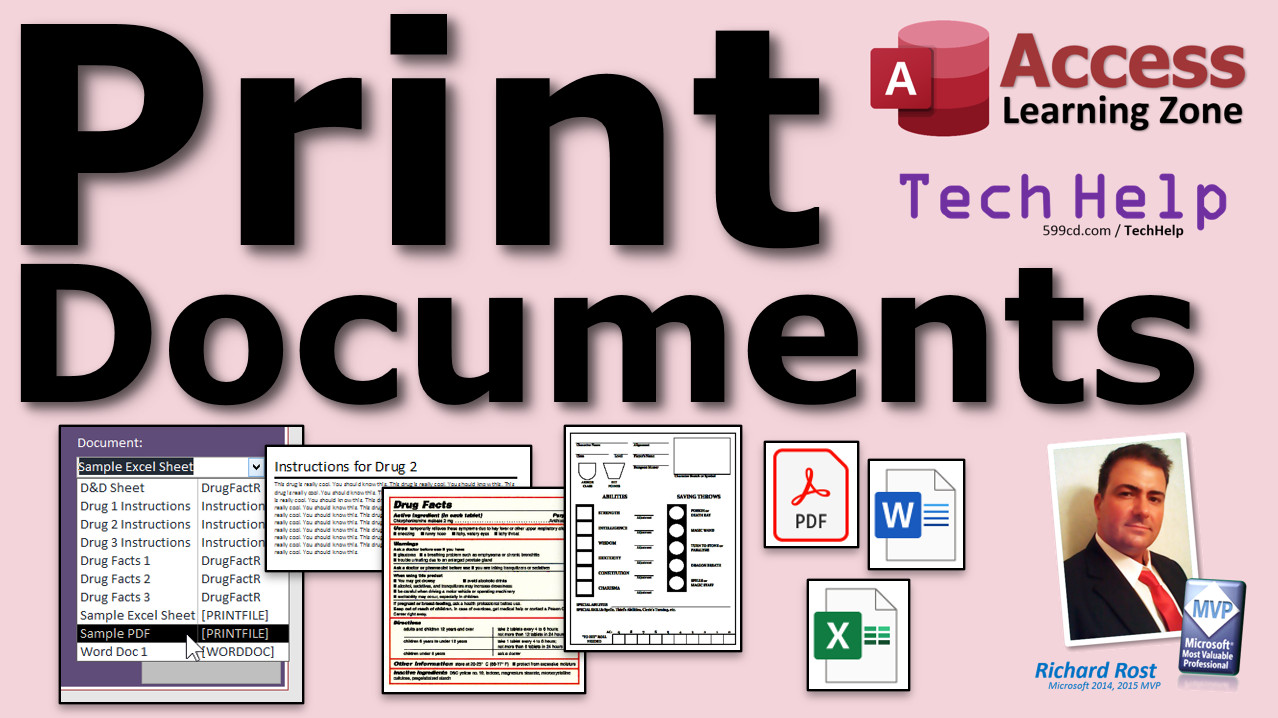
Create, Print Documents from Microsoft Access In this video, I'll show you how to create documents in Microsoft Access. I don't just mean Access-generated reports. I'm also including documents that are based on existing printed forms you may have. You'll see how to select a document from a list in a combo box (or scan in a barcode) and have the document print to your default printer or preview on the screen. We'll also see how to populate these documents with data from your tables. Windle from Williamsburg, Virginia (a Developer student) asks: I took your Barcode Seminar. Is there a way to scan a barcode and have Access print a specific document? I manage a pharmacy and would love to place a barcode on medication bottles that triggers the printing of patient educational materials when scanned. MembersMembers will see how to print Word Documents, PDFs, and pretty much any other type of external file using my PrintFile function.
Silver Members and up get access to view Extended Cut videos, when available. Gold Members can download the files from class plus get access to the Code Vault. If you're not a member, Join Today!
Links
Keywordsmicrosoft access, ms access, #msaccess, #microsoftaccess, #help, #howto, #tutorial, #instruction, #learn, #lesson, #training, #database, existing forms, existing paperwork, paper forms, based on current forms, print word documents from access vba, access word docs, access print word, print pdf from vba, insurance forms, shellexec, drug facts label, look like existing document, shellexec, D&D character sheet, dungeons & dragons character sheet
More InformationTranscriptWelcome to another TechHelp video brought to you by AccessLearningZone.com. I am your instructor, Richard Rost. In today's video, I am going to show you how to create documents in Microsoft Access. I do not just mean Access-generated reports. I am also including documents that are based on existing printed forms you may already be using. You will see how to select a document from a list in a combo box or scan in a barcode and have the document print to your default printer or preview on the screen. We will also see how to populate these documents with data from your tables. Today's question comes from Windall from Williamsburg, Virginia, one of my developer students. Windall says, "I took your barcode seminar. Is there a way to scan a barcode and have Access print a specific document? I manage a pharmacy and would love to place a barcode on medication bottles that triggers the printing of patient educational materials when scanned." Yes, Windall, it is definitely possible. In both my barcode seminar and the TechHelp video on barcode scanning, I show you how to scan a barcode or a QR code and look up product information from a table. This would be no different. Instead of looking up a product ID, you are looking up a document ID. I am not going to cover the barcode scanning portion of this because I already covered that in the barcode seminar. I have free TechHelp videos for everybody to show you how to scan and print barcodes, so I am not going to cover that again in this video. Go watch those videos. They will show you how to manage the printing of barcodes as you scan them in. I also have another free TechHelp video called Report List Box. In that video, I show you how to make a list box containing a bunch of different reports that are in your database. You pick one, click "Report," and then the report generates. I will put a link to this one down below in the link section. Go watch this one first. We will do something similar today. We will use a combo box, though, because with a combo box, you can actually scan a barcode into it. Or, if you are not interested in barcodes, you can just pick from the list. When it comes to actually printing the documents, there are a couple of different ways that you can store the documents in your database. Or you can even refer to external files to use as documents. There are a lot of different ways to do it, and I am going to show you a couple of different techniques. Of course, the best way I prefer to store documents is to just make Access reports. So if you can take these educational instructions and make them an Access report, that is the best thing to do. Even if you have a different type of business, and you have to print out a membership form, patient paperwork, an insurance form, or other similar documents, you can have a list of documents stored in your database and just pick from a list to print them. Let us make a sample document. Here I am in my TechHelp free template. This is a free download. You can grab a copy from my website if you want. There is a link down in the link section below to get one. You can make reports in your database that do not have data in them from tables. They are just documents that you might need to print out from time to time. That is fine. You can do that whenever you want. Let us say I have got a list of different drugs that I have to have instructions for, such as "take three per day," or whatever your instructions happen to be. Let us make a report with no data in it, just labels and content that we can print from the main menu. I will go to Create and then Report Design. Here is a blank report. I can just grab a label and put it here like "Instructions." Make it big. Go to Format, set it to 28 point, make it black so you can actually read it, make the border transparent. Then we will drop another one. Go to Design, give me another label, put it down here. These are the instructions. I will just do this, copy, just like that. Then take this and go to Format, set to black, shape outline transparent. There is our instruction sheet. Straightforward. Get rid of the header; I am assuming it is just a one-page document. If you have got multiple pages, you can set it up with page header, page footer, report header, and report footer. I have hour-long videos on how to set up really cool reports in my full classes. Save this as "My Instruction." This is my instruction report, and instructions for drug one, or whatever. Now I can close this. If I want to take a look at it, right-click and then Print Preview. If you can make your forms like this, your reports like this, you can just print this. Now, how do I go about actually printing this? There are a couple of different ways you can do it. I am going to suggest that we create a combo box. The combo box will have in it a list of all the reports that you want to be able to print by just picking from the combo box or scanning in a barcode. You can make a value list combo box where it is just a list of things you put in the combo box, or you can base this on a table. Let us make a table. Go to Create, Table Design. ID, AutoNumber. Or if you want, let us be formal and call it DocumentID. Usually, if it is a table that I am not planning on doing a lot with, I do not bother naming the ID field, I just call it ID, but we should do it formally. Then DocumentName. Do not just use "Name" - remember, "Name" is a reserved word. Then ReportName - that will be the actual name of the report as it appears in your database. Save this. This will be my DocumentT table. Add some data. Right now, there is only one document to worry about, and that is the one we just created. So DocumentName is going to be instructions for drug one, and the ReportName will be InstructionR. Save it. Now, let us say we have got another one, instructions two. Add Drug Two Instructions and Instruction2R. Save that one and close this. Let us copy this guy. Right-click, copy, paste (Ctrl+C, Ctrl+V). This will be Instruction2R. Change this for Drug Two so we can see the difference. Save changes. Now our combo box: go to Design, find a combo box, and drop it there. Look up the values from a table or query, look up from DocumentT. The fields we want are DocumentID, DocumentName, and ReportName. Next, field to sort by: DocumentName. Next - that is what it is going to look like. If you want to see the ReportName, that is fine - when you open up the combo box, you will see both of these fields. The key field is hidden; that is okay. Next. DocumentName as label, that is fine, then finish. Take this DocumentName label, slide it up here, put the combo box below it, change the label to "Document." Make it readable, white background. Let us give this combo box a name. It is Combo14 right now; let us call it DocumentCombo. If you want to abbreviate Document, "Doc" is fine. Do it everywhere, be consistent. Once you start using "Document," use it everywhere to avoid confusion. Now, how do we go about printing based on what the user picks in this combo box? Open up the main menu again. Pick a document. Now we need to be able to print it. We have to be able to pick what report is specified in the second column of this combo box. Remember, there are three columns: zero, one, and two. Zero is that hidden ID that we do not see because the column width is zero. So column 0, column 1, column 2. We are going to open the report whose name is in column two. Go to Design View. I am going to copy and paste a button, then pick "Cancel the wizard." Yes, for those who are absolute beginners, we have to use some Visual Basic for this. Go watch my Intro to VBA if you have never done VBA before. There is a link in the link section. We are going to cancel the wizard because the report operation requires picking a specific report. We are going to use a tiny bit of VBA. Do not panic. Open the Code Builder (right-click Build Event). There is the Visual Basic Editor. We are at the Command16_Click event. One line of code to preview a report: DoCmd.OpenReport. What is the report name? We have to get it from that combo box. The name of the report is DocumentCombo.Column(2). That is the column of that combo box that holds the name of the report. If you want to print it directly to the printer - either the default printer or if you have a specific printer saved in the report (which is a whole different video - watch my Dymo Label Printer video for that) - use acViewNormal to print directly. For the rest of us, I am going to pick Preview. I want to preview it; I do not want to print it directly to the printer. Save that. That is only one line of code. OpenReport that report, preview it. Close this, open the menu back up again. Every time I do VBA or major changes, I like to save, close, and reopen it. Pick Drug One, preview. There is Drug One. How about Drug Two? Preview. That is Drug Two. It is getting the name from the second column of the combo box. Let us go one step further. Since this is basically the same document, do we need to have two copies? No, we do not need two copies. Let us make one copy of it and just add some additional fields for what goes in here - a title and a body. I do the same technique in one of my Access classes for mass mailings. We have got a body of a letter, maybe a greeting, and you can mail merge it in right inside the database. That is my Access Expert Level 6 class for collection letters. It is the same report, but you fill in with different stuff - the customer's information, the date, first name, and the body. You can change what the letter's text is based on how late it is. That is Access Expert Level 6. I will put a link down below. We can do the same thing here. Let us get rid of Instruction2. Add the data we need inside our DocumentT table. Go to design view. If it will not let you, close the combo box form first. Now in design view, add DocumentTitle and DocumentNotes as long text. Save. Now in each document, Drug One and Drug Two will both print using InstructionR. DocumentTitle, DocumentNotes: instructions for Drug One (and copy and paste for Drug Two - add notes). Now close this. Go to InstructionR, right-click, Design View. Bind this to DocumentT as record source. We cannot use labels anymore, so get rid of those. Now drop in text boxes. Get rid of each label that comes with them. Slide them up, make them big, set format to 28 point, make them black, use standard colors, shape fill and outline transparent. Add a line under the title if you want. Bind the control source to DocumentTitle. Use the add existing fields box to grab other fields, e.g. DocumentNotes. Make sure that CanGrow/CanShrink is set on for each text box and for the detail section. CanShrink defaults to No; set it to Yes. This allows the section to expand or contract. Set format and shape fill and outline to transparent for other elements as needed. Save and close. If you open the documents combo box now, you will see Drug One, Drug Two, Drug Three, Instruction, etc. If you pick Drug Two and preview, it is going to display all the records. To show only one record, turn off the alternating background color in design view. Go to detail section, set background color to none. We only want to show a specific record. There is a video on this, but here is the summary: Add to your code to open the report with a WHERE condition: open report where DocumentID equals DocumentCombo (column 0, which is the ID). So use that as the where condition. Still just one line of code, a little more complicated. Close and reopen the form to refresh. Pick Document Two, preview - there are instructions for Drug Two. Tweak margins and appearance as needed. Try Drug Three, etc. Windall, all you have to do is have the field that your barcode scans in as part of your document table. You could make DocumentName the same as whatever is on the barcode scanner. After scanning, it fills in the number, and you use that to look up the document in the table. The concept is the same as before. You might have other types of documents to print - for example, a drug facts label. You might have JPEGs or other files. Make new reports for those, e.g., DrugFactR. Go to Create, Report Design, and insert an image from your saved files. Resize as needed and save as "DrugFactR." Add to your DocumentT, set DocumentName to Drug Facts One and ReportName to DrugFactR. You do not need a title and notes for these; those fields are specific to the instructions report. This is just for static images. Open the main menu, pick Drug Facts One, preview it. It will look better if you make it bigger. You can add Drug Facts Two, Drug Facts Three, etc., to your combo box and keep adding reports to it as needed. This brings up another concept. I do not like storing images in my database if I can avoid it. If you only have a couple of them, like three drug facts sheets, that is fine. But Access databases are not really designed for storing large amounts of images or file attachments. The file attachment type in Access often leads to corruption if people try to store many different files in the database. If you have only a couple, like a company logo, that is okay, but for lots of documents or images, use the technique I cover in my images video. That images video is free - TechHelp. Store the images in a folder on your server, preferably under where your Access database is stored. For example, if your database is at Z:\\Databases, make Z:\\Databases\\Images for your images folder. For this demonstration, I will assume my desktop is fine. I have image files saved there already. We will use these images instead of embedding them in the database. How do we do that? Go watch the images video for more detail. But here is a quick summary. For DrugFacts1 and DrugFacts2.jpeg, we can store the file name or full path in DocumentTitle or a new field. Update your document table as needed. You can put the full path in if the images are not all in the same folder. If all images are in "images" folder, you can concatenate the path in the control source. Go to DrugFactR, design view, delete the old image. Set the record source to DocumentT. Drop the image control onto the report, then cancel the insert picture dialog. Resize as needed. Set the image's control source to DocumentTitle (which will have the filename or path). Now, when the report opens, it will use the image stored in the DocumentTitle field. Close and save changes. Reopen the main menu so the combo box refreshes. Pick Drug Facts One, preview. Drug Facts Two, preview. And you can add more if you like. You can get the image to be full page by adjusting the report margins (go to Page Setup, set margins to narrow). Resize the image control to fill the page. You can use this technique for any documents you want, for example, add a D&D sheet JPG as a document to your table. Pick that, preview, and you see the form. These are external files, not stored inside the database. You can overlay fields on top of images for more complex forms, such as patient information on insurance forms. You may also have external files such as Word documents, PDF files, Excel spreadsheets, etc. Instead of storing these inside Access, you might already have an extensive library of them. If you want to pick from a list and print out a document or PDF, I will show you how to do that in the extended cut for members. In the extended cut for members (about 20 minutes) I will show you how to integrate this so you can print external documents of any kind. I will explain code for Word documents (using Word automation) and also code for printing files of any type such as PDFs, Excel spreadsheets, Notepad documents, etc. I will show you how to integrate this into the document manager we created in this lesson. This is for the members only. Silver members and up get access to all of my extended cut videos. Gold members get copies of all of the code from the code vault and the database that I build in class. How do you become a member? Click the Join button below the video. After you click Join, you will see a list of membership levels. Silver members and up get access to all of the extended cut TechHelp videos, live video and chat sessions, and more. Gold members get access to a download folder containing all the sample databases that I build in my TechHelp videos, plus my code vault with lots of different functions that I use. Platinum members get all previous perks plus access to my full beginner courses and some expert courses. These are the full-length courses found on my website, and not just for Access - I also teach Word, Excel, Visual Basic, ASP, and more. Do not worry, these free TechHelp videos will keep coming. As long as you keep watching them, I will keep making more. If you liked this video, please give me a thumbs up and feel free to post any comments you have. I do read them all. Make sure you subscribe to my channel, which is completely free, and click the bell icon and select "All" to receive notifications when new videos are posted. Click on the "Show More" link below the video to find additional resources and links. You will see a list of other videos, additional information related to the current topic, free lessons, and lots more. YouTube no longer sends out email notifications when new videos are posted. If you would like to get an email every time I post a new video, click on the link to join my mailing list. If you have not yet tried my free Access Level 1 course, check it out now. It covers all the basics of building databases with Access. It is over three hours long. You can find it on my website or on my YouTube channel. If you like Level 1, Level 2 is just $1, and it is also free for all members of my YouTube channel at any level. Want to have your question answered in a video like this one? Visit my TechHelp page and you can send me your question there. Click here to watch my free Access Beginner Level 1 course, more of my TechHelp videos, or to subscribe to my channel. Thanks for watching this video from AccessLearningZone.com. IntroIn this video, I will show you how to create and manage printable documents in Microsoft Access, including both Access reports and documents based on your existing printed forms. You will learn how to build a combo box to select a document or scan a barcode, preview or print the selected document, and populate your documents with data from your tables. I will also cover different ways to store and work with documents and images, such as using Access reports, external image files, and integrating scanned barcodes to trigger document printing. QuizQ1. What is the main focus of the video? A. Creating documents and managing reports in Microsoft Access, including barcode-based selection and printing options B. Designing databases using only external PDF files C. Creating complex relationships between Access tables D. Learning VBA programming for networking applications Q2. What type of control allows users to pick a document or scan a barcode to identify which document to print? A. List box B. Combo box C. Text box D. Check box Q3. When storing documents in your Access database, what approach does Richard recommend as best practice for most cases? A. Embedding Word documents in tables B. Printing only from Excel C. Creating reports in Access based on the document layout D. Saving PowerPoint slides inside Access Q4. Why might you want to use a combo box instead of a list box for selecting documents? A. Combo boxes do not allow you to scan barcodes B. Combo boxes are smaller but cannot display options C. Combo boxes allow both picking from a list and accepting barcode scans D. List boxes are more modern and user-friendly Q5. In setting up the DocumentT table, why should you avoid using "Name" as a field name? A. It is not descriptive enough B. "Name" is a reserved word in Microsoft Access C. It does not allow numeric data types D. It automatically creates errors in forms Q6. If you want the user to print the selected report directly to the printer rather than preview, which setting should you use with DoCmd.OpenReport in VBA? A. acViewPreview B. acViewNormal C. acViewLayout D. acViewDesign Q7. What is the advantage of using only one report template (such as InstructionR) with different data values for similar documents? A. It saves space and reduces complexity B. It increases the number of reports in the database C. It prevents adding new documents D. It restricts document customization Q8. How does Richard suggest handling images, such as drug facts sheets, if you have several of them? A. Embed all images directly into Access tables B. Store images as file attachments in the Access database C. Store images externally and reference their paths in the database D. Convert all images to text files and store in Access Q9. What fields are added to the DocumentT table to allow for more flexible content in document reports? A. DocumentOwner and DocumentCost B. DocumentTitle and DocumentNotes C. DocumentAuthor and DocumentType D. DocumentDate and DocumentStatus Q10. What technique is used to ensure Access reports displaying document details will expand or contract to fit variable length content? A. Use CrossTab queries with fixed height controls B. Set CanGrow and CanShrink properties to Yes for relevant controls and sections C. Always use the default settings, as Access auto-adjusts automatically D. Split report content into multiple reports Q11. According to the video, what is a potential downside to storing many images or files inside an Access database using file attachments? A. Images display in black and white only B. File attachment fields do not allow images over 1 MB C. Fingerprint security is required for file attachment fields D. Large numbers of attachments can lead to file corruption Q12. What does Richard recommend doing if you already have external documents such as PDFs or Word files and want to print them from Access? A. Store every document as an OLE object B. Use automation or code to print the files externally, referencing file paths in your tables C. Manually open and print the documents each time D. Convert all files to HTML and store in Access Q13. When referring to columns in a combo box in Access VBA, what is the index number for the first column? A. 1 B. 2 C. 0 D. -1 Q14. What is the purpose of using a WHERE condition when opening a report from the combo box's selection? A. It prompts the user for input B. It displays all records, not just one C. It filters the report to show only the selected record D. It increases database size Q15. What should you do to make your combo box or document picker show newly added documents? A. Restart Access every time B. Reopen the main menu or refresh the form so the combo box list updates C. Manually add each document to the list every time D. Compact and repair your database Answers: 1-A; 2-B; 3-C; 4-C; 5-B; 6-B; 7-A; 8-C; 9-B; 10-B; 11-D; 12-B; 13-C; 14-C; 15-B DISCLAIMER: Quiz questions are AI generated. If you find any that are wrong, don't make sense, or aren't related to the video topic at hand, then please post a comment and let me know. Thanks. SummaryToday's video from Access Learning Zone covers how to create documents using Microsoft Access, not just reports generated by Access but also custom documents that might be similar to printed forms you already use in your business. I will guide you through a process where you can select a document from a combo box (or by scanning a barcode), and have Access print it directly or preview it on the screen. I'll also show you ways to fill these documents with data from your tables. The question for today comes from a developer working in a pharmacy, who wants to know if it's possible to scan a barcode on a medication bottle and have Access print out patient education materials. The answer is yes. The same principles I teach in my barcode seminar and TechHelp video about barcode scanning apply here. Instead of looking up a product ID, you'll be retrieving a document ID, which you can then use to print the appropriate material. I won't repeat the barcode scanning steps here, since those are already covered in my other videos and seminars. If you're interested in learning how to scan and print barcodes, please check out those free TechHelp resources. I also have a popular video called Report List Box that demonstrates how to display a list of reports in a database, let the user select one, and then generate it. Today's lesson uses a similar approach, but with a combo box, which is ideal for barcode scanning or simply picking from a list. When it comes to printing documents, you have a few storage options: you can keep them in tables within your database or store them as external files. I'll demonstrate several methods, but my preferred way is to create standard Access reports. This approach is great if you can convert your document needs—such as instructions, forms, or paperwork—into Access report objects. To begin, start with creating a report right in Access. These documents do not need to be linked to data sources; sometimes, you only need to print static instructions or forms. Go into Report Design, add your titles and labels, adjust the formatting, and save the report with a descriptive name. Next, to make selecting and printing documents more efficient, create a combo box that lists all available documents. This can be a simple value list or, even better, based on a table that stores all relevant information about your documents. Construct a table with fields like DocumentID, DocumentName (avoid using "Name" as it's a reserved word), and ReportName (the actual report object name in your database). Add entries for each document you want to be available for printing. After your table is set up, move on to building a combo box that looks up these document records. Configure it to display the document name, but also keep the ReportName field available for use behind the scenes. Now comes the printing function. The key is to retrieve the right report name from the combo box. In the event code for your Print or Preview button, use VBA to open the report specified in the combo box's ReportName column. You can choose to preview the report or print it directly to the default printer. This approach can be extended further. If the only real difference between some of your documents is the contents, not the structure, there is no need to create multiple report objects. Instead, enhance your Document table with fields like DocumentTitle and DocumentNotes, and bind your report to this table. Use text boxes in the report to insert these dynamic contents. This is a concept I also use in my courses for mail merging and form letters. With this structure, you can present a unified report whose contents change depending on the selected document. By using a WHERE clause in your report opening code, you can ensure that only the relevant record appears. In the context of barcode scanning, simply ensure that the value your barcode scanner reads corresponds to a field in the Document table. Scanning will then select the appropriate document for printing, just as if you picked it from the combo box. If you need to manage documents like JPEGs, images, or other static files, you can set up reports that display these images. Add the image file names or paths to your Document table, and then have your report use those as image sources, rather than embedding images directly. I recommend storing large or numerous files outside the Access database (for example, in a server folder) to avoid corruption issues associated with Access's file attachment features. For details on managing images stored externally, refer to my dedicated video on images in Access. This same process can be used to add a variety of external images or documents—simply list them in your table, configure your report to reference the appropriate field, and your Access interface will let you preview or print them with ease. You can even overlay fields on top of images for more complex forms like insurance sheets. For situations where you already have external documents like Word files, PDFs, or Excel spreadsheets, and want to trigger their printing from Access, I cover those techniques—including Word automation and generic file printing—in the extended cut of this lesson, available to members. In today's Extended Cut, I will demonstrate how to connect this system to enable printing of external documents of various types, explaining how to integrate automation for Word documents and cover how to print PDFs, spreadsheets, and Notepad files. You will see how to streamline these document management features within Access. Silver members and above get full access to all extended cut videos, live sessions, and more resources. Gold members gain access to downloadable copies of my sample databases and code vault. Platinum members receive all previous perks plus enrollment in my full beginner and expert courses across Access, Word, Excel, Visual Basic, ASP, and more. You can continue to expect free TechHelp videos as long as you keep watching. If you found this lesson useful, please give it a thumbs up and feel free to leave comments—I do read every one. Subscribe to my channel and enable notifications so you won't miss new lessons. For more information and resources, check the link below for supplemental material, related tutorials, and my free Access Level 1 course, which covers foundation database skills. If you want your question answered in a future TechHelp episode, visit my TechHelp page to submit your inquiry. A complete video tutorial with step-by-step instructions on everything discussed here is available on my website at the link below. Live long and prosper, my friends. Topic ListCreating an Access report to use as a printable document Designing reports with only static content (no data) Adding labels and formatting text in Access reports Setting up a combo box to select documents Creating a table to manage documents and report names Populating the combo box from a document table Naming conventions for form controls and fields Using VBA to open reports based on combo box selection Retrieving the selected report name from a combo box Previewing and printing reports from a form button Storing dynamic content (title and notes) in the document table Binding report controls to table fields for flexible documents Configuring reports to display one document per record using a WHERE condition Formatting reports with CanGrow and CanShrink properties Inserting images into Access reports as document content Avoiding storing images directly in the Access database Referencing external image files for use in reports Binding an image control to a file path from a table field Adjusting report margins and image sizes for full-page documents Overlaying fields on images for complex form layouts Primary TopicsAccess report creation, combo box document selection, document printing automation, linking documents to list/table, external image documents, report parameterization, using VBA to print reports Secondary Topicsbarcode scanning integration, storing documents externally, quick workaround tips, document manager design |
||||||||||||||||||||||||
|
| |||
| Keywords: TechHelp Access existing forms, existing paperwork, paper forms, based on current forms, print word documents from access vba, access word docs, access print word, print pdf from vba, insurance forms, shellexec, drug facts label, printable forms PermaLink Print Documents in Microsoft Access |