SelStart & SelLength
By Richard Rost

 2 years ago
SelStart & SelLength: Cursor & Selection in Access VBA
In this Microsoft Access tutorial, we will learn how to use SelStart and SelLength properties in VBA to manipulate the cursor and text selection within a field. Discover how to programmatically set the cursor position or select specific text ranges, perfect for managing long text entries efficiently.
Members
In the extended cut, we will explore a technique for reading the selected text in a Microsoft Access field after it loses focus. I will show you how to maintain and retrieve the text selection information even when you toggle focus away from the control.
Silver Members and up get access to view Extended Cut videos, when available. Gold Members can download the files from class plus get access to the Code Vault. If you're not a member, Join Today!
Prerequisites
Links
Recommended Courses
Keywords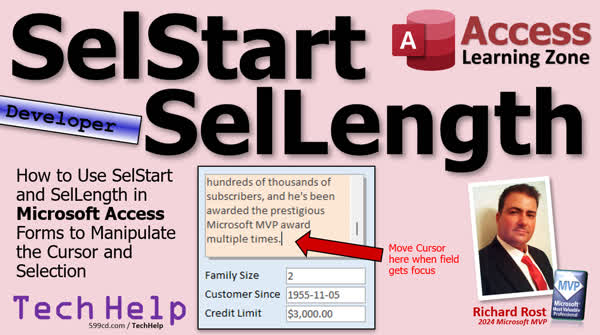
TechHelp Access, SelStart, SelLength, manipulate cursor, manipulate selection, On Got Focus event, cursor position, text selection, zero-based index, textbox properties, VBA developer, Len function, SetFocus method, MsgBox, reading selection, select text, programming examples
More InformationTranscript Welcome to another TechHelp video brought to you by AccessLearningZone.com. I'm your instructor Richard Rost. Today we're going to learn about the SelStart and SelLength properties in Microsoft Access. We're going to use them to manipulate the cursor position and the selected text. For example, when you tab to a field like a big notes field, instead of having the whole thing selected, we're going to move the cursor to the end so you can keep typing right from that spot. That's pretty cool.
SelStart and SelLength are pretty simple. SelStart specifies the start of a selection of text or, if no text is selected, the position of the cursor inside the field. So, if it's at the fifth position, you'll get five. The important thing to remember, and this throws me all the time, is it's zero-based, so if the cursor is at the very beginning of the field, it's zero. Yeah, I know that messes me up too.
SelLength specifies the length of the selected text. If you get three characters selected, you're going to get three, or zero if no text is selected. You can use this like so: Let's say that when you tab to your notes field, you want the cursor to start at the beginning of the text field instead of the default, which is when you tab to it, all of the text is selected.
Yes, I should point out that I know there are options under Client Settings. The behavior entering field can change this, right? Select the entire field, go to the start of the field, go to the end of the field. I know this, but the point is I'm trying to teach you how to do this programmatically because there may come times in your life as a developer where you want to do stuff like this manually with a button.
Let's say, okay, and you might not want all of your fields behaving that way. I like the fact that when I tab to a short text field, it highlights the whole thing so I can overtype it. But when I go to a long text field, usually for me at least, I want the cursor to go to the end. And I know I can hit Control-End on the keyboard. Yeah, I get that. But again, just more tools for your toolbox, more Legos to play with, right?
Alright, so what event can we use to control what happens when this field gets focus? Well, there's an event called On Got Focus. I have a whole separate video on this one if you want to learn more about it. There's a video for you.
I probably should have started off at the top, I forgot. Sometimes I forget to let you know that, yes, this is a developer-level video. And if you have never done any developing and programming in VBA before, go watch this video first, about 20 minutes long. It teaches you everything you need to know to get started. Sometimes I go back and insert this into the beginning of the video, but you get the point, right? Okay, here we go.
Alright, so the On Got Focus event fires when this guy gets the focus, right? When any field gets a focus. We're going to be working with notes. I'm going to open up the properties, go to events, and find On Got Focus. It's right there, dot dot dot. Now, this is going to run whenever notes get the focus, either you tab to it or you click on it.
So, let's say you want to move the cursor to the beginning of the field. We're going to say Notes.SelStart = 0. Remember, it's zero-based. Alright, save it. I'm back out here. We're going to close it, open it, and I'm gonna start here, and I'm going to tab to it. Ready? Tab, boom, there it goes. It's at position zero.
Now, if you put this to one, and then I'll come over here, I'll tab to it again. You can see there, it's at position one. So if you do it and you forget that it's zero-based, and it looks like that, that's why. Just back up a step.
Alright, now if you want to go to the end of the field, you can just figure out what the length of the text in the notes field is by saying the length of notes. It's that simple. Right? So now if I come over here and I tab tab tab tab tab, bam, it goes down to the end, right? There's x number of characters, so it goes after x, which is how I kind of think about it.
If you're not familiar with the Len() function, watch my string functions video. I covered Len(), I covered Left(), Right(), Mid(), InStr(), and some other stuff. Alright.
Alright, so let's say you want to have the cursor at the beginning of the field and you want to select the first 10 characters. I know it's arbitrary, but that's what we're doing. Alright, so we're going to set the SelStart equal to 0, and then we're going to say Notes.SelLength = 10. How many characters do you want to select? Alright, come back out here and I'm going to go once again, tab tab tab, and you can see it's selected seven, eight, nine, ten. Yep. Right including spaces.
Now, let's say you want to select ten characters starting with the third character. So do you put a three here? No, we put a two there because it's zero-based. Right, save it. I know it's confusing. Tab tab tab tab tab, see starting with the third character, it selected ten characters. Or you could say, you know, starting after the second character, however you want to say it.
Now, you can use SelStart and SelLength to set the selection like we're doing here, but you can also use it to read the selection as well. Okay, but the problem is, as soon as you leave that control, you lose the settings, you lose the selection.
So if I make a button here, let's say copy paste, I just put an X in here or whatever. If I right-click, build event, if I go MsgBox, Notes.SelStart, and a space, and Notes.SelLength, so I could see what they both are. Alright, let's come back in here, close it close it. Let's open her up. If I select some text and then hit the button… Oh, you can't reference a property or method of a control unless the control has the focus. Okay, well, we could use SetFocus right before we do that, but if I do that, let's say I select some text and hit the button, okay, I got two and ten. That's it.
Okay, and… Oh, wait a minute. You know why? Because I've got focus, I've got that set to go back to two and ten. Alright, well, let's get rid of that rule. Save it. Alright, let's try it again. Let me select this stuff, hit the button, and 0, 1, 5, 9, 5. What is that? Well, okay, if I go back to here, see, as soon as I leave this control to click that button, the notes field loses focus, and you lose that data. Right, so how can you read what text was selected? There's a trick, and I'll talk about that trick in the extended cut for the members. Silver members and up get access to all of my extended cut videos, not just this one, all of them. So there's plenty to learn. Gold members can download these databases, and everybody gets free training, Silver, Gold, Platinum, everybody gets a free class once a month. It's really cool. So check it out and join today.
But that, folks, is going to be your TechHelp video for today. I hope you learned something. Live long and prosper, my friends. I'll see you next time.
TOPICS:
- SelStart and SelLength properties
- Manipulating cursor position
- Selecting text programmatically
- On Got Focus event
- Moving cursor to start of field
- Moving cursor to end of field
- Using Len() function for text length
- Selecting first 10 characters
- Selecting characters from a set position
- Reading text selection using SelStart and SelLength
COMMERCIAL:
In today's video, we're discussing the SelStart and SelLength properties in Microsoft Access, showing you how to control cursor positions and text selection for a more intuitive user experience. You'll see how to programmatically move the cursor to the end of a text field rather than highlighting everything, which can be really useful for long notes. We'll cover setting the cursor start and selection length, including practical examples like selecting characters or reading selections. Remember, there's a quirk where control loses focus when you click elsewhere—I'll share some tips for handling that in the extended cut. You'll find the complete video on my YouTube channel and on my website at the link shown. Live long and prosper, my friends. Intro In this video, we talk about the SelStart and SelLength properties in Microsoft Access. I will show you how to programmatically control the cursor position and text selection in a text field, including moving the cursor to the start or end of the field and selecting a specific number of characters. We will use the On Got Focus event and the Len() function for these tasks, and discuss how these settings behave when working with different types of fields. Quiz Q1. What property in Microsoft Access specifies the start of a text selection or the cursor position if no text is selected?
A. SelStart
B. SelEnd
C. TextStart
D. CursorPosition
Q2. How are the SelStart and SelLength properties in Microsoft Access indexed?
A. One-based
B. Zero-based
C. Two-based
D. Random indexed
Q3. If you want the cursor to move to the end of a text field when a field gets focus, which function helps determine the length of the text?
A. Mid()
B. InStr()
C. Len()
D. Right()
Q4. Which event in Microsoft Access can be used to control what happens when a field gets the focus?
A. On Enter
B. On Click
C. On Load
D. On Got Focus
Q5. What happens if you put SelStart equal to 3 when you want to select characters starting from the third character?
A. You start selecting from the fourth character because it's zero-based
B. You start selecting from the first character
C. You start selecting from the third character directly
D. It results in an error due to zero-based indexing
Q6. What is the issue when you try to read the SelStart and SelLength properties after leaving a control in Microsoft Access?
A. The properties reset to default values
B. You cannot access the properties outside the control
C. The control loses focus and the selection details are lost
D. The message box displays incorrect selection length
Answers: 1-A; 2-B; 3-C; 4-D; 5-A; 6-C
DISCLAIMER: Quiz questions are AI generated. If you find any that are wrong, don't make sense, or aren't related to the video topic at hand, then please post a comment and let me know. Thanks. Summary Today's TechHelp tutorial from Access Learning Zone focuses on the SelStart and SelLength properties in Microsoft Access. I'm your instructor Richard Rost, and today we'll explore how these properties can be used to control the cursor position and text selection within a field. Let's consider a scenario: you have a notes field, and instead of selecting all the text when you tab into it, you'd like the cursor to move to the end so that you can continue typing seamlessly.
Let's start with some basic understanding: SelStart determines where the text selection begins, or the cursor's position if no text is selected. It's a zero-based index, meaning if the cursor is at the very start, SelStart will be zero. This can be a bit confusing at first since software developers often start counting from one.
SelLength measures the length of the selected text. If three characters are highlighted, it returns three; otherwise, if there's no selection, it returns zero. Imagine you want the cursor to jump to the start of a text field—when you tab into it, typically the entire text is selected. However, you might prefer for your notes field to behave differently.
While I know there are Client Settings options to adjust field behavior—such as selecting the entire field or positioning the cursor at the start or end—my aim today is to demonstrate how to achieve these effects programmatically. This is useful because as a developer, you'll encounter situations where manual adjustments might be necessary for specific fields.
For example, I personally like when short text fields highlight their contents so that I can easily overwrite them. However, in long text fields, I prefer the cursor to move to the end. Of course, I know I can use Control and End on my keyboard, but having additional tools at your disposal—like using the On Got Focus event—gives you more flexibility.
The On Got Focus event triggers when a field gains focus, whether by tabbing or clicking on it. This can be utilized to determine cursor behavior in the notes field by adjusting its SelStart property. So, to set the cursor at the beginning of the field, you set the SelStart to zero. Save and close your settings, then reopen and tab into the field, and you'll find the cursor at the start.
Similarly, if you want the cursor at the end of the field, you can use a function to determine the length of the text. This is quite straightforward.
Let's consider selecting a portion of text: say, the first ten characters, starting at the beginning. In this case, you set SelStart to zero and SelLength to ten, selecting the first ten characters upon tabbing into the field. If you want to select ten characters starting from the third character, you set SelStart to two, keeping the zero-based index in mind.
Beyond setting the selection, you can also read it. However, if you shift focus away from the field, the selection is lost. With some coding adjustments, such as using SetFocus, you regain access to the selection data when executing actions like clicking a button. For example, you can output the current SelStart and SelLength values with a message box to see which text was selected.
In conclusion, these methods provide powerful ways to manage field interactions programmatically. I elaborate further on techniques like maintaining selections in extended tutorials available to Silver members and above. With these tools, members can explore various coding tricks and gain insights into the use of the Len() function and additional string functions.
I hope you found this TechHelp tutorial enlightening. You can find a complete video tutorial with detailed instructions on everything we've covered today on my website at the link below. Live long and prosper, my friends. Topic List - SelStart and SelLength properties
- Manipulating cursor position
- Selecting text programmatically
- On Got Focus event
- Moving cursor to start of field
- Moving cursor to end of field
- Using Len() function for text length
- Selecting first 10 characters
- Selecting characters from a set position
- Reading text selection using SelStart and SelLength Primary Topics SelStart property, SelLength property, cursor manipulation, text selection, On Got Focus event, Microsoft Access forms, VBA programming Secondary Topics Client Settings field selection defaults, Len() function, string functions, developer tips |







