Fitness 77
By Richard Rost

 4 months ago
Move Up and Down Buttons for Reordering Records In this lesson, we will enhance our fitness database by adding move up and move down buttons to make reordering records easy and intuitive for users. I will show you how to update the sort order programmatically, preserve the selected record after reordering, and create reusable code for this process. We will also improve the form interface with clearly labeled arrow buttons and discuss options for allowing users to change related routines. Finally, I will preview an upcoming lesson focused on highlighting the current record to improve user navigation. PrerequisitesRecommended CoursesUp Next
Keywords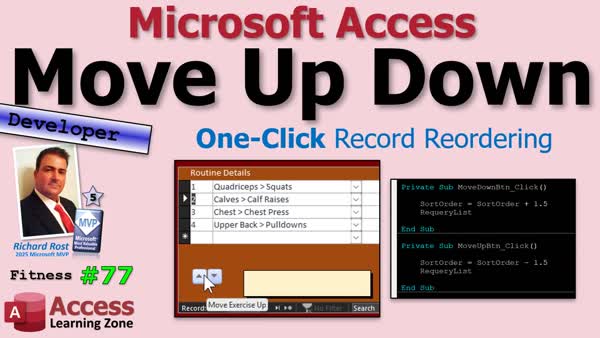 TechHelp Access, move up down buttons, reorder records, user-controlled display order, sort order field, requery code, preserve selected record, continuous form, interface improvements, display order system, 1.5 trick, routine detail ID, arrow buttons, form design, renumbering records, findfirst method
 Subscribe to Fitness 77
Get notifications when this page is updated
More InformationTranscript Manually typing numbers works, but let's be honest, your users don't want to read documentation, remember special tricks, or type numbers into a sort order field. They want to click a button and have the computer do the work for them.
So today we're going to add move up and move down buttons to make reordering records simple and intuitive. Welcome to another TechHelp video brought to you by AccessLearningZone.com. I am your instructor Richard Rost. This is part 77 of my fitness database series. But remember, even if you're not building a fitness database, the techniques I'm covering today can be used anywhere you need users to control the order of the records. Whether it's steps in a manufacturing process, customer priority rankings, or your top three Star Trek captains list that absolutely nobody can agree on, even though we all know it's Picard, Kirk, and Pike in that order. Yes, you can post your hate comments below.
Last time we built a user-controlled display order system that added the sorting and renumbering logic behind the scenes. We learned how the 1.5 trick lets us move records around while keeping everything properly numbered. If you don't remember that, go watch the last video, part 76. That worked great, but it still requires users to manually edit the sort order field themselves. Today we're going to take the next logical step and build move up and move down buttons that automatically handle those changes for the user. Make our requery code reusable, preserve the currently selected record after reordering, and add a couple of small interface improvements to make the form easier to use.
You ready? Let's get started.
Last time we got our sort ordering working. If you want to move chest up to number two, you just make this like 1.5 and boom, it goes up top there. Now, what I want to do is make sure we stay on chest. We've done this before when we reordered stuff like in our food log, so we know how to do this. Let's just add it to this now.
In my reordering routine in this guy, which should be, let's see here, yeah, here we are. Down here. We need to track what the current ID that we're on is and then find that record when we're done. Real simple. So we need an old ID as long. Before we do anything, we'll say old ID equals routine detail ID, the record that we're on. And then when we're all done, we're going to requery the list because we want everything to appear correctly. But then when we're done requerying it, we're going to find that record. And we're going to use me.recordset.findfirst.
Me.recordset.findfirst.routine.detail.id equals old ID.
Yeah, you can use the recordset clone and set the bookmark and blah, blah, blah. There are better methods of doing this, but this works 99 percent of the time. There are some situations where this doesn't work, but this will work just fine for us and what we're doing today.
Save it, close it, close it, open it, go back in. All right, let's move quadriceps up first. I'm going to go 0.5. Ready? Boom. All right, it stays up there. Let's move it down to third. So to go to third, I'm going to make this 3.5. All right, because then calves will be 1, chest will be 2, quadriceps will be third. Boom. And it stayed on it, see? And if you want to move it over, you can. You want to do a set focus over here. That's up to you. I don't want to accidentally change that. I'm going to keep this sort order there.
Now, one thing I really haven't given the user the ability to do is change what routine this is on. That's up to you. Let's say you want to move this from the full body to the forward. I see, I don't really need all that. You could put a little combo box down here to let them change the routine. I don't think that's necessary. If you guys really want to see that, let me know. It's literally just a combo box here that lets you change the routine ID. But I don't think it's necessary. If you really want to move it, just delete it and add it to the other one.
All right. Now, the next trick I'd like to do is we can renumber these by changing the numbers. But the user is not going to remember that 1.5 trick. Let's make some buttons to do it for them.
All right, I'll put little buttons down here, little plus and minus buttons. Or you can use little arrow buttons if you want to get fancy with images on them. Let's see. Let's just put two little buttons down here to move the item that you're currently sitting on, up or down.
Form design, give me a command button, drop it down, meow. Cancel the wizard. For now, I'm going to put a little minus and a little plus in there. So, minus to move it up and a plus to move it. Actually, let's check the images. I forget what kind of images are in here because I don't use them that often. Let's see, picture right here. Let's take a peek and see what pictures we got.
Let's see, is there an up, oh, there's an up arrow and down arrow. We'll use these. All right, so we'll do arrow up. That does look better. All right, so there's an arrow up. And we'll do another one, copy paste. And we'll put it there. And we'll do arrow down. Arrow down. Arrow go up. Arrow go down.
Let's give these buttons good names. Let's call this one the move up btn, move up button. And this one will be the move down btn.
Now, what am I going to put in here? Well, let's right click, build event. Now, what I want to do essentially is, I want to change the sort order of the record that I'm on, either plus 1.5 or minus 1.5 depending on the way that I want to move it, and then requery the list. Now, requerying the list is just all of this stuff. So, let's make this a reusable function or subroutine.
So, in here, I'm going to say, requery list and sub. So, it happens in the same spot we did before with the sort order after update. But now we're just going to say, I'm going to make it public, just in case later on, we want to have someone else use it.
Public sub requery list.
This whole thing is now reusable.
Now, in the move up button, I can say, sort order equals sort order. The move up is going to be minus 1.5 and then requery the list.
And then the move down button, guess what? It's going to be the other way. Build event. And we'll just copy and paste. Could we make this a function handler like we did before and send it a valid... Yes. But for just these two, that's not that big of a deal. If we had a whole bunch of buttons, yes, I'd make it an event handler so we didn't have 30 of these in here. But just for these two, I'm not worried about it.
Debug, compile. Close it. Close it. Close it. And open it. All right. There we go. I'm on chest. Ready? Down. Down. Down. Down doesn't matter. All right. Keeps going to 5 and getting renumbered. Up. Up. Down. Down. Up. Down.
Pretty cool stuff, huh?
So today, we made our custom display order system much easier to use by adding little move up and move down buttons and preserving the current record after reordering, making the whole process user friendly for people who will actually be using the database.
In the next lesson, we're going to improve the user interface even more by highlighting the current record and making it easier to see where you are as you move through related data. Not just the current field, that's easy. We're going to highlight the whole row. And we're going to highlight all three of them. So you can see the program, the routine, and the routine details all highlighted.
Here's a preview. It's going to look really cool. Check this out. Look at that. See? Eh? Eh? Eh?
All right. So post a comment down below. Let me know what you thought of today's lesson and what you would like to see coming up in future lessons.
That's going to be your TechHelp video for today. Brought to you by AccessLearningZone.com, I hope you learned something. Live long and prosper my friends. I'll see you soon for part 78. Intro In this lesson, we will enhance our fitness database by adding move up and move down buttons to make reordering records easy and intuitive for users. I will show you how to update the sort order programmatically, preserve the selected record after reordering, and create reusable code for this process. We will also improve the form interface with clearly labeled arrow buttons and discuss options for allowing users to change related routines. Finally, I will preview an upcoming lesson focused on highlighting the current record to improve user navigation. Quiz Q1. What is the main purpose of adding move up and move down buttons in the video?
A. To allow users to reorder records easily without manually editing sort order fields
B. To delete records quickly from the database
C. To filter records by name automatically
D. To export data to Excel
Q2. According to the video, why might users not want to read documentation or remember special tricks?
A. They want simple and intuitive interfaces that handle tasks automatically
B. They prefer doing all tasks manually
C. Documentation is not available for Access at all
D. Special tricks do not work in Microsoft Access
Q3. What technique is mentioned for moving records by assigning an in-between number like 1.5?
A. The 1.5 trick
B. The step-by-step guide
C. The magic formula
D. The automatic shuffle
Q4. What is the purpose of preserving the currently selected record after changing the order?
A. So the user stays on the same record after the data is requeried and reordered
B. To automatically update all records in the list
C. To prevent deletion of the selected record
D. To highlight every record in the list
Q5. Which VBA method is used to return to the same record after the list is requeried?
A. Me.Recordset.FindFirst
B. Me.GoToRecord
C. Me.SetFocus
D. Me.RefreshData
Q6. What is suggested if a user wants to move an item to a different routine?
A. Simply delete it and add it to the other one
B. Edit the sort order to move it
C. Use a hidden function in the form
D. Export the record and import it again
Q7. What type of interface element is added to allow moving records up and down?
A. Buttons with up and down arrow images
B. Text boxes for entering new order numbers
C. Combo boxes for selecting order
D. Checkboxes for highlighting rows
Q8. Why is the requery code moved into a public, reusable subroutine?
A. So it can be used from multiple places without repeating code
B. To slow down the program intentionally
C. To prevent the form from opening
D. To make the database read-only
Q9. What is the main benefit of the move up and move down buttons from a user experience perspective?
A. They make rearranging records easy and intuitive for users
B. They prevent records from being edited
C. They automatically backup the database
D. They allow exporting data to Word
Q10. What improvement is hinted at for the next lesson in the video?
A. Highlighting the entire row of the current record in related forms
B. Adding automatic backup functionality
C. Exporting records as PDF files
D. Implementing real-time data synchronization
Answers: 1-A; 2-A; 3-A; 4-A; 5-A; 6-A; 7-A; 8-A; 9-A; 10-A
DISCLAIMER: Quiz questions are AI generated. If you find any that are wrong, don't make sense, or aren't related to the video topic at hand, then please post a comment and let me know. Thanks. Summary Today's video from Access Learning Zone focuses on a common challenge in Access databases: allowing users to easily reorder records without having to manually type sort order numbers or remember complex tricks. Most users do not want to dig through documentation or maintain numbers in a special field. They simply want an intuitive way to move items up or down in a list with the click of a button. That is what we are going to solve today.
This lesson is part 77 of my fitness database series, but the ideas here apply to any Access database where users need to customize the sequence of records. You might want to control the order of steps in a process, rank customers by priority, or even argue about your own Star Trek captain preferences. Regardless of your use case, these techniques will make your database more user friendly.
In the previous lesson, we built a user-controlled display order system that worked by letting users edit a sort order field themselves. We used what I call the 1.5 trick, where you can move a record between two others by assigning it a value halfway between their sort orders. This solution worked behind the scenes to keep everything properly numbered, but the downside is that it still required the user to manually type in the sort order. Now it is time to improve the user experience and provide simple move up and move down buttons to handle all of that for us.
Our first step is to make the process smoother for users. When a record is moved, I want the user to remain on the same item they just moved, even after the list is requeried and renumbered. We have done something similar in past lessons, such as when building our food log. The approach is straightforward: before any changes are made, we save the ID of the current record. Once the records are requeried so everything displays correctly, we locate the record with that saved ID and set it as the current record once again. There are a few different techniques for accomplishing this in Access, but for most typical scenarios, the one I use here is efficient and reliable.
With that in place, it is time to add the move up and move down buttons. These will allow users to adjust the position of any record simply by clicking an arrow, instead of editing sort order numbers by hand. You can use plus and minus symbols or, for a more polished look, up and down arrow icons. Make sure to give these buttons clear and descriptive names so you will know what they do in your code.
The logic behind the buttons is simple. When a user clicks "up," we decrease the sort order value by 1.5. When they click "down," we increase it by 1.5. This automatically places the record between the adjacent records above or below. After changing the value, we call our reusable requery procedure, which sorts and renumbers the list and then restores the selected item as described earlier.
At this point, the reordering process is much more intuitive. Users can simply click to move an item up or down and the interface responds without forcing them to edit numbers or worry about how the sorting logic works. The system is robust, easy to use, and keeps everything neatly numbered.
I also briefly discussed other enhancements, such as providing an interface for changing which routine an exercise belongs to. While it is possible to add a combo box to let users switch routines, it is not strictly necessary for the ordering feature to work well. You can always let your users delete and re-add items to change their groupings if you prefer to keep the interface simple.
In the next lesson, I will show you how to further enhance the user interface by highlighting the entire row of the current record. This will make it even easier for users to see where they are in the data and what item they are working with, especially when dealing with related records across multiple tables or subforms.
If you are interested in a complete video tutorial with step-by-step demonstrations of everything discussed here, you can find it on my website at the link below. Live long and prosper, my friends. Topic List Adding move up and move down buttons for record reordering
Implementing user-friendly reordering in Access forms
Using the 1.5 trick to change sort order values
Preserving the selected record after requery
Using Me.Recordset.FindFirst to locate records
Making requery code reusable with a public sub
Adding arrow image buttons for reordering
Renaming command buttons for clarity
Handling sort order updates via button clicks
Testing move up and move down button functionality
Interface improvements for ease of use Article Managing the order of records in a database is a common requirement across many different types of applications. Whether you are organizing steps in a manufacturing process, ranking customers by priority, or simply keeping track of your top three Star Trek captains (for the curious, my picks are Picard, Kirk, and Pike), the key is to make it easy for users to adjust the order without having to edit raw numbers or remember complex tricks.
Traditionally, users might have to manually type numbers into a sort order field to reorder items. For example, if an item called "Chest" is currently third but needs to be moved up, the user might change its sort order from 3 to 1.5, and the database would then sort the items accordingly. However, expecting users to understand and manipulate this logic can make your application less friendly.
To solve this, you can create move up and move down buttons right on your form. By clicking these buttons, users can intuitively shift records higher or lower in the list. The system will take care of updating the sort order behind the scenes. The form will automatically update, and the selected item will stay highlighted, making it clear what just happened.
Let me walk you through how to set this up in Microsoft Access, but the same concept can be applied in most database or form systems. First, start with a continuous form or datasheet that displays the records you want your users to reorder. Each record should have a sort order field, usually a numeric type, that determines its position.
Suppose you already have an interface where users can edit the sort order field manually. To improve this, start by adding two command buttons to your form. Place these near your record details so that users can see and use them easily. Find the standard arrow up and arrow down images in Access for a visual touch, or use plus and minus symbols if you prefer.
Name your buttons something meaningful, such as move up button and move down button. Now, you need to make these buttons update the sort order. For the move up button, the idea is to decrease the sort order value of the current record by a fixed amount, such as 1.5. For the move down button, increase the sort order by 1.5. After updating the value, you must requery the recordset to refresh the list and show the new order.
Here is how you might write the VBA code for these buttons. In the move up button's click event:
Private Sub MoveUpBtn_Click()
SortOrder = SortOrder - 1.5
RequeryList
End Sub
And for the move down button:
Private Sub MoveDownBtn_Click()
SortOrder = SortOrder + 1.5
RequeryList
End Sub
The RequeryList routine is a reusable subroutine you create to refresh the list and maintain the user's current selection. You want to make sure after reordering, the form stays focused on the item the user just moved. Here is an example of how to write this routine:
Public Sub RequeryList()
Dim OldID As Long
OldID = RoutineDetailID ' Replace with the name of your record's primary key field
Me.Requery
Me.Recordset.FindFirst "RoutineDetailID = " & OldID
End Sub
This procedure saves the current record's ID before the list is requeried. After the refresh, it searches for that same ID and moves the cursor back to it. This way, the item the user just moved remains selected, making for a more user-friendly experience.
With this in place, users can move items up or down in the list simply by clicking a button. The system handles renumbering as needed the next time the form is requeried or the order field is updated. This prevents any confusion about how the sort order field works, and the interface stays clean and simple.
You might want to further tailor the experience. For example, you could add combo boxes to allow changing related data, or highlight entire rows to give more visual feedback. But with just these move up and move down buttons, the order management process becomes much smoother and more intuitive for your users.
Once you have this setup, your users no longer need to read documentation, remember numbers, or type anything manually into the sort order field. They simply click to reorder records, making your database much more accessible and efficient for everyday users. Primary Topics Access forms, record sorting, user interface design, VBA programming, event handling, custom ordering Secondary Topics interface usability, focus retention, VBA code reuse, sorting logic |




