|
||||||
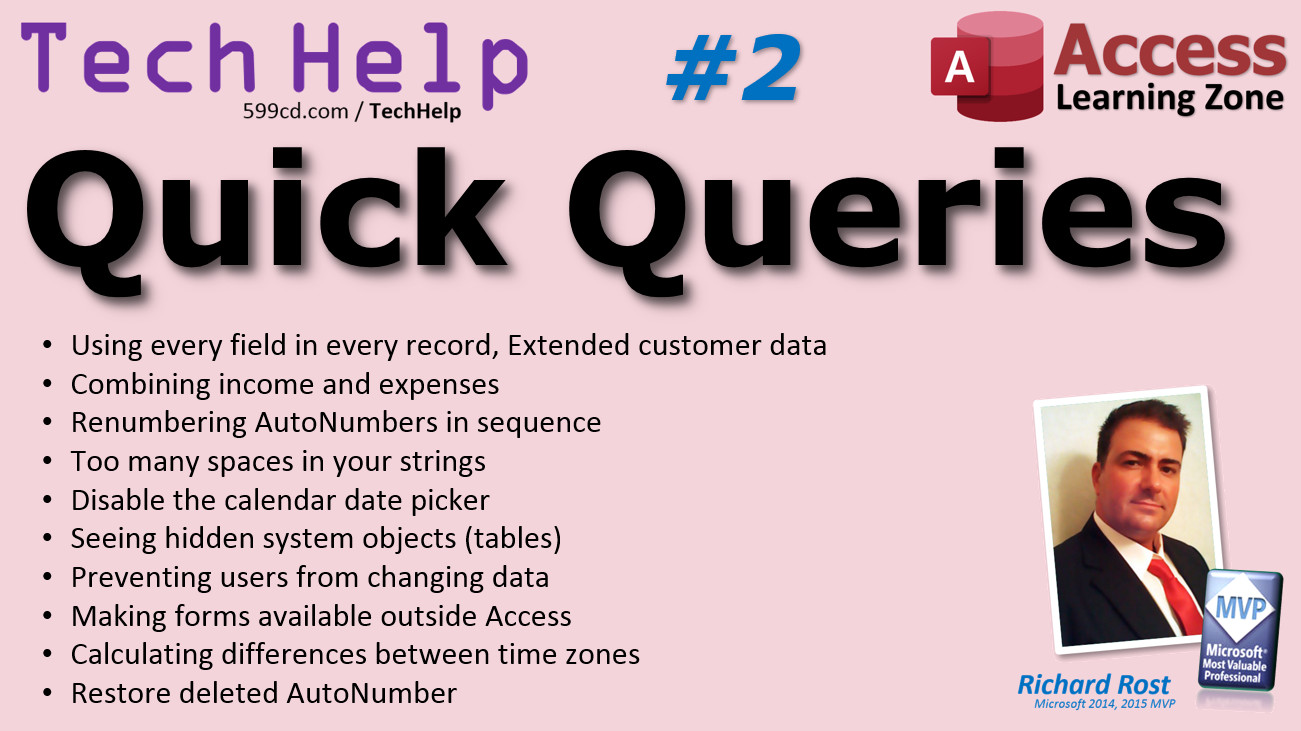
Quick Queries #2By Richard Rost
 5 years ago
Quick Queries #2 - Renumbering AutoNumbers, More Welcome to another Quick Queries video brought to you by Access Learning Zone. I am your instructor, Richard Rost. Quick Queries videos are designed to let me answer as many of your questions as possible! In today's video...
QueriesQQ: If I want to compare transistors with their "voltage' rating and "current" draw, etc... Caps have voltage rating and a capacitance. -Cliff from Georgia QQ: I have two tables of data, one is for income data and the other is for expenses. -Ashfaq from Pakistan QQ: When you delete records from a database, the primary key (ID field in my case) which is set to "Autonumber" loses its sequence. -Dwight from SC QQ: I am trying to see if I can make your search into a Function and need a little help with the quotes. I have studied but not mastered the double double quotes. here is the code and line where I need help -John from NH QQ: How can I make the automatic calendar (which comes in a date-time field) invisible that the user could not change and see the calendar -Abraham from Austria QQ: The following three tables are in my Relationships window: MSysNavPaneGroupCategories, MSynNavPaneGroups, and MSysNavPaneGroupToObjects. What are they? Can I hide or delete them? Thanks. -Larry from Texas QQ: Hi, how can you prevent the date and time(s) from being changed when the employee(s) press the button(s) twice or more? -Juggler Villa from YouTube QQ: Is there any way to make the forms available outside of Access? Perhaps hosted on a website or something? -dansgoingcrazy from YouTube QQ: How do I figure the time difference of Pacific time vs Eastern time in real numbers -Michael on YouTube QQ: I use cascade updates because if an employee has a name change it will update that info in all the records they have generated. (I never use cascade delete.) Why did we delete "8" as the next Autonumber when we fixed the database? -Maggie from PA
Previous Quick Queries
Links
Keywordsmicrosoft access, ms access, #msaccess, #microsoftaccess, #help, #howto, #tutorial, #instruction, #learn, #lesson, #training, #database, quick queries, extended info, outer join, union query, income and expenses, resequencing autonumbers, reindex, sequential counter, hide date picker, lock fields, hidden system objects, MSysNavPaneGroupCategories, MSynNavPaneGroups, MSysNavPaneGroupToObjects, access on the web, utc time, different time zones, delete autonumbers
More InformationTranscriptWelcome to another TechHelp video brought to you by AccessLearningZone.com. I am your instructor, Richard Rost. Welcome to Quick Queries number two. I started earlier this week with the first ever Quick Queries, and the point was I get tons and tons, sometimes hundreds of questions a week, and I don't have time to answer them all personally. I also don't have time to make them all into full-fledged TechHelp videos, but I still want to be able to help as many people as possible. I got a lot of great feedback, comments, and a lot of additional emails. I guess I made the problem even worse for myself, but lots of good stuff came in for you all, and I'm glad you enjoyed number one. This format is obviously a lot easier for me to just read your questions and some answers right into a video than it is to actually show you things on the screen. I love doing that too, but at least this way it gives me a chance to help you, and hopefully help a lot of other people, because I keep seeing the same questions over and over again. Like today, about auto numbers, which we are going to talk about twice. I get the same dozen questions about auto numbers every week, so now I've got a video I can point you to. Let's get started. First up, we have a follow-up question from Quick Queries number one. Cliff from the US said that the database he's building has a bunch of different types of components: transistors, resistors, capacitors, and so on. He says should I make a separate table for each one of them, and I said no, unless you've got items that are completely different from each other. Then put them all in the same table and just make a category field. I covered this in my Access Expert 1 class. Cliff came back with a follow-up. He says, as a matter of speaking, they all have differences. If I want to compare transistors with their voltage rating and current draw, etc., capacitors have a voltage rating and a capacitance, and I get that. I understand that you might have products, if you're just selling normal products off the shelf. Hard drives have a capacity, memory has a different kind of capacity, motherboards have a clock speed. It's okay if you don't use every field for every record. So if you want to store capacitance and voltage draw or whatever, that's okay. Make multiple fields. For example, with people, you might have employees, vendors, and customers, and they're all stored in the same person table. They're all basically the same kind of entity. You wouldn't have a social security number for customers or vendors generally; most businesses don't collect that kind of information. But you would have it for your employees, so your employees will have social security numbers filled in. Unless you're talking about a ton of very specific fields, I wouldn't worry about it. But ultimately, the choice is up to you. You're not going to waste a lot of space in your database if you have a lot of fields that aren't being filled in. That's okay. In the old days, in old, old versions of Access, the more space that you reserved for empty fields, it would waste space in your database. They got rid of that problem. That's no longer a problem. Modern databases will not take up space if you don't put any data in those fields. Obviously, you've got a max of 255 fields. You should never have a table with more than a hundred fields; that's going kind of crazy. But if you're just talking about a few or maybe a dozen extra fields that only certain products get, I wouldn't worry about it at all. However, if you do have data that you rarely collect, I show you how to create what's called a customer extended info table in my Access Expert 4 class. What that basically is, it's a second table with questions that you only get answers for from maybe a small percentage of your customers. Maybe things like shoe size, favorite sports team, whatever, and even in my ABCD database, I show you how to create what's called a helper table for that stuff. But customer extended info - you might have 50,000 customers and maybe only have extended info for a hundred of them. So, you just put those records in a separate table and link them together with CustomerID. Then you don't waste any space in your database and you can keep the number of fields down in your primary customer table. You create a one-to-one relationship between customers and the customer extended info. That's covered in Access Expert 4. That should answer your question, Cliff. Next up, and I hope I'm pronouncing this right, Ashback from Pakistan says, I have two tables of data. One is for income, the other is for expenses. I've used an outer join to combine both tables' data, and use the total query to group data by last date of the month and by vehicle name in the vehicle table. I cut that off in the question. It's working fine, but if there are expenses in some months with income, then it works fine. If there's no expenses but there's income, then it doesn't show the data. The problem is that you've got an outer join, which you said you set up. If you aren't familiar with outer joins, I've got a video on that. I'll put a link down below. Outer joins only work in one direction. An outer join says, let's say you've got income on one side, expenses on the other. If you outer join left to right, then you'll see all of your income and expenses where they match. But if you've got expenses on the right and there is no matching income on the left, you won't see those records. That's not a great solution. What I suggest is, use one table. Use two fields: income and expenses. Or you could even have one field, call it Amount, and make it positive for income, negative for expenses. Either way, I go with the two-field solution: income in one, expenses in the other. You don't really need to have two tables. You're tracking the same stuff, just like the last question. It's all the same part, just slightly different. You've got the same thing: it's a currency transaction, either income or expenses. That's how I would set it up. I don't use two tables, one for income, one for expenses. You're making your job a lot harder. However, and by the way, there is no way to do a double outer join. You can't say, show me both of them. There is something you could do called a Cartesian product, but that mixes everybody on the left with everybody on the right. That's not what you want. If you want to keep your two-table solution, you do need to set up what's called a union query. You could join the tables together, bring them all into one query set, and then you could do calculations that way. That's a lot more difficult. I cover union queries in Access Expert 16. Personally, I would put it all together in one table. That's just how I would set it up. I wouldn't waste time with two tables. Dwight from South Carolina: When you delete records from a database, the primary key ID field, in my case which is set to auto number, loses its sequence. I'm going to stop you right there. I tell this to a lot of people all the time: auto numbers are for Access. They're not for you. You should not care what your auto numbers are at all. It shouldn't matter if it's 6 or 60,422. Those auto numbers are for Access use internally only. I should make a slide up just for this. I don't know how many people I have to tell this to every week. Don't worry about what the auto number is. It could be a random number. Doesn't matter. Those auto numbers are only used for making relationships between your tables. So, if you've got customer 6 and he's got 10 orders, each one of those orders says customer 6 in it so you can link it back. Dwight says he wants to re-index the database when he deletes records, for example. No, don't worry about the IDs. Auto numbers are just for Access to make relationships and make sure every record has a unique identifier. They're not for you. They're not to be human-read. If you want a sequential counter, use your own custom field, and I show you that. There's a link right there to a video. My counter video. It'll start at 1 and count up if you want to make it so that your customers are in order. That's fine. Of course, that brings up what's called the German Tank Problem. If you're not sure what the German Tank Problem is, I have a video on that too. Go watch that. It's a good one. Basically, the German Tank Problem is that in World War II, the Allies would capture German tanks, and because of the serial numbers that they would locate on the tank parts, they could tell how many tanks the Germans actually had. Their intelligence was being fed misinformation - they only got 30,000 tanks. No. Based on the serial numbers that they collected, they only had a couple thousand. Now, how does that relate to a database? Well, if you have a customer who knows he's customer 14, he knows you only got 13 other customers before him. So, you don't want to let your customers see your auto numbers, nor do you care about what they are internally, either. They're just for Access. Next up is John from New Hampshire. So, I'm trying to see if I can make your search into a function and help with quotes. I have studied it but not mastered the double double quotes problem. Here's the code in the line where I need help. Anybody see it? Take a peek - take a look at that real quick. The problem isn't the double double quotes. John actually got the double double quotes right. There's a double double quote right there, and there's another one right there, and he got those in there perfectly. Let's go to my solution here. The problem is you have too many spaces. You can't have any spaces between the asterisks and the actual text. Here's what you got: double, double quote, and then there's a space, then an asterisk, then another space, then the S, which is going to be what's typed in. That should be just this: no space there after the double double quotes, got to be right up against that asterisk. Same thing after the asterisk, no space in there. You don't want this—you want this. See, no space, no space. You even got two spaces here. That space is fine because you got "first name," space, "like," space. This space here isn't even going to kill you. It's this one that's causing it not to work. You got a space after the asterisk. That should fix it. So, that's all right. I want you to throw the quotes in there, and then it ends up looking like this. Now, this actually technically is a valid statement. This will work, but it will only show you records where you've got "space Richard space" inside there. So, if you're searching for, say, part of a state, for example, if you're looking for New York, New Jersey, New Hampshire, whatever. This space in there says it's got to start with a space, then the word new, or at least have a space, new, space in there. So that won't work. You're missing that space in all your records. Got it. Abraham from Austria: How can I make the automatic calendar which comes in a date time field invisible so that the user cannot change and see the calendar? I think you're talking about the little date picker pop-up that shows up when you have a date time field. Open the properties for the text box in Design View. Go to the Format tab and set the Show Date Picker property to Never. That way, when they click on the field, they won't see the little calendar pop-up. If you don't want them to edit that field at all, set the Locked property in the Data tab to True. That locks the field and they can't make a change. I covered the Show Date Picker in my Access Beginner 4 and the Locked property is covered in Expert 4. Larry from Texas: The following three tables are in my relationships window, MSS, now pain group categories, and a couple other ones. What are they? Can I delete them? Those are system tables that should be hidden. If they're in your relationships window, you can delete any table that you want from the relationships window and not worry about it being deleted. That's just a display of the tables that have relationships. Go ahead and delete those if you want to; those are hidden system tables that you shouldn't see. The only way you can see them is if you turn on Show Hidden Objects and Show System Objects. In fact, there's usually a bunch more than that. So, on your navigation pane, anywhere in a blank spot on the navigation pane, right-click. Go to Navigation Options and then under Display Options, uncheck Show Hidden Objects and Show System Objects, and those should all go away. There's a whole bunch of hidden tables that Access uses to keep track of various stuff. I covered this actually in my Simple Security video. There's a link. Juggler Vila from YouTube. I hate when I don't get locations. It's just a YouTube username, but I still want to include your comments. So, if you want me to mention your real name and where you're from, make sure you put that in your question. Otherwise, I'll use your name on YouTube. How can I prevent the date and times from being changed when employees press the buttons, possibly multiple times? Is it possible that no matter how many times they press those buttons, the time won't change since it was pressed the first time, when he or she clocked in? I'm assuming that you're using a button to click, on like a time clock form and have the date set. If you're already using a button, you can put some code in the button that says if there's already a start time, don't let them save another start time. So in your button, the first thing I'd say is: If Not IsNull(StartTime) Then Exit Sub If there's already a start time, exit out; don't let them do that. If you're doing it in a double-click event or a before update event, same thing—check to see if StartTime is null. Just put it in your code: if StartTime isn't null, exit out. There are a million ways to check everything in Access, and I cover some options in my time clock video. There's a link; I show how to properly keep a time clock. Here's another question I get at least a couple times a week: Is there any way to make the forms available outside of Access, perhaps hosted on a website or something? I want to have multiple people be able to enter order info and print invoices at the same time from Dan's Going Crazy on YouTube. The basic answer is no, not with just Access by itself. Microsoft Access is a desktop database program. It is the best desktop database program on the planet. I heard there's a better one on Mars, but I haven't been there. Access is by far the best. As you can tell, it's my thing. It's what I do. I love it. There's a reason why I love it so much: it's the best. There are database servers that are more powerful, yes, but Access is not a database server. It's a database front-end platform. Its functionality is limited to your computer. It doesn't have online web page features. They tried making something called Access data access pages, which was a way to kind of make web pages - but that didn't work. It was junk. They got rid of it. It's no longer in Access. In fact, that led to some of the false rumors that Access was going away. No, not Access itself. Microsoft is very adamant about saying that Microsoft Access as the desktop platform is not going anywhere. I'll put a link to a whole hour-long video that I made about this subject. If you want to put your Access data online, go to this page here: AC on Web. I wrote up a whole bunch of stuff if you want to put your Access data online, what you can do. I've got other courses; there are a lot of options. I just updated it two months ago. First, you can use an Access frontend with a hosted server backend if you're using a computer. If all the people working with your database have PCs, you can host your data on a backend either on SharePoint (I've got a SharePoint seminar where I walk you through it step-by-step, setting up your tables on SharePoint); you then give them a copy of your front-end database. They don't even have to pay for Access, they can use the free runtime edition. I've got videos on the runtime too. It costs ten bucks a month for an SQL Server. You can either use SharePoint or SQL Server, which I'm going to have a separate seminar coming up on SQL Server, and that's like ten bucks a month to have it hosted with a web page. Second option: Virtual PC remote access. You can use something like Amazon Workspaces. This will work over a phone, too. A virtual PC looks like a PC but it runs in your browser or it runs in a separate app. Amazon's got a great app for Android and iOS. All you have to do is format your forms and your pages so they look like they fit on a phone, then you can just load up the Amazon Workspaces app and do that. Third option: build a website. My website is based on ASP, and it used to have an Access database powering it, but now I've upgraded it to SQL Server, same kind of way. This is the best option if you need public use. If you want your data being out there for the public, if it's just a small team then SharePoint or a similar solution works just fine. Here are my recommendations. If your users have PCs with Access and you want the full complete capabilities of Access Desktop, then go with option one. If your users want to have remote connectivity via a web browser, tablet, or phone, go with option two. I'm going to be putting together a video on how to do this, too. If your database needs full-scale public access, go with option three. So, come here and read this; it's all on this page. I'm asked this at least a couple times a month: How can I take my Access database and put it online? There's no real easy simple solution, but there are different solutions available depending on what kind of access you want them to have and how much time and investment you want to put into setting it up. Michael on YouTube - and there was a last name on there, but I'm never going to put someone's last name in a video unless they give me permission to do so. So it's just Michael. Michael says, How do I figure out the time difference between Pacific and Eastern time in real numbers? I have 8:30 and 5:30 p.m.; the result should be plus three because East Coast is three hours ahead and so on. If all you want to do is figure out the difference between two times in hours, use the DateDiff function. I've got a whole video on that. You can use it to figure out the difference in months, weeks, quarters, years, hours, minutes, seconds, whatever. That's the easy part. The part I recommend, however, is if you are dealing with times around the world, I suggest you store your times in UTC time. Universal Time Coordinated is what it stands for. It used to be called Greenwich Mean Time; it still is. It's much easier to perform calculations between time zones. Otherwise, you have to store the time and the time zone. So, if you want to figure out the difference between 5:30 p.m. in California and 6:30 a.m. in Bangkok, you have to know the time zones too, so you can do the math. Plus, then you have to worry about whether that location is on standard time or daylight savings time. It becomes a pain. If you store everything in UTC time, you don't have to worry about time zones. You don't have to worry about daylight saving or any of that stuff. There's an API you can use that's free and online. I show you that in my UTC video: how you can have everybody's computer go out to the web and grab the current UTC time. So, use that if you're dealing with any kind of times across time zones or dealing with daylight saving (which is a pain; we just switched here in Florida). I hate it. They need to get rid of it. Pick one, either standard time or leave us in daylight saving time year-round. I don't like the switch; my alarm clock in my bedroom is still an hour behind, so's my car, so's whatever else is not automatic. My phone and my computer are good, but they switch automatically. Last one: Maggie from PA, thank you for all your help with the Access TechHelp videos. They are great and appreciated. You are very welcome. I enjoy doing these. Two questions on the extended cut video for the restore auto numbers from deleted records: 1. I use cascade updates because if an employee has a name change, it will update that info in all the records they have generated. I never use cascade delete. 2. Why do we delete eight as the next auto number when we fix the database? Wouldn't you want to use that number eight again and not lose it? Maggie, I want to refer you to Dwight and send you over to South Carolina. Remember, auto numbers are not for you. They're for Access. You shouldn't worry about what those auto numbers are. Don't worry if it's eight or eighteen or eight thousand. It could be random. Don't worry about it. So, I'm answering number two first, no reason; I just want to delete eight, delete eight, get rid of it. Who cares? You're not going to run out of them. One of the points of that video is that auto numbers are meaningless to you; only Access should care about them. Don't worry about the auto numbers. Now, number one, going back to cascade updates. Cascade updates are generally meaningless because the employee's name should only be stored in the employee table. You shouldn't have it in any other tables. You should be using auto numbers to make your relationships. The only way that you'd want to cascade update is if you want to change their name in another table, but the only reason you'd want to keep the name in another table in the first place is if you're tracking their history. You want to keep a history of their name changes; then sure, store it in a history table. But don't put their employee name in their time clock table; just store their EmployeeID. Think of it like customers and orders: the only reason you'd want to copy the customer's address from their customer record to their order record is because you want to know where that order was shipped to. So you can tell, okay, back in December we shipped this order to this address even if the address changes in the customer's table. You don't want it changing the address in the order table. That is what a cascade update is for - it's almost never used. I've never needed to use it in 30 years of working with Access. Cascade updates are meaningless; they're totally useless. Only if you're using what's called a natural key, something like a social security number as a natural key, it's a number you get from something in the real world, not generated by the database. If it changes in the primary table, you might want to cascade update that to the secondary tables, the child tables. But don't use those natural numbers as key fields in your database, as indexes to make relationships with. Use auto numbers. Trust me. If you don't believe me, go watch my auto number video. I explain all the reasons why you want to use auto numbers for all of your relationships. So, you don't need cascade updates and you shouldn't care what the auto numbers are. Got it? Two rules - really just one rule. For everyone else, that's the video she's talking about, right down the Restore Auto Numbers. I do show you that there is sometimes a way where you will want to restore an auto number. I've had it happen. For example, let's say you've got customers and you've got orders. One of your users accidentally deletes customer six. It's gone, but you want to be able to restore it from your backup. Now, you could go through and add the customer new. He'll get assigned the next new auto number, but now you've got to go through and re-link all of his orders, all of his contacts, all of his quotes, everything that's associated with him, or you could just stick that auto number back in the table. It is possible. You can do it with an append query, and I show you the trick there - how to restore that auto number. All auto numbers on the end of the table you can restore if you compact and repair it. If you delete, like she says here, we had seven records, I added an eighth, deleted it right away, and then the next record will be nine. If I would have compacted the database after deleting eight, eight would get reassigned. That's just how it works. But should you care? No. Do I want to reuse it and not lose it? No, I don't care. It could be eight, it could jump to eight thousand, doesn't matter. I'm not using those for anything; those are used internally for Access. So, no more questions about auto numbers in the near future when it comes to reusing them or getting them back or sequencing them or any of that stuff. That's it for TechHelp Quick Queries number two. Someone asked me if Quick Queries is a play on Cosmic Queries. I'm a big fan of Neil deGrasse Tyson. I love him, one of my favorite science communicators. I watch his Star Talk series all the time, and he's got a segment he does called Cosmic Queries, and I thought that sounds kind of cool. So, Quick Queries. And queries is actually a play on a database term because there are queries in Access. That's my little story for the end of the video. If you like these Quick Queries, I can answer more questions more often in this format. It's a lot easier doing this, because if I would have answered each of those in a full TechHelp video, that would have taken me, what - one, two, three, four, five, six, seven, eight, nine, ten - at least a couple weeks. I try to do a TechHelp video every other day at least, so right there, that's two to three weeks for the questions right there. I can crank these out – that was a half an hour – and especially if I've already got other videos where I explain this stuff. All of this stuff that I talked about is pretty much explained in another video or at least on a page of my website. If it's new stuff, stuff I haven't covered, I'm more likely to put it inside its own video. If you like this, if you want to see more, I need thumbs-ups and I need comments. If you're watching on my website, comment on my website. If you're watching on YouTube, comment there and let me know you want to see more. The more comments I get, the more of these I'll make. We'll see you next time. IntroIn this video, we'll tackle a variety of your most common Microsoft Access questions in our second Quick Queries session. Topics covered include how to structure tables when dealing with similar yet distinct data types, best practices for handling auto numbers and primary keys, working with outer joins and union queries for income and expenses, managing the date picker in forms, handling hidden system tables, preventing duplicate time entries in time clocks, options for sharing Access data online, calculating time differences across time zones, and understanding cascade updates. I'll share practical advice and straightforward answers to issues Access users frequently face. QuizQ1. What is the main purpose of Quick Queries as described by the instructor? A. To answer selected frequently asked questions in a faster, simpler video format B. To present detailed step-by-step demonstrations for each question C. To replace regular TechHelp videos entirely D. To answer only advanced database administrator questions Q2. When should you create separate tables for different product types like transistors, resistors, and capacitors? A. When each type has only one or two unique fields B. Only if the items are completely different from each other in structure C. Always, regardless of similarity D. When you want to categorize items visually Q3. In modern versions of Access, what happens if you leave many fields empty in your table records? A. It wastes a large amount of storage space B. Access database size increases rapidly C. No extra space is taken unless data is entered in the field D. The database becomes unstable Q4. What is the purpose of a customer extended info table as mentioned in the video? A. To store backup copies of the main customer table B. To store rarely collected, optional data linked to a main record C. To list all customers alphabetically D. To store deleted customer records Q5. What should you do if you have both income and expense data? A. Use two separate tables and outer joins B. Use a single table with an "income" and an "expenses" field C. Always use a Cartesian product to combine data D. Create several tables for each transaction type Q6. Why is using auto numbers for primary keys advised, and what should their values mean to you? A. They are meant to be meaningful to users B. They should always be sequential and reused C. They are for Access to maintain relationships; their actual values should not concern users D. They should be disclosed to customers Q7. If you need a user-visible sequential counter in Access, what should you use? A. AutoNumber field B. Custom counter logic/field C. System table key D. Random number generator Q8. What is the "German Tank Problem" in the context of database design? A. A method for encrypting key fields B. Using serial numbers to estimate production quantities C. A way to randomly assign primary keys D. It refers to storing tank data in Access databases Q9. How can you make the Access date picker/calendar invisible for a date/time field in a form? A. Delete the field B. Set Show Date Picker property to Never in the properties window C. Change the field data type to text D. Use a blank default value Q10. What does removing a system table from the Relationships window in Access do? A. Deletes the table from the database B. Hides the table permanently C. Removes it only from the display, not from the database D. Converts it to a user table Q11. How can you prevent employees from recording multiple clock-in times by pressing a button multiple times? A. Limit button uses by user account B. Use code to check if StartTime is not null and exit the procedure if so C. Hide the button after each use D. Require a supervisor's password for every use Q12. Is Microsoft Access designed for multi-user online web access directly? A. Yes, it is a native web server platform B. Only in the latest version C. No, it is a desktop database program D. Only if you use Access data access pages Q13. What is NOT one of the suggested methods to provide remote database access to an Access database? A. Using Access frontend with hosted backend via SharePoint or SQL Server B. Virtual PC remote access like Amazon Workspaces C. Using Access data access pages (DAPs) D. Building a custom web-based system (like ASP and SQL Server) Q14. What is a recommended best practice when storing and working with times from users in multiple world time zones? A. Store all times only in local time B. Only store time zones as text fields C. Store all times in UTC (Universal Time Coordinated) D. Ignore time zones and only use the system's current time Q15. What is the role of cascade updates in Access relationships, and should you use them for employee name changes? A. Essential for updating all employee data in related tables B. Generally useless unless using natural keys like SSNs C. Always required for relational integrity D. Automatically triggers security alerts Q16. If an auto number value gets deleted and not reused after compacting and repairing the database, should you worry? A. Yes, always restore deleted auto numbers B. Only if the value is less than 50 C. No, auto numbers are internal and should not be relied on for meaning D. Yes, as numbers must be sequential Q17. When would you use a UNION query in Access? A. To combine two tables with identical structure into a single result set B. To join unrelated fields together C. To increase form performance D. To automatically generate unique keys Q18. Why should you avoid relying on cascade updates for synchronizing name or address changes across different tables? A. Because cascade updates always slow down the database B. Because name/address should only be stored in one table and linked via keys C. Because Access cannot process cascade updates D. Because it increases the auto number field limit Answers: 1-A; 2-B; 3-C; 4-B; 5-B; 6-C; 7-B; 8-B; 9-B; 10-C; 11-B; 12-C; 13-C; 14-C; 15-B; 16-C; 17-A; 18-B DISCLAIMER: Quiz questions are AI generated. If you find any that are wrong, don't make sense, or aren't related to the video topic at hand, then please post a comment and let me know. Thanks. SummaryIn today's Quick Queries video from Access Learning Zone, I am answering a new round of common questions that I receive each week from students and viewers. Since I get far more questions than I can possibly answer one by one or turn into full TechHelp videos, this format lets me address many of the most frequent topics quickly so you can get the help you need. To start off, I revisited a follow-up question from Cliff, who asked about organizing a database containing different types of electronic components: transistors, resistors, capacitors, and so on. Cliff wondered if he needed to set up a separate table for each type of component. My recommendation is generally to keep similar items in one table with a category field, unless those items have extremely different attributes that cannot be managed in a single structure. For example, with products, you might not have every field filled out for each record, but that's fine in Access. The historical limitation where empty fields wasted storage space is no longer an issue in modern databases. As long as your table structure does not approach the 255-field maximum (which it really should not), having extra fields that only apply to certain products is not a problem. If you find there are some bits of information you collect rarely, for just a small subset of your records, you can store those in a related, secondary "extended info" table tied to your main table through a one-to-one relationship. This is an approach I show in my Access Expert 4 class with the example of customer extended info, and also in my ABCD database where helper tables store supplemental details. This keeps your main table tidy and avoids unnecessary empty fields. Next, Ashback from Pakistan described a scenario where income and expense tables are joined using an outer join, grouped by month and vehicle name. The problem is that when a month contains income but no expenses, the results do not appear as expected. Outer joins in Access only work one way: they show all records from the "left" table and matches from the "right," but not vice versa. My advice here is to track both income and expenses in a single table, with separate fields for each or even a single field where income is positive and expenses negative. This approach avoids the headaches that come from trying to synchronize two separate but related sets of data. If you do need to keep separate tables for some reason, you would need to use a union query, which is more complex and something I explain further in my Access Expert 16 class. However, for almost all cases, using a unified structure makes things far simpler. Dwight from South Carolina asked about the auto number ID field losing its sequence when records are deleted. This leads me to reiterate an important rule: auto numbers are for Access. They are for internal use by the database to maintain relationships and uniqueness, not for you to track or present to your users. Do not worry about missing or non-sequential auto numbers. If you want your own readable, human-facing numbering system, create a custom field with your own numbering logic instead. There is a related issue known as the German Tank Problem, where visible sequential IDs can reveal sensitive information like your total customer count; this is another reason not to expose auto numbers directly. John from New Hampshire was struggling to format a search function that matches substrings within text, specifically with handling double double quotes and spaces. The real issue he was running into was not actually the double quotes, but extra spaces around the asterisks in his search pattern, which caused the search not to match intended records. When constructing search criteria with wildcards, make sure there are no spaces next to the wildcard characters so you get the match you expect. Abraham from Austria wanted to know how to hide the automatic date picker that appears for a date/time field. This is controlled in Access by the Show Date Picker property of the textbox: set it to Never under the Format tab in Design View and the calendar pop-up will no longer appear. If you want to prevent edits altogether, use the Locked property under the Data tab and set it to True. These settings are demonstrated in my Access Beginner 4 and Expert 4 classes. Larry from Texas asked why certain system tables appear in the relationships window and whether they can be deleted. System tables like MSS and others are hidden by default and are only visible if you've turned on Show Hidden or Show System Objects. You can remove them from the relationships window without actually deleting them from your database. To hide them entirely, right-click on a blank spot in the navigation pane, go to Navigation Options, and uncheck the options for hidden and system objects. I discuss this further in my Simple Security video. A YouTube commenter, Juggler Vila, asked how to prevent employees from overwriting a date or time field by pressing a button multiple times, such as when clocking in and out. In your button's code, simply check if the field has already been set before allowing an update. If a value is already there, exit the subroutine and prevent a second overwrite. There are various ways to implement this, depending on your event setup, and I demonstrate these techniques in my time clock video. Another frequent question I receive pertains to making Access forms available on the web so multiple users can enter data and print invoices online. Microsoft's Access is a desktop database. While it's extremely powerful in that realm, it does not natively support web forms for multi-user online data entry. There are some options, such as using Access as a frontend with a backend hosted on SharePoint or SQL Server, which allows sharing the data among multiple PC users. Alternatively, you can use virtual desktops (such as Amazon Workspaces) to provide remote access from various devices, or go the route of developing a custom website connected to an SQL Server database. Each option comes with its own setup process and caveats, and I detail these approaches in guides and seminars available on my website. Michael, another YouTube viewer, asked how to calculate time differences between time zones like Pacific and Eastern Time in a numeric format. The DateDiff function in Access can handle this if you want to simply find the difference in hours or minutes between two times. However, when working across time zones, especially with daylight saving changes, I strongly suggest storing all times in UTC and converting to local time only when displaying the data. This avoids all the confusion and errors that come with international time calculations. There are online APIs and methods for retrieving current UTC time, and I cover these in my UTC video. Finally, Maggie asked two follow-up questions regarding auto numbers and cascade updates from a video about restoring auto numbers from deleted records. First, she wanted clarification on the use of cascade updates for situations where an employee's name changes and the impact on related records, and second, she wondered why one would simply delete the next auto number after removing a record rather than trying to reuse it. Again, I want to stress that you do not need to worry about "losing" or "reusing" auto numbers. They are designed to be unique internal IDs, not for you to track or recycle. As for cascade updates, they are generally unnecessary in a properly designed relational database, because attribute information like an employee name should only reside in one place, the primary employee table. The only reason to duplicate such data is to preserve historical snapshots, like shipping addresses at the time of an order. Cascade updates are almost never needed, and I do not use them in practice, nor do I recommend them except in rare cases involving natural key fields, which you should avoid for relationships anyway. If viewers are interested in more videos like these Quick Queries, let me know by leaving comments and feedback. This lets me know there is demand for more frequent rapid-fire Q&A videos which allow me to help more people in less time, pointing you to full-length TechHelp videos for deeper dives on each topic where needed. You can find a complete video tutorial with step-by-step instructions on everything discussed here on my website at the link below. Live long and prosper, my friends. Topic ListStoring different product types in a single table vs multiple tables Handling fields specific to certain product categories Modern database storage efficiency for unused fields Creating a customer extended info table for rarely used data Establishing one-to-one relationships for extended information Combining income and expenses tables into one table Issues with outer joins in Access queries Alternatives to double outer join in Access Using union queries to combine data from two tables Understanding and using Access auto numbers Reindexing concerns with deleted records and auto numbers Creating custom sequential counters in Access Implications of exposing auto numbers to end users Correct use of double double quotes in query code Troubleshooting LIKE expressions with asterisks and spaces Making the date picker invisible on date fields Setting Locked property to prevent field edits Identifying and hiding system tables in the relationships window Changing Navigation Options to hide hidden/system objects Preventing multiple clock-ins from overwriting start time Checking for null values before updating time fields Options for making Access forms available outside Access Using SharePoint or SQL Server as a backend for Access Remote PC and virtual desktop options for Access databases Building a website to utilize Access or SQL Server data Choosing database deployment options based on user needs Using the DateDiff function to calculate time differences Storing times in UTC for easier time zone calculations Utilizing online APIs for current UTC time in Access Understanding cascade updates and when to use them Advantages of using auto numbers vs natural keys Restoring deleted auto numbers using append queries Behavior of compact and repair with auto numbers in Access Primary TopicsAccess table design, field organization, handling auto numbers, outer joins vs union queries, system tables, locking date fields, time stamps behavior, web deployment of Access, time zone calculation, cascade updates, restoring auto numbers Secondary Topicshelper tables, customer extended info, data normalization, form properties, virtual PCs, SharePoint, SQL Server, DateDiff, UTC time, Access limitations, user permissions |
||||||||||||||||||||
|
| |||
| Keywords: TechHelp Access quick queries, qq, quick queries, extended info, outer join, union query, income and expenses, resequencing autonumbers, reindex, sequential counter, hide date picker, hidden system objects, MSysNavPaneGroupCategories, MSynNavPane PermaLink Quick Queries #2 in Microsoft Access |