|
||||||
Access Advanced 3Control Properties, Field Locking, MacrosWelcome to Access Advanced 3. In this course you will learn how to use macros to enhance your Access database by controlling and modifying forms and their objects. We will discuss changing control properties such as foreground and background colors, making fields grow or shrink on focus, and setting properties like visibility, height, and width. You will see how to lock certain fields and require a password to unmark orders as paid, giving you better control and security over your forms. Lessons
Resources
Lesson SummaryWelcome! Form Controls, Locking, Macros - Welcome to Microsoft Access Advanced Level 3. In this course we will focus on using macros to add more functionality to your Access database, particularly for controlling and modifying forms and their objects. We will talk about changing control properties, like foreground and background colors, making fields grow or shrink on focus, and setting visibility, height, and width. We will also discuss how to lock certain fields and require a password to mark orders unpaid. This course builds on the material covered in the previous beginner, expert, and advanced series lessons.
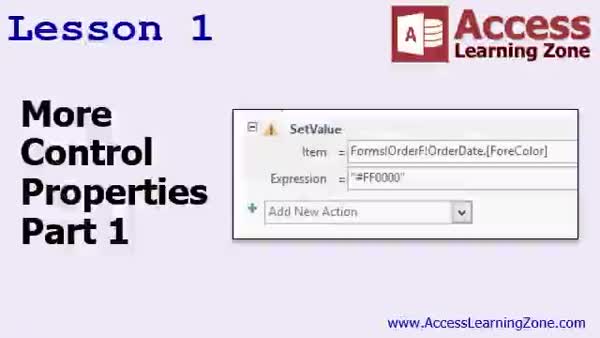
Lesson 1: Change ForeColor & BackColor - In Lesson 1, we begin exploring more control properties in Access by learning how to use macros to change properties such as ForeColor, BackColor, and font size for form controls like text boxes. We will walk through how to use functions like RGB and Val to set colors programmatically, discuss the difference between theme and standard colors, and show how to retrieve and use Access's color codes. We'll also talk about working with toggle buttons and other common properties you can manipulate with macros.
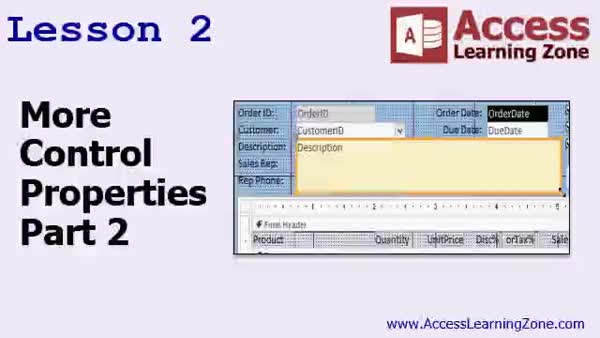
Lesson 2: Fonts, Field Size, Colors, Props - In Lesson 2, we continue exploring more control properties by working with the visible, height, and width properties, and using the On Got Focus and On Lost Focus events to change control sizes dynamically, such as expanding a field when selected and shrinking it when focus is lost. We will also discuss changing the background color of a form, how to set and test font names, and how Access handles measurement values like twips. Additionally, we will cover discovering numeric values for properties like Back Style and Border Style, and briefly discuss manipulating control position and scroll bar settings.
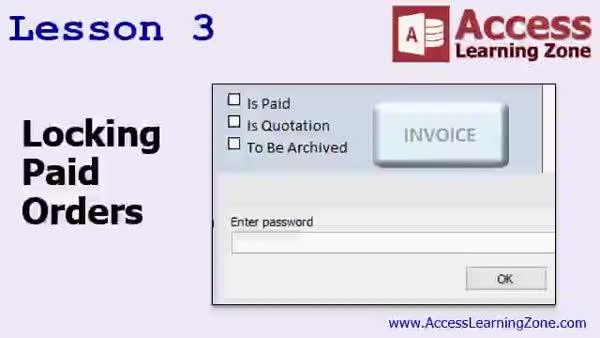
Lesson 3: Lock Paid Orders with Password - In Lesson 3, we will learn how to lock paid orders in Access by disabling or locking certain form fields when an order is marked as paid. I will show you how to set up macros to manage field locking using Enabled and Locked properties, tie the locking logic to the Paid checkbox, and require a password before an order can be marked as unpaid. We will walk through identifying which fields should be restricted, implementing the password prompt using SetTempVar and InputBox, and canceling the update if the password is incorrect. We will also discuss some differences between Macros and VBA for this process.
Lesson 4: Adv Level 3: Review & Preview - In this course we learned advanced topics in Access, discussed upcoming courses in the series, and reviewed additional resources available on the website, such as advanced seminars, security seminars, and existing VBA programming lessons. I shared how future Access Advanced Level lessons may lead into developer and VBA training, talked about how to get help through tech support, forums, and the contact page, and explained licensing terms for using these lessons. I also encouraged submitting feedback through a survey page to help improve future content.
NavigationKeywordschange form control properties, macros, ForeColor, BackColor, font size, RGB colors, Val function, toggle buttons, visible property, field height, field width, Got Focus event, Lost Focus event, lock records, password prompt, SetTempVar
More InformationTranscriptWelcome to Microsoft Access Advanced Level 3, brought to you by AccessLearningZone.com. I am your instructor, Richard Rost. This is the third lesson in the Advanced Series that focuses mostly on macros. Macros allow us to add functionality to our database that you normally would not have otherwise. You can use macros or you can use Visual Basic programming. Today we are going to learn how to control more of the forms and objects on our forms with our macro code. We will also learn how to lock certain things on our forms and require a password, for example, if someone is going to mark an order unpaid. I strongly recommend that you take Access Advanced Level 2 before this class, and Level 1 as well, especially if you have never used macros before. Also, my entire Beginner and Expert Level series all build up to this. The database that we have in today's class has been building since Beginner Level 1. If you do not know anything about forms, reports, and all that good stuff, then you may want to look at the Beginner and Expert series first. There are 9 Beginner lessons, 32 Expert lessons, and this is the third Advanced class. There will be Developer lessons after this that will cover Visual Basic programming and other things developers have to know, like how to secure and distribute your database. This class was recorded using Microsoft Access 2016. Everything covered today should work with 2007 and 2013 as well. If you find something that does not, please let me know. The sample database for this class can be found at AccessLearningZone.com/databases. Now let's take a preview of what we are going to cover in today's class. In Lesson 1, we are going to start learning how to change control properties using our macros. For example, we will learn how to change the foreground and background color of different controls on a form when certain events happen. In Lesson 2, we will continue with more control properties as we learn about the Visible, Height, and Width properties. We will also look at On Got Focus, On Lost Focus, and changing the background color of a form. One of my favorite things is making a particular field get larger when you click on it. The Description field, for example. When we click on it, I want to blow it up so I have lots of room to view or type in that field. Then, when I leave it, when I tab off or click off it, I want it to get smaller again. That is what we will do in this lesson. In Lesson 3, we are going to learn how to lock paid orders. If someone clicks on the Paid button, it will mark the order paid. But if they unclick it, they will have to enter a password. Only then, if the password is correct, will the order be marked unpaid. Thank you. IntroIn lesson 3 of the Microsoft Access Advanced series, we focus on using macros to control and customize form behavior in your database. You will learn how to modify control properties like colors, visibility, height, and width with macros, as well as how to use events such as On Got Focus and On Lost Focus to enhance your forms. The lesson also covers how to enlarge a field when selected and secure certain actions, like marking an order as unpaid, with password protection. This video is designed for users familiar with earlier Advanced, Expert, and Beginner lessons. QuizQ1. What is the main focus of Microsoft Access Advanced Level 3? A. Creating reports B. Learning about macros C. Importing data from Excel D. Writing SQL queries Q2. Why might you use macros in Microsoft Access? A. To create new databases B. To print out forms C. To add functionality beyond standard features D. To change the database format Q3. What is recommended before taking this Advanced Level 3 course? A. Learning only Beginner Level 1 B. Completing Access Advanced Level 2 and Level 1, plus Beginner and Expert series C. Having experience with Access for Mac D. Skipping directly to Developer lessons Q4. Which versions of Microsoft Access are covered by the lessons in this class? A. Only Access 2016 B. Only Access 2013 C. Access 2007, 2013, and 2016 D. Access 2003 and 2016 Q5. What will you learn to do with control properties in Lesson 1? A. Change field names automatically B. Change foreground and background colors based on events C. Encrypt database fields D. Summarize report data Q6. In Lesson 2, which of the following properties is NOT specifically mentioned as being covered? A. Visible B. Height C. Width D. Font Style Q7. What is an example of interactive control manipulation described in Lesson 2? A. Changing button shapes when clicked B. Enlarging a field when focused and shrinking it when unfocused C. Automatically deleting a field D. Adding new buttons to the form Q8. What security feature is implemented in Lesson 3? A. Password protecting the entire database B. Locking the database when an order is created C. Requiring a password to mark an order unpaid if it was previously marked paid D. Hiding all paid orders from users Answers: 1-B; 2-C; 3-B; 4-C; 5-B; 6-D; 7-B; 8-C DISCLAIMER: Quiz questions are AI generated. If you find any that are wrong, don't make sense, or aren't related to the video topic at hand, then please post a comment and let me know. Thanks. SummaryToday's video from Access Learning Zone is part of the Microsoft Access Advanced Level 3 series, which focuses primarily on enhancing your databases using macros. I am Richard Rost, your instructor for this course. This lesson builds on what we covered in the previous Advanced sessions, with an emphasis on how macros can provide additional features that you might not otherwise have. While it is possible to utilize Visual Basic programming to achieve similar outcomes, macros offer a straightforward way to control your forms and the objects on them. In this class, our main goal is to expand our ability to interact with form controls through macro code. One of the key topics is learning how to secure certain actions, such as requiring a password when someone attempts to mark an order as unpaid. We will explore various techniques for locking fields and controlling what users can do on your forms. If you are new to macros, I highly suggest you complete Access Advanced Level 1 and 2 before starting this class. It is also important to have a solid foundation with the Beginner and Expert series, as this database has been evolving since the very first Beginner lesson. If you are unfamiliar with forms, reports, and other fundamental concepts in Access, you will find those earlier lessons extremely helpful. The curriculum includes 9 Beginner, 32 Expert, and now three Advanced lessons. Moving forward, we will also offer Developer-level classes that cover Visual Basic programming as well as essential topics for developers, such as database security and distribution. Although this course was recorded with Access 2016, the material should also apply to Access 2007 and 2013. If you run into any incompatibilities, please get in touch. You can find the sample database used in today's session on the Access Learning Zone website under databases. Let me give you a brief overview of what we will be covering today. In Lesson 1, we will begin by learning how to use macros to change the properties of controls on your forms. For example, you will see how to use macros to alter the foreground and background colors of controls in response to different events. Lesson 2 continues the discussion with more control property adjustments. We will discuss properties like Visible, Height, and Width, as well as form events such as On Got Focus and On Lost Focus. I will also show you a handy trick for dynamically resizing the Description field when you click on it, giving you extra space to type, and then shrinking it back down when you click away. In Lesson 3, we will focus on locking paid orders. I will show you how to set up the Paid button so that marking an order as paid is simple, but removing payment status will prompt the user for a password. Only by entering the correct password will the order status be changed back to unpaid. You can find a complete video tutorial with step-by-step instructions on everything discussed here on my website at the link below. Live long and prosper, my friends. Topic ListChanging control properties with macros Changing control foreground and background colors Using the Visible property in macros Adjusting control Height and Width with macros Using On Got Focus and On Lost Focus events Dynamically resizing a field on focus Locking paid orders via macros Requiring a password to mark orders unpaid Primary Topicsmacros in Access, form control properties, changing control appearance, focus events, dynamic sizing, password protection, form security, marking orders paid/unpaid Secondary Topicsdatabase development workflow, version compatibility, lesson prerequisites |
||||||||||||||||||||||||||||||||||
|
| |||
| Keywords: change form control properties, macros, ForeColor, BackColor, font size, RGB colors, Val function, toggle buttons, visible property, field height, field width, Got Focus event, Lost Focus event, lock records, password prompt, SetTempVar PermaLink Microsoft Access Advanced 3 |